Turn off Acura ILX 2017 Workshop Manual
[x] Cancel search | Manufacturer: ACURA, Model Year: 2017, Model line: ILX, Model: Acura ILX 2017Pages: 521, PDF Size: 29.65 MB
Page 213 of 521
uuAudio System Basic Operation uPlaying SiriusXM ® Radio
212
Features
1. Select the SiriusXM® mode.
2 Audio Remote Controls P. 170
2 On Demand Multi-Use DisplayTM P. 194
2.Rotate to select a channel from a list, then press .
2. Select a channel using the , icons on the tune mode screen or the preset
numbers ( 1-12 ) on the preset mode screen.
To change the tune mode:
1. Press the MENU button.
2. Rotate to select Tune Mode, then press .
3. Rotate to select Channel Mode or Category Mode , then press .
1. Select More.
2. Select Tune Mode .
3. Select Channel Mode or Category Mode .
■To Play SiriusXM ® Radio1 Playing SiriusXM ® Radio
In the channel mode, all available channels are
selectable. In the categor y mode, you can select a
channel within a ca tegory (Jazz, Rock, Classical, etc.).
There may be instances when SiriusXM ® Radio does
not broadcast all the data fi elds (artist name, title).
This does not indicate a problem with your audio
system.
SiriusXM ® Radio stations load in ascending order,
which can take about a minute. Once they have
loaded you will be able to scroll up or down to make
your selections.
Tune Start:
When you change a channel, a song being played on
that channel restarts from the beginning with this
function. This can be turned on or off from the Play
Song from Beginning setting. 2 Customized Features
* P. 245
Interface Dial
On Demand Multi-Use DisplayTM
Interface Dial
On Demand Multi-Use DisplayTM
* Not available on all models
17 ACURA ILX-31TX66400.book 212 ページ 2016年3月15日 火曜日 午後5時0分
Page 216 of 521
Continued215
uuAudio System Basic Operation uPlaying SiriusXM ® Radio
Features
The system constantly records up to the last 60 minutes of your currently tuned
channel and all the preset channel broadc ast, starting from the moment you turn
the power mode to ON. You can rewind and replay the last 60 minutes of each
broadcast.
1. Press the MENU button.
2. Rotate to select Playback, then press .
3. Rotate to select a channel then press .
To play or pause in playback mode:
Select icon.
1. Press the MENU button.
2. Rotate to select Play/Pause, then press .
■Returning to real-time broadcast
Select and hold the icon or select More then, select Go to Live.
1. Press the MENU button.
2. Rotate to select Go to Live, then press .
■Replay Function1Replay Function
The system starts storing broadcast in memory when
the power mode is turned ON. You can go back to
the program from that point.
You can no longer repl ay any program once the
power mode is turned OFF as it erases memory.
You can check how long the program has been
stored in memory from th e audio/information screen.
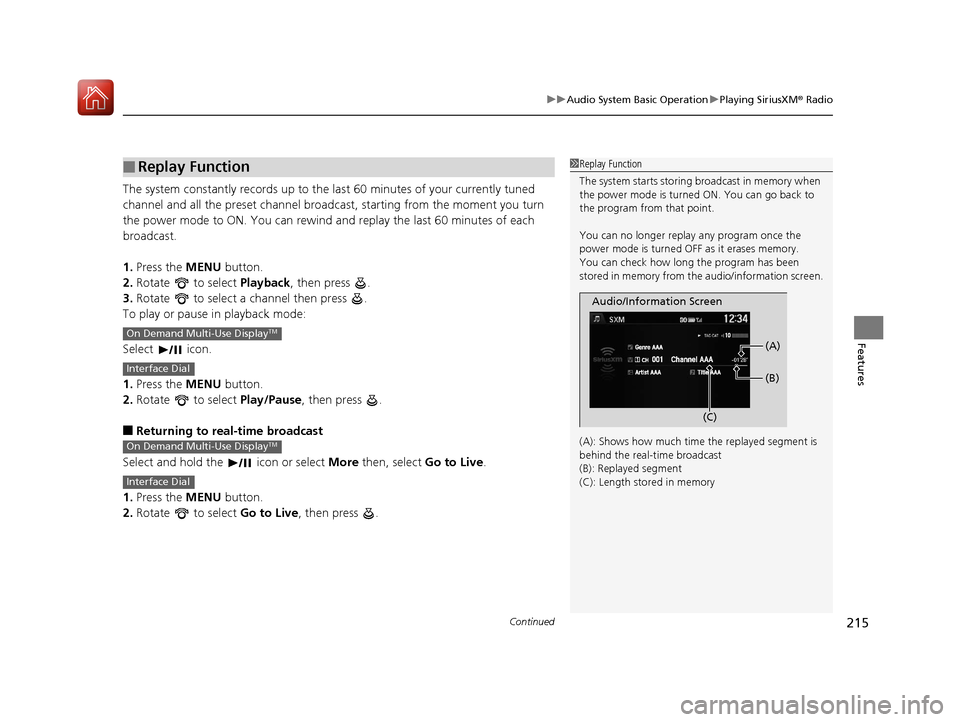
(A): Shows how much time the replayed segment is
behind the real-time broadcast
(B): Replayed segment
(C): Length stored in memory
Audio/Information Screen (C)(B) (A)
On Demand Multi-Use DisplayTM
Interface Dial
On Demand Multi-Use DisplayTM
Interface Dial
17 ACURA ILX-31TX66400.book 215 ページ 2016年3月15日 火曜日 午後5時0分
Page 218 of 521
217
uuAudio System Basic Operation uPlaying SiriusXM ® Radio
Features
Sample each channel on the selected mode for 10 seconds.
1. Press the MENU button.
2. Rotate to select Scan, then press .
3. Rotate to select an item, then press .
To turn off scan, press to select Stop Scan, or press the BACK button.
1. Select More.
2. Select Scan.
To turn off scan, select Stop Scan.
If your iPhone/iPod is connected to the USB port you can store the TAG information.
If the iPod/iPhone is not connected to the audio system, the information is stored in
the audio unit temporarily. Once the device is connected to the system, data is
transferred to the iPod/iPhone.
To store the TAG information to th e iPod/iPhone, or the audio system:
1. Press the MENU button.
2. Rotate to select Tag Song, then press .
3. Select the song for which you want to save the information.
Displays the TAG information saved to the audio system.
1. Press the MENU button.
2. Rotate to select Tagged Song List, then press .
■Scan
■Tag Song to Device
■Tagged Song List
1Scan
You can select desired channel by songs using Scan
Songs in presets.
The “Scan Songs in Preset s” function is based on
TuneScan
TM technology of SiriusXM ®.
The “Featured Channels ” function is based on
Featured Favorites
TM technology of SiriusXM ®.
TuneScan
TM and Featured FavoritesTM are registered
trademarks of SiriusXM ® Radio, Inc.
Interface Dial
On Demand Multi-Use DisplayTM
17 ACURA ILX-31TX66400.book 217 ページ 2016年3月15日 火曜日 午後5時0分
Page 219 of 521
218
uuAudio System Basic Operation uPlaying a CD
Features
Playing a CD
Your audio system supports audio CDs, CD-Rs and CD-RWs in either MP3, WMA, or
AAC*1 format. With the CD load ed, select the CD mode.
*1:Only AAC format files recorded with iTunes are playable on this unit.
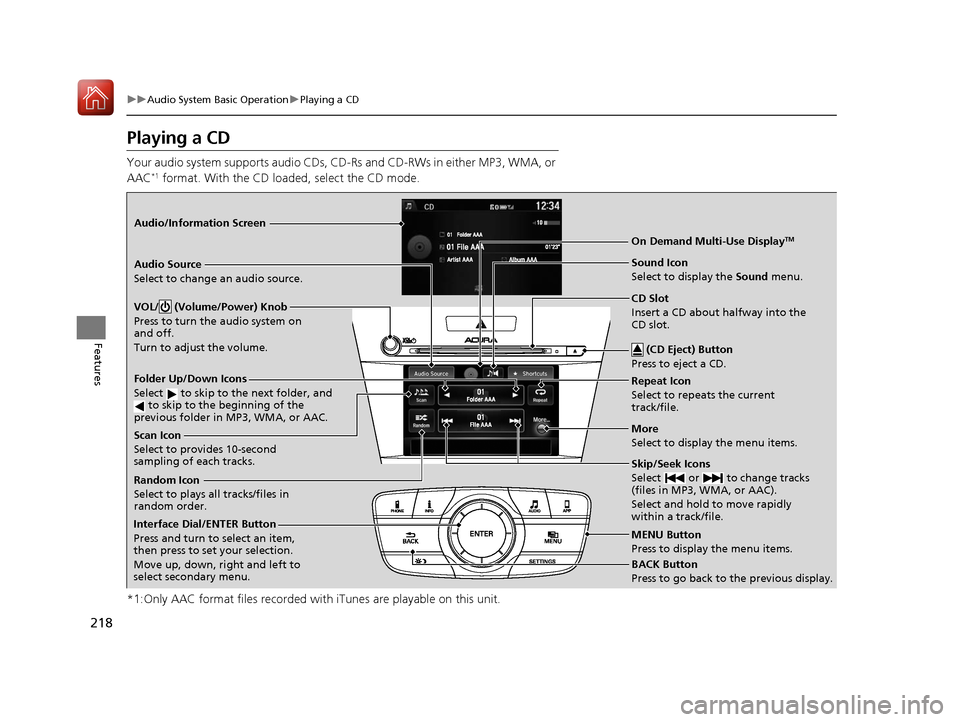
Audio/Information Screen
MENU Button
Press to display the menu items. CD Slot
Insert a CD about halfway into the
CD slot. (CD Eject) Button
Press to eject a CD.
Folder Up/Down Icons
Select to skip to the next folder, and to skip to the beginning of the
previous folder in MP3, WMA, or AAC.
Audio Source
Select to change an audio source.
Skip/Seek Icons
Select or to change tracks
(files in MP3, WMA, or AAC).
Select and hold to move rapidly
within a track/file.
More
Select to display the menu items.
BACK Button
Press to go back to the previous display.
Interface Dial/ENTER Button
Press and turn to select an item,
then press to set your selection.
Move up, down, right and left to
select secondary menu. On Demand Multi-Use Display
TM
VOL/ (Volume/Power) Knob
Press to turn the audio system on
and off.
Turn to adjust the volume.
Repeat Icon
Select to repeats the current
track/file.
Scan Icon
Select to provides 10-second
sampling of each tracks.
Random Icon
Select to plays all tracks/files in
random order.
Sound Icon
Select to display the
Sound menu.
17 ACURA ILX-31TX66400.book 218 ページ 2016年3月15日 火曜日 午後5時0分
Page 221 of 521
uuAudio System Basic Operation uPlaying a CD
220
Features
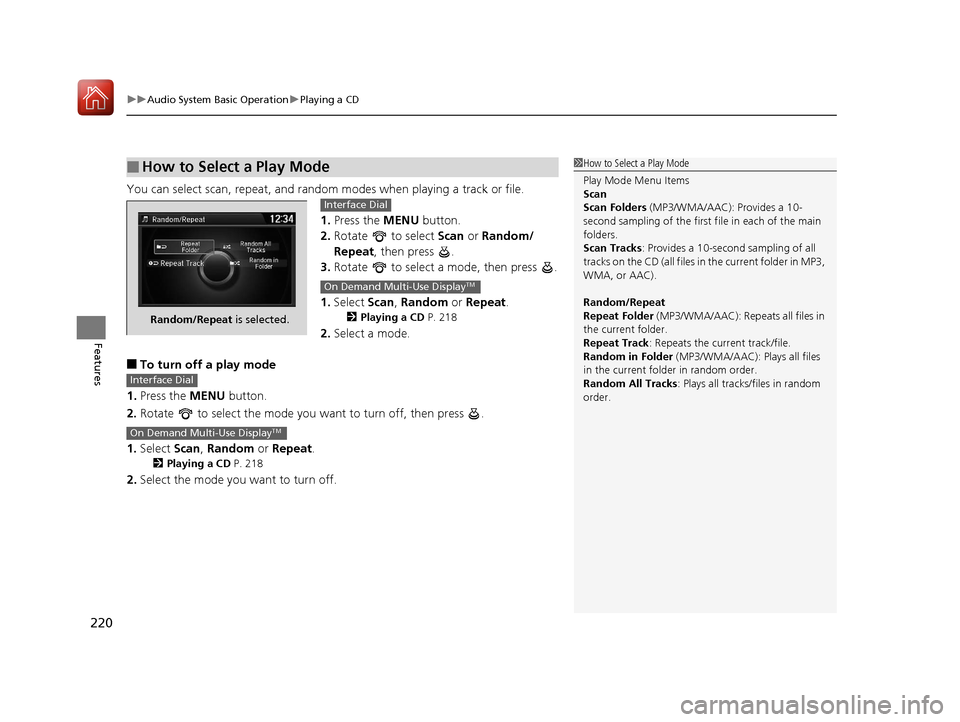
You can select scan, repeat, and random modes when playing a track or file.
1. Press the MENU button.
2. Rotate to select Scan or Random/
Repeat, then press .
3. Rotate to select a mode, then press .
1. Select Scan, Random or Repeat .
2Playing a CD P. 218
2.Select a mode.
■To turn off a play mode
1. Press the MENU button.
2. Rotate to select the mode you want to turn off, then press .
1. Select Scan, Random or Repeat.
2Playing a CD P. 218
2.Select the mode you want to turn off.
■How to Select a Play Mode1How to Select a Play Mode
Play Mode Menu Items
Scan
Scan Folders (MP3/WMA/AAC): Provides a 10-
second sampling of the first f ile in each of the main
folders.
Scan Tracks: Provides a 10-second sampling of all
tracks on the CD (all files in the current folder in MP3,
WMA, or AAC).
Random/Repeat
Repeat Folder (MP3/WMA/AAC): Repeats all files in
the current folder.
Repeat Track: Repeats the current track/file.
Random in Folder (MP3/WMA/AAC): Plays all files
in the current folder in random order.
Random All Tracks : Plays all tracks/files in random
order.
Random/Repeat is selected.
Interface Dial
On Demand Multi-Use DisplayTM
Interface Dial
On Demand Multi-Use DisplayTM
17 ACURA ILX-31TX66400.book 220 ページ 2016年3月15日 火曜日 午後5時0分
Page 222 of 521
221
uuAudio System Basic Operation uPlaying an iPod
Continued
Features
Playing an iPod
Connect the iPod using your USB connector to the USB port, then select the iPod
mode.
2 USB Port* P. 168
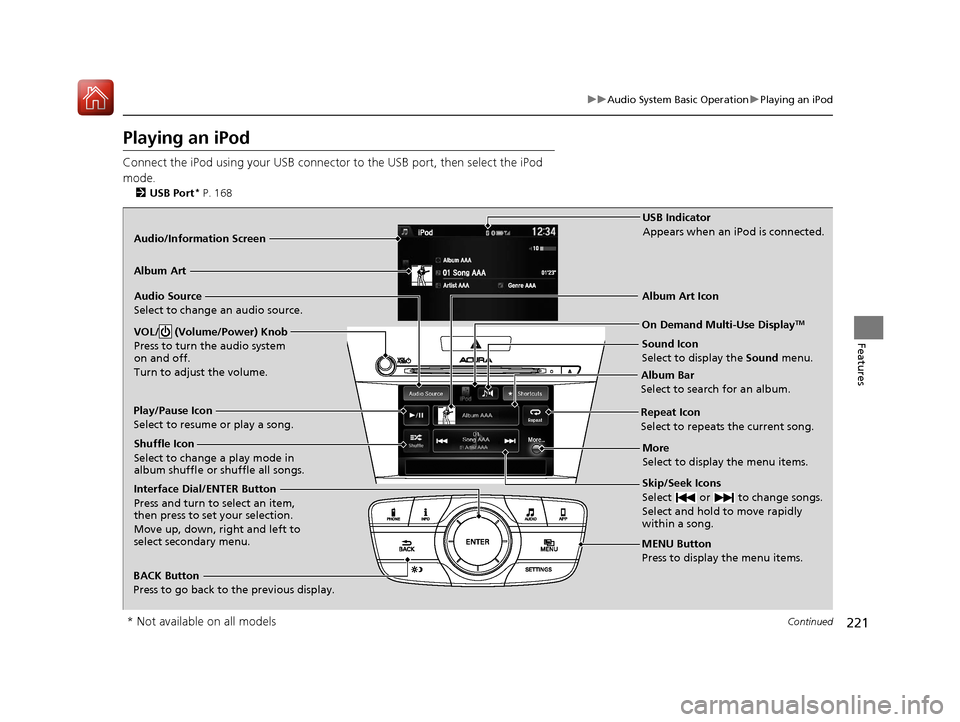
Audio/Information Screen
MENU Button
Press to display the menu items.
Album Bar
Select to search for an album.
Audio Source
Select to change an audio source.
Skip/Seek Icons
Select or to change songs.
Select and hold to move rapidly
within a song.
More
Select to display the menu items.
BACK Button
Press to go back to the previous display.
Interface Dial/ENTER Button
Press and turn to select an item,
then press to set your selection.
Move up, down, right and left to
select secondary menu. USB Indicator
Appears when an iPod is connected.
Album Art
On Demand Multi-Use DisplayTM
Album Art Icon
Play/Pause Icon
Select to resume or play a song.
VOL/ (Volume/Power) Knob
Press to turn the audio system
on and off.
Turn to adjust the volume.
Repeat Icon
Select to repeats the current song.
Shuffle Icon
Select to change a play mode in
album shuffle or shuffle all songs.
Sound Icon
Select to display the Sound menu.
* Not available on all models
17 ACURA ILX-31TX66400.book 221 ページ 2016年3月15日 火曜日 午後5時0分
Page 225 of 521
uuAudio System Basic Operation uPlaying an iPod
224
Features
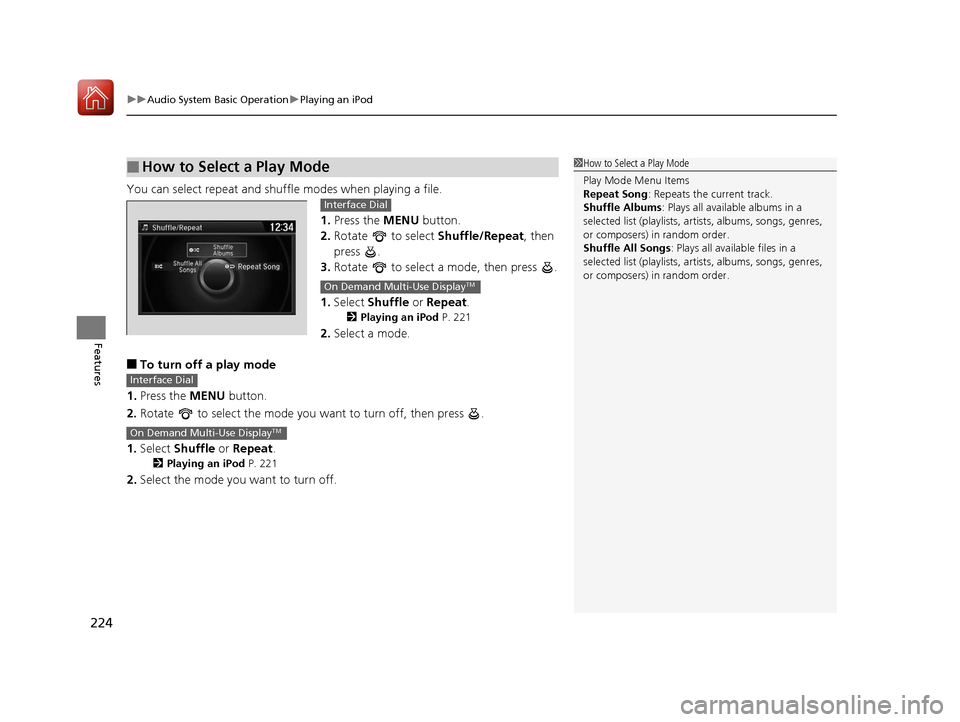
You can select repeat and shu ffle modes when playing a file.
1.Press the MENU button.
2. Rotate to select Shuffle/Repeat, then
press .
3. Rotate to select a mode, then press .
1. Select Shuffle or Repeat .
2Playing an iPod P. 221
2.Select a mode.
■To turn off a play mode
1. Press the MENU button.
2. Rotate to select the mode you want to turn off, then press .
1. Select Shuffle or Repeat .
2Playing an iPod P. 221
2.Select the mode you want to turn off.
■How to Select a Play Mode1How to Select a Play Mode
Play Mode Menu Items
Repeat Song : Repeats the current track.
Shuffle Albums : Plays all available albums in a
selected list (playlists, ar tists, albums, songs, genres,
or composers) in random order.
Shuffle All Songs : Plays all available files in a
selected list (playlists, ar tists, albums, songs, genres,
or composers) in random order.
Interface Dial
On Demand Multi-Use DisplayTM
Interface Dial
On Demand Multi-Use DisplayTM
17 ACURA ILX-31TX66400.book 224 ページ 2016年3月15日 火曜日 午後5時0分
Page 226 of 521
225
uuAudio System Basic Operation uPlaying Internet Radio
Continued
Features
Playing Internet Radio
Connect a compatible phone through Bluetooth®.
You can also connect the phone using your USB connector to the USB port.
Select Audio Source to select Pandora or Aha mode.
Compatible phones only
1Playing Internet Radio
Pandora ®, the Pandora logo, and the Pandora trade
dress are trademarks or registered trademarks of
Pandora Media, Inc., used with permission. Pandora
is currently available exclusively in the United States.
U.S. models
iPhone
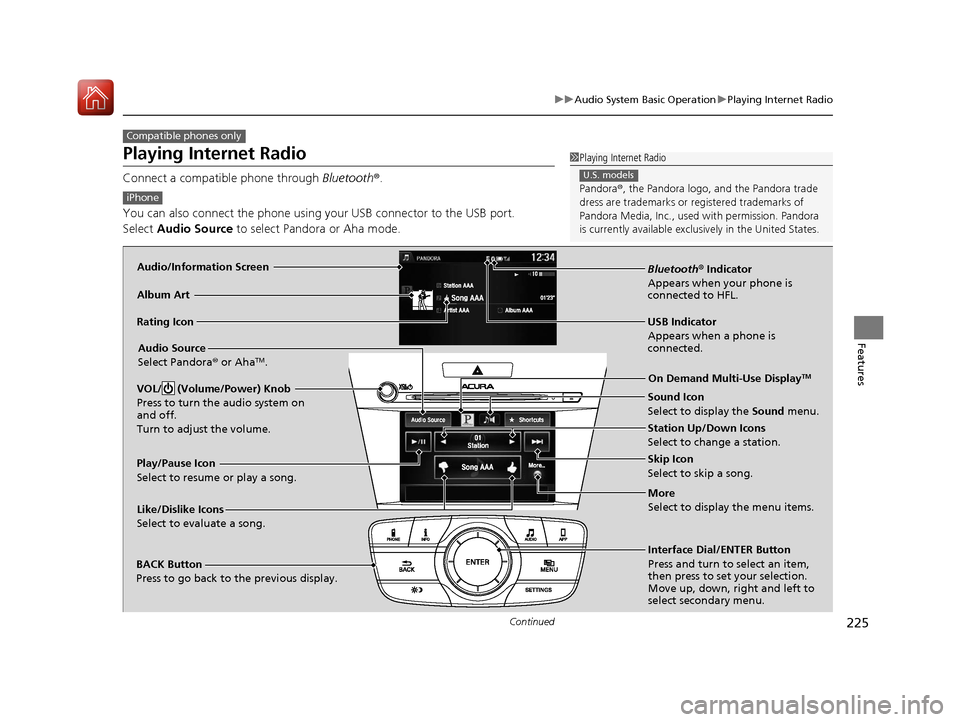
Audio/Information Screen
Album Art
USB Indicator
Appears when a phone is
connected.Rating Icon
BACK Button
Press to go back to the previous display.
Skip Icon
Select to skip a song.
More
Select to display the menu items.
Station Up/Down Icons
Select to change a station.
Audio Source
Select Pandora
® or Aha
TM.
Play/Pause Icon
Select to resume or play a song.
Like/Dislike Icons
Select to evaluate a song. Interface Dial/ENTER Button
Press and turn to select an item,
then press to set your selection.
Move up, down, right and left to
select secondary menu.On Demand Multi-Use Display
TM
Bluetooth
® Indicator
Appears when your phone is
connected to HFL.
VOL/ (Volume/Power) Knob
Press to turn the audio system on
and off.
Turn to adjust the volume.
Sound Icon
Select to display the Sound menu.
17 ACURA ILX-31TX66400.book 225 ページ 2016年3月15日 火曜日 午後5時0分
Page 229 of 521
228
uuAudio System Basic Operation uPlaying a USB Flash Drive
Features
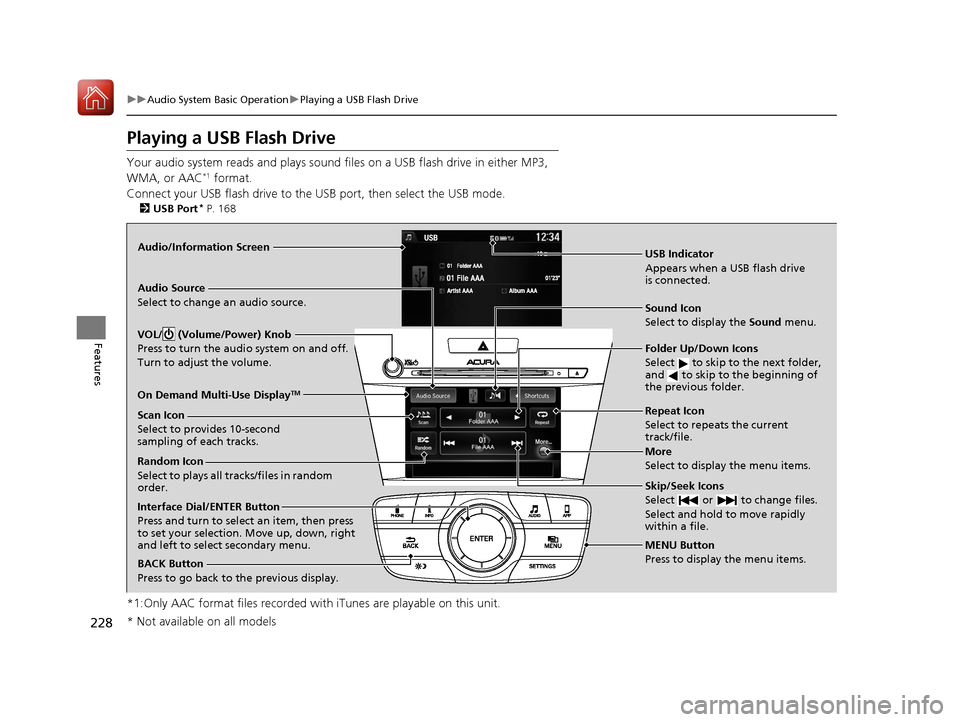
Playing a USB Flash Drive
Your audio system reads and plays sound fi les on a USB flash drive in either MP3,
WMA, or AAC*1 format.
Connect your USB flash drive to the USB port, then select the USB mode.
2USB Port* P. 168
*1:Only AAC format files recorded with iTunes are playable on this unit.
Audio/Information Screen
BACK Button
Press to go back to the previous display.
More
Select to display the menu items.
Audio Source
Select to change an audio source.
USB Indicator
Appears when a USB flash drive
is connected.
Folder Up/Down Icons
Select to skip to the next folder,
and to skip to the beginning of
the previous folder.
Skip/Seek Icons
Select or to change files.
Select and hold to move rapidly
within a file.
Interface Dial/ENTER Button
Press and turn to select an item, then press
to set your selection. Move up, down, right
and left to select secondary menu.
MENU Button
Press to display the menu items.
On Demand Multi-Use Display
TM
VOL/ (Volume/Power) Knob
Press to turn the audio system on and off.
Turn to adjust the volume.
Random Icon
Select to plays all tracks/files in random
order. Scan Icon
Select to provides 10-second
sampling of each tracks.
Repeat Icon
Select to repeats the current
track/file.
Sound Icon
Select to display the Sound
menu.
* Not available on all models
17 ACURA ILX-31TX66400.book 228 ページ 2016年3月15日 火曜日 午後5時0分
Page 231 of 521
uuAudio System Basic Operation uPlaying a USB Flash Drive
230
Features
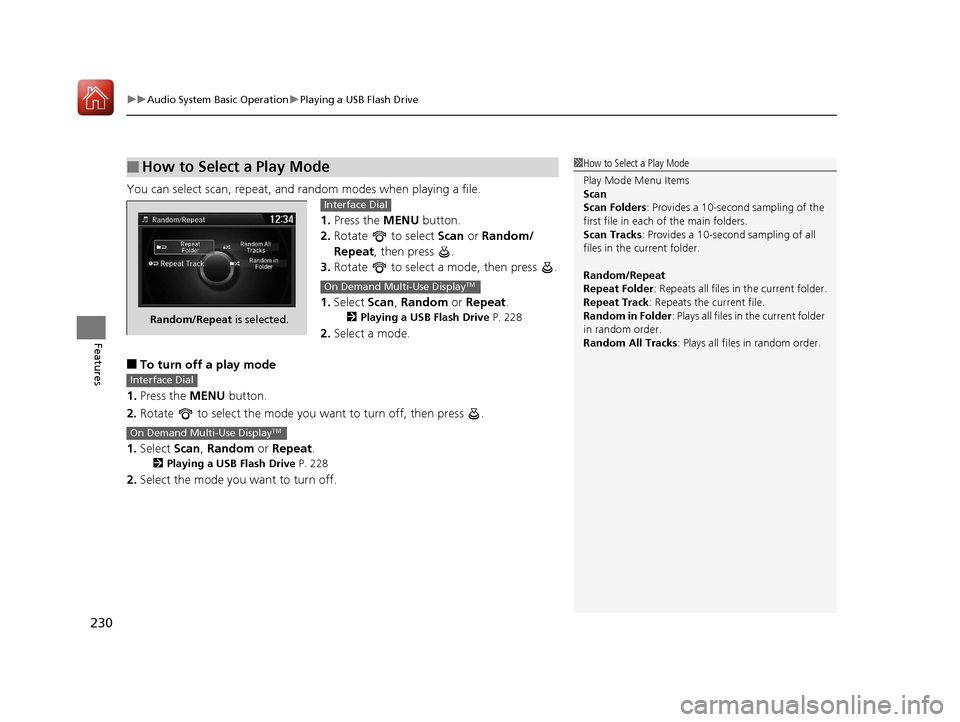
You can select scan, repeat, and random modes when playing a file.
1.Press the MENU button.
2. Rotate to select Scan or Random/
Repeat, then press .
3. Rotate to select a mode, then press .
1. Select Scan, Random or Repeat .
2Playing a USB Flash Drive P. 228
2.Select a mode.
■To turn off a play mode
1. Press the MENU button.
2. Rotate to select the mode you want to turn off, then press .
1. Select Scan, Random or Repeat.
2Playing a USB Flash Drive P. 228
2.Select the mode you want to turn off.
■How to Select a Play Mode1How to Select a Play Mode
Play Mode Menu Items
Scan
Scan Folders : Provides a 10-second sampling of the
first file in each of the main folders.
Scan Tracks: Provides a 10-second sampling of all
files in the current folder.
Random/Repeat
Repeat Folder : Repeats all files in the current folder.
Repeat Track: Repeats the current file.
Random in Folder : Plays all files in the current folder
in random order.
Random All Tracks : Plays all files in random order.
Random/Repeat is selected.
Interface Dial
On Demand Multi-Use DisplayTM
Interface Dial
On Demand Multi-Use DisplayTM
17 ACURA ILX-31TX66400.book 230 ページ 2016年3月15日 火曜日 午後5時0分