radio Acura ILX 2020 Owner's Guide
[x] Cancel search | Manufacturer: ACURA, Model Year: 2020, Model line: ILX, Model: Acura ILX 2020Pages: 621, PDF Size: 34.94 MB
Page 227 of 621
uuAudio System Basic Operation uPlaying SiriusXM ® Radio
226
Features
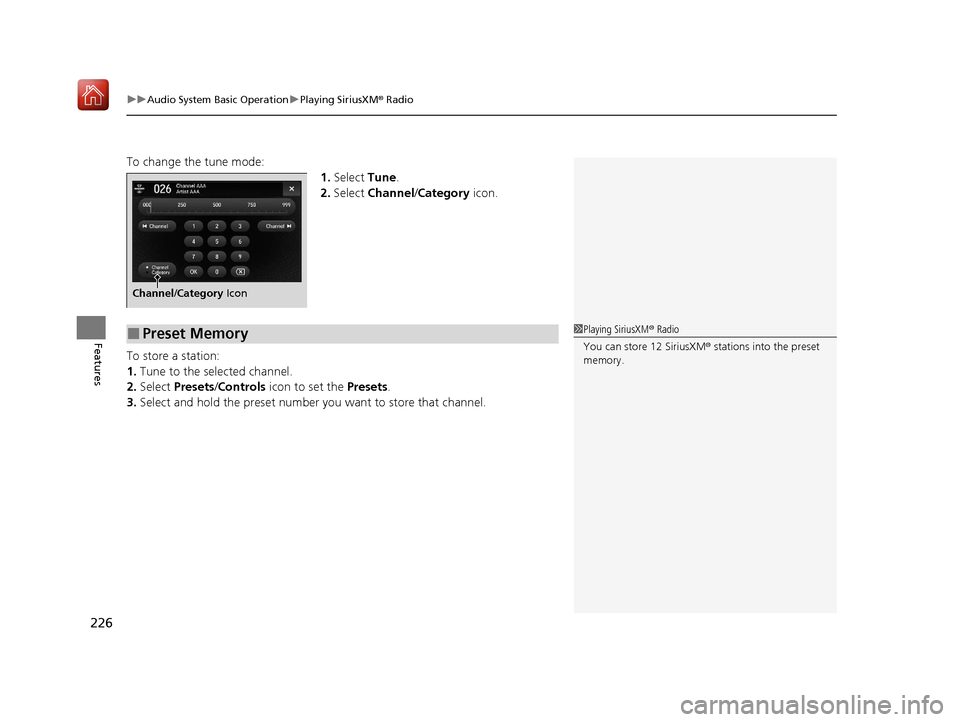
To change the tune mode:
1.Select Tune.
2. Select Channel /Category icon.
To store a station:
1. Tune to the selected channel.
2. Select Presets /Controls icon to set the Presets.
3. Select and hold the preset number you want to store that channel.
Channel/Category Icon
■Preset Memory1Playing SiriusXM ® Radio
You can store 12 SiriusXM ® stations into the preset
memory.
20 ACURA ILX-31TX66710.book 226 ページ 2020年4月16日 木曜日 午後8時46分
Page 228 of 621
Continued227
uuAudio System Basic Operation uPlaying SiriusXM ® Radio
Features
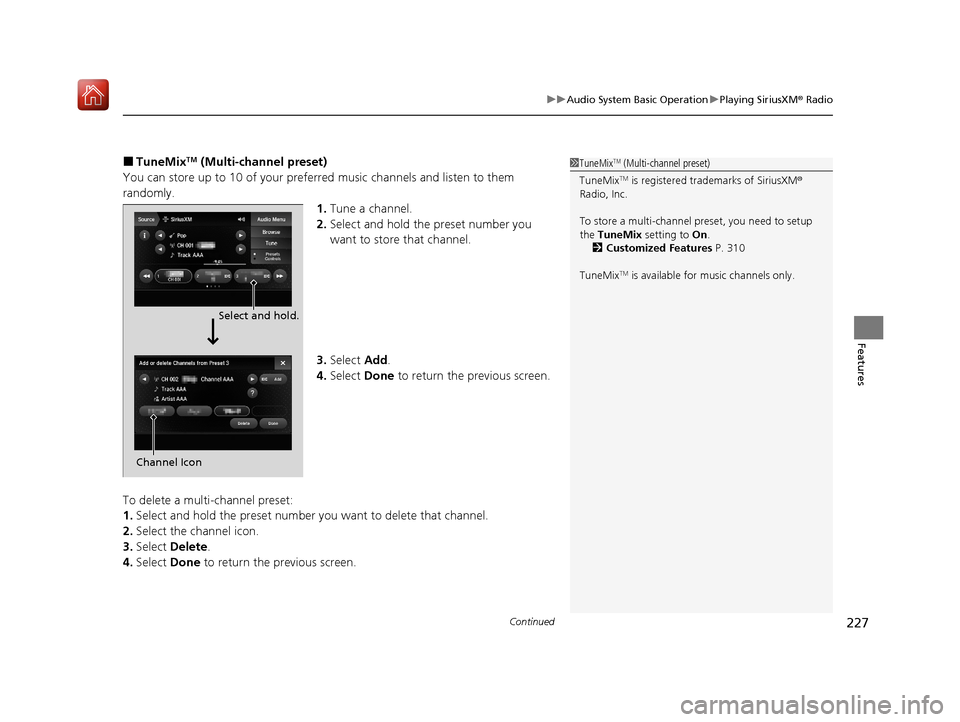
■TuneMixTM (Multi-channel preset)
You can store up to 10 of your preferred music channels and listen to them
randomly. 1.Tune a channel.
2. Select and hold the preset number you
want to store that channel.
3. Select Add.
4. Select Done to return the previous screen.
To delete a multi-channel preset:
1. Select and hold the preset number you want to delete that channel.
2. Select the channel icon.
3. Select Delete .
4. Select Done to return the previous screen.1TuneMixTM (Multi-channel preset)
TuneMix
TM is registered tra demarks of SiriusXM®
Radio, Inc.
To store a multi-channel preset, you need to setup
the TuneMix setting to On.
2 Customized Features P. 310
TuneMix
TM is available for music channels only.
Select and hold.
Channel Icon
20 ACURA ILX-31TX66710.book 227 ページ 2020年4月16日 木曜日 午後8時46分
Page 229 of 621
uuAudio System Basic Operation uPlaying SiriusXM ® Radio
228
Features
Suggested channel listing received from SiriusXM ® can be displayed and selected.
1. Select Browse .
2. Select Featured Channels .
3. Select a channel.
You can check a channel schedule by select ed channel list on the On Demand Multi-
Use Display
TM.
1. Select Audio Menu .
2. Select View Channel Schedule .
You can also check the other channel by the following procedure.
3. Select Categories, Channels or Presets.
4. Select a channel.
■Listening to Featured Channels
■Displaying a Channel Schedule
1Listening to Featured Channels
Up to three featured channels by SiriusXM ® can be
displayed.
20 ACURA ILX-31TX66710.book 228 ページ 2020年4月16日 木曜日 午後8時46分
Page 230 of 621
Continued229
uuAudio System Basic Operation uPlaying SiriusXM ® Radio
Features
The system constantly records up to the last 60 minutes of your currently tuned
channel and all the preset channel broadc ast, starting from the moment you turn
the power mode to ON. You can rewind and replay the last 60 minutes of each
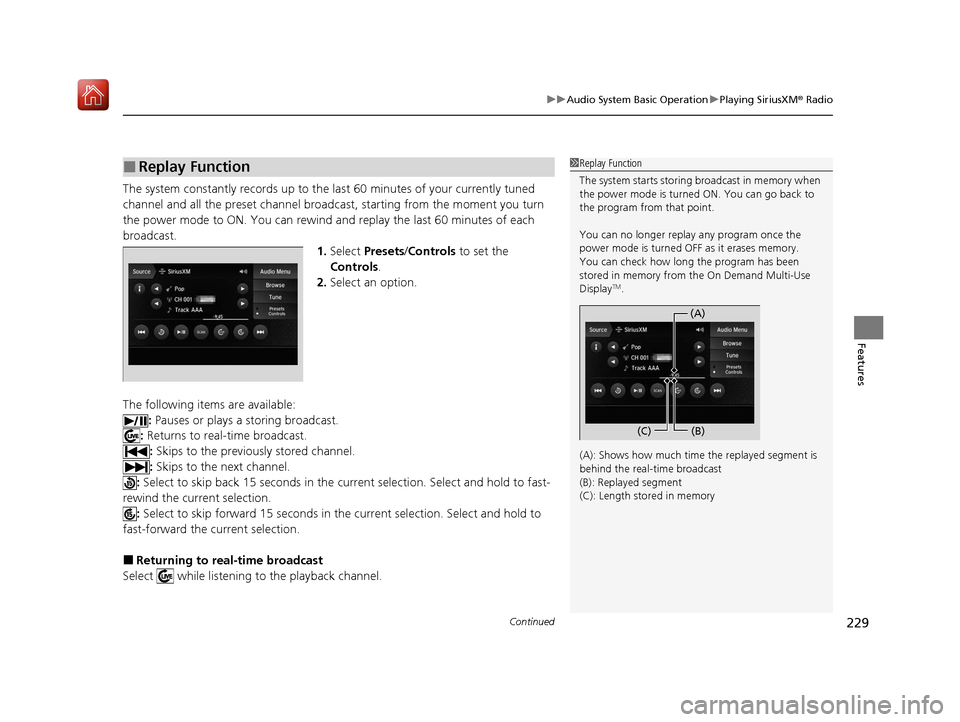
broadcast. 1.Select Presets /Controls to set the
Controls.
2. Select an option.
The following items are available: : Pauses or plays a storing broadcast.
: Returns to real-time broadcast.
: Skips to the previously stored channel.
: Skips to the next channel.
: Select to skip back 15 seconds in the cu rrent selection. Select and hold to fast-
rewind the current selection. : Select to skip forward 15 seconds in the current sele ction. Select and hold to
fast-forward the current selection.
■Returning to real-time broadcast
Select while listening to the playback channel.
■Replay Function1 Replay Function
The system starts storing broadcast in memory when
the power mode is turned ON. You can go back to
the program from that point.
You can no longer repl ay any program once the
power mode is turned OFF as it erases memory.
You can check how long the program has been
stored in memory from the On Demand Multi-Use
Display
TM.
(A): Shows how much time the replayed segment is
behind the real-time broadcast
(B): Replayed segment
(C): Length stored in memory
(A) (B)
(C)
20 ACURA ILX-31TX66710.book 229 ページ 2020年4月16日 木曜日 午後8時46分
Page 231 of 621
uuAudio System Basic Operation uPlaying SiriusXM ® Radio
230
Features
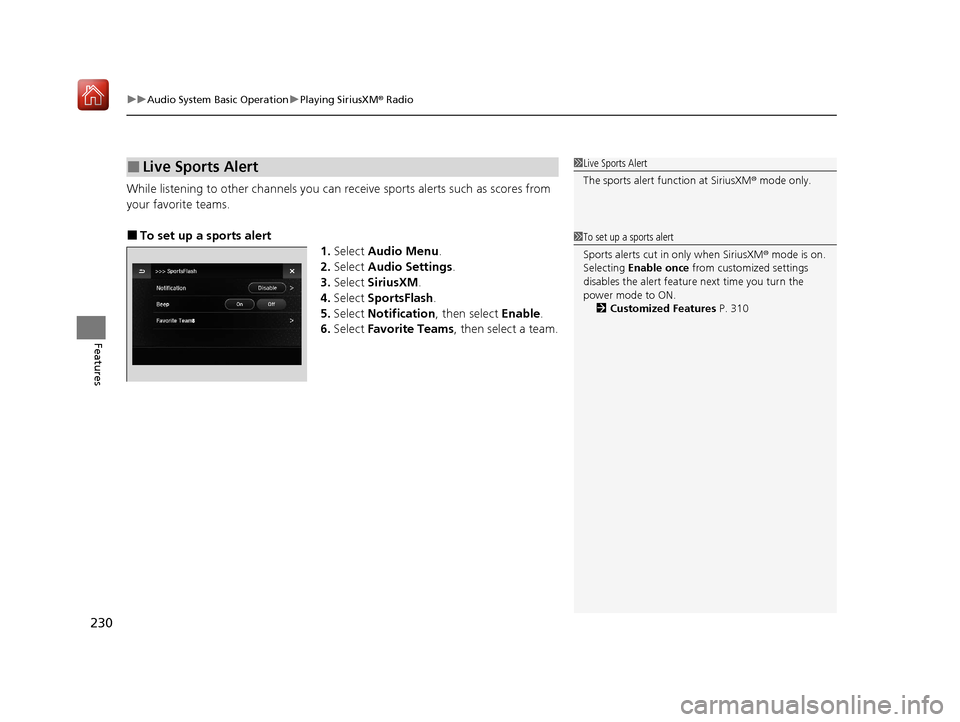
While listening to other channels you can re ceive sports alerts such as scores from
your favorite teams.
■To set up a sports alert 1.Select Audio Menu .
2. Select Audio Settings .
3. Select SiriusXM .
4. Select SportsFlash .
5. Select Notification , then select Enable.
6. Select Favorite Teams , then select a team.
■Live Sports Alert1Live Sports Alert
The sports alert function at SiriusXM ® mode only.
1 To set up a sports alert
Sports alerts cut in only when SiriusXM ® mode is on.
Selecting Enable once from customized settings
disables the alert feature next time you turn the
power mode to ON.
2 Customized Features P. 310
20 ACURA ILX-31TX66710.book 230 ページ 2020年4月16日 木曜日 午後8時46分
Page 232 of 621
231
uuAudio System Basic Operation uPlaying SiriusXM ® Radio
Continued
Features
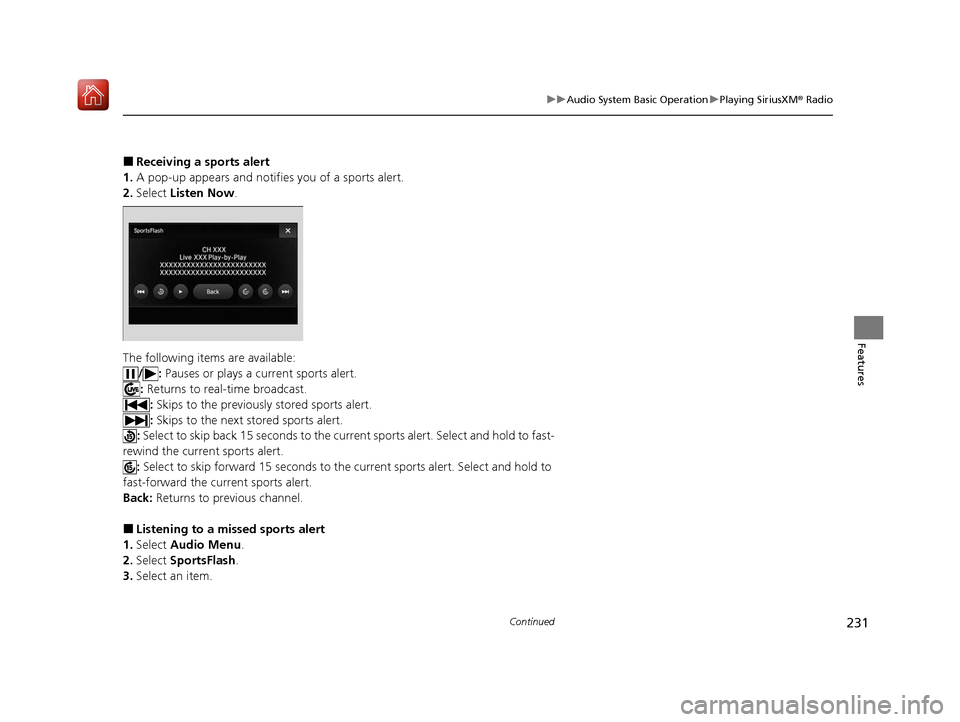
■Receiving a sports alert
1. A pop-up appears and notifies you of a sports alert.
2. Select Listen Now .
The following items are available: /: Pauses or plays a current sports alert.
: Returns to real-time broadcast.
: Skips to the previously stored sports alert.
: Skips to the next stored sports alert.
: Select to skip back 15 seco nds to the current sports alert. Select and hold to fast-
rewind the current sports alert. : Select to skip forward 15 seconds to the current sports alert. Select and hold to
fast-forward the current sports alert.
Back: Returns to previous channel.
■Listening to a missed sports alert
1. Select Audio Menu .
2. Select SportsFlash .
3. Select an item.
20 ACURA ILX-31TX66710.book 231 ページ 2020年4月16日 木曜日 午後8時46分
Page 233 of 621
uuAudio System Basic Operation uPlaying SiriusXM ® Radio
232
Features
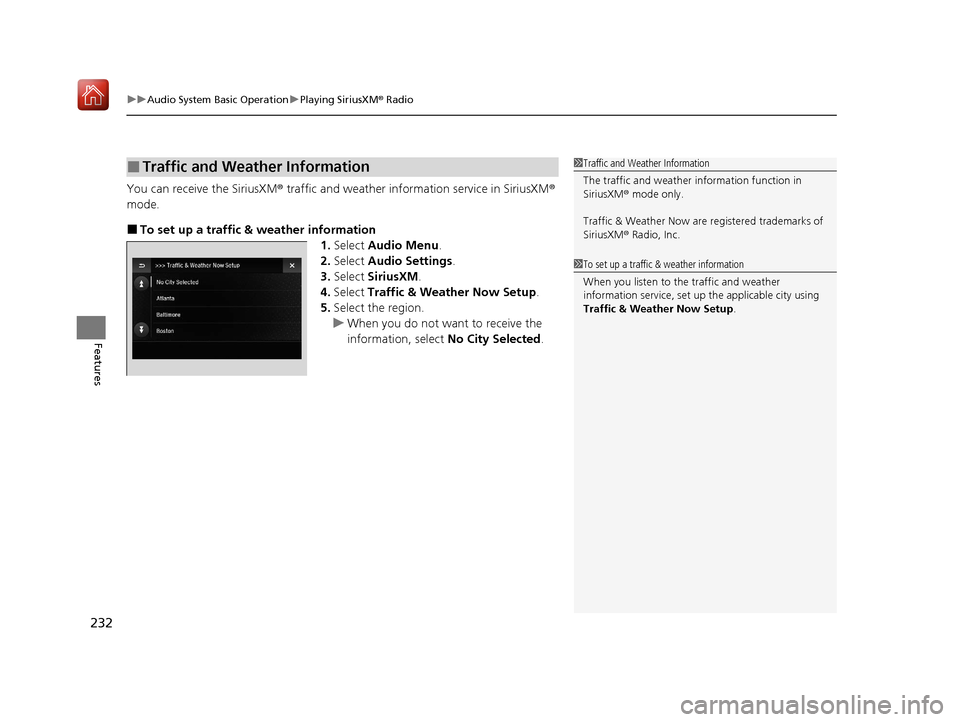
You can receive the SiriusXM ® traffic and weather information service in SiriusXM ®
mode.
■To set up a traffic & weather information 1.Select Audio Menu .
2. Select Audio Settings .
3. Select SiriusXM .
4. Select Traffic & Weather Now Setup .
5. Select the region.
u When you do not want to receive the
information, select No City Selected.
■Traffic and Weather Information1Traffic and Weather Information
The traffic and weather information function in
SiriusXM ® mode only.
Traffic & Weather Now are registered trademarks of
SiriusXM ® Radio, Inc.
1 To set up a traffic & weather information
When you listen to the traffic and weather
information service, set up the applicable city using
Traffic & Weather Now Setup .
20 ACURA ILX-31TX66710.book 232 ページ 2020年4月16日 木曜日 午後8時46分
Page 234 of 621
233
uuAudio System Basic Operation uPlaying SiriusXM ® Radio
Continued
Features
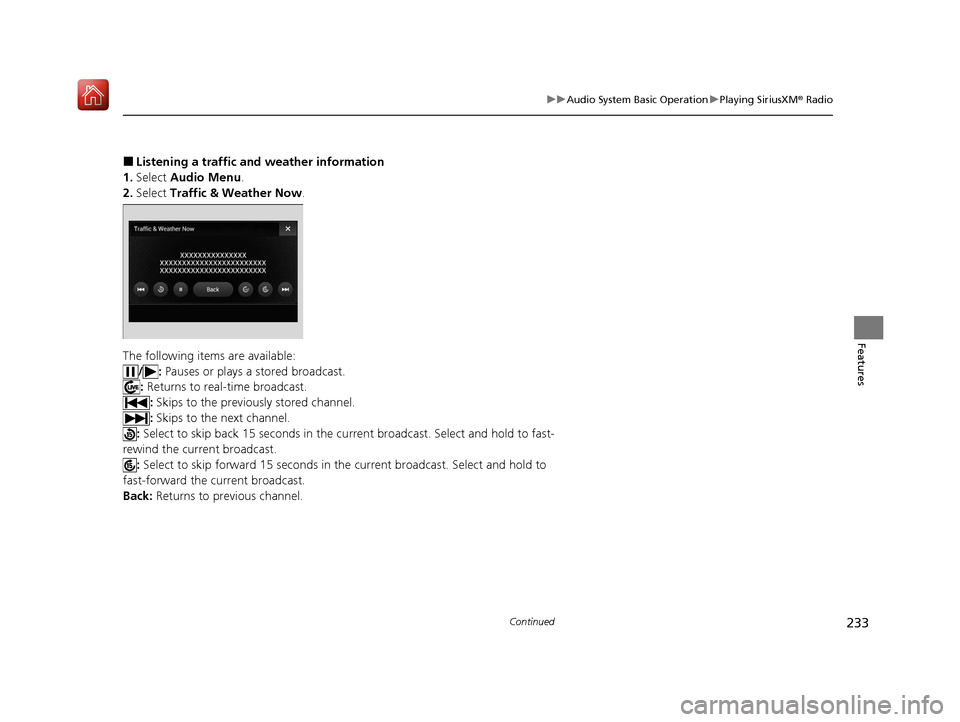
■Listening a traffic and weather information
1. Select Audio Menu .
2. Select Traffic & Weather Now .
The following items are available: /: Pauses or plays a stored broadcast.
: Returns to real-time broadcast.
: Skips to the previously stored channel.
: Skips to the next channel.
: Select to skip back 15 seconds in the cu rrent broadcast. Select and hold to fast-
rewind the current broadcast. : Select to skip forward 15 seconds in the current broadcast. Select and hold to
fast-forward the current broadcast.
Back: Returns to previous channel.
20 ACURA ILX-31TX66710.book 233 ページ 2020年4月16日 木曜日 午後8時46分
Page 235 of 621
uuAudio System Basic Operation uPlaying SiriusXM ® Radio
234
Features
Sample each channel on the sele cted mode for 10 seconds.
1. Select Presets /Controls to set the Controls.
2. Select SCAN.
3. Select Scan Channels or Scan Presets .
To turn off scan, select Stop Scan.
■Scan1Scan
You can select desired channel by songs using Scan
Presets .
The “Scan Songs in Preset s” function is based on
TuneScan
TM technology of SiriusXM ®.
The “Featured Channels ” function is based on
Featured Favorites
TM technology of SiriusXM ®.
TuneScan
TM and Featured FavoritesTM are registered
trademarks of SiriusXM ® Radio, Inc.
Scan Mode Menu Items
Scan Channels: Scans for channels with a strong
signal in the selected mode.
Scan Presets: Scans for desired preset channel by
songs. Select (skip up) or (skip down) to
skip to the next/previ ous stored selection.
20 ACURA ILX-31TX66710.book 234 ページ 2020年4月16日 木曜日 午後8時46分
Page 260 of 621
259
uuAudio System Basic Operation uPlaying Pandora ®*1
Features
1.Select Stations .
2. Select an item to select a track.
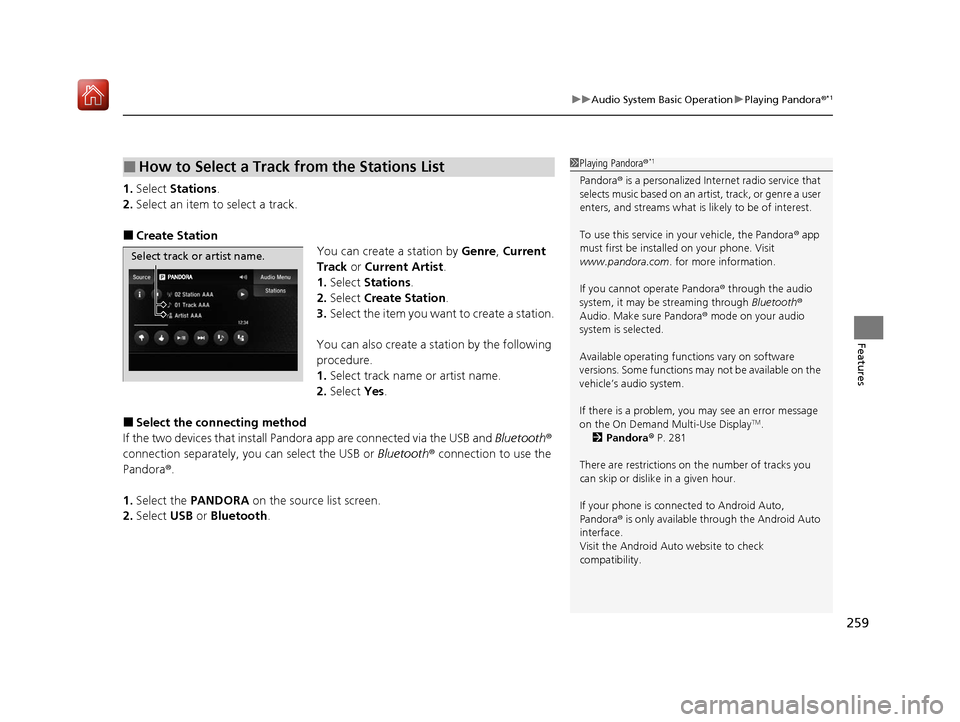
■Create Station
You can create a station by Genre, Current
Track or Current Artist .
1. Select Stations .
2. Select Create Station.
3. Select the item you want to create a station.
You can also create a station by the following
procedure.
1. Select track name or artist name.
2. Select Yes.
■Select the conn ecting method
If the two devices that install Pandora app are connected via the USB and Bluetooth®
connection separately, you can select the USB or Bluetooth® connection to use the
Pandora ®.
1. Select the PANDORA on the source list screen.
2. Select USB or Bluetooth .
■How to Select a Track from the Stations List1Playing Pandora ®*1
Pandora® is a personalized Internet radio service that
selects music based on an artist, track, or genre a user
enters, and streams what is likely to be of interest.
To use this service in your vehicle, the Pandora ® app
must first be installed on your phone. Visit
www.pandora.com. for more information.
If you cannot operate Pandora ® through the audio
system, it may be streaming through Bluetooth®
Audio. Make sure Pandora ® mode on your audio
system is selected.
Available operating functi ons vary on software
versions. Some functions ma y not be available on the
vehicle’s audio system.
If there is a problem, you may see an error message
on the On Demand Multi-Use Display
TM.
2 Pandora ® P. 281
There are restrictions on the number of tracks you
can skip or dislike in a given hour.
If your phone is connec ted to Android Auto,
Pandora ® is only available through the Android Auto
interface.
Visit the Android Auto website to check
compatibility.
Select track or artist name.
20 ACURA ILX-31TX66710.book 259 ページ 2020年4月16日 木曜日 午後8時46分