ad blue Acura MDX 2012 Service Manual
[x] Cancel search | Manufacturer: ACURA, Model Year: 2012, Model line: MDX, Model: Acura MDX 2012Pages: 621, PDF Size: 11.15 MB
Page 395 of 621

Voice commands can be used for all above options. Voice commands for the HFL system can only be used
from the Cellular Phone screen. To quickly access the Cellular Phone screen, press the Pick-Up button on
the steering wheel. Press and release the Talk button each time you give a command.
‘‘Phone Book’’ ‘‘Cellular
Phone’’
Speed dial
entries
‘‘Lisa’’ ‘‘Transfer’’Mute your voice during a call. (See page 400) Send numbers or names during a call. (See page 400)
‘‘Eric’’
‘‘Mike’’ ‘‘Dial’’
The first 4 speed dial numbers are
shown on the Cellular Phone screen. (See page 399) Enter a phone number to dial.
‘‘Direct Dial’’‘‘Dial’’
‘‘Call History’’
‘‘More Speed
Dial’’‘‘John’’ ‘‘Mute’’
Display a list of all 20 speed dial entries. (See page 399)Transfer a call from HFL to your phone,
or from your phone to HFL. (See page 400)
Display the paired phone's previously imported phonebook
(or import a new one). (See page 398)
Display the last 30 incoming, outgoing, or missed calls. (See page 399)
Bluetooth
®
HandsFreeLink
®
(Models with navigation system)
388
Page 396 of 621

To use HFL, you need to pair your
Bluetooth-compatible cell phone to
the system.
HFL uses a Class 2 Bluetooth, which
means the maximum range between
your phone and vehicle is 30 feet (10
meters).Cellular Phone
Press the PICK-UP button to go
directly to the Cellular Phone screen.Phone Setup
This menu group is for phone
pairing, and user, phonebook, and
speed dial editing.
Select‘‘PHONE SETUP’’from the
Cellular Phone screen.
PHONE SETUP
CONTINUED
Bluetooth
®
HandsFreeLink
®
(Models with navigation system)
389
Features
Page 397 of 621

Setup Bluetooth PhoneTo pair a cell phone:1. Select‘‘Setup Bluetooth Phone’’
from the Phone Setup screen.
2. Select‘‘Pair Phone.’’
3. HFL gives you a 4-digit pass-key
that you will need to input on your
phone.
4. Put your cell phone in‘‘Discovery’’
or‘‘Search’’mode, and search for a
Bluetooth device.
5. When your phone prompts you,
input the 4-digit pass-key.
6. You will receive a notification on
the screen and your phone if
pairing is successful.
Phone pairing tips:●
You cannot pair your phone while
the vehicle is moving.
●
Up to six phones can be paired.
●
Your phone's battery may drain
faster when it is paired to HFL.
Bluetooth
®
HandsFreeLink
®
(Models with navigation system)
390
Page 398 of 621

To change the pass-key setting:1. Select‘‘Setup Bluetooth Phone’’
from the Phone Setup screen.
2. Select‘‘Pass-Key.’’
NOTE:The default pass-key‘‘0000’’
is used until you change the setting.
For a randomly generated pass-key
each time you pair a phone, select
‘‘Random.’’
To create your own pass-key, select
‘‘Fixed’’and follow steps 3 and 4.
3. Delete the current pass-key.
4. Enter a new pass-key, and select
‘‘OK.’’
To delete a paired phone:1. Select‘‘Setup Bluetooth Phone’’
from the Phone Setup screen.
2. Select‘‘Delete a phone.’’
3. Select the phone you want to
delete. The Bluetooth icon shows
you the currently linked phone.
4. A trash icon appears next to the
selected phone. Select‘‘OK’’to
continue.
Delete the number first
TRASH ICON
BLUETOOTH ICON
CONTINUED
Bluetooth
®
HandsFreeLink
®
(Models with navigation system)
391
Features
Page 399 of 621

Search for Next Connected PhoneTo change from the currently linked
phone to another paired phone,
select‘‘Search a Next Connected
Phone’’on the Phone Setup screen.
HFL disconnects the linked phone
and starts searching for another
paired phone.
If no other paired phone is found,
HFL will automatically link the
previous phone.
Edit User/PINYou can name up to six HFL users.
Each can be PIN protected, and have
its own phonebook, speed dial, and
call history.Select the user you want to edit on
the Cellular Phone screen.
If the user you selected is PIN-
protected, the speed dial list
becomes‘‘
ᤳᤳᤳᤳ
.’’
To name a user:1. Select‘‘Edit User/PIN’’from the
Phone Setup screen.
2. Select‘‘Name.’’
3. Enter a user name, and select
‘‘OK’’when complete.
SPEED DIAL LIST WHEN
PIN-PROTECTED SELECT A USER NAME
Bluetooth
®
HandsFreeLink
®
(Models with navigation system)
392
Page 400 of 621

To create a PIN for each user:When you set a PIN for a user, you
will be asked to enter the PIN every
time you select the user on the
Cellular Phone screen.1. Select‘‘Edit User/PIN’’from the
Phone Setup screen.
2. Select‘‘PIN.’’3. Enter a 4-digit PIN, re-enter it, and
select‘‘OK.’’
If you select‘‘DO NOT USE PIN’’
before entering any number, the user
will not have a PIN.
If the user is already PIN-protected,
you need to enter the current PIN
before creating a new one.
To delete a user:Deleting a user will delete all
settings, such as call history and
phonebook.
1. Select‘‘Edit User/PIN’’from the
Phone Setup screen.
2. Select‘‘Delete.’’
3. Follow the prompts to complete
the deletion.
CONTINUED
Bluetooth
®
HandsFreeLink
®
(Models with navigation system)
393
Features
Page 401 of 621
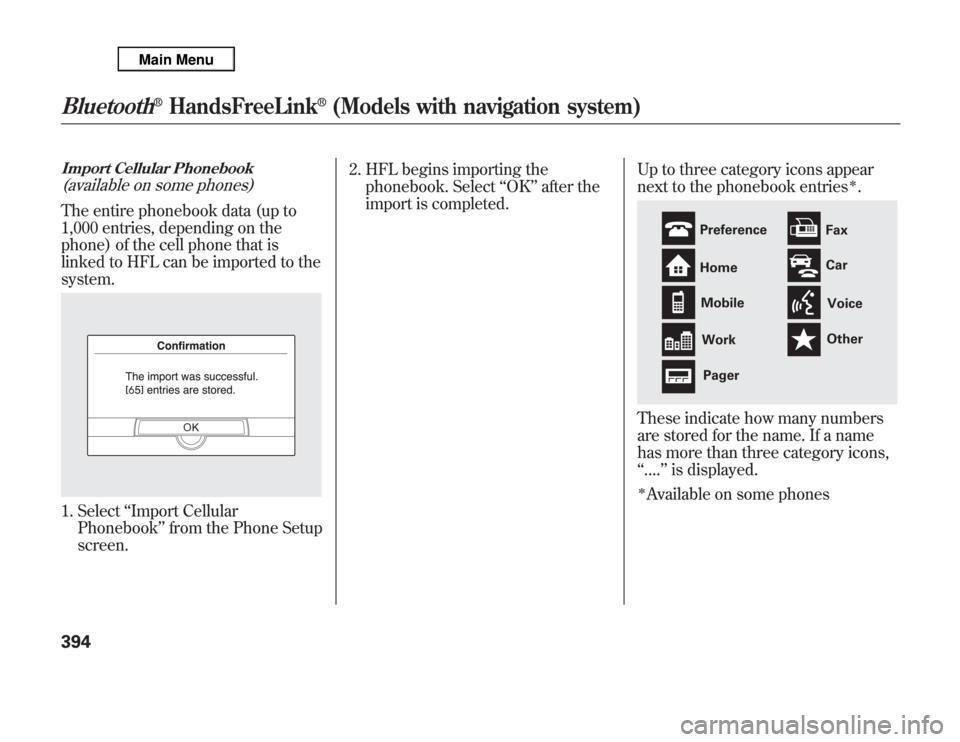
Import Cellular Phonebook(available on some phones)The entire phonebook data (up to
1,000 entries, depending on the
phone) of the cell phone that is
linked to HFL can be imported to the
system.1. Select‘‘Import Cellular
Phonebook’’from the Phone Setup
screen.2. HFL begins importing the
phonebook. Select‘‘OK’’after the
import is completed.Up to three category icons appear
next to the phonebook entries
ᤳ.
These indicate how many numbers
are stored for the name. If a name
has more than three category icons,
‘‘....’’is displayed.ᤳAvailable on some phones
Preference
Home
Mobile
Work
PagerFax
Car
Voice
Other
Bluetooth
®
HandsFreeLink
®
(Models with navigation system)
394
Page 402 of 621
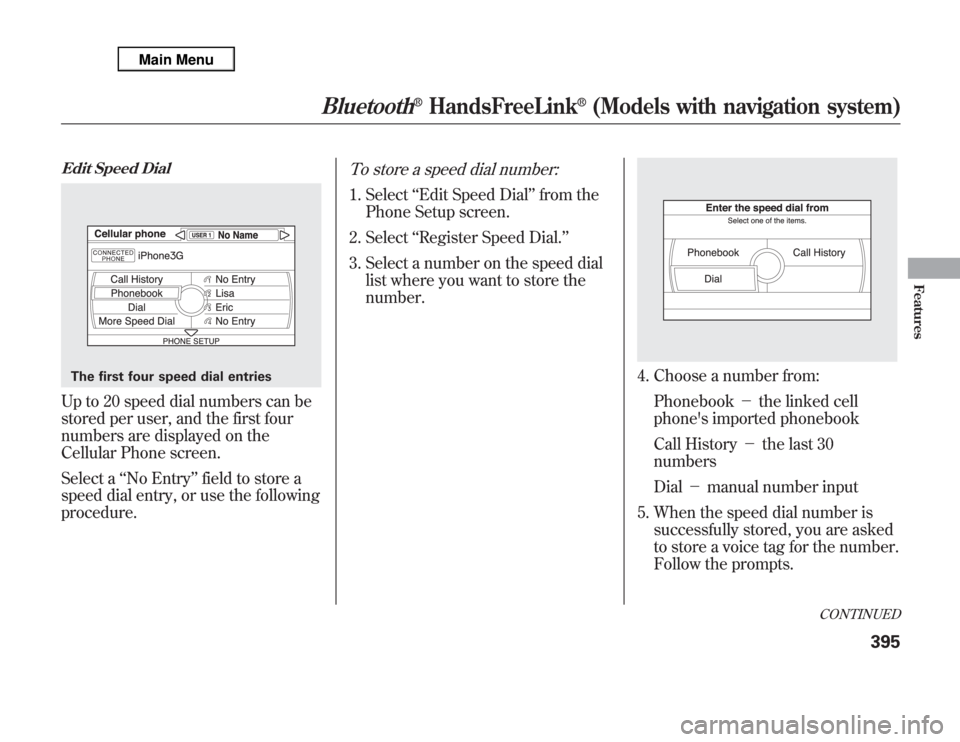
Edit Speed DialUp to 20 speed dial numbers can be
stored per user, and the first four
numbers are displayed on the
Cellular Phone screen.
Select a‘‘No Entry’’field to store a
speed dial entry, or use the following
procedure.
To store a speed dial number:1. Select‘‘Edit Speed Dial’’from the
Phone Setup screen.
2. Select‘‘Register Speed Dial.’’
3. Select a number on the speed dial
list where you want to store the
number.
4. Choose a number from:
Phonebook-the linked cell
phone's imported phonebook
Call History-the last 30
numbers
Dial-manual number input
5. When the speed dial number is
successfully stored, you are asked
to store a voice tag for the number.
Follow the prompts.
The first four speed dial entries
CONTINUED
Bluetooth
®
HandsFreeLink
®
(Models with navigation system)
395
Features
Page 403 of 621
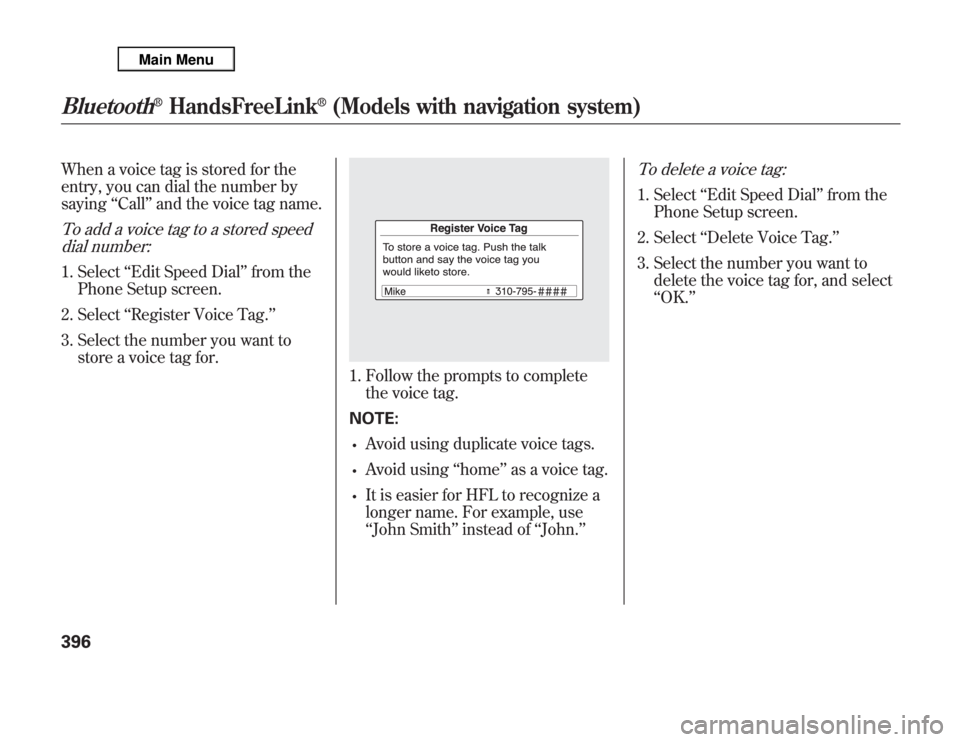
When a voice tag is stored for the
entry, you can dial the number by
saying‘‘Call’’and the voice tag name.To add a voice tag to a stored speed
dial number:1. Select‘‘Edit Speed Dial’’from the
Phone Setup screen.
2. Select‘‘Register Voice Tag.’’
3. Select the number you want to
store a voice tag for.
1. Follow the prompts to complete
the voice tag.
NOTE:•
Avoid using duplicate voice tags.
•
Avoid using‘‘home’’as a voice tag.
•
It is easier for HFL to recognize a
longer name. For example, use
‘‘John Smith’’instead of‘‘John.’’
To delete a voice tag:1. Select‘‘Edit Speed Dial’’from the
Phone Setup screen.
2. Select‘‘Delete Voice Tag.’’
3. Select the number you want to
delete the voice tag for, and select
‘‘OK.’’
Bluetooth
®
HandsFreeLink
®
(Models with navigation system)
396
Page 404 of 621
To delete a speed dial number:1. Select‘‘Edit Speed Dial’’from the
Phone Setup screen.
2. Select‘‘Delete Speed Dial.’’
3. Select the number you want to
delete, and select‘‘OK.’’
Delete Imported PhonebookThis option deletes the entire
phonebook of the currently linked
cell phone. Follow the confirmation
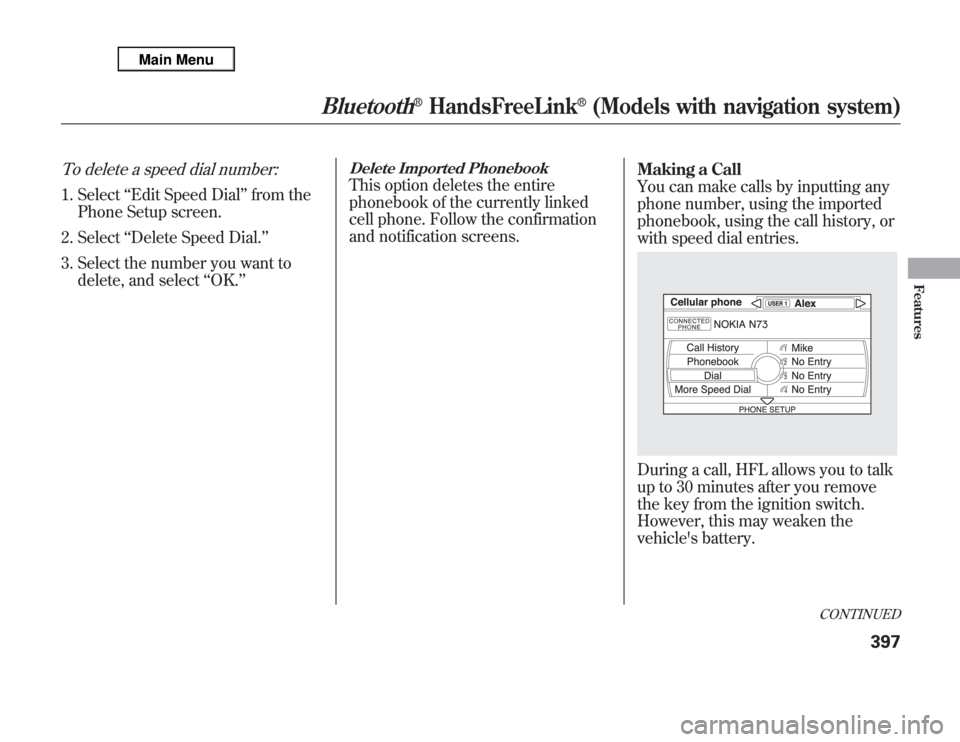
and notification screens.Making a Call
You can make calls by inputting any
phone number, using the imported
phonebook, using the call history, or
with speed dial entries.
During a call, HFL allows you to talk
up to 30 minutes after you remove
the key from the ignition switch.
However, this may weaken the
vehicle's battery.
CONTINUED
Bluetooth
®
HandsFreeLink
®
(Models with navigation system)
397
Features