ad blue Acura MDX 2012 Workshop Manual
[x] Cancel search | Manufacturer: ACURA, Model Year: 2012, Model line: MDX, Model: Acura MDX 2012Pages: 621, PDF Size: 11.15 MB
Page 405 of 621
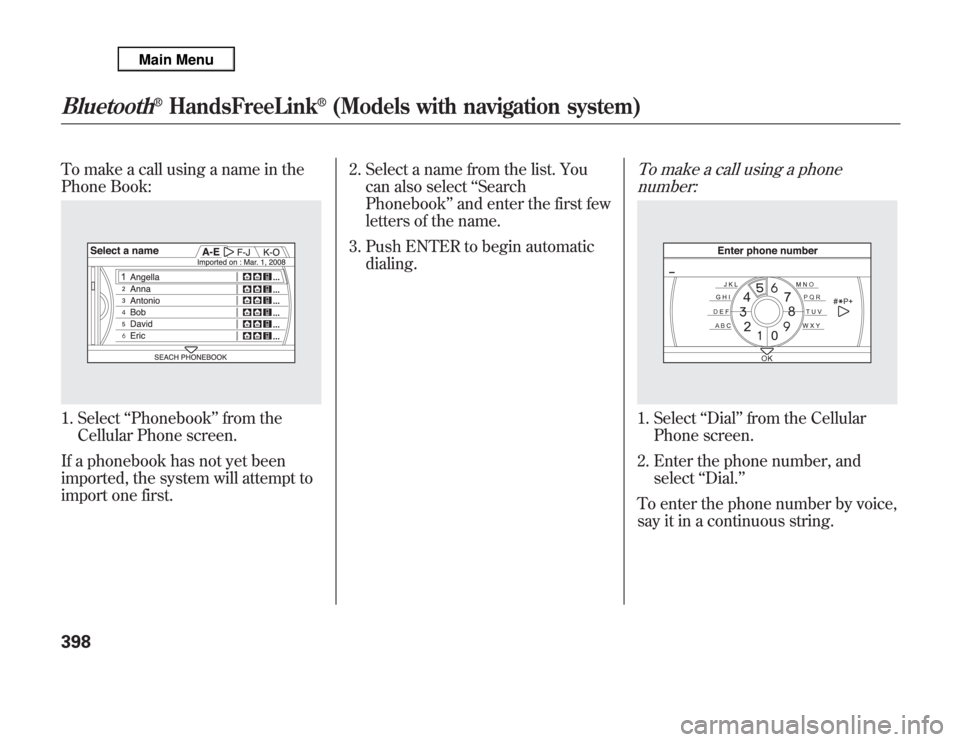
To make a call using a name in the
Phone Book:1. Select‘‘Phonebook’’from the
Cellular Phone screen.
If a phonebook has not yet been
imported, the system will attempt to
import one first.2. Select a name from the list. You
can also select‘‘Search
Phonebook’’and enter the first few
letters of the name.
3. Push ENTER to begin automatic
dialing.
To make a call using a phone
number:1. Select‘‘Dial’’from the Cellular
Phone screen.
2. Enter the phone number, and
select‘‘Dial.’’
To enter the phone number by voice,
say it in a continuous string.
Bluetooth
®
HandsFreeLink
®
(Models with navigation system)
398
Page 406 of 621
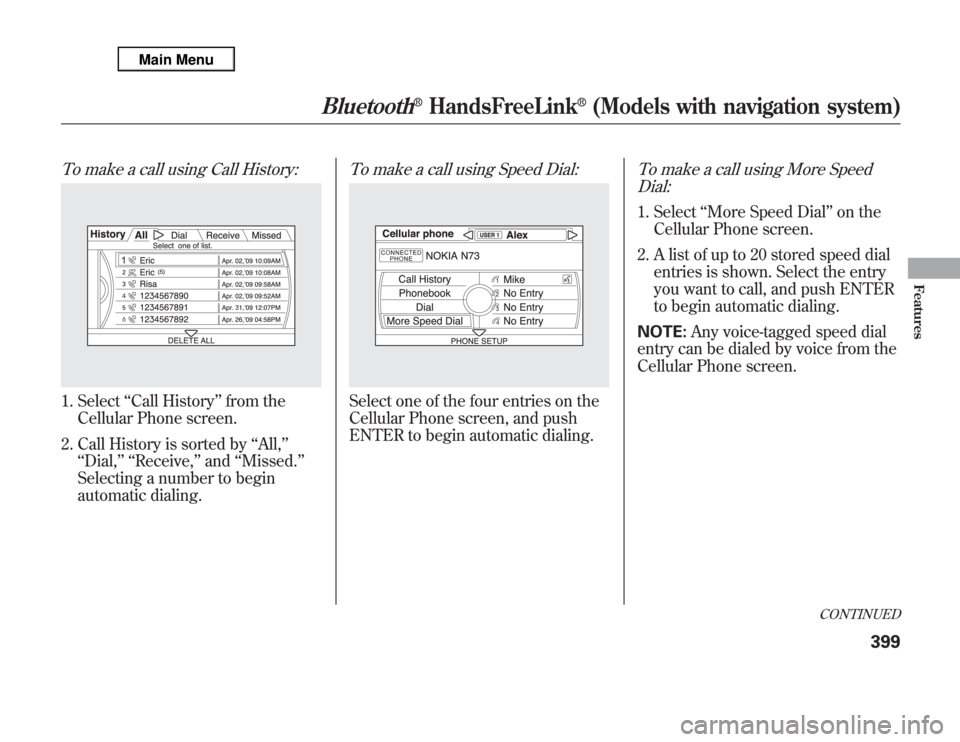
To make a call using Call History:1. Select‘‘Call History’’from the
Cellular Phone screen.
2. Call History is sorted by‘‘All,’’
‘‘Dial,’’ ‘‘Receive,’’and‘‘Missed.’’
Selecting a number to begin
automatic dialing.
To make a call using Speed Dial:Select one of the four entries on the
Cellular Phone screen, and push
ENTER to begin automatic dialing.
To make a call using More Speed
Dial:1. Select‘‘More Speed Dial’’on the
Cellular Phone screen.
2. A list of up to 20 stored speed dial
entries is shown. Select the entry
you want to call, and push ENTER
to begin automatic dialing.
NOTE:Any voice-tagged speed dial
entry can be dialed by voice from the
Cellular Phone screen.
CONTINUED
Bluetooth
®
HandsFreeLink
®
(Models with navigation system)
399
Features
Page 407 of 621
Receiving a Call
When you receive a call, a
notification appears on the screen.
(see page 385).
To answer the call, press the PICK-
UP button on the steering wheel.
To end or decline the call, press the
HANG-UP button.During a Call
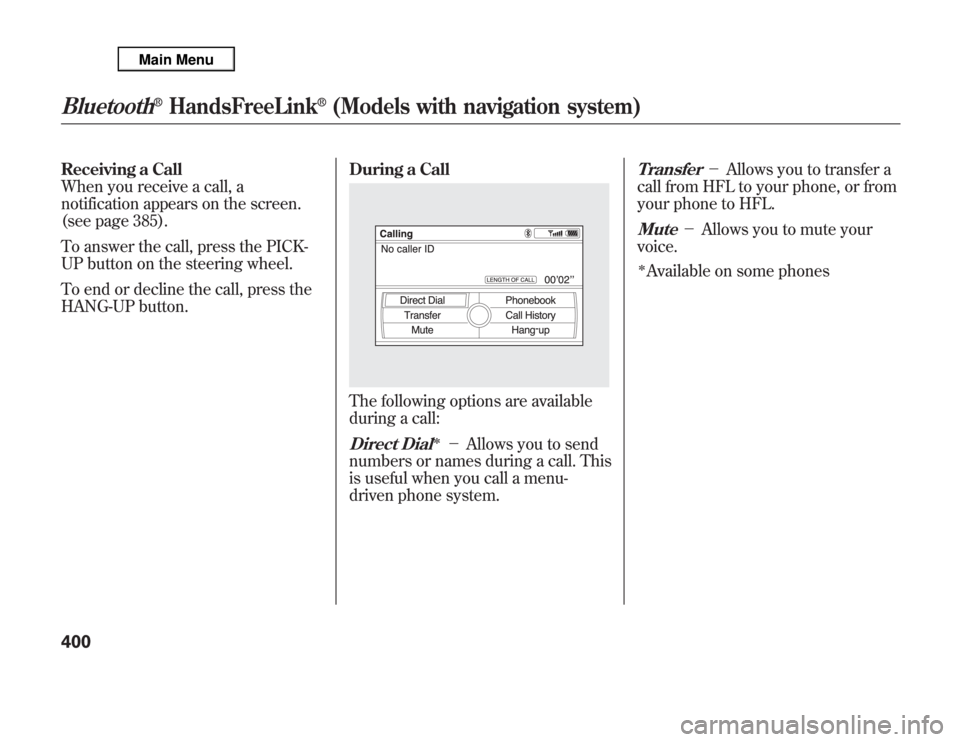
The following options are available
during a call:Direct Dial
ᤳ
-Allows you to send
numbers or names during a call. This
is useful when you call a menu-
driven phone system.
Transfer
-Allows you to transfer a
call from HFL to your phone, or from
your phone to HFL.
Mute
-Allows you to mute your
voice.
ᤳAvailable on some phones
Bluetooth
®
HandsFreeLink
®
(Models with navigation system)
400
Page 408 of 621
Call WaitingIf your phone has Call Waiting, press
and release the PICK-UP button to
put the original call on hold and
answer the incoming call.
To return to the original call, press
the PICK-UP button again. If you
don't want to answer the incoming
call, disregard it and continue with
your original call. If you want to hang
up the original call and answer the
new call, press the HANG-UP button.
Bluetooth
®Wireless Technology
The
Bluetooth
®name and logos are
registered trademarks owned by
Bluetooth SIG, Inc., and any use of
such marks by Honda Motor Co.,
Ltd., is under license. Other
trademarks and trade names are
those of their respective owners.
As required by the FCC:
This device complies with Part 15 of the
FCC rules. Operation is subject to the
following two conditions: (1) This device
may not cause harmful interference, and
(2) this device must accept any
interference received, including
interference that may cause undesired
operation.
Changes or modifications not expressly
approved by the party responsible for
compliance could void the user's
authority to operate the equipment.
This device complies with Industry
Canada Standard RSS-210.
Operation is subject to the following two
conditions: (1) this device may not cause
interference, and (2) this device must
accept any interference that may cause
undesired operation of the device.
Bluetooth
®
HandsFreeLink
®
(Models with navigation system)
401
Features
Page 409 of 621
AcuraLink
®(U.S. models only)
On models with navigation systemAcuraLink enhances your ownership
experience by providing a direct
communication link between your
vehicle and the Acura Server.
Working through the XM radio
satellite, AcuraLink works in
conjunction with the navigation
system,
Bluetooth
®HandsFreeLink
®
(HFL), and audio system in your
vehicle. It displays and receives
several kinds of messages, including:
●
Operating tips and information on
your vehicle's features.
●
Important recall and safety
information.
●
Maintenance information to keep
your vehicle in top condition.
●
Diagnostic information to provide
information about any problems
with your vehicle.
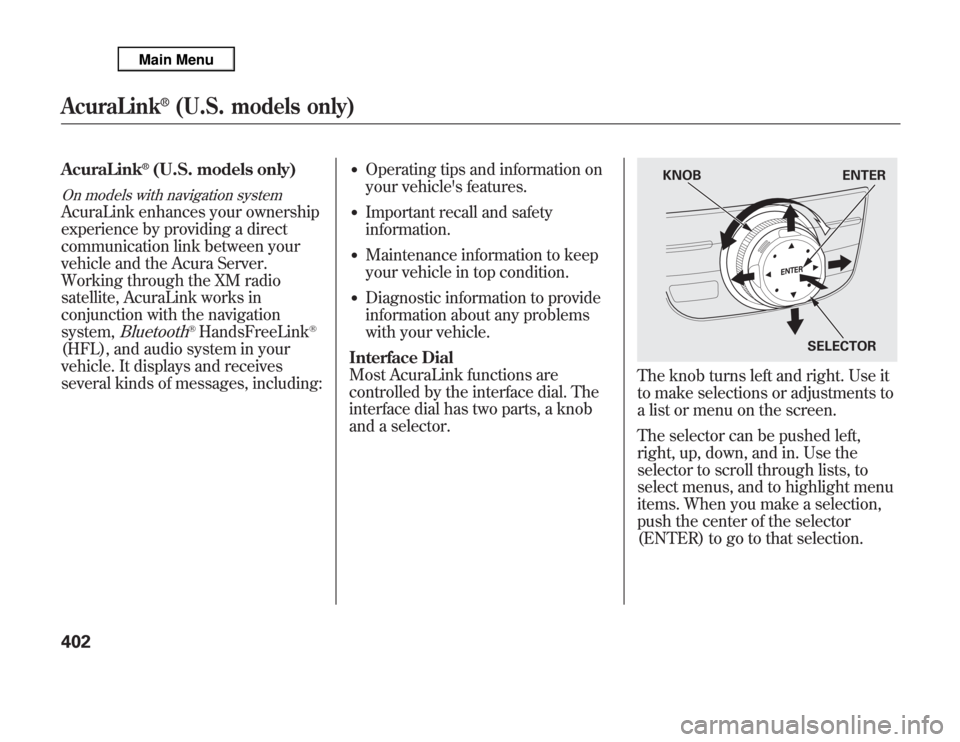
Interface Dial
Most AcuraLink functions are
controlled by the interface dial. The
interface dial has two parts, a knob
and a selector.
The knob turns left and right. Use it
to make selections or adjustments to
a list or menu on the screen.
The selector can be pushed left,
right, up, down, and in. Use the
selector to scroll through lists, to
select menus, and to highlight menu
items. When you make a selection,
push the center of the selector
(ENTER) to go to that selection.
KNOB ENTER
SELECTOR
AcuraLink
®
(U.S. models only)
402
Page 412 of 621
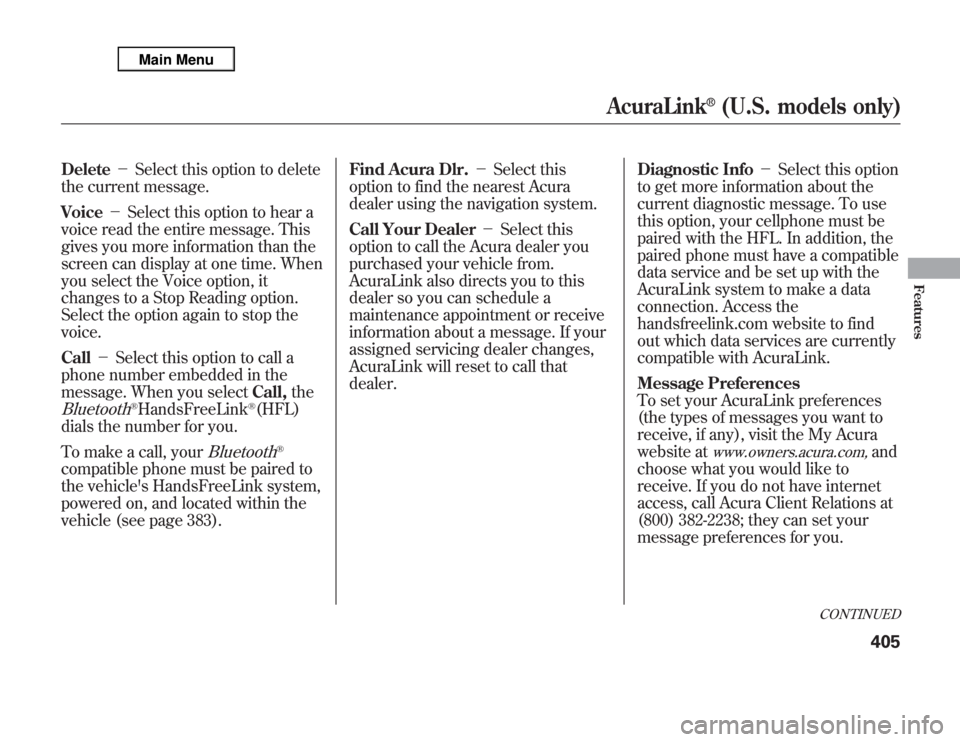
Delete-Select this option to delete
the current message.
Voice-Select this option to hear a
voice read the entire message. This
gives you more information than the
screen can display at one time. When
you select the Voice option, it
changes to a Stop Reading option.
Select the option again to stop the
voice.
Call-Select this option to call a
phone number embedded in the
message. When you selectCall,theBluetooth
®HandsFreeLink
®(HFL)
dials the number for you.
To make a call, your
Bluetooth
®
compatible phone must be paired to
the vehicle's HandsFreeLink system,
powered on, and located within the
vehicle (see page 383).Find Acura Dlr.-Select this
option to find the nearest Acura
dealer using the navigation system.
Call Your Dealer-Select this
option to call the Acura dealer you
purchased your vehicle from.
AcuraLink also directs you to this
dealer so you can schedule a
maintenance appointment or receive
information about a message. If your
assigned servicing dealer changes,
AcuraLink will reset to call that
dealer.Diagnostic Info-Select this option
to get more information about the
current diagnostic message. To use
this option, your cellphone must be
paired with the HFL. In addition, the
paired phone must have a compatible
data service and be set up with the
AcuraLink system to make a data
connection. Access the
handsfreelink.com website to find
out which data services are currently
compatible with AcuraLink.
Message Preferences
To set your AcuraLink preferences
(the types of messages you want to
receive, if any), visit the My Acura
website at
www.owners.acura.com,
and
choose what you would like to
receive. If you do not have internet
access, call Acura Client Relations at
(800) 382-2238; they can set your
message preferences for you.
CONTINUED
AcuraLink
®
(U.S. models only)
405
Features
Page 415 of 621
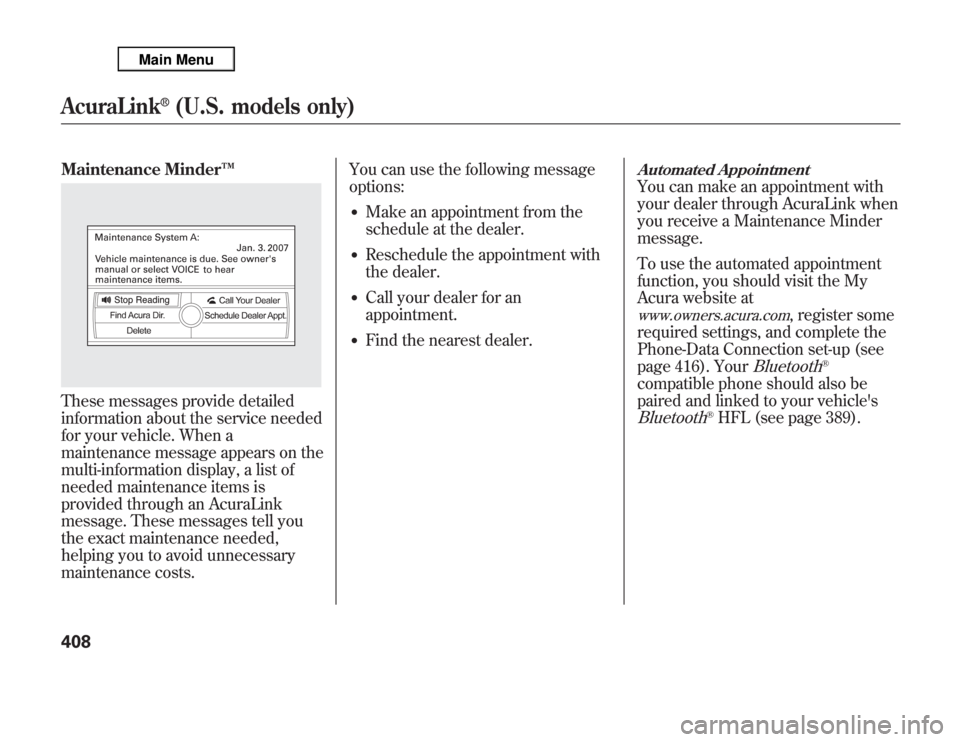
Maintenance Minder™These messages provide detailed
information about the service needed
for your vehicle. When a
maintenance message appears on the
multi-information display, a list of
needed maintenance items is
provided through an AcuraLink
message. These messages tell you
the exact maintenance needed,
helping you to avoid unnecessary
maintenance costs.You can use the following message
options:
●
Make an appointment from the
schedule at the dealer.
●
Reschedule the appointment with
the dealer.
●
Call your dealer for an
appointment.
●
Find the nearest dealer.
Automated AppointmentYou can make an appointment with
your dealer through AcuraLink when
you receive a Maintenance Minder
message.
To use the automated appointment
function, you should visit the My
Acura website atwww.owners.acura.com
, register some
required settings, and complete the
Phone-Data Connection set-up (see
page 416). Your
Bluetooth
®
compatible phone should also be
paired and linked to your vehicle'sBluetooth
®HFL (see page 389).
AcuraLink
®
(U.S. models only)
408
Page 423 of 621

Phone-Data Connection-Select
this option to begin the process
required to connect to Acura. This is
used to access the most recent
diagnostic information when a
problem occurs.
NOTE:For the Phone Data
Connection button to be active, you
need a
Bluetooth
®compatible and
enabled cell phone paired to the
Bluetooth
®HandsFreeLink
®(HFL).
To complete the data connection
setup, the paired phone must have a
compatible data service.To find more information on
Bluetooth
®compatible and enabled
cell phones, visit
www.acura.com/handsfreelink
or call
the HandsFreeLink
®consumer
support at 1-888-528-7876.
AcuraLink
®
(U.S. models only)
416
Page 424 of 621

Connect to the Acura Server-
The default setting is prompt. When
a diagnostic info message appears,
and you select the Check Now
option, the system will prompt you
before connecting to the Acura
server. If you do not wish to connect
at that time, select No at the prompt,
and you will see the information from
the onboard database. The‘‘Auto’’
setting will remove the prompt when
you select the Check Now option and
will automatically connect to the
Acura server. This setting only
applies when you have a
Bluetooth
®
enabled phone that is paired with the
HFL and you have completed the
Phone-Data Connection setup.
As required by the FCC:
This device complies with Part 15 of the
FCC rules. Operation is subject to the
following two conditions: (1) This device
may not cause harmful interference, and
(2) this device must accept any
interference received, including
interference that may cause undesired
operation.
Changes or modifications not expressly
approved by the party responsible for
compliance could void the user's
authority to operate the equipment.
Rearview Mirror with Rearview
Camera DisplayOn models with navigation systemRefer to the navigation system
manual for operation of the rearview
camera.
CONTINUED
AcuraLink
®
(U.S. models only), Rearview Mirror with Rearview Camera Display
417
Features
Page 501 of 621

Use this illustration to identify each
terminal in the trailer brake
controller connector.
Safety ChainsAlways use safety chains when you
tow a trailer. Make sure the chains
are secured to the trailer and hitch,
and that they cross under the tongue
and can catch the trailer if it becomes
unhitched. Leave enough slack to
allow the trailer to turn corners
easily, but do not let the chains drag
on the ground.Sway ControlThis device is recommended if your
trailer tends to sway. Your trailer
maker can tell you what kind of sway
control you need and how to install it.Trailer MirrorsMany states and provinces require
special exterior mirrors when towing
a trailer. Even if they don't, you
should install special mirrors if you
cannot clearly see behind you, or if
the trailer creates a blind spot.
Spare TiresWhen towing a trailer, we
recommend that you carry a full-size
spare wheel and tire for your vehicle
and trailer. See page 545 for proper
tire size, page 551 for how to store a
full size wheel and tire, and page 551
for information on changing a flat
tire.
Remember to unhitch the trailer
before changing a flat. Ask your
trailer sales or rental agency where
and how to store the trailer's spare
tire.
BRAKE
(20A)
(BLUE) ELECTRIC BRAKE
(YELLOW)
GROUND
(BLACK)STOP
(LIGHT GREEN)
Towing a Trailer494