driver 1 Acura MDX 2017 User Guide
[x] Cancel search | Manufacturer: ACURA, Model Year: 2017, Model line: MDX, Model: Acura MDX 2017Pages: 170, PDF Size: 12.43 MB
Page 39 of 170
32 |
V
EHICLE CONTROLS
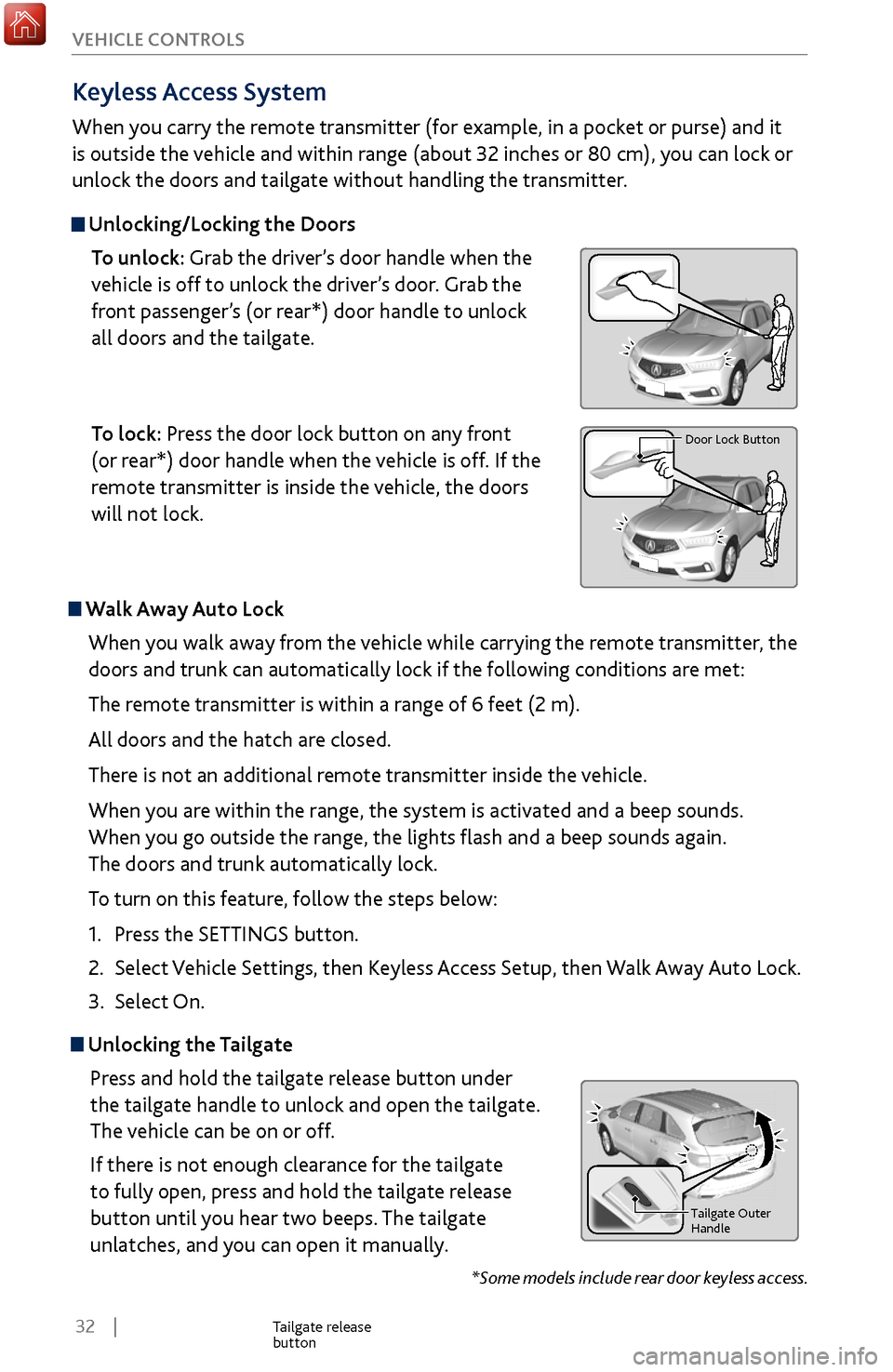
Unlocking the
Tailgate
Press and hold the tailgate release button under
the tailgate handle to unlock and open the tailgate.
The vehicle can be on or off.
If there is not enough clearance for the tailgate
to fully open, press and hold the tailgate release
button until you hear two beeps. The tailgate
unlatches, and you can open it manually.
Tailgate Outer Handl e
Tailgate release
button
Keyless Access System
When you carry the remote transmitter (for example, in a pocket or purse) and it
is outside the vehicle and within range (about 32 inches or 80 cm), you can lock or
unlock the doors and tailgate without handling the transmitter.
Unlocking/Locking the Doors
To unlock: Grab the driver’s door handle when the
vehicle is off to unlock the driver’s door. Grab the
front passenger’s (or rear*) door handle to unlock
all doors and the tailgate.
To lock: Press the door lock button on any front
(or rear*) door handle when the vehicle is off. If the
remote transmitter is inside the vehicle, the doors
will not lock.
Tailgate Outer Handl e
Door Lock Button
*Some models include rear door keyless access.
Walk Away Auto Lock
When you walk away from the vehicle while carrying the remote transmitter, the
doors and trunk can automatically lock if the following conditions are met:
The remote transmitter is within a range of 6 feet (2 m).
All doors and the hatch are closed.
There is not an additional remote transmitter inside the vehicle.
When you are within the range, the system is activated and a beep sounds.
When you go outside the range, the lights flash and a beep sounds again.
The doors and trunk automatically lock.
To turn on this feature, follow the steps below:
1.
Press the SETTINGS
button.
2.
Select Vehicle
Settings, then Keyless Access Setup, then Walk Away Auto Lock.
3.
Select On.
Page 40 of 170
| 33
V
EHICLE CONTROLS
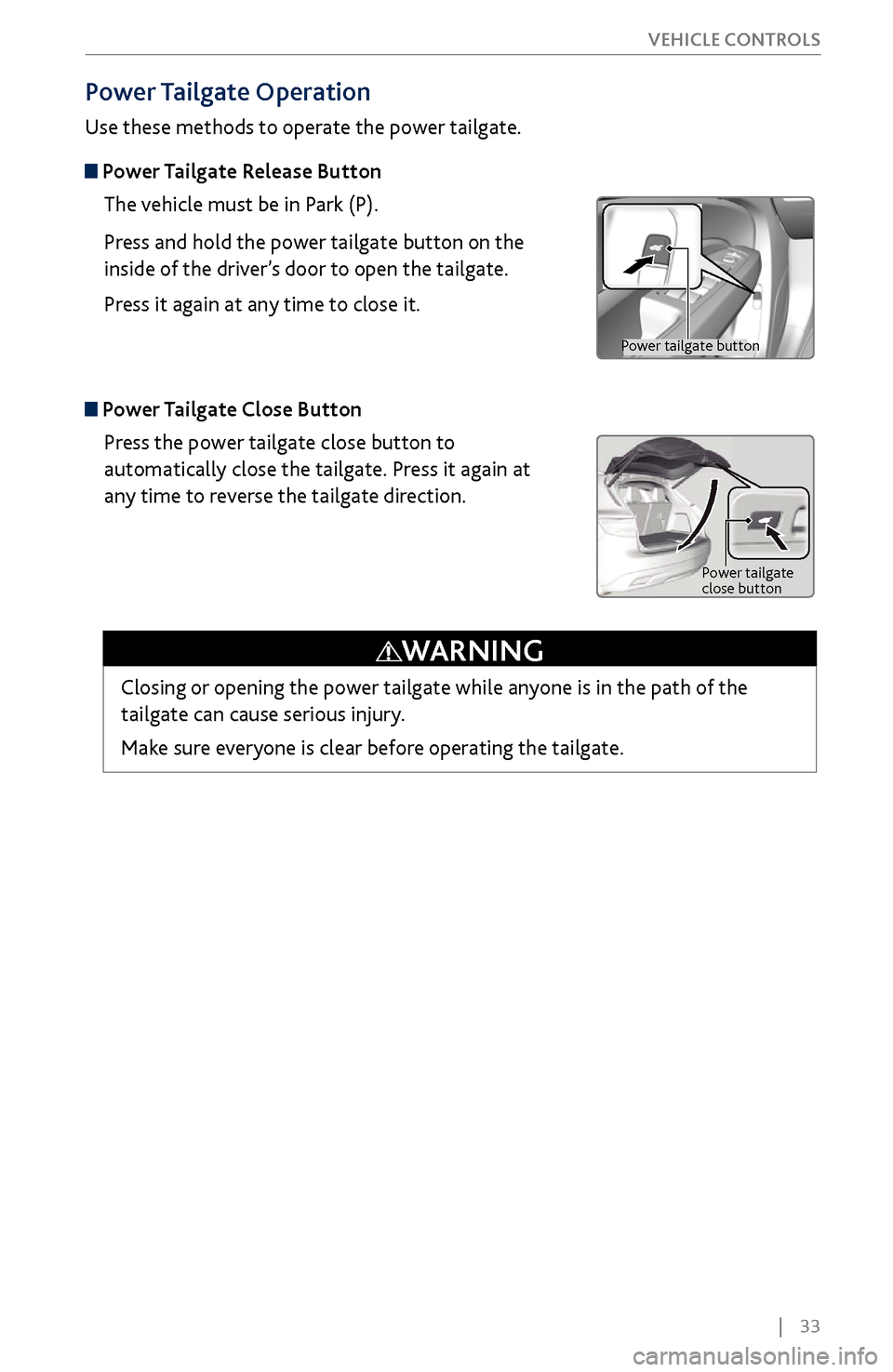
Power Tailgate Operation
Use these methods to operate the power tailgate.
Power Tailgate Release Button
The vehicle must be in Park (P).
Press and hold the power tailgate button on the
inside of the driver’s door to open the tailgate.
Press it again at any time to close it.
Power Tailgate Close ButtonPress the power tailgate close button to
automatically close the tailgate. Press it again at
any time to reverse the tailgate direction.
Power tailgate
close button
Closing or opening the power tailgate while anyone is in the path of the
tailgate can cause serious injury.
Make sure everyone is clear before operating the tailgate.
WARNING
Power tailgate button
Page 41 of 170
34 |
V
EHICLE CONTROLS
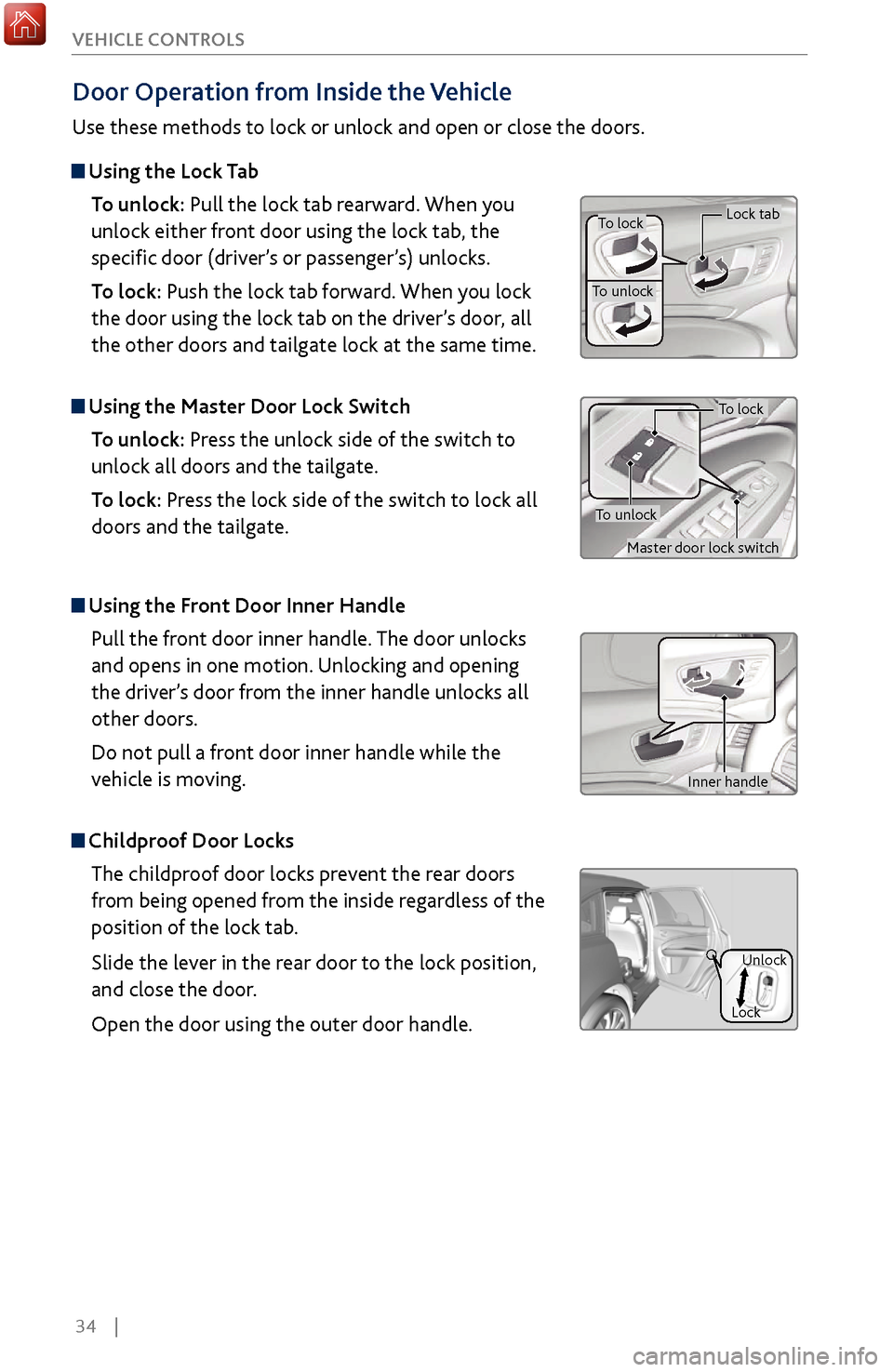
Door Operation from Inside the Vehicle
Use these methods to lock or unlock and open or close the doors.
Using the
Lock Tab
To unlock: Pull the lock tab rearward. When you
unlock either front door using the lock tab, the
specific door (driver’s or passenger’s) unlocks.
To lock: Push the lock tab forward. When you lock
the door using the lock tab on the driver’s door, all
the other doors and tailgate lock at the same time.
Using the Master Door Lock Switch
To unlock: Press the unlock side of the switch to
unlock all doors and the tailgate.
To lock: Press the lock side of the switch to lock all
doors and the tailgate.
Using the Front Door Inner Handle
Pull the front door inner handle. The door unlocks
and opens in one motion. Unlocking and opening
the driver’s door from the inner handle unlocks all
other doors.
Do not pull a front door inner handle while the
vehicle is moving.
Childproof Door Locks The childproof door locks prevent the rear doors
from being opened from the inside regardless of the
position of the lock tab.
Slide the lever in the rear door to the lock position,
and close the door.
Open the door using the outer door handle.
Unlock
Lock
Inner handle
To lock
To unlock
Lock tab
To lock
To unlock
Master door lock switch
Page 42 of 170
| 35
V
EHICLE CONTROLS
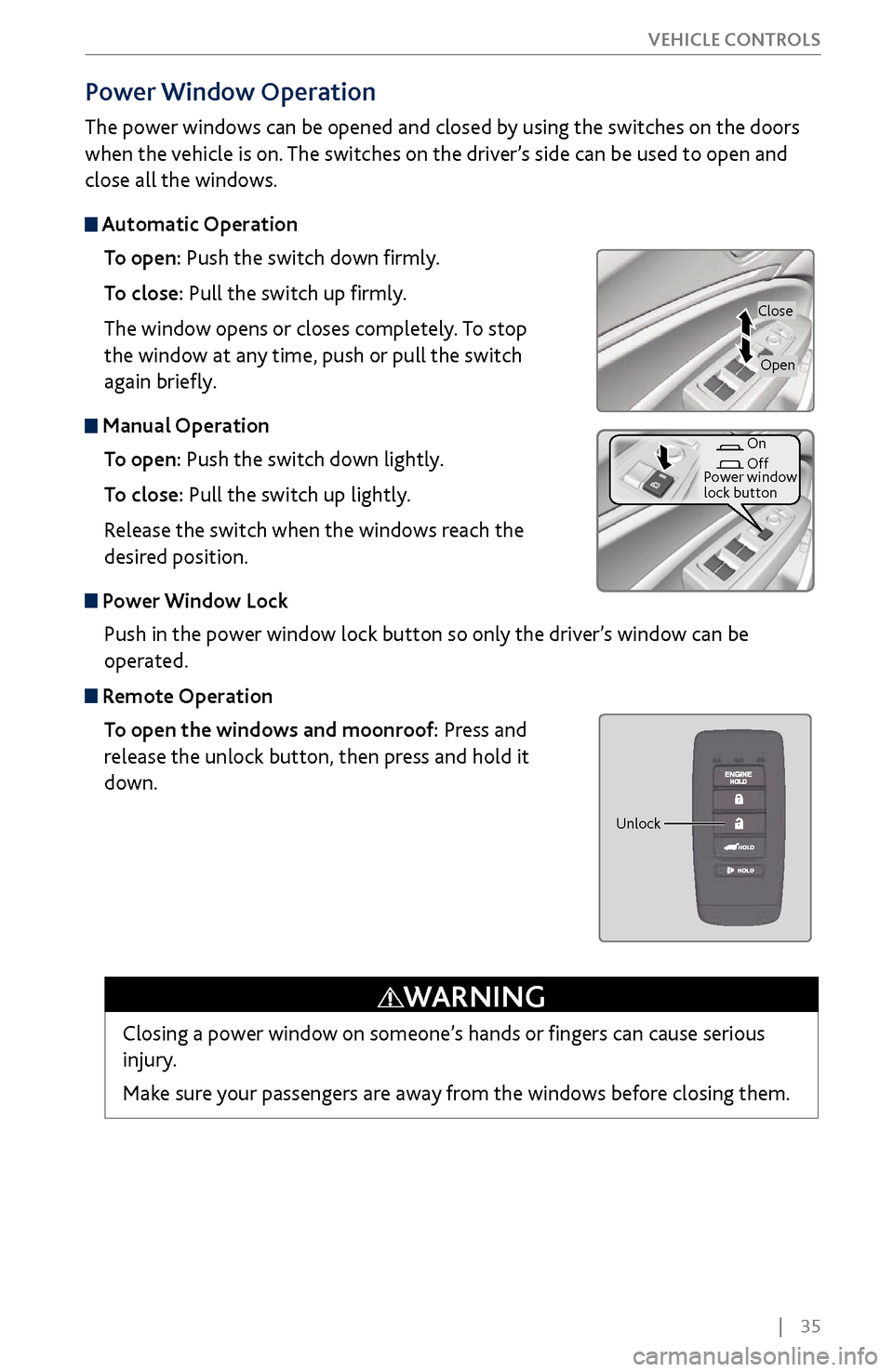
Power
Window Operation
The power windows can be opened and closed by using the switches on the doors
when the vehicle is on. The switches on the driver’s side can be used to open and
close all the windows.
Automatic Operation
To open: Push the switch down firmly.
To close: Pull the switch up firmly.
The window opens or closes completely. To stop
the window at any time, push or pull the switch
again briefly.
Manual OperationTo open: Push the switch down lightly.
To close: Pull the switch up lightly.
Release the switch when the windows reach the
desired position.
Power Window LockPush in the power window lock button so only the driver’s window can be
operated.
Remote OperationTo open the windows and moonroof: Press and
release the unlock button, then press and hold it
down.
Closing a power window on someone’s hands or fingers can cause serious
injury.
Make sure your passengers are away from the windows before closing them.
WARNING
Close
On
Off
Power window
lock button
Open
Unlock
Page 47 of 170
40 |
V
EHICLE CONTROLS
Interior Lights
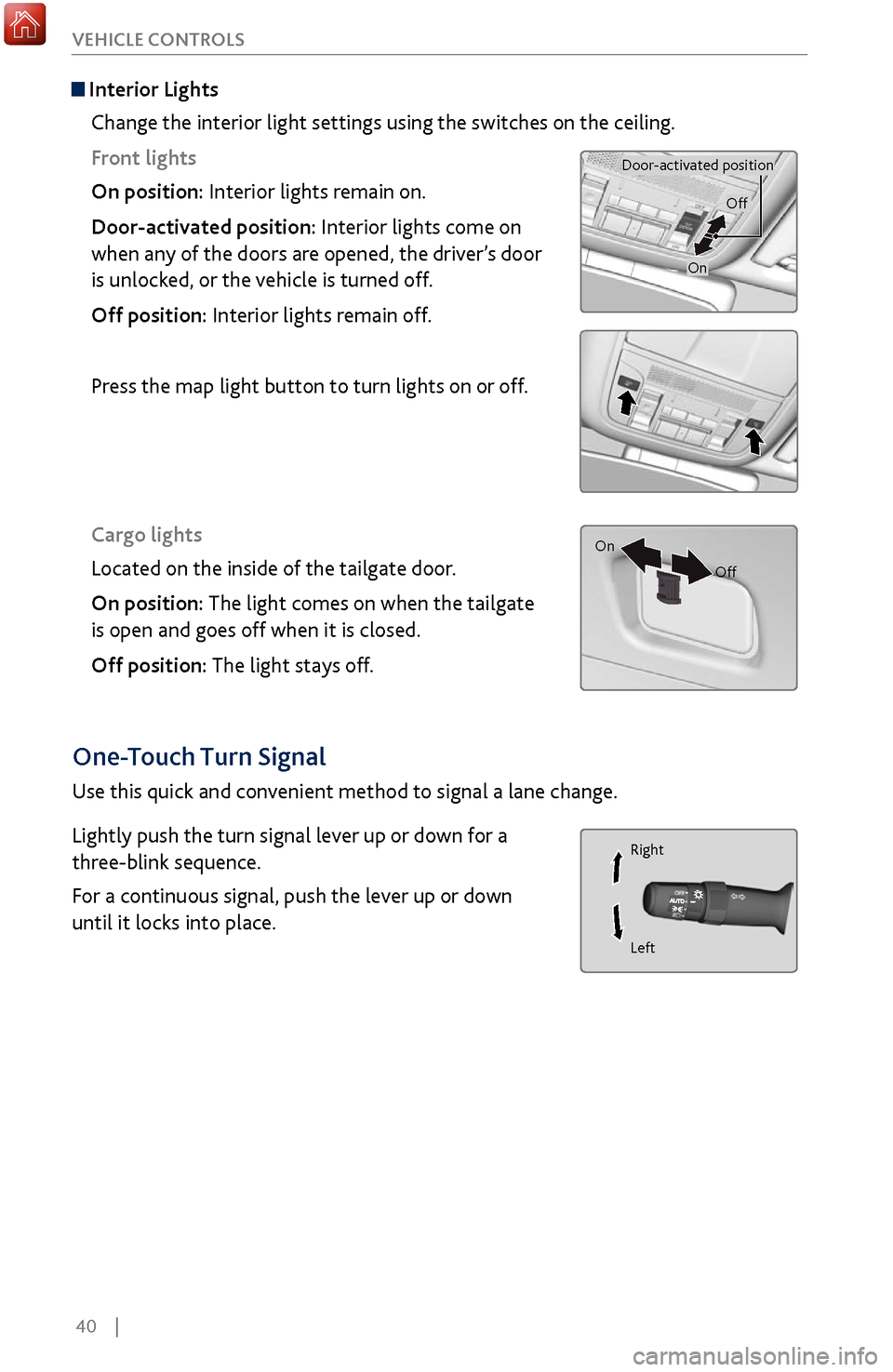
Change the interior light settings using the switches on the ceiling.
Front lights
On position: Interior lights remain on.
Door-activated position: Interior lights come on
when any of the doors are opened, the driver’s door
is unlocked, or the vehicle is turned off.
Off position: Interior lights remain off.
Press the map light button to turn lights on or off.
Cargo lights
Located on the inside of the tailgate door.
On position: The light comes on when the tailgate
is open and goes off when it is closed.
Off position: The light stays off.
Door-activated position
On
Off
On Off
One-Touch Turn Signal
Use this quick and convenient method to signal a lane change.
Lightly push the turn signal lever up or down for a
three-blink sequence.
For a continuous signal, push the lever up or down
until it locks into place.
Right
Left
Page 50 of 170
| 43
V
EHICLE CONTROLS
Adjusting the
Seats
Make seat adjustments before driving to ensure the best comfort and safety.
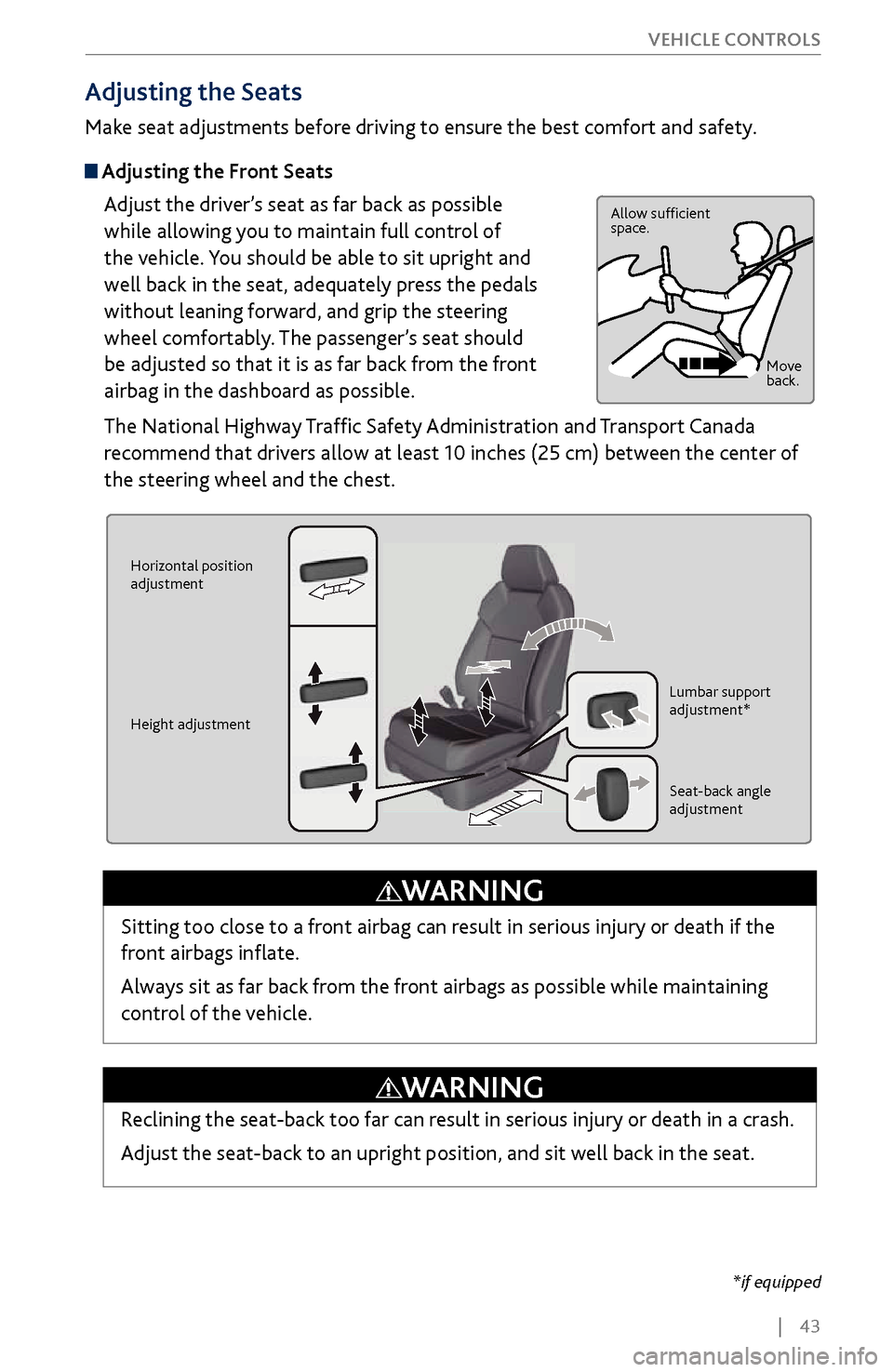
Adjusting the Front Seats
Adjust the driver’s seat as far back as possible
while allowing you to maintain full control of
the vehicle. You should be able to sit upright and
well back in the seat, adequately press the pedals
without leaning forward, and grip the steering
wheel comfortably. The passenger’s seat should
be adjusted so that it is as far back from the front
airbag in the dashboard as possible.
The National Highway Traffic Safety Administration and Transport Canada
recommend that drivers allow at least 10 inches (25 cm) between the center of
the steering wheel and the chest.
Allow sufficient
space.
Move
back.
Horizontal position
adjustment
Height adjustment Lumbar support
adjustment*
Seat-back angle
adjustment
Sitting too close to a front airbag can result in serious injury or death if the
front airbags inflate.
Always sit as far back from the front airbags as possible while maintaining
control of the vehicle.
WARNING
*if equipped
Reclining the seat-back too far can result in serious injury or death in a crash.
Adjust the seat-back to an upright position, and sit well back in the seat.
WARNING
Page 54 of 170
| 47
V
EHICLE CONTROLS
Driving Position Memory System
You can store two driver’s seat, steering wheel, and door mirror positions into
memory when the vehicle is on. When you unlock and open the driver’s door with
a remote transmitter, the items adjust automatically to one of the two preset
positions.
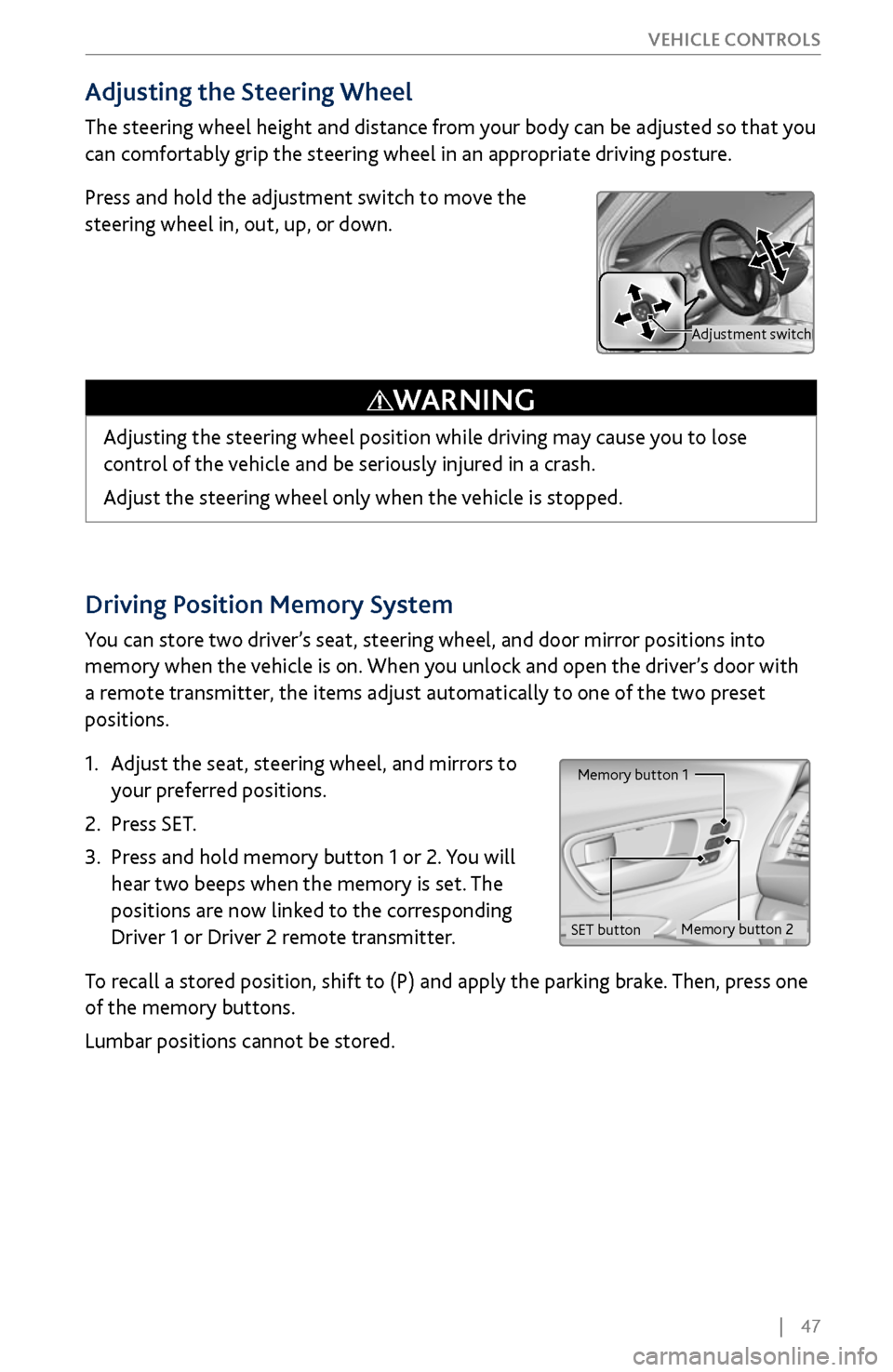
1.
Adjust the seat
, steering wheel, and mirrors to
your preferred positions.
2.
Press SET.
3.
Press and hold memory button 1 or 2.
You will
hear two beeps when the memory is set. The
positions are now linked to the corresponding
Driver 1 or Driver 2 remote transmitter.
To recall a stored position, shift to (P) and apply the parking brake. Then, press one
of the memory buttons.
Lumbar positions cannot be stored.
Memory button 1
Memory button 2
SET button
Adjusting the Steering Wheel
The steering wheel height and distance from your body can be adjusted so that you
can comfortably grip the steering wheel in an appropriate driving posture.
Press and hold the adjustment switch to move the
steering wheel in, out, up, or down.
Adjusting the steering wheel position while driving may cause you to lose
control of the vehicle and be seriously injured in a crash.
Adjust the steering wheel only when the vehicle is stopped.
WARNING
Adjustment switch
Page 58 of 170
| 51
V
EHICLE CONTROLS
Climate Control System
Set your preferred interior temperature by selecting the proper mix of heated or
cooled air and fan speed.
Front Operation
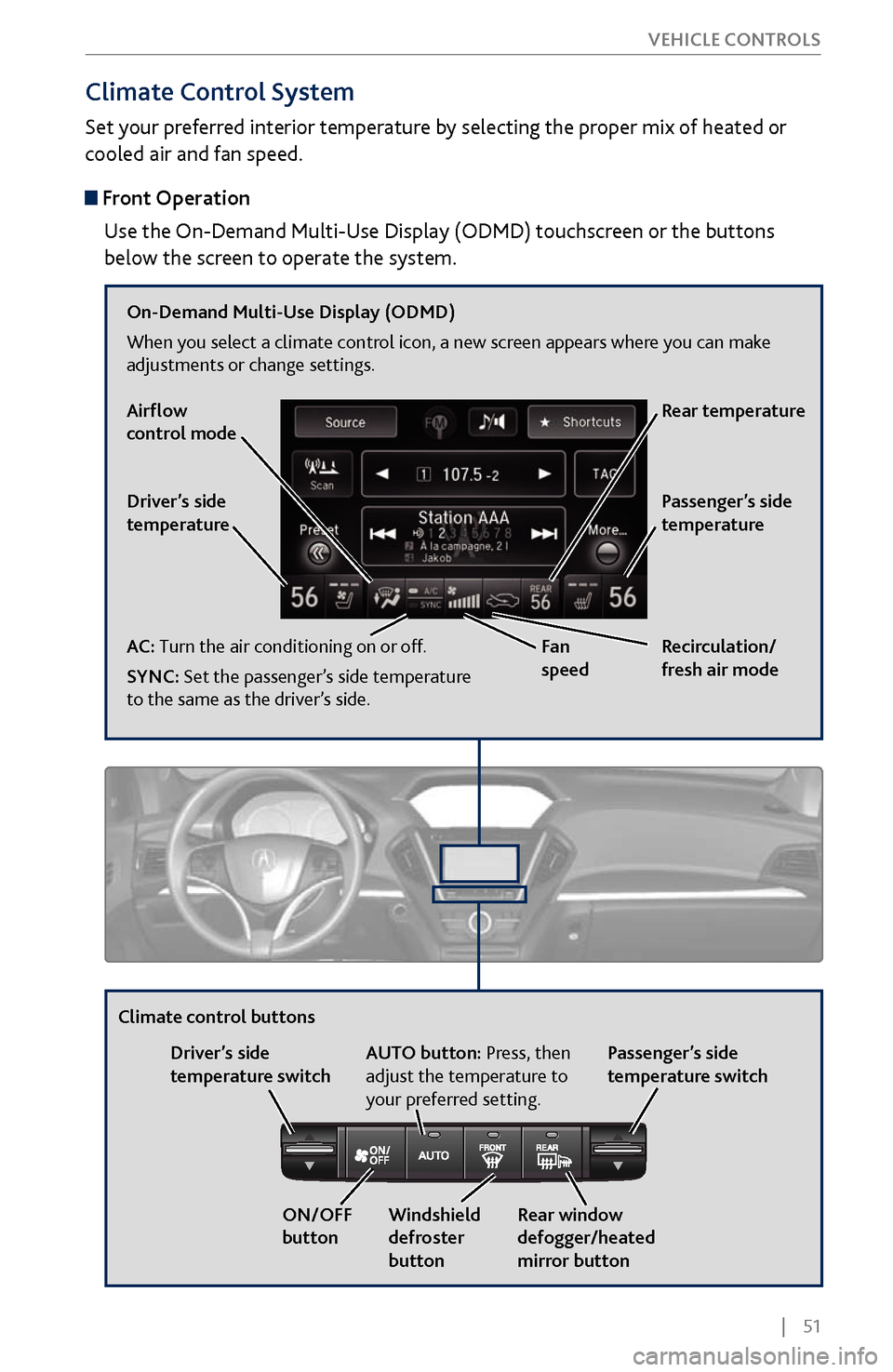
Use the On-Demand Multi-Use Display (ODMD) touchscreen or the buttons
below the screen to operate the system.
Recirculation/
fresh air mode
Driver’s side
temperature
On-Demand Multi-Use Display (ODMD)
When you select a climate control icon, a new screen appears where you can make
adjustments or change settings.
Airflow
control mode
AC: Turn the air conditioning on or off.
SYNC: Set the passenger’s side temperature
to the same as the driver’s side.
Fan
speedRear temperature
Passenger’s side
temperature
Windshield
defroster
button
Driver’s side
temperature switch
Climate control buttons
ON/OFF
buttonAUTO button: Press, then
adjust the temperature to
your preferred setting.
Rear window
defogger/heated
mirror buttonPassenger’s side
temperature switch
Page 62 of 170
| 55
V
EHICLE CONTROLS
*if equipped
Customized Features
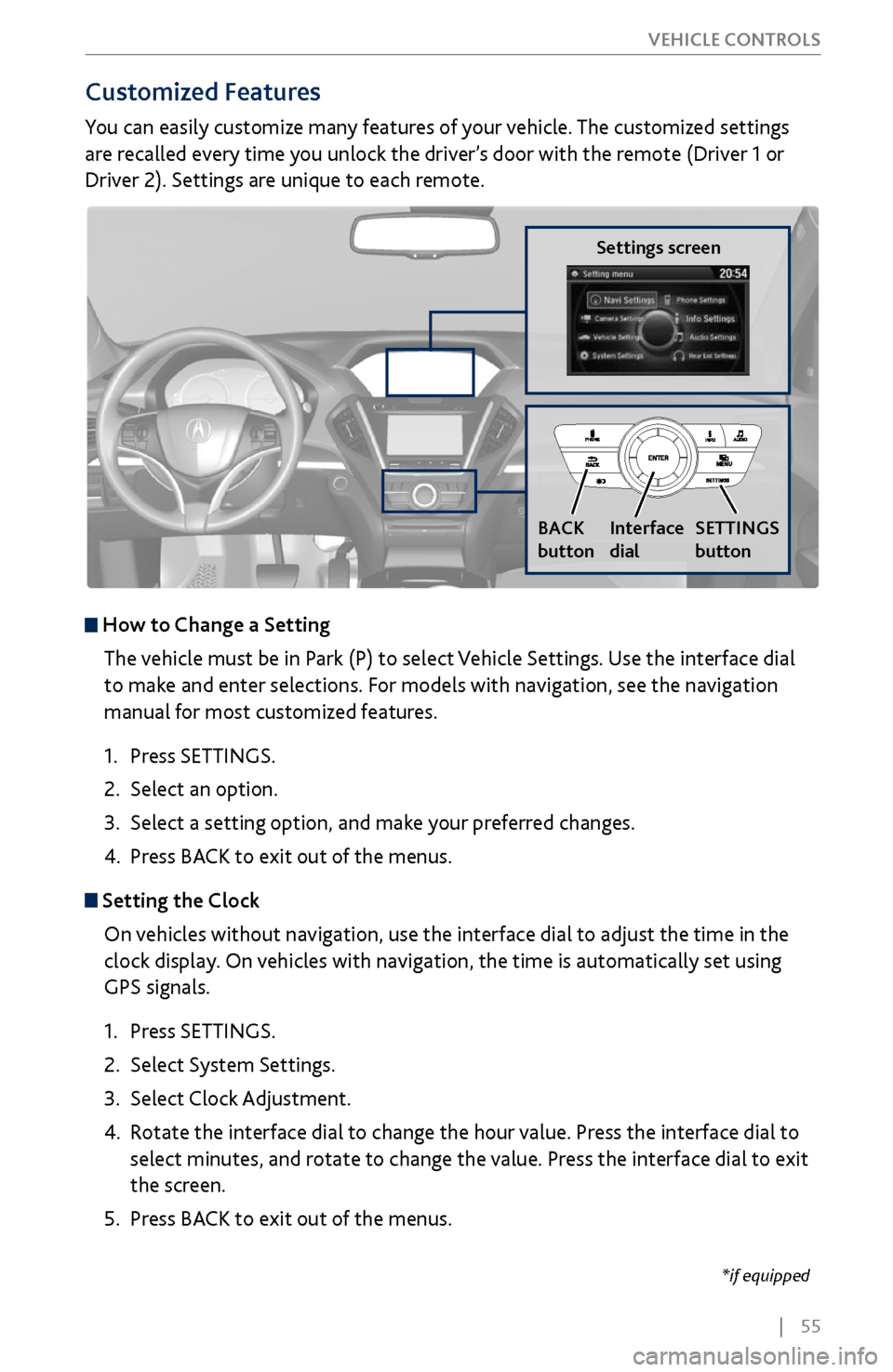
You can easily customize many features of your vehicle. The customized settings
are recalled every time you unlock the driver’s door with the remote (Driver 1 or
Driver 2). Settings are unique to each remote.
How to
Change a Setting
The vehicle must be in Park (P) to select Vehicle Settings. Use the interface dial
to make and enter selections. For models with navigation, see the navigation
manual for most customized features.
1.
Press SETTINGS.
2.
Select an option.
3.
Select a setting option, and make
your preferred changes.
4.
Press BA
CK to exit out of the menus.
Setting the Clock
On vehicles without navigation, use the interface dial to adjust the time in the
clock display. On vehicles with navigation, the time is automatically set using
GPS signals.
1.
Press SETTINGS.
2.
Select System Settings.
3.
Select Clock Adjustment
.
4.
Rotate the interface dial to
change the hour value. Press the interface dial to
select minutes, and rotate to change the value. Press the interface dial to exit
the screen.
5.
Press BA
CK to exit out of the menus.
Settings screen
BACK
button
Interface
dial SETTINGS
button
Page 78 of 170
| 71
Learn how to operate the vehicle’s hands-free calling system.
Basic HFL Operation
Make and receive phone calls using the vehicle’s audio system, without handling
your phone. Visit www.acura.com/handsfreelink (U.S.) or www.handsfreelink.ca
(Canada) to check phone compatibility.
To reduce the potential for driver distraction, certain manual functions may
be inoperable or grayed out while the vehicle is moving. Voice commands are
always available.
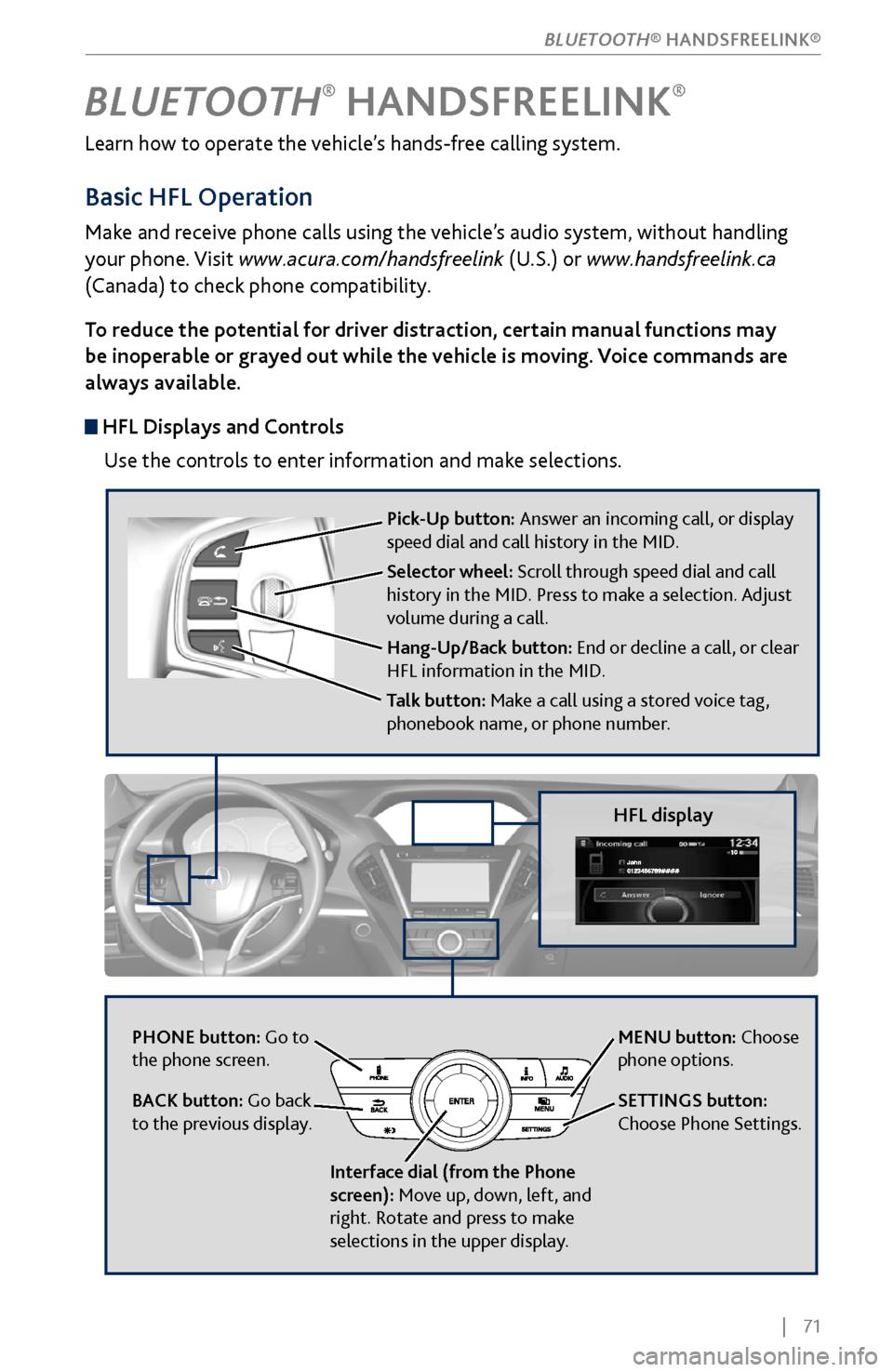
HFL Displays and Controls
Use the controls to enter information and make selections.
BLUETOOTH® HANDSFREELINK®
HFL display
PHONE button: Go to
the phone screen.
BACK button: Go back
to the previous display.
Interface dial (from the Phone
screen): Move up, down, left, and
right. Rotate and press to make
selections in the upper display.
Pick-Up button: Answer an incoming call, or display
speed dial and call history in the MID.
Selector wheel: Scroll through speed dial and call
history in the MID. Press to make a selection. Adjust
volume during a call.
Hang-Up/Back button: End or decline a call, or clear
HFL information in the MID.
Talk button: Make a call using a stored voice tag,
phonebook name, or phone number.
MENU button: Choose
phone options.
SETTINGS button:
Choose Phone Settings.
BLUETOOTH® HANDSFREELINK®