audio Acura MDX 2017 User Guide
[x] Cancel search | Manufacturer: ACURA, Model Year: 2017, Model line: MDX, Model: Acura MDX 2017Pages: 581, PDF Size: 32.65 MB
Page 148 of 581
Continued147
uuLocking and Unlocking the Doors uLocking/Unlocking the Doors from the Inside
Controls
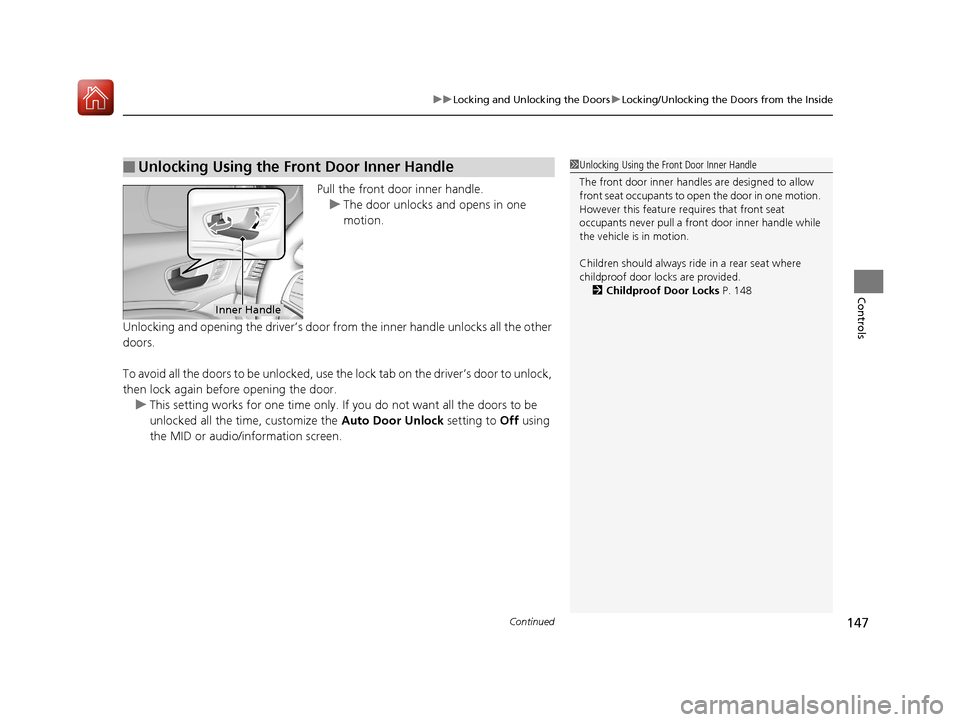
Pull the front door inner handle.
u The door unlocks and opens in one
motion.
Unlocking and opening the driver’s door from the inner handle unlocks all the other
doors.
To avoid all the doors to be unlocked, use the lock tab on the driver’s door to unlock,
then lock again before opening the door. u This setting works for one time only. If you do not want all the doors to be
unlocked all the time, customize the Auto Door Unlock setting to Off using
the MID or audio/information screen.
■Unlocking Using the Front Door Inner Handle1 Unlocking Using the Front Door Inner Handle
The front door inne r handles are designed to allow
front seat occupants to open the door in one motion.
However this feature requires that front seat
occupants never pull a front door inner handle while
the vehicle is in motion.
Children should always ride in a rear seat where
childproof door locks are provided.
2 Childproof Door Locks P. 148
Inner Handle
17 ACURA MDX-31TZ56300.book 147 ページ 2016年5月13日 金曜日 午後7時46分
Page 150 of 581
149
uuLocking and Unlocking the Doors uAuto Door Locking/Unlocking
Controls
Auto Door Locking/Unlocking
Your vehicle locks all doors and unlocks all doors or the driver’s door automatically
when a certain condition is met.
■Drive lock mode
All doors and tailgate lock when the ve hicle’s speed reaches about 10 mph (15
km/h).
■Driver’s door open mode
All doors unlock when the driver’s door is opened.
■Auto Door Locking
■Auto Door Unlocking
1 Auto Door Locking/Unlocking
You can turn off or cha nge to another auto door
locking/unlocking sett ing using the audio/
information screen or MID. 2 Customized Features P. 123, 285
17 ACURA MDX-31TZ56300.book 149 ページ 2016年5月13日 金曜日 午後7時46分
Page 158 of 581
157Continued
Controls
Security System
Immobilizer System
The immobilizer system prevents a key that has not been pre-registered from
starting the engine. Each key contains electronic transmitters that use electronic
signals to verify the key.
Pay attention to the follo wing when pressing the ENGINE START/STOP button:
• Do not allow objects that emit strong radio waves near the ENGINE START/
STOP button.
• Make sure the key is not covered by or touching a metal object.
• Do not bring a key from another vehicle’s immobilizer system near the ENGINE
START/STOP button.
• Do not put the key near magnetic items. Electronic devices, such as televisions
and audio systems emit strong magnetic fields. Note that even a key chain can
become magnetic.
Security System Alarm
The security system alarm activates when the tailgate, hood or doors are forcibly
opened. The alarm does not activate if the tailgate or doors are opened with the key,
remote transmitter or keyless access system.
However, the alarm activates if a door is op ened with the key and then the hood is
opened before the power mode is set to ON.
■When the security system alarm activates
The horn sounds intermittently, and some exterior lights flash.
■To deactivate the security system alarm
Unlock the vehicle using the key, remote tra nsmitter, or keyless access system. The
system, along with the horn and flashing lights, is deactivated.
1 Immobilizer System
NOTICE
Leaving the key in the vehicl e can result in theft or
accidental movement of the vehicle.
Always take the key with you whenever you leave the
vehicle unattended.
Do not alter the system or add other devices to it.
Doing so may damage the system and make your
vehicle inoperable.
1 Security System Alarm
Do not alter the system or add other devices to it.
Doing so may damage the system and make your
vehicle inoperable.
The security alarm continues for a maximum of two
minutes until the security system alarm deactivates.
17 ACURA MDX-31TZ56300.book 157 ページ 2016年5月13日 金曜日 午後7時46分
Page 164 of 581
163Continued
Controls
Operating the Switches Around the Steering Wheel
ENGINE START/STOP Button
*1:Canadian models
■Changing the Power Mode1ENGINE START/STOP Button
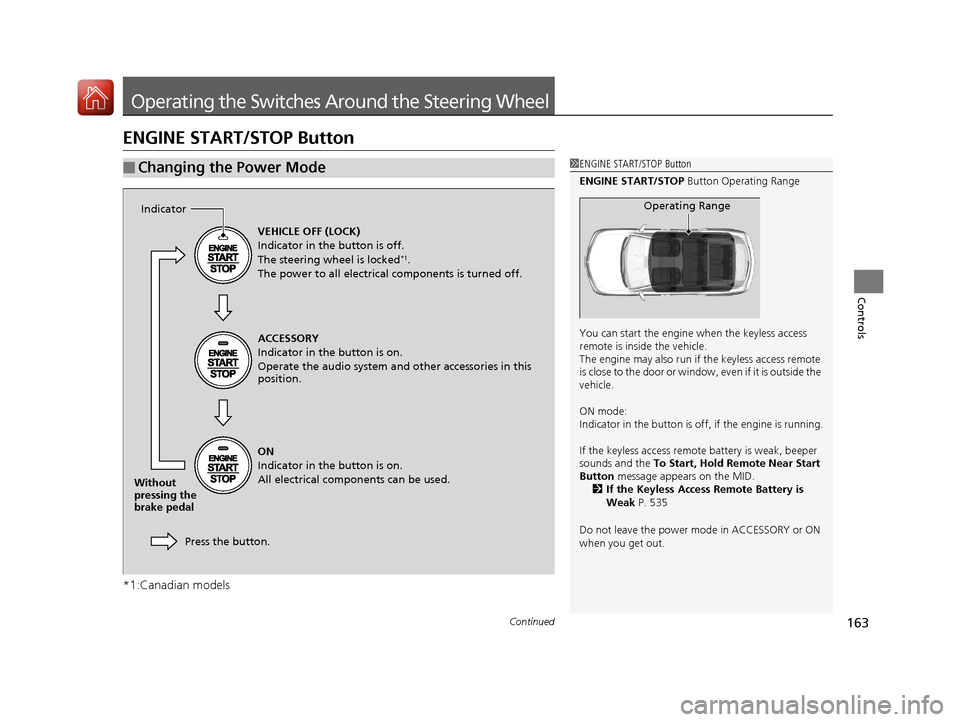
ENGINE START/STOP Button Operating Range
You can start the engine when the keyless access
remote is inside the vehicle.
The engine may also run if the keyless access remote
is close to the door or window, even if it is outside the
vehicle.
ON mode:
Indicator in the button is of f, if the engine is running.
If the keyless access remote battery is weak, beeper
sounds and the To Start, Hold Remote Near Start
Button message appears on the MID. 2 If the Keyless Access Remote Battery is
Weak P. 535
Do not leave the power mode in ACCESSORY or ON
when you get out.
Operating Range
VEHICLE OFF (LOCK)
Indicator in the button is off.
The steering wheel is locked
*1.
The power to all electrical components is turned off.
ACCESSORY
Indicator in the button is on.
Operate the audio system and other accessories in this
position.
ON
Indicator in the button is on.
All electrical components can be used.
Press the button.
Indicator
Without
pressing the
brake pedal
17 ACURA MDX-31TZ56300.book 163 ページ 2016年5月13日 金曜日 午後7時46分
Page 181 of 581
180
uuOperating the Switches Around the Steering Wheel uDriving Position Memory System
Controls
Driving Position Memory System
You can store two driver’s seat (except fo r power lumbar), steering wheel and door
mirror positions with the driving position memory system.
When you unlock and open th e driver’s door with a remote transmitter, or keyless
access system, the seat and door mirrors adjust automatically to one of the two
preset positions.
The steering wheel will move to the stored position when you set the power mode
to ACCESSORY.
When you enter the vehicle, the MID brie fly shows you which remote transmitter
you used to unlock the vehicle.
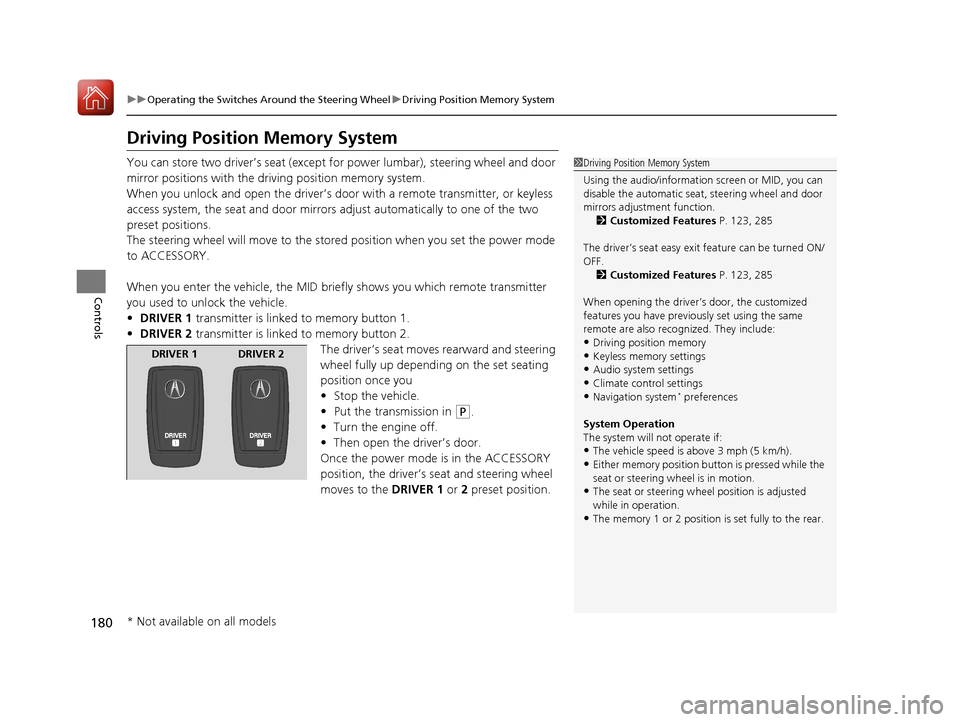
• DRIVER 1 transmitter is linked to memory button 1.
• DRIVER 2 transmitter is linked to memory button 2.
The driver’s seat moves rearward and steering
wheel fully up depending on the set seating
position once you
•Stop the vehicle.
• Put the transmission in
(P.
• Turn the engine off.
• Then open the driver’s door.
Once the power mode is in the ACCESSORY
position, the driver’s seat and steering wheel
moves to the DRIVER 1 or 2 preset position.
1Driving Position Memory System
Using the audio/information screen or MID, you can
disable the automatic seat, steering wheel and door
mirrors adjustment function. 2 Customized Features P. 123, 285
The driver’s seat easy exit feature can be turned ON/
OFF. 2 Customized Features P. 123, 285
When opening the driver’s door, the customized
features you have previously set using the same
remote are also rec ognized. They include:
•Driving position memory
•Keyless memory settings
•Audio system settings•Climate control settings
•Navigation system* preferences
System Operation
The system will not operate if:
•The vehicle speed is above 3 mph (5 km/h).•Either memory position button is pressed while the
seat or steering wheel is in motion.
•The seat or steering wheel position is adjusted
while in operation.
•The memory 1 or 2 position is set fully to the rear.
DRIVER 1 DRIVER 2
* Not available on all models
17 ACURA MDX-31TZ56300.book 180 ページ 2016年5月13日 金曜日 午後7時46分
Page 228 of 581
227
Features
This chapter describes how to operate technology features.
Audio SystemAbout Your Audio System ................ 228
USB Ports ......................................... 229
Auxiliary Input Jack .......................... 230
Audio System Theft Protection ......... 230
Audio Remote Controls .................... 231
Audio System Basic Operation ........ 232
On Demand Multi-Use Display
TM....... 233
Audio/Information Screen ................ 239
Adjusting the Sound ........................ 243
Display Setup ................................... 244
Playing AM/FM Radio ....................... 245
Playing SiriusXM ® Radio ................... 249 Playing a CD .................................... 260
Playing an iPod ................................ 263
Playing Internet Radio ...................... 267
Playing a USB Flash Drive ................. 270
Playing
Bluetooth ® Audio................. 273
Siri Eyes Free .................................... 275
Audio Error Messages CD Player ......................................... 276
iPod/USB Flash Drive ........................ 277
Pandora ®......................................... 278
Aha
TM Radio ..................................... 280 General Information on the Audio
SystemSiriusXM ® Radio Service ................... 281
Recommended CDs ......................... 282
Compatible iPod, iPhone, and USB Flash Drives ................................................. 284
Customized Features ........................ 285
Defaulting All the Settings ............... 306
HomeLink ® Universal Transceiver ... 307
Bluetooth ® HandsFreeLink®
Using HFL ........................................ 310
HFL Menus ...................................... 312
Compass
*.......................................... 344
* Not available on all models
17 ACURA MDX-31TZ56300.book 227 ページ 2016年5月13日 金曜日 午後7時46分
Page 229 of 581
228
Features
Audio System
About Your Audio System
The audio system features AM/FM radio and SiriusXM® Radio service. It can also play
audio CDs, WMA/MP3/AAC files, USB flash drives, and iPod, iPhone and Bluetooth®
devices.
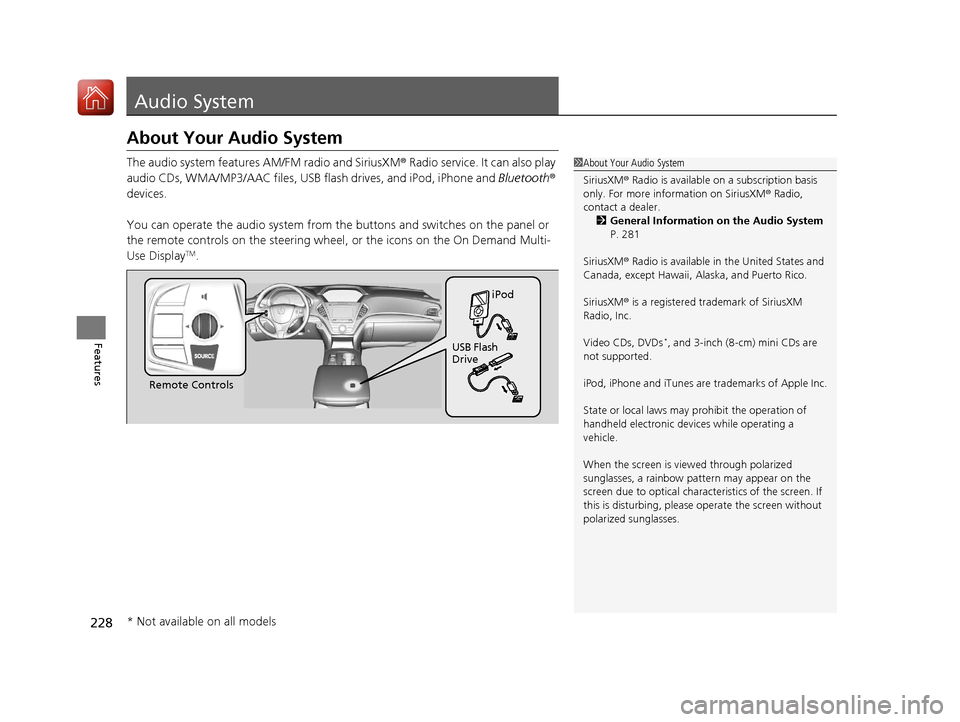
You can operate the audio system from the buttons and switches on the panel or
the remote controls on th e steering wheel, or the icon s on the On Demand Multi-
Use Display
TM.
1 About Your Audio System
SiriusXM ® Radio is available on a subscription basis
only. For more information on SiriusXM ® Radio,
contact a dealer.
2 General Information on the Audio System
P. 281
SiriusXM ® Radio is available in the United States and
Canada, except Ha waii, Alaska, and Puerto Rico.
SiriusXM ® is a registered trademark of SiriusXM
Radio, Inc.
Video CDs, DVDs
*, and 3-inch (8-cm) mini CDs are
not supported.
iPod, iPhone and iTunes are trademarks of Apple Inc.
State or local laws may pr ohibit the operation of
handheld electronic devi ces while operating a
vehicle.
When the screen is vi ewed through polarized
sunglasses, a rainbow pa ttern may appear on the
screen due to optical characteristics of the screen. If
this is disturbing, please operate the screen without
polarized sunglasses.
Remote Controls iPod
USB Flash
Drive
* Not available on all models
17 ACURA MDX-31TZ56300.book 228 ページ 2016年5月13日 金曜日 午後7時46分
Page 230 of 581
229
uuAudio System uUSB Ports
Features
USB Ports
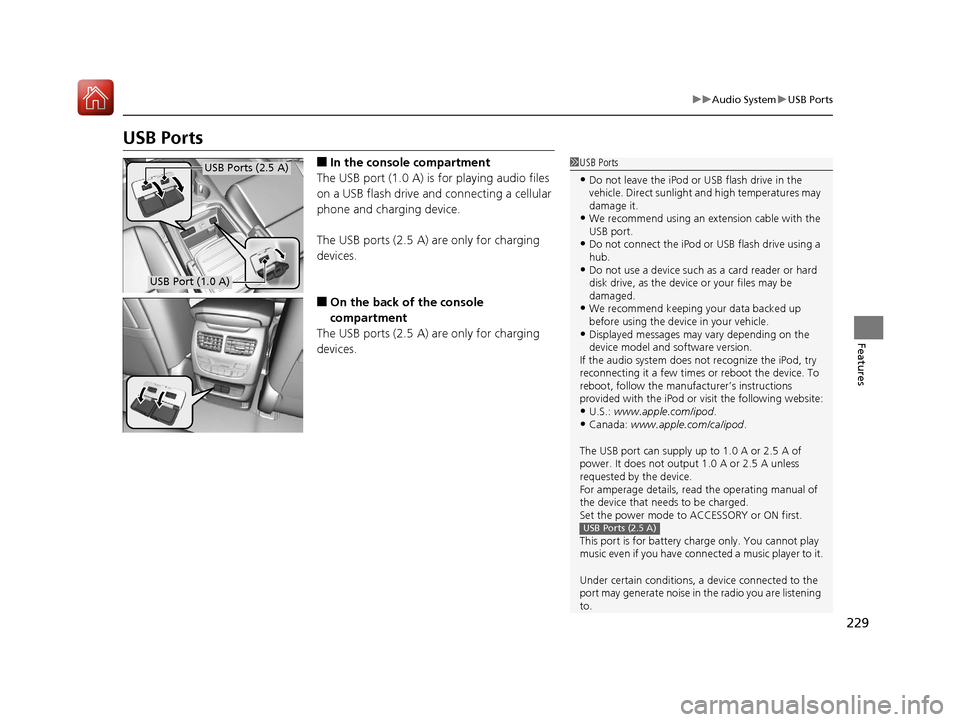
■In the consol e compartment
The USB port (1.0 A) is for playing audio files
on a USB flash drive and connecting a cellular
phone and charging device.
The USB ports (2.5 A) are only for charging
devices.
■On the back of the console
compartment
The USB ports (2.5 A) are only for charging
devices.
1 USB Ports
•Do not leave the iPod or USB flash drive in the
vehicle. Direct sunlight and high temperatures may
damage it.
•We recommend using an extension cable with the
USB port.
•Do not connect the iPod or USB flash drive using a
hub.
•Do not use a device such as a card reader or hard
disk drive, as the device or your files may be
damaged.
•We recommend keeping y our data backed up
before using the device in your vehicle.
•Displayed messages may vary depending on the
device model and software version.
If the audio system does not recognize the iPod, try
reconnecting it a few times or reboot the device. To
reboot, follow the manufac turer’s instructions
provided with the iPod or visit the following website:
•U.S.: www.apple.com/ipod .•Canada: www.apple.com/ca/ipod.
The USB port can supply up to 1.0 A or 2.5 A of
power. It does not output 1.0 A or 2.5 A unless
requested by the device.
For amperage details, read the operating manual of
the device that ne eds to be charged.
Set the power mode to ACCESSORY or ON first.
This port is for battery charge only. You cannot play
music even if you have conne cted a music player to it.
Under certain condi tions, a device connected to the
port may generate noise in the radio you are listening
to.
USB Ports (2.5 A)
USB Ports (2.5 A)
USB Port (1.0 A)
17 ACURA MDX-31TZ56300.book 229 ページ 2016年5月13日 金曜日 午後7時46分
Page 231 of 581
230
uuAudio System uAuxiliary Input Jack
Features
Auxiliary Input Jack
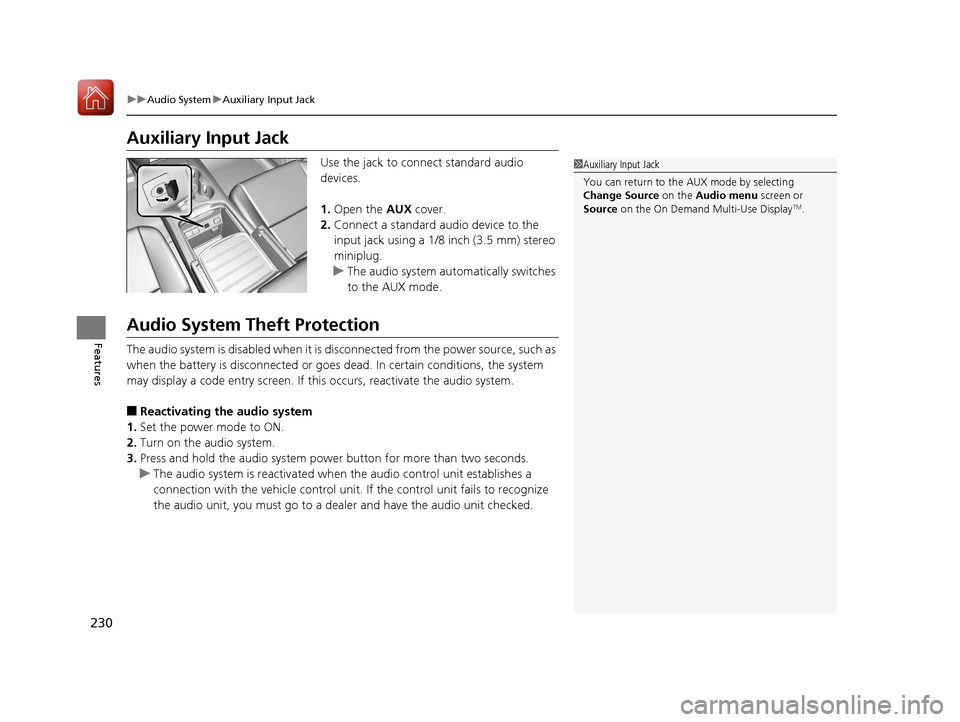
Use the jack to connect standard audio
devices.
1. Open the AUX cover.
2. Connect a standard audio device to the
input jack using a 1/8 inch (3.5 mm) stereo
miniplug.
u The audio system automatically switches
to the AUX mode.
Audio System Theft Protection
The audio system is disabled when it is di sconnected from the power source, such as
when the battery is disconnected or goes dead. In certain conditions, the system
may display a code entry screen. If this occurs, reactivate the audio system.
■Reactivating the audio system
1. Set the power mode to ON.
2. Turn on the audio system.
3. Press and hold the audio system power button for more than two seconds.
u The audio system is reac tivated when the audio co ntrol unit establishes a
connection with the vehicle control unit. If the control unit fails to recognize
the audio unit, you must go to a dealer and have the audio unit checked.
1 Auxiliary Input Jack
You can return to the AUX mode by selecting
Change Source on the Audio menu screen or
Source on the On Demand Multi-Use Display
TM.
17 ACURA MDX-31TZ56300.book 230 ページ 2016年5月13日 金曜日 午後7時46分
Page 232 of 581
231
uuAudio System uAudio Remote Controls
Features
Audio Remote Controls
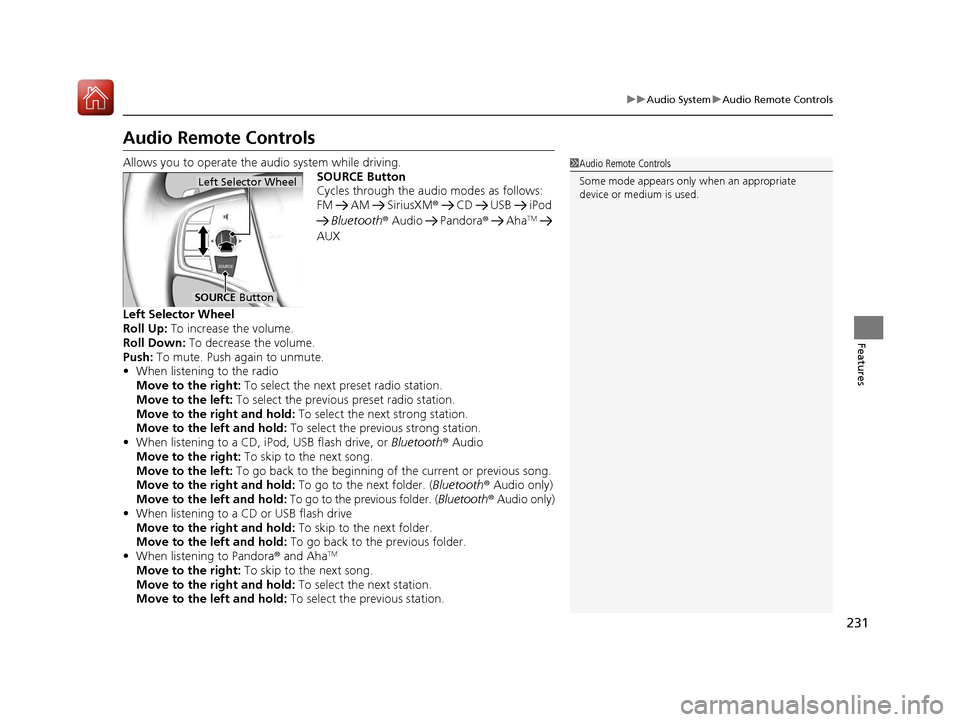
Allows you to operate the audio system while driving.
SOURCE Button
Cycles through the audio modes as follows:
FM AM SiriusXM® CD USB iPod
Bluetooth ® Audio Pandora ® Aha
TM
AUX
Left Selector Wheel
Roll Up: To increase the volume.
Roll Down: To decrease the volume.
Push: To mute. Push again to unmute.
• When listening to the radio
Move to the right: To select the next preset radio station.
Move to the left: To select the previous preset radio station.
Move to the right and hold: To select the next strong station.
Move to the left and hold: To select the previous strong station.
• When listening to a CD, iPod, USB flash drive, or Bluetooth® Audio
Move to the right: To skip to the next song.
Move to the left: To go back to the beginning of the current or previous song.
Move to the right and hold: To go to the next folder. (Bluetooth® Audio only)
Move to the left and hold: To go to the previous folder. ( Bluetooth® Audio only)
• When listening to a CD or USB flash drive
Move to the right and hold: To skip to the next folder.
Move to the left and hold: To go back to the previous folder.
• When listening to Pandora® and Aha
TM
Move to the right: To skip to the next song.
Move to the right and hold: To select the next station.
Move to the left and hold: To select the previous station.
1Audio Remote Controls
Some mode appears only when an appropriate
device or medium is used.
Left Selector Wheel
SOURCE Button
17 ACURA MDX-31TZ56300.book 231 ページ 2016年5月13日 金曜日 午後7時46分