Acc Acura MDX 2018 Manual PDF
[x] Cancel search | Manufacturer: ACURA, Model Year: 2018, Model line: MDX, Model: Acura MDX 2018Pages: 697, PDF Size: 38.45 MB
Page 215 of 697

uuInterior Lights/Interior Convenience Items uInterior Convenience Items
214
Controls
■Accessory power socket (cargo area)
Open the cover to use it.
The AC power outlet can be used when the engine is running. Open the cover to use it. Plug in the appliance
slightly, turn it 90° clockwise, then push it all
the way.
■AC Power Outlet*1AC Power Outlet*
NOTICE
Do not use the AC power outlet for electric
appliances that require hi gh initial peak wattage,
such as cathode-ray tube type televisions,
refrigerators, electric pumps, etc. It is not suitable for
devices that process precis e data, such as medical
equipment, and that require an extremely stable
power supply, such as microcomputer-controlled
electric blankets, touc h sensor lamps, etc.
The AC power outlet is desi gned to supply power for
up to 115 volt appliances that are rated 150 watts or
less.
Continued use of any elec tric appliance/device
exceeding these ratings may result in damage to the
appliance/device.
* Not available on all models
18 ACURA MDX-31TZ56400.book 214 ページ 2017年8月23日 水曜日 午後4時1分
Page 216 of 697

Continued215
uuInterior Lights/Interior Convenience Items uInterior Convenience Items
Controls
There is a coat hook on the rear grab handle
of both sides. Pull it down to use it.
The tie-down anchors on the cargo area floor
can be used to install a net for securing items.
■Coat Hooks1Coat Hooks
The coat hooks are not desi gned for large or heavy
items.
■Tie-down Anchors1 Tie-down Anchors
Do not let anyone access items in the cargo area
while driving. Loose items ca n cause injury if you have
to brake hard.
Anchor
Anchor
18 ACURA MDX-31TZ56400.book 215 ページ 2017年8月23日 水曜日 午後4時1分
Page 217 of 697

uuInterior Lights/Interior Convenience Items uInterior Convenience Items
216
Controls
To open the sunglasses holder, press and
release the indent. To close, press it again until
it latches.
You can store eyeglasses and other small
items in this holder.
The power mode must be in ON to use the
heated steering wheel.
Press the button on the left side of the
steering wheel.
When a comfortable temperature is reached,
press the button again to turn it off.
The heated steering wheel is turned off every
time you start the engine, even if you turned it
on the last time you drove the vehicle.
■Sunglasses Holder1Sunglasses Holder
Keep the holder closed wh ile driving except when
accessing stored items.
Press
■Heated Steering Wheel*1 Heated Steering Wheel*
Do not use the heated steering wheel continuously
when the engine is off. Under such conditions, the
battery may be weaken ed, making the engine
difficult to start.
Indicator
Heated Steering Wheel Button
* Not available on all models
18 ACURA MDX-31TZ56400.book 216 ページ 2017年8月23日 水曜日 午後4時1分
Page 234 of 697
233
uuAudio System uUSB Ports
Continued
Features
USB Ports
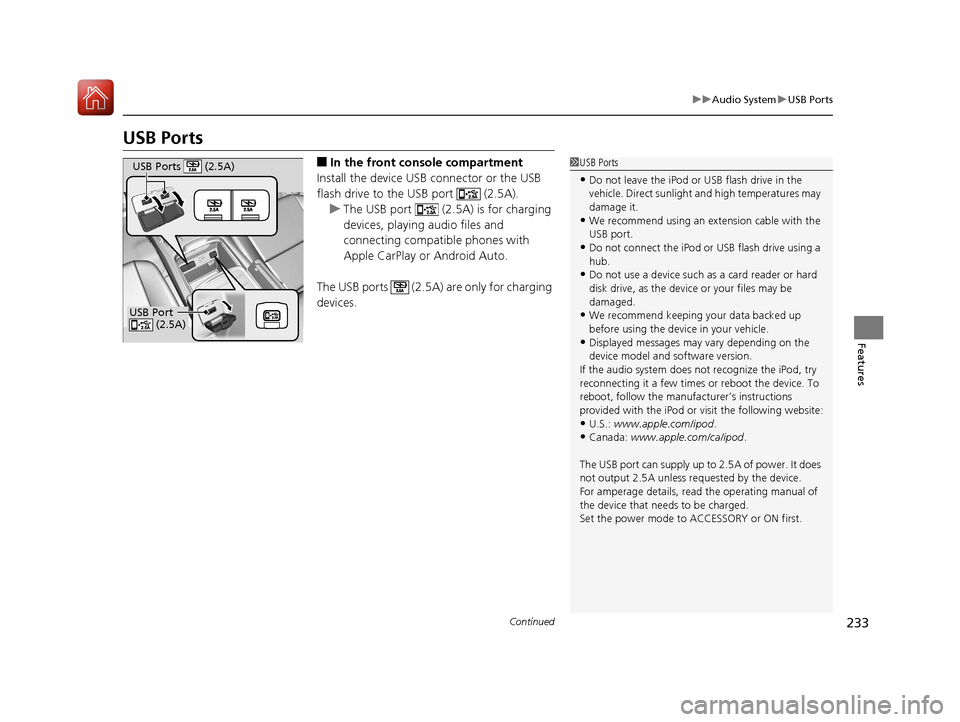
■In the front console compartment
Install the device USB connector or the USB
flash drive to the USB port (2.5A). u The USB port (2.5A) is for charging
devices, playing audio files and
connecting compatib le phones with
Apple CarPlay or Android Auto.
The USB ports (2.5A) are only for charging
devices.1 USB Ports
•Do not leave the iPod or USB flash drive in the
vehicle. Direct sunlight and high temperatures may
damage it.
•We recommend using an extension cable with the
USB port.
•Do not connect the iPod or USB flash drive using a
hub.
•Do not use a device such as a card reader or hard
disk drive, as the device or your files may be
damaged.
•We recommend keeping y our data backed up
before using the device in your vehicle.
•Displayed messages may vary depending on the
device model and software version.
If the audio system does not recognize the iPod, try
reconnecting it a few times or reboot the device. To
reboot, follow the manufac turer’s instructions
provided with the iPod or visit the following website:
•U.S.: www.apple.com/ipod .•Canada: www.apple.com/ca/ipod.
The USB port can supply up to 2.5A of power. It does
not output 2.5A unless requested by the device.
For amperage details, read the operating manual of
the device that ne eds to be charged.
Set the power mode to ACCESSORY or ON first.
USB Port (2.5A)
USB Ports (2.5A)
18 ACURA MDX-31TZ56400.book 233 ページ 2017年8月23日 水曜日 午後4時1分
Page 240 of 697
239
Features
Audio System Basic Operation
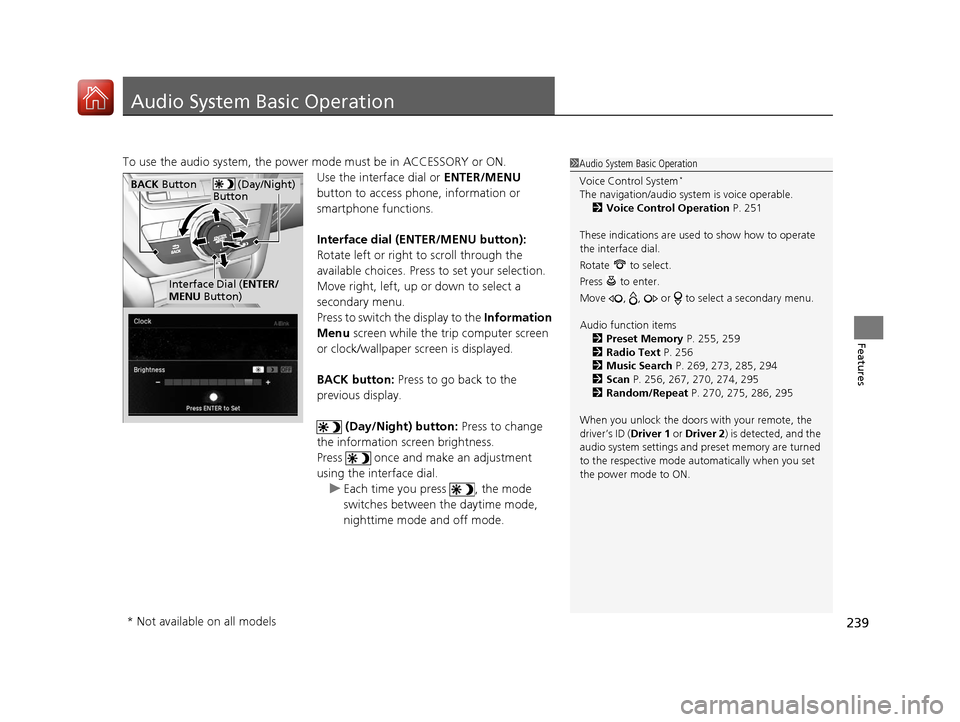
To use the audio system, the power mode must be in ACCESSORY or ON.Use the interface dial or ENTER/MENU
button to access phone, information or
smartphone functions.
Interface dial (E NTER/MENU button):
Rotate left or right to scroll through the
available choices. Press to set your selection.
Move right, left, up or down to select a
secondary menu.
Press to switch the display to the Information
Menu screen while the trip computer screen
or clock/wallpaper screen is displayed.
BACK button: Press to go back to the
previous display.
(Day/Night) button: Press to change
the information screen brightness.
Press once and make an adjustment
using the interface dial. u Each time you press , the mode
switches between the daytime mode,
nighttime mode and off mode.1Audio System Basic Operation
Voice Control System
*
The navigation/audio system is voice operable.
2 Voice Control Operation P. 251
These indications are used to show how to operate
the interface dial.
Rotate to select.
Press to enter.
Move , , or to se lect a secondary menu.
Audio function items 2 Preset Memory P. 255, 259
2 Radio Text P. 256
2 Music Search P. 269, 273, 285, 294
2 Scan P. 256, 267, 270, 274, 295
2 Random/Repeat P. 270, 275, 286, 295
When you unlock the doors with your remote, the
driver’s ID ( Driver 1 or Driver 2) is detected, and the
audio system settings and pr eset memory are turned
to the respective mode automatically when you set
the power mode to ON. (Day/Night)
ButtonBACK Button
Interface Dial ( ENTER/
MENU Button)
* Not available on all models
18 ACURA MDX-31TZ56400.book 239 ページ 2017年8月23日 水曜日 午後4時1分
Page 282 of 697

281
uuAudio System Basic Operation uPlaying Hard Disk Drive (HDD) Audio
Continued
Features
Music information (album name, artist name, genre) can be acquired by accessing
the Gracenote ® Album Info.
1.Select Audio Menu .
2. Select Edit/Delete HDD Music .
3. Select an item you want to acquire music
information.
4. Select Edit Name .
5. Select Get Music Information .
u The system starts to access the
Gracenote® Album Info.
■Displaying Music Information
18 ACURA MDX-31TZ56400.book 281 ページ 2017年8月23日 水曜日 午後4時1分
Page 300 of 697
299
uuAudio System Basic Operation uApple CarPlay
Continued
Features
Apple CarPlay
If you connect an Apple CarPlay-compatible iPhone to the system via the 2.5A USB
port ( ), you can use the information screen, instead of the iPhone display, to
make a phone call, listen to music, view maps (navigation), and access messages.
2USB Ports P. 233
*1:The operation methods may differ from your connected iPhone.
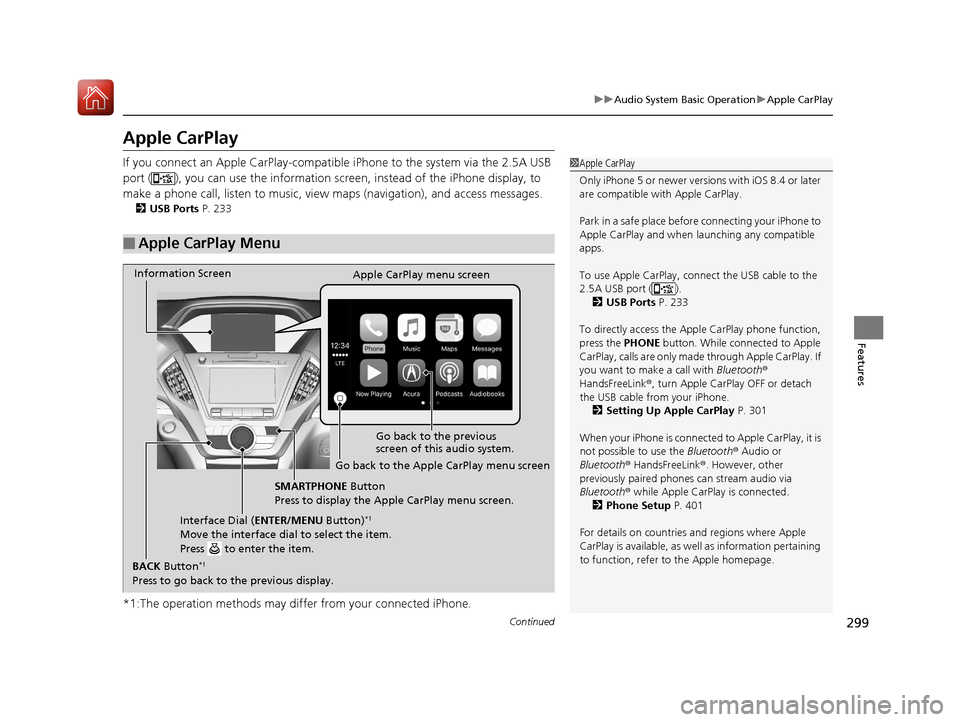
■Apple CarPlay Menu
1Apple CarPlay
Only iPhone 5 or newer versi ons with iOS 8.4 or later
are compatible with Apple CarPlay.
Park in a safe place before connecting your iPhone to
Apple CarPlay and when launching any compatible
apps.
To use Apple CarPlay, connect the USB cable to the
2.5A USB port ( ). 2 USB Ports P. 233
To directly access the Appl e CarPlay phone function,
press the PHONE button. While connected to Apple
CarPlay, calls are only made through Apple CarPlay. If
you want to make a call with Bluetooth®
HandsFreeLink ®, turn Apple CarPlay OFF or detach
the USB cable from your iPhone.
2 Setting Up Apple CarPlay P. 301
When your iPhone is connected to Apple CarPlay, it is
not possible to use the Bluetooth® Audio or
Bluetooth ® HandsFreeLink ®. However, other
previously paired phones can stream audio via
Bluetooth ® while Apple CarPlay is connected.
2 Phone Setup P. 401
For details on c ountries and regions where Apple
CarPlay is available, as well as information pertaining
to function, refer to the Apple homepage.
Go back to the previous
screen of this audio system.
Information Screen
Apple CarPlay menu screen
Go back to the Apple CarPlay menu screen
SMARTPHONE Button
Press to display the Apple CarPlay menu screen.
Interface Dial ( ENTER/MENU Button)
*1
Move the interface dial to select the item.
Press to enter the item.
BACK Button*1
Press to go back to the previous display.
18 ACURA MDX-31TZ56400.book 299 ページ 2017年8月23日 水曜日 午後4時1分
Page 301 of 697
uuAudio System Basic Operation uApple CarPlay
300
Features
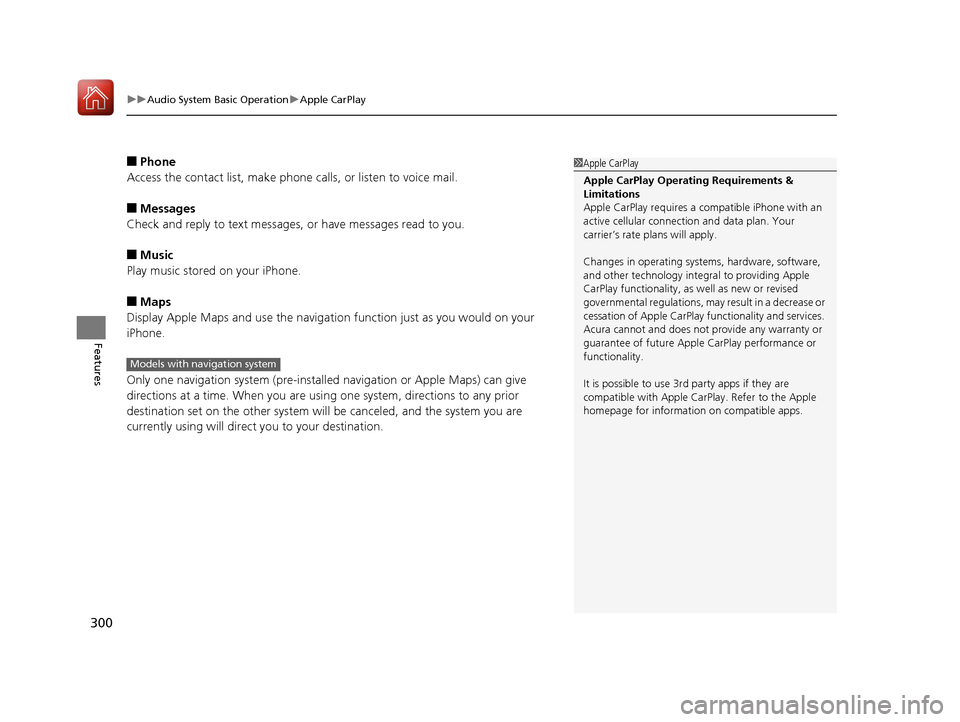
■Phone
Access the contact list, make phone calls, or listen to voice mail.
■Messages
Check and reply to text messages, or have messages read to you.
■Music
Play music stored on your iPhone.
■Maps
Display Apple Maps and use the navigation function just as you would on your
iPhone.
Only one navigation system (pre-installed navigation or Apple Maps) can give
directions at a time. When you are using one system, directions to any prior
destination set on the other system will be canceled, and the system you are
currently using will direct you to your destination.
1 Apple CarPlay
Apple CarPlay Operating Requirements &
Limitations
Apple CarPlay requi res a compatible iPhone with an
active cellular connecti on and data plan. Your
carrier’s rate plans will apply.
Changes in operating system s, hardware, software,
and other technology integral to providing Apple
CarPlay functionality, as well as new or revised
governmental regulations, may result in a decrease or
cessation of Apple CarPlay functionality and services.
Acura cannot and does not provide any warranty or
guarantee of future Appl e CarPlay performance or
functionality.
It is possible to use 3r d party apps if they are
compatible with Apple CarPlay. Refer to the Apple
homepage for information on compatible apps.
Models with navigation system
18 ACURA MDX-31TZ56400.book 300 ページ 2017年8月23日 水曜日 午後4時1分
Page 304 of 697
303
uuAudio System Basic Operation uAndroid Auto
Continued
Features
Android Auto
When you connect an Android phone to the audio system via the 2.5A USB port
( ), Android Auto is automatically initiated. When connected via Android Auto,
you can use the information screen to acce ss the Phone, Google Maps (Navigation),
Google Play Music, and Google Now functions. When you first use Android Auto, a
tutorial will appear on the screen.
We recommend that you comple te this tutorial while safely parked before using
Android Auto.
2 USB Ports P. 233
2 Auto Pairing Connection P. 306
1Android Auto
To use Android Auto, you need to download the
Android Auto app from Google Play to your
smartphone.
Only Android 5.0 (Lollipop) or later versions are
compatible with Android Auto.
Bluetooth A2DP cannot be used with Android Auto
phone.
Park in a safe place befo re connecting your Android
phone to Android Auto and when launching any
compatible apps.
To use Android Auto, connect the USB cable to the
2.5A USB port ( ).
2 USB Ports P. 233
When your Android phone is connected to Android
Auto, it is not possible to use the Bluetooth® Audio.
However, other previously paired phones can stream
audio via Bluetooth ® while Android Auto is
connected. 2 Phone Setup P. 401
18 ACURA MDX-31TZ56400.book 303 ページ 2017年8月23日 水曜日 午後4時1分
Page 310 of 697
309
uuAudio Error Messages uHard Disk Drive (HDD) Audio
Features
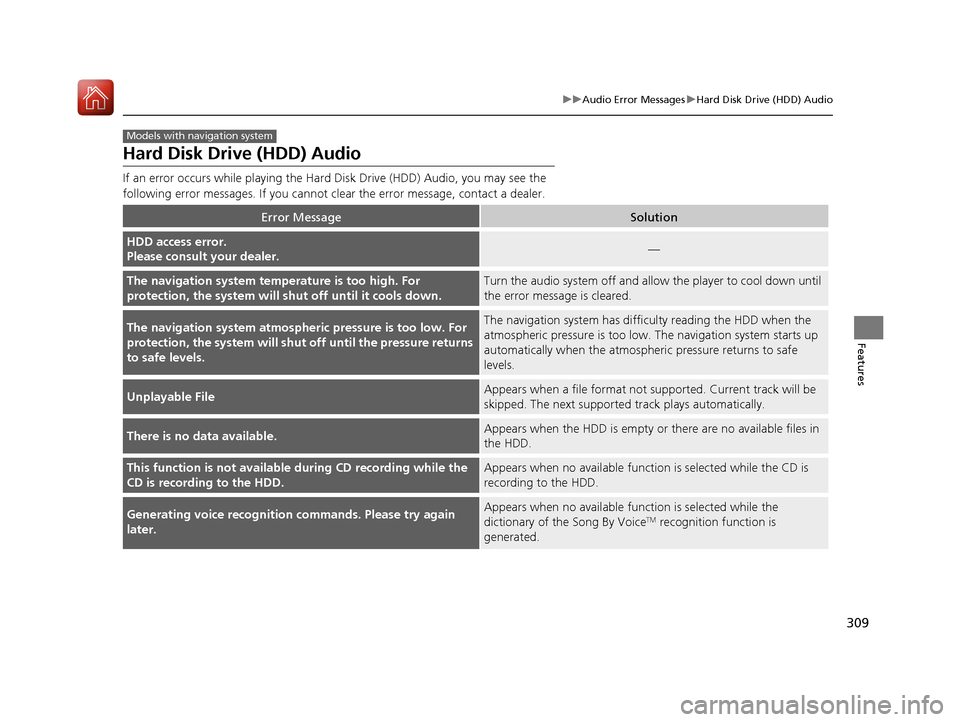
Hard Disk Drive (HDD) Audio
If an error occurs while playing the Hard Disk Driv e (HDD) Audio, you may see the
following error messages. If you cannot cl ear the error message, contact a dealer.
Error MessageSolution
HDD access error.
Please consult your dealer.—
The navigation system temperature is too high. For
protection, the system will shut off until it cools down.Turn the audio system off and allow the player to cool down until
the error message is cleared.
The navigation system atmospheric pressure is too low. For
protection, the system will shut off until the pressure returns
to safe levels.The navigation system has diffi culty reading the HDD when the
atmospheric pressure is too low. The navigation system starts up
automatically when the atmosphe ric pressure returns to safe
levels.
Unplayable FileAppears when a file format not su pported. Current track will be
skipped. The next supporte d track plays automatically.
There is no data available.Appears when the HDD is empty or there are no available files in
the HDD.
This function is not available during CD recording while the
CD is recording to the HDD.Appears when no available function is selected while the CD is
recording to the HDD.
Generating voice recognition commands. Please try again
later.Appears when no available function is selected while the
dictionary of the Song By VoiceTM recognition function is
generated.
Models with navigation system
18 ACURA MDX-31TZ56400.book 309 ページ 2017年8月23日 水曜日 午後4時1分