Icons Acura MDX 2019 User Guide
[x] Cancel search | Manufacturer: ACURA, Model Year: 2019, Model line: MDX, Model: Acura MDX 2019Pages: 701, PDF Size: 38.75 MB
Page 261 of 701

uuAudio System Basic Operation uPlaying SiriusXM ® Radio
260
Features
1. Select the SiriusXM® mode.
2 Audio Remote Controls P. 239
2 On Demand Multi-Use DisplayTM P. 242
2.Select a channel using the , ic ons or the preset numbers (1-12 ) on the preset
mode screen.
■SiriusXM ® channel manual tune screen
1.Select Tune.
2. Enter the desired channel number using the
numeric keypad.
3. Select OK to tune into the channel.
You can also tune into the channel of your
choice following the procedures below
instead of inputting its channel number.
1. Touch the desired channel number on the
channel bar.
2. Select and hold the channel indicator, then
slide it to the desired channel number on
the channel bar.
■To Play SiriusXM ® Radio1 Playing SiriusXM ® Radio
You can control the SiriusXM ® radio using voice
commands
*.
2 Voice Control Operation P. 253
In the channel mode, all available channels are
selectable. In the categor y mode, you can select a
channel within a ca tegory (Jazz, Rock, Classical, etc.).
There may be instances when SiriusXM ® Radio does
not broadcast all the data fi elds (artist name, title).
This does not indicate a problem with your audio
system.
SiriusXM ® Radio stations load in ascending order,
which can take about a minute. Once they have
loaded you will be able to scroll up or down to make
your selections.
Tune Start:
When you change a channel, a song being played on
that channel restarts from the beginning with this
function. This can be turned on or off from the Play
the Song from the Beginning setting.
2 Customized Features P. 360
1SiriusXM ® channel manual tune screen
Channel icons:
Select or to the prev ious or next channel.
Select and hold to rapidly sk ip 10 channels at a time.
Channel Indicator Channel Bar
Numeric Keypad
* Not available on all models
19 ACURA MDX-31TZ56510.book 260 ページ 2018年12月11日 火曜日 午後4時47分
Page 271 of 701
270
uuAudio System Basic Operation uPlaying a CD
Features
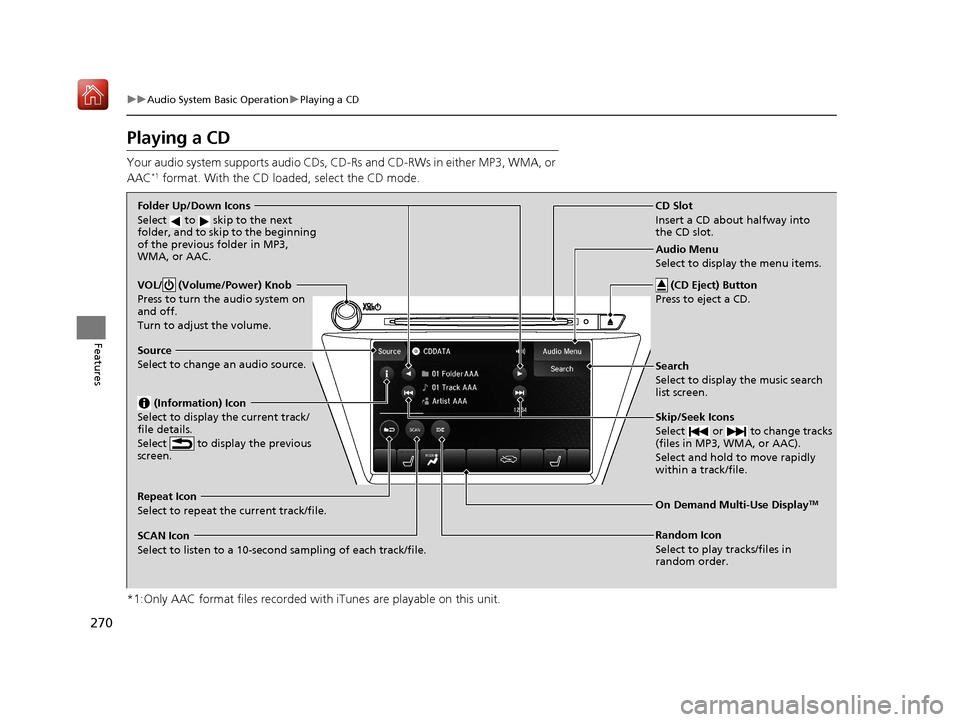
Playing a CD
Your audio system supports audio CDs, CD-Rs and CD-RWs in either MP3, WMA, or
AAC*1 format. With the CD load ed, select the CD mode.
*1:Only AAC format files recorded with iTunes are playable on this unit.
VOL/ (Volume/Power) Knob
Press to turn the audio system on
and off.
Turn to adjust the volume.
Skip/Seek Icons
Select or to change tracks
(files in MP3, WMA, or AAC).
Select and hold to move rapidly
within a track/file.
Audio Menu
Select to display the menu items.
Source
Select to change an audio source. (Information) Icon
Select to display the current track/
file details.
Select to display the previous
screen.
Search
Select to display the music search
list screen.
Folder Up/Down Icons
Select to skip to the next
folder, and to skip to the beginning
of the previous folder in MP3,
WMA, or AAC.
On Demand Multi-Use DisplayTMRepeat Icon
Select to repeat the current track/file.
SCAN Icon
Select to listen to a 10-second sampling of each track/file. Random Icon
Select to play tracks/files in
random order.
(CD Eject) Button
Press to eject a CD.
CD Slot
Insert a CD about halfway into
the CD slot.
19 ACURA MDX-31TZ56510.book 270 ページ 2018年12月11日 火曜日 午後4時47分
Page 274 of 701

273
uuAudio System Basic Operation uPlaying Hard Disk Drive (HDD) Audio
Continued
Features
Playing Hard Disk Drive (HDD) Audio
The Hard Disk Drive (HDD) A udio function plays tracks from music CDs that have
been recorded onto the built-in HDD. You can arrange the tracks in playlists or play
the tracks using various search methods.
Models with navigation system
CD Slot
Insert a CD about halfway into
the CD slot.
(CD Eject) Button
Press to eject a CD.
Source
Select to change an audio source.
Skip/Seek Icons
Select or to change
tracks.
Select and hold to move rapidly
within a track.
On Demand Multi-Use DisplayTM
VOL/ (Volume/Power) Knob
Press to turn the audio system
on and off.
Turn to adjust the volume.
Random Icon
Select to play tracks in random order. SCAN Icon
Select to use a scan feature.
Repeat Icon
Select to repeat the current track. Playlist/Album Up/Down Icons
Select to skip to the next
playlist/album, and to skip to
the beginning of the previous
playlist/album.
(Information) Icon
Select to display the current track
details.
Select to display the previous
screen.Track Menu
Select to display the track menu. Browse
Select to display the music
search list screen. Audio Menu
Select to display the menu items.
19 ACURA MDX-31TZ56510.book 273 ページ 2018年12月11日 火曜日 午後4時47分
Page 287 of 701
286
uuAudio System Basic Operation uPlaying an iPod
Features
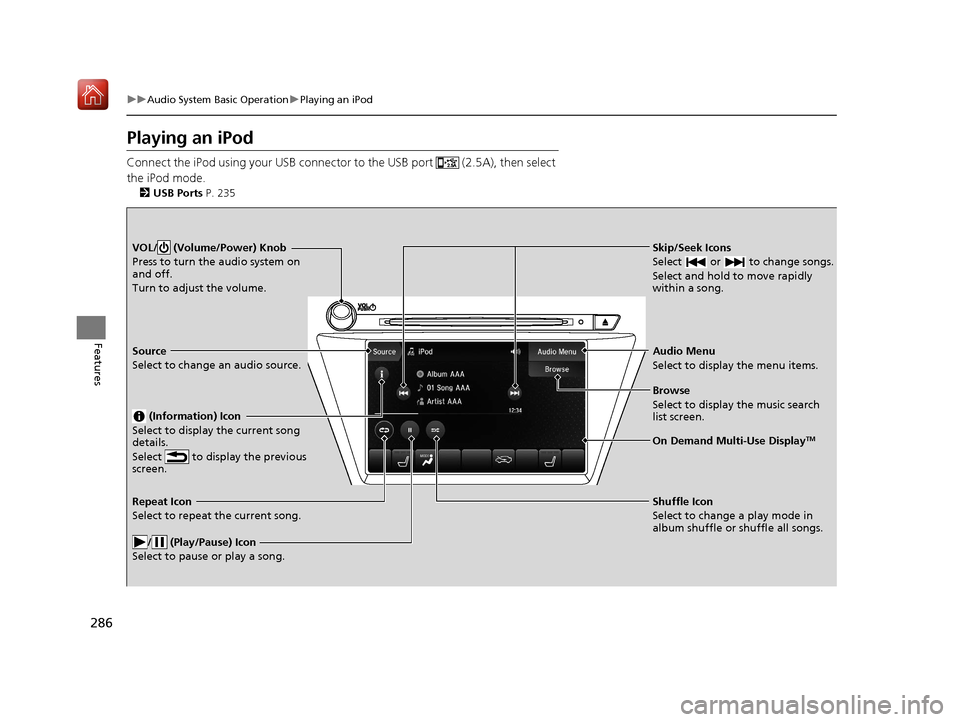
Playing an iPod
Connect the iPod using your USB connector to the USB port (2.5A), then select
the iPod mode.
2 USB Ports P. 235
Skip/Seek Icons
Select or to change songs.
Select and hold to move rapidly
within a song.VOL/ (Volume/Power) Knob
Press to turn the audio system on
and off.
Turn to adjust the volume.
Audio Menu
Select to display the menu items.
Source
Select to change an audio source.
(Information) Icon
Select to display the current song
details.
Select to display the previous
screen.
Browse
Select to display the music search
list screen.
On Demand Multi-Use DisplayTM
Repeat Icon
Select to repeat the current song.
/ (Play/Pause) Icon
Select to pause or play a song.Shuffle Icon
Select to change a play mode in
album shuffle or shuffle all songs.
19 ACURA MDX-31TZ56510.book 286 ページ 2018年12月11日 火曜日 午後4時47分
Page 294 of 701
293
uuAudio System Basic Operation uPlaying Pandora ®*1
Continued
Features
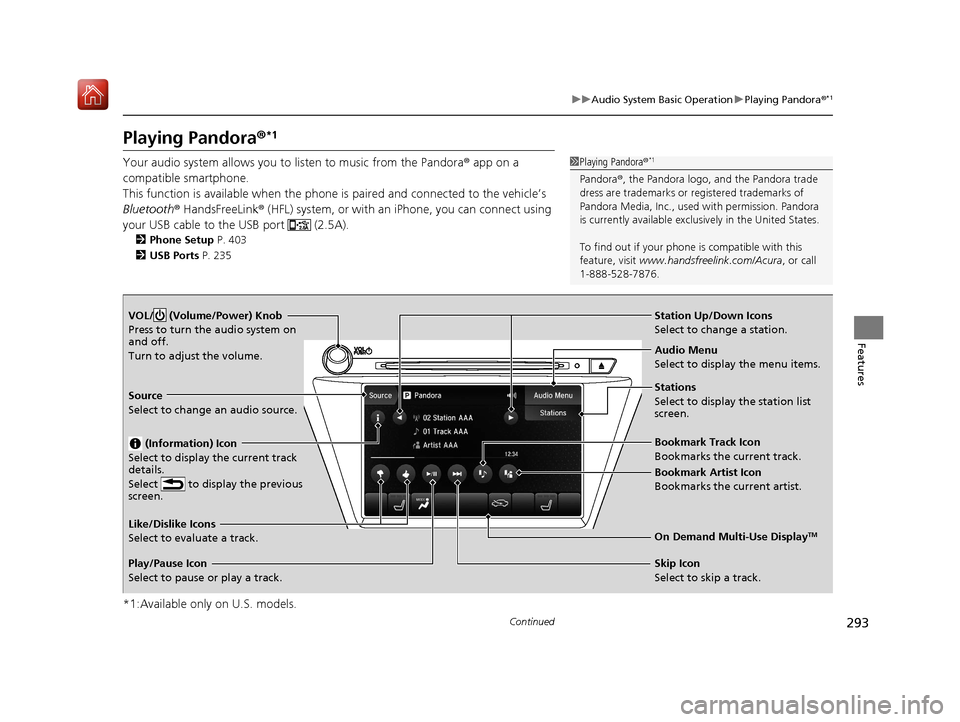
Playing Pandora ®*1
Your audio system allows you to listen to music from the Pandora ® app on a
compatible smartphone.
This function is available when the phone is paired an d connected to the vehicle’s
Bluetooth ® HandsFreeLink ® (HFL) system, or with an iPhone, you can connect using
your USB cable to the USB port (2.5A).
2 Phone Setup P. 403
2 USB Ports P. 235
*1:Available only on U.S. models.
1Playing Pandora ®*1
Pandora®, the Pandora logo, and the Pandora trade
dress are trademarks or registered trademarks of
Pandora Media, Inc., used with permission. Pandora
is currently available exclusively in the United States.
To find out if your phone is compatible with this
feature, visit www.handsfreelink.com/Acura , or call
1-888-528-7876.
VOL/ (Volume/Power) Knob
Press to turn the audio system on
and off.
Turn to adjust the volume.
Audio Menu
Select to display the menu items.
Source
Select to change an audio source.
(Information) Icon
Select to display the current track
details.
Select to display the previous
screen.
Stations
Select to display the station list
screen.
On Demand Multi-Use DisplayTMLike/Dislike Icons
Select to evaluate a track.
Skip Icon
Select to skip a track.
Play/Pause Icon
Select to pause or play a track.Station Up/Down Icons
Select to change a station.
Bookmark Track Icon
Bookmarks the current track.
Bookmark Artist Icon
Bookmarks the current artist.
19 ACURA MDX-31TZ56510.book 293 ページ 2018年12月11日 火曜日 午後4時47分
Page 296 of 701
295
uuAudio System Basic Operation uPlaying a USB Flash Drive
Continued
Features
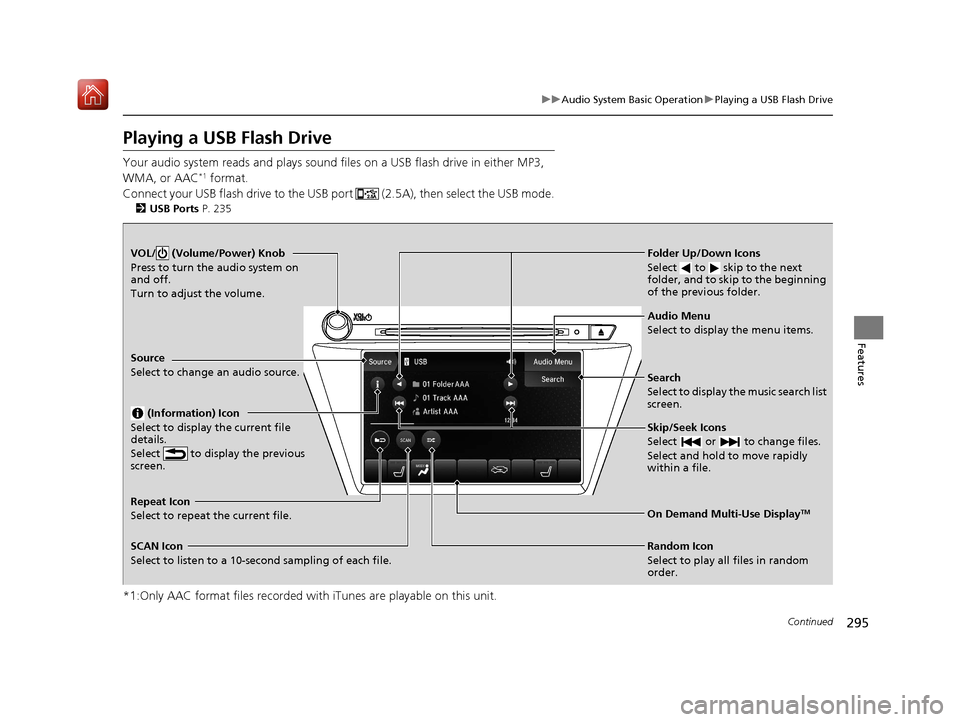
Playing a USB Flash Drive
Your audio system reads and plays sound files on a USB flash drive in either MP3,
WMA, or AAC*1 format.
Connect your USB flash drive to the USB port (2.5A), then select the USB mode.
2 USB Ports P. 235
*1:Only AAC format files recorded with iTunes are playable on this unit.
VOL/ (Volume/Power) Knob
Press to turn the audio system on
and off.
Turn to adjust the volume.
Skip/Seek Icons
Select or to change files.
Select and hold to move rapidly
within a file.
Audio Menu
Select to display the menu items.
Source
Select to change an audio source.
(Information) Icon
Select to display the current file
details.
Select to display the previous
screen.
Search
Select to display the music search list
screen.
Folder Up/Down Icons
Select to skip to the next
folder, and to skip to the beginning
of the previous folder.
On Demand Multi-Use DisplayTMRepeat Icon
Select to repeat the current file.
SCAN Icon
Select to listen to a 10-second sampling of each file. Random Icon
Select to play all files in random
order.
19 ACURA MDX-31TZ56510.book 295 ページ 2018年12月11日 火曜日 午後4時47分
Page 299 of 701
298
uuAudio System Basic Operation uPlaying Bluetooth ® Audio
Features
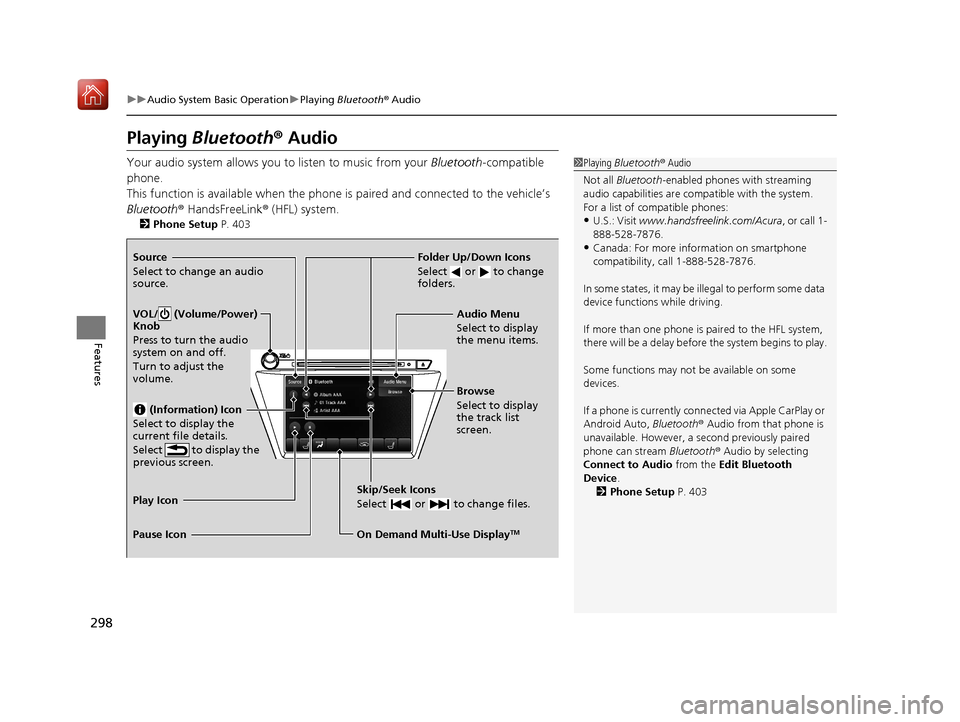
Playing Bluetooth® Audio
Your audio system allows you to listen to music from your Bluetooth-compatible
phone.
This function is available when the phone is paired and connected to the vehicle’s
Bluetooth ® HandsFreeLink ® (HFL) system.
2 Phone Setup P. 403
1Playing Bluetooth ® Audio
Not all Bluetooth -enabled phones with streaming
audio capabilities are compatible with the system.
For a list of compatible phones:
•U.S.: Visit www.handsfreelink.com/Acura, or call 1-
888-528-7876.
•Canada: For more info rmation on smartphone
compatibility, call 1-888-528-7876.
In some states, it may be il legal to perform some data
device functions while driving.
If more than one phone is paired to the HFL system,
there will be a delay before the system begins to play.
Some functions may not be available on some
devices.
If a phone is currently conne cted via Apple CarPlay or
Android Auto, Bluetooth® Audio from that phone is
unavailable. However, a se cond previously paired
phone can stream Bluetooth® Audio by selecting
Connect to Audio from the Edit Bluetooth
Device .
2 Phone Setup P. 403Source
Select to change an audio
source.
VOL/ (Volume/Power)
Knob
Press to turn the audio
system on and off.
Turn to adjust the
volume.
(Information) Icon
Select to display the
current file details.
Select to display the
previous screen.
Skip/Seek Icons
Select or to change files.
On Demand Multi-Use DisplayTM
Play Icon
Pause Icon Browse
Select to display
the track list
screen. Audio Menu
Select to display
the menu items.
Folder Up/Down Icons
Select or to change
folders.
19 ACURA MDX-31TZ56510.book 298 ページ 2018年12月11日 火曜日 午後4時47分
Page 319 of 701
318
Features
General Information on the Audio System
SiriusXM® Radio Service
1. You need your radio ID ready before regist ering for subscription. To see the ID in
the On Demand Multi-Use DisplayTM, select channel up/down icons until CH000
and the radio ID appears.
2. Have your radio ID and credit card num ber ready, and either call or visit the
SiriusXM ® website to subscribe.
Switch to the SiriusXM ® mode by pressing the SOURCE button on the steering
wheel, or through the On Demand Multi-Use Display
TM, and stay in this mode for
about 30 minutes until the service is activated. Make sure your vehicle is in an open
area with good reception.
Loading...:
SiriusXM ® is loading the audio or program information.
No Signal:
The signal is too weak in the current location.
Unsubscribed channel:
You are not subscribed to the channel selected.
Unavailable channel:
No such channel exists, the channel is not pa rt of your subscription, or the artist or
title information is unavailable.
Check the antenna, Disconnect ed antenna, Shorted antenna:
There is a problem with the SiriusXM ® antenna. Contact a dealer.
■Subscribing to SiriusXM® Radio
■Receiving SiriusXM® Radio
■SiriusXM® Radio Display Messages
1 Subscribing to SiriusXM ® Radio
Contact Information for SiriusXM ® Radio:
•U.S.: SiriusXM ® Radio at www.siriusxm.com/
subscribenow or 1-866-635-2349
•Canada: SiriusXM ® Canada at www.siriusxm.ca/
subscribe-now or 1-877-209-0079
1Receiving SiriusXM ® Radio
The SiriusXM ® satellites are in orbit over the equator;
therefore, objects south of the vehicle may cause
satellite reception interruptions. Sa tellite signals are
more likely to be blocked by tall buildings and
mountains the farther north you travel from the
equator.
You may experience rece ption problems under the
following circumstances:
•In a location with an obstruction to the south of
your vehicle.
•In tunnels
•On the lower level of a multi-tiered road•Large items carried on the roof rack
19 ACURA MDX-31TZ56510.book 318 ページ 2018年12月11日 火曜日 午後4時47分
Page 356 of 701
355
uuRear Entertainment System (RES)*uFront Control Panel Operation
Continued
Features
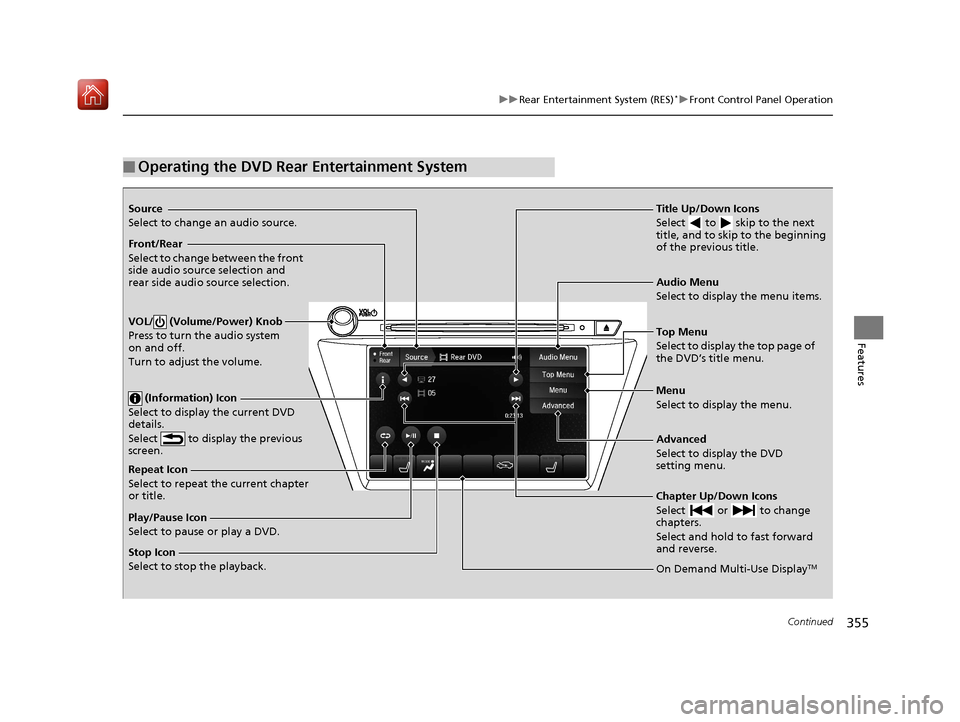
■Operating the DVD Rear Entertainment System
Source
Select to change an audio source.
Front/Rear
Select to change between the front
side audio source selection and
rear side audio source selection.
VOL/ (Volume/Power) Knob
Press to turn the audio system
on and off.
Turn to adjust the volume.
(Information) Icon
Select to display the current DVD
details.
Select to display the previous
screen.
Repeat Icon
Select to repeat the current chapter
or title.
Play/Pause Icon
Select to pause or play a DVD.
Stop Icon
Select to stop the playback. Title Up/Down Icons
Select to skip to the next
title, and to skip to the beginning
of the previous title.
Audio Menu
Select to display the menu items.
Top Menu
Select to display the top page of
the DVD’s title menu.
Menu
Select to display the menu.
Advanced
Select to display the DVD
setting menu.
Chapter Up/Down Icons
Select or to change
chapters.
Select and hold to fast forward
and reverse.
On Demand Multi-Use DisplayTM
19 ACURA MDX-31TZ56510.book 355 ページ 2018年12月11日 火曜日 午後4時47分
Page 404 of 701

Continued403
uuBluetooth ® HandsFreeLink ®u HFL Menus
Features
■To pair a cell phone (when there is no
phone paired to the system)
1. Press the PHONE button.
2. Rotate to select Yes, then press .
3. Make sure your phone is search or
discoverable mode, then press .
u HFL automatically searches for a
Bluetooth device.
4. When your phone appears on the list, select
it by pressing .
u If your phone does not appear, you can
select Options... and Refresh to search
again.
u If your phone still do es not appear, select
Options... to select Device Not Found?
and search for Bluetooth devices using
your phone. From your phone, select
HandsFreeLink .
5. HFL gives you a pairing code on the
information screen.
u Confirm if the pairing code on the screen
and your phone match.
This may vary by phone.
6. A notification appears on the screen if
pairing is successful.
■Phone Setup1Phone Setup
Your Bluetooth -compatible phone must be paired to
HFL before you can make and receive hands-free
calls.
Phone Pairing Tips:
•You cannot pair your phone while the vehicle is
moving.
•Up to six phones can be paired.
•Your phone’s battery may dr ain faster when it is
connected to HFL.
•If your phone is not ready for pairing or not found
by the system within three minutes, the system will
time out and returns to idle.
Once you have paired a phone, you can see it
displayed on the screen with one or two icons on the
right side.
These icons indicate the following: : The phone can be used with HFL.
: The phone is compatible with Bluetooth ® Audio.
When pairing is completed, an Automatic Phone
Sync prompt appears. Select On if you want your call
history and phonebook automatically imported to
HFL.
2 Changing the Automatic Phone Sync
setting P. 414
If there is an active c onnection to Apple CarPlay,
pairing of additional Bluetooth-compatible devices is
unavailable.
19 ACURA MDX-31TZ56510.book 403 ページ 2018年12月11日 火曜日 午後4時47分