format Acura MDX 2020 Workshop Manual
[x] Cancel search | Manufacturer: ACURA, Model Year: 2020, Model line: MDX, Model: Acura MDX 2020Pages: 701, PDF Size: 38.91 MB
Page 144 of 701

Continued143
uuLocking and Unlocking the Doors uLocking/Unlocking the Doors from the Outside
Controls
■Locking the doors and tailgate
Press the door lock button on the front or
rear
* doors, or on the tailgate.
u Some exterior lights flash; the beeper
sounds; all the doors and tailgate lock;
and the security system sets.
1Using the Keyless Access System
•Do not leave the keyless access remote in the
vehicle when you get out . Carry it with you.
•Even if you are not carrying the keyless access
remote, you can lock/unl ock the doors and tailgate
while someone else with th e remote is within range.
•The door may be unlocked if the door handle is
covered with water in heavy rain or in a car wash if
the keyless access remote is within range.
•If you grip a door handle wearing gloves, the door
sensor may be slow to respond or may not respond
by unlocking the doors.
•After locking the door, yo u have up to two seconds
during which you can pull the door handle to
confirm whether the door is locked. If you need to
unlock the door immediately after locking it, wait
at least two seconds befo re gripping the handle,
otherwise the door will not unlock.
•The door might not open if you pull it immediately
after gripping the door handle. Grip the handle
again and confirm that th e door is unlocked before
pulling the handle.
•Even within the 32 inches (80 cm) radius, you may
not be able to lock/unl ock the doors with the
keyless access remote if it is above or below the
outside handle.
•The keyless access remote may not operate if it is
too close to the door and door glass.
The light flash, beep and door unlock mode settings
can be customized using th e information screen or
multi-information display (MID). 2 Customized Features P. 126, 358
Door Lock Button
Lock Button
* Not available on all models
20 ACURA MDX-31TZ56600.book 143 ページ 2019年4月24日 水曜日 午後5時44分
Page 146 of 701

Continued145
uuLocking and Unlocking the Doors uLocking/Unlocking the Doors from the Outside
Controls
■Locking the doors and tailgate (Walk
away auto lock ®)
When you walk away from the vehicle while
carrying the keyless access remote, the doors
will automatically lock.
The auto lock function activates when all
doors and tailgate are closed, and the keyless
access remote is within about 5 feet (1.5 m)
radius of the outside door handle.
Exit vehicle while carrying keyless access
remote and close door(s).
1. While within about 5 feet (1.5 m) radius of
the vehicle.
u The beeper sounds; the auto lock
function will be activated.
2. Carry the keyless access remote beyond
about 5 feet (1.5 m) from the vehicle and
remain outside this range for 2 or more
seconds.
u Some exterior lights flash; the beeper
sounds; all doors and tailgate will then
lock.1Locking the doors and tailg ate (Walk away auto lock®)
The auto lock function is set to OFF as the factory
default setting. The auto lo ck function can be set to
ON using the information screen or MID.
If you set the auto lock function to ON using the
information screen or the MID, only the remote
transmitter that was used to unlock the driver’s door
prior to the setting change can activate auto lock. 2 Customized Features P. 126, 358
After the auto lock function has been activated,
when you stay within the locking/unlocking
operation range, the indica tor on the keyless access
remote will continue to flash until the doors are
locked.
When you stay beside the vehicle within the
operation range, the doors wi ll automatically lock
approximately 30 seconds after the auto lock
function activating beeper sounds.
When you open a door after the auto lock function
activating beeper sounds, the auto lock function will
be delayed until all doors and tailgate are closed.
Under the following circumstances, the auto lock
function will not activate:
•The remote is inside the vehicle.
•The remote is taken out of its operational range
before all the doors an d tailgate are closed.
u
The beeper will not sound.
u The beeper will sound.
The activation range of
the auto lock function is
about 5 feet (1.5 m)
20 ACURA MDX-31TZ56600.book 145 ページ 2019年4月24日 水曜日 午後5時44分
Page 153 of 701
uuLocking and Unlocking the Doors uLocking/Unlocking the Doors from the Inside
152
Controls
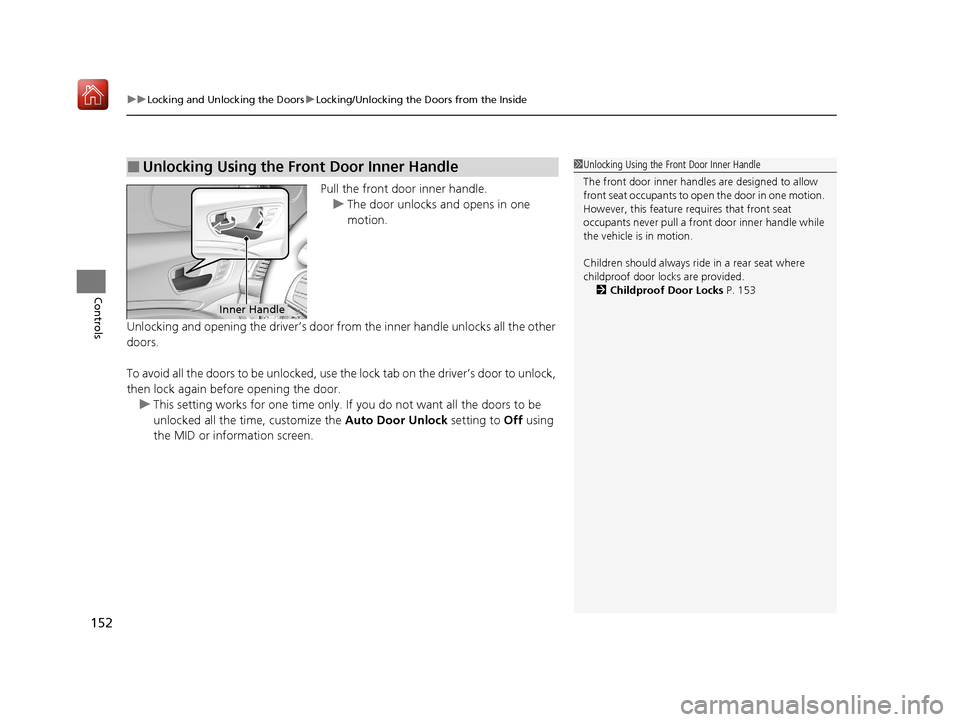
Pull the front door inner handle.
u The door unlocks and opens in one
motion.
Unlocking and opening the driver’s door from the inner handle unlocks all the other
doors.
To avoid all the doors to be unlocked, use the lock tab on the driver’s door to unlock,
then lock again before opening the door. u This setting works for one time only. If you do not want all the doors to be
unlocked all the time, customize the Auto Door Unlock setting to Off using
the MID or information screen.
■Unlocking Using the Front Door Inner Handle1 Unlocking Using the Front Door Inner Handle
The front door inne r handles are designed to allow
front seat occupants to ope n the door in one motion.
However, this feature requires that front seat
occupants never pull a front door inner handle while
the vehicle is in motion.
Children should always ride in a rear seat where
childproof door locks are provided. 2 Childproof Door Locks P. 153
Inner Handle
20 ACURA MDX-31TZ56600.book 152 ページ 2019年4月24日 水曜日 午後5時44分
Page 155 of 701

154
uuLocking and Unlocking the Doors uAuto Door Locking/Unlocking
Controls
Auto Door Locking/Unlocking
Your vehicle locks or unlocks all doors auto matically when a certain condition is met.
■Drive lock mode
All doors and tailgate lock when the ve hicle’s speed reaches about 10 mph (15
km/h).
■Driver’s door open mode
All doors unlock when the driver’s door is opened.
■Auto Door Locking
■Auto Door Unlocking
1 Auto Door Locking/Unlocking
You can turn off or cha nge to another auto door
locking/unlocking settin g using the information
screen or MID. 2 Customized Features P. 126, 358
20 ACURA MDX-31TZ56600.book 154 ページ 2019年4月24日 水曜日 午後5時44分
Page 186 of 701
185
uuOperating the Switches Around the Steering Wheel uDriving Position Memory System
Continued
Controls
Driving Position Memory System
You can store two driver’s seat (except for power lumbar), steering wheel and door
mirror positions with the driv ing position memory system.
When you unlock and open the driver’s door with a remote transmitter, or keyless
access system, door mirrors adjust to one of the two preset positions and the seat
adjusts to retracted positions of one of the two preset positions automatically.
The steering wheel and the seat will move to the stored position when you set the
power mode to ACCESSORY.
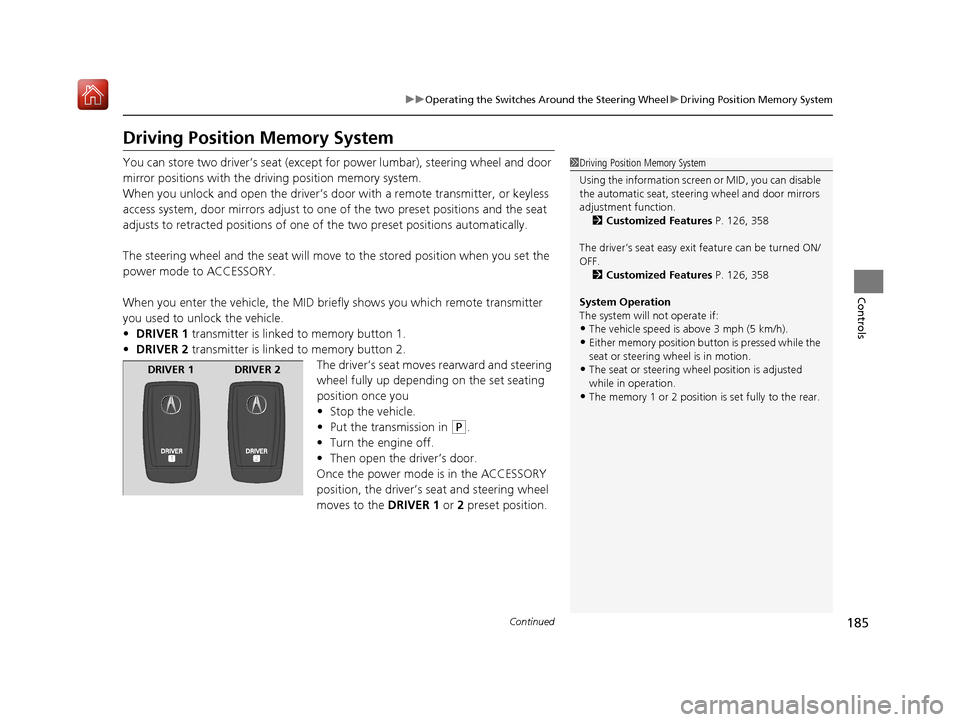
When you enter the vehicle, the MID br iefly shows you which remote transmitter
you used to unlock the vehicle.
• DRIVER 1 transmitter is linked to memory button 1.
• DRIVER 2 transmitter is linked to memory button 2.
The driver’s seat moves rearward and steering
wheel fully up depending on the set seating
position once you
•Stop the vehicle.
• Put the transmission in
(P.
• Turn the engine off.
• Then open the driver’s door.
Once the power mode is in the ACCESSORY
position, the driver’s s eat and steering wheel
moves to the DRIVER 1 or 2 preset position.
1 Driving Position Memory System
Using the information screen or MID, you can disable
the automatic seat, steeri ng wheel and door mirrors
adjustment function. 2 Customized Features P. 126, 358
The driver’s seat easy exit feature can be turned ON/
OFF. 2 Customized Features P. 126, 358
System Operation
The system will not operate if:
•The vehicle speed is above 3 mph (5 km/h).•Either memory position button is pressed while the
seat or steering wheel is in motion.
•The seat or steering wheel position is adjusted
while in operation.
•The memory 1 or 2 position is set fully to the rear.
DRIVER 1 DRIVER 2
20 ACURA MDX-31TZ56600.book 185 ページ 2019年4月24日 水曜日 午後5時44分
Page 232 of 701
231
Features
This chapter describes how to operate technology features.
Audio SystemAbout Your Audio System ................ 232
USB Ports ......................................... 233
Auxiliary Input Jack .......................... 236
Audio System Theft Protection ......... 236
Audio Remote Controls .................... 237
Audio System Basic Operation ........ 239
On Demand Multi-Use Display
TM....... 240
Information Screen .......................... 244
Adjusting the Sound ........................ 249
Display Setup ................................... 250
Voice Control Operation .................. 251 Playing AM/FM Radio ....................... 254
Playing SiriusXM
® Radio ................... 257
Playing a CD .................................... 268
Playing Hard Disk Drive (HDD) Audio ... 271
Playing an iPod ................................ 284
Song By Voice
TM (SBV) ...................... 287
Playing Pandora ®*1........................... 291
Playing a USB Flash Drive ................. 293
Playing Bluetooth ® Audio................. 296
Siri Eyes Free .................................... 298
Apple CarPlay .................................. 299
Android Auto................................... 303 Audio Error Messages
...................... 308
General Information on the Audio System ............................................. 316
Rear Entertainment System (RES)
*.. 335
Customized Features ........................ 358
HomeLink ® Universal Transceiver ... 390
Bluetooth ® HandsFreeLink®
Using HFL ........................................ 393
HFL Menus ...................................... 396
AcuraLink®
*....................................... 435
Compass*.......................................... 443
*1: Available only on U.S. models.
* Not available on all models
20 ACURA MDX-31TZ56600.book 231 ページ 2019年4月24日 水曜日 午後5時44分
Page 233 of 701
232
Features
Audio System
About Your Audio System
The audio system features AM/FM radio and SiriusXM® Radio service. It can also play
audio CDs, WMA/MP3/AAC files, Hard Disk Drive (HDD) audio*, USB flash drives,
and iPod, iPhone and Bluetooth® devices.
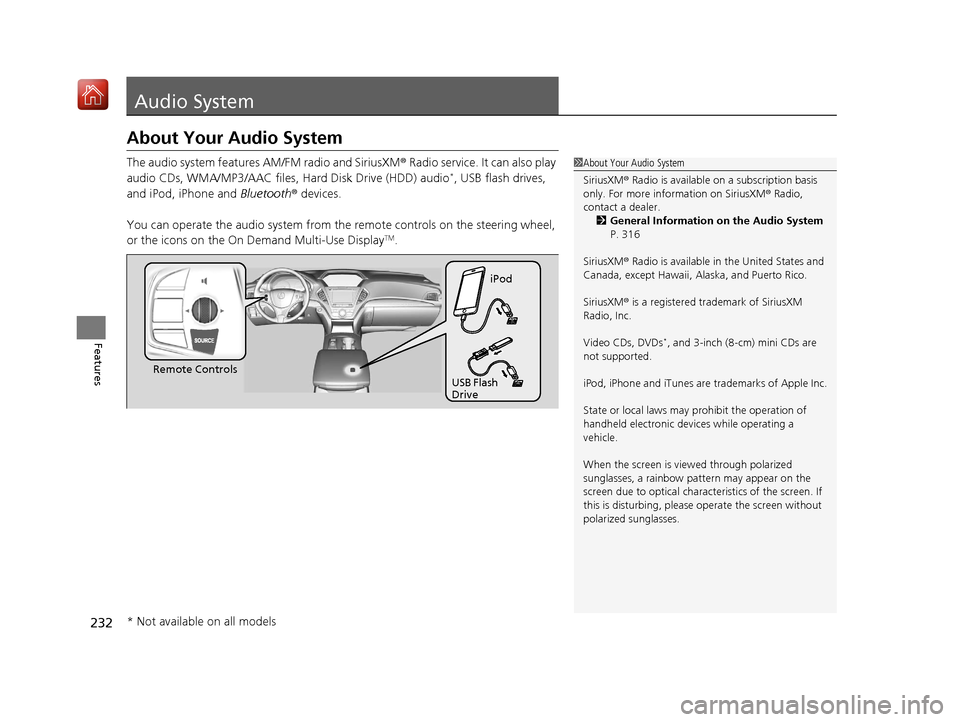
You can operate the audio system from th e remote controls on the steering wheel,
or the icons on the On Demand Multi-Use Display
TM.
1 About Your Audio System
SiriusXM ® Radio is available on a subscription basis
only. For more information on SiriusXM ® Radio,
contact a dealer.
2 General Information on the Audio System
P. 316
SiriusXM ® Radio is available in the United States and
Canada, except Ha waii, Alaska, and Puerto Rico.
SiriusXM ® is a registered trademark of SiriusXM
Radio, Inc.
Video CDs, DVDs
*, and 3-inch (8-cm) mini CDs are
not supported.
iPod, iPhone and iTunes are trademarks of Apple Inc.
State or local laws may prohibit the operation of
handheld electronic devi ces while operating a
vehicle.
When the screen is vi ewed through polarized
sunglasses, a rainbow pa ttern may appear on the
screen due to optical characteristics of the screen. If
this is disturbing, please operate the screen without
polarized sunglasses.
Remote Controls iPod
USB Flash
Drive
* Not available on all models
20 ACURA MDX-31TZ56600.book 232 ページ 2019年4月24日 水曜日 午後5時44分
Page 238 of 701
237
uuAudio System uAudio Remote Controls
Continued
Features
Audio Remote Controls
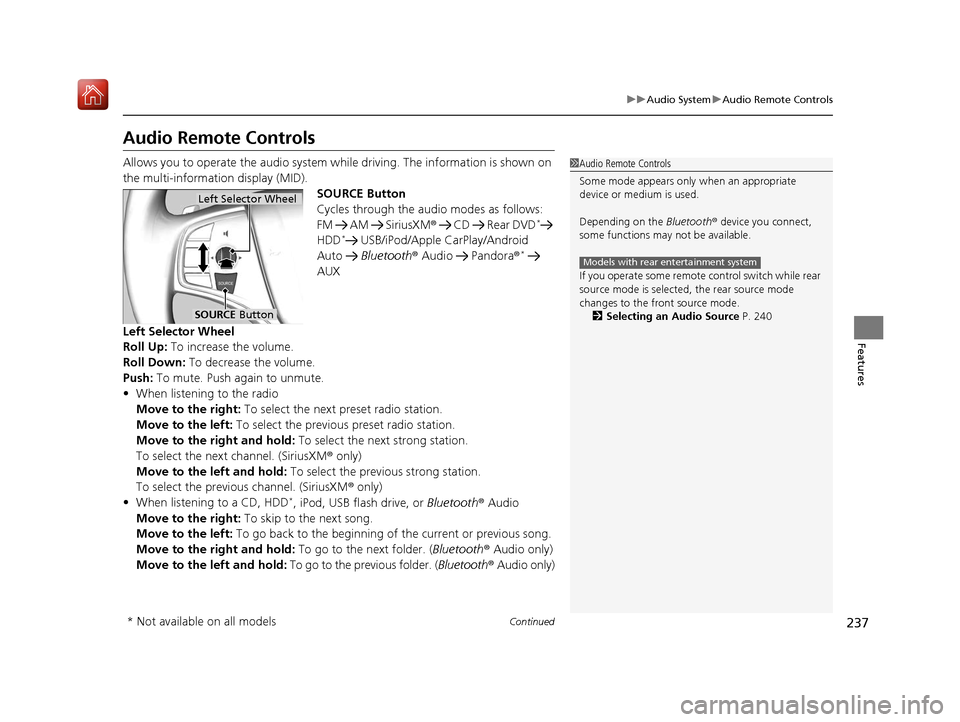
Allows you to operate the audio system wh ile driving. The information is shown on
the multi-information display (MID). SOURCE Button
Cycles through the audio modes as follows:
FM AM SiriusXM® CD Rear DVD
*
HDD* USB/iPod/Apple CarPlay/Android
Auto Bluetooth ® Audio Pandora ®*
AUX
Left Selector Wheel
Roll Up: To increase the volume.
Roll Down: To decrease the volume.
Push: To mute. Push again to unmute.
• When listening to the radio
Move to the right: To select the next preset radio station.
Move to the left: To select the previous preset radio station.
Move to the right and hold: To select the next strong station.
To select the next channel. (SiriusXM ® only)
Move to the left and hold: To select the previous strong station.
To select the previous channel. (SiriusXM ® only)
• When listening to a CD, HDD
*, iPod, USB flash drive, or Bluetooth ® Audio
Move to the right: To skip to the next song.
Move to the left: To go back to the beginning of the current or previous song.
Move to the right and hold: To go to the next folder. (Bluetooth® Audio only)
Move to the left and hold: To go to the previous folder. ( Bluetooth® Audio only)
1Audio Remote Controls
Some mode appears only when an appropriate
device or medium is used.
Depending on the Bluetooth® device you connect,
some functions may not be available.
If you operate some remote control switch while rear
source mode is selected, the rear source mode
changes to the front source mode. 2 Selecting an Audio Source P. 240
Models with rear entertainment system
Left Selector Wheel
SOURCE Button
* Not available on all models
20 ACURA MDX-31TZ56600.book 237 ページ 2019年4月24日 水曜日 午後5時44分
Page 240 of 701
239
Features
Audio System Basic Operation
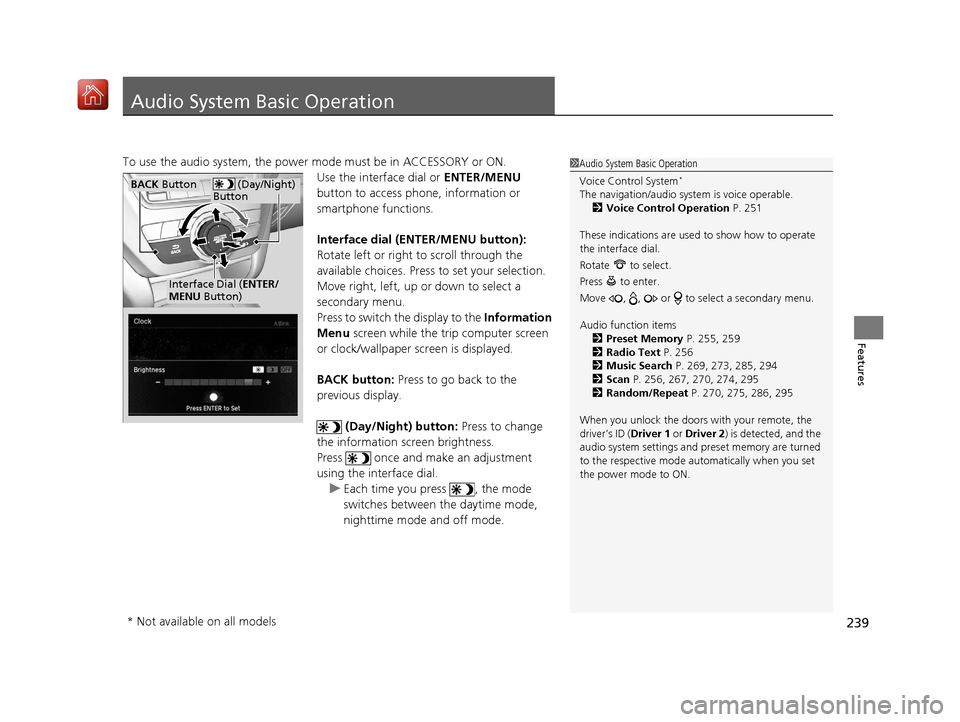
To use the audio system, the power mode must be in ACCESSORY or ON.Use the interface dial or ENTER/MENU
button to access phone, information or
smartphone functions.
Interface dial (E NTER/MENU button):
Rotate left or right to scroll through the
available choices. Press to set your selection.
Move right, left, up or down to select a
secondary menu.
Press to switch the display to the Information
Menu screen while the trip computer screen
or clock/wallpaper screen is displayed.
BACK button: Press to go back to the
previous display.
(Day/Night) button: Press to change
the information screen brightness.
Press once and make an adjustment
using the interface dial. u Each time you press , the mode
switches between the daytime mode,
nighttime mode and off mode.1Audio System Basic Operation
Voice Control System
*
The navigation/audio system is voice operable.
2 Voice Control Operation P. 251
These indications are used to show how to operate
the interface dial.
Rotate to select.
Press to enter.
Move , , or to se lect a secondary menu.
Audio function items 2 Preset Memory P. 255, 259
2 Radio Text P. 256
2 Music Search P. 269, 273, 285, 294
2 Scan P. 256, 267, 270, 274, 295
2 Random/Repeat P. 270, 275, 286, 295
When you unlock the doors with your remote, the
driver’s ID ( Driver 1 or Driver 2) is detected, and the
audio system settings and pr eset memory are turned
to the respective mode automatically when you set
the power mode to ON. (Day/Night)
ButtonBACK Button
Interface Dial ( ENTER/
MENU Button)
* Not available on all models
20 ACURA MDX-31TZ56600.book 239 ページ 2019年4月24日 水曜日 午後5時44分
Page 242 of 701
241
uuAudio System Basic Operation uOn Demand Multi-Use DisplayTM
Continued
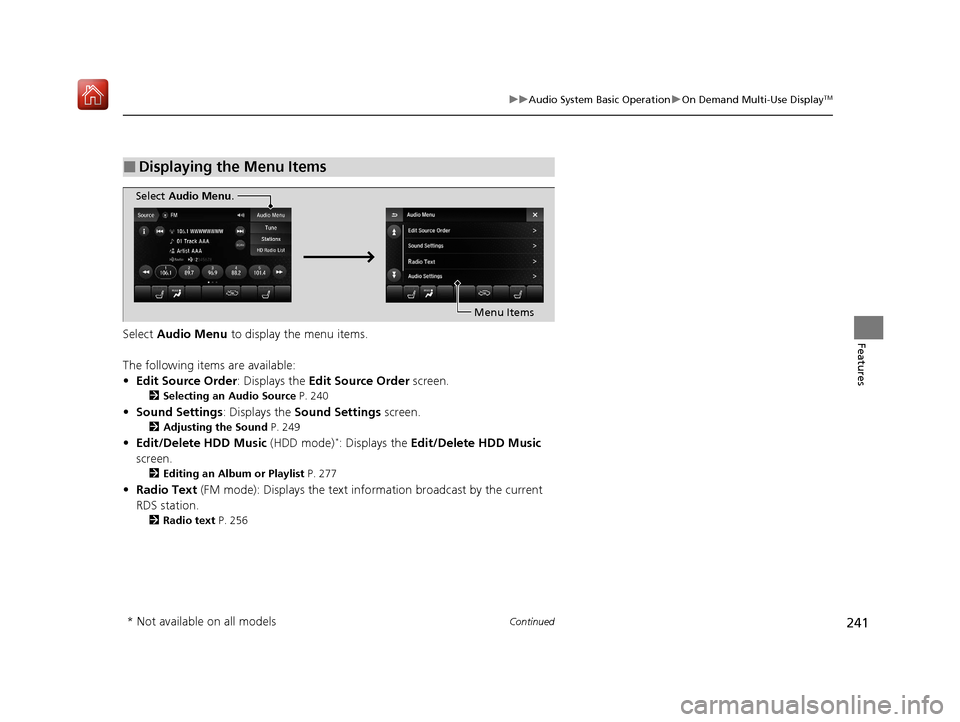
FeaturesSelect Audio Menu to display the menu items.
The following items are available:
• Edit Source Order : Displays the Edit Source Order screen.
2Selecting an Audio Source P. 240
•Sound Settings: Displays the Sound Settings screen.
2Adjusting the Sound P. 249
•Edit/Delete HDD Music (HDD mode)*: Displays the Edit/Delete HDD Music
screen.
2 Editing an Album or Playlist P. 277
•Radio Text (FM mode): Displays the text in formation broadcast by the current
RDS station.
2 Radio text P. 256
■Displaying the Menu Items
Select Audio Menu .
Menu Items
* Not available on all models
20 ACURA MDX-31TZ56600.book 241 ページ 2019年4月24日 水曜日 午後5時44分