ten Acura MDX 2020 Workshop Manual
[x] Cancel search | Manufacturer: ACURA, Model Year: 2020, Model line: MDX, Model: Acura MDX 2020Pages: 701, PDF Size: 38.91 MB
Page 204 of 701
203
uuAdjusting the Seats uThird Row Seats
Controls
Third Row Seats
Separately fold down the left and right halv es of the third row seat to make room
for cargo.
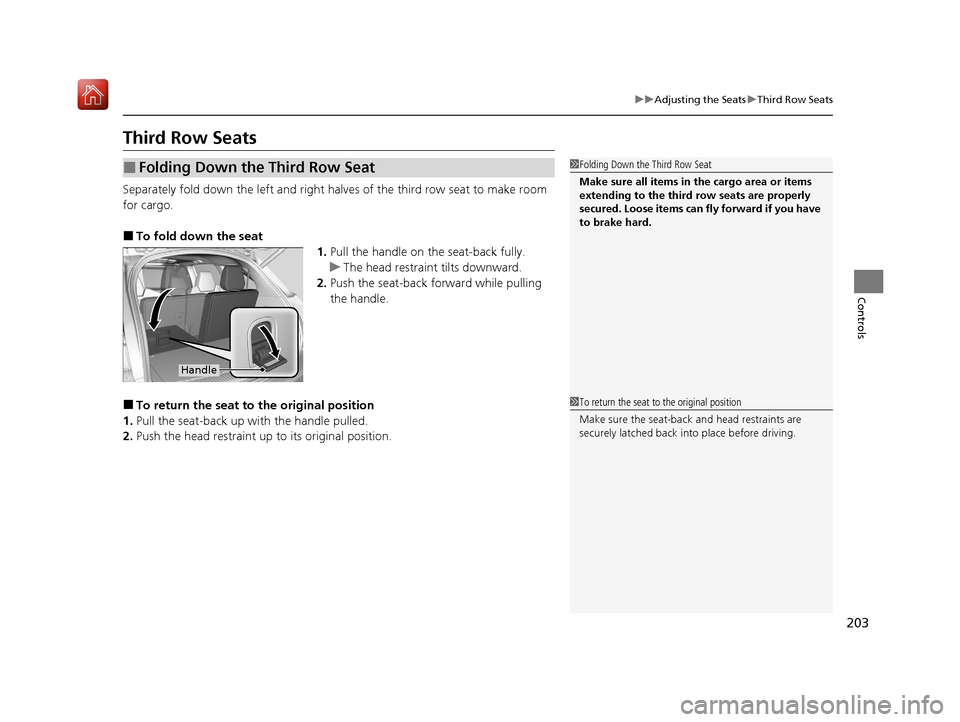
■To fold down the seat 1.Pull the handle on the seat-back fully.
u The head restraint tilts downward.
2. Push the seat-back forward while pulling
the handle.
■To return the seat to the original position
1. Pull the seat-back up with the handle pulled.
2. Push the head restraint up to its original position.
■Folding Down the Third Row Seat1Folding Down the Third Row Seat
Make sure all items in the cargo area or items
extending to the third row seats are properly
secured. Loose items can fly forward if you have
to brake hard.
Handle
1To return the seat to the original position
Make sure the seat-back and head restraints are
securely latched back in to place before driving.
20 ACURA MDX-31TZ56600.book 203 ページ 2019年4月24日 水曜日 午後5時44分
Page 207 of 701
206
Controls
Interior Lights/Interior Convenience Items
Interior Lights
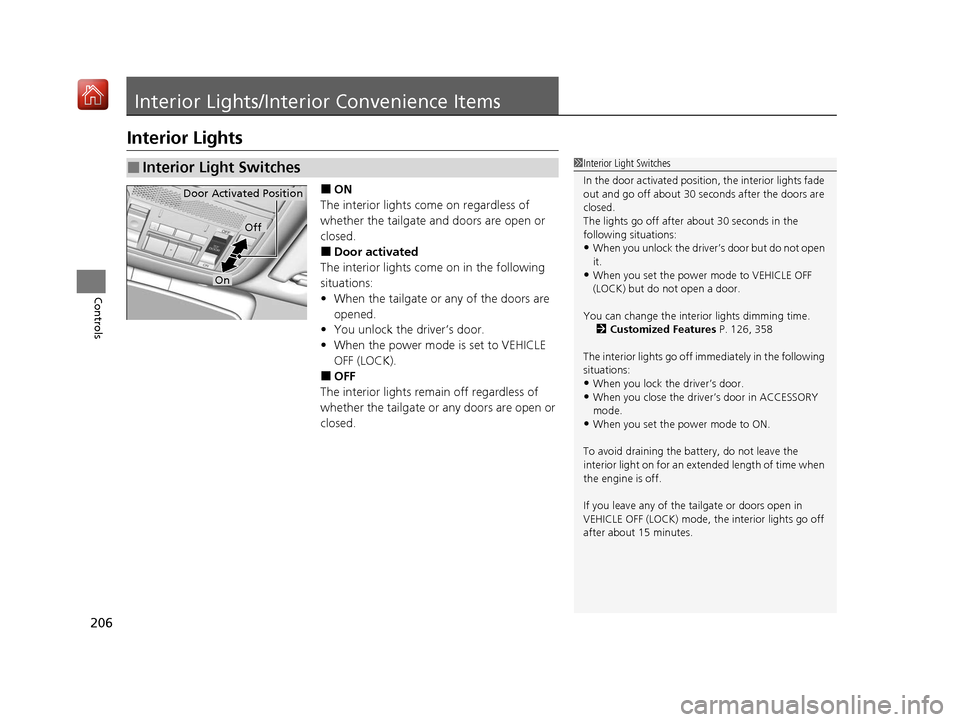
■ON
The interior lights come on regardless of
whether the tailgate and doors are open or
closed.
■Door activated
The interior lights come on in the following
situations:
• When the tailgate or any of the doors are
opened.
• You unlock the driver’s door.
• When the power mode is set to VEHICLE
OFF (LOCK).
■OFF
The interior lights remain off regardless of
whether the tailgate or any doors are open or
closed.
■Interior Light Switches1 Interior Light Switches
In the door activated position, the interior lights fade
out and go off about 30 se conds after the doors are
closed.
The lights go off after about 30 seconds in the
following situations:
•When you unlock the driver’s door but do not open
it.
•When you set the power mode to VEHICLE OFF
(LOCK) but do not open a door.
You can change the interi or lights dimming time.
2 Customized Features P. 126, 358
The interior lights go off im mediately in the following
situations:
•When you lock the driver’s door.•When you close the driver’s door in ACCESSORY
mode.
•When you set the power mode to ON.
To avoid draining the ba ttery, do not leave the
interior light on for an extended length of time when
the engine is off.
If you leave any of the tailgate or doors open in
VEHICLE OFF (LOCK) mode, th e interior lights go off
after about 15 minutes.
Door Activated Position
Off
On
20 ACURA MDX-31TZ56600.book 206 ページ 2019年4月24日 水曜日 午後5時44分
Page 211 of 701

210
uuInterior Lights/Interior Convenience Items uInterior Convenience Items
Controls
Press the raised detent to open the lid. To
close the lid, push it down until it latches.
Pull the handle to op en the cargo floor lid.
■Center Pocket
Press
■Under-floor Storage Area
20 ACURA MDX-31TZ56600.book 210 ページ 2019年4月24日 水曜日 午後5時44分
Page 234 of 701
233
uuAudio System uUSB Ports
Continued
Features
USB Ports
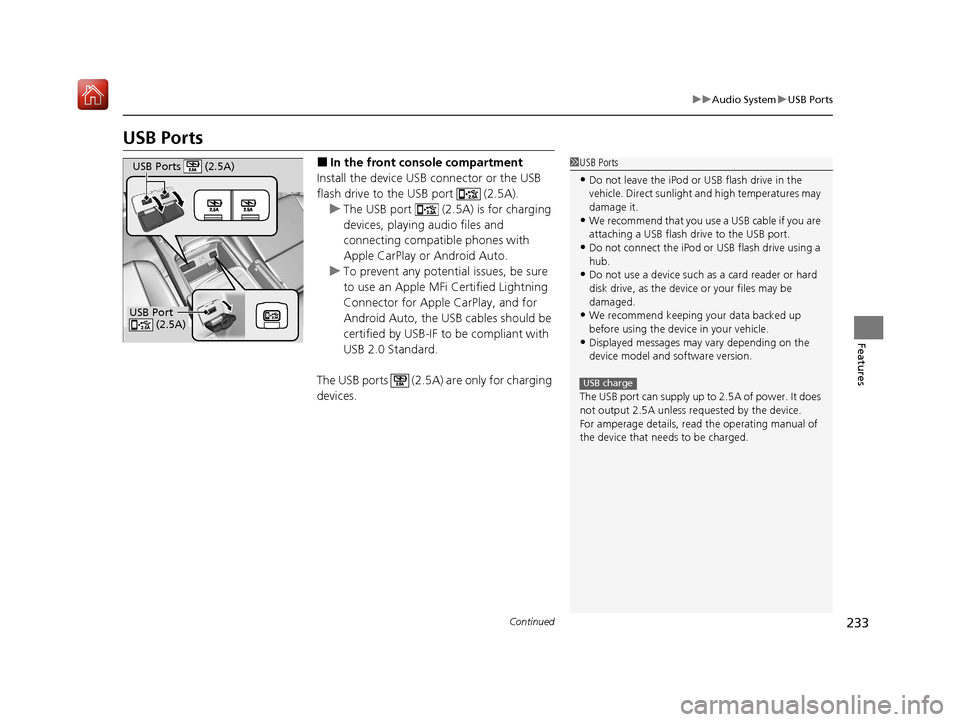
■In the front console compartment
Install the device USB connector or the USB
flash drive to the USB port (2.5A). u The USB port (2.5A) is for charging
devices, playing audio files and
connecting compatib le phones with
Apple CarPlay or Android Auto.
u To prevent any potenti al issues, be sure
to use an Apple MFi Certified Lightning
Connector for Apple CarPlay, and for
Android Auto, the USB cables should be
certified by USB-IF to be compliant with
USB 2.0 Standard.
The USB ports (2.5A) are only for charging
devices.1 USB Ports
•Do not leave the iPod or USB flash drive in the
vehicle. Direct sunlight and high temperatures may
damage it.
•We recommend that you us e a USB cable if you are
attaching a USB flash drive to the USB port.
•Do not connect the iPod or USB flash drive using a
hub.
•Do not use a device such as a card reader or hard
disk drive, as the device or your files may be
damaged.
•We recommend keeping y our data backed up
before using the device in your vehicle.
•Displayed messages may vary depending on the
device model and software version.
The USB port can supply up to 2.5A of power. It does
not output 2.5A unless requested by the device.
For amperage details, read the operating manual of
the device that ne eds to be charged.
USB charge
USB Port
(2.5A)
USB Ports (2.5A)
20 ACURA MDX-31TZ56600.book 233 ページ 2019年4月24日 水曜日 午後5時44分
Page 235 of 701
uuAudio System uUSB Ports
234
Features
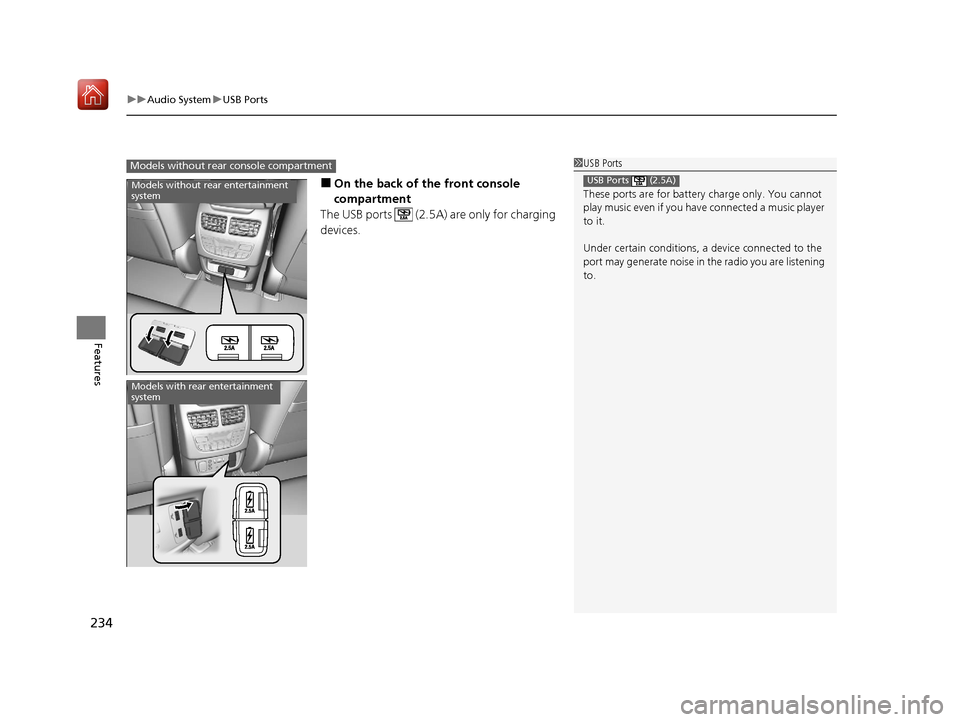
■On the back of the front console
compartment
The USB ports (2.5A) are only for charging
devices.
1 USB Ports
These ports are for battery charge only. You cannot
play music even if you have connected a music player
to it.
Under certain condi tions, a device connected to the
port may generate noise in the radio you are listening
to.
USB Ports (2.5A)
Models without rear console compartment
Models without rear entertainment
system
Models with rear entertainment
system
20 ACURA MDX-31TZ56600.book 234 ページ 2019年4月24日 水曜日 午後5時44分
Page 238 of 701
237
uuAudio System uAudio Remote Controls
Continued
Features
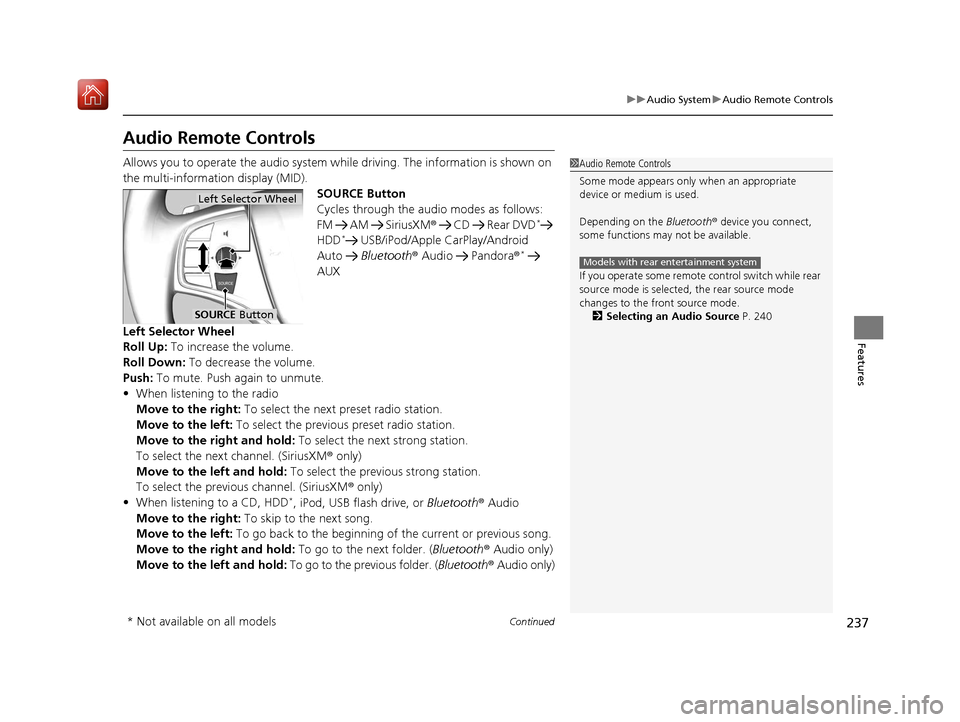
Audio Remote Controls
Allows you to operate the audio system wh ile driving. The information is shown on
the multi-information display (MID). SOURCE Button
Cycles through the audio modes as follows:
FM AM SiriusXM® CD Rear DVD
*
HDD* USB/iPod/Apple CarPlay/Android
Auto Bluetooth ® Audio Pandora ®*
AUX
Left Selector Wheel
Roll Up: To increase the volume.
Roll Down: To decrease the volume.
Push: To mute. Push again to unmute.
• When listening to the radio
Move to the right: To select the next preset radio station.
Move to the left: To select the previous preset radio station.
Move to the right and hold: To select the next strong station.
To select the next channel. (SiriusXM ® only)
Move to the left and hold: To select the previous strong station.
To select the previous channel. (SiriusXM ® only)
• When listening to a CD, HDD
*, iPod, USB flash drive, or Bluetooth ® Audio
Move to the right: To skip to the next song.
Move to the left: To go back to the beginning of the current or previous song.
Move to the right and hold: To go to the next folder. (Bluetooth® Audio only)
Move to the left and hold: To go to the previous folder. ( Bluetooth® Audio only)
1Audio Remote Controls
Some mode appears only when an appropriate
device or medium is used.
Depending on the Bluetooth® device you connect,
some functions may not be available.
If you operate some remote control switch while rear
source mode is selected, the rear source mode
changes to the front source mode. 2 Selecting an Audio Source P. 240
Models with rear entertainment system
Left Selector Wheel
SOURCE Button
* Not available on all models
20 ACURA MDX-31TZ56600.book 237 ページ 2019年4月24日 水曜日 午後5時44分
Page 239 of 701
238
uuAudio System uAudio Remote Controls
Features
• When listening to a CD, HDD* or USB flash drive
Move to the right and hold: To skip to the next folder.
Move to the left and hold: To go back to the previous folder.
• When listening to Pandora ®
*
Move to the right: To skip to the next track.
Move to the right and hold: To select the next station.
Move to the left and hold: To select the previous station.
* Not available on all models
20 ACURA MDX-31TZ56600.book 238 ページ 2019年4月24日 水曜日 午後5時44分
Page 256 of 701
Continued255
uuAudio System Basic Operation uPlaying AM/FM Radio
Features
To store a station:
1. Tune to the selected station.
2. Select and hold the preset number you want to store that station.
Provides text data information related to your selected RDS-capable FM station.
■To find an RDS station from Station List
1. Select Stations .
2. Select station on the list.
■Manual update
Updates your available st ation list at any time.
1. Select Stations .
2. Select Refresh on the list.
■Preset Memory
■Radio Data System (RDS)
1Playing AM/FM Radio
You can control the AM/FM radio using voice
commands
*.
2 Voice Control Operation P. 251
The ST indicator appears on the display indicating
stereo FM broadcasts.
Stereo reproduction in AM is not available.
Switching the Audio Mode
Press the SOURCE button on the steering wheel.
2 Audio Remote Controls P. 237
You can store 6 AM stations and 12 FM stations into
the preset memory.
HD Radio Technology manufactured under license
from iBiquity Digital Cor poration. U.S. and Foreign
Patents. HD Radio
TM and the HD, HD Radio, and
“Arc” logos are proprietary trademarks of iBiquity
Digital Corp.
Models with HD RadioTM feature
* Not available on all models
20 ACURA MDX-31TZ56600.book 255 ページ 2019年4月24日 水曜日 午後5時44分
Page 261 of 701

uuAudio System Basic Operation uPlaying SiriusXM ® Radio
260
Features
■TuneMixTM (Multi-chann el preset)
You can store up to 10 of your preferre d music channels and listen to them
randomly.
1.Tune a channel.
2. Select and hold the preset number you
want to store that channel.
3. Select Add.
4. Select Done to return the previous screen.
To delete a multi-channel preset:
1. Select and hold the preset number you want to delete that channel.
2. Select the channel icon.
3. Select Delete.
4. Select Done to return the previous screen.1TuneMixTM (Multi-channel preset)
TuneMix
TM is registered tra demarks of SiriusXM®
Radio, Inc.
To store a multi-channel preset, you need to setup
the TuneMix setting to On.
2 Customized Features P. 358
TuneMix
TM is available for music channels only.
Select and hold.
Channel Icon
20 ACURA MDX-31TZ56600.book 260 ページ 2019年4月24日 水曜日 午後5時44分
Page 262 of 701

Continued261
uuAudio System Basic Operation uPlaying SiriusXM ® Radio
Features
Suggested channel listing received from SiriusXM ® can be displayed and selected.
1. Select Browse .
2. Select Featured Channels .
3. Select a channel.
You can check a channel schedule by selected channel list on the On Demand Multi-
Use Display
TM.
1. Select Audio Menu .
2. Select View Channel Schedule .
You can also check the other chan nel by the following procedure.
3. Select Categories , Channels or Presets .
4. Select a channel.
■Listening to Featured Channels
■Displaying a Channel Schedule
1Listening to Featured Channels
Up to three featured channels by SiriusXM ® can be
displayed.
20 ACURA MDX-31TZ56600.book 261 ページ 2019年4月24日 水曜日 午後5時44分