ten Acura MDX 2020 Repair Manual
[x] Cancel search | Manufacturer: ACURA, Model Year: 2020, Model line: MDX, Model: Acura MDX 2020Pages: 701, PDF Size: 38.91 MB
Page 263 of 701

uuAudio System Basic Operation uPlaying SiriusXM ® Radio
262
Features
The system constantly records up to the last 60 minutes of your currently tuned
channel and all the preset channel broadc ast, starting from the moment you turn
the power mode to ON. You can rewind and replay the last 60 minutes of each
broadcast. 1.Select Presets /Controls to set the
Controls .
2. Select an option.
The following items are available: : Pauses or plays a storing broadcast.
: Returns to real-time broadcast.
: Skips to the previously stored channel.
: Skips to the next channel.
: Select to skip back 15 seconds in the current selection. Select and hold to fast-
rewind the current selection. : Select to skip forward 15 seconds in the current selection. Select and hold to
fast-forward the current selection.
■Returning to real-time broadcast
Select while listening to the playback channel.
■Replay Function1Replay Function
The system starts storing broadcast in memory when
the power mode is turned ON. You can go back to
the program from that point.
You can no longer repl ay any program once the
power mode is turned OFF as it erases memory.
You can check how long the program has been
stored in memory from the On Demand Multi-Use
Display
TM.
(A): Shows how much time the replayed segment is
behind the real-time broadcast
(B): Replayed segment
(C): Length stored in memory
(A) (B)
(C)
20 ACURA MDX-31TZ56600.book 262 ページ 2019年4月24日 水曜日 午後5時44分
Page 264 of 701

Continued263
uuAudio System Basic Operation uPlaying SiriusXM ® Radio
Features
While listening to other channels you can re ceive sports alerts such as scores from
your favorite teams.
■To set up a sports alert 1.Select Audio Menu .
2. Select Audio Settings.
3. Select SiriusXM .
4. Select SportsFlash .
5. Select Notification , then select Enable.
6. Select Favorite Teams , then select a team.
■Live Sports Alert1Live Sports Alert
The sports alert function at SiriusXM ® mode only.
1 To set up a sports alert
Sports alerts cut in only when SiriusXM ® mode is on.
Selecting Enable once from customized settings
disables the alert feature next time you turn the
power mode to ON.
2 Customized Features P. 358
20 ACURA MDX-31TZ56600.book 263 ページ 2019年4月24日 水曜日 午後5時44分
Page 265 of 701

264
uuAudio System Basic Operation uPlaying SiriusXM ® Radio
Features
■Receiving a sports alert
1. A pop-up appears and notifies you of a sports alert.
2. Select Listen Now .
The following items are available: /: Pauses or plays a current sports alert.
: Returns to real-time broadcast.
: Skips to the previously stored sports alert.
: Skips to the next stored sports alert.
: Select to skip back 15 seconds to the curre nt sports alert. Select and hold to fast-
rewind the current sports alert. : Select to skip forward 15 seconds to the current sports alert. Select and hold to
fast-forward the current sports alert.
Back: Returns to previous channel.
■Listening to a miss ed sports alert
1. Select Audio Menu .
2. Select SportsFlash .
3. Select an item.
20 ACURA MDX-31TZ56600.book 264 ページ 2019年4月24日 水曜日 午後5時44分
Page 266 of 701

Continued265
uuAudio System Basic Operation uPlaying SiriusXM ® Radio
Features
You can receive the SiriusXM ® traffic and weather inform ation service in SiriusXM®
mode.
■To set up a traffic & weather information 1.Select Audio Menu .
2. Select Audio Settings.
3. Select SiriusXM .
4. Select Traffic & Weather Now Setup .
5. Select the region.
u When you do not want to receive the
information, select No City Selected.
■Traffic and Weather Information1Traffic and Weather Information
The traffic and weather information function in
SiriusXM ® mode only.
Traffic & Weather Now are registered trademarks of
SiriusXM ® Radio, Inc.
1 To set up a traffic & weather information
When you listen to the traffic and weather
information service, set up the applicable city using
Traffic & Weather Now Setup .
20 ACURA MDX-31TZ56600.book 265 ページ 2019年4月24日 水曜日 午後5時44分
Page 267 of 701

266
uuAudio System Basic Operation uPlaying SiriusXM ® Radio
Features
■Listening a traffic an d weather information
1. Select Audio Menu .
2. Select Traffic & Weather Now .
The following items are available: /: Pauses or plays a stored broadcast.
: Returns to real-time broadcast.
: Skips to the previously stored channel.
: Skips to the next channel.
: Select to skip back 15 seconds in the current broadcast. Select and hold to fast-
rewind the current broadcast. : Select to skip forward 15 seconds in th e current broadcast. Select and hold to
fast-forward the current broadcast.
Back: Returns to previous channel.
20 ACURA MDX-31TZ56600.book 266 ページ 2019年4月24日 水曜日 午後5時44分
Page 269 of 701
268
uuAudio System Basic Operation uPlaying a CD
Features
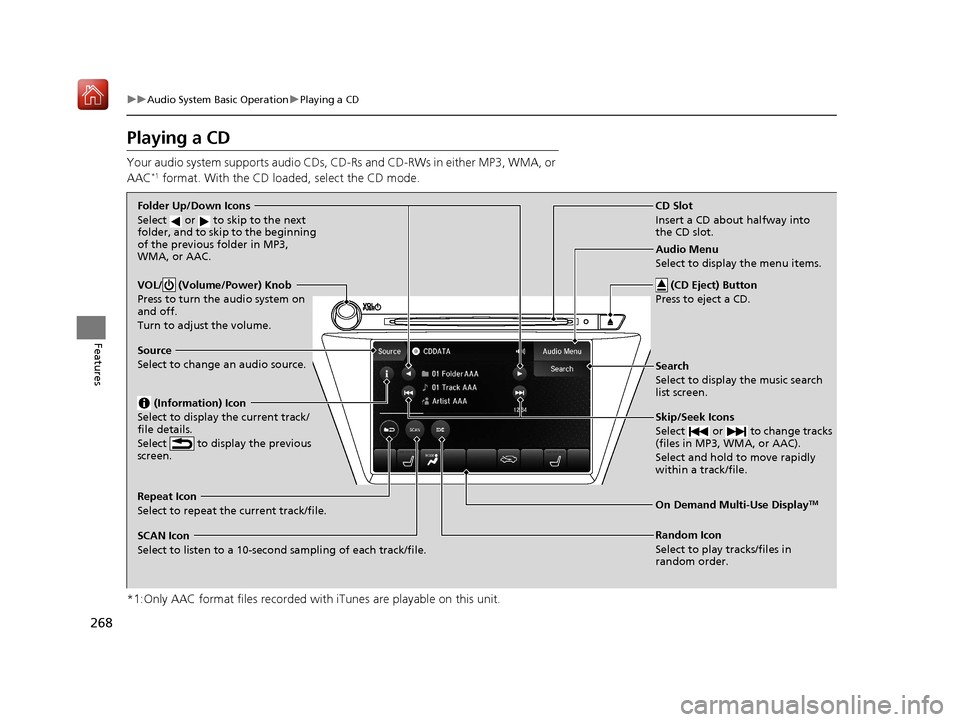
Playing a CD
Your audio system supports audio CDs, CD-Rs and CD-RWs in either MP3, WMA, or
AAC*1 format. With the CD load ed, select the CD mode.
*1:Only AAC format files recorded with iTunes are playable on this unit.
VOL/ (Volume/Power) Knob
Press to turn the audio system on
and off.
Turn to adjust the volume.
Skip/Seek Icons
Select or to change tracks
(files in MP3, WMA, or AAC).
Select and hold to move rapidly
within a track/file.
Audio Menu
Select to display the menu items.
Source
Select to change an audio source. (Information) Icon
Select to display the current track/
file details.
Select to display the previous
screen.
Search
Select to display the music search
list screen.
Folder Up/Down Icons
Select or to skip to the next
folder, and to skip to the beginning
of the previous folder in MP3,
WMA, or AAC.
On Demand Multi-Use DisplayTMRepeat Icon
Select to repeat the current track/file.
SCAN Icon
Select to listen to a 10-second sampling of each track/file. Random Icon
Select to play tracks/files in
random order.
(CD Eject) Button
Press to eject a CD.
CD Slot
Insert a CD about halfway into
the CD slot.
20 ACURA MDX-31TZ56600.book 268 ページ 2019年4月24日 水曜日 午後5時44分
Page 283 of 701
uuAudio System Basic Operation uPlaying Hard Disk Drive (HDD) Audio
282
Features
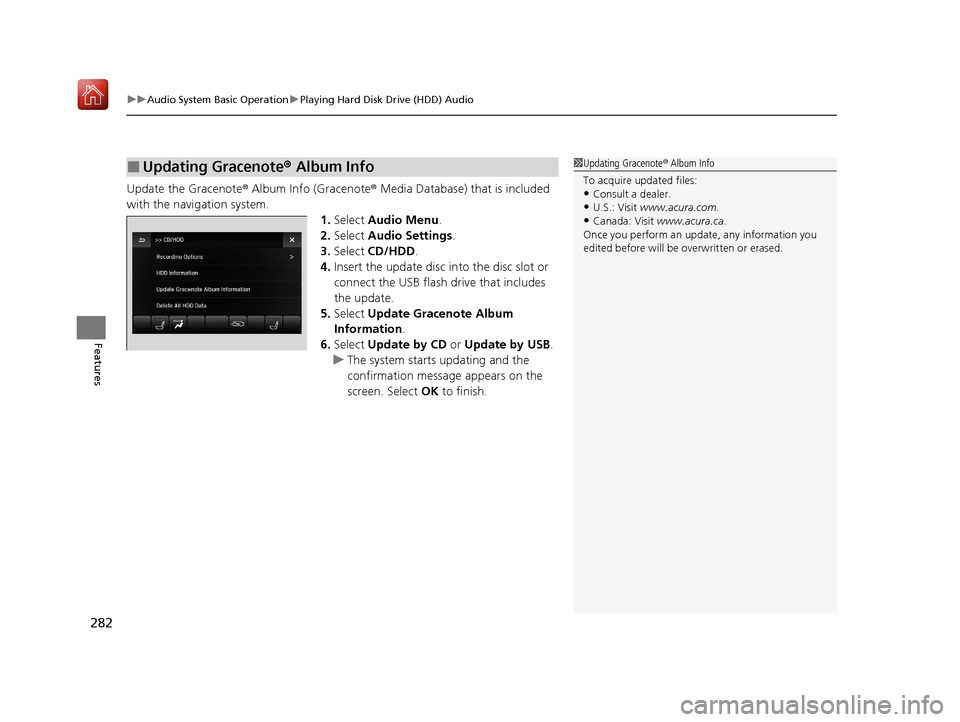
Update the Gracenote ® Album Info (Gracenote ® Media Database) that is included
with the navigation system. 1.Select Audio Menu .
2. Select Audio Settings .
3. Select CD/HDD .
4. Insert the update disc in to the disc slot or
connect the USB flash drive that includes
the update.
5. Select Update Gracenote Album
Information .
6. Select Update by CD or Update by USB.
u The system starts updating and the
confirmation message appears on the
screen. Select OK to finish.
■Updating Gracenote® Album Info1Updating Gracenote ® Album Info
To acquire updated files:
•Consult a dealer.
•U.S.: Visit www.acura.com .
•Canada: Visit www.acura.ca .
Once you perform an update, any information you
edited before will be overwritten or erased.
20 ACURA MDX-31TZ56600.book 282 ページ 2019年4月24日 水曜日 午後5時44分
Page 291 of 701
290
uuAudio System Basic Operation uSong By VoiceTM (SBV)
Features
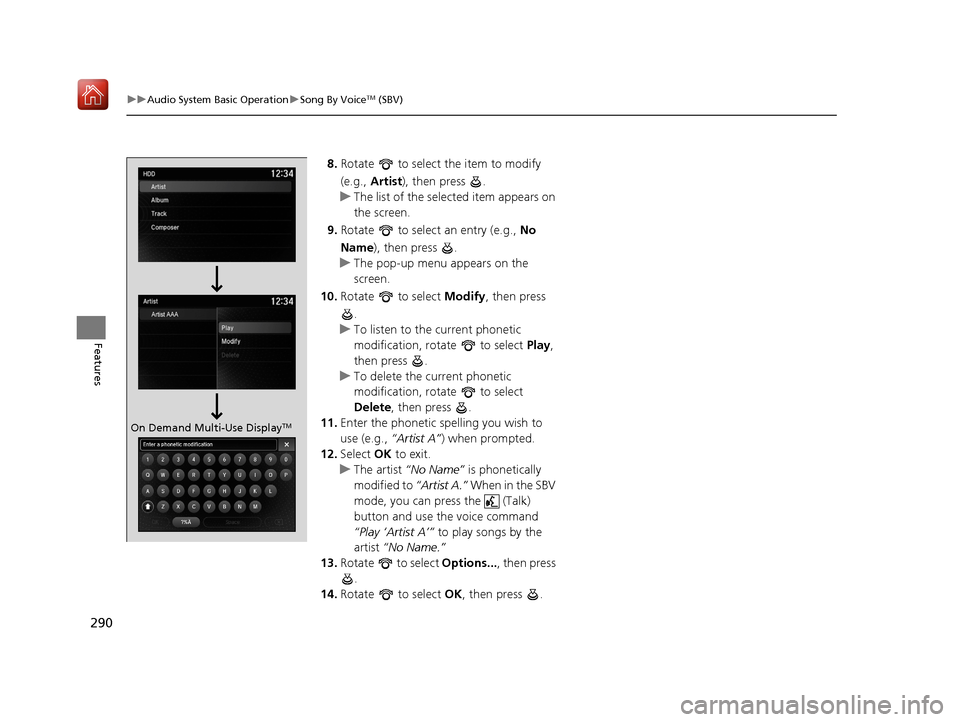
8. Rotate to select the item to modify
(e.g., Artist ), then press .
u The list of the selected item appears on
the screen.
9. Rotate to select an entry (e.g., No
Name ), then press .
u The pop-up menu appears on the
screen.
10. Rotate to select Modify, then press
.
u To listen to the current phonetic
modification, rotate to select Play,
then press .
u To delete the current phonetic
modification, rotate to select
Delete , then press .
11. Enter the phonetic spelling you wish to
use (e.g., “Artist A”) when prompted.
12. Select OK to exit.
u The artist “No Name” is phonetically
modified to “Artist A.” When in the SBV
mode, you can press the (Talk)
button and use the voice command
“Play ‘Artist A’” to play songs by the
artist “No Name.”
13. Rotate to select Options..., then press
.
14. Rotate to select OK, then press .
On Demand Multi-Use DisplayTM
20 ACURA MDX-31TZ56600.book 290 ページ 2019年4月24日 水曜日 午後5時44分
Page 292 of 701
291
uuAudio System Basic Operation uPlaying Pandora ®*1
Continued
Features
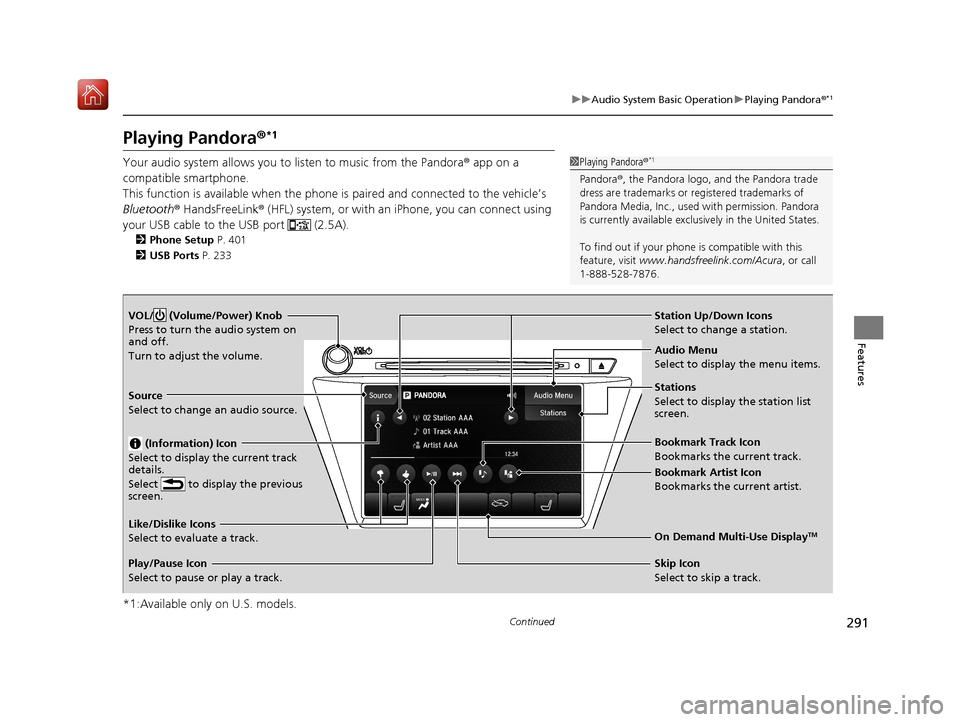
Playing Pandora ®*1
Your audio system allows you to listen to music from the Pandora ® app on a
compatible smartphone.
This function is available when the phone is paired an d connected to the vehicle’s
Bluetooth ® HandsFreeLink ® (HFL) system, or with an iPhone, you can connect using
your USB cable to the USB port (2.5A).
2 Phone Setup P. 401
2 USB Ports P. 233
*1:Available only on U.S. models.
1Playing Pandora ®*1
Pandora®, the Pandora logo, and the Pandora trade
dress are trademarks or registered trademarks of
Pandora Media, Inc., used with permission. Pandora
is currently available exclusively in the United States.
To find out if your phone is compatible with this
feature, visit www.handsfreelink.com/Acura , or call
1-888-528-7876.
VOL/ (Volume/Power) Knob
Press to turn the audio system on
and off.
Turn to adjust the volume.
Audio Menu
Select to display the menu items.
Source
Select to change an audio source.
(Information) Icon
Select to display the current track
details.
Select to display the previous
screen.
Stations
Select to display the station list
screen.
On Demand Multi-Use DisplayTMLike/Dislike Icons
Select to evaluate a track.
Skip Icon
Select to skip a track.
Play/Pause Icon
Select to pause or play a track.Station Up/Down Icons
Select to change a station.
Bookmark Track Icon
Bookmarks the current track.
Bookmark Artist Icon
Bookmarks the current artist.
20 ACURA MDX-31TZ56600.book 291 ページ 2019年4月24日 水曜日 午後5時44分
Page 294 of 701
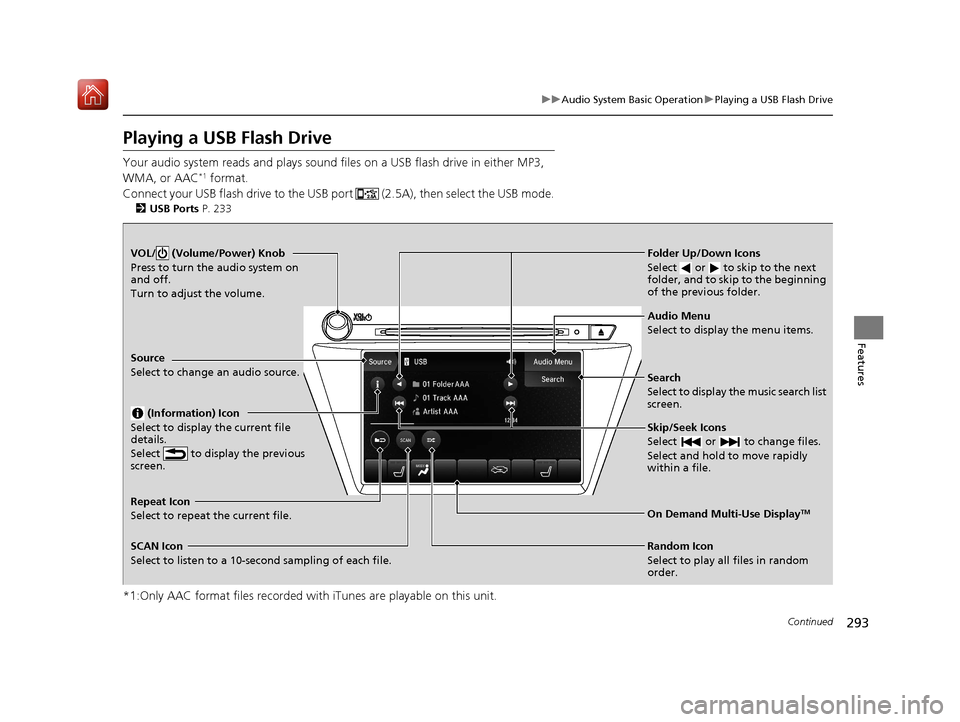
293
uuAudio System Basic Operation uPlaying a USB Flash Drive
Continued
Features
Playing a USB Flash Drive
Your audio system reads and plays sound files on a USB flash drive in either MP3,
WMA, or AAC*1 format.
Connect your USB flash drive to the USB port (2.5A), then select the USB mode.
2 USB Ports P. 233
*1:Only AAC format files recorded with iTunes are playable on this unit.
VOL/ (Volume/Power) Knob
Press to turn the audio system on
and off.
Turn to adjust the volume.
Skip/Seek Icons
Select or to change files.
Select and hold to move rapidly
within a file.
Audio Menu
Select to display the menu items.
Source
Select to change an audio source.
(Information) Icon
Select to display the current file
details.
Select to display the previous
screen.
Search
Select to display the music search list
screen.
Folder Up/Down Icons
Select or to skip to the next
folder, and to skip to the beginning
of the previous folder.
On Demand Multi-Use DisplayTMRepeat Icon
Select to repeat the current file.
SCAN Icon
Select to listen to a 10-second sampling of each file. Random Icon
Select to play all files in random
order.
20 ACURA MDX-31TZ56600.book 293 ページ 2019年4月24日 水曜日 午後5時44分