I stop Acura NSX 2017 Owner's Guide
[x] Cancel search | Manufacturer: ACURA, Model Year: 2017, Model line: NSX, Model: Acura NSX 2017Pages: 473, PDF Size: 16.01 MB
Page 138 of 473
137
uuOperating the Switches Around the Steering Wheel uRear Defogger/Heated Door Mirror Button
Controls
Rear Defogger/Heated Door Mirror Button
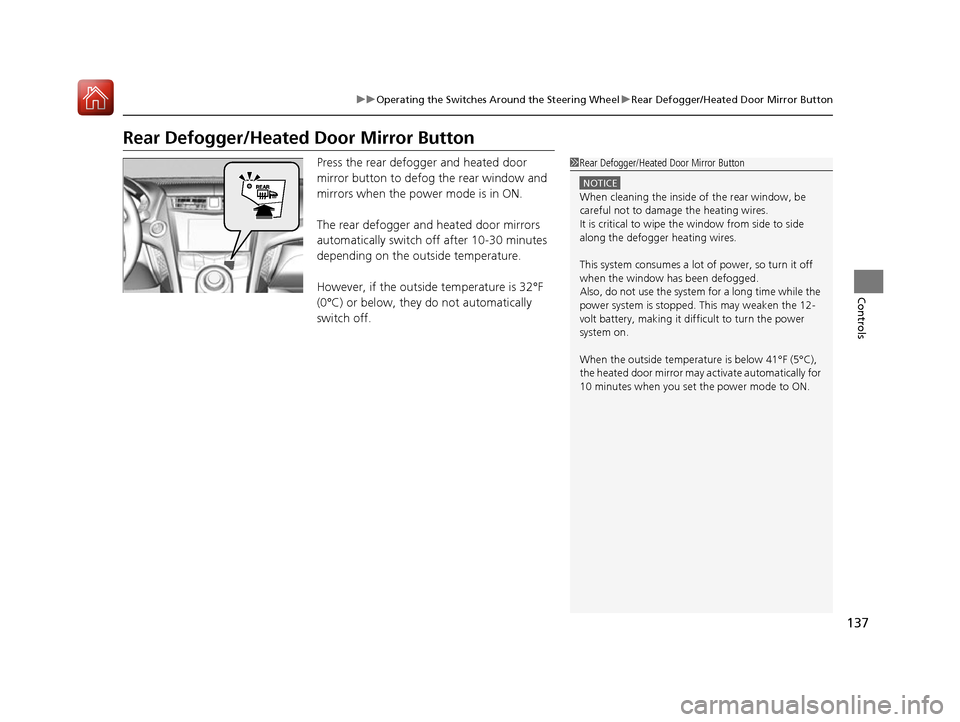
Press the rear defogger and heated door
mirror button to defog the rear window and
mirrors when the power mode is in ON.
The rear defogger and heated door mirrors
automatically switch off after 10-30 minutes
depending on the outside temperature.
However, if the outsid e temperature is 32°F
(0°C) or below, they do not automatically
switch off.1 Rear Defogger/Heated Door Mirror Button
NOTICE
When cleaning the inside of the rear window, be
careful not to damage the heating wires.
It is critical to wipe the window from side to side
along the defogger heating wires.
This system consumes a lot of power, so turn it off
when the window has been defogged.
Also, do not use the system for a long time while the
power system is stopped. This may weaken the 12-
volt battery, making it di fficult to turn the power
system on.
When the outside temperature is below 41°F (5°C),
the heated door mirror may activate automatically for
10 minutes when you set the power mode to ON.
17 NSX-31T6N6000.book 137 ページ 2016年4月22日 金曜日 午後3時44分
Page 139 of 473

138
uuOperating the Switches Around the Steering Wheel uDriving Position Memory System*
Controls
Driving Position Memory System*
You can store two driver’s seat (except for power lumbar) and outside door mirrors
position with the driving position memory system.
When you unlock and open the driver’s doo r with a remote transmitter, or keyless
access system, the seat and ou tside door mirrors adjust automatically to one of the
two preset positions.
When you enter the vehicle, the driver in formation interface briefly shows you which
remote transmitter you used to unlock the vehicle.
• DRIVER 1 transmitter is linked to memory button 1.
• DRIVER 2 transmitter is linked to memory button 2.
The driver’s seat moves rearward depending
on the set seating position once you
•Stop the vehicle.
• Put the transmission in
(P.
• Set the power mode to VEHICLE OFF
(LOCK).
• Then open the driver’s door.
Once the power mode is in the ACCESSORY
position, the driver’s seat moves to the
DRIVER 1 or 2 preset position.
1Driving Position Memory System*
Using the audio/informati on screen, you can disable
the automatic seat and d oor mirrors adjustment
function. 2 Customized Features P. 232
The driver’s seat easy exit feature:
•Will tilt slightly forward and then move rearward to
allow you to more easily exit the vehicle.
•Can be turned ON/OFF. 2Customized Features P. 232
System Operation
The system will not operate if:
•The vehicle speed is above 3 mph (5 km/h).
•Either memory position button is pressed while the
seat is in motion.
•The seat position is adjusted while in operation.
•The memory 1 or 2 position is set fully to the rear.
DRIVER 1 DRIVER 2
* Not available on all models
17 NSX-31T6N6000.book 138 ページ 2016年4月22日 金曜日 午後3時44分
Page 140 of 473
139
uuOperating the Switches Around the Steering Wheel uDriving Position Memory System*
Controls
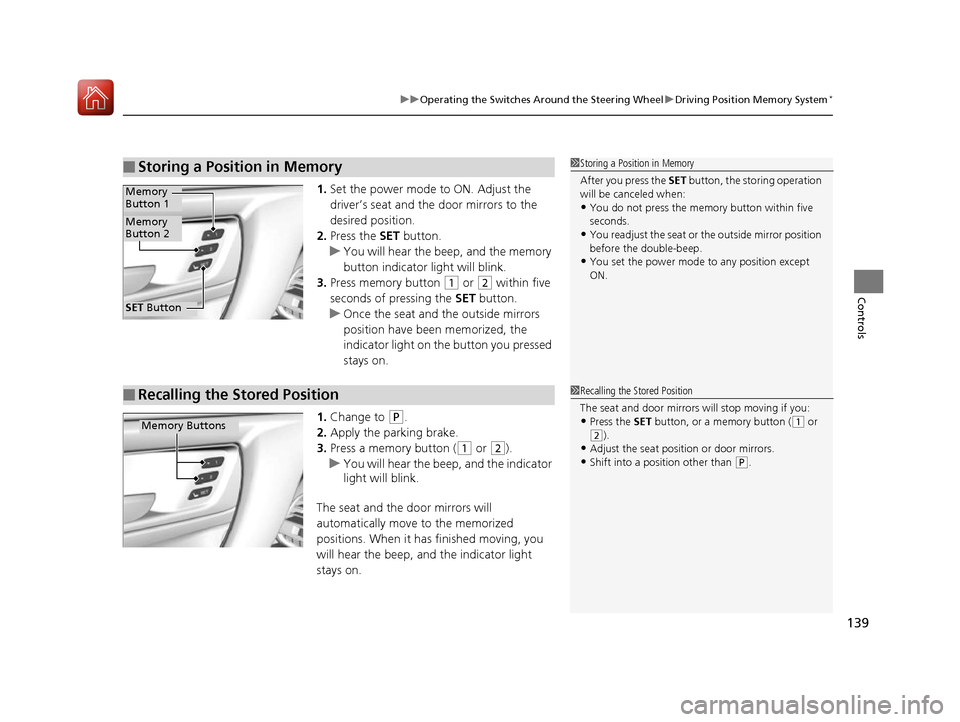
1. Set the power mode to ON. Adjust the
driver’s seat and the door mirrors to the
desired position.
2. Press the SET button.
u You will hear the beep, and the memory
button indicator light will blink.
3. Press memory button
(1 or (2 within five
seconds of pressing the SET button.
u Once the seat and the outside mirrors
position have been memorized, the
indicator light on the button you pressed
stays on.
1. Change to
(P.
2. Apply the parking brake.
3. Press a memory button (
(1 or (2).
u You will hear the beep, and the indicator
light will blink.
The seat and the door mirrors will
automatically move to the memorized
positions. When it has finished moving, you
will hear the beep, and the indicator light
stays on.
■Storing a Position in Memory1 Storing a Position in Memory
After you press the SET button, the storing operation
will be canceled when:
•You do not press the memory button within five
seconds.
•You readjust the seat or the outside mirror position
before the double-beep.
•You set the power mode to any position except
ON.
SET Button
Memory
Button 1
Memory
Button 2
■Recalling the Stored Position1 Recalling the Stored Position
The seat and door mirrors will stop moving if you:
•Press the SET button, or a memory button ((1 or
(2).•Adjust the seat position or door mirrors.
•Shift into a position other than (P.
Memory Buttons
17 NSX-31T6N6000.book 139 ページ 2016年4月22日 金曜日 午後3時44分
Page 141 of 473

140
uuOperating the Switches Around the Steering Wheel uAdjusting the Steering Wheel
Controls
Adjusting the Steering Wheel
The steering wheel height and distance from your body can be adjusted so that you
can comfortably grip the steering wheel in an appropriate driving posture.
1.Push the steering wheel adjustment lever
down.
u The steering wheel adjustment lever is
under the steering column.
2. Move the steering wheel up or down, and
in or out.
u Make sure you can see the instrument
panel gauges and indicators.
3. Pull the steering wheel adjustment lever up
to lock the steerin g wheel in position.
u After adjusting the position, make sure
you have securely locked the steering
wheel in place by trying to move it up,
down, in, and out.1Adjusting the Steering Wheel
Make any steering wheel adjustments before you
start driving.
3WARNING
Adjusting the steering wheel position while
driving may cause you to lose control of the
vehicle and be seriously injured in a crash.
Adjust the steering wheel only when the
vehicle is stopped.
To adjust
To lock
Lever
17 NSX-31T6N6000.book 140 ページ 2016年4月22日 金曜日 午後3時44分
Page 169 of 473
uuAudio System Basic Operation uAudio/Information Screen
168
Features
■Phone
Displays the HFL information.
2 Bluetooth® HandsFreeLink ® P. 258
■Info
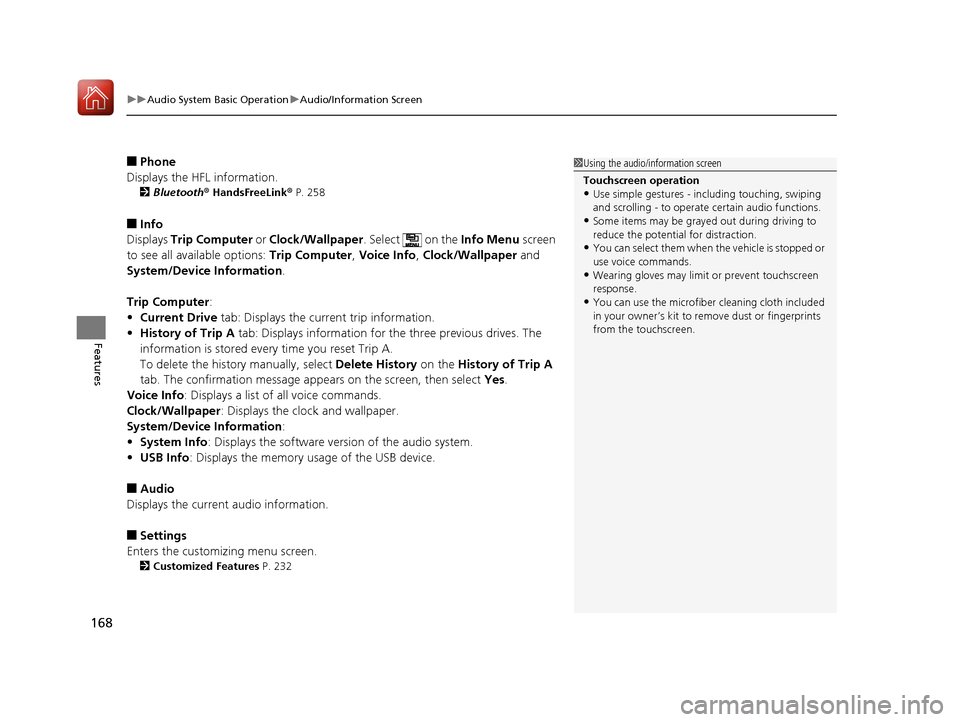
Displays Trip Computer or Clock/Wallpaper . Select on the Info Menu screen
to see all available options: Trip Computer, Voice Info, Clock/Wallpaper and
System/Device Information .
Trip Computer :
• Current Drive tab: Displays the current trip information.
• History of Trip A tab: Displays information for the three previous drives. The
information is stored every time you reset Trip A.
To delete the history manually, select Delete History on the History of Trip A
tab. The confirmation message ap pears on the screen, then select Yes.
Voice Info: Displays a list of all voice commands.
Clock/Wallpaper : Displays the clock and wallpaper.
System/Device Information :
• System Info: Displays the software version of the audio system.
• USB Info : Displays the memory usage of the USB device.
■Audio
Displays the current audio information.
■Settings
Enters the customiz ing menu screen.
2Customized Features P. 232
1Using the audio/in formation screen
Touchscreen operation
•Use simple gestures - in cluding touching, swiping
and scrolling - to operate certain audio functions.
•Some items may be grayed out during driving to
reduce the potential for distraction.
•You can select them when the vehicle is stopped or
use voice commands.
•Wearing gloves may limit or prevent touchscreen
response.
•You can use the microfiber cleaning cloth included
in your owner’s kit to remo ve dust or fingerprints
from the touchscreen.
17 NSX-31T6N6000.book 168 ページ 2016年4月22日 金曜日 午後3時44分
Page 181 of 473

uuAudio System Basic Operation uAudio/Information Screen
180
Features
You can close specific apps running in the background on the system.
1.Select and hold .
2. Select an app you want to close.
3. Select Stop.
u The display will return to the app list.
■Closing Apps1Closing Apps
If you have a number of apps running in the
background and somethi ng goes wrong with the
audio system, some of t hose apps may not work
properly. If this happens, close all the apps and re-
launch the app/apps that you want to use.
To close all apps on the system, select Stop All, then
Yes .
You cannot close the Garmin
* apps.
* Not available on all models
17 NSX-31T6N6000.book 180 ページ 2016年4月22日 金曜日 午後3時44分
Page 184 of 473

183
uuAudio System Basic Operation uDisplay Setup
FeaturesSelect the current source icon, then select an icon on the source list to switch the
audio source.
Certain manual functions are disabled or inoperable while the vehicle is in motion.
You cannot select a grayed-out option until the vehicle is stopped.
■Selecting an Audio Source1 Selecting an Audio Source
If you startup pre-installed a udio apps, is
displayed on the lower right of the screen.
These pre-installed apps ca nnot be displayed on the
source select screen.
You can startup thos e audio apps from .
Pandora ® is available only in the U.S..
■Limitations for Manual Operation
Select the source icon.
Source Select Screen
Source List Icons
1Limitations for Manual Operation
When the vehicle is in TRACK mode, the following
screen is displayed and the audio system becomes
inoperable. To return to the normal screen, touch any
part of the audio/information screen.
You can turn the li mitation on and off.
2 Customized Features P. 232
17 NSX-31T6N6000.book 183 ページ 2016年4月22日 金曜日 午後3時44分
Page 221 of 473
uuAudio System Basic Operation uAndroid Auto
220
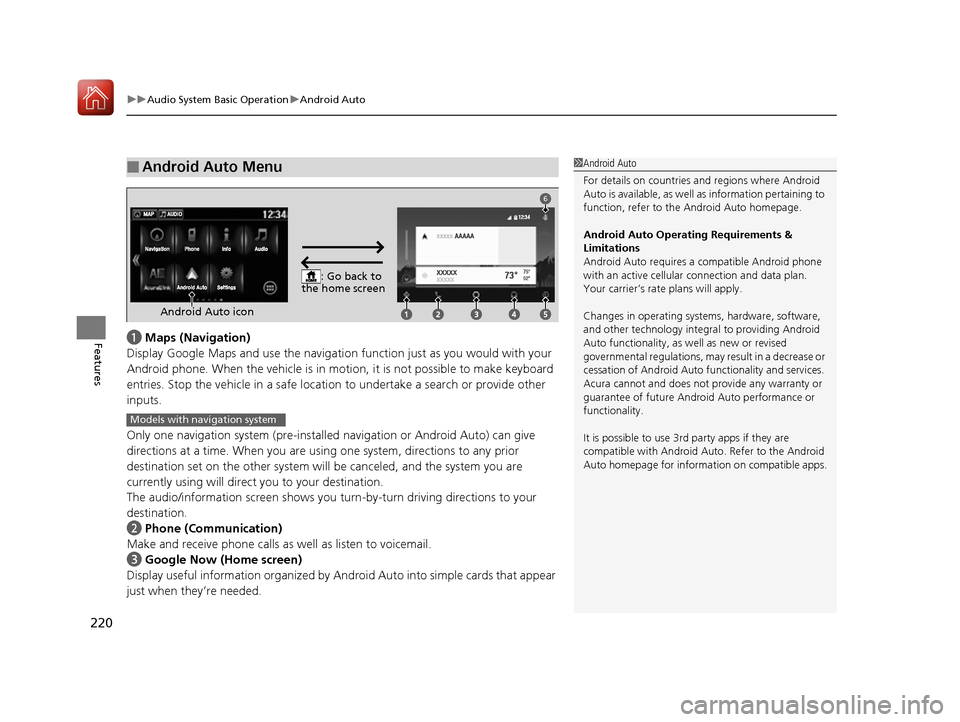
Featuresa Maps (Navigation)
Display Google Maps and use the navigation function just as you would with your
Android phone. When the vehicle is in mo tion, it is not possible to make keyboard
entries. Stop the vehicle in a safe location to undertake a search or provide other
inputs.
Only one navigation system (pre-installe d navigation or Android Auto) can give
directions at a time. When you are using one system, directions to any prior
destination set on the other system will be canceled, and the system you are
currently using will direct you to your destination.
The audio/information screen shows you turn -by-turn driving directions to your
destination.
b Phone (Communication)
Make and receive phone calls as well as listen to voicemail.
c Google Now (Home screen)
Display useful information organized by Andr oid Auto into simple cards that appear
just when they’re needed.
■Android Auto Menu1 Android Auto
For details on c ountries and regions where Android
Auto is available, as well as information pertaining to
function, refer to the Android Auto homepage.
Android Auto Operating Requirements &
Limitations
Android Auto requires a compatible Android phone
with an active cellular connection and data plan.
Your carrier’s rate plans will apply.
Changes in operating systems, hardware, software,
and other technology integral to providing Android
Auto functionality, as well as new or revised
governmental regulations, may result in a decrease or
cessation of Android Auto functionality and services.
Acura cannot and does not provide any warranty or
guarantee of future Android Auto performance or
functionality.
It is possible to use 3r d party apps if they are
compatible with Android Auto. Refer to the Android
Auto homepage for informat ion on compatible apps.
: Go back to
the home screen
Android Auto icon
6
Models with navigation system
17 NSX-31T6N6000.book 220 ページ 2016年4月22日 金曜日 午後3時44分
Page 225 of 473
224
uuAudio Error Messages uPandora®
Features
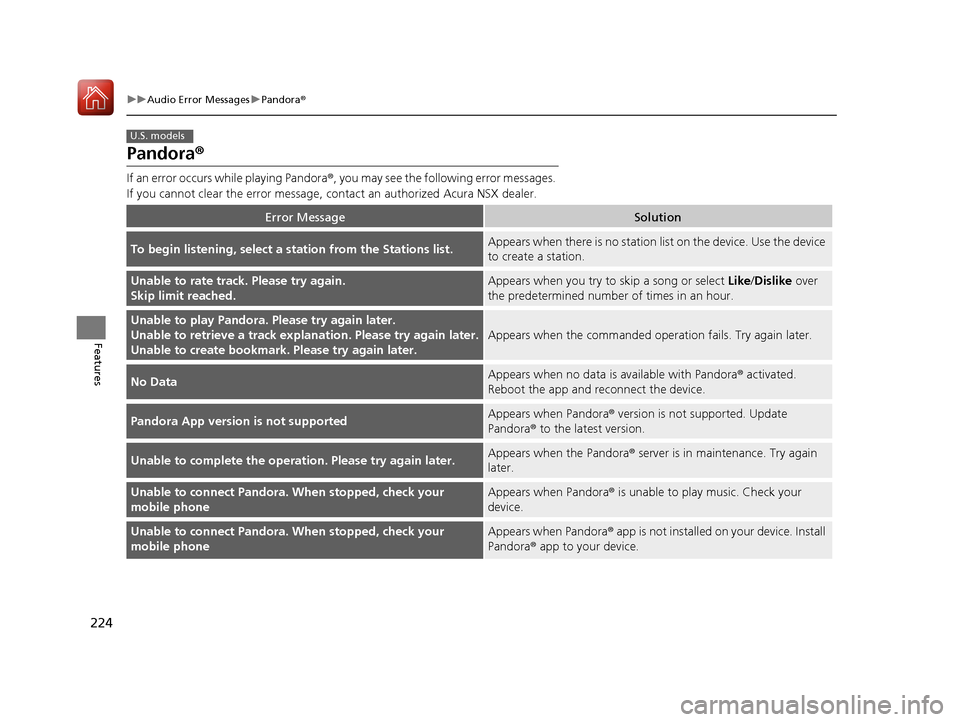
Pandora ®
If an error occurs while playing Pandora ®, you may see the following error messages.
If you cannot clear the error message, c ontact an authorized Acura NSX dealer.
Error MessageSolution
To begin listening, select a station from the Stations list.Appears when there is no station lis t on the device. Use the device
to create a station.
Unable to rate track. Please try again.
Skip limit reached.Appears when you try to skip a song or select Like/Dislike over
the predetermined number of times in an hour.
Unable to play Pandora. Please try again later.
Unable to retrieve a track explan ation. Please try again later.
Unable to create bookmark. Please try again later.
Appears when the commanded oper ation fails. Try again later.
No DataAppears when no data is available with Pandora® activated.
Reboot the app and reconnect the device.
Pandora App version is not supportedAppears when Pandora ® version is not supported. Update
Pandora® to the latest version.
Unable to complete the operat ion. Please try again later.Appears when the Pandora® server is in maintenance. Try again
later.
Unable to connect Pandora. When stopped, check your
mobile phoneAppears when Pandora ® is unable to play music. Check your
device.
Unable to connect Pandora. When stopped, check your
mobile phoneAppears when Pandora ® app is not installed on your device. Install
Pandora® app to your device.
U.S. models
17 NSX-31T6N6000.book 224 ページ 2016年4月22日 金曜日 午後3時44分
Page 226 of 473

225
uuAudio Error Messages uAndroid/Apps
Features
Android/Apps
If an error occurs while using the audio system or apps, you may see the following
error messages. If you cannot clear the e rror message, contact an authorized Acura
NSX dealer.
*1:****part is variable characters, and will change depending upon where an error occurs.
Error Message*1Solution
Unfortunately, **** has
stopped.Error has occurred within app, select OK on the screen to close the app.
**** is not responding.
Would you like to close it?
App is not responding.
Select Wait if you can wait for a response from app a little longer. If it does not respond even if you keep
waiting, select OK to close the app and start it up. If the error message continues, perform Factory Data
Reset .
2Defaulting All the Settings P. 254
17 NSX-31T6N6000.book 225 ページ 2016年4月22日 金曜日 午後3時44分