AUX ACURA RDX 2010 Owner's Manual
[x] Cancel search | Manufacturer: ACURA, Model Year: 2010, Model line: RDX, Model: ACURA RDX 2010Pages: 514, PDF Size: 30.21 MB
Page 257 of 514

Playing a DVD-A Disc
You can play a DVD-A disc in the CD
changer. The disc controls are same
as previously described.
To Pause a Disc
To pause a disc, press the preset
button which corresponds to the
current disc. To play the disc again,
press the preset button again.To Stop Playing a Disc
If you turn the system off while a disc
is playing, either with the PWR/VOL
knob or by turning off the ignition
switch, the disc will stay in the drive.
When you turn the system back on,
the disc will begin playing where it
left off.
To take the system out of disc mode,
press the AM/FM, or DISC/AUX, or
button to switch to the radio,
or satellite radio, or auxiliary input
while a disc is playing. When you
return to disc mode by pressing the
DISC/AUX button, play will continue
at the same point that it left off. Removing Discs from the Changer
To remove the disc that is currently
playing, press and release the eject
(
) button. You will see
‘‘EJECT ’’
on the upper display. When you
remove the disc from the slot, the
system begins the load sequence so
you can load another disc in that
position. If you do not load another
disc within 10 seconds, the system
selects the previous mode (AM,
FM1, FM2, or XM Radio).
If you do not remove the disc from
the slot, the system will reload the
disc after 10 seconds and put the CD
changer in pause mode. To begin
playing the disc, press the DISC/
AUX button.
CONTINUED
Playing Discs (Models with navigation system)
253
Features
09/07/07 15:02:04 10 ACURA RDX MMC North America Owner's M 50 31STK630 enu
ProCarManuals.com
2010 RDX
Page 265 of 514
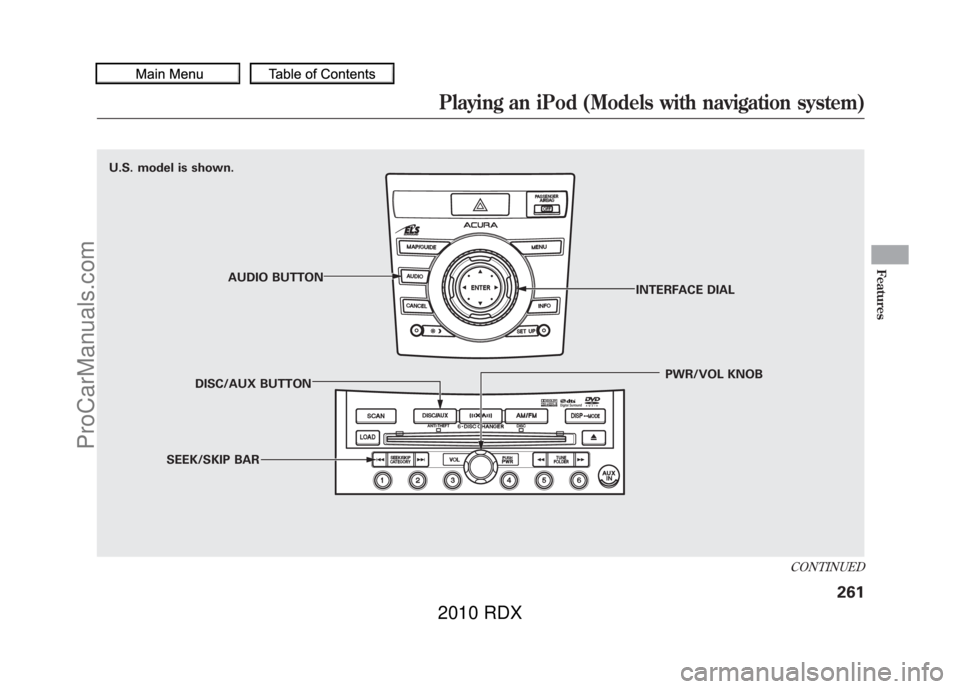
U.S. model is shown.AUDIO BUTTON
DISC/AUX BUTTON
SEEK/SKIP BAR PWR/VOL KNOB
INTERFACE DIAL
CONTINUED
Playing an iPod (Models with navigation system)
261
Features
09/07/07 15:02:04 10 ACURA RDX MMC North America Owner's M 50 31STK630 enu
ProCarManuals.com
2010 RDX
Page 266 of 514
To Play an iPod
®
This audio system can operate the
audio files on the iPod
®with the
same controls used for the in-dash
disc changer. To play an iPod,
connect it to the USB adapter cable
in the console compartment by using
your dock connector, then press the
DISC/AUX button. The ignition
switch must be in the ACCESSORY
(I) or ON (II) position. The iPod will
also be recharged with the ignition
switch in these positions.
The system will only play songs
stored on the iPod with iTunes.
iPod and iTunes are registered
trademarks owned by Apple Inc.
Voice Control SystemYou can select the AUX mode by
using the navigation system voice
control buttons, but cannot operate
the play mode functions. iPods compatible with your audio
system using the USB adapter cable
are:
Model Software
iPod classic Ver. 1.0 or more
iPod with
video
(iPod 5th
generation) Ver. 1.2 or more
iPod nano Ver. 1.2 or more
iPod nano 2nd
generation Ver. 1.1.2 or more
iPod nano 3rd
generation Ver. 1.0 or more
iPod nano 4th
generation Ver. 1.0.2 or more
iPod touch Ver. 1.1.1 or more
iPod touch
2nd generation Ver. 2.1.1 or more
Use only compatible iPods with the
latest software. iPods that are not
compatible will not work in this audio
unit. NOTE:
●Do not connect your iPod using a
hub.●Do not keep the iPod in the
vehicle. Direct sunlight and high
heat will damage it.●Do not use an extension cable
between the USB adapter cable
equipped with your vehicle and
your dock connector.●We recommend backing up your
data before playing it.●Some devices cannot be powered
or charged via the USB adapter, if
this is the case use the accessory
adapter to supply power to your
device.
Playing an iPod (Models with navigation system)26209/07/07 15:02:04 10 ACURA RDX MMC North America Owner's M 50 31STK630 enu
ProCarManuals.com
2010 RDX
Page 271 of 514

ALBUM RANDOM-This feature
plays all available albums from the
selected items in the iPod menu list
(playlists, artists, albums or songs) in
random order. The files in each
album are played in the recorded
order. You will see ALBUM
RANDOM on the screen. To turn it off, have this mode
highlighted and press ENTER again.
You can also select another list from
the iPod menu while keeping the
random function.
NOTE:
Available operating function varies
on models or versions. Some
functions may not be available on the
vehicle
’s audio system. To Stop Playing Your iPod
To play the radio, press the AM, FM,
or
button. Press the DISC/
AUX button to switch between disc
(if a disc is loaded),
Bluetooth
®
Audio, and the iPod.
CONTINUED
Playing an iPod (Models with navigation system)
267
Features
09/07/07 15:02:04 10 ACURA RDX MMC North America Owner's M 50 31STK630 enu
ProCarManuals.com
2010 RDX
Page 275 of 514
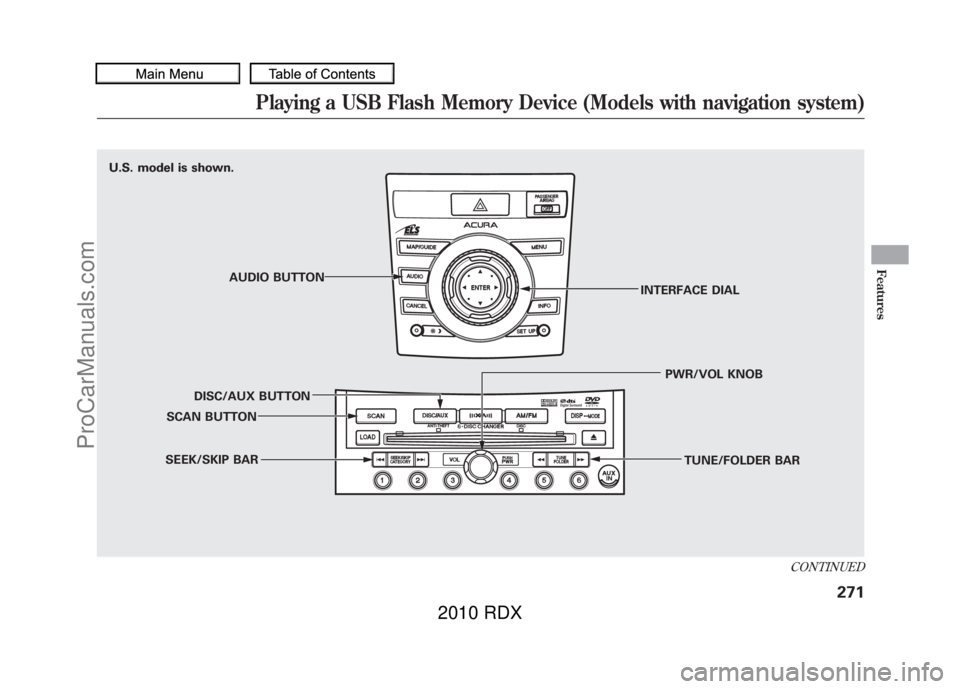
U.S. model is shown.
U.S. model is shown.AUDIO BUTTON
DISC/AUX BUTTON
SCAN BUTTON
SEEK/SKIP BAR TUNE/FOLDER BAR
PWR/VOL KNOB
INTERFACE DIAL
CONTINUED
Playing a USB Flash Memory Device (Models with navigation system)
271
Features
09/07/07 15:02:04 10 ACURA RDX MMC North America Owner's M 50 31STK630 enu
ProCarManuals.com
2010 RDX
Page 276 of 514
To Play a USB Flash Memory
Device
This audio system can operate the
audio files on a USB flash memory
device with the same controls used
for the in-dash disc changer. To play
a USB flash memory device, connect
it to the USB adapter cable in the
console compartment, then press the
DISC/AUX button. The ignition
switch must be in the ACCESSORY
(I) or ON (II) position.
The audio system reads and plays
the audio files on the USB flash
memory device in MP3, WMA or
AAC
ꭧformats. Depending on the
format, the audio control display
shows MP3, WMA or AAC when a
USB flash memory device is playing.
The USB flash memory device limit
is up to 700 folders or up to 65535
files.
ꭧ : Only AAC format files recorded
with iTunes are playable on this
audio unit. The recommended USB flash
memory devices are 256 MB or
higher, and formatted with the FAT
file system. Some digital audio
players may be compatible as well.
Some USB flash memory devices
(such as devices with security lock-
out features, etc.) will not work in
this audio unit.
NOTE:
●Do not use a device such as a card
reader or hard drive as the device
or your files may be damaged.●Do not connect your USB flash
memory device using a hub.●Do not use an extension cable to
the USB adapter cable equipped
with your vehicle.●Do not keep a USB flash memory
device in the vehicle. Direct
sunlight and high heat will damage
it.
●We recommend backing up your
data before playing a USB flash
memory device.●Depending on the type and
number of files, it may take some
time before they begin to play.●Depending on the software the
files were made with, it may not be
possible to play some files, or
display some text data.●Some devices cannot be powered
or charged via the USB adapter, if
this is the case use the accessory
adapter to supply power to your
device.Voice Control SystemYou can select the AUX mode by
using the navigation system voice
control buttons, but cannot operate
the play mode functions.
Playing a USB Flash Memory Device (Models with navigation system)27209/07/07 15:02:04 10 ACURA RDX MMC North America Owner's M 50 31STK630 enu
ProCarManuals.com
2010 RDX
Page 282 of 514

FOLDER SCAN-This function
samples the first file in each folder in
the order they are stored. To activate
the folder scan feature, push the
selector to the right repeatedly. You
will see FOLDER SCAN on the
screen. You will also see SCAN on
the upper display and the folder
number blinking. You will get a 10
second sampling of the first file in
each folder. Push the selector
repeatedly to get out of the scan
mode. The system plays the last file
sampled.
You can also select the folder scan
feature with the SCAN button on the
control panel. Press and release the
SCAN button repeatedly.
Press and hold the SCAN button to
get out of the folder scan mode and
play the last file sampled. To Stop Playing a USB Flash
Memory Device
To play the radio, press the AM/FM
or
button. Press the DISC/
AUX button to switch to the disc
mode (if a disc is loaded). Press the
DISC/AUX button to switch the
audio mode between the USB mode
and
Bluetooth
®Audio.
If you reconnect the same USB flash
memory device, the system will
begin playing where it left off.
USB Flash Memory Device Error
Messages
For information, see page 279.
Disconnecting a USB Flash Memory
DeviceYou can disconnect the USB flash
memory device at any time even if
the USB mode is selected on the
audio system. Always follow the USB
flash memory device's instructions
when you remove it.
When you disconnect the USB flash
memory device while it is playing,
the upper display and the audio
control display (if selected) show NO
DATA.
Playing a USB Flash Memory Device (Models with navigation system)27809/07/07 15:02:04 10 ACURA RDX MMC North America Owner's M 50 31STK630 enu
ProCarManuals.com
2010 RDX
Page 285 of 514

U.S. model is shown.
U.S. model is shown.AUDIO BUTTON
DISC/AUX BUTTON SEEK/SKIP BAR PWR/VOL KNOB
INTERFACE DIAL
DISP/MODE BUTTON
CONTINUED
Bluetooth
®Audio System (Models with navigation system)
281
Features
09/07/07 15:02:04 10 ACURA RDX MMC North America Owner's M 50 31STK630 enu
ProCarManuals.com
2010 RDX
Page 286 of 514

Your vehicle is equipped with aBluetooth
®Audio system, which
allows you to listen to streaming
audio from your
Bluetooth
®Audio
compatible phone. This function is
only available on
Bluetooth
®Audio
Compatible phones that are paired
and linked to the vehicle's
Bluetooth
®HandsFreeLink
®(HFL)
system (see page 313).
Not all Bluetooth-enabled phones
with streaming audio capabilities are
compatible with the system. You can
find an approved phone by visiting
www.acura.com/handsfreelink,
or by
calling the HandsFreeLink
®
consumer support at 1-888-528-7876.
In Canada, visit
www.acura.ca,
or call
1-888-9-ACURA-9. NOTE:
In some states, it may be
illegal to perform some data device
functions while driving. To Play
Bluetooth
®Audio Files
Make sure that your phone is paired
and linked to the HFL.
Press the DISC/AUX button
ꭧwith
the ignition switch in the
ACCESSORY (I) or ON (II) position.
When the phone is recognized, you
will see the
Bluetooth
®Audio
message and indicator on the upper
display and the audio control display
(if selected), and the system begins
to play.
Bluetooth
®Audio System (Models with navigation system)
28209/07/07 15:02:04 10 ACURA RDX MMC North America Owner's M 50 31STK630 enu
ProCarManuals.com
2010 RDX
Page 287 of 514

Once a device is linked, the name of
the device will appear on the screen.
Pressing the DISP/MODE button
switches the audio control display
between the
Bluetooth
®Audio and
the device name.
If more than one phone is paired to
the HFL system, there will be a delay
before the system begins to play.
To play the audio files, you may need
to operate your phone. If so, follow
the phone maker's operating
instructions.
ꭧ : If an iPod, USB flash memory
device or audio unit connected
to the auxiliary input jack was
selected at the last mode, you
will see iPod, USB or AUX in
the upper display and the audio
control display (if selected).
Push the DISC/AUX button
again to play audio files from
your
Bluetooth
®Audio phone. In the following conditions, the
display shows
‘‘NO CONNECT ’’
message.
●The phone is not linked to HFL.●The phone is not turned on.●The phone is not in the vehicle.●Another HFL compatible phone,
which is not compatible forBluetooth
®Audio, is already
connected. If your
Bluetooth
®Audio compatible
phone does not operate as described,
make sure it is an Acura approved
phone. To find out if your phone is
approved, go to
www.acura.com/
handsfreelink
(in Canada,
www.acura.
ca
), or call the HandsFreeLink
®
consumer support at (888) 528-7876.Voice Control SystemYou can select the AUX mode by
using the navigation system voice
control buttons, but cannot operate
the play mode functions.
CONTINUED
Bluetooth
®Audio System (Models with navigation system)
283
Features
09/07/07 15:02:04 10 ACURA RDX MMC North America Owner's M 50 31STK630 enu
ProCarManuals.com
2010 RDX