acc Acura RDX 2016 User Guide
[x] Cancel search | Manufacturer: ACURA, Model Year: 2016, Model line: RDX, Model: Acura RDX 2016Pages: 81, PDF Size: 17.94 MB
Page 17 of 81
26 || 27
INSTRUMENT P
ANEL
INSTRUMENT P ANEL
TABLE OF
CONTENTS
INDEX
VISUAL INDEX
VOICE COMMAND INDEX
SAFETY
INFORMATION
CLIENT
INFORMATION
INSTRUMENT PANEL
SPECIFICATIONS
VEHICLE
CONTROLS
MAINTENANCE
AUDIO AND
CONNECTIVITY
HANDLING THE UNEXPECTED
BLUETOOTH®
HANDSFREELINK®
DRIVING
ACURALINK®
NAVIGATION
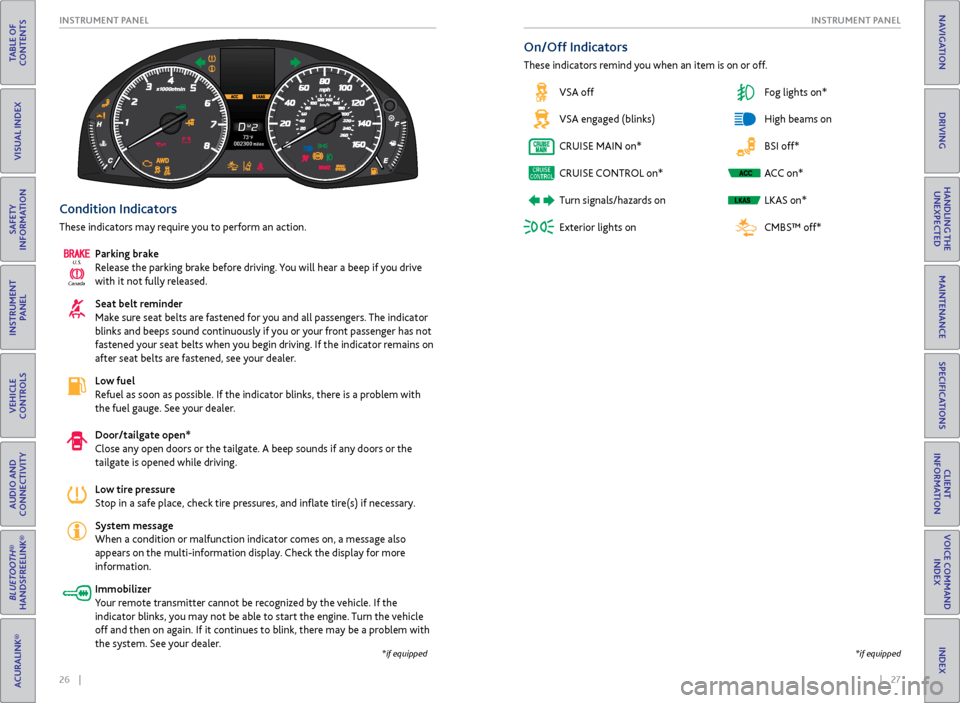
Condition Indicators
These indicators may require you to perform an action.
Parking brake
Release the parking brake before driving. You will hear a beep if you drive
with it not fully released.
Seat belt reminder
Make sure seat belts are fastened for you and all passengers. The indicator
blinks and beeps sound continuously if you or your front passenger has not
fastened your seat belts when you begin driving. If the indicator remains on
after seat belts are fastened, see your dealer.
Low fuel
Refuel as soon as possible. If the indicator blinks, there is a problem with
the fuel gauge. See your dealer.
Door/tailgate open*
Close any open doors or the tailgate. A beep sounds if any doors or the
tailgate is opened while driving.
Low tire pressure
Stop in a safe place, check tire pressures, and inflate tire(s) if necessary.
System message
When a condition or malfunction indicator comes on, a message also
appears on the multi-information display. Check the display for more
information.
Immobilizer
Your remote transmitter cannot be recognized by the vehicle. If the
indicator blinks, you may not be able to start the engine. Turn the vehicle
off and then on again. If it continues to blink, there may be a problem with
the system. See your dealer.
Canada U.S.
*if equipped
*if equipped
On/Off Indicators
These indicators remind you when an item is on or off.
VSA off
VSA engaged (blinks)
CRUISE MAIN on*
CRUISE CONTROL on*
Turn signals/hazards on
Exterior lights on Fog lights on*
High beams on
BSI off*
ACC on*
LKAS on*
CMBS™ off*
Page 19 of 81

30 || 31
VEHICLE CONTROLS
VEHICLE CONTROLS
TABLE OF
CONTENTS
INDEX
VISUAL INDEX
VOICE COMMAND INDEX
SAFETY
INFORMATION
CLIENT
INFORMATION
INSTRUMENT PANEL
SPECIFICATIONS
VEHICLE
CONTROLS
MAINTENANCE
AUDIO AND
CONNECTIVITY
HANDLING THE UNEXPECTED
BLUETOOTH®
HANDSFREELINK®
DRIVING
ACURALINK®
NAVIGATION
Learn about the various controls necessary for operating and driving the vehicle.
Using the Remote Transmitter
Lock or unlock the doors and tailgate.
VEHICLE CONTROLS
Leaving the keyless access remote in the vehicle can result in theft or accidental
movement of the vehicle. Always take the key with you whenever you leave the
vehicle unattended.
NOTICE
HOLD
Unlock button: Press once
to unlock the driver’s door.
Press again to unlock all
doors and the tailgate.
Release button (front or
back of key): Slide to release
the built-in key for valet use.
Power tailgate button:
Press to unlock and open the
power tailgate. Press again
to close it. Lock button: Press to lock
the doors and tailgate. Press
again for audible verification.
Panic button: Press to sound
the alarm for 30 seconds.
Press again to cancel.
ENGINE HOLD button*:
After pressing the Lock
button once, press and
hold to remotely start the
engine (see page 96). LED indicators*: Check
door lock or engine status
(see page 96).
Keyless Access System
When you carry the remote transmitter (for example, in a pocket or purse) and it
is outside the vehicle and within range (about 32 inches or 80 cm), you can lock or
unlock the doors and tailgate without handling the transmitter.
Unlocking/Locking the
Doors
To unlock: Grab either front door handle when the
vehicle is off.
To lock: Press the door lock button on either front
door handle when the vehicle is off. If the remote
transmitter is inside the vehicle, the doors will not
lock.
Unlocking/Locking the Tailgate
To unlock: Press and hold the tailgate release
button under the tailgate handle to unlock the
tailgate and all doors. The vehicle can be on or off.
To lock: Press the tailgate lock button to lock the
tailgate and all doors. If the remote transmitter is
inside the vehicle, the tailgate and doors will not
lock.
Tailgate release
button
Lock button
Door lock
button
Page 29 of 81
50 || 51
AUDIO AND CONNECTIVITY
AUDIO AND CONNECTIVITY
TABLE OF
CONTENTS
INDEX
VISUAL INDEX
VOICE COMMAND INDEX
SAFETY
INFORMATION
CLIENT
INFORMATION
INSTRUMENT PANEL
SPECIFICATIONS
VEHICLE
CONTROLS
MAINTENANCE
AUDIO AND
CONNECTIVITY
HANDLING THE UNEXPECTED
BLUETOOTH®
HANDSFREELINK®
DRIVING
ACURALINK®
NAVIGATION
Basic Audio Operation
Connect audio devices in the front console, and operate buttons and displays for
the audio system.
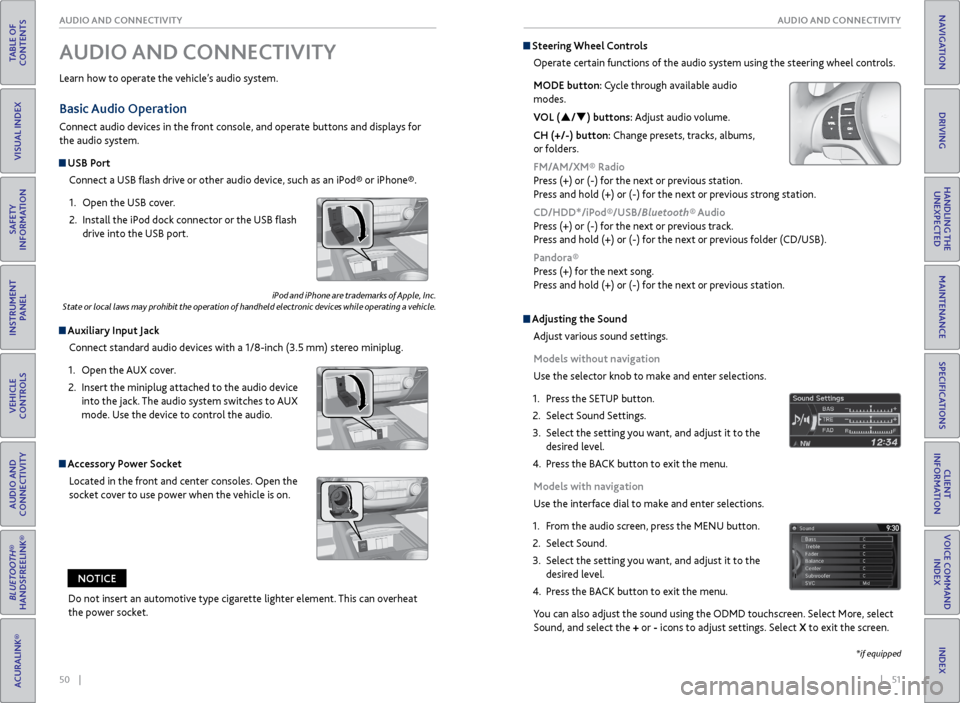
USB Port
Connect a USB flash drive or other audio device, such as an iPod® or iPhone®.
1. Open the USB cover.
2. Install the iPod dock connector or the USB flash
drive into the USB port.
Auxiliary Input Jack
Connect standard audio devices with a 1/8-inch (3.5 mm) stereo miniplug.
1. Open the AUX cover.
2. Insert the miniplug attached to the audio device
into the jack. The audio system switches to AUX
mode. Use the device to control the audio.
iPod and iPhone are trademarks of Apple, Inc.
State or local laws may prohibit the operation of handheld electronic devices while operating a vehicle.
AUDIO AND CONNECTIVITY
Learn how to operate the vehicle’s audio system.
Accessory Power Socket
Located in the front and center consoles. Open the
socket cover to use power when the vehicle is on.
Do not insert an automotive type cigarette lighter element. This can overheat
the power socket.
NOTICE
Adjusting the Sound
Adjust various sound settings.
Models without navigation
Use the selector knob to make and enter selections.
1. Press the SETUP button.
2. Select Sound Settings.
3. Select the setting you want, and adjust it to the
desired level.
4. Press the BACK button to exit the menu.
Models with navigation
Use the interface dial to make and enter selections.
1. From the audio screen, press the MENU button.
2. Select Sound.
3. Select the setting you want, and adjust it to the
desired level.
4. Press the BACK button to exit the menu.
You can also adjust the sound using the ODMD touchscreen. Select More, select
Sound, and select the + or - icons to adjust settings. Select X to exit the screen.
Steering Wheel Controls
Operate certain functions of the audio system using the steering wheel controls.
MODE button: Cycle through available audio
modes.
VOL (p/q) buttons: Adjust audio volume.
CH (+/-) button: Change presets, tracks, albums,
or folders.
FM/AM/XM® Radio
Press (+) or (-) for the next or previous station.
Press and hold (+) or (-) for the next or previous strong station.
CD/HDD*/iPod®/USB/Bluetooth® Audio
Press (+) or (-) for the next or previous track.
Press and hold (+) or (-) for the next or previous folder (CD/USB).
Pandora®
Press (+) for the next song.
Press and hold (+) or (-) for the next or previous station.
*if equipped
Page 33 of 81
58 || 59
AUDIO AND CONNECTIVITY
AUDIO AND CONNECTIVITY
TABLE OF
CONTENTS
INDEX
VISUAL INDEX
VOICE COMMAND INDEX
SAFETY
INFORMATION
CLIENT
INFORMATION
INSTRUMENT PANEL
SPECIFICATIONS
VEHICLE
CONTROLS
MAINTENANCE
AUDIO AND
CONNECTIVITY
HANDLING THE UNEXPECTED
BLUETOOTH®
HANDSFREELINK®
DRIVING
ACURALINK®
NAVIGATION
Models without navigation
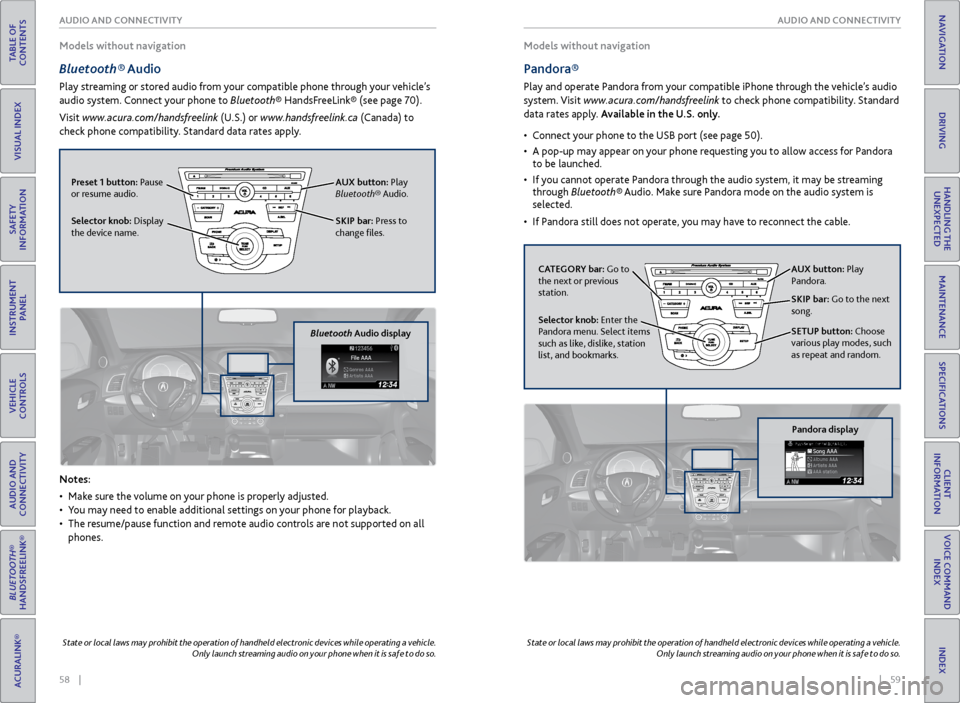
Bluetooth® Audio
Play streaming or stored audio from your compatible phone through your vehicle’s
audio system. Connect your phone to Bluetooth® HandsFreeLink® (see page 70).
Visit www.acura.com/handsfreelink (U.S.) or www.handsfreelink.ca (Canada) to
check phone compatibility. Standard data rates apply.
Notes:
• Make sure the volume on your phone is properly adjusted.
• You may need to enable additional settings on your phone for playback.
• The resume/pause function and remote audio controls are not supported on all
phones.
State or local laws may prohibit the operation of handheld electronic devices while operating a vehicle.
Only launch streaming audio on your phone when it is safe to do so.
Models without navigation
Pandora®
Play and operate Pandora from your compatible iPhone through the vehicle’s audio
system. Visit www.acura.com/handsfreelink to check phone compatibility. Standard
data rates apply. Available in the U.S. only.
• Connect your phone to the USB port (see page 50).
• A pop-up may appear on your phone requesting you to allow access for Pandora
to be launched.
• If you cannot operate Pandora through the audio system, it may be streaming
through Bluetooth® Audio. Make sure Pandora mode on the audio system is
selected.
• If Pandora still does not operate, you may have to reconnect the cable.
State or local laws may prohibit the operation of handheld electronic devices while operating a vehicle.
Only launch streaming audio on your phone when it is safe to do so.
SKIP bar: Press to
change files.
Selector knob: Display
the device name. AUX button:
Play
Bluetooth® Audio.
Preset 1 button: Pause
or resume audio.
Bluetooth Audio display
CATEGORY bar: Go to
the next or previous
station.
SKIP bar: Go to the next
song.
SETUP button: Choose
various play modes, such
as repeat and random. AUX button: Play
Pandora.
Selector knob: Enter the
Pandora menu. Select items
such as like, dislike, station
list, and bookmarks.
Pandora display
Page 37 of 81
66 || 67
AUDIO AND CONNECTIVITY
AUDIO AND CONNECTIVITY
TABLE OF
CONTENTS
INDEX
VISUAL INDEX
VOICE COMMAND INDEX
SAFETY
INFORMATION
CLIENT
INFORMATION
INSTRUMENT PANEL
SPECIFICATIONS
VEHICLE
CONTROLS
MAINTENANCE
AUDIO AND
CONNECTIVITY
HANDLING THE UNEXPECTED
BLUETOOTH®
HANDSFREELINK®
DRIVING
ACURALINK®
NAVIGATION
Models with navigation
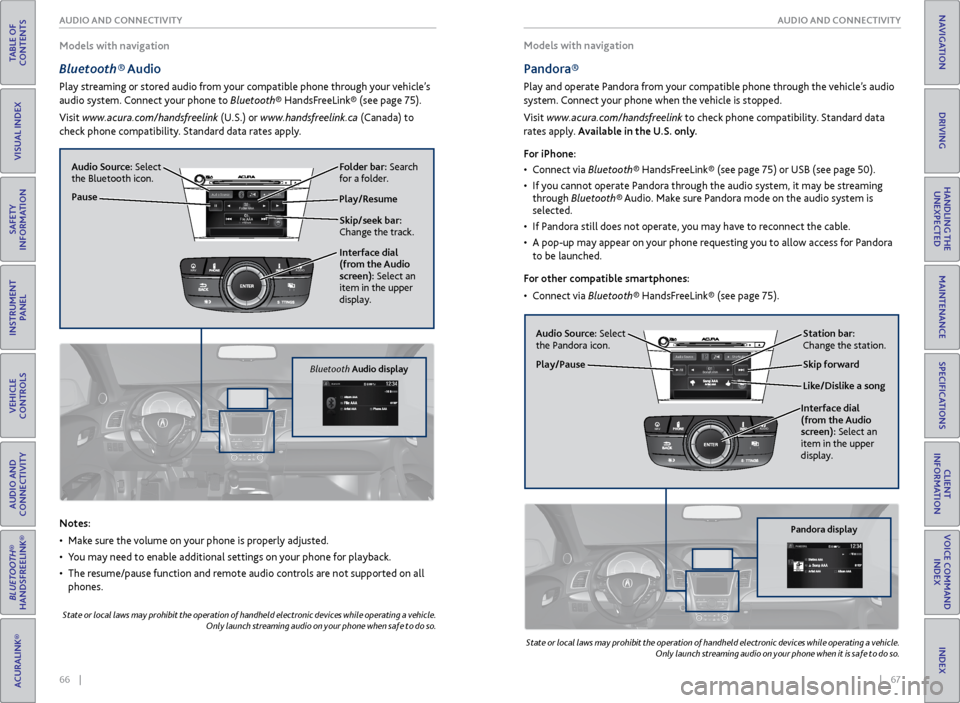
Bluetooth® Audio
Play streaming or stored audio from your compatible phone through your vehicle’s
audio system. Connect your phone to Bluetooth® HandsFreeLink® (see page 75).
Visit www.acura.com/handsfreelink (U.S.) or www.handsfreelink.ca (Canada) to
check phone compatibility. Standard data rates apply. Models with navigation
Pandora®
Play and operate Pandora from your compatible phone through the vehicle’s audio
system. Connect your phone when the vehicle is stopped.
Visit www.acura.com/handsfreelink to check phone compatibility. Standard data
rates apply. Available in the U.S. only.
For iPhone:
•
Connect via Bluetooth® HandsFreeLink® (see page 75) or USB (see page 50).
• If you cannot operate Pandora through the audio system, it may be streaming
through Bluetooth® Audio. Make sure Pandora mode on the audio system is
selected.
• If Pandora still does not operate, you may have to reconnect the cable.
• A pop-up may appear on your phone requesting you to allow access for Pandora
to be launched.
For other compatible smartphones:
• Connect via Bluetooth® HandsFreeLink® (see page 75).
Notes:
• Make sure the volume on your phone is properly adjusted.
• You may need to enable additional settings on your phone for playback.
• The resume/pause function and remote audio controls are not supported on all
phones.
State or local laws may prohibit the operation of handheld electronic devices while operating a vehicle.
Only launch streaming audio on your phone when safe to do so.
State or local laws may prohibit the operation of handheld electronic devices while operating a vehicle.
Only launch streaming audio on your phone when it is safe to do so.
Play/Resume
Interface dial
(from the Audio
screen): Select an
item in the upper
display.
Audio Source:
Select
the Bluetooth icon.
Pause
Skip/seek bar:
Change the track. Folder bar: Search
for a folder.
NAVAUDIOAUDIONAV
Bluetooth Audio display
Audio Source: Select
the Pandora icon. Station bar:
Change the station.
Like/Dislike a song Skip forward
Interface dial
(from the Audio
screen): Select an
item in the upper
display.
Play/Pause
NAVAUDIOAUDIONAV
Pandora display
Page 38 of 81
| 6968 | AUDIO AND CONNECTIVITY
TABLE OF
CONTENTS
VISUAL INDEX
SAFETY
INFORMATION
INSTRUMENT PANEL
VEHICLE
CONTROLS
AUDIO AND
CONNECTIVITY
BLUETOOTH®
HANDSFREELINK®
ACURALINK®
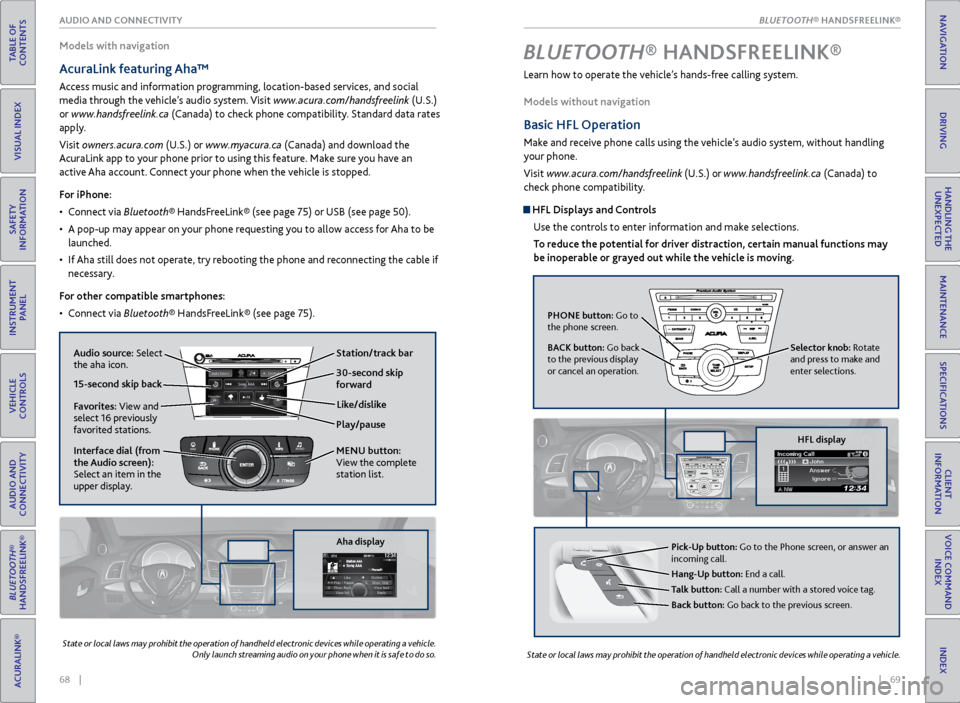
Learn how to operate the vehicle’s hands-free calling system.
Models without navigation
Basic HFL Operation
Make and receive phone calls using the vehicle’s audio system, without handling
your phone.
Visit www.acura.com/handsfreelink (U.S.) or www.handsfreelink.ca (Canada) to
check phone compatibility.
HFL Displays and Controls
Use the controls to enter information and make selections.
To reduce the potential for driver distraction, certain manual functions may
be inoperable or grayed out while the vehicle is moving.
BLUETOOTH® HANDSFREELINK ®
State or local laws may prohibit the operation of handheld electronic devices while operating a vehicle.
Models with navigation
AcuraLink featuring Aha™
Access music and information programming, location-based services, and social
media through the vehicle’s audio system. Visit www.acura.com/handsfreelink (U.S.)
or www.handsfreelink.ca (Canada) to check phone compatibility. Standard data rates
apply.
Visit owners.acura.com (U.S.) or www.myacura.ca (Canada) and download the
AcuraLink app to your phone prior to using this feature. Make sure you have an
active Aha account. Connect your phone when the vehicle is stopped.
For iPhone:
• Connect via Bluetooth® HandsFreeLink® (see page 75) or USB (see page 50).
• A pop-up may appear on your phone requesting you to allow access for Aha to be
launched.
• If Aha still does not operate, try rebooting the phone and reconnecting the cable if
necessary.
For other compatible smartphones:
• Connect via Bluetooth® HandsFreeLink® (see page 75).
State or local laws may prohibit the operation of handheld electronic devices while operating a vehicle.
Only launch streaming audio on your phone when it is safe to do so.
Play/pause
Audio source: Select
the aha icon.
Station/track bar
Like/dislike
Favorites: View and
select 16 previously
favorited stations.
Interface dial (from
the Audio screen):
Select an item in the
upper display. MENU button:
View the complete
station list.
15-second skip back30-second skip
forward
NAVAUDIOAUDIONAV
Aha display
PHONE button: Go to
the phone screen.
BACK button: Go back
to the previous display
or cancel an operation.
Selector knob: Rotate
and press to make and
enter selections.
HFL display
Pick-Up button: Go to the Phone screen, or answer an
incoming call.
Hang-Up button: End a call.
Talk button: Call a number with a stored voice tag.
Back button: Go back to the previous screen.
INDEX
VOICE COMMAND INDEX
CLIENT
INFORMATION
SPECIFICATIONS
MAINTENANCE
HANDLING THE UNEXPECTED
DRIVING
NAVIGATIONBLUETOOTH® HANDSFREELINK®
INDEX
VOICE COMMAND INDEX
CLIENT
INFORMATION
SPECIFICATIONS
MAINTENANCE
HANDLING THE UNEXPECTED
DRIVING
NAVIGATIONBLUETOOTH® HANDSFREELINK®
Page 41 of 81
74 || 75
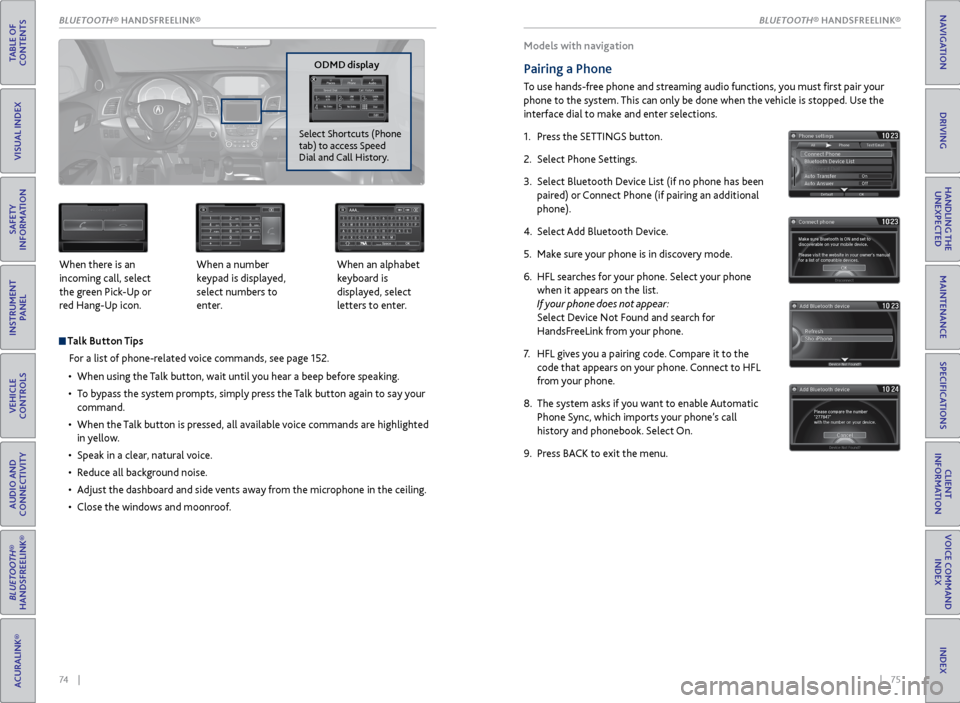
Talk Button Tips
For a list of phone-related voice commands, see page 152.
• When using the Talk button, wait until you hear a beep before speaking.
• To bypass the system prompts, simply press the Talk button again to say your
command.
• When the Talk button is pressed, all available voice commands are highlighted
in yellow.
• Speak in a clear, natural voice.
• Reduce all background noise.
• Adjust the dashboard and side vents away from the microphone in the ceiling.
• Close the windows and moonroof.
When there is an
incoming call, select
the green Pick-Up or
red Hang-Up icon.
When a number
keypad is displayed,
select numbers to
enter. When an alphabet
keyboard is
displayed, select
letters to enter.
P
ODMD display
Select Shortcuts (Phone
tab) to access Speed
Dial and Call History.
Models with navigation
Pairing a Phone
To use hands-free phone and streaming audio functions, you must first pair your
phone to the system. This can only be done when the vehicle is stopped. Use the
interface dial to make and enter selections.
1. Press the SETTINGS button.
2. Select Phone Settings.
3. Select Bluetooth Device List (if no phone has been
paired) or Connect Phone (if pairing an additional
phone).
4. Select Add Bluetooth Device.
5. Make sure your phone is in discovery mode.
6. HFL searches for your phone. Select your phone
when it appears on the list.
If your phone does not appear:
Select Device Not Found and search for
HandsFreeLink from your phone.
7. HFL gives you a pairing code. Compare it to the
code that appears on your phone. Connect to HFL
from your phone.
8. The system asks if you want to enable Automatic
Phone Sync, which imports your phone’s call
history and phonebook. Select On.
9. Press BACK to exit the menu.
BLUETOOTH® HANDSFREELINK®
TABLE OF
CONTENTS
INDEX
VISUAL INDEX
VOICE COMMAND INDEX
SAFETY
INFORMATION
CLIENT
INFORMATION
INSTRUMENT PANEL
SPECIFICATIONS
VEHICLE
CONTROLS
MAINTENANCE
AUDIO AND
CONNECTIVITY
HANDLING THE UNEXPECTED
BLUETOOTH®
HANDSFREELINK®
DRIVING
ACURALINK®
NAVIGATIONBLUETOOTH\256 HANDSFREELINK
Page 42 of 81
76 || 77
Models with navigation
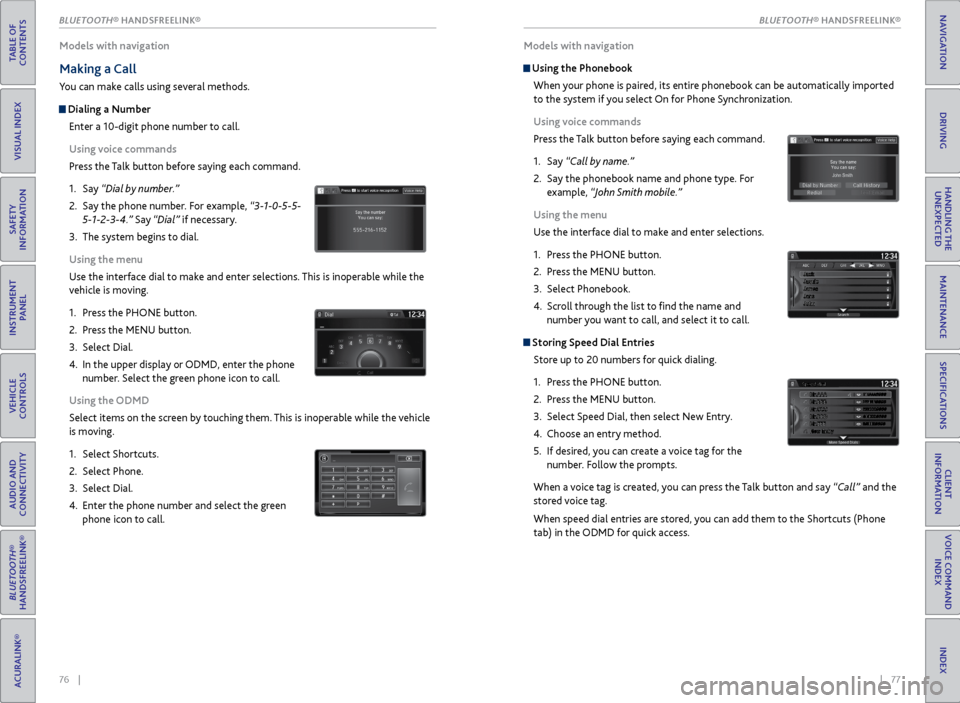
Making a Call
You can make calls using several methods.
Dialing a Number
Enter a 10-digit phone number to call.
Using voice commands
Press the Talk button before saying each command.
1. Say “Dial by number.”
2. Say the phone number. For example, “3-1-0-5-5-
5-1-2-3-4.” Say “Dial” if necessary.
3. The system begins to dial.
Using the menu
Use the interface dial to make and enter selections. This is inoperable while the
vehicle is moving.
1. Press the PHONE button.
2. Press the MENU button.
3. Select Dial.
4. In the upper display or ODMD, enter the phone
number. Select the green phone icon to call.
Using the ODMD
Select items on the screen by touching them. This is inoperable while the vehicle
is moving.
1. Select Shortcuts.
2. Select Phone.
3. Select Dial.
4. Enter the phone number and select the green
phone icon to call.
P
Models with navigation
Using the Phonebook
When your phone is paired, its entire phonebook can be automatically imported
to the system if you select On for Phone Synchronization.
Using voice commands
Press the Talk button before saying each command.
1. Say “Call by name.”
2. Say the phonebook name and phone type. For
example, “John Smith mobile.”
Using the menu
Use the interface dial to make and enter selections.
1. Press the PHONE button.
2. Press the MENU button.
3. Select Phonebook.
4. Scroll through the list to find the name and
number you want to call, and select it to call.
Storing Speed Dial Entries
Store up to 20 numbers for quick dialing.
1. Press the PHONE button.
2. Press the MENU button.
3. Select Speed Dial, then select New Entry.
4. Choose an entry method.
5. If desired, you can create a voice tag for the
number. Follow the prompts.
When a voice tag is created, you can press the Talk button and say “Call” and the
stored voice tag.
When speed dial entries are stored, you can add them to the Shortcuts (Phone
tab) in the ODMD for quick access.
BLUETOOTH® HANDSFREELINK®
TABLE OF
CONTENTS
INDEX
VISUAL INDEX
VOICE COMMAND INDEX
SAFETY
INFORMATION
CLIENT
INFORMATION
INSTRUMENT PANEL
SPECIFICATIONS
VEHICLE
CONTROLS
MAINTENANCE
AUDIO AND
CONNECTIVITY
HANDLING THE UNEXPECTED
BLUETOOTH®
HANDSFREELINK®
DRIVING
ACURALINK®
NAVIGATIONBLUETOOTH\256 HANDSFREELINK
Page 43 of 81
78 || 79
Models with navigation
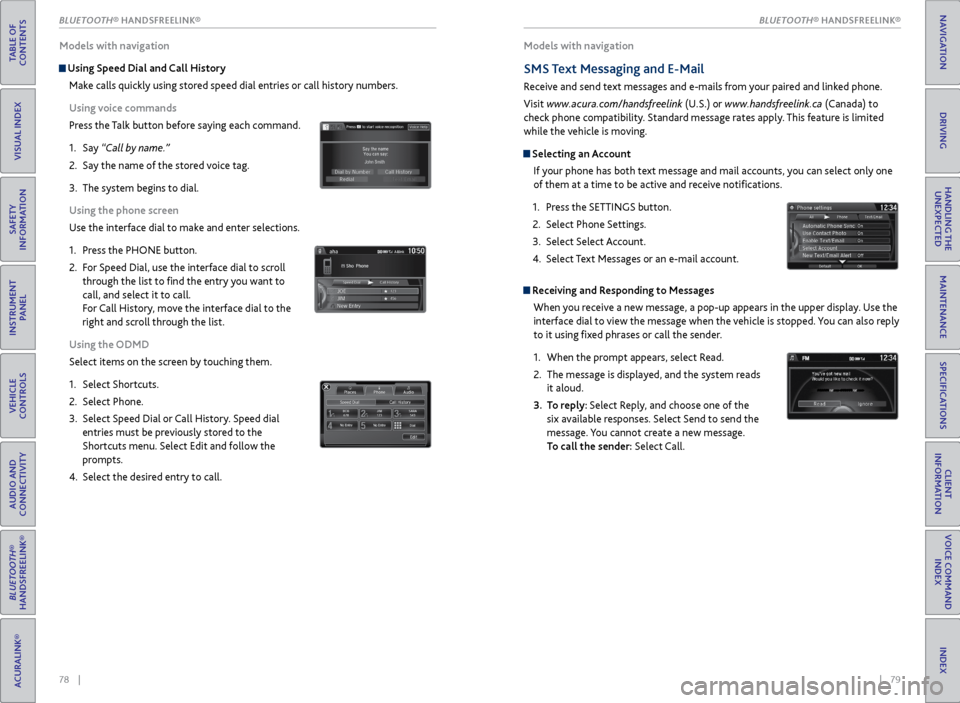
Using Speed Dial and Call History
Make calls quickly using stored speed dial entries or call history numbers.
Using voice commands
Press the Talk button before saying each command.
1. Say “Call by name.”
2. Say the name of the stored voice tag.
3. The system begins to dial.
Using the phone screen
Use the interface dial to make and enter selections.
1. Press the PHONE button.
2. For Speed Dial, use the interface dial to scroll
through the list to find the entry you want to
call, and select it to call.
For Call History, move the interface dial to the
right and scroll through the list.
Using the ODMD
Select items on the screen by touching them.
1. Select Shortcuts.
2. Select Phone.
3. Select Speed Dial or Call History. Speed dial
entries must be previously stored to the
Shortcuts menu. Select Edit and follow the
prompts.
4. Select the desired entry to call.
Models with navigation
SMS Text Messaging and E-Mail
Receive and send text messages and e-mails from your paired and linked phone.
Visit www.acura.com/handsfreelink (U.S.) or www.handsfreelink.ca (Canada) to
check phone compatibility. Standard message rates apply. This feature is limited
while the vehicle is moving.
Selecting an Account
If your phone has both text message and mail accounts, you can select only one
of them at a time to be active and receive notifications.
1. Press the SETTINGS button.
2. Select Phone Settings.
3. Select Select Account.
4. Select Text Messages or an e-mail account.
Receiving and Responding to Messages
When you receive a new message, a pop-up appears in the upper display. Use the
interface dial to view the message when the vehicle is stopped. You can also reply
to it using fixed phrases or call the sender.
1. When the prompt appears, select Read.
2. The message is displayed, and the system reads
it aloud.
3. To reply: Select Reply, and choose one of the
six available responses. Select Send to send the
message. You cannot create a new message.
To call the sender: Select Call.
xyz xyz
BLUETOOTH® HANDSFREELINK®
TABLE OF
CONTENTS
INDEX
VISUAL INDEX
VOICE COMMAND INDEX
SAFETY
INFORMATION
CLIENT
INFORMATION
INSTRUMENT PANEL
SPECIFICATIONS
VEHICLE
CONTROLS
MAINTENANCE
AUDIO AND
CONNECTIVITY
HANDLING THE UNEXPECTED
BLUETOOTH®
HANDSFREELINK®
DRIVING
ACURALINK®
NAVIGATIONBLUETOOTH\256 HANDSFREELINK
Page 49 of 81
90 || 91
DRIVING
DRIVING
TABLE OF
CONTENTS
INDEX
VISUAL INDEX
VOICE COMMAND INDEX
SAFETY
INFORMATION
CLIENT
INFORMATION
INSTRUMENT PANEL
SPECIFICATIONS
VEHICLE
CONTROLS
MAINTENANCE
AUDIO AND
CONNECTIVITY
HANDLING THE UNEXPECTED
BLUETOOTH®
HANDSFREELINK®
DRIVING
ACURALINK®
NAVIGATION
Learn about preparation for driving and other features.
Before Driving
Check the following items before you begin driving.
Exterior Checks
• Make sure there are no obstructions on the windows, door mirrors, exterior
lights, or other parts of the vehicle.
• Remove any frost, snow, or ice.
• Make sure the hood is securely closed.
• Heat from the engine and exhaust can ignite flammable materials left under
the hood, causing a fire. If you’ve parked your vehicle for an extended period,
inspect and remove any debris that may have collected, such as dried grass
and leaves that have fallen or have been carried in for use as a nest by a small
animal. Also check under the hood for leftover flammable materials after you
or someone else has performed maintenance on your vehicle.
• Make sure the tires are in good condition.
• Make sure there are no people or objects behind or around the vehicle.
DRIVING
Interior Checks
• Store or secure all items on board properly.
• Do not pile items higher than the seat height.
• Do not place anything in the front seat footwells. Make sure to secure the floor
mats.
• If you have any animals on board, do not let them move freely in the vehicle.
• Securely close and lock all doors and the tailgate.
• Adjust your seating position, mirrors, and steering wheel properly.
• Be sure items placed on the floor behind the front seats cannot roll under the
seats.
• Everyone in the vehicle must fasten their seat belt.
Make sure that the indicators in the instrument panel come on when you start the
vehicle, and go off soon after. If the doors are frozen shut, use warm water around the door edges to melt any
ice. Do not try to force them open, as this can damage the rubber trim around
the doors. When done, wipe dry to avoid further freezing.
NOTICE
Driving Guidelines for Your Utility Vehicle
Utility vehicles have a significantly higher rollover rate than other types of
vehicles. To prevent rollovers or loss of control:
• Take corners at slower speeds than you would with a passenger vehicle.
• Avoid sharp turns and abrupt maneuvers whenever possible.
• Do not modify your vehicle in any way that raises its center of gravity.
• Never carry more than 165 lbs (75 kg) of cargo on the roof rack (Acura
accessory).
In addition:
• During the first 600 miles (1,000 km) of operation, avoid sudden acceleration
or full throttle operation so as not to damage the engine or powertrain.
• Avoid hard braking for the first 200 miles (300 km). You should also follow this
when the brake pads are replaced.
Improperly operating this vehicle on or off pavement can cause a crash or
rollover in which you and your passengers can be seriously injured or killed.
Follow all instructions and guidelines in this guide.
Keep your speed low, and don’t drive faster than conditions permit.
WARNING
Improper accessories or modifications can affect your vehicle’s handling,
stability, and performance, and cause a crash in which you can be seriously
hurt or killed.
Follow all instructions in the vehicle owner’s manual regarding accessories
and modifications.
WARNING
AWD (All-Wheel Drive) with Intelligent Control System*
When the AWD system senses a loss of front wheel traction, it automatically
transfers some power to the rear wheels. This allows you to utilize all available
traction and may increase mobility.
You still need to exercise the same care when accelerating, steering, and braking
that you would in a two-wheel drive vehicle.
If you excessively spin all four wheels and overheat the system, only the front
wheels receive power. Stop until the system cools down.
Do not continuously spin the front tires of your vehicle. Continuously spinning
the front tires can cause transmission or rear differential damage.
NOTICE
*if equipped