SSA Acura RDX 2017 Repair Manual
[x] Cancel search | Manufacturer: ACURA, Model Year: 2017, Model line: RDX, Model: Acura RDX 2017Pages: 449, PDF Size: 10.88 MB
Page 243 of 449

uuBluetooth ® HandsFreeLink ®u HFL Menus
242
Features
■To add a voice tag to a stored speed
dial number
1. Press the PHONE button or the button.
2. Rotate to select Phone Setup, then
press .
u Repeat the procedure to select Speed
Dial.
3. Select an existing speed dial entry.
4. Rotate to select Store Voice Tag, then
press .
5. Using the button, fo llow the prompts to
complete the voice tag.
■To delete a voice tag
1. Press the PHONE button or the button.
2. Rotate to select Phone Setup, then
press .
u Repeat the procedure to select Speed
Dial.
3. Select an existing speed dial entry.
4. Rotate to select Delete Voice Tag,
then press .
u You will receive a confirmation message
on the screen. Rotate to select Yes,
then press .
1 Speed Dial
Avoid using duplicate voice tags.
Avoid using “home” as a voice tag.
It is easier for HFL to re cognize a longer name. For
example, use “John Smit h” instead of “John.”
Page 244 of 449

Continued243
uuBluetooth ® HandsFreeLink ®u HFL Menus
Features
■To delete a speed dial number
1. Press the PHONE button or the button.
2. Rotate to select Phone Setup, then
press .
u Repeat the procedure to select Speed
Dial .
3. Select an existing speed dial entry.
4. Rotate to select Delete Speed Dial,
then press .
u You will receive a confirmation message
on the screen. Rotate to select Yes,
then press .
You can make calls by inputting any phone number, or by using the imported
phonebook, call history, speed dial entries, or redial.
■Making a Call1 Making a Call
Any voice-tagged speed dial entry can be dialed by
voice from any screen.
Press the button and follow the prompts.
The maximum range be tween your phone and
vehicles is 30 fe et (10 meters).
Once a call is connected, you can hear the voice of
the person you are call ing through the audio
speakers.
Page 249 of 449

uuBluetooth ® HandsFreeLink ®u HFL Menus
248
Features
HFL can display newly received text message s as well as 20 of the most recently
received messages on a linked cell phone. Each received message can be read aloud
and replied to using a fixed common phrase. 1.A pop-up appears and notifies you of a new
text message.
2. Rotate to select Yes to listen to the
message, then press .
u The text message is displayed. The
system automatically starts reading out
the message.
3. To discontinue the message read-out, press
the BACK button.
■Receiving a Text Message1Receiving a Text Message
Not all phones are compatible with this feature.
Check handsfreelink.com for a list of compatible
phones.
The system does not display any received messages
while you are driving. You can only hear them read
aloud.
With some phones, you may be able to display upto
20 most recent text messages.
Only the first three lines of the received message are
displayed with this option. 2 Displaying an entire message P. 252
State or local laws may limit your use of the HFL text
message feature. Only use the text message feature
when conditions allow you to do so safely.
Page 250 of 449

Continued249
uuBluetooth ® HandsFreeLink ®u HFL Menus
Features
1. Press the PHONE button or the button.
2. Rotate to select Text Message, then
press .
3. Rotate to select a message, then press
.
u The text message is displayed. The
system automatically starts reading the
message aloud.
■Displaying Messages1Displaying Messages
The icon appears next to an unread message.
Only the first three lines of the received message are
displayed with this option.
2 Displaying an entire message P. 252
If you delete a message on the phone, the message is
also deleted in the system. If you send a message
from the system, the message goes to your phone’s
outbox.
Page 251 of 449

uuBluetooth ® HandsFreeLink ®u HFL Menus
250
Features
■Using the stop reading or read option
1. Press the PHONE button or the button.
2. Rotate to select Text Message, then
press .
3. Rotate to select a message, then press
.
u The text message is displayed. The
system automatically starts reading the
message aloud.
4. Press to enter the Text Message Menu .
5. Rotate to select Stop Reading or Read ,
then press .1 Using the stop reading or read option
This option changes to:
•Stop Reading while the text message is read out.
Select this option to disc ontinue the message read-
out.
•Read when you go to the Text Message menu, or
after you selected Stop Reading. Select this option
to hear the system re ading out the selected
message.
Page 252 of 449

Continued251
uuBluetooth ® HandsFreeLink ®u HFL Menus
Features
■Reply to a message
You can reply to a message using one of the
six common phrases available in the system.
1. Press the PHONE button or the button.
2. Rotate to select Text Message, then
press .
3. Rotate to select a message, then press
.
u The text message is displayed. The
system automatically starts reading out
the message.
4. Press to enter the Text Message Menu .
5. Rotate to select Reply, then press .
6. Rotate to select the reply message, then
press .
7. The reply message you selected is displayed.
Select Yes to send the message.1Reply to a message
The available fixed reply messages are as follows:
•Talk to you later, I’m driving.
•I am on my way.•I’m running late.
•OK
•Yes•No
You cannot add, edit, or delete reply messages.
After you reply, the fo llowing is displayed:
Page 253 of 449
252
uuBluetooth ® HandsFreeLink ®u HFL Menus
Features
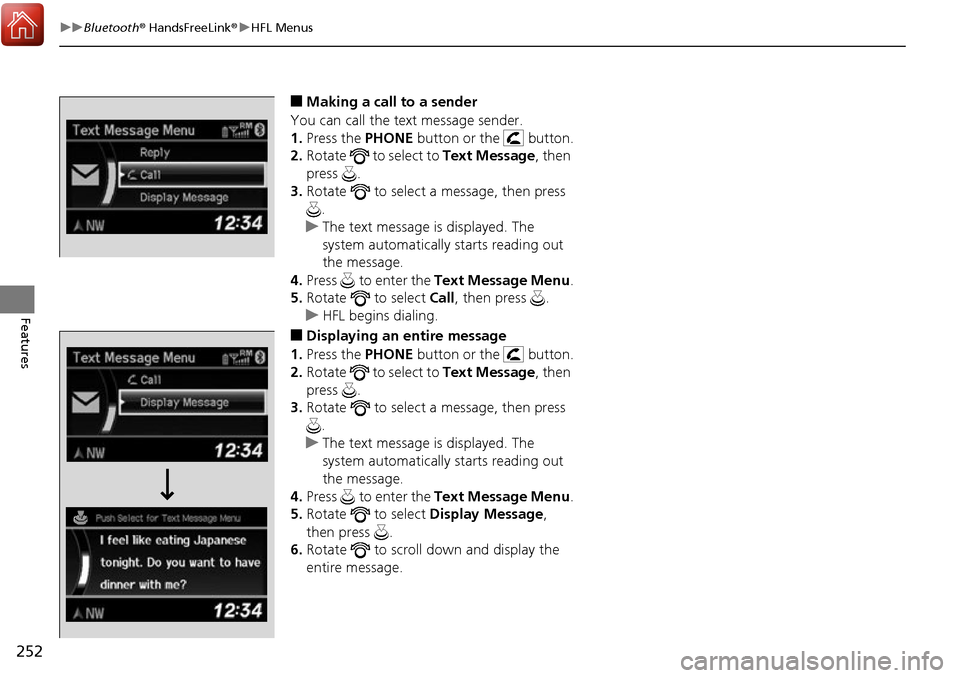
■Making a call to a sender
You can call the text message sender.
1. Press the PHONE button or the button.
2. Rotate to select to Text Message, then
press .
3. Rotate to select a message, then press
.
u The text message is displayed. The
system automatically starts reading out
the message.
4. Press to enter the Text Message Menu .
5. Rotate to select Call, then press .
u HFL begins dialing.
■Displaying an entire message
1. Press the PHONE button or the button.
2. Rotate to select to Text Message, then
press .
3. Rotate to select a message, then press
.
u The text message is displayed. The
system automatically starts reading out
the message.
4. Press to enter the Text Message Menu .
5. Rotate to select Display Message,
then press .
6. Rotate to scroll down and display the
entire message.
Page 265 of 449
264
uuTowing a Trailer uDriving Safely with a Trailer
Driving
Driving Safely with a Trailer
• Have the trailer properly serviced and keep it in good condition.
• Make sure that all the weights and load in the vehicle and trailer are within limits.
2Towing Load Limits P. 261
•Securely attach the hitch, safety chains, and other necessary parts to the trailer.
• Securely store all the items in and on the tr ailer so that they do not shift while
driving.
• Check if the lights and brakes on the trailer are working properly.
• Check the pressures of the traile r tires, including the spare.
• Drive slower than normal.
• Obey posted speed limits for vehicles with trailers.
• Use the
(D position when towing a trailer on level roads.
• Turn more slowly and with a wider turning arc than normal.
• Allow more time and distance for braking.
• Do not brake or turn suddenly.
• Monitor your temperature gauge. If it nears the red (Hot) mark, turn off the
climate control system and reduce speed. Pull to the side of the road safely to cool
down the engine if necessary.
• Shift to the
(S position if the transmission shifts frequently.
■Things You Need To Know Before Towing a Trailer
■Towing Speeds and Gears
■Turning and Braking
■Driving in Hilly Terrain
1Driving Safely with a Trailer
Operating speed when towing a trailer is restricted
up to 100km/h.
Parking
In addition to the normal precautions, place wheel
chocks at each of the trailer’s tires.
Page 276 of 449

275
uuWhen Driving uShifting
Continued
Driving
Shifting
Change the shift position in accordance with your driving needs.
■Shift lever positions
1Shifting
You cannot change the pow er mode from ON to
VEHICLE OFF (LOCK) unless the shift lever is in
( P.
The vehicle may move forward very slightly even in
(N while the engine is cold.
Depress the brake pe dal firmly and, when necessary,
apply the parking brake.
When shifting gears in extremely low temperatures (-
22°F/-30°C), there may be a short delay before the
shift indicated in the display. Always confirm you are
in the correct gear before driving.
Park
Used when parking or starting the
engine
Reverse
Used when reversing
Neutral
Used when idling
Drive
Used:
●For normal driving (gear change
between 1st and 6th automatically)
●When temporally driving in the
sequential mode
Drive (S)
Used:
●For automatically changing gears
between 1st and 6th (6th gear is used
only at high speed)
●When driving in the sequential mode
Release Button
Page 283 of 449
282
uuWhen Driving uFront Sensor Camera*
Driving
Front Sensor Camera*
The camera, used in systems su ch as LDW, LKAS, ACC, and CMBSTM, is designed to
detect an object that triggers any of the systems to operate its functions.
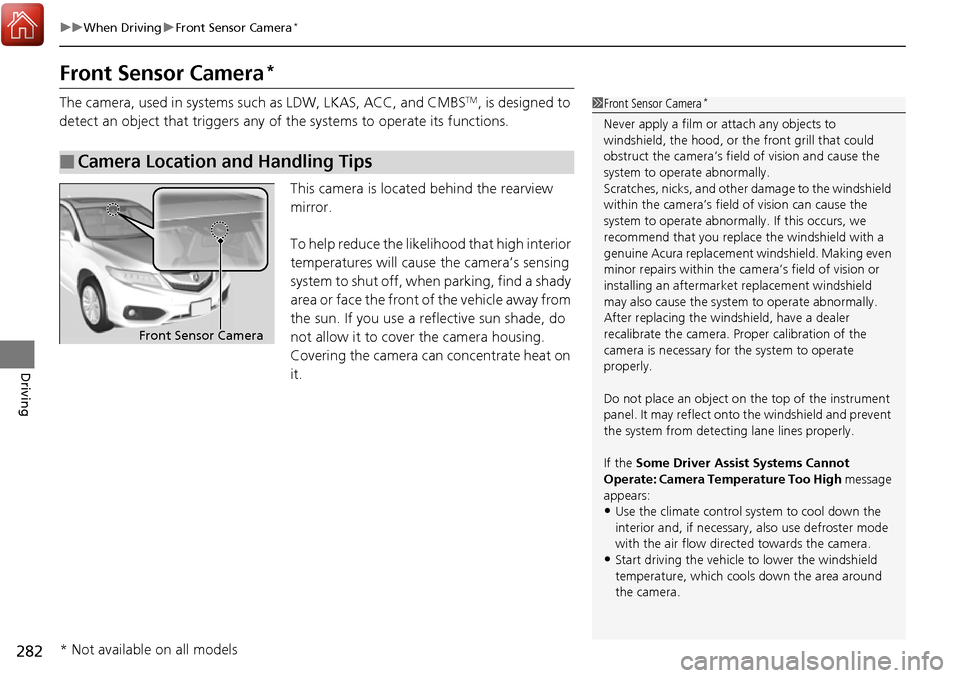
This camera is located behind the rearview
mirror.
To help reduce the likelihood that high interior
temperatures will cause the camera’s sensing
system to shut off, when parking, find a shady
area or face the front of the vehicle away from
the sun. If you use a re flective sun shade, do
not allow it to cover the camera housing.
Covering the camera can concentrate heat on
it.
■Camera Location and Handling Tips
1 Front Sensor Camera*
Never apply a film or attach any objects to
windshield, the hood, or the front grill that could
obstruct the camera’s fiel d of vision and cause the
system to operate abnormally.
Scratches, nicks, and othe r damage to the windshield
within the camera’s fiel d of vision can cause the
system to operate abnormall y. If this occurs, we
recommend that you replac e the windshield with a
genuine Acura replacement windshield. Making even
minor repairs within the ca mera’s field of vision or
installing an aftermarke t replacement windshield
may also cause the system to operate abnormally.
After replacing the winds hield, have a dealer
recalibrate the camera. Pr oper calibration of the
camera is necessary for the system to operate
properly.
Do not place an object on the top of the instrument
panel. It may reflect onto the windshield and prevent
the system from detecting lane lines properly.
If the Some Driver Assist Systems Cannot
Operate: Camera Temperature Too High message
appears:
•Use the climate control system to cool down the
interior and, if necessary, also use defroster mode
with the air flow directed towards the camera.
•Start driving the vehicle to lower the windshield
temperature, which cool s down the area around
the camera.
Front Sensor Camera
* Not available on all models