eco Acura RDX 2019 Owner's Manual
[x] Cancel search | Manufacturer: ACURA, Model Year: 2019, Model line: RDX, Model: Acura RDX 2019Pages: 649, PDF Size: 33 MB
Page 287 of 649
uuAudio System Basic Operation uPlaying SiriusXM ® Radio
286
Features
You can receive traffic and weather information.
1. Select MENU .
2. Select SiriusXM Settings .
3. Select Traffic & Weather Setup .
4. Select Selected City .
5. Select the region.
■Receiving a traffic and weather information
1. A pop-up will appear in the secondary information area to notify you that new
traffic and weather information is available.
2. Select the system status area, then press true touchpad B.
u The status area will appear in the primary information area.
3. To see the details, select an item using true touchpad A.
u The traffic and weather information will appear in the secondary information
area.
u Select Keep Listening to continue receiving traffic and weather information.
u Select Return to (function name) to stop viewing traffic and weather
information.
■Traffic and Weather Information1 Traffic and Weather Information
When traffic and weather information is received, a
notification is displayed in the secondary information
area.
2 Secondary Information Area P. 252
19 ACURA RDX-31TJB6000.book 286 ページ 2018年4月26日 木曜日 午後4時51分
Page 290 of 649
Continued289
uuAudio System Basic Operation uPlaying SiriusXM ® Radio
Features
Sample each channel on the selected mode for 10 seconds.
1. Select More.
2. Select Scan.
You can change a scan mode by the following procedure.
1. Select MENU .
2. Select SiriusXM Settings.
3. Select Scan Mode .
4. Select Channels or Favorites.
To turn off scan, select Stop.
■Scan1Scan
The favorites scan func tion is based on TuneScan
TM
technology of SiriusXM ®.
The “Featured Channels ” function is based on
Featured Favorites
TM technology of SiriusXM ®.
TuneScan
TM and Featured FavoritesTM are registered
trademarks of SiriusXM ® Radio, Inc.
19 ACURA RDX-31TJB6000.book 289 ページ 2018年4月26日 木曜日 午後4時51分
Page 293 of 649
uuAudio System Basic Operation uPlaying an iPod
292
Features
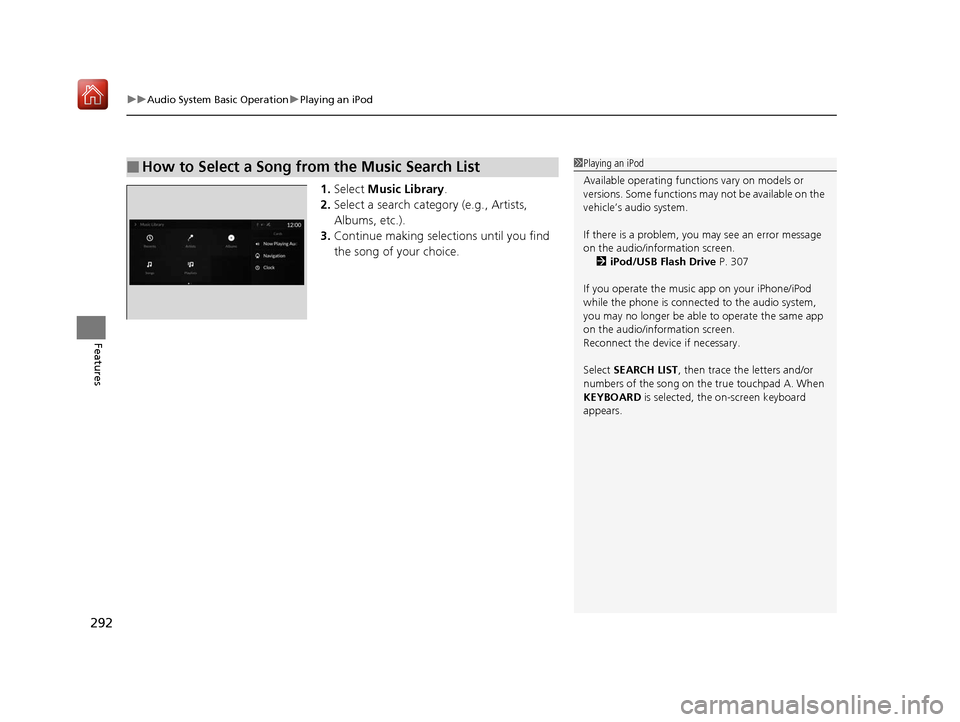
1. Select Music Library.
2. Select a search catego ry (e.g., Artists,
Albums, etc.).
3. Continue making selections until you find
the song of your choice.
■How to Select a Song from the Music Search List1Playing an iPod
Available operating functi ons vary on models or
versions. Some functions ma y not be available on the
vehicle’s audio system.
If there is a problem, you may see an error message
on the audio/information screen. 2 iPod/USB Flash Drive P. 307
If you operate the musi c app on your iPhone/iPod
while the phone is connected to the audio system,
you may no longer be able to operate the same app
on the audio/information screen.
Reconnect the devi ce if necessary.
Select SEARCH LIST , then trace the letters and/or
numbers of the song on the true touchpad A. When
KEYBOARD is selected, the on-screen keyboard
appears.
19 ACURA RDX-31TJB6000.book 292 ページ 2018年4月26日 木曜日 午後4時51分
Page 295 of 649
294
uuAudio System Basic Operation uPlaying a USB Flash Drive
Features
Playing a USB Flash Drive
Your audio system reads and plays audio file s on a USB flash drive in either format
of MP3, WMA, AAC*1, etc.
2 Playable audio file P. 312
Connect your USB flash drive to the USB port, then select the USB mode.
2USB Ports P. 239
*1:Only AAC format files recorded with iTunes are playable on this unit.
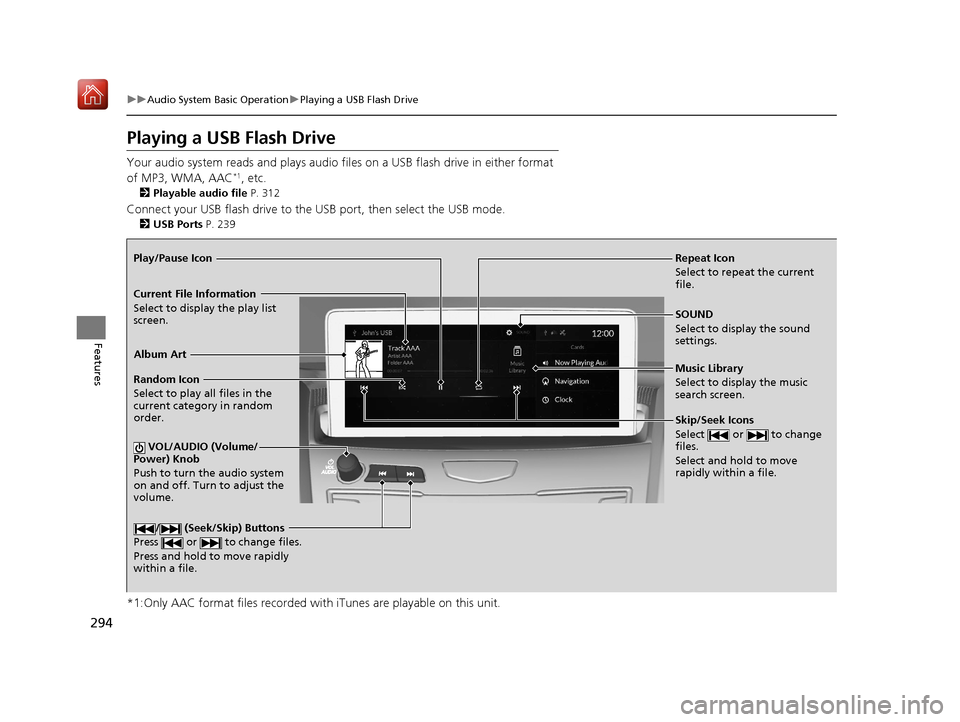
Repeat Icon
Select to repeat the current
file.
SOUND
Select to display the sound
settings.
Music Library
Select to display the music
search screen.
Skip/Seek Icons
Select or to change
files.
Select and hold to move
rapidly within a file.
Random Icon
Select to play all files in the
current category in random
order.
VOL/AUDIO (Volume/
Power) Knob
Push to turn the audio system
on and off. Turn to adjust the
volume.
/ (Seek/Skip) Buttons
Press or to change files.
Press and hold to move rapidly
within a file.
Play/Pause Icon
Album Art
Current File Information
Select to display the play list
screen.
19 ACURA RDX-31TJB6000.book 294 ページ 2018年4月26日 木曜日 午後4時51分
Page 296 of 649
Continued295
uuAudio System Basic Operation uPlaying a USB Flash Drive
Features
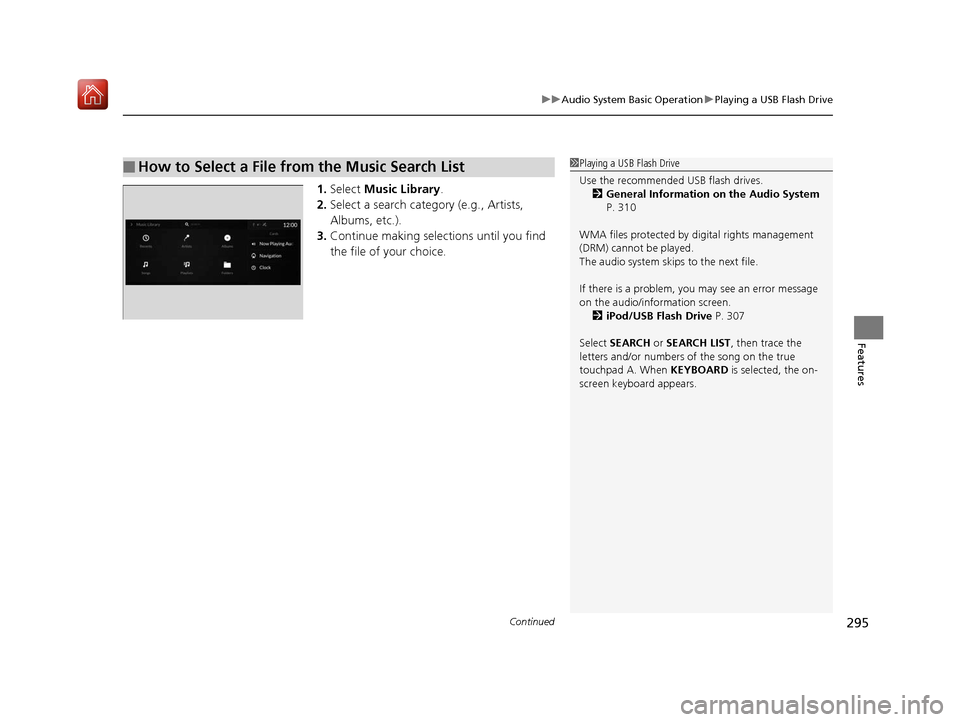
1. Select Music Library .
2. Select a search catego ry (e.g., Artists,
Albums, etc.).
3. Continue making selections until you find
the file of your choice.
■How to Select a File from the Music Search List1Playing a USB Flash Drive
Use the recommended USB flash drives.
2 General Information on the Audio System
P. 310
WMA files protected by di gital rights management
(DRM) cannot be played.
The audio system skips to the next file.
If there is a problem, you may see an error message
on the audio/information screen. 2 iPod/USB Flash Drive P. 307
Select SEARCH or SEARCH LIST, then trace the
letters and/or numbers of the song on the true
touchpad A. When KEYBOARD is selected, the on-
screen keyboard appears.
19 ACURA RDX-31TJB6000.book 295 ページ 2018年4月26日 木曜日 午後4時51分
Page 299 of 649
uuAudio System Basic Operation uPlaying Bluetooth ® Audio
298
Features
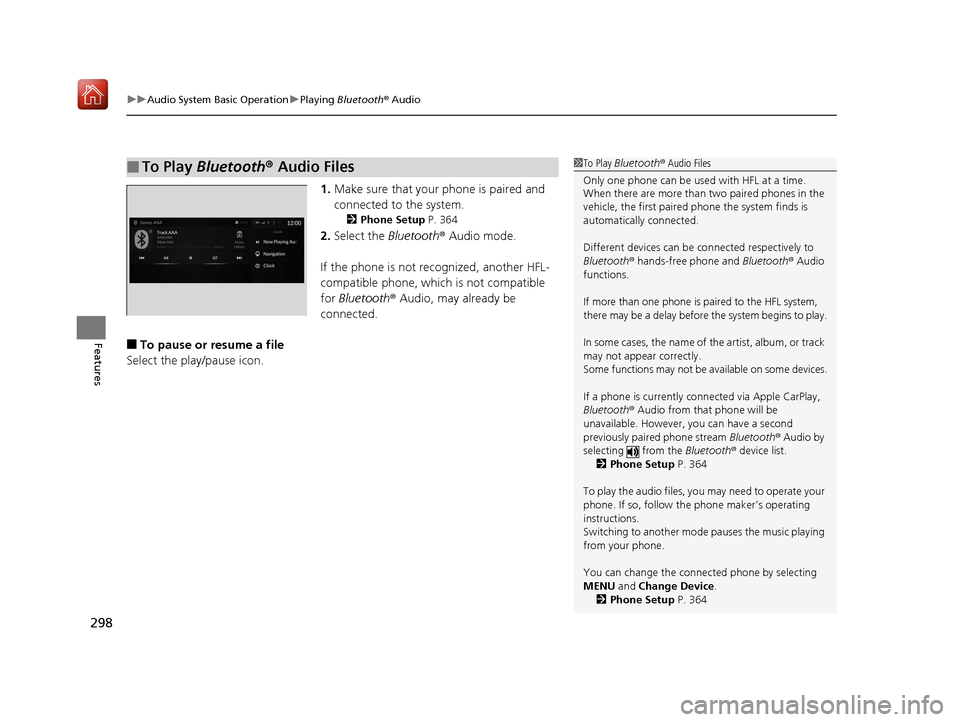
1. Make sure that your phone is paired and
connected to the system.
2 Phone Setup P. 364
2.Select the Bluetooth® Audio mode.
If the phone is not recognized, another HFL-
compatible phone, which is not compatible
for Bluetooth ® Audio, may already be
connected.
■To pause or resume a file
Select the play/pause icon.
■To Play Bluetooth® Audio Files1To Play Bluetooth ® Audio Files
Only one phone can be used with HFL at a time.
When there are more than two paired phones in the
vehicle, the first paired phone the system finds is
automatically connected.
Different devices can be co nnected respectively to
Bluetooth ® hands-free phone and Bluetooth® Audio
functions.
If more than one phone is paired to the HFL system,
there may be a delay before the system begins to play.
In some cases, the name of the artist, album, or track
may not appear correctly.
Some functions may not be available on some devices.
If a phone is currently connected via Apple CarPlay,
Bluetooth ® Audio from that phone will be
unavailable. However, you can have a second
previously paired phone stream Bluetooth® Audio by
selecting from the Bluetooth® device list.
2 Phone Setup P. 364
To play the audio files, y ou may need to operate your
phone. If so, follow the phone maker’s operating
instructions.
Switching to another mode pauses the music playing
from your phone.
You can change the connected phone by selecting
MENU and Change Device.
2 Phone Setup P. 364
19 ACURA RDX-31TJB6000.book 298 ページ 2018年4月26日 木曜日 午後4時51分
Page 303 of 649
302
uuAudio System Basic Operation uSiri ® Eyes Free
Features
Siri ® Eyes Free
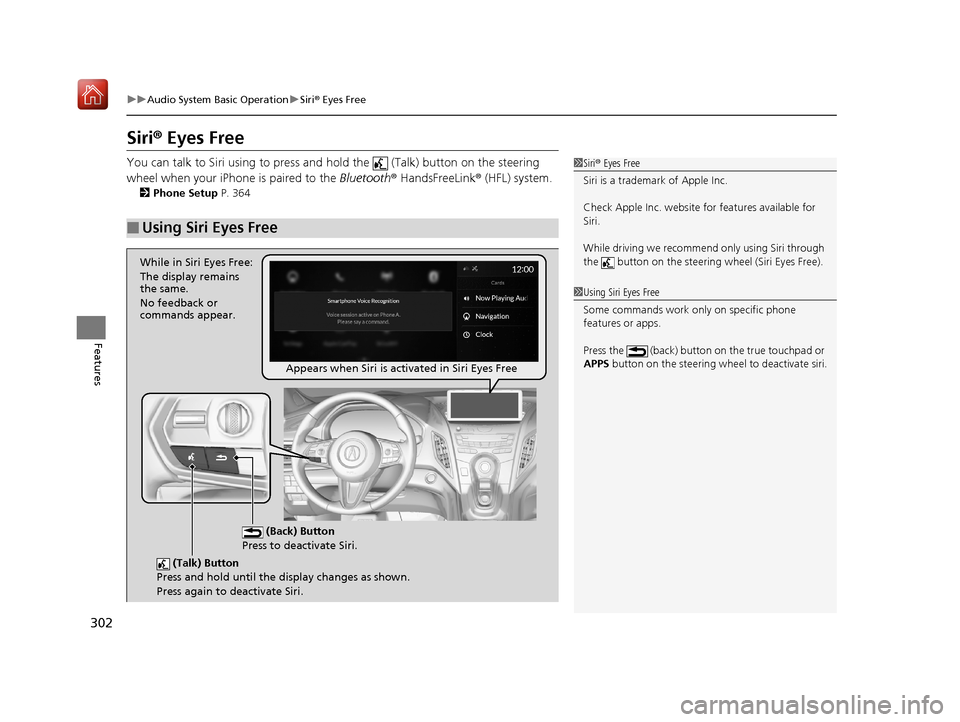
You can talk to Siri using to press and hold the (Talk) button on the steering
wheel when your iPhone is paired to the Bluetooth® HandsFreeLink ® (HFL) system.
2Phone Setup P. 364
■Using Siri Eyes Free
1Siri ® Eyes Free
Siri is a trademark of Apple Inc.
Check Apple Inc. website for features available for
Siri.
While driving we recomme nd only using Siri through
the button on the steering wheel (Siri Eyes Free).
1Using Siri Eyes Free
Some commands work only on specific phone
features or apps.
Press the (back) button on the true touchpad or
APPS button on the steering whee l to deactivate siri.
(Talk) Button
Press and hold until the display changes as shown.
Press again to deactivate Siri.
(Back) Button
Press to deactivate Siri.
While in Siri Eyes Free:
The display remains
the same.
No feedback or
commands appear.
Appears when Siri is activated in Siri Eyes Free
19 ACURA RDX-31TJB6000.book 302 ページ 2018年4月26日 木曜日 午後4時51分
Page 307 of 649
uuAudio System Basic Operation uApple CarPlayTM
306
Features
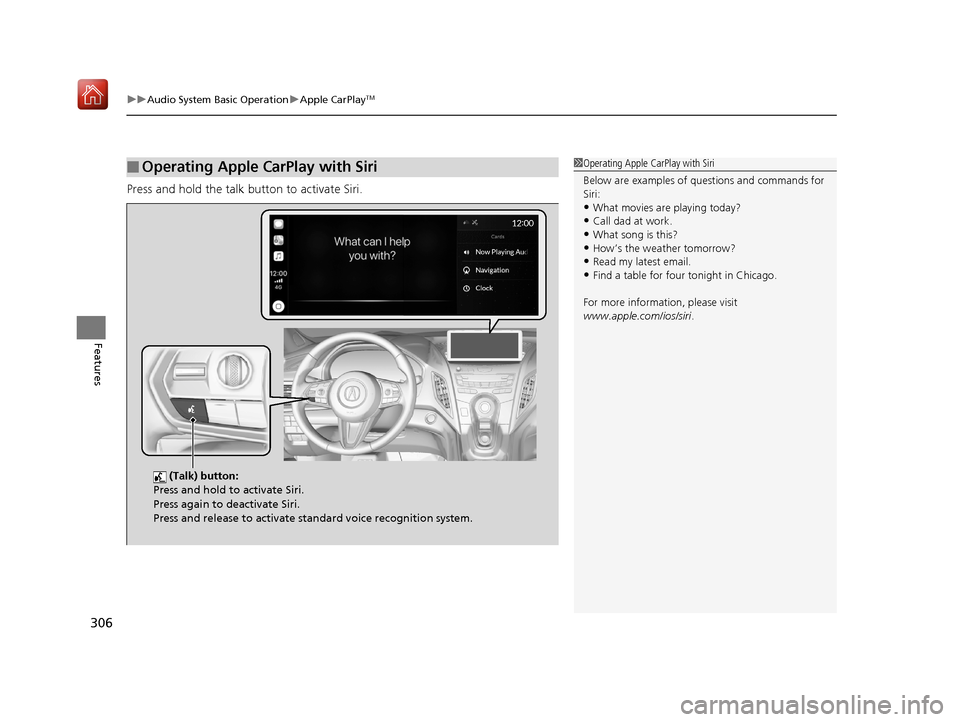
Press and hold the talk button to activate Siri.
■Operating Apple CarPlay with Siri1Operating Apple CarPlay with Siri
Below are examples of questions and commands for
Siri:
•What movies are playing today?
•Call dad at work.
•What song is this?•How’s the weather tomorrow?
•Read my latest email.
•Find a table for four tonight in Chicago.
For more information, please visit
www.apple.com/ios/siri .
(Talk) button:
Press and hold to activate Siri.
Press again to deactivate Siri.
Press and release to activate st andard voice recognition system.
19 ACURA RDX-31TJB6000.book 306 ページ 2018年4月26日 木曜日 午後4時51分
Page 308 of 649
307
Features
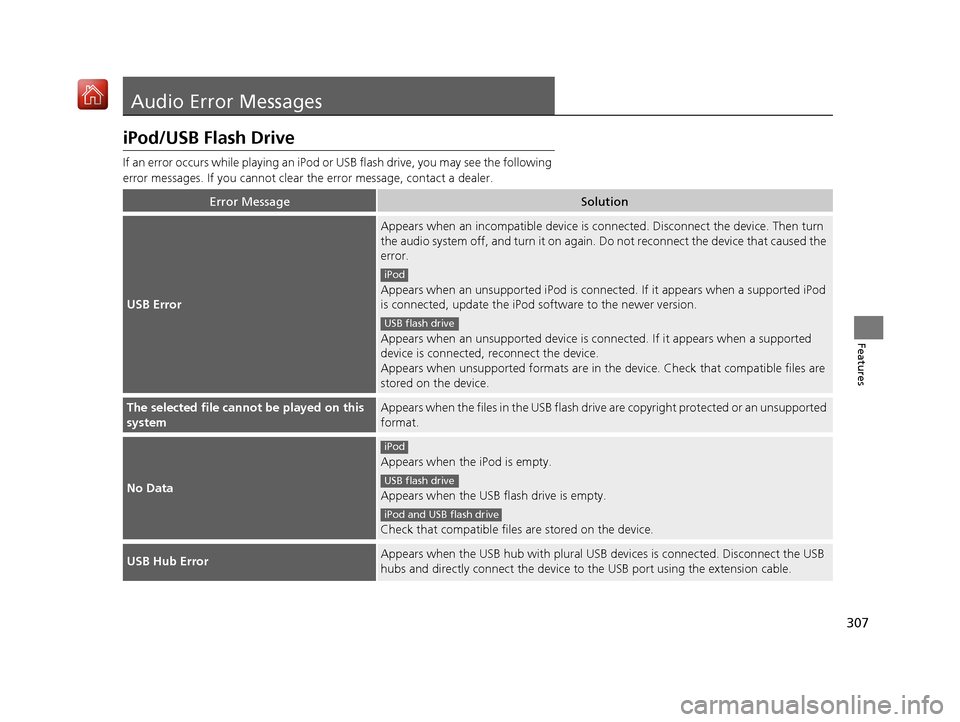
Audio Error Messages
iPod/USB Flash Drive
If an error occurs while playing an iPod or USB flash drive, you may see the following
error messages. If you cannot clear the error message, contact a dealer.
Error MessageSolution
USB Error
Appears when an incomp atible device is connected. Disconnect the device. Then turn
the audio system off, and turn it on again. Do not reconnect the device that caused the
error.
Appears when an unsupported iPod is connecte d. If it appears when a supported iPod
is connected, update the iPod software to the newer version.
Appears when an unsupported device is co nnected. If it appears when a supported
device is connected, reconnect the device.
Appears when unsupported formats are in the device. Check that compatible files are
stored on the device.
The selected file cannot be played on this
systemAppears when the files in the USB flash driv e are copyright protected or an unsupported
format.
No Data
Appears when the iPod is empty.
Appears when the USB flash drive is empty.
Check that compatible files are stored on the device.
USB Hub ErrorAppears when the USB hub with plural USB devices is connected. Disconnect the USB
hubs and directly connect the device to the USB port using the extension cable.
iPod
USB flash drive
iPod
USB flash drive
iPod and USB flash drive
19 ACURA RDX-31TJB6000.book 307 ページ 2018年4月26日 木曜日 午後4時51分
Page 310 of 649
309
uuAudio Error Messages uApple CarPlay
Features
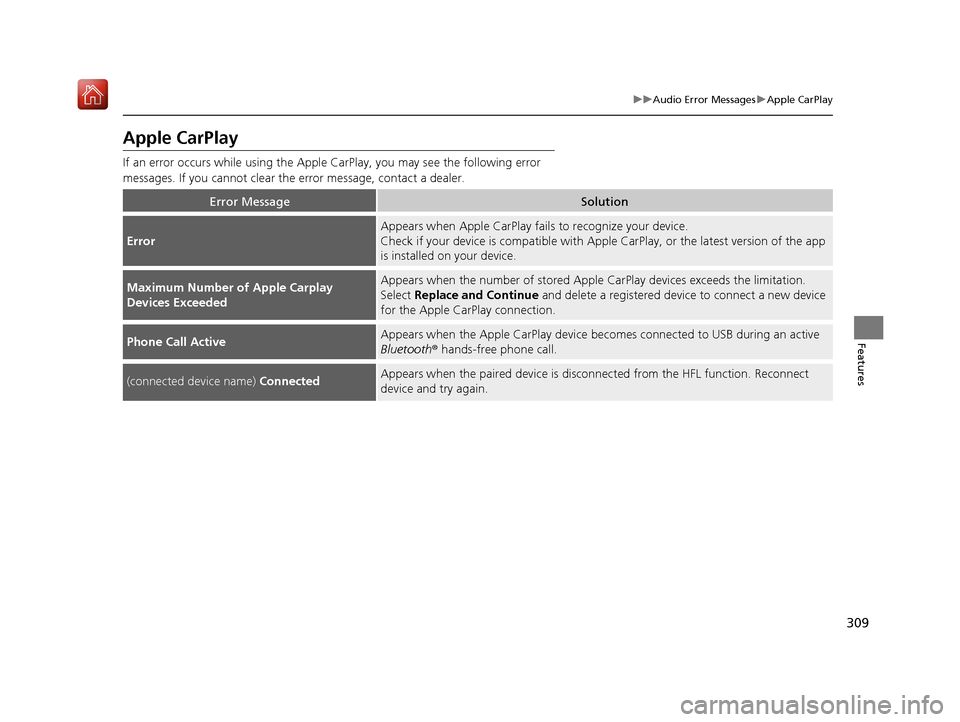
Apple CarPlay
If an error occurs while using the Apple CarPlay, you may see the following error
messages. If you cannot clear th e error message, contact a dealer.
Error MessageSolution
Error
Appears when Apple CarPlay fails to recognize your device.
Check if your device is compatible with Appl e CarPlay, or the latest version of the app
is installed on your device.
Maximum Number of Apple Carplay
Devices ExceededAppears when the number of stored Apple CarPlay devices exceeds the limitation.
Select Replace and Continue and delete a registered device to connect a new device
for the Apple CarPlay connection.
Phone Call ActiveAppears when the Apple CarPlay device beco mes connected to USB during an active
Bluetooth ® hands-free phone call.
(connected device name) ConnectedAppears when the paired device is disc onnected from the HFL function. Reconnect
device and try again.
19 ACURA RDX-31TJB6000.book 309 ページ 2018年4月26日 木曜日 午後4時51分