eco Acura RDX 2019 Owners Manual
[x] Cancel search | Manufacturer: ACURA, Model Year: 2019, Model line: RDX, Model: Acura RDX 2019Pages: 649, PDF Size: 33 MB
Page 243 of 649
242
uuAudio System uAudio System Theft Protection
Features
Audio System Theft Protection
The audio system is disabled when it is di sconnected from the power source, such as
when the battery is disconnected or goes dead. In certain conditions, the system
may display a code entry screen. If this occurs, reactivate the audio system.
■Reactivating the audio system
1. Set the power mode to ON.
2. Turn on the audio system.
3. Press and hold the audio system power knob for more than two seconds.
u The audio system is reac tivated when the audio co ntrol unit establishes a
connection with the vehicle control unit. If the control unit fails to recognize
the audio unit, you must go to a dealer and have the audio unit checked.
19 ACURA RDX-31TJB6000.book 242 ページ 2018年4月26日 木曜日 午後4時51分
Page 246 of 649
245
Features
Audio System Basic Operation
You can use the audio system for 30 minutes when the power mode to VEHICLE OFF
(LOCK) with the driver’s door closed, the system will then turn off automatically.
If you want to keep using it, we recomme nd that you turn the power mode to
ACCESSORY or ON.
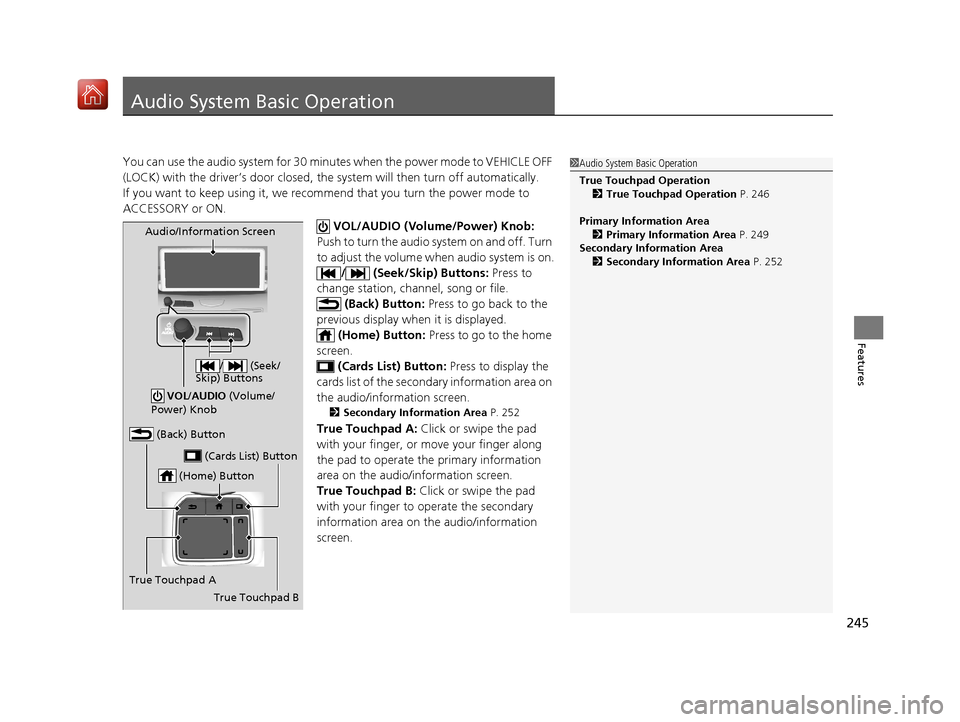
VOL/AUDIO (Volume/Power) Knob:
Push to turn the audio sy stem on and off. Turn
to adjust the volume wh en audio system is on.
/ (Seek/Skip) Buttons: Press to
change station, channel, song or file.
(Back) Button: Press to go back to the
previous display when it is displayed. (Home) Button: Press to go to the home
screen. (Cards List) Button: Press to display the
cards list of the secondary information area on
the audio/information screen.
2 Secondary Information Area P. 252
True Touchpad A: Click or swipe the pad
with your finger, or move your finger along
the pad to operate the primary information
area on the audio/information screen.
True Touchpad B: Click or swipe the pad
with your finger to operate the secondary
information area on the audio/information
screen.
1 Audio System Basic Operation
True Touchpad Operation
2 True Touchpad Operation P. 246
Primary Information Area 2 Primary Information Area P. 249
Secondary Information Area 2 Secondary Information Area P. 252
(Home) Button
(Back) Button
True Touchpad A (Cards List) Button
Audio/Information Screen
/ (Seek/
Skip) Buttons
VOL /AUDIO (Volume/
Power) Knob
True Touchpad B
19 ACURA RDX-31TJB6000.book 245 ページ 2018年4月26日 木曜日 午後4時51分
Page 249 of 649
248
uuAudio System Basic Operation uTrue Touchpad Operation
Features
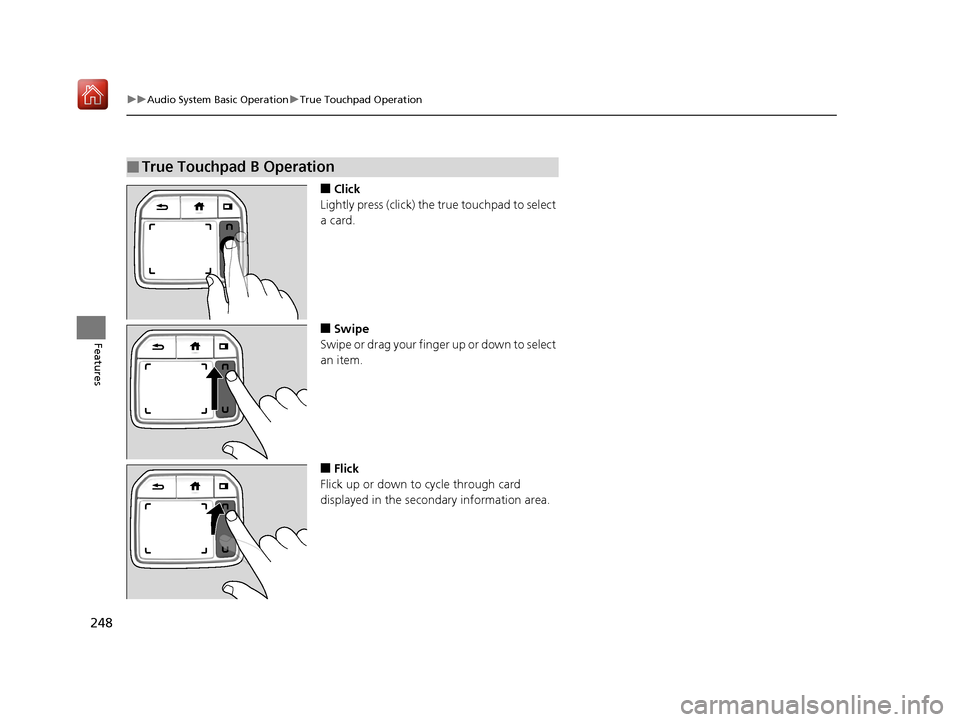
■Click
Lightly press (click) the true touchpad to select
a card.
■Swipe
Swipe or drag your finger up or down to select
an item.
■Flick
Flick up or down to cycle through card
displayed in the secondary information area.
■True Touchpad B Operation
19 ACURA RDX-31TJB6000.book 248 ページ 2018年4月26日 木曜日 午後4時51分
Page 253 of 649
uuAudio System Basic Operation uAudio/Information Screen
252
Features
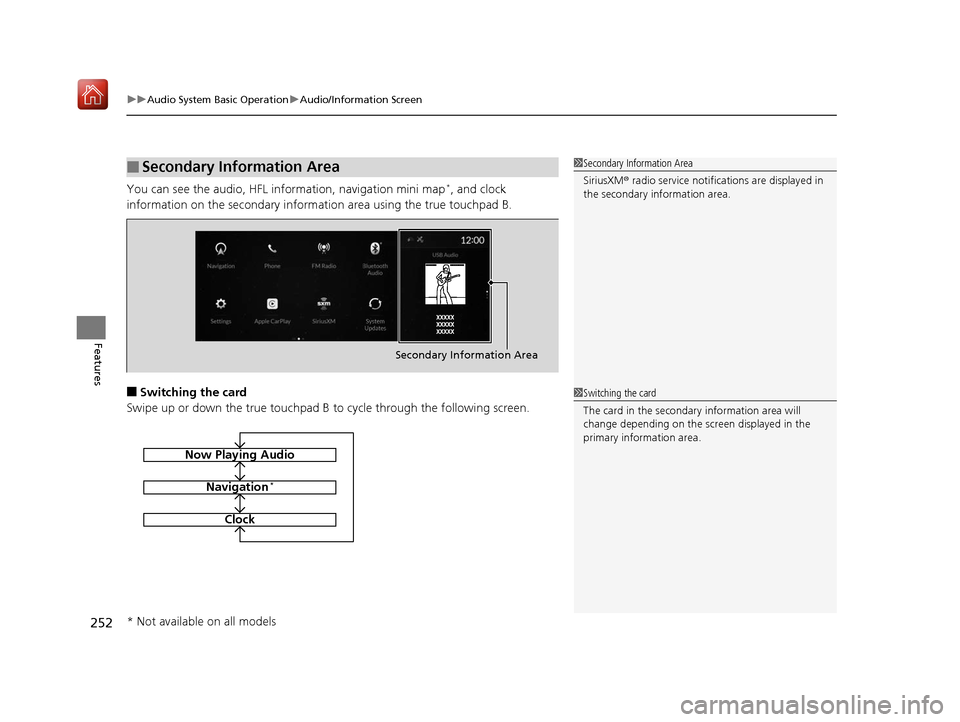
You can see the audio, HFL information, navigation mini map*, and clock
information on the secondary information area using the true touchpad B.
■Switching the card
Swipe up or down the true touchpad B to cycle through the following screen.
■Secondary Information Area1Secondary Information Area
SiriusXM ® radio service notifications are displayed in
the secondary information area.
Secondary Information Area
1 Switching the card
The card in the secondary information area will
change depending on the sc reen displayed in the
primary information area.
Now Playing Audio
Navigation*
Clock
* Not available on all models
19 ACURA RDX-31TJB6000.book 252 ページ 2018年4月26日 木曜日 午後4時51分
Page 268 of 649
Continued267
uuAudio System Basic Operation uSystem Updates
Features
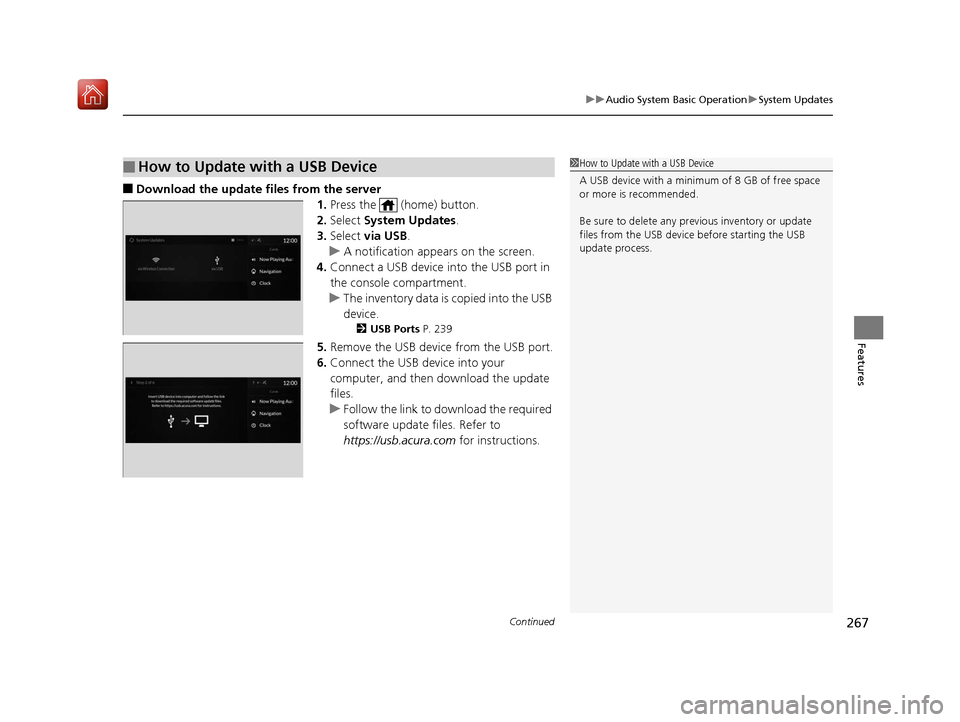
■Download the update files from the server
1.Press the (home) button.
2. Select System Updates .
3. Select via USB .
u A notification appears on the screen.
4. Connect a USB device into the USB port in
the console compartment.
u The inventory data is copied into the USB
device.
2 USB Ports P. 239
5.Remove the USB device from the USB port.
6. Connect the USB device into your
computer, and then do wnload the update
files.
u Follow the link to do wnload the required
software update files. Refer to
https://usb.acura.com for instructions.
■How to Update with a USB Device1How to Update with a USB Device
A USB device with a minimum of 8 GB of free space
or more is recommended.
Be sure to delete any pr evious inventory or update
files from the USB device before starting the USB
update process.
19 ACURA RDX-31TJB6000.book 267 ページ 2018年4月26日 木曜日 午後4時51分
Page 272 of 649
271
uuAudio System Basic Operation uVoice Control Operation
Continued
Features
Voice Control Operation
Your vehicle has a voice control syst em that allows hands-free operation.
The voice control system uses the (tal k) and (back) buttons on the steering
wheel and a microphone near the map lights on the ceiling.
To achieve optimum voice recognition when using the voice control system:
• The system recognize a natural langua ge and accept your free form voice
command.
An example of voice commands:
2 Voice Recognition Screen P. 272
•Close the windows and panoramic roof.
• Adjust the dashboard and side vents so air does not blow onto the microphone
on the ceiling.
• Speak clearly in a clear, natural speaking voice without pausing between words.
• Reduce any background noise if possible. The system may misinterpret your
command if more than one person is speaking at the same time.
■Voice Recognition
1Voice Control Operation
When you press the button, the system beeps and
the display changes to the voice recognition screen.
Press the (home) button, (back) button on
the true touchpad or APPS button on the steering
wheel to cancel a voice recognition function.
19 ACURA RDX-31TJB6000.book 271 ページ 2018年4月26日 木曜日 午後4時51分
Page 273 of 649
272
uuAudio System Basic Operation uVoice Control Operation
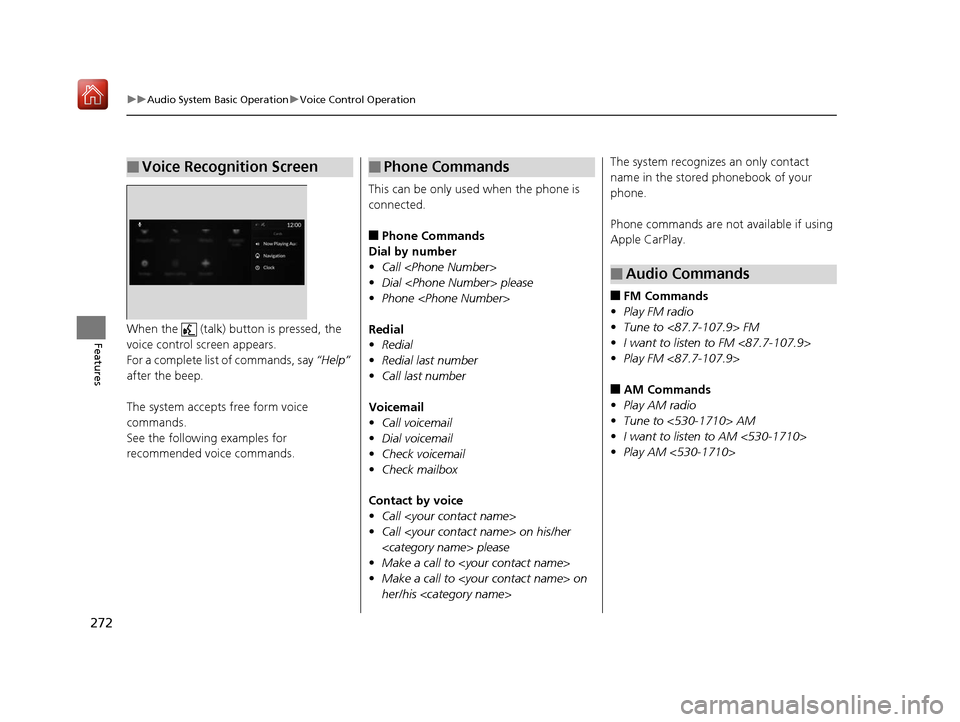
FeaturesWhen the (talk) button is pressed, the
voice control sc reen appears.
For a complete list of commands, say “Help”
after the beep.
The system accepts free form voice
commands.
See the following examples for
recommended voice commands.
■Voice Recognition Screen
This can be only used when the phone is
connected.
■Phone Commands
Dial by number
• Call
• Dial
• Phone
Redial
• Redial
• Redial last number
• Call last number
Voicemail
• Call voicemail
• Dial voicemail
• Check voicemail
• Check mailbox
Contact by voice
• Call
• Call
• Make a call to
• Make a call to
her/his
■Phone CommandsThe system recognizes an only contact
name in the stored phonebook of your
phone.
Phone commands are not available if using
Apple CarPlay.
■FM Commands
• Play FM radio
• Tune to <87.7-107.9> FM
• I want to listen to FM <87.7-107.9>
• Play FM <87.7-107.9>
■AM Commands
• Play AM radio
• Tune to <530-1710> AM
• I want to listen to AM <530-1710>
• Play AM <530-1710>
■Audio Commands
19 ACURA RDX-31TJB6000.book 272 ページ 2018年4月26日 木曜日 午後4時51分
Page 277 of 649
uuAudio System Basic Operation uPlaying AM/FM Radio
276
Features
Lists the strongest stations on the selected band.
1. Select Station List to display a list.
2. Select the station.
■Manual update
Updates your available station list at any time.
1. Select Station List to display a list.
2. Select Refresh .
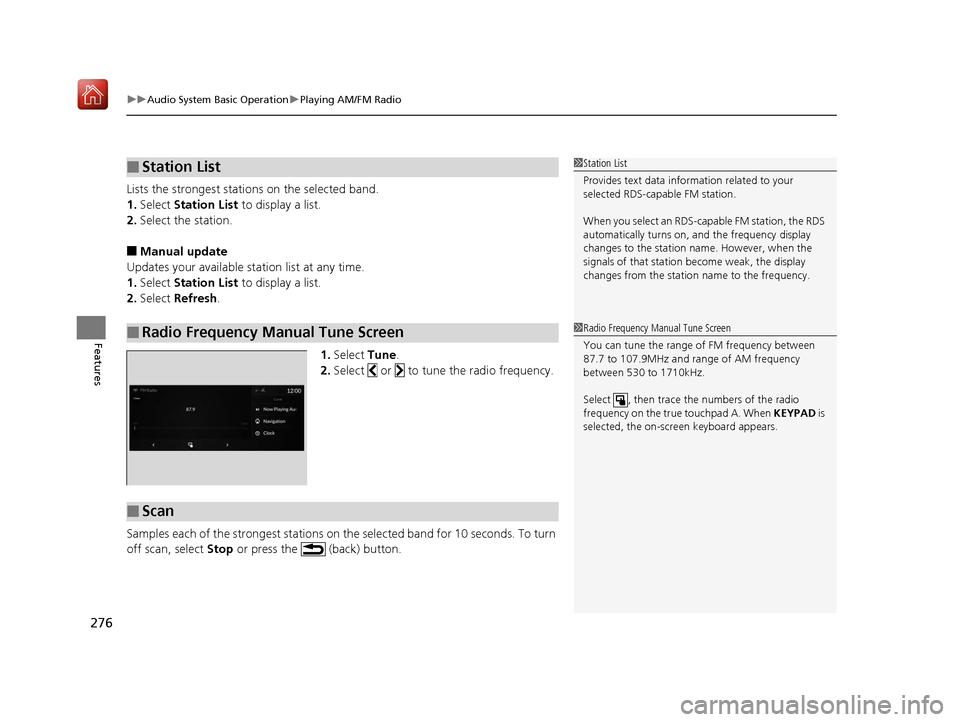
1.Select Tune.
2. Select or to tune the radio frequency.
Samples each of the strongest stations on the selected band for 10 seconds. To turn
off scan, select Stop or press the (back) button.
■Station List
■Radio Frequency Manual Tune Screen
1Station List
Provides text data information related to your
selected RDS-capable FM station.
When you select an RDS-capable FM station, the RDS
automatically turns on, and the frequency display
changes to the station name. However, when the
signals of that station become weak, the display
changes from the statio n name to the frequency.
1Radio Frequency Manual Tune Screen
You can tune the range of FM frequency between
87.7 to 107.9MHz and range of AM frequency
between 530 to 1710kHz.
Select , then trace the numbers of the radio
frequency on the true touchpad A. When KEYPAD is
selected, the on-scre en keyboard appears.
■Scan
19 ACURA RDX-31TJB6000.book 276 ページ 2018年4月26日 木曜日 午後4時51分
Page 284 of 649

Continued283
uuAudio System Basic Operation uPlaying SiriusXM ® Radio
Features
The system can record up to the last 60 minutes broadcast of your currently tuned
channel as well as the last 30 minutes broadcast of favo rite channels, starting from
the moment you turn the vehicle on. If yo u tuned to favorite channel, the system
records up to 60 minutes of a broadcast instead of up to 30 minutes. You can
rewind and replay the last 30 or 60 minutes of a broadcast.
1. Select More.
2. Move the position you want to replay by selecting or .
To play or pause on playback mo de, select the play/pause icon.
■Returning to real-time broadcast
Select and hold or select Live.
■Replay Function1Replay Function
The system starts storing broadcast in memory when
the power mode is turned ON. You can go back to
the program from that point.
You can no longer repl ay any program once the
power mode is turned off as it erases memory.
You can check how long the program has been
stored in memory from th e audio/information screen.
After 30 or 60 minutes of recording the system will
automatically start deleting the oldest data.
(A): Shows how much time the replayed segment is
behind the real-time broadcast
(B): Replayed segment
(C): Length stored in memory
(D): Play/Pause icon
Audio/Information Screen
(C) (B) (A)
(D)
19 ACURA RDX-31TJB6000.book 283 ページ 2018年4月26日 木曜日 午後4時51分
Page 286 of 649
Continued285
uuAudio System Basic Operation uPlaying SiriusXM ® Radio
Features
You can receive a sports channel notificati on when registered sports team start
playing.
■To set up a game start notification
1. Select MENU .
2. Select SiriusXM Settings.
3. Select Sports Notification Setup .
4. Select Game Notifications .
5. Select On.
■Receiving a game start notification
1. A pop-up appears on the secondary inform ation area and notifies you of a game
start notification.
2. Select the system status area then press the true touchpad B.
u The status items appear on the primary information area.
3. Select a SiriusXM ® notification item using true touchpad A to see the details.
■Game Start Notification1Game Start Notification
Before receiving a game start notification, register a
favorite sports team.
2 To set up a favorite team P. 284
19 ACURA RDX-31TJB6000.book 285 ページ 2018年4月26日 木曜日 午後4時51分