Econ Acura RDX 2019 Manual Online
[x] Cancel search | Manufacturer: ACURA, Model Year: 2019, Model line: RDX, Model: Acura RDX 2019Pages: 649, PDF Size: 33 MB
Page 299 of 649
uuAudio System Basic Operation uPlaying Bluetooth ® Audio
298
Features
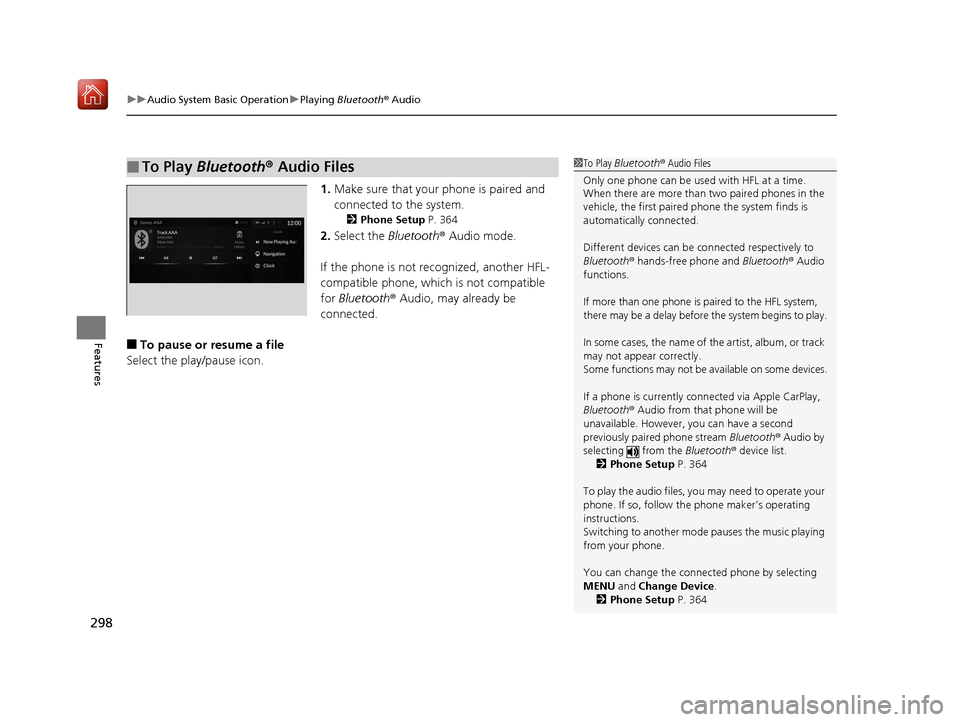
1. Make sure that your phone is paired and
connected to the system.
2 Phone Setup P. 364
2.Select the Bluetooth® Audio mode.
If the phone is not recognized, another HFL-
compatible phone, which is not compatible
for Bluetooth ® Audio, may already be
connected.
■To pause or resume a file
Select the play/pause icon.
■To Play Bluetooth® Audio Files1To Play Bluetooth ® Audio Files
Only one phone can be used with HFL at a time.
When there are more than two paired phones in the
vehicle, the first paired phone the system finds is
automatically connected.
Different devices can be co nnected respectively to
Bluetooth ® hands-free phone and Bluetooth® Audio
functions.
If more than one phone is paired to the HFL system,
there may be a delay before the system begins to play.
In some cases, the name of the artist, album, or track
may not appear correctly.
Some functions may not be available on some devices.
If a phone is currently connected via Apple CarPlay,
Bluetooth ® Audio from that phone will be
unavailable. However, you can have a second
previously paired phone stream Bluetooth® Audio by
selecting from the Bluetooth® device list.
2 Phone Setup P. 364
To play the audio files, y ou may need to operate your
phone. If so, follow the phone maker’s operating
instructions.
Switching to another mode pauses the music playing
from your phone.
You can change the connected phone by selecting
MENU and Change Device.
2 Phone Setup P. 364
19 ACURA RDX-31TJB6000.book 298 ページ 2018年4月26日 木曜日 午後4時51分
Page 308 of 649
307
Features
Audio Error Messages
iPod/USB Flash Drive
If an error occurs while playing an iPod or USB flash drive, you may see the following
error messages. If you cannot clear the error message, contact a dealer.
Error MessageSolution
USB Error
Appears when an incomp atible device is connected. Disconnect the device. Then turn
the audio system off, and turn it on again. Do not reconnect the device that caused the
error.
Appears when an unsupported iPod is connecte d. If it appears when a supported iPod
is connected, update the iPod software to the newer version.
Appears when an unsupported device is co nnected. If it appears when a supported
device is connected, reconnect the device.
Appears when unsupported formats are in the device. Check that compatible files are
stored on the device.
The selected file cannot be played on this
systemAppears when the files in the USB flash driv e are copyright protected or an unsupported
format.
No Data
Appears when the iPod is empty.
Appears when the USB flash drive is empty.
Check that compatible files are stored on the device.
USB Hub ErrorAppears when the USB hub with plural USB devices is connected. Disconnect the USB
hubs and directly connect the device to the USB port using the extension cable.
iPod
USB flash drive
iPod
USB flash drive
iPod and USB flash drive
19 ACURA RDX-31TJB6000.book 307 ページ 2018年4月26日 木曜日 午後4時51分
Page 310 of 649
309
uuAudio Error Messages uApple CarPlay
Features
Apple CarPlay
If an error occurs while using the Apple CarPlay, you may see the following error
messages. If you cannot clear th e error message, contact a dealer.
Error MessageSolution
Error
Appears when Apple CarPlay fails to recognize your device.
Check if your device is compatible with Appl e CarPlay, or the latest version of the app
is installed on your device.
Maximum Number of Apple Carplay
Devices ExceededAppears when the number of stored Apple CarPlay devices exceeds the limitation.
Select Replace and Continue and delete a registered device to connect a new device
for the Apple CarPlay connection.
Phone Call ActiveAppears when the Apple CarPlay device beco mes connected to USB during an active
Bluetooth ® hands-free phone call.
(connected device name) ConnectedAppears when the paired device is disc onnected from the HFL function. Reconnect
device and try again.
19 ACURA RDX-31TJB6000.book 309 ページ 2018年4月26日 木曜日 午後4時51分
Page 347 of 649
346
uuCustomized Features u
Features
*1:Default SettingSetup Group Customizable Features
Description Selectable Settings
Vehicle Meter Setup Adjust Outside Temp Display
Adjusts the temperature reading by a
few degrees. −5°F ~
±0°F
*1 ~ 5°F
(U.S.)
−3°C ~ ±0°C
*1 ~ 3°C
(Canada)
“Trip A” Reset Timing Changes the setting of how to reset
trip meter A and average fuel economy
A. With Refuel
/IGN
Off /Manually
Reset
*1
“Trip B” Reset Timing Changes the setting of how to reset
trip meter B and average fuel economy
B. With Refuel
/IGN
Off /Manually
Reset*1
Reverse Shift Position Beep Causes the beeper to sound once
when the transmission is put into (R.On*1/
Off
Auto Idle Stop Display Selects whether the Auto Idle Stop
display comes on or not.
On
/Off
*1
Adjust Alarm Volume Changes the alarm volume, such as
buzzers, warnings, turn signal sound,
and so on.
High
/Mid*1/Low
Turn by Turn Display
*Selects whether the turn-by-turn
display comes on during the route
guidance. On*1/
Off
* Not available on all models
19 ACURA RDX-31TJB6000.book 346 ページ 2018年4月26日 木曜日 午後4時51分
Page 357 of 649
356
uuHomeLink ® Universal Transceiver uTraining HomeLink
Features
Training HomeLink
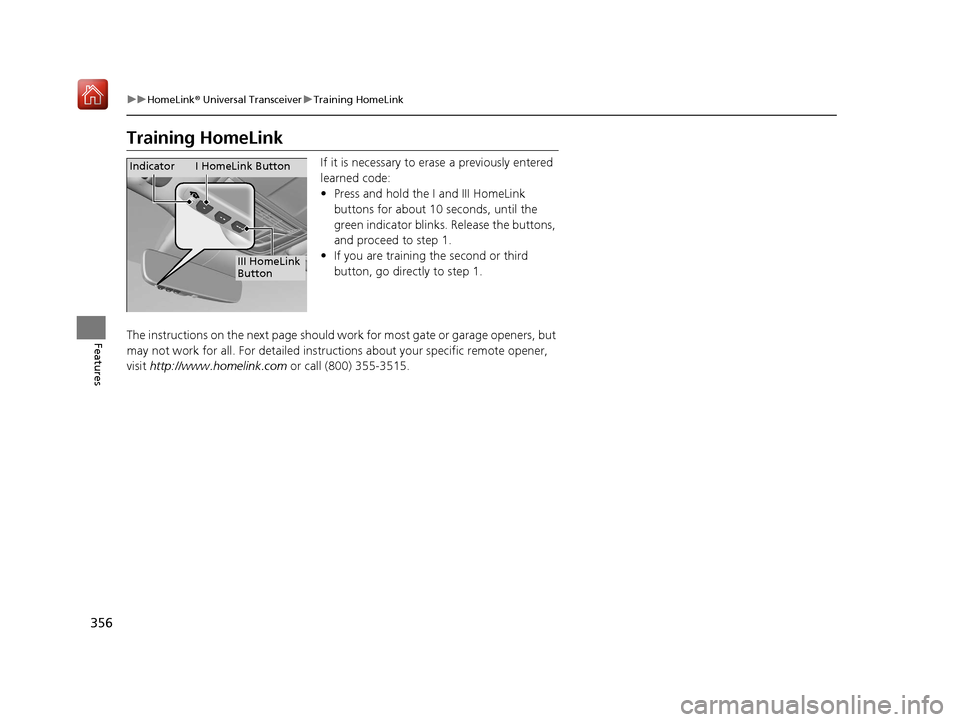
If it is necessary to erase a previously entered
learned code:
• Press and hold the I and III HomeLink
buttons for about 10 seconds, until the
green indicator blinks. Release the buttons,
and proceed to step 1.
• If you are training the second or third
button, go directly to step 1.
The instructions on the next page should work for most gate or garage openers, but
may not work for all. For detailed instruct ions about your specific remote opener,
visit http://www.homelink.com or call (800) 355-3515.
III HomeLink
Button
Indicator I HomeLink Button
19 ACURA RDX-31TJB6000.book 356 ページ 2018年4月26日 木曜日 午後4時51分
Page 358 of 649
357
uuHomeLink ® Universal Transceiver uTraining HomeLink
Features
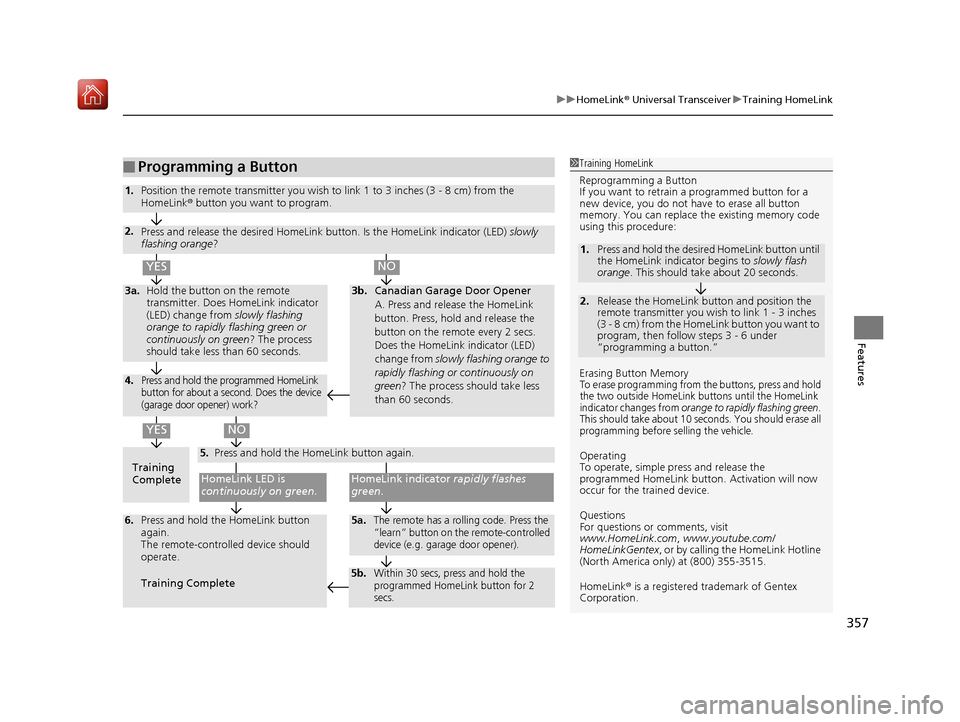
■Programming a Button1Training HomeLink
Reprogramming a Button
If you want to retrain a programmed button for a
new device, you do not ha ve to erase all button
memory. You can replace the existing memory code
using this procedure:
Erasing Button Memory
To erase programming from the buttons, press and hold
the two outside HomeLink buttons until the HomeLink
indicator changes from
orange to rapidly flashing green.
This should take about 10 seconds. You should erase all
programming before selling the vehicle.
Operating
To operate, simple pr ess and release the
programmed HomeLink butto n. Activation will now
occur for the trained device.
Questions
For questions or comments, visit
www.HomeLink.com, www.youtube.com/
HomeLinkGentex , or by calling the HomeLink Hotline
(North America only) at (800) 355-3515.
HomeLink® is a registered tra demark of Gentex
Corporation.
2.
1. Press and hold the desired HomeLink button until
the HomeLink indi
cator begins to slowly flash
orange . This should take about 20 seconds.
Release the HomeLink button and position the
remote transmitter you wish to link 1 - 3 inches
(3 - 8 cm) from the HomeLink button you want to
program, then follow steps 3 - 6 under
“programming a button.”
Training
CompleteHomeLink LED is
continuously on green .
YES
YES
1.Position the remote transmitter you wish to link 1 to 3 inches (3 - 8 cm) from the
HomeLink® button you want to program.
3b.Canadian Garage Door Opener
A. Press and release the HomeLink
button. Press, hold and release the
button on the remote every 2 secs.
Does the HomeLink indicator (LED)
change from slowly flashing orange to
rapidly flashing or continuously on
green ? The process should take less
than 60 seconds.
NO
2. Press and release the desired HomeLink but ton. Is the HomeLink indicator (LED) slowly
flashing orange ?
NO
3a.Hold the button on the remote
transmitter. Does HomeLink indicator
(LED) change from slowly flashing
orange to rapidly flashing green or
continuously on green ? The process
should take less than 60 seconds.
5. Press and hold the HomeLink button again.
HomeLink indicator rapidly flashes
green .
5a.The remote has a rolling code. Press the
“learn” button on the remote-controlled
device (e.g. garage door opener).6.Press and hold the HomeLink button
again.
The remote-controll ed device should
operate.
Training Complete
5b.Within 30 secs, press and hold the
programmed HomeLink button for 2
secs.
4.Press and hold the programmed HomeLink
button for about a second. Does the device
(garage door opener) work?
19 ACURA RDX-31TJB6000.book 357 ページ 2018年4月26日 木曜日 午後4時51分
Page 361 of 649
uuBluetooth ® HandsFreeLink ®u Using HFL
360
Features
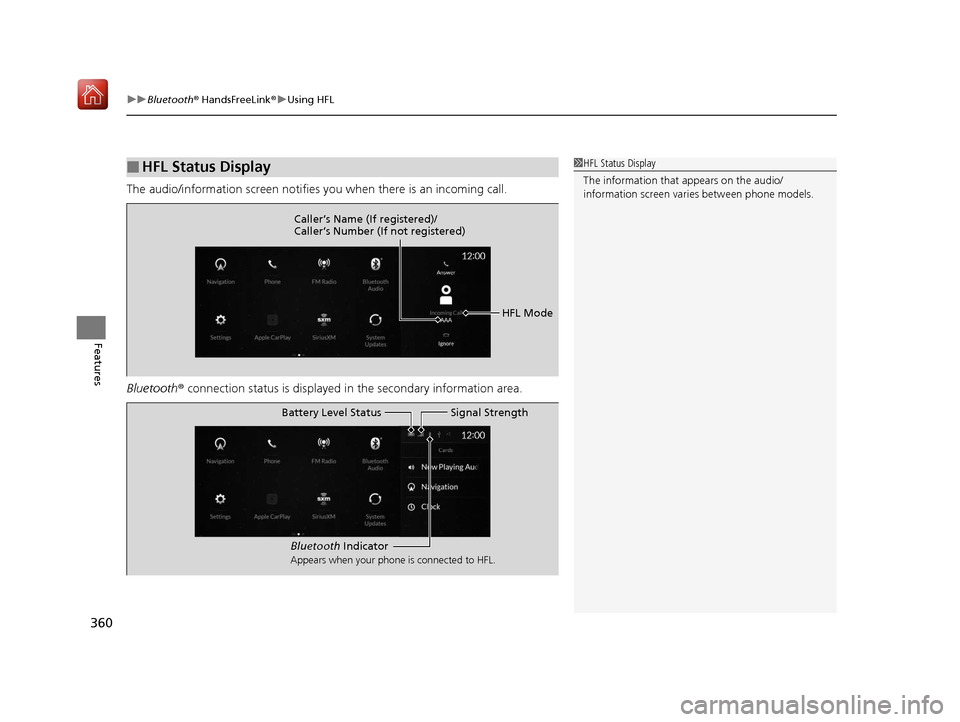
The audio/information screen notifies you when there is an incoming call.
Bluetooth ® connection status is displayed in the secondary information area.
■HFL Status Display1HFL Status Display
The information that appears on the audio/
information screen vari es between phone models.
HFL Mode
Caller’s Name (If registered)/
Caller’s Number (If not registered)
Bluetooth
Indicator
Appears when your phone is connected to HFL.
Signal Strength
Battery Level Status
19 ACURA RDX-31TJB6000.book 360 ページ 2018年4月26日 木曜日 午後4時51分
Page 375 of 649

uuBluetooth ® HandsFreeLink ®u HFL Menus
374
Features
When there is an incoming call, an audible
notification sounds (i f activated) and the
Incoming Call... screen appears.
Move the left selector wheel to the right to
answer the call. Move it to the left to decline
or end the call. u You can also select Answer or Ignore
on the audio/information screen to use
hands-free calling.
■Receiving a Call1 Receiving a Call
Call Waiting
To put a call on hold so that you can answer an
incoming call, move the left selector wheel to the
right.
Move the left selector wheel to the right to resume
the call.
Select Ignore to ignore the incoming call if you do
not want to answer it.
Move the left selector wheel to the left to end a call.
Instead of using the selector wheel, you can use the
icons on the audio/information screen to perform the
above mentione d functions.
When a screen other than the phone screen is
displayed in the primar y information area, the
incoming call screen is displayed in the secondary
information area.
19 ACURA RDX-31TJB6000.book 374 ページ 2018年4月26日 木曜日 午後4時51分
Page 379 of 649

uuBluetooth ® HandsFreeLink ®u Text Message
378
Features
■To turn on or off the text message
notice
1. Press the (home) button.
2. Select Messages .
3. Select MENU .
4. Select Notifications .
5. Select On or Off .
■To Set Up Text Message Options1To Set Up Text Message Options
To use the text message func tion, it may be necessary
to set up on your phone.
1 To turn on or off the text message notice
On: A pop-up notification comes on every time you
receive a new message.
Off: The message you receive is stored in the system
without not ification.
When a screen other than the Messages function
screen is displayed in the primary information area, a
text message notificati on is displayed in the
secondary information area.
19 ACURA RDX-31TJB6000.book 378 ページ 2018年4月26日 木曜日 午後4時51分
Page 380 of 649

Continued379
uuBluetooth ® HandsFreeLink ®u Text Message
Features
HFL can display newly received text mess ages as well as the last 20 messages
received on a linked cell phone. Each received message can be read aloud and
replied to using a fixed common phrase. 1.A pop-up appears and notifies you of a new
text message.
2. Select Open.
3. Select to listen to th e message. To stop
listening to the message, select .
u Select to hear the message from the
beginning.
■Receiving a Text Message1Receiving a Text Message
Some cell phones might not be able to read the
transmission log of data sent and data received.
The system does not display any received messages
while you are driving. You can only hear them read
aloud.
The system can only receive messages that are sent a
text (SMS) messages. The message sent using the
data services will not be displayed in the list.
With some phones, you may be able to display up to
20 of the last text messages received.
State or local laws may limit your use of the HFL text
message feature. Only use the text message feature
when conditions allow you to do so safely.
Depending on the status of primary information area,
the received message screen may be displayed on the
secondary information area.
19 ACURA RDX-31TJB6000.book 379 ページ 2018年4月26日 木曜日 午後4時51分