adjust Acura RDX 2020 Workshop Manual
[x] Cancel search | Manufacturer: ACURA, Model Year: 2020, Model line: RDX, Model: Acura RDX 2020Pages: 657, PDF Size: 33.2 MB
Page 269 of 657
268
uuAudio System Basic Operation uAdjusting the Sound
Features
Adjusting the Sound
1. Press the (home) button.
2. Select an audio source icon.
3. Select SOUND .
4. Select the setting you want.
3. Select MENU .
4. Select Sound Settings .
5. Select the setting you want.
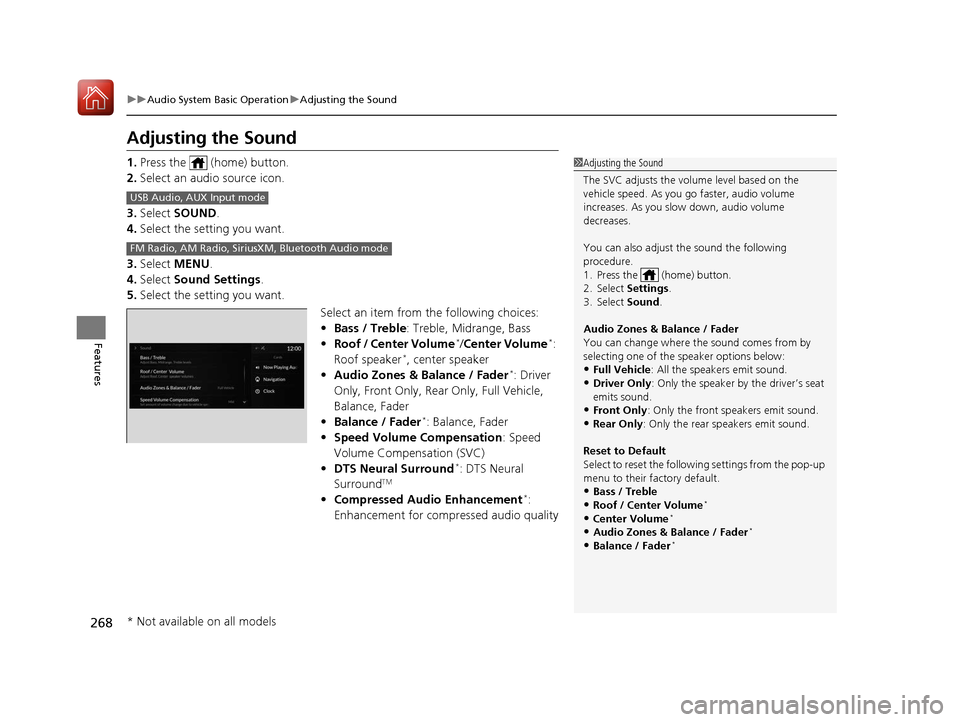
Select an item from the following choices:
•Bass / Treble : Treble, Midrange, Bass
• Roof / Center Volume
*/Center Volume*:
Roof speaker*, center speaker
• Audio Zones & Balance / Fader*: Driver
Only, Front Only, Rear Only, Full Vehicle,
Balance, Fader
• Balance / Fader
*: Balance, Fader
• Speed Volume Compensation : Speed
Volume Compensation (SVC)
• DTS Neural Surround
*: DTS Neural
SurroundTM
• Compressed Audio Enhancement*:
Enhancement for compressed audio quality
1 Adjusting the Sound
The SVC adjusts the volume level based on the
vehicle speed. As you go faster, audio volume
increases. As you slow down, audio volume
decreases.
You can also adjust the sound the following
procedure.
1. Press the (home) button.
2. Select Settings .
3. Select Sound .
Audio Zones & Balance / Fader
You can change where the sound comes from by
selecting one of the speaker options below:
•Full Vehicle: All the speakers emit sound. •Driver Only: Only the speaker by the driver’s seat
emits sound.
•Front Only : Only the front speakers emit sound.•Rear Only: Only the rear speakers emit sound.
Reset to Default
Select to reset the follow ing settings from the pop-up
menu to their factory default.
•Bass / Treble•Roof / Center Volume*
•Center Volume*
•Audio Zones & Balance / Fader*
•Balance / Fader*
USB Audio, AUX Input mode
FM Radio, AM Radio, Siri usXM, Bluetooth Audio mode
* Not available on all models
20 ACURA RDX-31TJB6111.book 268 ページ 2020年2月11日 火曜日 午後2時6分
Page 270 of 657
269
uuAudio System Basic Operation uDisplay Setup
Features
Display Setup
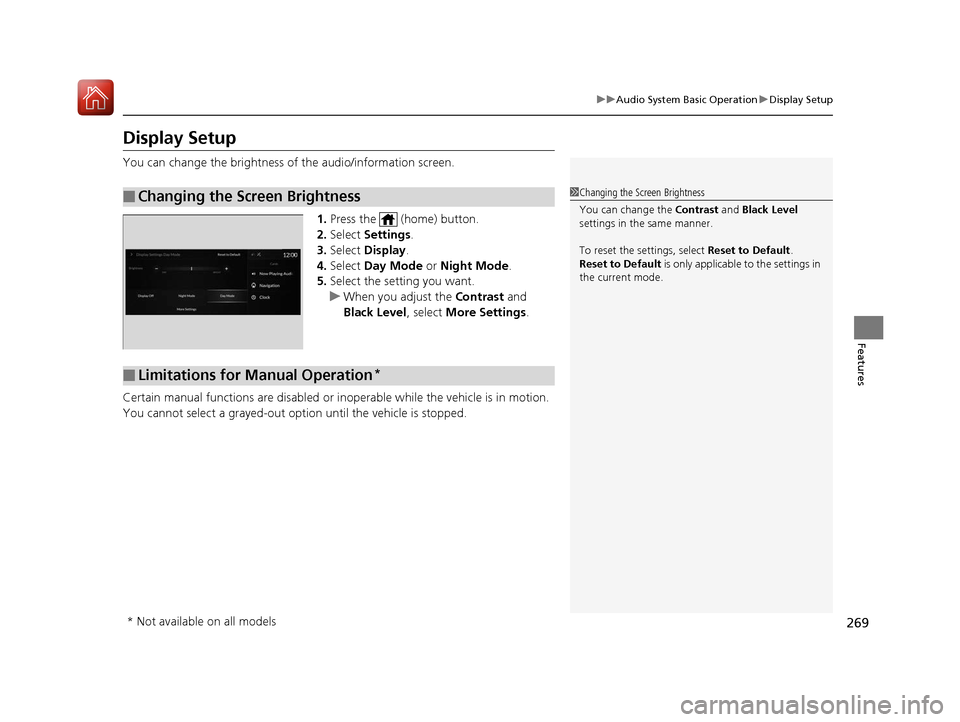
You can change the brightness of the audio/information screen.
1.Press the (home) button.
2. Select Settings .
3. Select Display .
4. Select Day Mode or Night Mode .
5. Select the setting you want.
u When you adjust the Contrast and
Black Level, select More Settings.
Certain manual functions are disabled or inoperable while the vehicle is in motion.
You cannot select a grayed-out option until the vehicle is stopped.
■Changing the Screen Brightness1 Changing the Screen Brightness
You can change the Contrast and Black Level
settings in the same manner.
To reset the settings, select Reset to Default.
Reset to Default is only applicable to the settings in
the current mode.
■Limitations for Manual Operation*
* Not available on all models
20 ACURA RDX-31TJB6111.book 269 ページ 2020年2月11日 火曜日 午後2時6分
Page 271 of 657
270
uuAudio System Basic Operation uVoice Control Operation
Features
Voice Control Operation
Your vehicle has a voice control system that allows hands-free operation.
The voice control system uses the (tal k) and (back) buttons on the steering
wheel and a microphone near the map lights on the ceiling.
To achieve optimum voice recognition when using the voice control system:
• The system recognize a natural language and accept your free form voice
command.
An example of voice commands:
2 Voice Recognition Screen P. 271
•Close the windows and panoramic roof.
• Adjust the dashboard and side vents so air does not blow onto the microphone
on the ceiling.
• Speak clearly in a clear, natural speaking voice without pausing between words.
• Reduce any background noise if possible. The system may misinterpret your
command if more than one person is speaking at the same time.
■Voice Recognition
1Voice Control Operation
When you press the button, the system beeps and
the display changes to the voice recognition screen.
Press the (home) button, (back) button on
the true touchpad or APPS button on the steering
wheel to cancel a voice recognition function.
20 ACURA RDX-31TJB6111.book 270 ページ 2020年2月11日 火曜日 午後2時6分
Page 274 of 657
273
uuAudio System Basic Operation uPlaying AM/FM Radio
Continued
Features
Playing AM/FM Radio
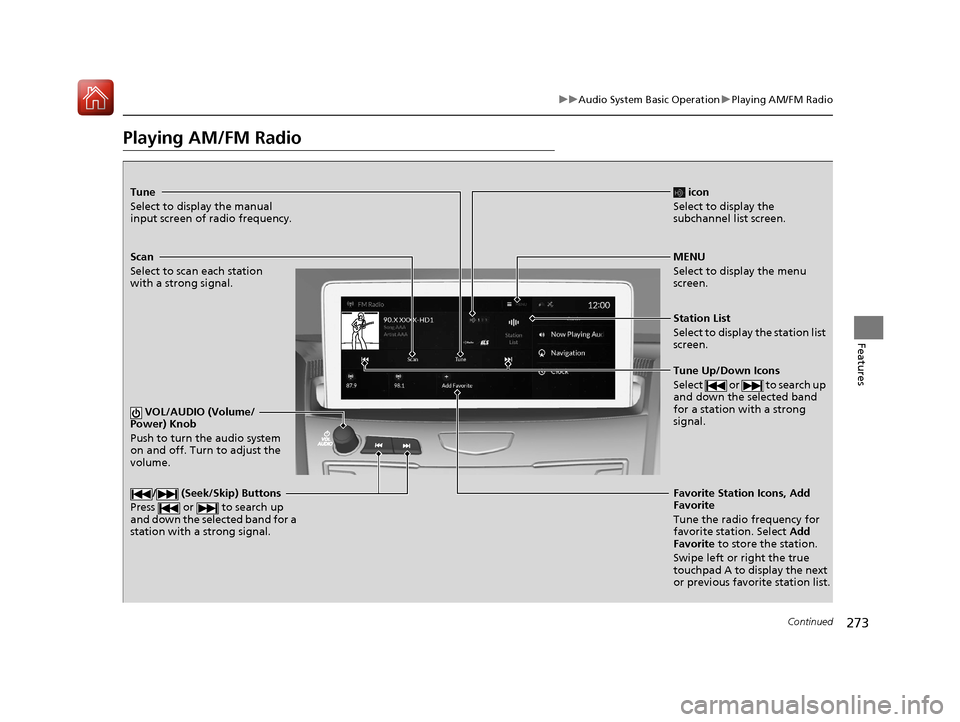
Tune
Select to display the manual
input screen of radio frequency.
MENU
Select to display the menu
screen.
Station List
Select to display the station list
screen.
Tune Up/Down Icons
Select or to search up
and down the selected band
for a station with a strong
signal.
Favorite Station Icons, Add
Favorite
Tune the radio frequency for
favorite station. Select Add
Favorite to store the station.
Swipe left or right the true
touchpad A to display the next
or previous favorite station list.
VOL/AUDIO (Volume/
Power) Knob
Push to turn the audio system
on and off. Turn to adjust the
volume./ (Seek/Skip) Buttons
Press or to search up
and down the selected band for a
station with a strong signal.
Scan
Select to scan each station
with a strong signal.
icon
Select to display the
subchannel list screen.
20 ACURA RDX-31TJB6111.book 273 ページ 2020年2月11日 火曜日 午後2時6分
Page 278 of 657
277
uuAudio System Basic Operation uPlaying SiriusXM ® Radio
Continued
Features
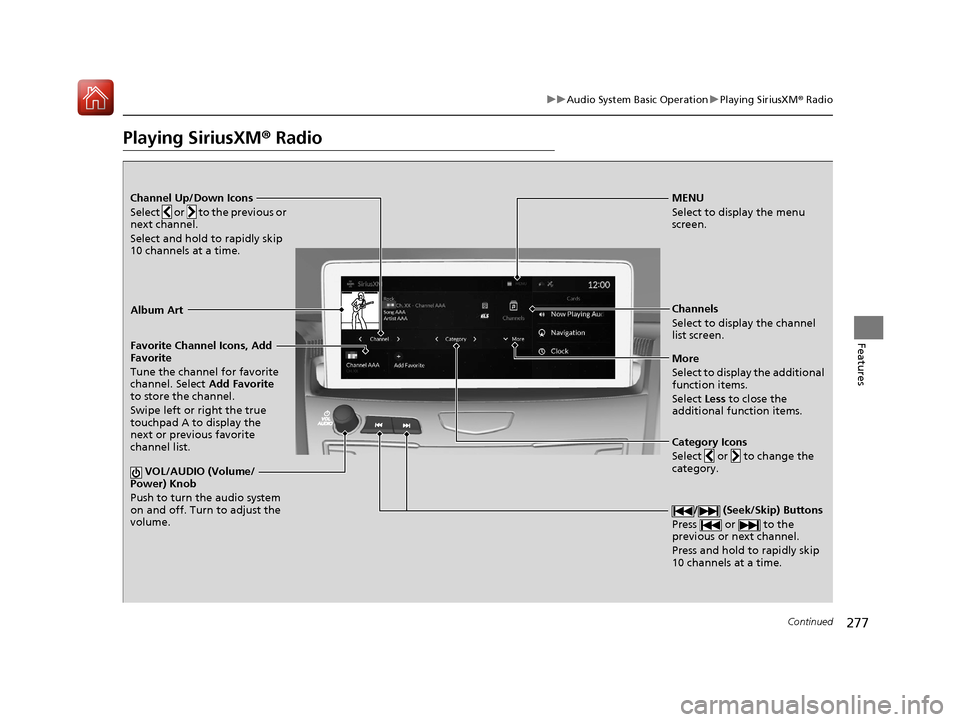
Playing SiriusXM® Radio
Channel Up/Down Icons
Select or to the previous or
next channel.
Select and hold to rapidly skip
10 channels at a time.MENU
Select to display the menu
screen.
Channels
Select to display the channel
list screen.
More
Select to display the additional
function items.
Select Less to close the
additional function items.
Favorite Channel Icons, Add
Favorite
Tune the channel for favorite
channel. Select
Add Favorite
to store the channel.
Swipe left or right the true
touchpad A to display the
next or previous favorite
channel list.
VOL/AUDIO (Volume/
Power) Knob
Push to turn the audio system
on and off. Turn to adjust the
volume.
/ (Seek/Skip) Buttons
Press or to the
previous or next channel.
Press and hold to rapidly skip
10 channels at a time.
Album Art
Category Icons
Select or to change the
category.
20 ACURA RDX-31TJB6111.book 277 ページ 2020年2月11日 火曜日 午後2時6分
Page 291 of 657
290
uuAudio System Basic Operation uPlaying an iPod
Features
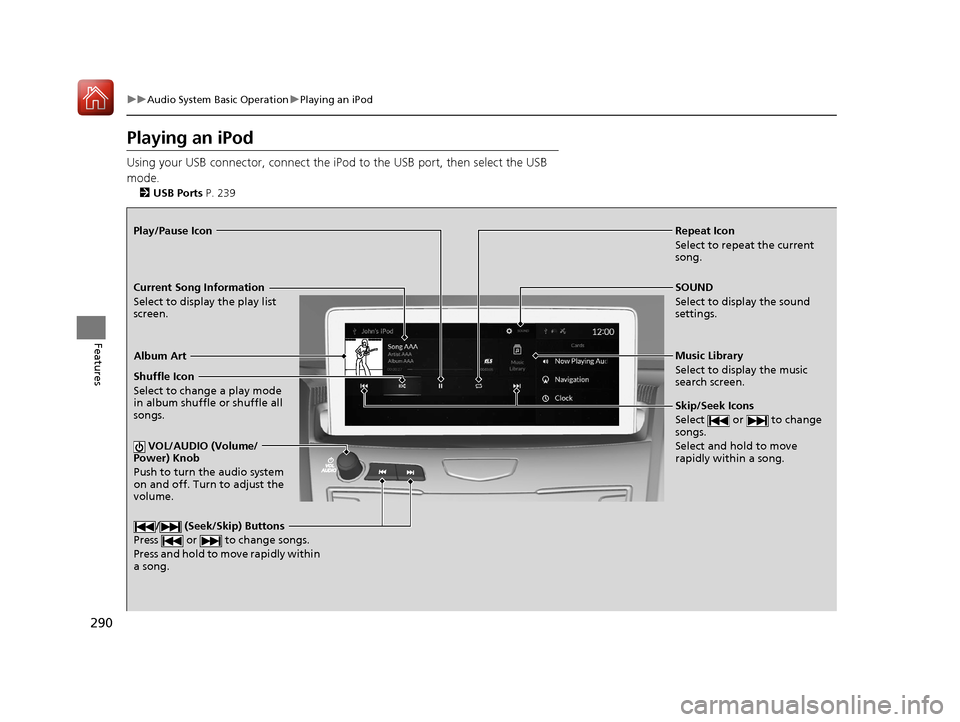
Playing an iPod
Using your USB connector, connect the iPod to the USB port, then select the USB
mode.
2 USB Ports P. 239
Repeat Icon
Select to repeat the current
song.
SOUND
Select to display the sound
settings.
Music Library
Select to display the music
search screen.
Skip/Seek Icons
Select or to change
songs.
Select and hold to move
rapidly within a song.
Shuffle Icon
Select to change a play mode
in album shuffle or shuffle all
songs.
VOL/AUDIO (Volume/
Power) Knob
Push to turn the audio system
on and off. Turn to adjust the
volume.
/ (Seek/Skip) Buttons
Press or to change songs.
Press and hold to move rapidly within
a song.
Play/Pause Icon
Album Art
Current Song Information
Select to display the play list
screen.
20 ACURA RDX-31TJB6111.book 290 ページ 2020年2月11日 火曜日 午後2時6分
Page 294 of 657
293
uuAudio System Basic Operation uPlaying a USB Flash Drive
Continued
Features
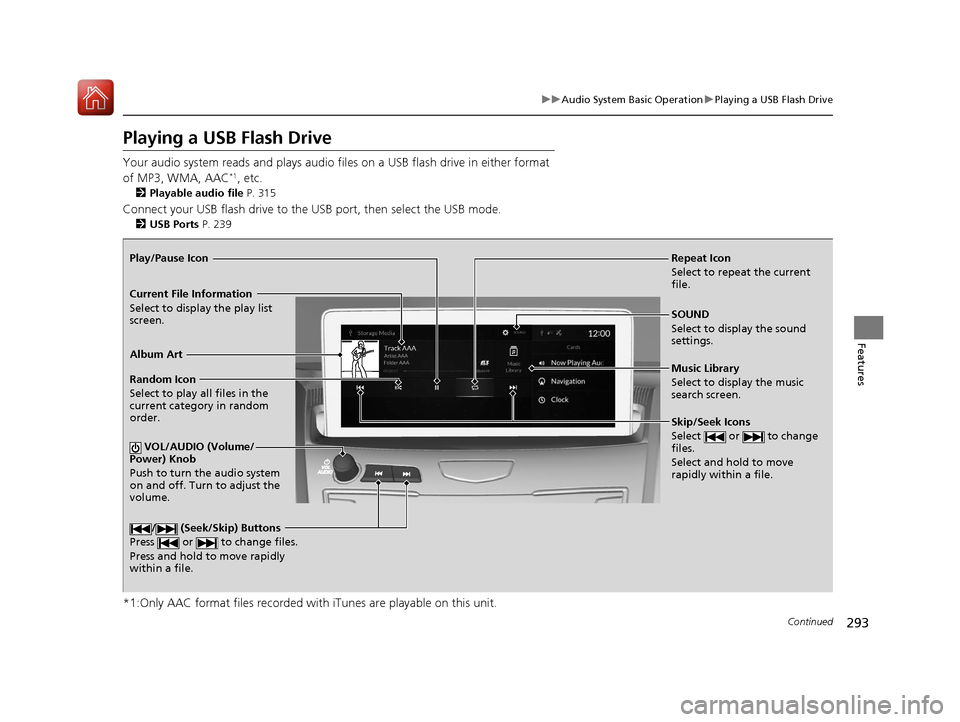
Playing a USB Flash Drive
Your audio system reads and plays audio f iles on a USB flash drive in either format
of MP3, WMA, AAC*1, etc.
2 Playable audio file P. 315
Connect your USB flash drive to the USB port, then select the USB mode.
2USB Ports P. 239
*1:Only AAC format files recorded with iTunes are playable on this unit.
Repeat Icon
Select to repeat the current
file.
SOUND
Select to display the sound
settings.
Music Library
Select to display the music
search screen.
Skip/Seek Icons
Select or to change
files.
Select and hold to move
rapidly within a file.
Random Icon
Select to play all files in the
current category in random
order.
VOL/AUDIO (Volume/
Power) Knob
Push to turn the audio system
on and off. Turn to adjust the
volume.
/ (Seek/Skip) Buttons
Press or to change files.
Press and hold to move rapidly
within a file.
Play/Pause Icon
Album Art
Current File Information
Select to display the play list
screen.
20 ACURA RDX-31TJB6111.book 293 ページ 2020年2月11日 火曜日 午後2時6分
Page 297 of 657
296
uuAudio System Basic Operation uPlaying Bluetooth ® Audio
Features
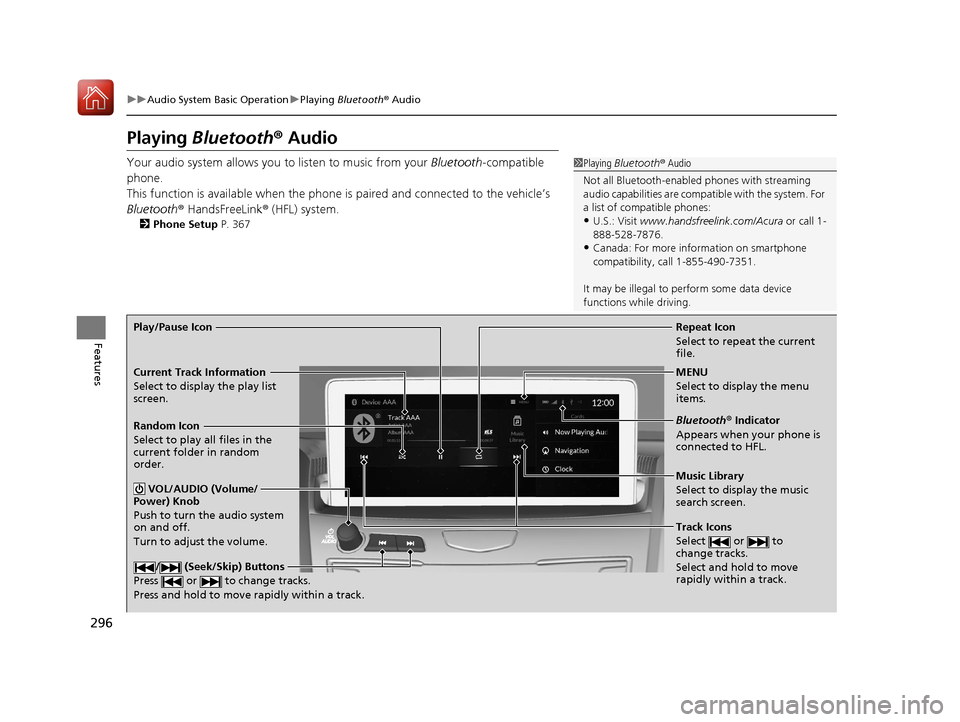
Playing Bluetooth ® Audio
Your audio system allows you to listen to music from your Bluetooth-compatible
phone.
This function is available when the phone is paired and connected to the vehicle’s
Bluetooth ® HandsFreeLink ® (HFL) system.
2 Phone Setup P. 367
1Playing Bluetooth ® Audio
Not all Bluetooth-enabled phones with streaming
audio capabilities are compat ible with the system. For
a list of compatible phones:
•U.S.: Visit www.handsfreelink.com/Acura or call 1-
888-528-7876.
•Canada: For more info rmation on smartphone
compatibility, call 1-855-490-7351.
It may be illegal to perform some data device
functions while driving.
Repeat Icon
Select to repeat the current
file.
Music Library
Select to display the music
search screen.
Track Icons
Select or to
change tracks.
Select and hold to move
rapidly within a track.
Random Icon
Select to play all files in the
current folder in random
order.
VOL/AUDIO (Volume/
Power) Knob
Push to turn the audio system
on and off.
Turn to adjust the volume.
/ (Seek/Skip) Buttons
Press or to change tracks.
Press and hold to move rapidly within a track.
Play/Pause Icon
MENU
Select to display the menu
items.
Bluetooth® Indicator
Appears when your phone is
connected to HFL.
Current Track Information
Select to display the play list
screen.
20 ACURA RDX-31TJB6111.book 296 ページ 2020年2月11日 火曜日 午後2時6分
Page 339 of 657
338
uuCustomized Features u
Features
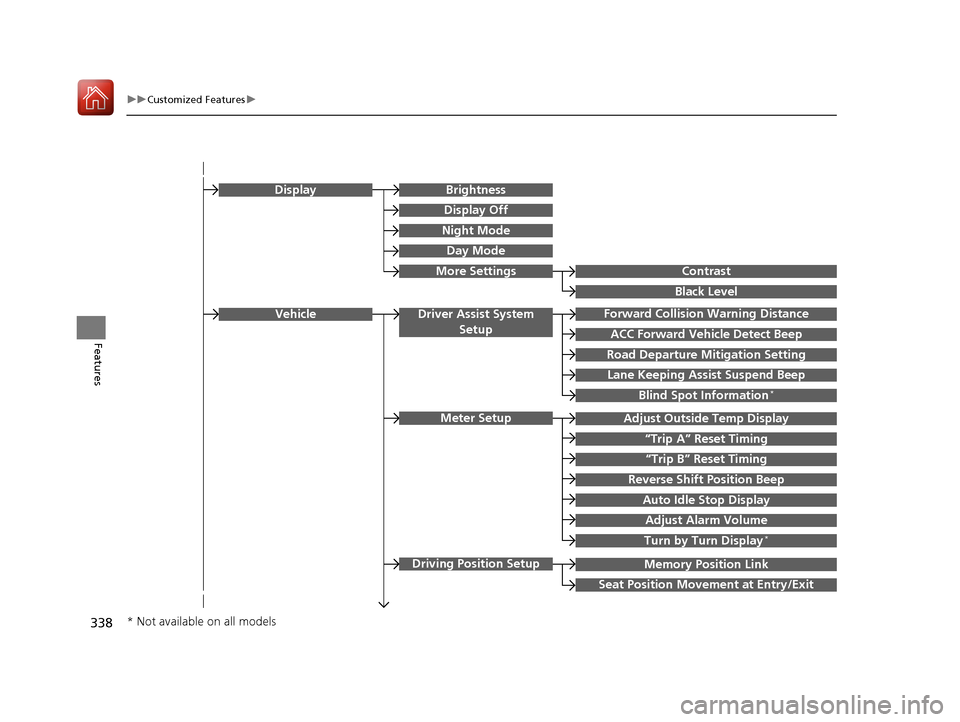
Memory Position Link
“Trip B” Reset Timing
Seat Position Movement at Entry/Exit
Adjust Outside Temp Display
“Trip A” Reset Timing
Meter Setup
Vehicle
Driving Position Setup
Reverse Shift Position Beep
Auto Idle Stop Display
Adjust Alarm Volume
Turn by Turn Display*
Road Departure Mitigation Setting
Forward Collision Warning Distance
ACC Forward Vehicle Detect Beep
Lane Keeping Assist Suspend Beep
Blind Spot Information*
Driver Assist System
Setup
Night Mode
Day Mode
BrightnessDisplay
Contrast
Black Level
More Settings
Display Off
* Not available on all models
20 ACURA RDX-31TJB6111.book 338 ページ 2020年2月11日 火曜日 午後2時6分
Page 343 of 657
342
uuCustomized Features u
Features
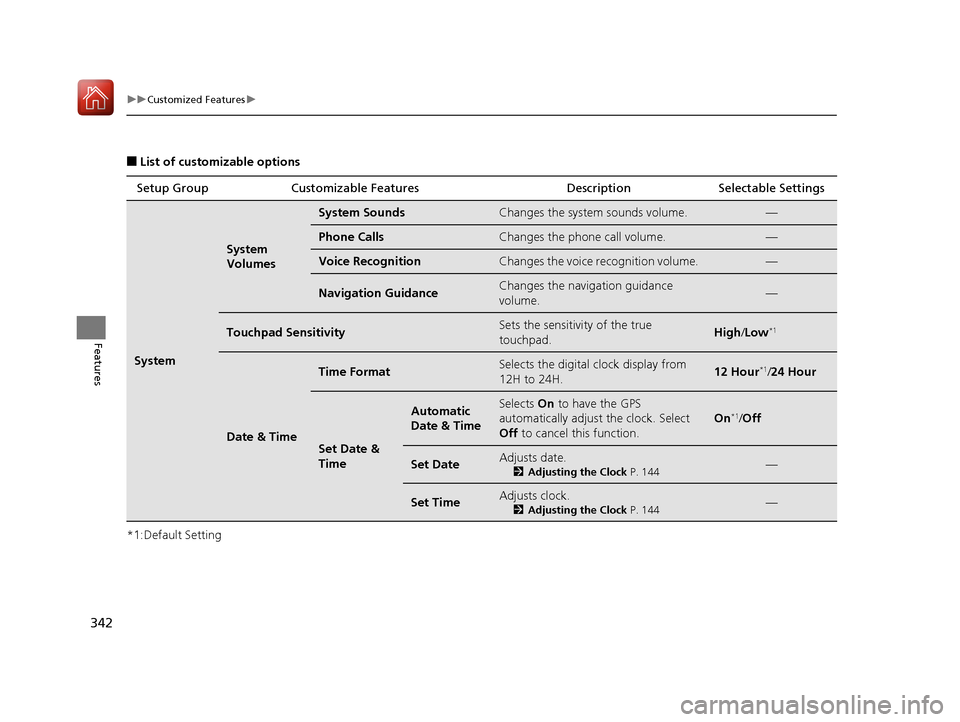
■List of customizable options
*1:Default Setting Setup Group Customizable Features Description Selectable Settings
System
System
Volumes
System SoundsChanges the system sounds volume.—
Phone CallsChanges the phone call volume.—
Voice RecognitionChanges the voice recognition volume.—
Navigation GuidanceChanges the navigation guidance
volume.—
Touchpad SensitivitySets the sensitivity of the true
touchpad.High
/Low*1
Date & Time
Time FormatSelects the digital clock display from
12H to 24H.12 Hour*1/ 24 Hour
Set Date &
Time
Automatic
Date & TimeSelects On to have the GPS
automatically adjust the clock. Select
Off to cancel this function.
On*1/Off
Set DateAdjusts date.
2 Adjusting the Clock P. 144—
Set TimeAdjusts clock.
2Adjusting the Clock P. 144—
20 ACURA RDX-31TJB6111.book 342 ページ 2020年2月11日 火曜日 午後2時6分