ECO mode ACURA RDX 2022 Workshop Manual
[x] Cancel search | Manufacturer: ACURA, Model Year: 2022, Model line: RDX, Model: ACURA RDX 2022Pages: 709, PDF Size: 25.22 MB
Page 213 of 709

211
uuOperating the Switches Around the Steering Wheel uDriving Position Memory System
Controls
1. Set the power mode to ON. Adjust the
driver’s seat and the door mirrors to the
desired position.
2. Press the SET button.
u The memory button indicator light will
blink.
3. Press and hold memory button
(1 or (2
within five seconds of pressing the SET
button.
u Once the seat and the door mirror
positions have been memorized, the
indicator light on the button you pressed
stays on and you will hear the double-
beep.
1. Put the transmission into
(P.
2. Apply the parking brake.
3. Press a memory button (
(1 or (2).
u The indicator light will blink.
The seat and the door mirrors will
automatically move to the memorized
positions. When they have finished moving,
the indicator light stays on.
■Storing a Position in Memory1 Storing a Position in Memory
After you press the SET button, the storing operation
will be canceled when:
•You do not press the memory button within five
seconds.
•You readjust the seat or the door mirror position
before the double-beep.
•You set the power mode to any position except
ON.
•You press the mode selector up or down.
Models with mode selector
Memory
Button 1
Memory
Button 2
SET Button
■Recalling the Stored Position1 Recalling the Stored Position
The seat and the door mirror s will stop moving if you:
•Press the SET button or memory button (1 or (2.
•Adjust the seat position or door mirrors.•Put the transmission into a position other than (P.
•Press the mode selector up or down.
Models with mode selector
Memory
Button 1
Memory
Button 2
22 ACURA RDX-31TJB6300.book 211 ページ 2021年8月2日 月曜日 午前11時0分
Page 218 of 709

216
Controls
Seats
Front Seats
Adjust the driver’s seat as far back as possible
while allowing you to maintain full control of
the vehicle. You should be able to sit upright,
well back in the seat and be able to
adequately press the pedals without leaning
forward, and grip the steering wheel
comfortably. The passenger’s seat should be
adjusted in a similar manner, so that it is as far
back from the front airbag in the dashboard
as possible.
■Adjusting the front power seats
1Seats
Always make seat adjustments before driving.
1Front Seats
The National Highway Traffic Safety Administration
and Transport Cana da recommend that drivers allow
at least 10 inches (25 cm) between the center of the
steering wheel and the chest.
3WARNING
Sitting too close to a front airbag can result
in serious injury or death if the front
airbags inflate.
Always sit as far back from the front
airbags as possible while maintaining
control of the vehicle.
Move back.
Allow sufficient
space.
■Adjusting the Seat Positions
Horizontal Position
Adjustment
Height Adjustment Seat-back Angle
Adjustment Mode Selector
*
2 Seat Control
Interface* P. 218
* Not available on all models
22 ACURA RDX-31TJB6300.book 216 ページ 2021年8月2日 月曜日 午前11時0分
Page 232 of 709

230
Controls
Interior Convenience Items
Interior Lights
■ON
The interior lights come on regardless of
whether the tailgate and doors are open or
closed.
■Door activated
The interior lights come on in the following
situations:
• When the tailgate or any doors are opened.
• You unlock the driver’s door.
• When the power mode is set to VEHICLE
OFF (LOCK).
■OFF
The interior lights remain off regardless of
whether the tailgate or any doors are open or
closed.
■Interior Light Switches1 Interior Light Switches
In the door activated position, the interior lights fade
out and go off about 30 se conds after the doors are
closed.
The lights go off after about 30 seconds in the
following situations:
•When you unlock the driver’s door but do not open
it.
•When you set the power mode to VEHICLE OFF
(LOCK) but do not open a door.
You can change the interi or lights dimming time.
2 Customized Features P. 359
The interior lights go off im mediately in the following
situations:
•When you lock the driver’s door.•When you close the driver’s door in ACCESSORY
mode.
•When you set the power mode to ON.
To avoid draining the ba ttery, do not leave the
interior light on for an extended length of time when
the engine is off.
If you leave any of the tailgate or doors open in
VEHICLE OFF (LOCK) mode, th e interior lights go off
after about 15 minutes.
Door Activated Position
OFF
ON
22 ACURA RDX-31TJB6300.book 230 ページ 2021年8月2日 月曜日 午前11時0分
Page 242 of 709

uuInterior Convenience Items uOther Interior Convenience Items
240
Controls
To use the wireless charger, the power mode must be in ACCESSORY or ON.
Charge any devices compatible with Qi wi reless charging on the area indicated by
the mark as follows:
1.To turn the system on and off, press and
hold the (power) button.
u When the system is activated, the green
indicator light comes on.
2. Place the device you want to charge on the
charging area.
u The system will automatically start
charging the device and the amber
indicator light will come on.
u Make sure that the device is compatible
with the system and placed with the
chargeable side in the center of the
charging area.
3. When charging is completed, the green
indicator light will come on.
u Depending on the device, the amber
indicator light will stay on.
■Wireless Charger*1Wireless Charger*
RF Radiation Exposure Statement:
This equipment complies with FCC RF Radiation
exposure limits set forth for an uncontrolled
environment. This device an d its antenna must not be
co-located or operating in conjunction with any other
antenna or transmitter.
In order to use safely:
•Remove any metal objects from the charge pad
before charging a device.
•Do not open the charger case.
•Do not use the charger if it malfunctions. Contact
your dealer.
If the charger interferes with radio communications,
attempt to correct the interference:
•Press and hold the switch on the charger for a few
seconds to turn off the charger.
appears on the audio/information screen when
the device is being charge d by the wireless charger.Charging Area
(Power)
Button
Amber
Indicator
Green Indicator
* Not available on all models
22 ACURA RDX-31TJB6300.book 240 ページ 2021年8月2日 月曜日 午前11時0分
Page 244 of 709

uuInterior Convenience Items uOther Interior Convenience Items
242
Controls
1Wireless Charger*
The wireless charger can support up to 15W, but the
charging rate varies base d on the device and other
conditions.
NOTICE
Do not place any magneti c recording media or
precision machines within the charging area while
charging.
The data on your cards such as credit cards can be
lost because of the magneti c effect. Also, precision
machines such as watc hes can be affected.
“Qi” and marks are the registered trademarks
owned by Wire less Power Consortium (WPC).
In the following cases, ch arging may stop or not start:
•The device is already fully charged.•The temperature of the device is extremely high
while charging.
•You are at a place that emits strong
electromagnetic waves or noises such as TV station,
electric power plant, or gas station.
•The device has a cover, ca se or accessories which
are not compatible wi th wireless charging.
* Not available on all models
22 ACURA RDX-31TJB6300.book 242 ページ 2021年8月2日 月曜日 午前11時0分
Page 245 of 709

Continued243
uuInterior Convenience Items uOther Interior Convenience Items
Controls
1Wireless Charger*
A device may not charge if the size or shape of its
chargeable side is not a ppropriate for use with the
charging area.
Not all devices are compatible with the system.
During the charging phase, it is normal for the
charging area and de vice to heat up.
Charging may be briefl y interrupted when:
•All the doors or the tailgate are closed
- to avoid interference with the proper functioning
of the keyless access system.
•The position of the device is altered.
Do not charge more than one device at a time on a
charging area.
If the device becomes too hot and its battery
protection function activates, it may charge
extremely slowly or no longer charge. The
temperature at which the battery protection function
activates depends on the device.
* Not available on all models
22 ACURA RDX-31TJB6300.book 243 ページ 2021年8月2日 月曜日 午前11時0分
Page 257 of 709
255
uuAudio System uUSB Ports
Continued
Features
USB Ports
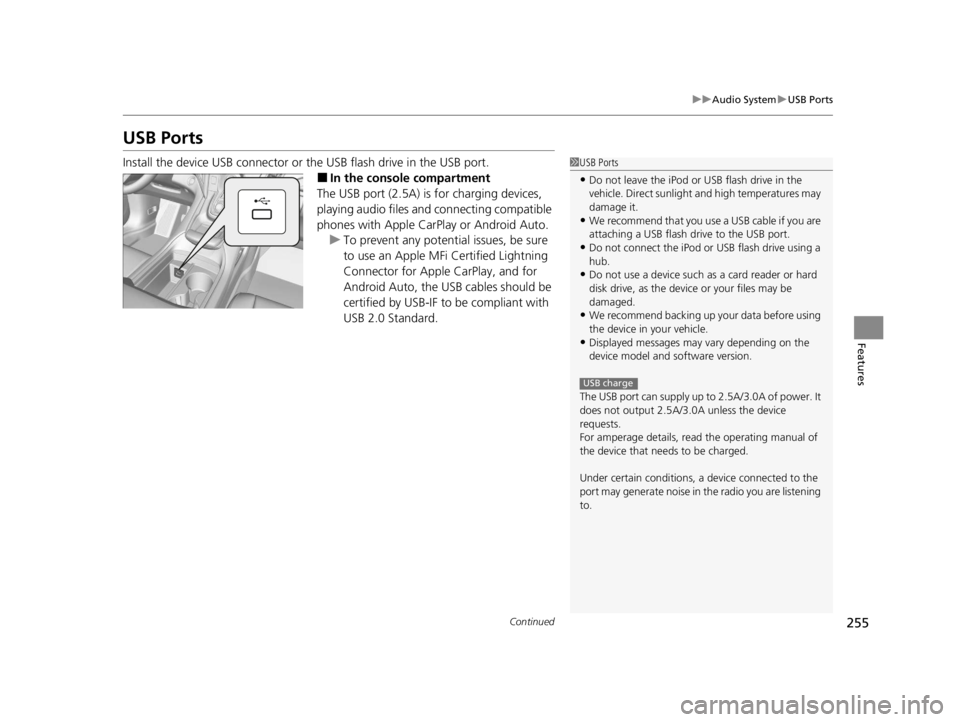
Install the device USB connector or the USB flash drive in the USB port.
■In the consol e compartment
The USB port (2.5A) is for charging devices,
playing audio files and connecting compatible
phones with Apple CarPlay or Android Auto. u To prevent any potenti al issues, be sure
to use an Apple MFi Certified Lightning
Connector for Apple CarPlay, and for
Android Auto, the USB cables should be
certified by USB-IF to be compliant with
USB 2.0 Standard.
1 USB Ports
•Do not leave the iPod or USB flash drive in the
vehicle. Direct sunlight and high temperatures may
damage it.
•We recommend that you us e a USB cable if you are
attaching a USB flash drive to the USB port.
•Do not connect the iPod or USB flash drive using a
hub.
•Do not use a device such as a card reader or hard
disk drive, as the device or your files may be
damaged.
•We recommend backing up yo ur data before using
the device in your vehicle.
•Displayed messages may vary depending on the
device model and software version.
The USB port can supply up to 2.5A/3.0A of power. It
does not output 2.5A/3.0A unless the device
requests.
For amperage details, read the operating manual of
the device that ne eds to be charged.
Under certain condi tions, a device connected to the
port may generate noise in the radio you are listening
to.
USB charge
22 ACURA RDX-31TJB6300.book 255 ページ 2021年8月2日 月曜日 午前11時0分
Page 259 of 709

257
uuAudio System uAudio System Theft Protection
Features
Audio System Theft Protection
The audio system is disabled when it is disconnected from the power source, such as
when the battery is disconnected or goes dead. In certain conditions, the system
may display a code entry screen. If this occurs, reactivate the audio system.
■Reactivating the audio system
1. Set the power mode to ON.
2. Turn on the audio system.
3. Press and hold the audio system powe r knob for more than two seconds.
u The audio system is reac tivated when the audio co ntrol unit establishes a
connection with the vehicl e control unit. If the control unit fails to recognize
the audio unit, you must go to a deal er and have the audio unit checked.
22 ACURA RDX-31TJB6300.book 257 ページ 2021年8月2日 月曜日 午前11時0分
Page 262 of 709
260
Features
Audio System Basic Operation
You can use the audio system for 30 minutes when the power mode is set to
VEHICLE OFF (LOCK) with the driver’s door closed. The system will then turn off
automatically.
If you want to keep using it, we reco mmend that you turn the power mode to
ACCESSORY or ON.
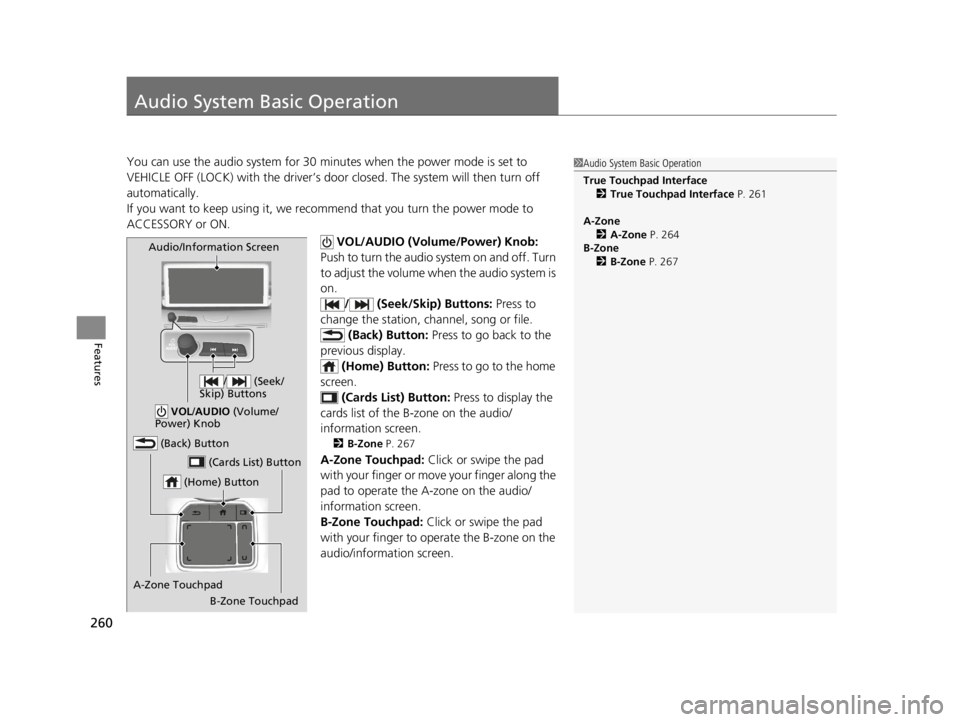
VOL/AUDIO (Volume/Power) Knob:
Push to turn the audio sy stem on and off. Turn
to adjust the volume when the audio system is
on. / (Seek/Skip) Buttons: Press to
change the station, channel, song or file. (Back) Button: Press to go back to the
previous display. (Home) Button: Press to go to the home
screen.
(Cards List) Button: Press to display the
cards list of the B-zone on the audio/
information screen.
2 B-Zone P. 267
A-Zone Touchpad: Click or swipe the pad
with your finger or move your finger along the
pad to operate the A-zone on the audio/
information screen.
B-Zone Touchpad: Click or swipe the pad
with your finger to operate the B-zone on the
audio/information screen.
1 Audio System Basic Operation
True Touchpad Interface
2 True Touchpad Interface P. 261
A-Zone 2 A-Zone P. 264
B-Zone 2 B-Zone P. 267
(Home) Button
(Back) Button
A-Zone Touchpad (Cards List) Button
Audio/Information Screen
/ (Seek/
Skip) Buttons
VOL /AUDIO (Volume/
Power) Knob
B-Zone Touchpad
22 ACURA RDX-31TJB6300.book 260 ページ 2021年8月2日 月曜日 午前11時0分
Page 281 of 709
Continued279
uuAudio System Basic Operation uSmart Shortcuts
Features
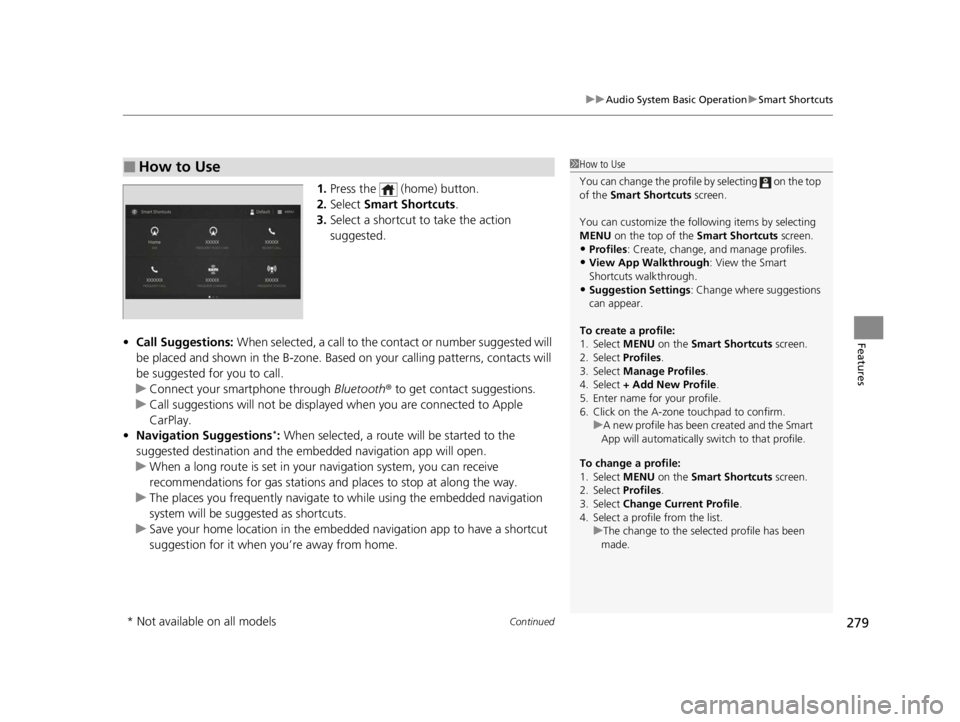
1. Press the (home) button.
2. Select Smart Shortcuts .
3. Select a shortcut to take the action
suggested.
• Call Suggestions: When selected, a call to the cont act or number suggested will
be placed and shown in the B-zone. Base d on your calling patterns, contacts will
be suggested for you to call.
u Connect your smartphone through Bluetooth® to get contact suggestions.
u Call suggestions will not be displayed when you are connected to Apple
CarPlay.
• Navigation Suggestions
*: When selected, a route will be started to the
suggested destination and the embedded navigation app will open.
u When a long route is set in your navigation system, you can receive
recommendations for gas stations an d places to stop at along the way.
u The places you frequently navigate to while using the embedded navigation
system will be suggested as shortcuts.
u Save your home location in the embedded navigation app to have a shortcut
suggestion for it when you’re away from home.
■How to Use1How to Use
You can change the profile by selecting on the top
of the Smart Shortcuts screen.
You can customize the foll owing items by selecting
MENU on the top of the Smart Shortcuts screen.
•Profiles : Create, change, a nd manage profiles.
•View App Walkthrough : View the Smart
Shortcuts walkthrough.
•Suggestion Settings : Change where suggestions
can appear.
To create a profile:
1. Select MENU on the Smart Shortcuts screen.
2. Select Profiles .
3. Select Manage Profiles .
4. Select + Add New Profile .
5. Enter name for your profile.
6. Click on the A-zone touchpad to confirm.
To change a profile:
1. Select MENU on the Smart Shortcuts screen.
2. Select Profiles .
3. Select Change Current Profile .
4. Select a profile from the list. u
A new profile has been created and the Smart
App will automatically switch to that profile.
u The change to the selected profile has been
made.
* Not available on all models
22 ACURA RDX-31TJB6300.book 279 ページ 2021年8月2日 月曜日 午前11時0分