ECO mode ACURA RDX 2022 Repair Manual
[x] Cancel search | Manufacturer: ACURA, Model Year: 2022, Model line: RDX, Model: ACURA RDX 2022Pages: 709, PDF Size: 25.22 MB
Page 304 of 709
uuAudio System Basic Operation uPlaying SiriusXM ® Radio
302
Features
The system can record up to the last 60 minutes broadcast of your currently tuned
channel as well as the last 30 minutes br oadcast of favorite channels, starting from
the moment you turn the vehicle on. If yo u tuned to favorite channel, the system
records up to 60 minutes of a broadcast instead of up to 30 minutes. You can
rewind and replay the last 30 or 60 minutes of a broadcast.
1. Select More.
2. Move the position you want to replay by selecting or .
To play or pause on playback mo de, select the play/pause icon.
■Returning to real-time broadcast
Select and hold or select Live.
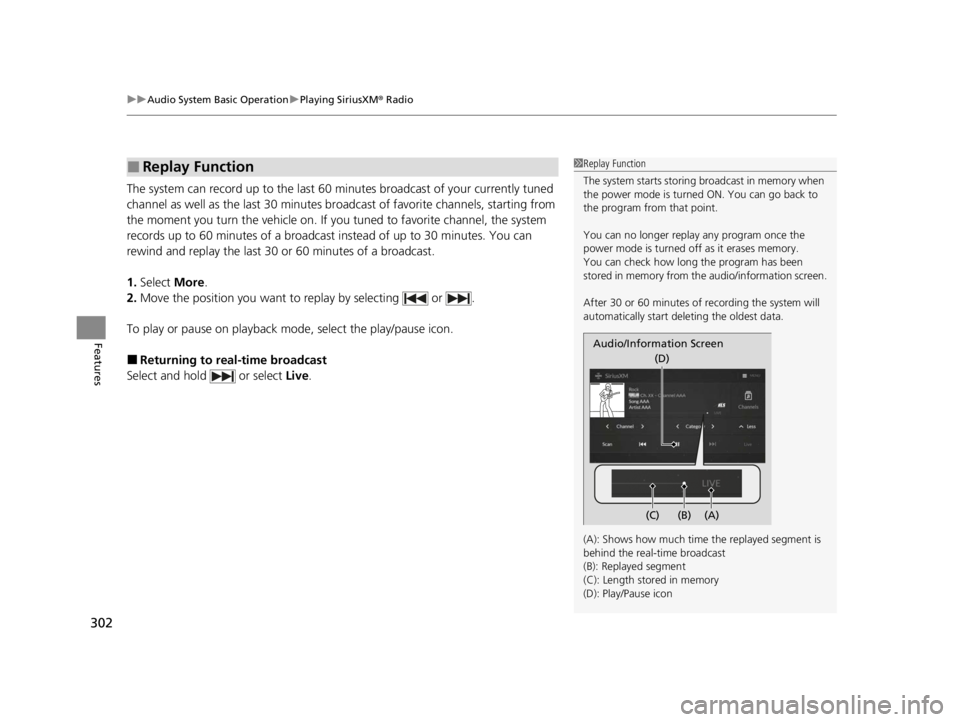
■Replay Function1Replay Function
The system starts storing broadcast in memory when
the power mode is turned ON. You can go back to
the program from that point.
You can no longer repl ay any program once the
power mode is turned off as it erases memory.
You can check how long the program has been
stored in memory from th e audio/information screen.
After 30 or 60 minutes of recording the system will
automatically start deleting the oldest data.
(A): Shows how much time the replayed segment is
behind the real-time broadcast
(B): Replayed segment
(C): Length stored in memory
(D): Play/Pause icon
Audio/Information Screen
(C) (B) (A)(D)
22 ACURA RDX-31TJB6300.book 302 ページ 2021年8月2日 月曜日 午前11時0分
Page 310 of 709
uuAudio System Basic Operation uPlaying SiriusXM ® Radio
308
Features
Sample each channel on the sele cted mode for 10 seconds.
1. Select More.
2. Select Scan.
You can change a scan mode by the following procedure.
1. Select MENU .
2. Select SiriusXM Settings .
3. Select Scan Mode .
4. Select Channels or Favorites .
To turn off scan, select Stop.
■Scan1Scan
The favorites scan func tion is based on TuneScan
TM
technology of SiriusXM ®.
The “Featured Channels ” function is based on
Featured Favorites
TM technology of SiriusXM ®.
TuneScan
TM and Featured FavoritesTM are registered
trademarks of SiriusXM ® Radio, Inc.
22 ACURA RDX-31TJB6300.book 308 ページ 2021年8月2日 月曜日 午前11時0分
Page 313 of 709
Continued311
uuAudio System Basic Operation uPlaying an iPod
Features
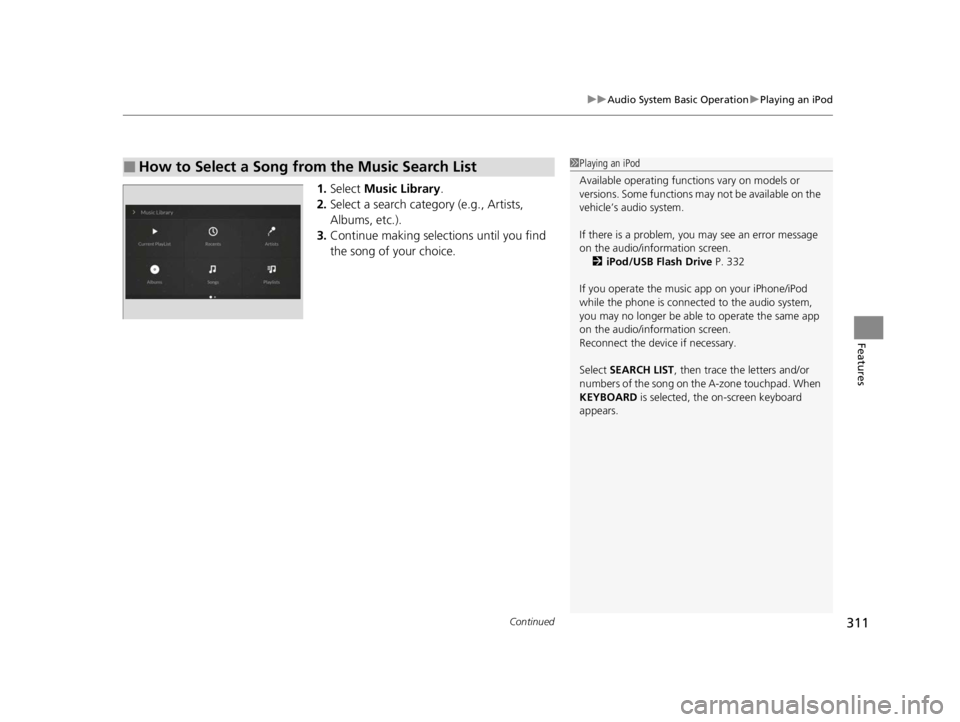
1. Select Music Library .
2. Select a search catego ry (e.g., Artists,
Albums, etc.).
3. Continue making selections until you find
the song of your choice.
■How to Select a Song from the Music Search List1Playing an iPod
Available operating functi ons vary on models or
versions. Some functions ma y not be available on the
vehicle’s audio system.
If there is a problem, you may see an error message
on the audio/information screen. 2 iPod/USB Flash Drive P. 332
If you operate the musi c app on your iPhone/iPod
while the phone is connected to the audio system,
you may no longer be able to operate the same app
on the audio/information screen.
Reconnect the devi ce if necessary.
Select SEARCH LIST, then trace the letters and/or
numbers of the song on the A-zone touchpad. When
KEYBOARD is selected, the on-screen keyboard
appears.
22 ACURA RDX-31TJB6300.book 311 ページ 2021年8月2日 月曜日 午前11時0分
Page 315 of 709
313
uuAudio System Basic Operation uPlaying a USB Flash Drive
Continued
Features
Playing a USB Flash Drive
Your audio system reads and plays audio file s on a USB flash drive in either format
of MP3, WMA, AAC*1, etc.
2 Playable audio file P. 338
Connect your USB flash drive to the USB port, then select the USB mode.
2USB Ports P. 255
*1:Only AAC format files recorded with iTunes are playable on this unit.
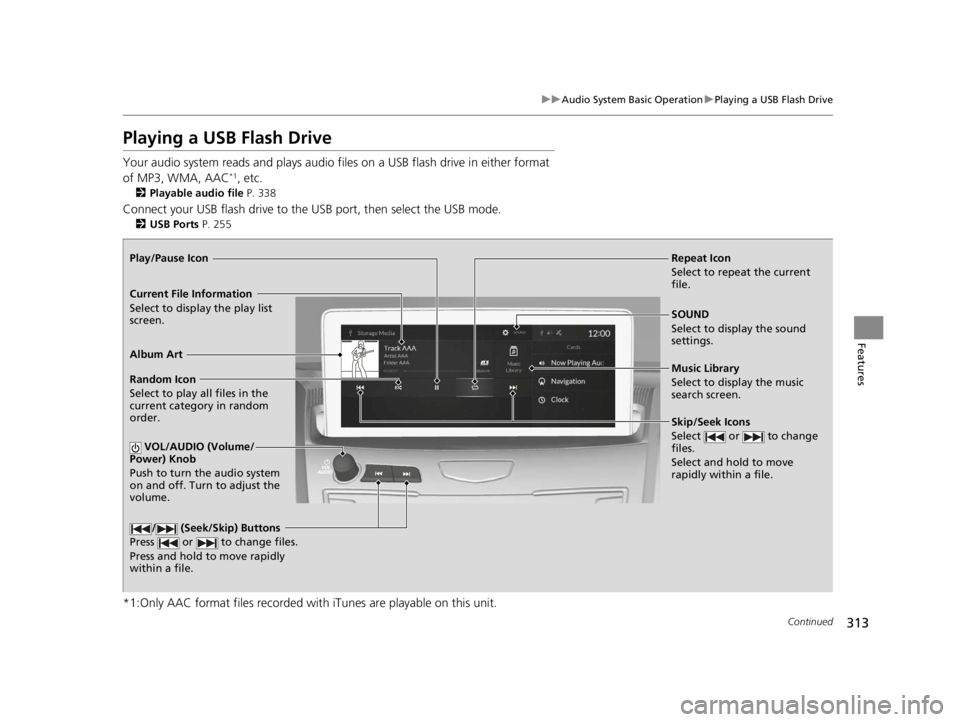
Repeat Icon
Select to repeat the current
file.
SOUND
Select to display the sound
settings.
Music Library
Select to display the music
search screen.
Skip/Seek Icons
Select or to change
files.
Select and hold to move
rapidly within a file.
Random Icon
Select to play all files in the
current category in random
order.
VOL/AUDIO (Volume/
Power) Knob
Push to turn the audio system
on and off. Turn to adjust the
volume.
/ (Seek/Skip) Buttons
Press or to change files.
Press and hold to move rapidly
within a file.
Play/Pause Icon
Album Art
Current File Information
Select to display the play list
screen.
22 ACURA RDX-31TJB6300.book 313 ページ 2021年8月2日 月曜日 午前11時0分
Page 319 of 709
Continued317
uuAudio System Basic Operation uPlaying Bluetooth ® Audio
Features
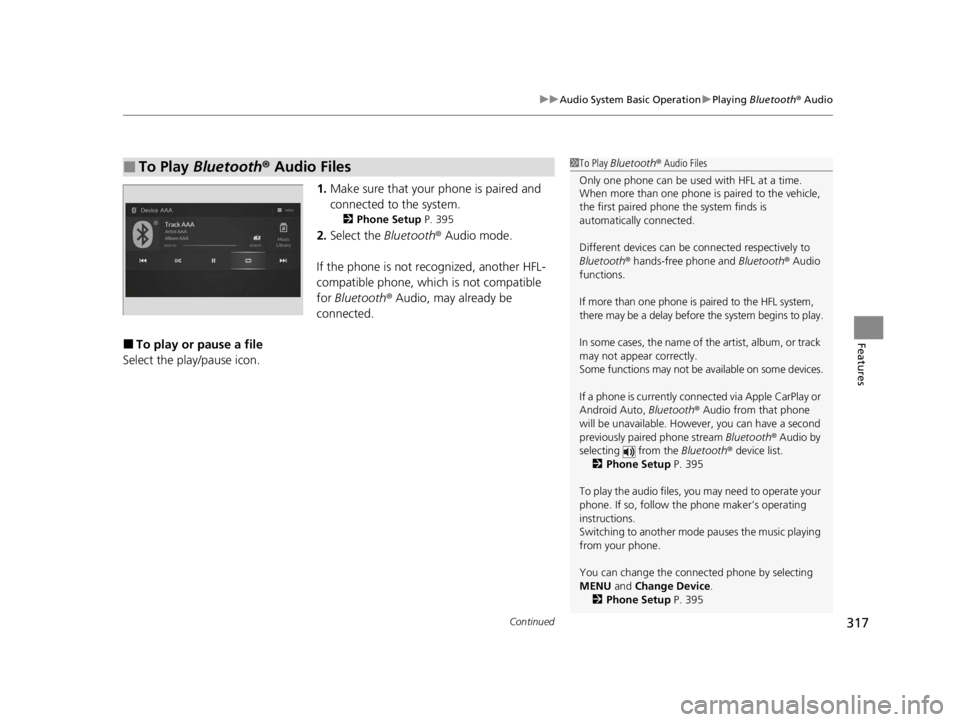
1. Make sure that your phone is paired and
connected to the system.
2 Phone Setup P. 395
2.Select the Bluetooth® Audio mode.
If the phone is not recognized, another HFL-
compatible phone, which is not compatible
for Bluetooth ® Audio, may already be
connected.
■To play or pause a file
Select the play/pause icon.
■To Play Bluetooth® Audio Files1To Play Bluetooth ® Audio Files
Only one phone can be used with HFL at a time.
When more than one phone is paired to the vehicle,
the first paired phone the system finds is
automatically connected.
Different devices can be co nnected respectively to
Bluetooth ® hands-free phone and Bluetooth® Audio
functions.
If more than one phone is paired to the HFL system,
there may be a delay before the system begins to play.
In some cases, the name of the artist, album, or track
may not appear correctly.
Some functions may not be available on some devices.
If a phone is currently conne cted via Apple CarPlay or
Android Auto, Bluetooth® Audio from that phone
will be unavailable. Howe ver, you can have a second
previously paired phone stream Bluetooth® Audio by
selecting from the Bluetooth® device list.
2 Phone Setup P. 395
To play the audio files, y ou may need to operate your
phone. If so, follow the phone maker’s operating
instructions.
Switching to another mode pauses the music playing
from your phone.
You can change the connected phone by selecting
MENU and Change Device.
2 Phone Setup P. 395
22 ACURA RDX-31TJB6300.book 317 ページ 2021年8月2日 月曜日 午前11時0分
Page 379 of 709

377
uuCustomized Features u
Continued
Features*1:Default SettingSetup Group
Customizable Features DescriptionSelectable Settings
VehicleMeter Setup Speed Limit Information Select whether the speed limit
information source is camera located
behind the rearview mirror or the
navigation system. You can also turn
off speed limit information. Traffic Sign
Recognition
*1/
Navigation /Off
Speed Limit Information Selects whether the speed limit
information should be displayed on
head-up display
*/meter.
On
*1/
Off
Models with navigation system
Models without navigation system
* Not available on all models
22 ACURA RDX-31TJB6300.book 377 ページ 2021年8月2日 月曜日 午前11時0分
Page 392 of 709
uuBluetooth ® HandsFreeLink ®u Using HFL
390
Features
Left Selector Wheel:
• Incoming call: Move the selector wheel to the ri ght to answer the call. Move it
to the left to decline the call.
• During a call: Move the selector wheel to the ri ght to display the call options
menu. Move it to the left to end the call.
• (back) button: Press the button to go back to the previous screen or to
cancel a command.
• (talk) button: Press the button to st art voice recognition.
To go to the phone screen of the multi-in formation display or the head-up display
*:
1. Press the APPS button on the steering wheel.
2. Using the selector wheel, scroll to Phone on the multi-information display or the
head-up display
*, and then press the left selector wheel.
u You can select Favorites or Recents by moving the selector wheel to the left
or the right.
1 Bluetooth ® HandsFreeLink ®
Bluetooth ® Wireless Technology
The Bluetooth ® word mark and logos are registered
trademarks owned by Bluetooth SIG, Inc., and any
use of such marks by Honda Motor Co., Ltd., is under
license. Other trademarks and trade names are those
of their respective owners.
HFL Limitations
An incoming call on HFL will interrupt the audio
s y s t e m wh e n it is p la y i n g . It wi ll r e s u m e w h en t h e c a l l
is ended.
* Not available on all models
22 ACURA RDX-31TJB6300.book 390 ページ 2021年8月2日 月曜日 午前11時0分
Page 398 of 709
uuBluetooth ® HandsFreeLink ®u HFL Menus
396
Features
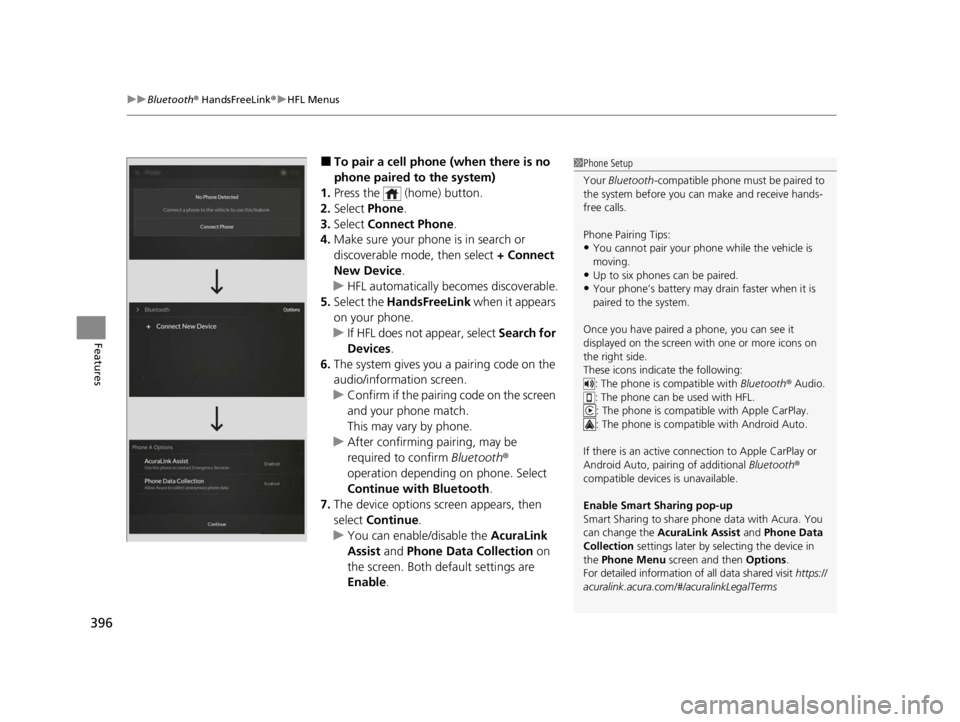
■To pair a cell phone (when there is no
phone paired to the system)
1. Press the (home) button.
2. Select Phone .
3. Select Connect Phone .
4. Make sure your phone is in search or
discoverable mode, then select + Connect
New Device .
u HFL automatically becomes discoverable.
5. Select the HandsFreeLink when it appears
on your phone.
u If HFL does not appear, select Search for
Devices.
6. The system gives you a pairing code on the
audio/information screen.
u Confirm if the pairing code on the screen
and your phone match.
This may vary by phone.
u After confirming pairing, may be
required to confirm Bluetooth®
operation depending on phone. Select
Continue with Bluetooth.
7. The device options screen appears, then
select Continue .
u You can enable/disable the AcuraLink
Assist and Phone Data Collection on
the screen. Both default settings are
Enable .1Phone Setup
Your Bluetooth -compatible phone must be paired to
the system before you ca n make and receive hands-
free calls.
Phone Pairing Tips:
•You cannot pair your phone while the vehicle is
moving.
•Up to six phones can be paired.
•Your phone’s battery may dr ain faster when it is
paired to the system.
Once you have paired a phone, you can see it
displayed on the screen with one or more icons on
the right side.
These icons indicate the following: : The phone is compatible with Bluetooth ® Audio.
: The phone can be used with HFL.
: The phone is compatib le with Apple CarPlay.
: The phone is compatible with Android Auto.
If there is an active connection to Appl e CarPlay or
Android Auto, pairing of additional Bluetooth®
compatible devices is unavailable.
Enable Smart Sharing pop-up
Smart Sharing to share phone data with Acura. You
can change the AcuraLink Assist and Phone Data
Collection settings later by se lecting the device in
the Phone Menu screen and then Options .
For detailed information of all data shared visit https://
acuralink.acura.com/#/acuralinkLegalTerms
22 ACURA RDX-31TJB6300.book 396 ページ 2021年8月2日 月曜日 午前11時0分
Page 428 of 709

uuAcuraLink ®u
426
Features
Your subscribed telematics service provider can check your vehicle’s condition. For
maximum functionality, download AcuraLin k app in your smartphone and connect
it with the vehicle.
■Automatic Collision Notifications
A live agent will reach out and check on you and request that help be sent in the
event of a crash.
■Send Destination
Search for destinations on your phone and in stantly beam turn-by-turn directions to
your navigation system
*. Requires In-vehicle Navigation System*.
■Stolen Vehicle Locator
In the event of a stolen vehicle, your vehi cle will help local authorities recover it.
■Remote Start & Stop
Arrive at your vehicle with the engine warmed up and the interior set to a
comfortable temperature.
■Remote Lock & Unlock
Lock and unlock your vehicle with your smartphone.
■Find My Car
Find your parked vehicle and flash/sound your horns remotely using your
smartphone.
■Connection Features1 Connection Features
The contact information of your provider, your user
ID and PIN will be given when you subscribe to
AcuraLink. If you forget any of the above, contact a
Acura dealer, or go to owners.acura.com (U.S.) or
www.acura.ca/owners/acuralink (Canada).
You can also activate the remote door lock/unlock
and vehicle finder features from the Internet or using
your smartphone app. As k a dealer, or visit
owners.acura.com (U.S.) or www.acura.ca/owners/
acuralink (Canada) for details.
1Find My Car
The lights will stop flas hing and horn will stop
sounding under the following:
•When conditions 30 seconds have elapsed.
•You unlock the doors using the remote transmitter.
•You unlock the doors using the keyless access
system.
•You unlock the doors using the built-in key.
•The power mode is set to ACCESSORY or ON.
* Not available on all models
22 ACURA RDX-31TJB6300.book 426 ページ 2021年8月2日 月曜日 午前11時0分
Page 431 of 709

429
Driving
This chapter discusses driving and refueling.
Before Driving................................... 430
Towing a Trailer ................................ 435
Off-Highway Driving Guidelines ..... 441
When Driving Starting the Engine .......................... 443
Precautions While Driving................. 449
Automatic Transmission ................... 450
Shifting ............................................ 451
Acura Integrated Dynamics System... 459
Auto Idle Stop .................................. 464
Vehicle Stability AssistTM (VSA®), aka Electronic
Stability Control (ESC), System ................. 471
Agile Handling Assist ....................... 473 Super Handling-All Wheel Drive
TM (SH-
AWD® )*......................................... 474
Tire Pressure Monitoring System (TPMS)
with Tire Fill Assist .......................... 475
Tire Pressure Monitoring System (TPMS) - Required Federal Explanation ......... 477
Blind Spot Information System ......... 479
AcuraWatch
TM................................... 483
Collision Mitigati on Braking SystemTM
(CMBSTM) ....................................... 486
Low Speed Braking Control*............ 497
Adaptive Cruise Control (ACC) with Low
Speed Follow ................................. 502 Lane Keeping Assist System (LKAS) .. 522
Road Departure Miti
gation System... 530
Traffic Sign Recognition System ....... 535
Front Sensor Camera ....................... 541
Radar Sensor ................................... 543
Sonar Sensors
*................................ 544
Braking .............................................. 545
Parking Your Vehicle ........................ 554
Multi-View Rear Camera
*................ 564
Surround View Camera System*..... 566
Refueling ........................................... 574
Fuel Economy and CO
2 Emissions .... 577
Turbo Engine Vehicle ....................... 578
* Not available on all models
22 ACURA RDX-31TJB6300.book 429 ページ 2021年8月2日 月曜日 午前11時0分