change time ACURA RDX 2023 User Guide
[x] Cancel search | Manufacturer: ACURA, Model Year: 2023, Model line: RDX, Model: ACURA RDX 2023Pages: 713, PDF Size: 21.99 MB
Page 206 of 713

204
uuOperating the Switches Around the Steering Wheel uWipers and Washers
Controls
Wipers and Washers
The windshield wipers and washers can be
used when the power mode is in ON.
■MIST
The wipers run at high speed until you release
the lever.
■Wiper switch (OFF, INT*1/AUTO*2, LO, HI)
Move the lever up or down to change the
wiper settings.
■Adjusting wiper operation*
Turn the adjustment ring to adjust the wiper
operation.
■Washer
Sprays while you pull the lever toward you.
When you release the lever for more than one
second, the spray stops, the wipers sweep two
or three more times to clear the windshield,
then stop.
*1 : Models with manual intermittent operation
*2 : Models with automatic intermittent operation
■Windshield Wipers/Washers1 Wipers and Washers
NOTICE
Do not use the wipers when the windshield is dry.
The windshield will get sc ratched, or the rubber
blades will get damaged.
NOTICE
Turn the washers off if no washer fluid comes out.
The pump may get damaged.
The wiper motor may stop motor operation
temporarily to prevent an overload. Wiper operation
will return to normal within a few minutes.
If the vehicle speeds up while the wipers are
operating intermittently, the length of the wipe
interval shortens.
When the vehicle speeds up, the wiper operation’s
shortest delay setting ( ) and the LO setting become
the same.
NOTICE
In cold weather, the blades may freeze to the
windshield.
Operating the wipers in th is condition may damage
the wipers. Use the defogge r or heated windshield
*
to warm the windshield, then turn the wipers on.
Models without automatic intermittent wipers
Intermittent Time
Adjustment Ring*
MIST
INT*1/AUTO*2OFF
LO: Low speed wipe
HI: High speed wipe Pull to
use
washer.
Lower speed, fewer sweeps
Higher speed, more sweeps
* Not available on all models
23 ACURA RDX-31TJB6400.book 204 ページ 2022年8月4日 木曜日 午後1時51分
Page 232 of 713
230
Controls
Interior Convenience Items
Interior Lights
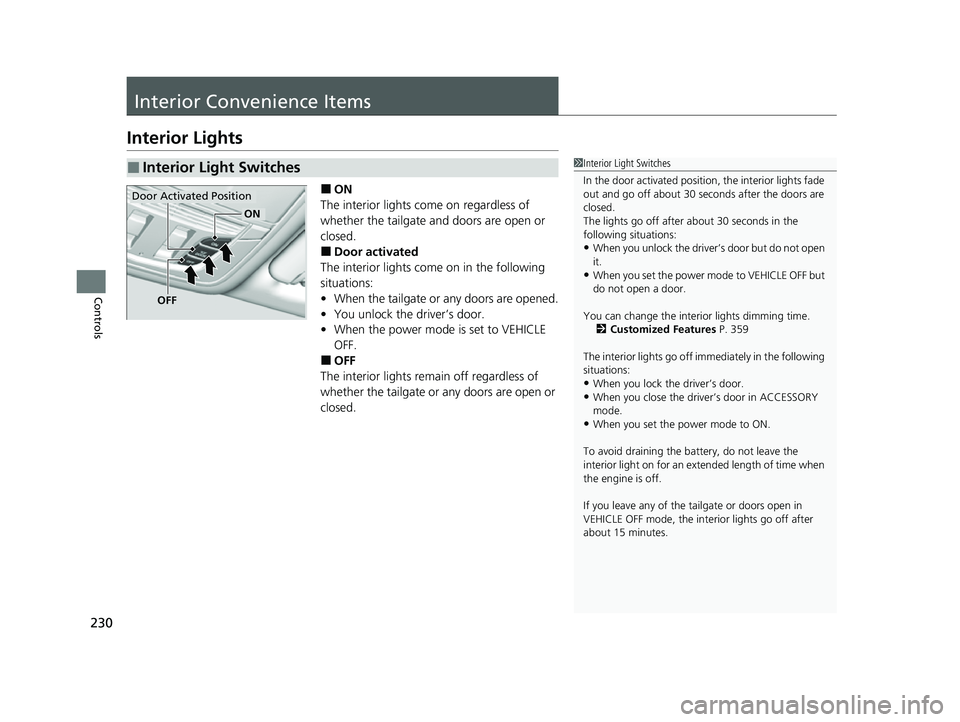
■ON
The interior lights come on regardless of
whether the tailgate and doors are open or
closed.
■Door activated
The interior lights come on in the following
situations:
• When the tailgate or any doors are opened.
• You unlock the driver’s door.
• When the power mode is set to VEHICLE
OFF.
■OFF
The interior lights remain off regardless of
whether the tailgate or any doors are open or
closed.
■Interior Light Switches1 Interior Light Switches
In the door activated position, the interior lights fade
out and go off about 30 seconds after the doors are
closed.
The lights go off after about 30 seconds in the
following situations:
•When you unlock the driver’s door but do not open
it.
•When you set the power mode to VEHICLE OFF but
do not open a door.
You can change the interi or lights dimming time.
2 Customized Features P. 359
The interior lights go off im mediately in the following
situations:
•When you lock the driver’s door.•When you close the driver’s door in ACCESSORY
mode.
•When you set the power mode to ON.
To avoid draining the ba ttery, do not leave the
interior light on for an extended length of time when
the engine is off.
If you leave any of the tailgate or doors open in
VEHICLE OFF mode, the inte rior lights go off after
about 15 minutes.
Door Activated Position
OFF
ON
23 ACURA RDX-31TJB6400.book 230 ページ 2022年8月4日 木曜日 午後1時51分
Page 280 of 713
278
uuAudio System Basic Operation uSmart Shortcuts
Features
Smart Shortcuts
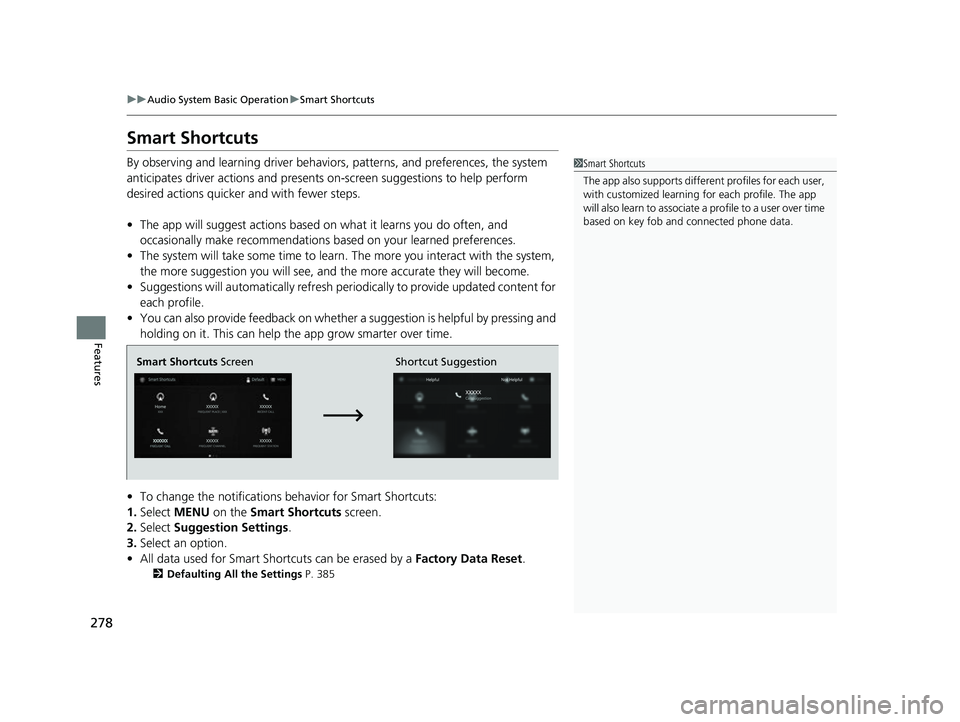
By observing and learning driver behaviors, patterns, and preferences, the system
anticipates driver actions and presents on-screen suggestions to help perform
desired actions quicker and with fewer steps.
• The app will suggest actions based on what it learns you do often, and
occasionally make recommendations based on your learned preferences.
• The system will take some time to learn. The more you interact with the system,
the more suggestion you will see, and the more accurate they will become.
• Suggestions will automatically refresh peri odically to provide updated content for
each profile.
• You can also provide feedback on whether a suggestion is helpful by pressing and
holding on it. This can help the app grow smarter over time.
• To change the notifications behavior for Smart Shortcuts:
1. Select MENU on the Smart Shortcuts screen.
2. Select Suggestion Settings .
3. Select an option.
• All data used for Smart Shortcuts can be erased by a Factory Data Reset.
2Defaulting All the Settings P. 385
1Smart Shortcuts
The app also supports different profiles for each user,
with customized learning for each profile. The app
will also learn to associate a profile to a user over time
based on key fob and connected phone data.
Smart Shortcuts Screen Shortcut Suggestion
23 ACURA RDX-31TJB6400.book 278 ページ 2022年8月4日 木曜日 午後1時51分
Page 292 of 713
290
uuAudio System Basic Operation uVoice Control Operation
Features
Voice Control Operation
Your vehicle has a voice control system that allows hands-free operation.
The voice control system uses the (tal k) and (back) buttons on the steering
wheel and a microphone near the map lights on the ceiling.
To achieve optimum voice recognition when using the voice control system:
• The system recognizes natural language and accepts free-form voice commands.
An example of voice commands:
2 Voice Recognition Screen P. 291
•Close the windows and panoramic roof.
• Adjust the dashboard and side vents so air does not blow onto the microphone
on the ceiling.
• Speak clearly in a clear, natural speaking voice without pausing between words.
• Reduce any background noise if possible. The system may misinterpret your
command if more than one person is speaking at the same time.
■Voice Recognition
1Voice Control Operation
When you press the button, the system beeps and
the display changes to the voice recognition screen.
Press the (home) button, (back) button on
the True Touchpad Interface or APPS button on the
steering wheel to cancel a voice recognition function.
23 ACURA RDX-31TJB6400.book 290 ページ 2022年8月4日 木曜日 午後1時51分
Page 297 of 713
Continued295
uuAudio System Basic Operation uPlaying AM/FM Radio
Features
Lists the strongest stations on the selected band.
1. Select Station List to display a list.
2. Select the station.
■Manual update
Updates your available st ation list at any time.
1. Select Station List to display a list.
2. Select Refresh .
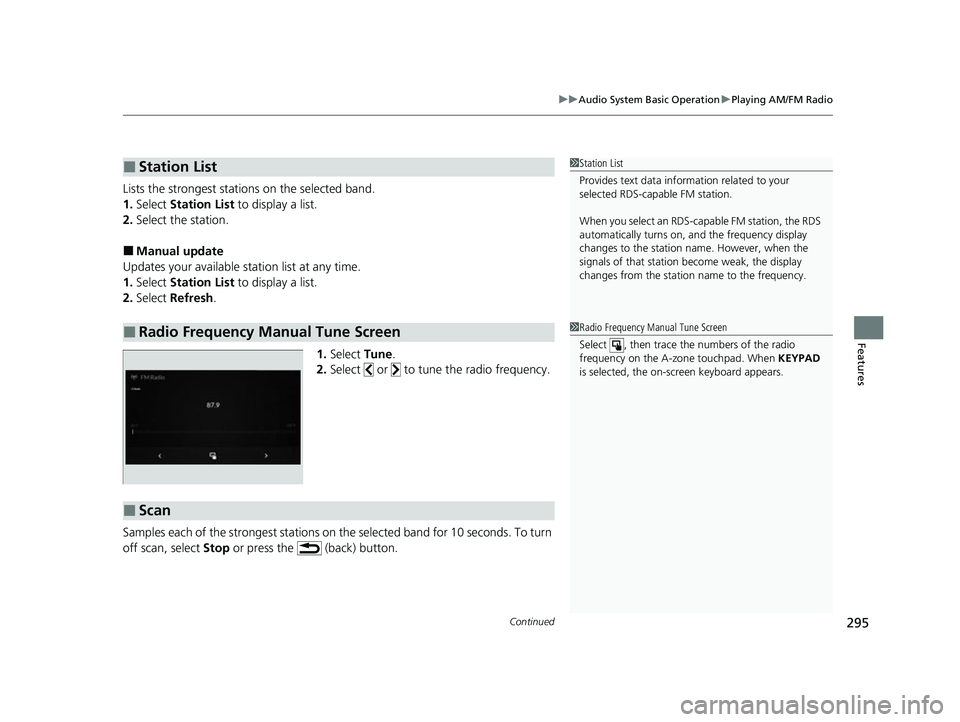
1.Select Tune.
2. Select or to tune the radio frequency.
Samples each of the strongest stations on th e selected band for 10 seconds. To turn
off scan, select Stop or press the (back) button.
■Station List
■Radio Frequency Manual Tune Screen
1Station List
Provides text data info rmation related to your
selected RDS-capable FM station.
When you select an RDS-capable FM station, the RDS
automatically turns on, and the frequency display
changes to the station name. However, when the
signals of that station become weak, the display
changes from the statio n name to the frequency.
1Radio Frequency Manual Tune Screen
Select , then trace the numbers of the radio
frequency on the A-zone touchpad. When KEYPAD
is selected, the on-screen keyboard appears.
■Scan
23 ACURA RDX-31TJB6400.book 295 ページ 2022年8月4日 木曜日 午後1時51分
Page 299 of 713
297
uuAudio System Basic Operation uPlaying SiriusXM ® Radio
Continued
Features
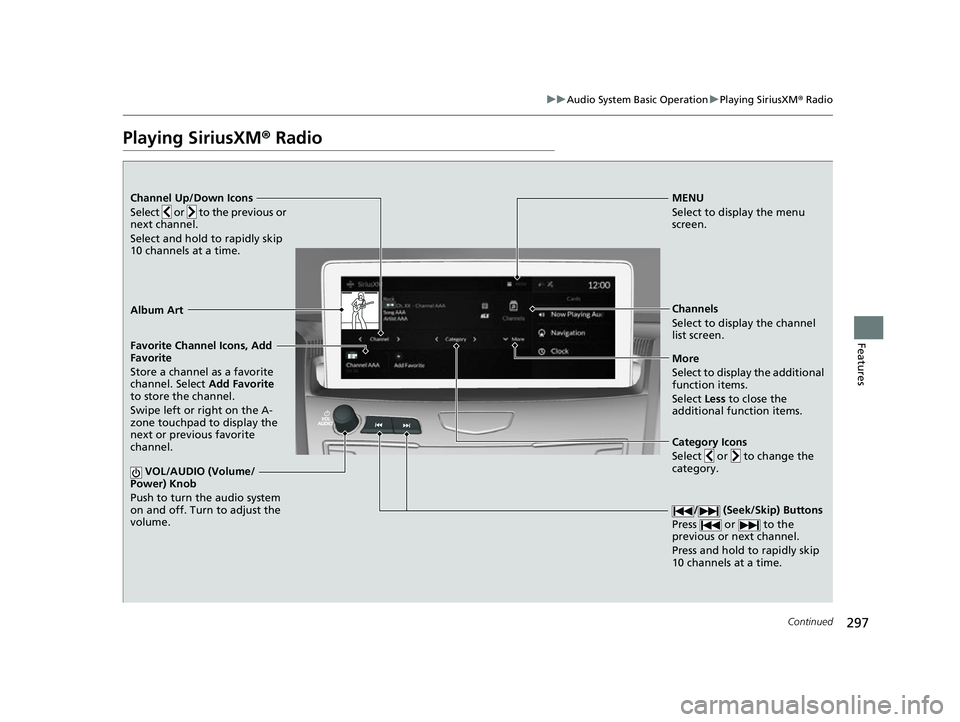
Playing SiriusXM® Radio
Channel Up/Down Icons
Select or to the previous or
next channel.
Select and hold to rapidly skip
10 channels at a time.MENU
Select to display the menu
screen.
Channels
Select to display the channel
list screen.
More
Select to display the additional
function items.
Select Less to close the
additional function items.
Favorite Channel Icons, Add
Favorite
Store a channel as a favorite
channel. Select
Add Favorite
to store the channel.
Swipe left or right on the A-
zone touchpad to display the
next or previous favorite
channel.
VOL/AUDIO (Volume/
Power) Knob
Push to turn the audio system
on and off. Turn to adjust the
volume.
/ (Seek/Skip) Buttons
Press or to the
previous or next channel.
Press and hold to rapidly skip
10 channels at a time.
Album Art
Category Icons
Select or to change the
category.
23 ACURA RDX-31TJB6400.book 297 ページ 2022年8月4日 木曜日 午後1時51分
Page 308 of 713
uuAudio System Basic Operation uPlaying SiriusXM ® Radio
306
Features
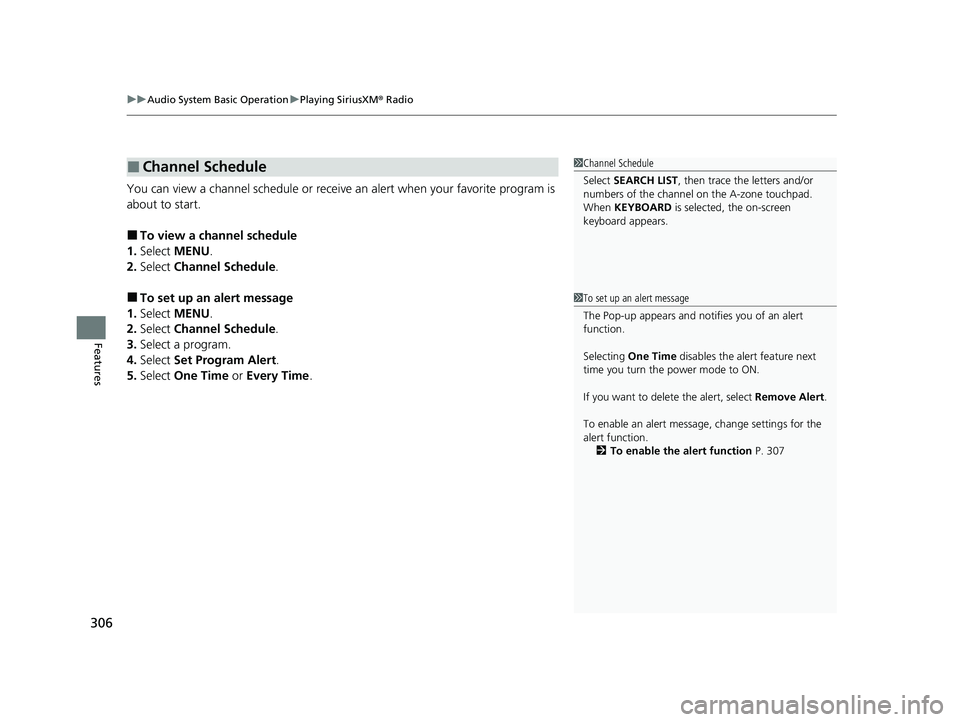
You can view a channel schedule or receive an alert when your favorite program is
about to start.
■To view a channel schedule
1. Select MENU .
2. Select Channel Schedule .
■To set up an alert message
1. Select MENU .
2. Select Channel Schedule .
3. Select a program.
4. Select Set Program Alert .
5. Select One Time or Every Time .
■Channel Schedule1Channel Schedule
Select SEARCH LIST , then trace the letters and/or
numbers of the channel on the A-zone touchpad.
When KEYBOARD is selected, the on-screen
keyboard appears.
1 To set up an alert message
The Pop-up appears and not ifies you of an alert
function.
Selecting One Time disables the alert feature next
time you turn the power mode to ON.
If you want to delete the alert, select Remove Alert.
To enable an alert message, change settings for the
alert function. 2 To enable the alert function P. 307
23 ACURA RDX-31TJB6400.book 306 ページ 2022年8月4日 木曜日 午後1時51分
Page 319 of 713
Continued317
uuAudio System Basic Operation uPlaying Bluetooth ® Audio
Features
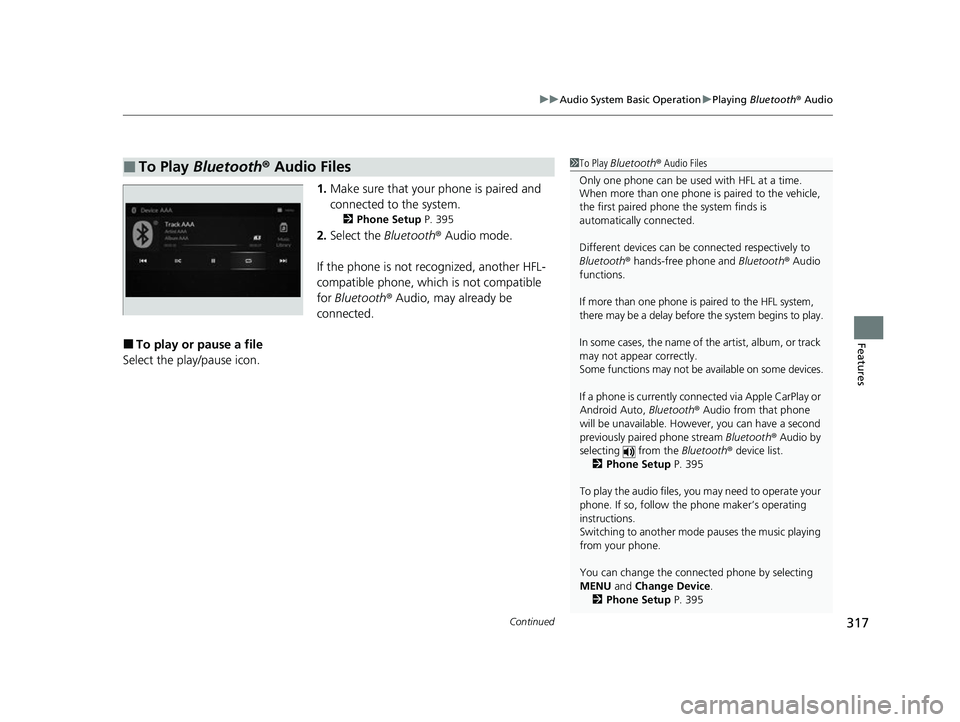
1. Make sure that your phone is paired and
connected to the system.
2 Phone Setup P. 395
2.Select the Bluetooth® Audio mode.
If the phone is not recognized, another HFL-
compatible phone, which is not compatible
for Bluetooth ® Audio, may already be
connected.
■To play or pause a file
Select the play/pause icon.
■To Play Bluetooth® Audio Files1To Play Bluetooth ® Audio Files
Only one phone can be used with HFL at a time.
When more than one phone is paired to the vehicle,
the first paired phone the system finds is
automatically connected.
Different devices can be co nnected respectively to
Bluetooth ® hands-free phone and Bluetooth® Audio
functions.
If more than one phone is paired to the HFL system,
there may be a delay before the system begins to play.
In some cases, the name of the artist, album, or track
may not appear correctly.
Some functions may not be available on some devices.
If a phone is currently conne cted via Apple CarPlay or
Android Auto, Bluetooth® Audio from that phone
will be unavailable. Howe ver, you can have a second
previously paired phone stream Bluetooth® Audio by
selecting from the Bluetooth® device list.
2 Phone Setup P. 395
To play the audio files, y ou may need to operate your
phone. If so, follow the phone maker’s operating
instructions.
Switching to another mode pauses the music playing
from your phone.
You can change the connected phone by selecting
MENU and Change Device.
2 Phone Setup P. 395
23 ACURA RDX-31TJB6400.book 317 ページ 2022年8月4日 木曜日 午後1時51分
Page 325 of 713
Continued323
uuAudio System Basic Operation uApple CarPlay
Features
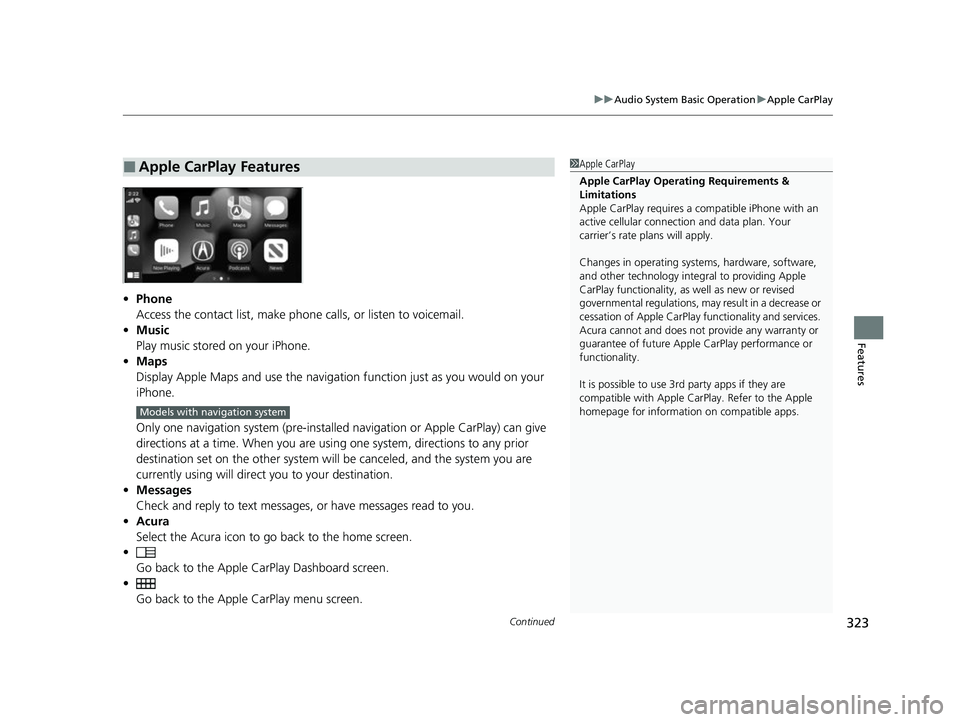
• Phone
Access the contact list, make phone calls, or listen to voicemail.
• Music
Play music stored on your iPhone.
• Maps
Display Apple Maps and use the navigation function just as you would on your
iPhone.
Only one navigation system (pre-installed navigation or Apple CarPlay) can give
directions at a time. When you are usin g one system, directions to any prior
destination set on the other system will be canceled, and the system you are
currently using will direct you to your destination.
• Messages
Check and reply to text messages, or have messages read to you.
• Acura
Select the Acura icon to go back to the home screen.
•
Go back to the Apple Ca rPlay Dashboard screen.
• Go back to the Appl e CarPlay menu screen.
■Apple CarPlay Features1Apple CarPlay
Apple CarPlay Operating Requirements &
Limitations
Apple CarPlay requi res a compatible iPhone with an
active cellular connecti on and data plan. Your
carrier’s rate plans will apply.
Changes in operating systems, hardware, software,
and other technology integral to providing Apple
CarPlay functionality, as well as new or revised
governmental regulations, may result in a decrease or
cessation of Apple CarPlay functionality and services.
Acura cannot and does not provide any warranty or
guarantee of future Appl e CarPlay performance or
functionality.
It is possible to use 3r d party apps if they are
compatible with Apple CarPlay. Refer to the Apple
homepage for information on compatible apps.
Models with navigation system
23 ACURA RDX-31TJB6400.book 323 ページ 2022年8月4日 木曜日 午後1時51分
Page 330 of 713
uuAudio System Basic Operation uAndroid AutoTM
328
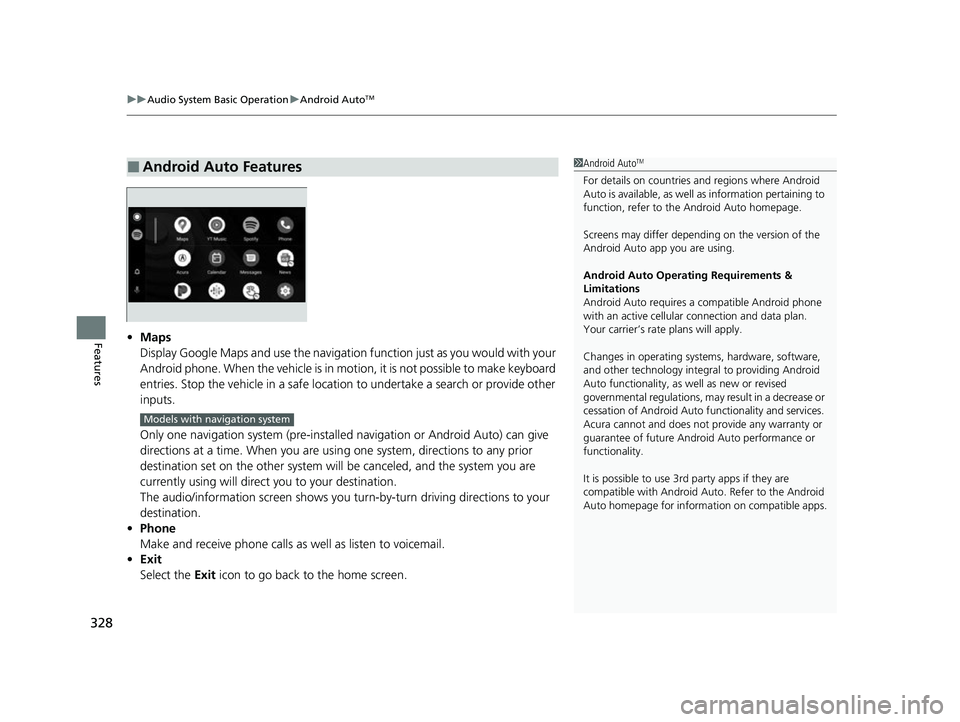
Features• Maps
Display Google Maps and use the navigation function just as you would with your
Android phone. When the vehicle is in motion, it is not possible to make keyboard
entries. Stop the vehicle in a safe location to undertake a search or provide other
inputs.
Only one navigation system (pre-installed navigation or Android Auto) can give
directions at a time. When you are usin g one system, directions to any prior
destination set on the other system will be canceled, and the system you are
currently using will direct you to your destination.
The audio/information screen shows you turn-by-turn driving directions to your
destination.
• Phone
Make and receive phone calls as well as listen to voicemail.
• Exit
Select the Exit icon to go back to the home screen.
■Android Auto Features1Android AutoTM
For details on c ountries and regions where Android
Auto is available, as well as information pertaining to
function, refer to the Android Auto homepage.
Screens may differ depending on the version of the
Android Auto app you are using.
Android Auto Operating Requirements &
Limitations
Android Auto requires a compatible Android phone
with an active cellular connection and data plan.
Your carrier’s rate plans will apply.
Changes in operating systems, hardware, software,
and other technology integral to providing Android
Auto functionality, as well as new or revised
governmental regulations, may result in a decrease or
cessation of Android Auto functionality and services.
Acura cannot and does not provide any warranty or
guarantee of future Android Auto performance or
functionality.
It is possible to use 3r d party apps if they are
compatible with Android Auto. Refer to the Android
Auto homepage for informat ion on compatible apps.
Models with navigation system
23 ACURA RDX-31TJB6400.book 328 ページ 2022年8月4日 木曜日 午後1時51分