Call Acura RLX 2014 Owners Manual
[x] Cancel search | Manufacturer: ACURA, Model Year: 2014, Model line: RLX, Model: Acura RLX 2014Pages: 518, PDF Size: 15.83 MB
Page 323 of 518
uuBluetooth® HandsFreeLink®uHFL Menus
322Features
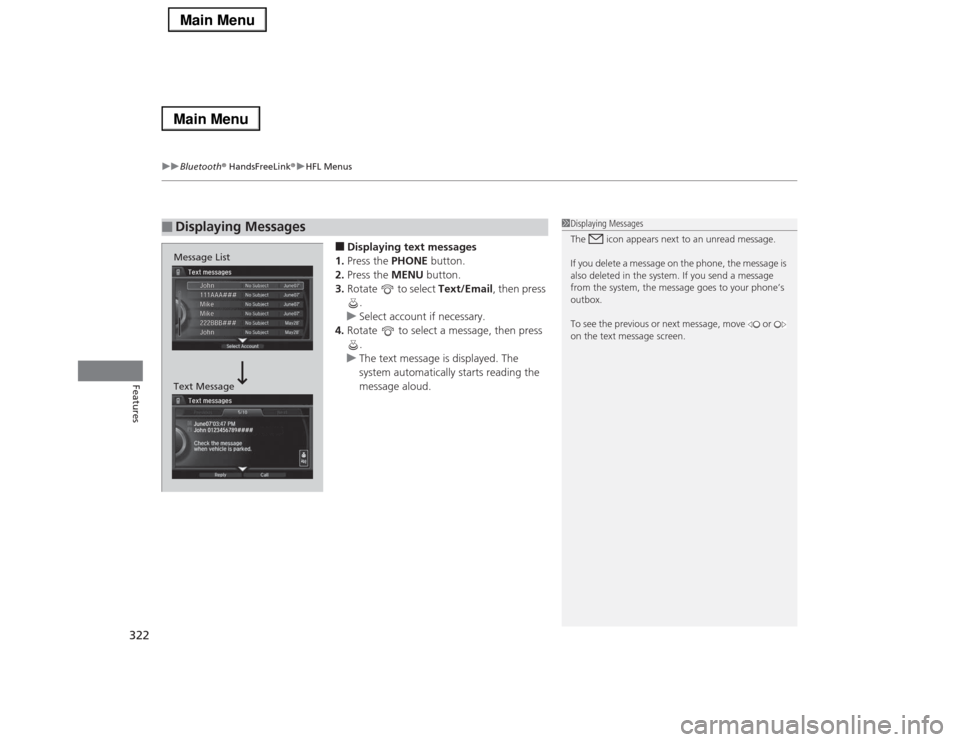
■Displaying text messages
1.Press the PHONE button.
2.Press the MENU button.
3.Rotate to select Text/Email, then press
.
uSelect account if necessary.
4.Rotate to select a message, then press
.
uThe text message is displayed. The
system automatically starts reading the
message aloud.
■
Displaying Messages
1Displaying Messages
The icon appears next to an unread message.
If you delete a message on the phone, the message is
also deleted in the system. If you send a message
from the system, the message goes to your phone’s
outbox.
To see the previous or next message, move or
on the text message screen.
Message List
Text Message
Page 324 of 518
Continued
323
uuBluetooth® HandsFreeLink®uHFL Menus
Features
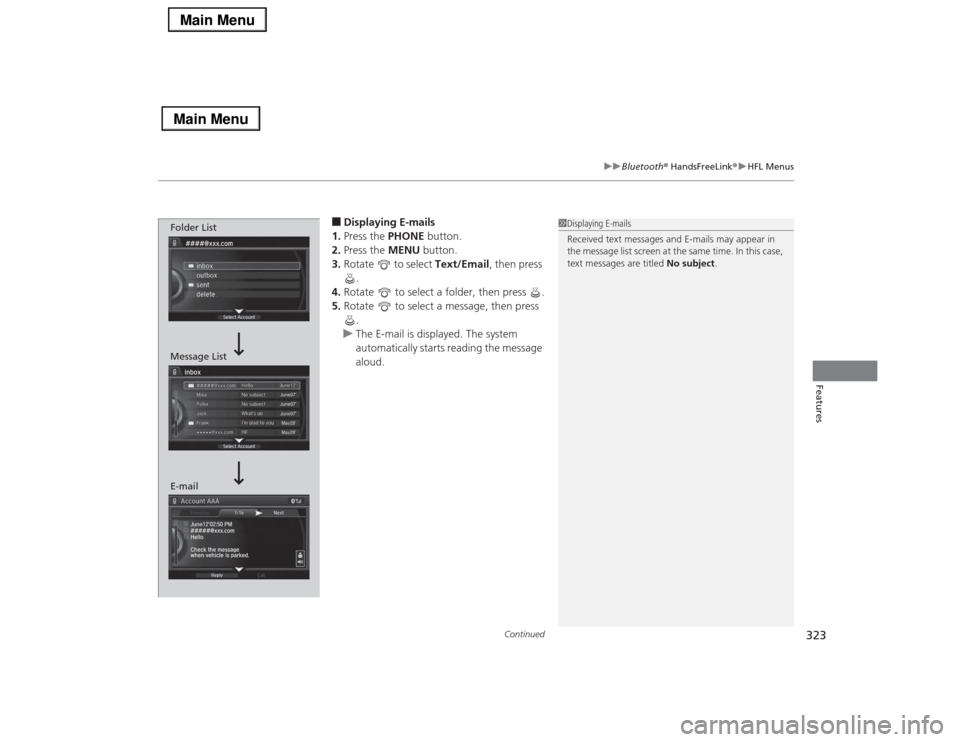
■Displaying E-mails
1.Press the PHONE button.
2.Press the MENU button.
3.Rotate to select Text/Email, then press
.
4.Rotate to select a folder, then press .
5.Rotate to select a message, then press
.
uThe E-mail is displayed. The system
automatically starts reading the message
aloud.
1Displaying E-mails
Received text messages and E-mails may appear in
the message list screen at the same time. In this case,
text messages are titled No subject.
Folder List
Message List
E-mail
Page 325 of 518
uuBluetooth® HandsFreeLink®uHFL Menus
324Features
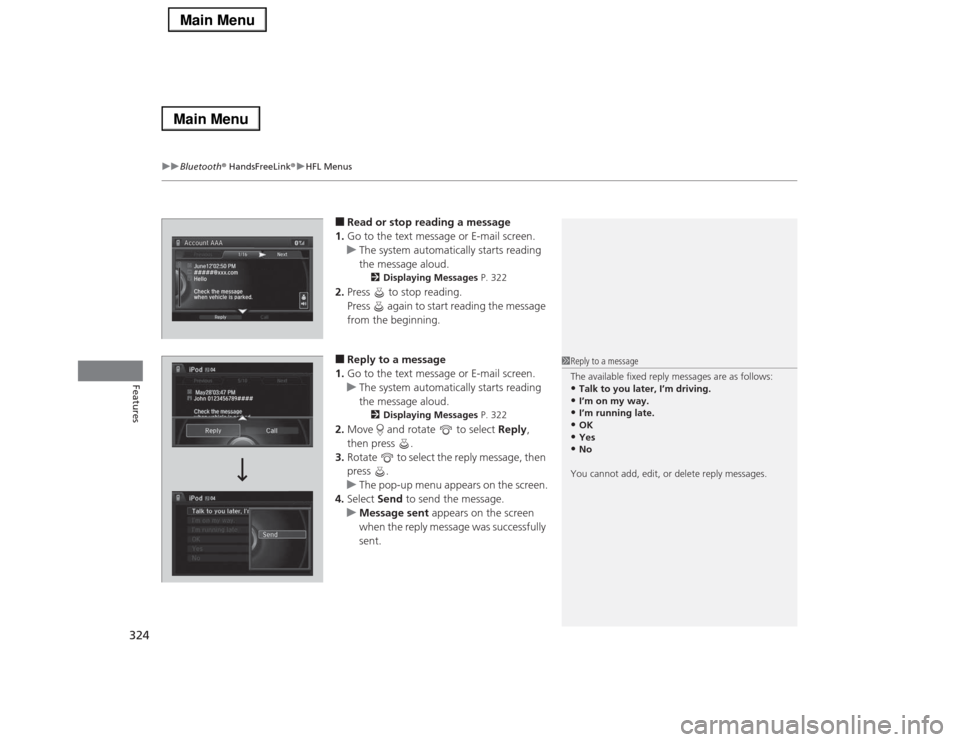
■Read or stop reading a message
1.Go to the text message or E-mail screen.
uThe system automatically starts reading
the message aloud.
2Displaying Messages P. 322
2.Press to stop reading.
Press again to start reading the message
from the beginning.■Reply to a message
1.Go to the text message or E-mail screen.
uThe system automatically starts reading
the message aloud.
2Displaying Messages P. 322
2.Move and rotate to select Reply,
then press .
3.Rotate to select the reply message, then
press .
uThe pop-up menu appears on the screen.
4.Select Send to send the message.
uMessage sent appears on the screen
when the reply message was successfully
sent.
1Reply to a message
The available fixed reply messages are as follows:•Talk to you later, I’m driving.•I’m on my way.•I’m running late.•OK•Yes•No
You cannot add, edit, or delete reply messages.
Page 326 of 518
325
uuBluetooth® HandsFreeLink®uHFL Menus
Continued
Features
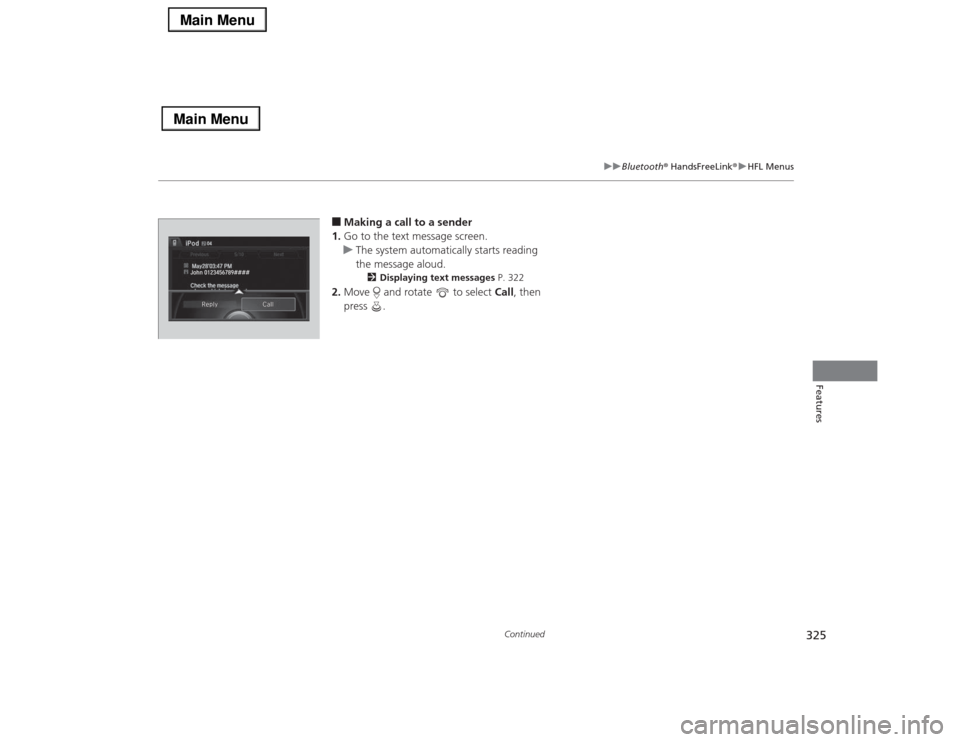
■Making a call to a sender
1.Go to the text message screen.
uThe system automatically starts reading
the message aloud.
2Displaying text messages P. 322
2.Move and rotate to select Call, then
press .
Page 327 of 518
uuBluetooth® HandsFreeLink®uHFL Menus
326Features
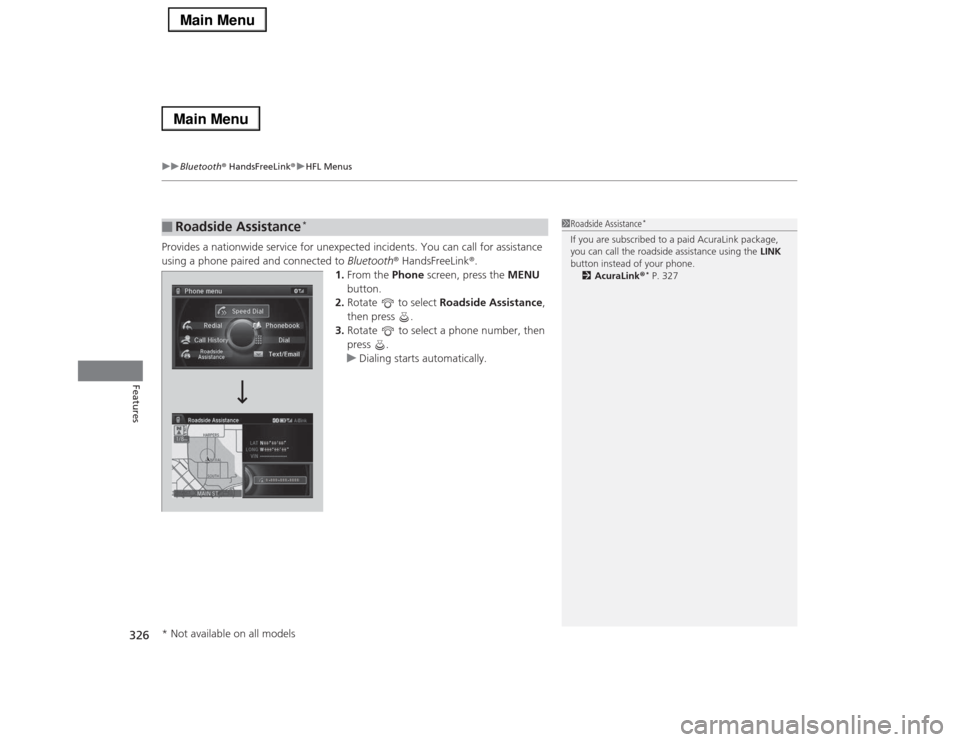
Provides a nationwide service for unexpected incidents. You can call for assistance
using a phone paired and connected to Bluetooth® HandsFreeLink®.
1.From the Phone screen, press the MENU
button.
2.Rotate to select Roadside Assistance,
then press .
3.Rotate to select a phone number, then
press .
uDialing starts automatically.■
Roadside Assistance
*
1Roadside Assistance
*
If you are subscribed to a paid AcuraLink package,
you can call the roadside assistance using the LINK
button instead of your phone.
2AcuraLink®
* P. 327
* Not available on all models
Page 328 of 518
327
Continued
Features
AcuraLink®
*
Is a subscription-based service that provides convenient features such as voice
communication in case of emergency, online security, one-on-one operator
assistance, and the transmission of important messages regarding your vehicle’s
status.
For information on traffic rerouting and traffic information updates, provided by the
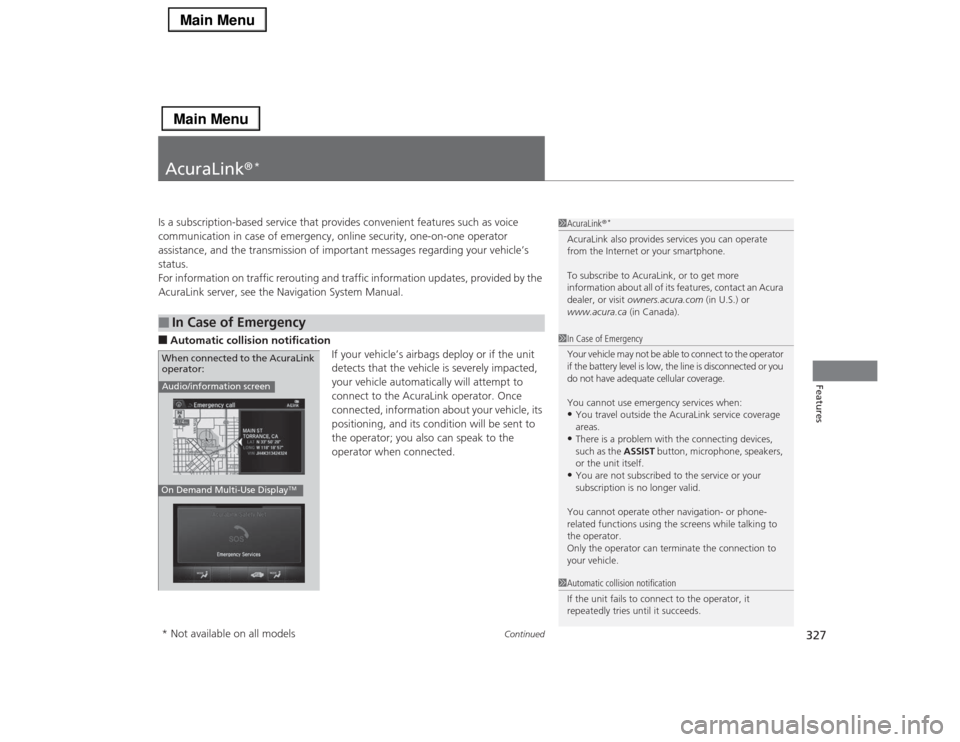
AcuraLink server, see the Navigation System Manual.■Automatic collision notification
If your vehicle’s airbags deploy or if the unit
detects that the vehicle is severely impacted,
your vehicle automatically will attempt to
connect to the AcuraLink operator. Once
connected, information about your vehicle, its
positioning, and its condition will be sent to
the operator; you also can speak to the
operator when connected. ■
In Case of Emergency
1AcuraLink®
*
AcuraLink also provides services you can operate
from the Internet or your smartphone.
To subscribe to AcuraLink, or to get more
information about all of its features, contact an Acura
dealer, or visit owners.acura.com (in U.S.) or
www.acura.ca (in Canada).1In Case of Emergency
Your vehicle may not be able to connect to the operator
if the battery level is low, the line is disconnected or you
do not have adequate cellular coverage.
You cannot use emergency services when:•You travel outside the AcuraLink service coverage
areas.•There is a problem with the connecting devices,
such as the ASSIST button, microphone, speakers,
or the unit itself.•You are not subscribed to the service or your
subscription is no longer valid.
You cannot operate other navigation- or phone-
related functions using the screens while talking to
the operator.
Only the operator can terminate the connection to
your vehicle.
1Automatic collision notification
If the unit fails to connect to the operator, it
repeatedly tries until it succeeds.
Audio/information screenOn Demand Multi-Use Display
TM
When connected to the AcuraLink
operator:* Not available on all models
Page 329 of 518
uuAcuraLink®
*u
328Features
■Manual operator connection
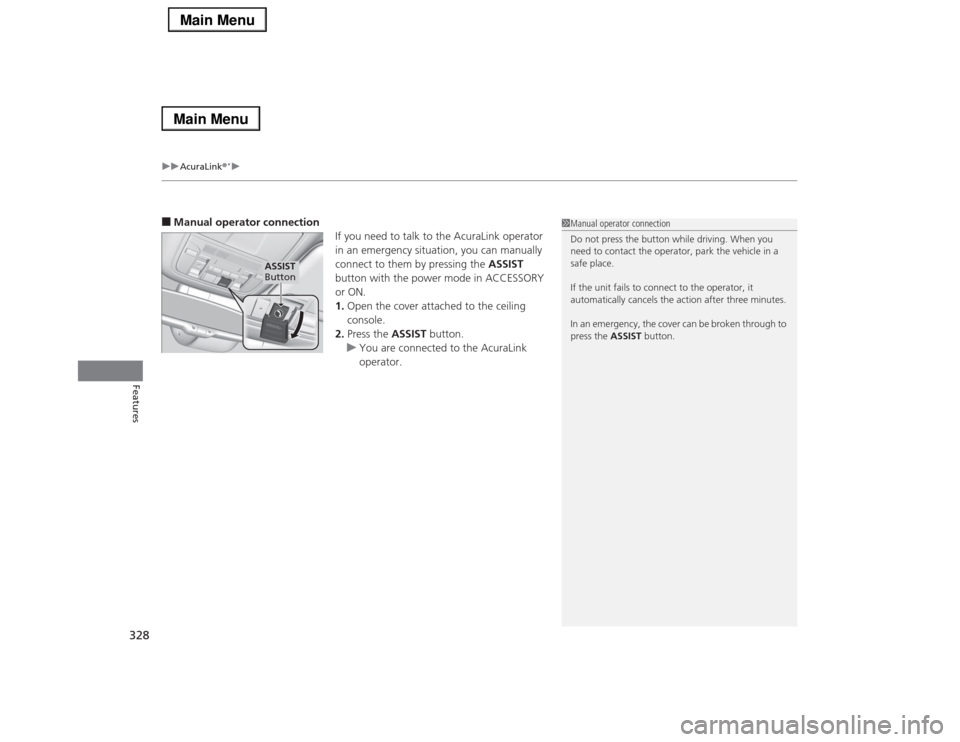
If you need to talk to the AcuraLink operator
in an emergency situation, you can manually
connect to them by pressing the ASSIST
button with the power mode in ACCESSORY
or ON.
1.Open the cover attached to the ceiling
console.
2.Press the ASSIST button.
uYou are connected to the AcuraLink
operator.
1Manual operator connection
Do not press the button while driving. When you
need to contact the operator, park the vehicle in a
safe place.
If the unit fails to connect to the operator, it
automatically cancels the action after three minutes.
In an emergency, the cover can be broken through to
press the ASSIST button.
ASSIST
Button
Page 331 of 518
uuAcuraLink®
*u
330Features
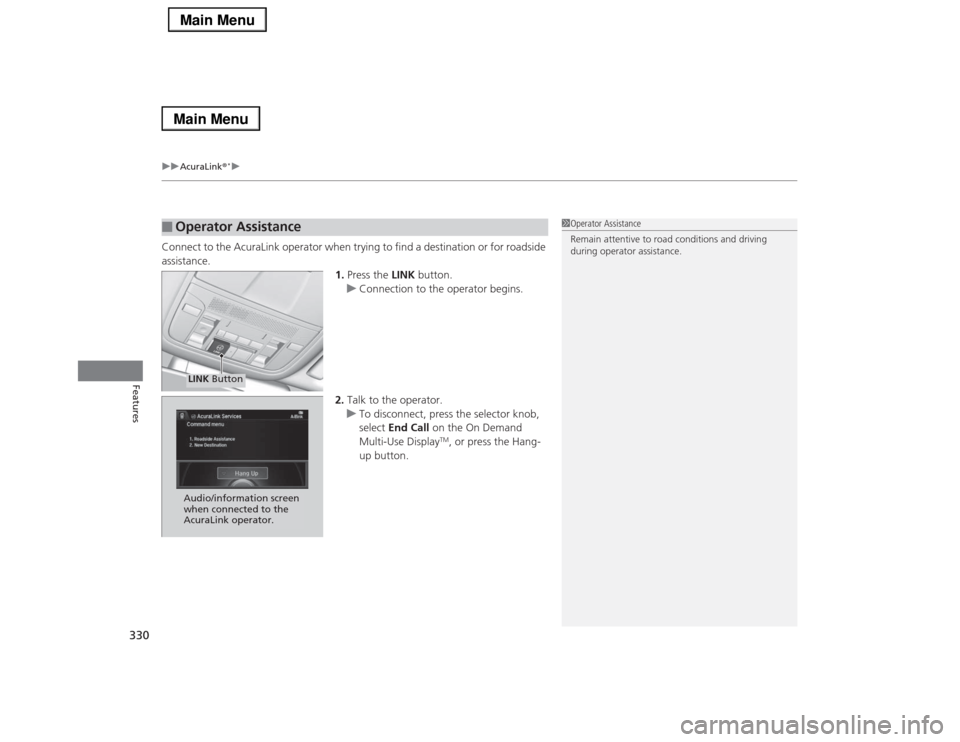
Connect to the AcuraLink operator when trying to find a destination or for roadside
assistance.
1.Press the LINK button.
uConnection to the operator begins.
2.Talk to the operator.
uTo disconnect, press the selector knob,
select End Call on the On Demand
Multi-Use Display
TM, or press the Hang-
up button.
■
Operator Assistance
1Operator Assistance
Remain attentive to road conditions and driving
during operator assistance.
LINK ButtonAudio/information screen
when connected to the
AcuraLink operator.
Page 332 of 518

Continued
331
uuAcuraLink®
*u
Features
AcuraLink sends you messages on vehicle
features, safety and emissions recall
campaigns, maintenance reminders (U.S.
models only), and diagnostic information.
When you receive a new message, an icon
appears on the audio/information screen.
■Message category
There are six message categories.
•Feature Guide: Appears for the first 90 days of ownership, introducing vehicle
features each day.
•Quick Tips: Supplements your Owner’s Manual with updated vehicle
information.
•Diagnostic Info: Appears when a warning indicator or message comes on.
Rotate to select Check Later or Check Now.
uSelecting Check Now lets you know if you should see a dealer immediately or
later in accordance with the warning severity level.
•Scheduled Dealer Appointment (U.S. models only): An appointment made
through the Acura server or Acura Owners website can be rescheduled or
canceled from this option.
2 P. 333
•Maintenance Minder (U.S. models only): Lets you know which maintenance
item is due along with a reminder message.
•Recalls/Campaigns: Reminds you of a recall or important safety information.
You should also be notified by mail.■
AcuraLink Message
1AcuraLink Message
Messages may not appear immediately after your
vehicle purchase. It can take several days for your
dealer to register your vehicle’s ID.
If an icon includes an exclamation point, it indicates
that Acura gives high priority to this message
compared to the one without.•
: An unread message with high priority
•
: An unread message
Message Icon
1Message category
Message categories can be added, edited, or deleted
through broadcast messages from Acura.
You can call your dealer, find the nearest dealer, or
schedule appointments (U.S. models only) from the
message options in Maintenance Minder (U.S.
models only), Recalls/Campaigns, and Diagnostic
Info.
2Message Options P. 332
Page 333 of 518

uuAcuraLink®
*u
332Features
■Reading a message
1.Press the INFO button, rotate to select
AcuraLink/Messages, then press .
uIf your display has changed from Info
menu to Current Drive, press the
MENU button.
uAcuraLink messages appears.
2.Rotate to select a category, then press
.
uIf there are unread messages in a
category, a message icon appears next to
that category.
3.Rotate to select a message you want to
read, then press .■Message Options
While a message is displayed, you can use
options to take immediate action to the
message.
Available options are:
•Voice: Reads the message aloud. Select Stop to cancel it.
•Find Acura Dlr.: Searches for the nearest Acura dealer.
•Delete: Deletes the displayed message. Rotate to select this option, then
press .
•Call Your Dealer: Calls your Acura dealer using HFL.
1Reading a message
If there is no message listed on the menu,
AcuraLink/Messages is grayed out and cannot be
selected.
The message icon disappears once you read the
message.
However, the exclamation mark that indicates that
the message has a high priority remains.•
: A read message with high priority.
1Message Options
The available options vary by message category.
You can delete all messages in a category at once.
2Customized Features P. 264
Voice is available only when the Message Auto
Reading setting is in ON, and the language selected
is English.
2Customized Features P. 264
Dec. 31, 2011 The engine may not be operating properly.
Select VOICE FOR DETAILS. Engine System. P062F