Call Acura RLX 2014 Workshop Manual
[x] Cancel search | Manufacturer: ACURA, Model Year: 2014, Model line: RLX, Model: Acura RLX 2014Pages: 518, PDF Size: 15.83 MB
Page 199 of 518
uuAudio System Basic OperationuOn Demand Multi-Use Display
TM
198Features
■Phone
You can preset five speed dial entries, and make a call from one of the preset
numbers, or call history when the phone is paired and connected to the vehicle‘s
Bluetooth® HandsFreeLink® (HFL) system.
2 Phone Setup P. 293
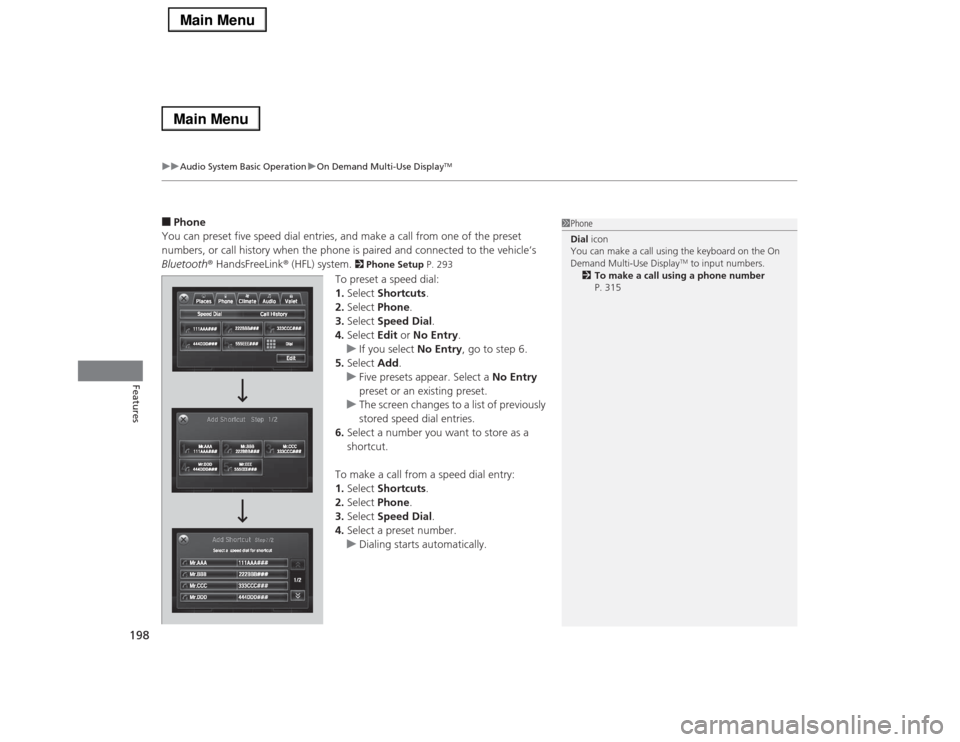
To preset a speed dial:
1.Select Shortcuts.
2.Select Phone.
3.Select Speed Dial.
4.Select Edit or No Entry.
uIf you select No Entry, go to step 6.
5.Select Add.
uFive presets appear. Select a No Entry
preset or an existing preset.
uThe screen changes to a list of previously
stored speed dial entries.
6.Select a number you want to store as a
shortcut.
To make a call from a speed dial entry:
1.Select Shortcuts.
2.Select Phone.
3.Select Speed Dial.
4.Select a preset number.
uDialing starts automatically.
1Phone
Dial icon
You can make a call using the keyboard on the On
Demand Multi-Use Display
TM to input numbers.
2To make a call using a phone number
P. 315
Page 200 of 518
Continued
199
uuAudio System Basic OperationuOn Demand Multi-Use Display
TM
Features
To delete a speed dial:
1.Select Shortcuts.
2.Select Phone.
3.Select Speed Dial.
4.Select Edit.
5.Select Delete.
6.Select the preset number with the phone
number you want to delete.
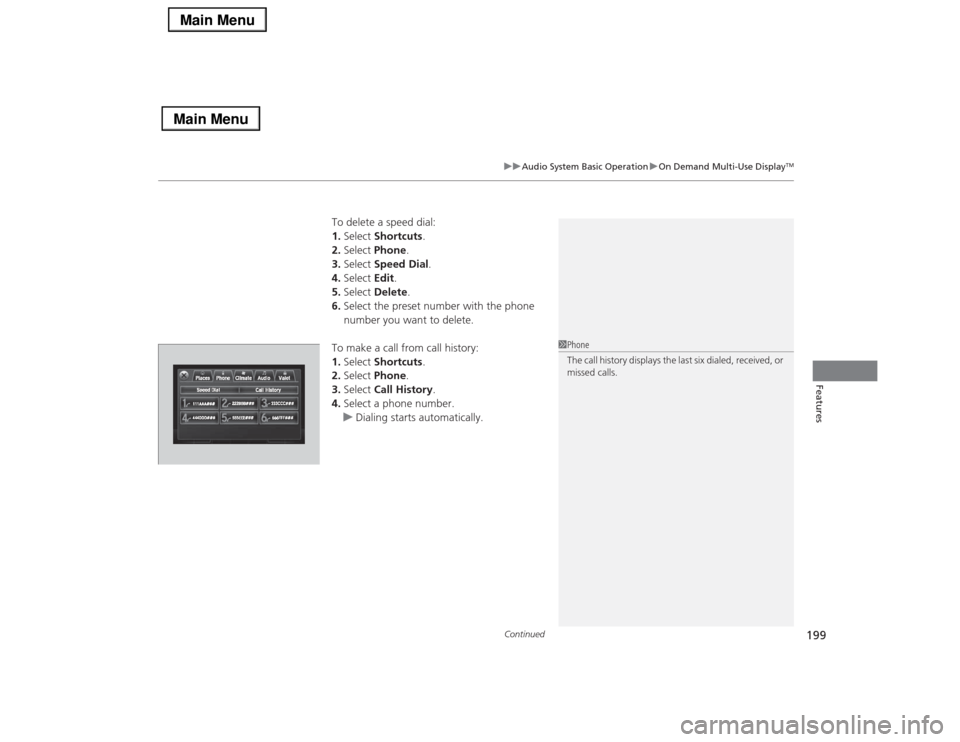
To make a call from call history:
1.Select Shortcuts.
2.Select Phone.
3.Select Call History.
4.Select a phone number.
uDialing starts automatically.
1Phone
The call history displays the last six dialed, received, or
missed calls.
Page 201 of 518
uuAudio System Basic OperationuOn Demand Multi-Use Display
TM
200Features
■Climate
You can store two sets of your preferred temperature, fan speed, and vent mode
settings to the climate control system.
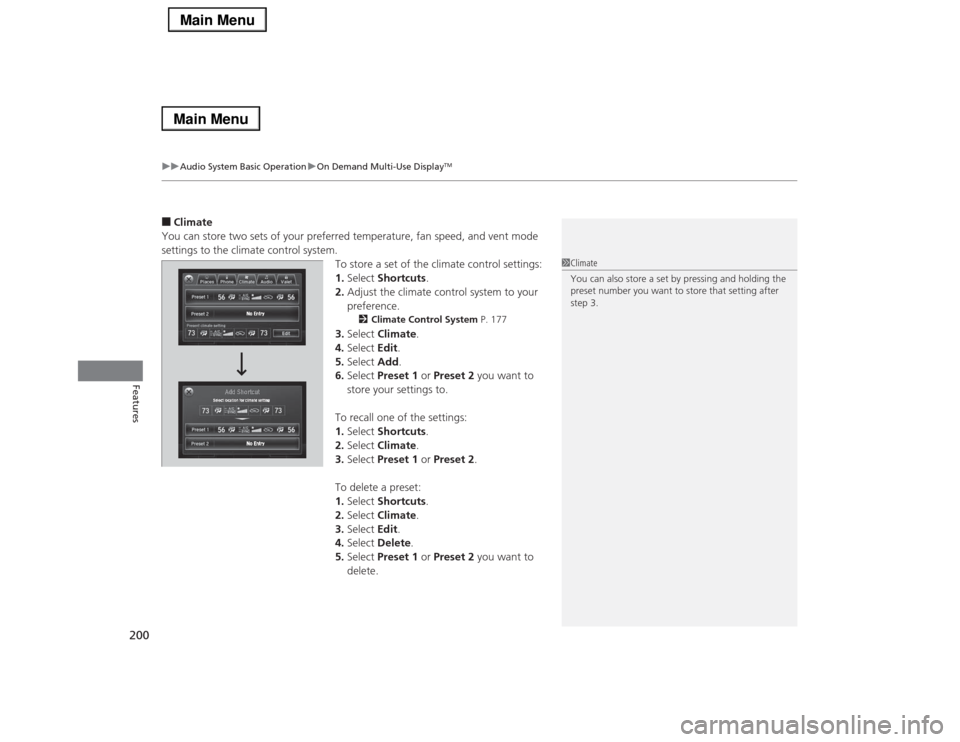
To store a set of the climate control settings:
1.Select Shortcuts.
2.Adjust the climate control system to your
preference.
2Climate Control System P. 177
3.Select Climate.
4.Select Edit.
5.Select Add.
6.Select Preset 1 or Preset 2 you want to
store your settings to.
To recall one of the settings:
1.Select Shortcuts.
2.Select Climate.
3.Select Preset 1 or Preset 2.
To delete a preset:
1.Select Shortcuts.
2.Select Climate.
3.Select Edit.
4.Select Delete.
5.Select Preset 1 or Preset 2 you want to
delete.
1Climate
You can also store a set by pressing and holding the
preset number you want to store that setting after
step 3.
Page 211 of 518
210
uuAudio System Basic OperationuVoice Control Operation
Features
The system accepts these commands on the
Voice Portal screen.
•Call Your contact name
•Call Phone Number
•Find nearest POI category name
*
•Go home
*
•Route menu
*
•Cancel route
*
The system accepts these commands on any
screen.
•Call by number
•Call by name
Contacts that are imported from your
phone to the vehicle are all made available
by voice. Voice Tags can also be recorded
for each of your Speed Dial entries.■
Voice Portal Commands
■
Phone Commands
2Refer to the Navigation System ManualThe system accepts these commands on any
screen.
•Trip computer
•Traffic information
*
•Display clock
•Display wallpaper■
Navigation Commands
*
■
Info Commands
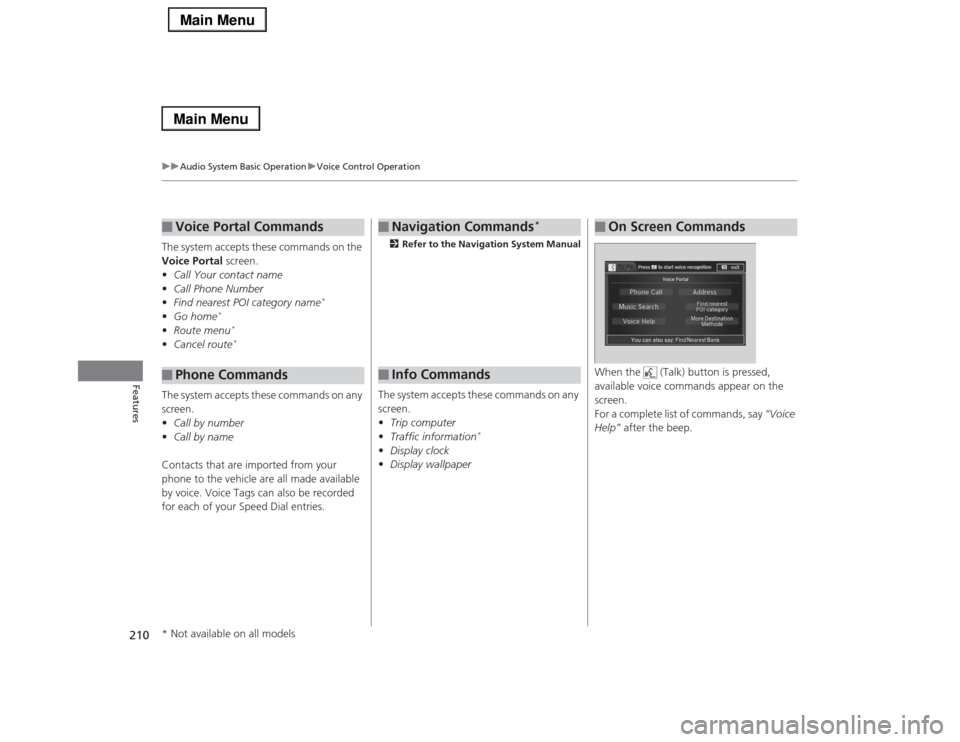
When the (Talk) button is pressed,
available voice commands appear on the
screen.
For a complete list of commands, say “Voice
Help” after the beep.■
On Screen Commands
* Not available on all models
Page 227 of 518
uuAudio System Basic OperationuPlaying a CD
226Features
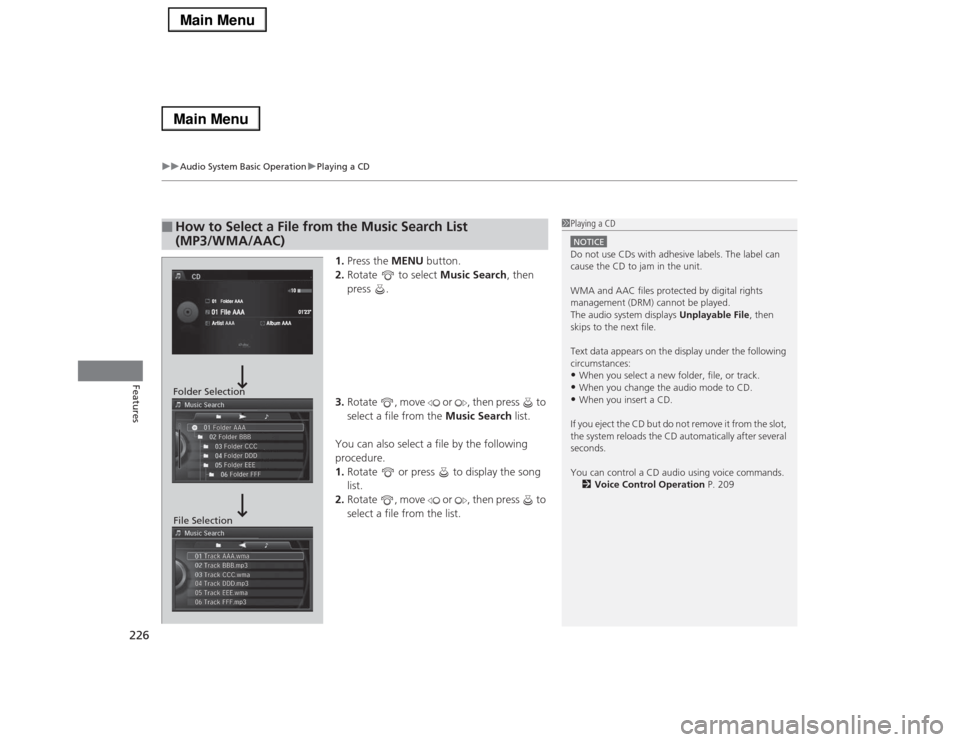
1.Press the MENU button.
2.Rotate to select Music Search, then
press .
3.Rotate , move or , then press to
select a file from the Music Search list.
You can also select a file by the following
procedure.
1.Rotate or press to display the song
list.
2.Rotate , move or , then press to
select a file from the list.
■
How to Select a File from the Music Search List
(MP3/WMA/AAC)
1Playing a CDNOTICEDo not use CDs with adhesive labels. The label can
cause the CD to jam in the unit.
WMA and AAC files protected by digital rights
management (DRM) cannot be played.
The audio system displays Unplayable File, then
skips to the next file.
Text data appears on the display under the following
circumstances:•When you select a new folder, file, or track.•When you change the audio mode to CD.•When you insert a CD.
If you eject the CD but do not remove it from the slot,
the system reloads the CD automatically after several
seconds.
You can control a CD audio using voice commands.
2Voice Control Operation P. 209
Folder Selection
File Selection
Page 230 of 518

Continued
229
uuAudio System Basic OperationuPlaying Hard Disc Drive (HDD) Audio
Features
The songs on music CDs are automatically recorded by factory default to the HDD
the first time you play each disc. You can then play the songs directly from the HDD.
1.Press the MENU button.
2.Rotate to select Cancel Record to HDD, then press .
1.Press the MENU button.
2.Rotate to select Rec to HDD, then press .■
Recording a Music CD to HDD
1Recording a Music CD to HDD
You can add tracks to user playlists, where you can
mix and match tracks from other CDs recorded on
the HDD.
2Editing an Album or Playlist P. 232
2Editing Track Information P. 235
If you stop the engine or the power system is turned
off while recording a CD, there may be pauses
between songs when you play back from the HDD.
Repeat, random, and scan functions are not available
during recording.
You can play music from other sources (e.g., XM,
HDD, etc.) while recording.
Please note that there is no compensation offered in
the case of unsuccessful recording of audio data or
the loss of audio data due to any cause whatsoever.
Clearing the HDD
Any music tracks stored on the HDD can be deleted.
2Deleting all HDD Data P. 284
■
Stop Recording
■
Recording a CD Manually
Album AAA
Artist AAA10
01’23”Track AAA 01
Recording Indicator
Recording
Ready to record
Page 231 of 518
uuAudio System Basic OperationuPlaying Hard Disc Drive (HDD) Audio
230Features
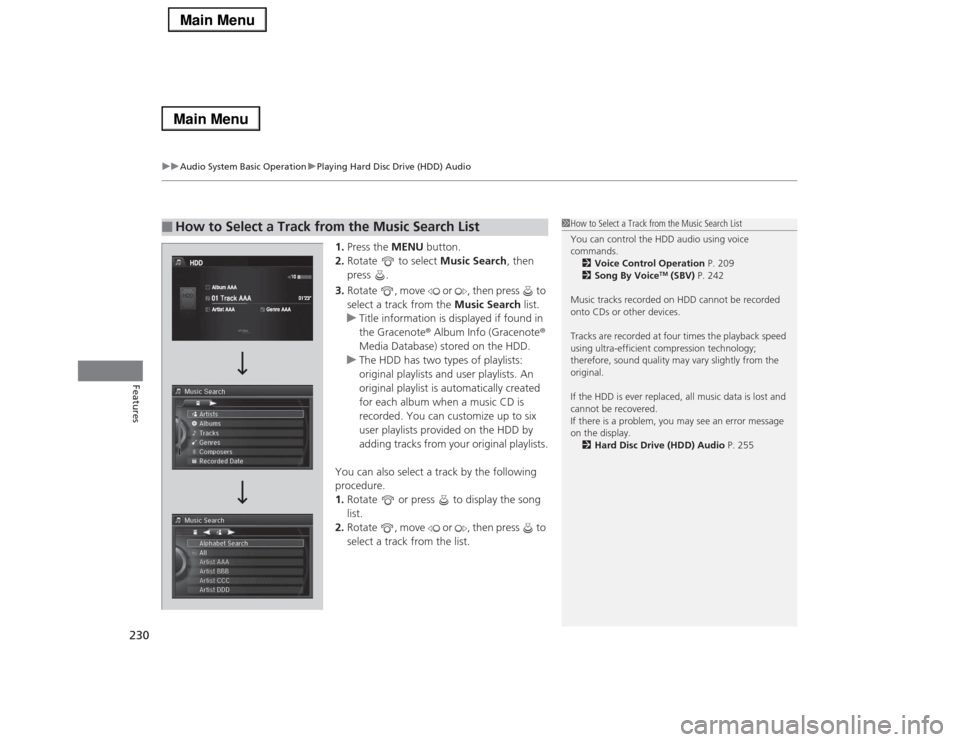
1.Press the MENU button.
2.Rotate to select Music Search, then
press .
3.Rotate , move or , then press to
select a track from the Music Search list.
uTitle information is displayed if found in
the Gracenote® Album Info (Gracenote®
Media Database) stored on the HDD.
uThe HDD has two types of playlists:
original playlists and user playlists. An
original playlist is automatically created
for each album when a music CD is
recorded. You can customize up to six
user playlists provided on the HDD by
adding tracks from your original playlists.
You can also select a track by the following
procedure.
1.Rotate or press to display the song
list.
2.Rotate , move or , then press to
select a track from the list.
■
How to Select a Track from the Music Search List
1How to Select a Track from the Music Search List
You can control the HDD audio using voice
commands.
2Voice Control Operation P. 209
2Song By Voice
TM (SBV) P. 242
Music tracks recorded on HDD cannot be recorded
onto CDs or other devices.
Tracks are recorded at four times the playback speed
using ultra-efficient compression technology;
therefore, sound quality may vary slightly from the
original.
If the HDD is ever replaced, all music data is lost and
cannot be recovered.
If there is a problem, you may see an error message
on the display.
2Hard Disc Drive (HDD) Audio P. 255
Page 246 of 518
245
uuAudio System Basic Operationu
Continued
Features
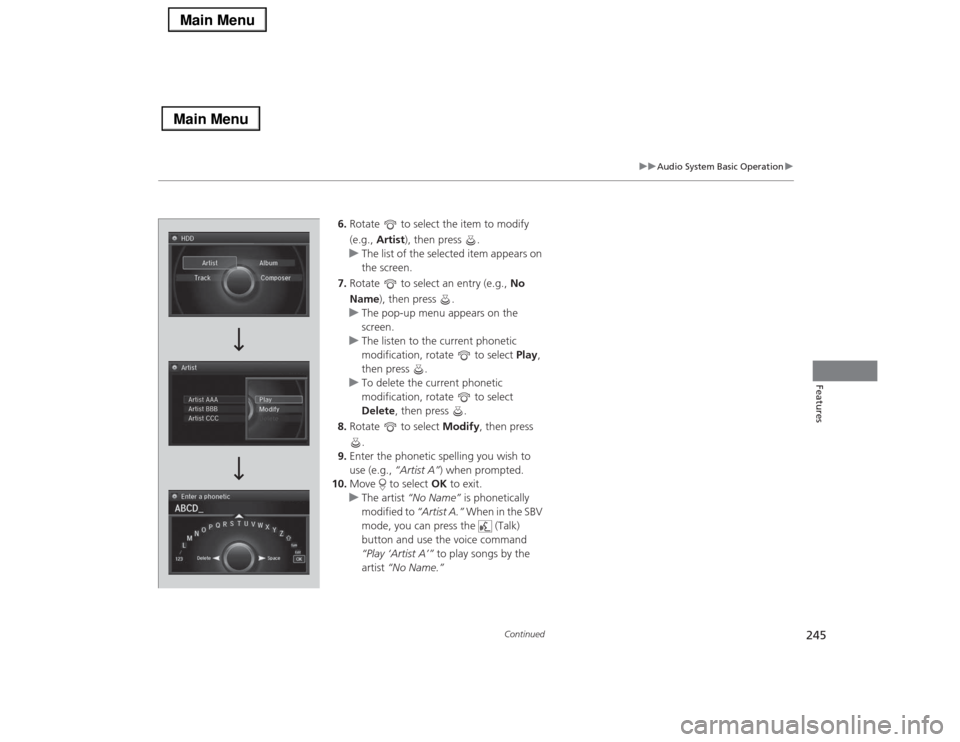
6.Rotate to select the item to modify
(e.g., Artist), then press .
uThe list of the selected item appears on
the screen.
7.Rotate to select an entry (e.g., No
Name), then press .
uThe pop-up menu appears on the
screen.
uThe listen to the current phonetic
modification, rotate to select Play,
then press .
uTo delete the current phonetic
modification, rotate to select
Delete, then press .
8.Rotate to select Modify, then press
.
9.Enter the phonetic spelling you wish to
use (e.g., “Artist A”) when prompted.
10.Move to select OK to exit.
uThe artist “No Name” is phonetically
modified to “Artist A.” When in the SBV
mode, you can press the (Talk)
button and use the voice command
“Play ‘Artist A’” to play songs by the
artist “No Name.”
Page 248 of 518
Continued
247
uuAudio System Basic OperationuPlaying Internet Radio
Features
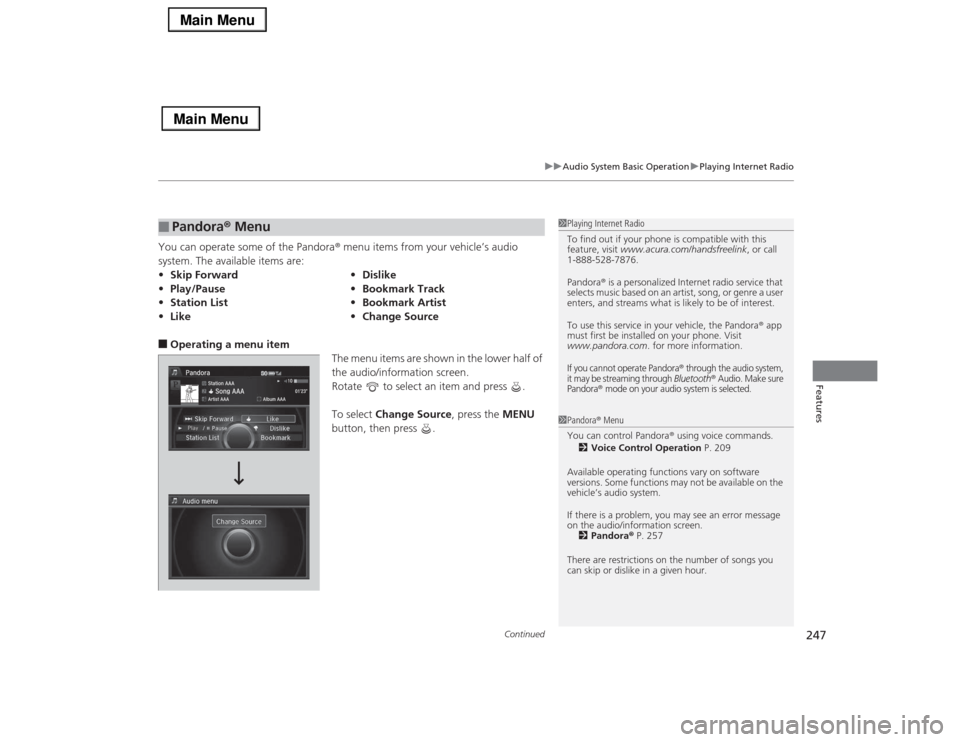
You can operate some of the Pandora® menu items from your vehicle’s audio
system. The available items are:■Operating a menu item
The menu items are shown in the lower half of
the audio/information screen.
Rotate to select an item and press .
To select Change Source, press the MENU
button, then press .■
Pandora® Menu
•Skip Forward•Dislike
•Play/Pause•Bookmark Track
•Station List•Bookmark Artist
•Like•Change Source
1Playing Internet Radio
To find out if your phone is compatible with this
feature, visit www.acura.com/handsfreelink, or call
1-888-528-7876.
Pandora® is a personalized Internet radio service that
selects music based on an artist, song, or genre a user
enters, and streams what is likely to be of interest.
To use this service in your vehicle, the Pandora® app
must first be installed on your phone. Visit
www.pandora.com. for more information.If you cannot operate Pandora
® through the audio system,
it may be streaming through Bluetooth
® Audio. Make sure
Pandora
® mode on your audio system is selected.
1Pandora® Menu
You can control Pandora® using voice commands.
2Voice Control Operation P. 209
Available operating functions vary on software
versions. Some functions may not be available on the
vehicle’s audio system.
If there is a problem, you may see an error message
on the audio/information screen.
2Pandora® P. 257
There are restrictions on the number of songs you
can skip or dislike in a given hour.
Page 253 of 518
252
uuAudio System Basic OperationuPlaying Bluetooth® Audio
Features
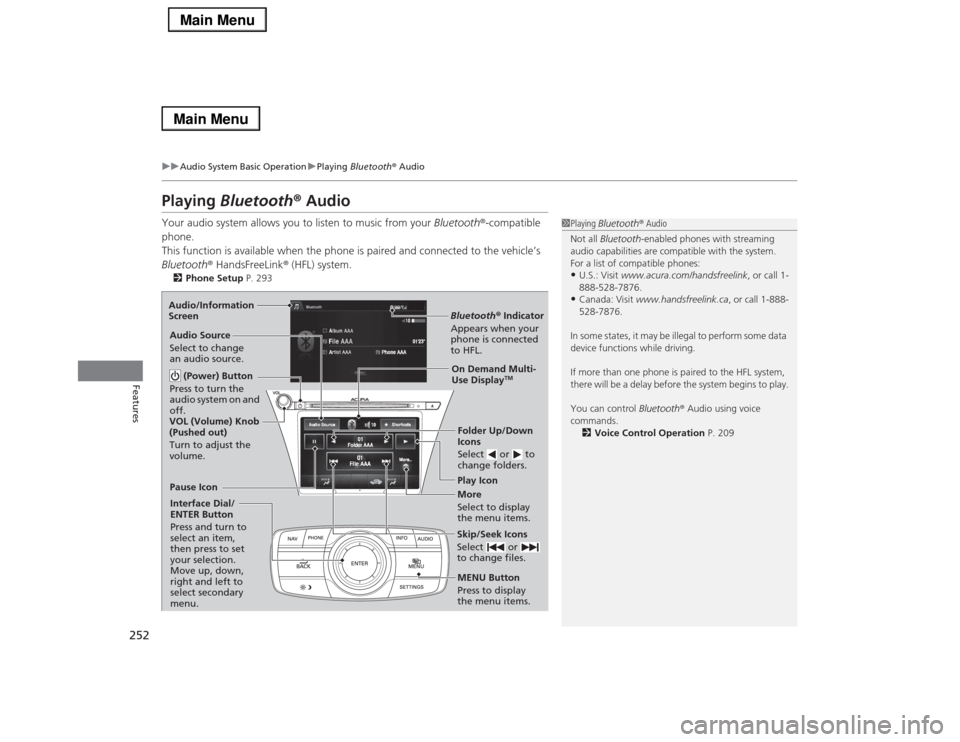
Playing Bluetooth® AudioYour audio system allows you to listen to music from your Bluetooth®-compatible
phone.
This function is available when the phone is paired and connected to the vehicle’s
Bluetooth® HandsFreeLink® (HFL) system.2Phone Setup P. 293
1Playing Bluetooth® Audio
Not all Bluetooth-enabled phones with streaming
audio capabilities are compatible with the system.
For a list of compatible phones:•U.S.: Visit www.acura.com/handsfreelink, or call 1-
888-528-7876.•Canada: Visit www.handsfreelink.ca, or call 1-888-
528-7876.
In some states, it may be illegal to perform some data
device functions while driving.
If more than one phone is paired to the HFL system,
there will be a delay before the system begins to play.
You can control Bluetooth® Audio using voice
commands.
2Voice Control Operation P. 209
Bluetooth® Indicator
Appears when your
phone is connected
to HFL.Play Icon
Pause Icon
More
Select to display
the menu items. Audio Source
Select to change
an audio source.
(Power) Button
Press to turn the
audio system on and
off.Interface Dial/
ENTER Button
Press and turn to
select an item,
then press to set
your selection.
Move up, down,
right and left to
select secondary
menu.
Skip/Seek Icons
Select or
to change files.MENU Button
Press to display
the menu items.Folder Up/Down
Icons
Select or to
change folders.On Demand Multi-
Use Display
TM
VOL (Volume) Knob
(Pushed out)
Turn to adjust the
volume. Audio/Information
Screen