Call Acura RLX 2014 Repair Manual
[x] Cancel search | Manufacturer: ACURA, Model Year: 2014, Model line: RLX, Model: Acura RLX 2014Pages: 518, PDF Size: 15.83 MB
Page 254 of 518
253
uuAudio System Basic OperationuPlaying Bluetooth® Audio
Features
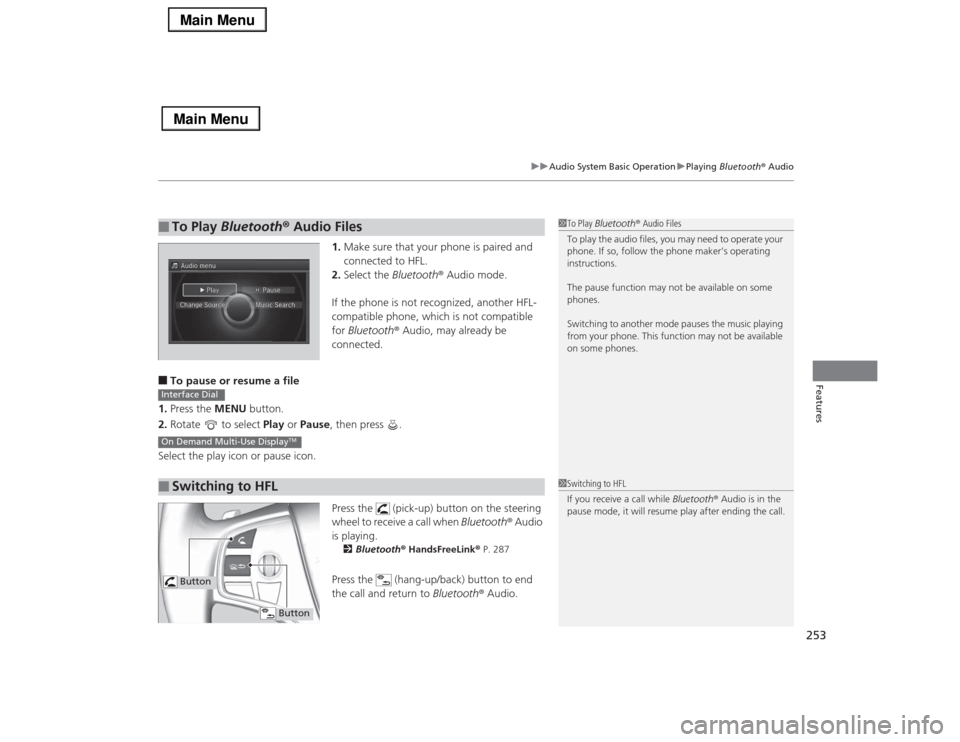
1.Make sure that your phone is paired and
connected to HFL.
2.Select the Bluetooth® Audio mode.
If the phone is not recognized, another HFL-
compatible phone, which is not compatible
for Bluetooth® Audio, may already be
connected.
■To pause or resume a file
1.Press the MENU button.
2.Rotate to select Play or Pause, then press .
Select the play icon or pause icon.
Press the (pick-up) button on the steering
wheel to receive a call when Bluetooth® Audio
is playing.
2Bluetooth® HandsFreeLink® P. 287Press the (hang-up/back) button to end
the call and return to Bluetooth® Audio.
■
To Play Bluetooth® Audio Files
1To Play Bluetooth® Audio Files
To play the audio files, you may need to operate your
phone. If so, follow the phone maker’s operating
instructions.
The pause function may not be available on some
phones.
Switching to another mode pauses the music playing
from your phone. This function may not be available
on some phones.
■
Switching to HFLInterface DialOn Demand Multi-Use Display
TM
1Switching to HFL
If you receive a call while Bluetooth® Audio is in the
pause mode, it will resume play after ending the call.
Button
Button
Page 255 of 518
254Features
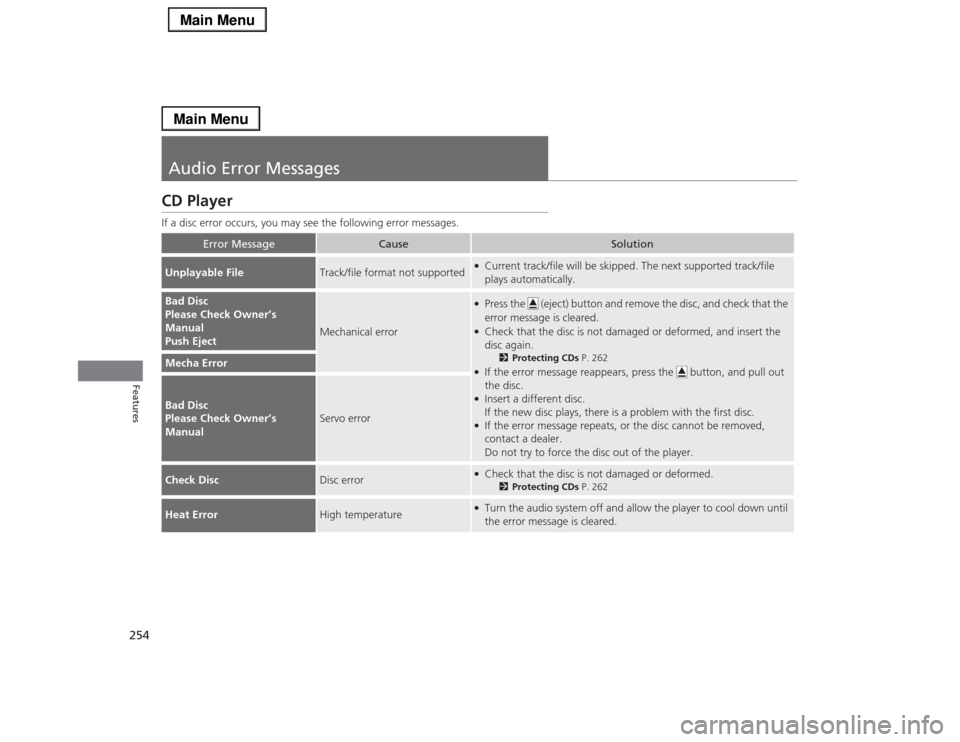
Audio Error MessagesCD PlayerIf a disc error occurs, you may see the following error messages.
Error Message
Cause
Solution
Unplayable File
Track/file format not supported
●Current track/file will be skipped. The next supported track/file
plays automatically.
Bad Disc
Please Check Owner’s
Manual
Push Eject
Mechanical error
●Press the (eject) button and remove the disc, and check that the
error message is cleared.●Check that the disc is not damaged or deformed, and insert the
disc again.
2Protecting CDs P. 262
●If the error message reappears, press the button, and pull out
the disc.●Insert a different disc.
If the new disc plays, there is a problem with the first disc.●If the error message repeats, or the disc cannot be removed,
contact a dealer.
Do not try to force the disc out of the player.
Mecha ErrorBad Disc
Please Check Owner’s
Manual
Servo error
Check Disc
Disc error
●Check that the disc is not damaged or deformed.
2Protecting CDs P. 262
Heat Error
High temperature
●Turn the audio system off and allow the player to cool down until
the error message is cleared.
Page 256 of 518
255
uuAudio Error MessagesuHard Disc Drive (HDD) Audio
Features
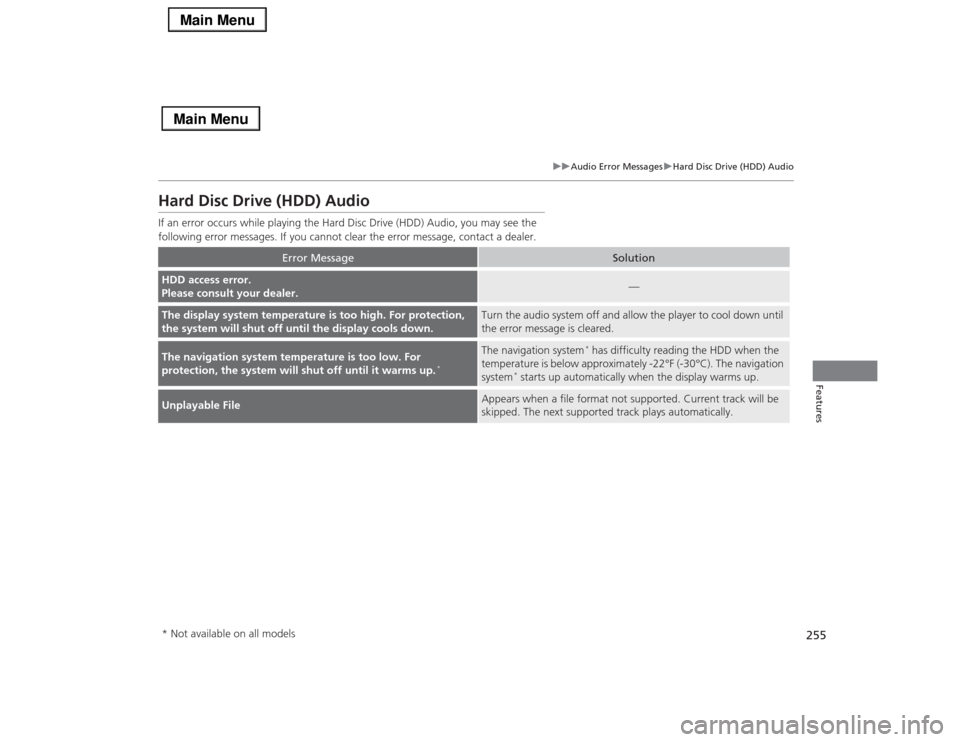
Hard Disc Drive (HDD) AudioIf an error occurs while playing the Hard Disc Drive (HDD) Audio, you may see the
following error messages. If you cannot clear the error message, contact a dealer.
Error Message
Solution
HDD access error.
Please consult your dealer.
—
The display system temperature is too high. For protection,
the system will shut off until the display cools down.
Turn the audio system off and allow the player to cool down until
the error message is cleared.
The navigation system temperature is too low. For
protection, the system will shut off until it warms up.
*
The navigation system
* has difficulty reading the HDD when the
temperature is below approximately -22°F (-30°C). The navigation
system
* starts up automatically when the display warms up.
Unplayable File
Appears when a file format not supported. Current track will be
skipped. The next supported track plays automatically.
* Not available on all models
Page 261 of 518
260Features
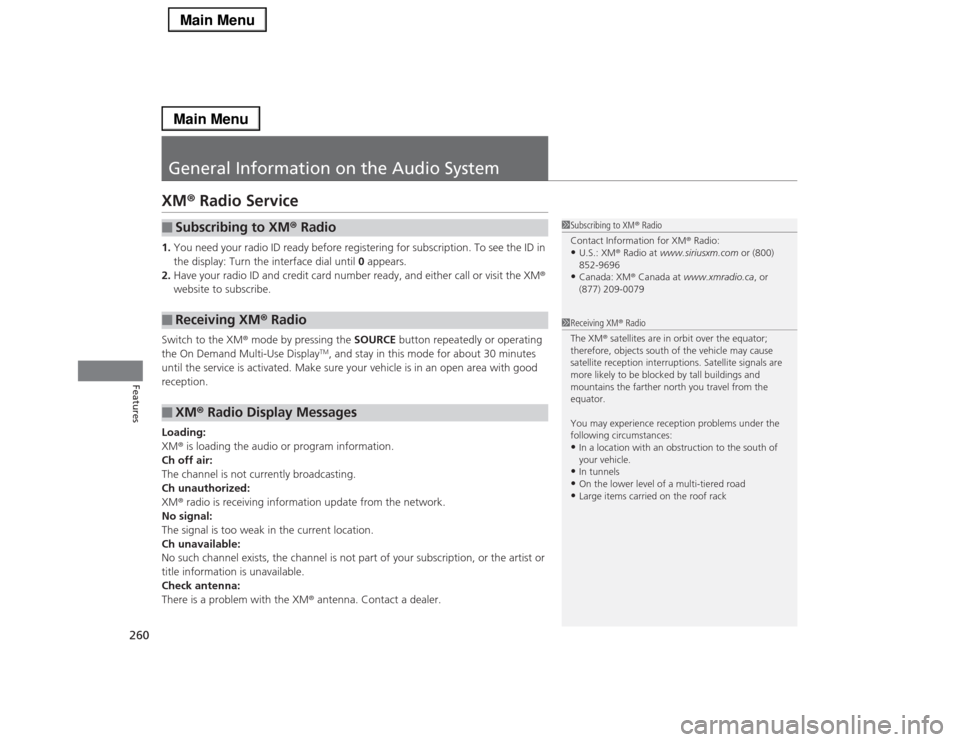
General Information on the Audio SystemXM® Radio Service1.You need your radio ID ready before registering for subscription. To see the ID in
the display: Turn the interface dial until 0 appears.
2.Have your radio ID and credit card number ready, and either call or visit the XM®
website to subscribe.
Switch to the XM® mode by pressing the SOURCE button repeatedly or operating
the On Demand Multi-Use Display
TM, and stay in this mode for about 30 minutes
until the service is activated. Make sure your vehicle is in an open area with good
reception.
Loading:
XM® is loading the audio or program information.
Ch off air:
The channel is not currently broadcasting.
Ch unauthorized:
XM® radio is receiving information update from the network.
No signal:
The signal is too weak in the current location.
Ch unavailable:
No such channel exists, the channel is not part of your subscription, or the artist or
title information is unavailable.
Check antenna:
There is a problem with the XM® antenna. Contact a dealer.
■
Subscribing to XM® Radio
■
Receiving XM® Radio
■
XM® Radio Display Messages
1Subscribing to XM® Radio
Contact Information for XM® Radio:•U.S.: XM® Radio at www.siriusxm.com or (800)
852-9696•Canada: XM® Canada at www.xmradio.ca, or
(877) 209-0079
1Receiving XM® Radio
The XM® satellites are in orbit over the equator;
therefore, objects south of the vehicle may cause
satellite reception interruptions. Satellite signals are
more likely to be blocked by tall buildings and
mountains the farther north you travel from the
equator.
You may experience reception problems under the
following circumstances:•In a location with an obstruction to the south of
your vehicle.•In tunnels•On the lower level of a multi-tiered road•Large items carried on the roof rack
Page 272 of 518
271
uuCustomized Featuresu
Continued
Features
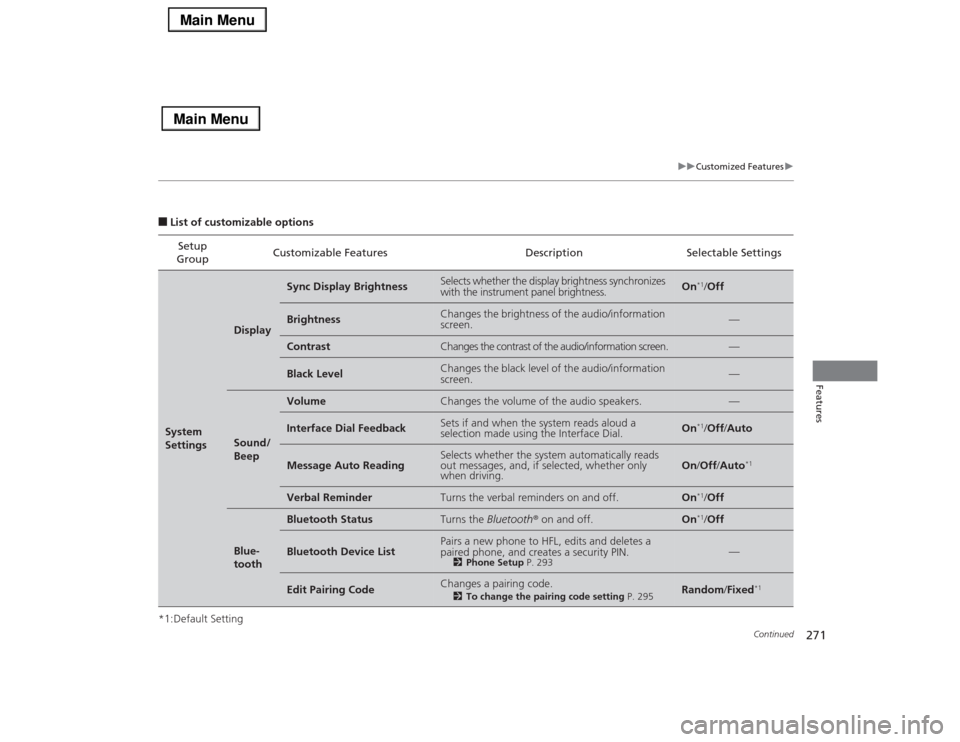
■List of customizable options
*1:Default SettingSetup
GroupCustomizable Features Description Selectable SettingsSystem
Settings
Display
Sync Display Brightness
Selects whether the display brightness synchronizes
with the instrument panel brightness.
On
*1/Off
Brightness
Changes the brightness of the audio/information
screen.
—
Contrast
Changes the contrast of the audio/information screen.
—
Black Level
Changes the black level of the audio/information
screen.
—
Sound/
Beep
Volume
Changes the volume of the audio speakers.
—
Interface Dial Feedback
Sets if and when the system reads aloud a
selection made using the Interface Dial.
On
*1/Off/Auto
Message Auto Reading
Selects whether the system automatically reads
out messages, and, if selected, whether only
when driving.
On/Off/Auto
*1
Verbal Reminder
Turns the verbal reminders on and off.
On
*1/Off
Blue-
tooth
Bluetooth Status
Turns the Bluetooth® on and off.
On
*1/Off
Bluetooth Device List
Pairs a new phone to HFL, edits and deletes a
paired phone, and creates a security PIN.
2Phone Setup P. 293
—
Edit Pairing Code
Changes a pairing code.
2To change the pairing code setting P. 295
Random/Fixed
*1
Page 273 of 518
272
uuCustomized Featuresu
Features
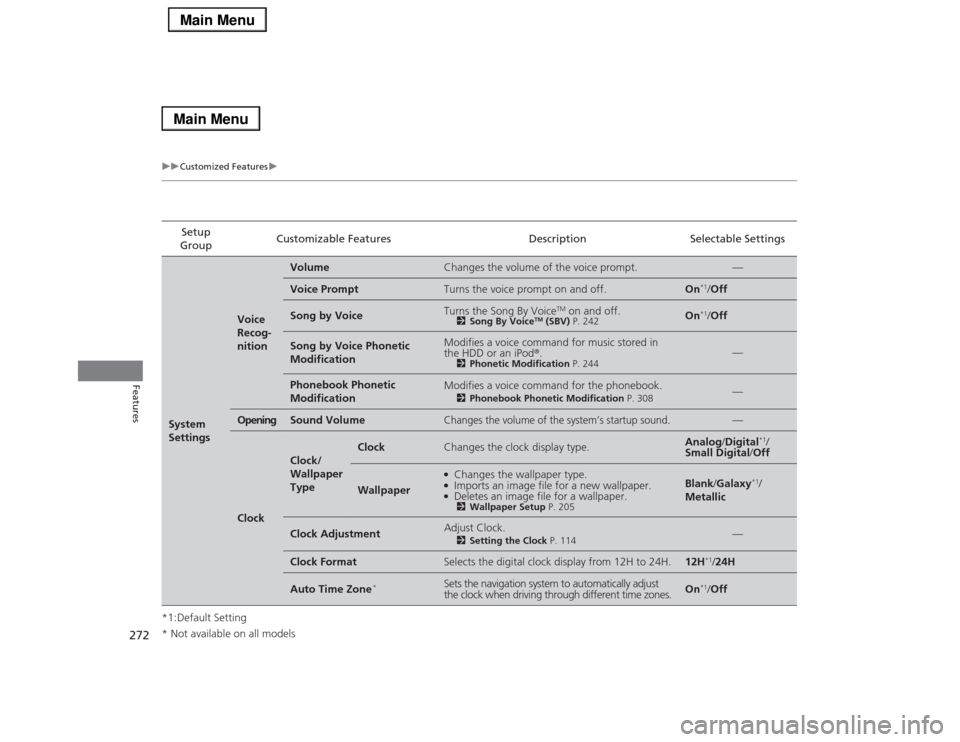
*1:Default SettingSetup
GroupCustomizable Features Description Selectable SettingsSystem
Settings
Voice
Recog-
nition
Volume
Changes the volume of the voice prompt.
—
Voice Prompt
Turns the voice prompt on and off.
On
*1/Off
Song by Voice
Turns the Song By Voice
TM on and off.
2Song By Voice
TM (SBV) P. 242
On
*1/Off
Song by Voice Phonetic
Modification
Modifies a voice command for music stored in
the HDD or an iPod®.
2Phonetic Modification P. 244
—
Phonebook Phonetic
Modification
Modifies a voice command for the phonebook.
2Phonebook Phonetic Modification P. 308
—
Opening
Sound Volume
Changes the volume of the system’s startup sound.
—
Clock
Clock/
Wallpaper
Type
Clock
Changes the clock display type.
Analog/Digital
*1/
Small Digital/Off
Wallpaper
●Changes the wallpaper type.●Imports an image file for a new wallpaper.●Deletes an image file for a wallpaper.2Wallpaper Setup P. 205
Blank/Galaxy
*1/
Metallic
Clock Adjustment
Adjust Clock.
2Setting the Clock P. 114
—
Clock Format
Selects the digital clock display from 12H to 24H.
12H
*1/24H
Auto Time Zone
*
Sets the navigation system to automatically adjust
the clock when driving through different time zones.
On
*1/Off
* Not available on all models
Page 274 of 518
273
uuCustomized Featuresu
Continued
Features
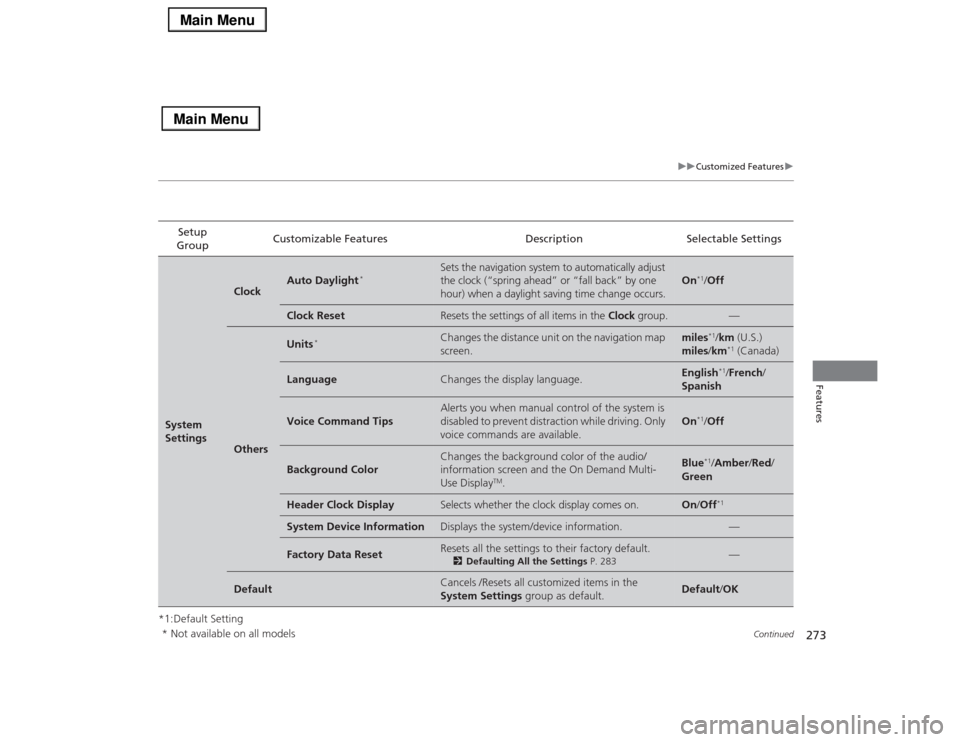
*1:Default SettingSetup
GroupCustomizable Features Description Selectable SettingsSystem
Settings
Clock
Auto Daylight
*
Sets the navigation system to automatically adjust
the clock (“spring ahead” or “fall back” by one
hour) when a daylight saving time change occurs.
On
*1/Off
Clock Reset
Resets the settings of all items in the Clock group.
—
Others
Units
*
Changes the distance unit on the navigation map
screen.
miles
*1/km (U.S.)
miles/km*1 (Canada)
Language
Changes the display language.
English
*1/French/
Spanish
Voice Command Tips
Alerts you when manual control of the system is
disabled to prevent distraction while driving. Only
voice commands are available.
On
*1/Off
Background Color
Changes the background color of the audio/
information screen and the On Demand Multi-
Use Display
TM.
Blue
*1/Amber/Red/
Green
Header Clock Display
Selects whether the clock display comes on.
On/Off
*1
System Device Information
Displays the system/device information.
—
Factory Data Reset
Resets all the settings to their factory default.
2Defaulting All the Settings P. 283
—
Default
Cancels /Resets all customized items in the
System Settings group as default.
Default/OK
* Not available on all models
Page 278 of 518

277
uuCustomized Featuresu
Continued
Features
*1:Default SettingSetup
GroupCustomizable Features Description Selectable Settings
Vehicle
SettingsDoor
SetupAuto Door LockChanges the setting for the automatic locking
feature.With Vehicle Speed
*1/
Shift from P/Off
Auto Door UnlockChanges the setting for when the doors unlock
automatically.All Doors When
Driver’s Door Opens*1/
All Doors When
Shifted to Park/All
Doors When Ignition
Switched Off/Off
Key And Remote Unlock
ModeSets up either the driver’s door or all doors to
unlock on the first push of the remote.Driver Door
*1/All
Doors
Keyless Lock Answer BackLOCK/UNLOCK- The exterior lights flash.
LOCK (2nd push)- The beeper sounds.On
*1/Off
Security Relock TimerChanges the time it takes for the doors to relock
and the security system to set after you unlock
the vehicle without opening any door.90seconds/
60seconds/
30seconds
*1
Auto Folding Door Mirror
*
Changes how you can fold the door mirrors.
Auto Fold With
Keyless
*1/Manual Only
Wiper
SetupWiper Action
*
Changes the setting for the automatic
intermittent wipers in the AUTO position.Rain Sensing
*1/
Intermittent/Speed
Sensitive
Front Wiper Action
*
Changes the setting for the wipers in the INT
position.Speed Sensitive
*1/
Intermittent
* Not available on all models
Page 280 of 518
279
uuCustomized Featuresu
Continued
Features
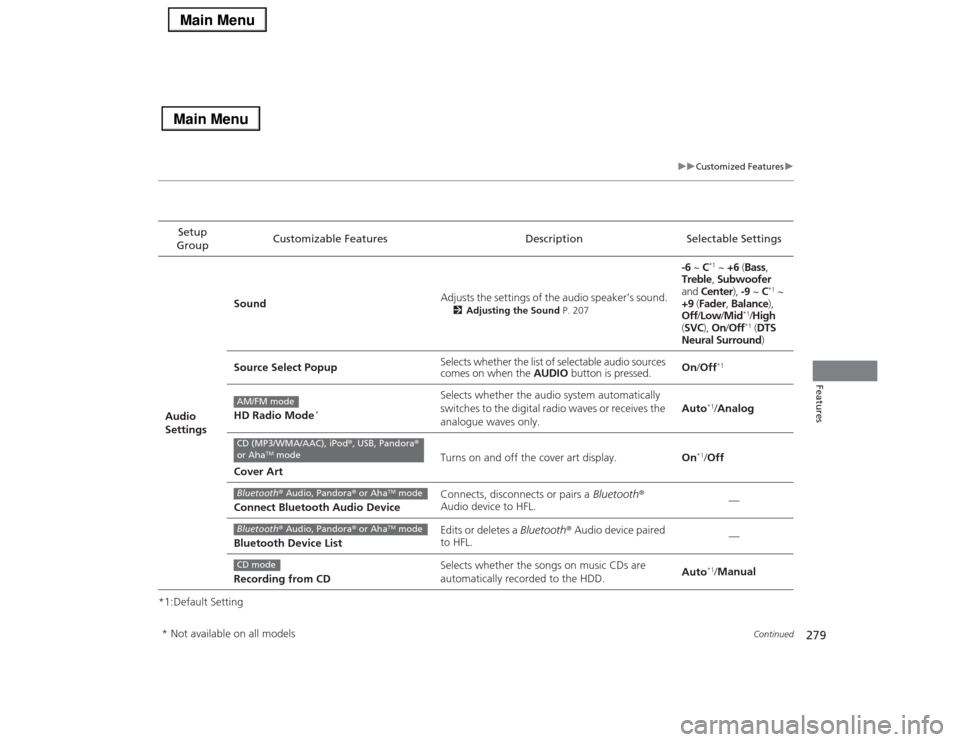
*1:Default SettingSetup
GroupCustomizable Features Description Selectable Settings
Audio
SettingsSoundAdjusts the settings of the audio speaker’s sound.
2Adjusting the Sound P. 207
-6 ~ C
*1 ~ +6 (Bass,
Treble, Subwoofer
and Center), -9 ~ C
*1 ~
+9 (Fader, Balance),
Off/Low/Mid
*1/High
(SVC), On/Off*1 (DTS
Neural Surround)
Source Select PopupSelects whether the list of selectable audio sources
comes on when the AUDIO button is pressed.On/Off
*1
HD Radio Mode
*
Selects whether the audio system automatically
switches to the digital radio waves or receives the
analogue waves only.Auto
*1/Analog
Cover ArtTurns on and off the cover art display.On
*1/Off
Connect Bluetooth Audio DeviceConnects, disconnects or pairs a Bluetooth®
Audio device to HFL.—
Bluetooth Device ListEdits or deletes a Bluetooth® Audio device paired
to HFL.—
Recording from CDSelects whether the songs on music CDs are
automatically recorded to the HDD.Auto*1/Manual
AM/FM modeCD (MP3/WMA/AAC), iPod®, USB, Pandora®
or Aha
TM mode
Bluetooth® Audio, Pandora® or Aha
TM mode
Bluetooth® Audio, Pandora® or Aha
TM mode
CD mode
* Not available on all models
Page 282 of 518
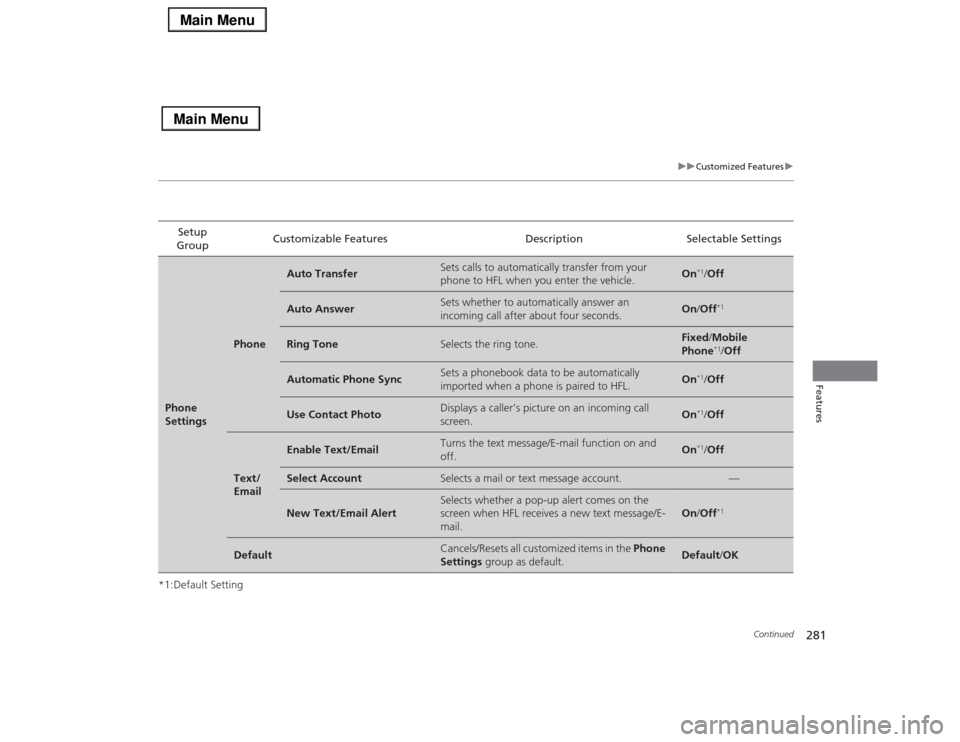
281
uuCustomized Featuresu
Continued
Features
*1:Default SettingSetup
GroupCustomizable Features Description Selectable SettingsPhone
Settings
Phone
Auto Transfer
Sets calls to automatically transfer from your
phone to HFL when you enter the vehicle.
On
*1/Off
Auto Answer
Sets whether to automatically answer an
incoming call after about four seconds.
On/Off
*1
Ring Tone
Selects the ring tone.
Fixed/Mobile
Phone
*1/Off
Automatic Phone Sync
Sets a phonebook data to be automatically
imported when a phone is paired to HFL.
On
*1/Off
Use Contact Photo
Displays a caller’s picture on an incoming call
screen.
On
*1/Off
Text/
Email
Enable Text/Email
Turns the text message/E-mail function on and
off.
On
*1/Off
Select Account
Selects a mail or text message account.
—
New Text/Email Alert
Selects whether a pop-up alert comes on the
screen when HFL receives a new text message/E-
mail.
On/Off
*1
Default
Cancels/Resets all customized items in the Phone
Settings group as default.
Default/OK