audio Acura RLX 2017 Owner's Manual
[x] Cancel search | Manufacturer: ACURA, Model Year: 2017, Model line: RLX, Model: Acura RLX 2017Pages: 557, PDF Size: 37.97 MB
Page 317 of 557
uuBluetooth ® HandsFreeLink ®u HFL Menus
316
Features
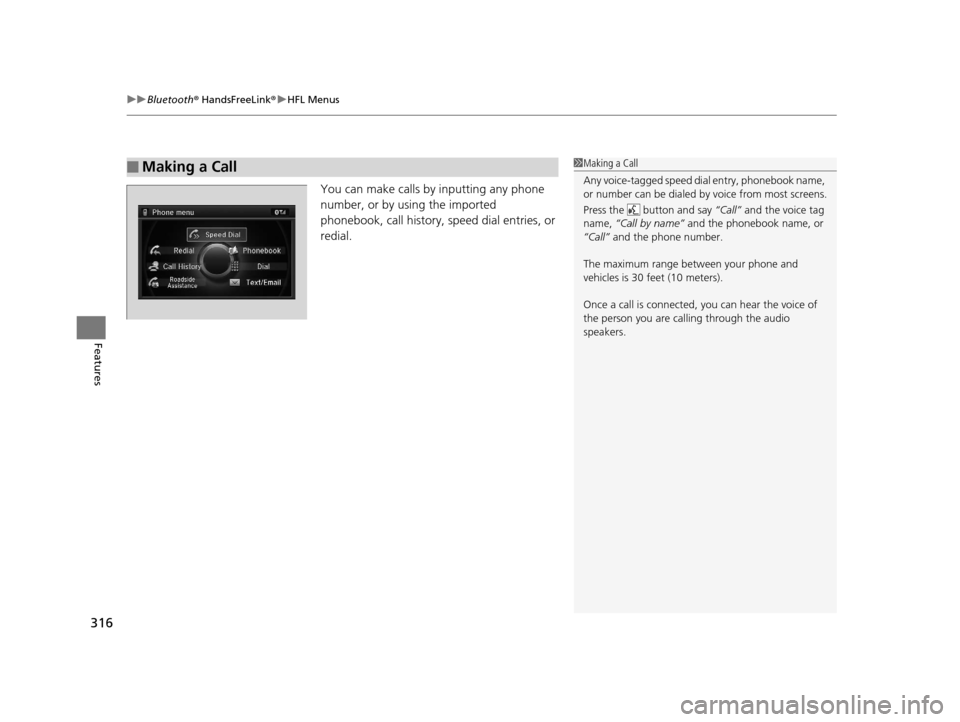
You can make calls by inputting any phone
number, or by using the imported
phonebook, call history, speed dial entries, or
redial.
■Making a Call1 Making a Call
Any voice-tagged speed di al entry, phonebook name,
or number can be dialed by voice from most screens.
Press the button and say “Call” and the voice tag
name, “Call by name” and the phonebook name, or
“Call” and the phone number.
The maximum range be tween your phone and
vehicles is 30 fe et (10 meters).
Once a call is connected, you can hear the voice of
the person you are call ing through the audio
speakers.
17 ACURA RLX-31TY26300.book 316 ページ 2016年6月17日 金曜日 午前8時12分
Page 331 of 557
330
Features
AcuraLink®
Is a subscription-based service that provides convenient features such as voice
communication in case of emergency, online security, one-on-one operator
assistance, and the transmission of impo rtant messages regarding your vehicle’s
status.
For information on traffic rerouting and traffi c information updates, provided by the
AcuraLink server, see the Na vigation System Manual.
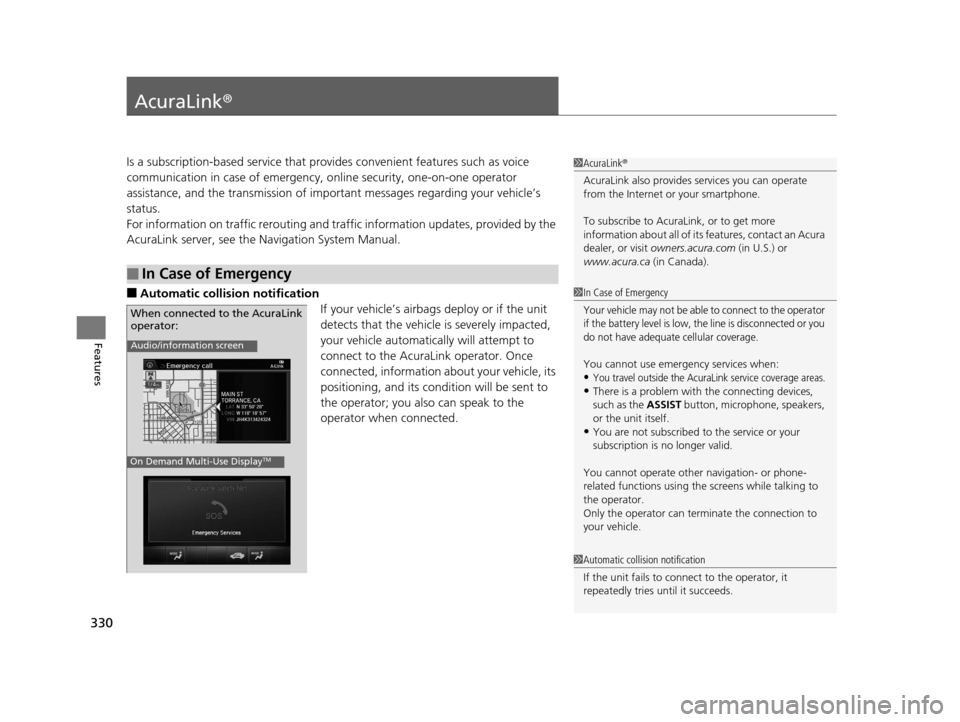
■Automatic collision notification
If your vehicle’s airbags deploy or if the unit
detects that the vehicle is severely impacted,
your vehicle automatically will attempt to
connect to the AcuraLink operator. Once
connected, information about your vehicle, its
positioning, and its condition will be sent to
the operator; you also can speak to the
operator when connected.
■In Case of Emergency
1AcuraLink ®
AcuraLink also provides services you can operate
from the Internet or your smartphone.
To subscribe to AcuraLink, or to get more
information about all of its features, contact an Acura
dealer, or visit owners.acura.com (in U.S.) or
www.acura.ca (in Canada).
1In Case of Emergency
Your vehicle may not be able to connect to the operator
if the battery level is low, th e line is disconnected or you
do not have adequate cellular coverage.
You cannot use emergency services when:•You travel outside the AcuraLink service coverage areas.
•There is a problem with the connecting devices,
such as the ASSIST button, microphone, speakers,
or the unit itself.
•You are not subscribed to the service or your
subscription is no longer valid.
You cannot operate othe r navigation- or phone-
related functions using the screens while talking to
the operator.
Only the operator can terminate the connection to
your vehicle.
1 Automatic collision notification
If the unit fails to connect to the operator, it
repeatedly tries until it succeeds.
When connected to the AcuraLink
operator:
On Demand Multi-Use DisplayTM
Audio/information screen
17 ACURA RLX-31TY26300.book 330 ページ 2016年6月17日 金曜日 午前8時12分
Page 334 of 557

Continued333
uuAcuraLink ®u
Features
Connect to the AcuraLink operator when trying to find a destination or for roadside
assistance.
1.Press the LINK button.
u Connection to the operator begins.
2. Talk to the operator.
u To disconnect, press the selector knob,
select End Call on the On Demand
Multi-Use Display
TM, or press the Hang-
up button.
■Operator Assistance1 Operator Assistance
Remain attentive to road conditions and driving
during operator assistance.
LINK Button
Audio/information screen
when connected to the
AcuraLink operator.
17 ACURA RLX-31TY26300.book 333 ページ 2016年6月17日 金曜日 午前8時12分
Page 335 of 557
uuAcuraLink ®u
334
Features
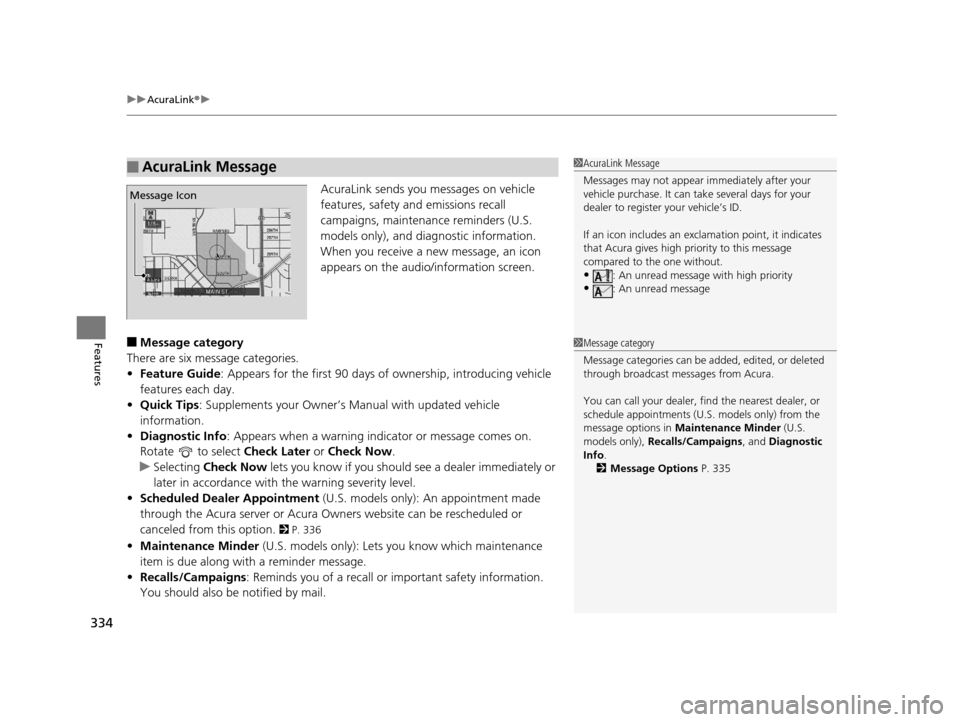
AcuraLink sends you messages on vehicle
features, safety and emissions recall
campaigns, maintenance reminders (U.S.
models only), and diagnostic information.
When you receive a new message, an icon
appears on the audio/information screen.
■Message category
There are six message categories.
• Feature Guide: Appears for the first 90 days of ownership, introducing vehicle
features each day.
• Quick Tips : Supplements your Owner’s Manual with updated vehicle
information.
• Diagnostic Info : Appears when a warning indicator or message comes on.
Rotate to select Check Later or Check Now .
u Selecting Check Now lets you know if you should see a dealer immediately or
later in accordance with the warning severity level.
• Scheduled Dealer Appointment (U.S. models only): An appointment made
through the Acura server or Acura Owners website can be rescheduled or
canceled from this option.
2 P. 336
• Maintenance Minder (U.S. models only): Lets you know which maintenance
item is due along with a reminder message.
• Recalls/Campaigns: Reminds you of a recall or important safety information.
You should also be notified by mail.
■AcuraLink Message1AcuraLink Message
Messages may not appear immediately after your
vehicle purchase. It can ta ke several days for your
dealer to register your vehicle’s ID.
If an icon includes an excl amation point, it indicates
that Acura gives high priority to this message
compared to the one without.
•: An unread message with high priority
•: An unread message
Message Icon
1 Message category
Message categories can be added, edited, or deleted
through broadcast me ssages from Acura.
You can call your dealer, find the nearest dealer, or
schedule appointments (U.S. models only) from the
message options in Maintenance Minder (U.S.
models only), Recalls/Campaigns , and Diagnostic
Info .
2 Message Options P. 335
17 ACURA RLX-31TY26300.book 334 ページ 2016年6月17日 金曜日 午前8時12分
Page 419 of 557
418
uuParking Your Vehicle uParking Sensor System*
Driving
Parking Sensor System*
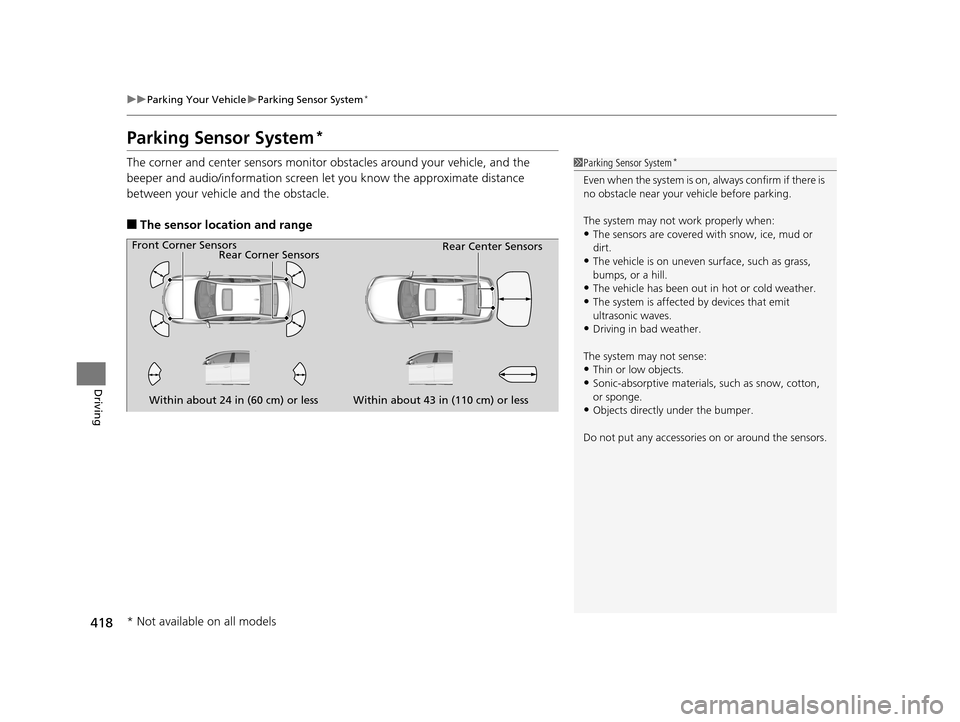
The corner and center sensors monitor obstacles around your vehicle, and the
beeper and audio/information screen le t you know the approximate distance
between your vehicle and the obstacle.
■The sensor location and range
1 Parking Sensor System*
Even when the system is on, always confirm if there is
no obstacle near your ve hicle before parking.
The system may not work properly when:
•The sensors are covered with snow, ice, mud or
dirt.
•The vehicle is on uneven su rface, such as grass,
bumps, or a hill.
•The vehicle has been out in hot or cold weather.•The system is affected by devices that emit
ultrasonic waves.
•Driving in bad weather.
The system may not sense:
•Thin or low objects.•Sonic-absorptive materials, such as snow, cotton,
or sponge.
•Objects directly under the bumper.
Do not put any accessories on or around the sensors.Within about 24 in (60 cm) or less
Front Corner Sensors
Rear Corner Sensors
Rear Center Sensors
Within about 43 in (110 cm) or less
* Not available on all models
17 ACURA RLX-31TY26300.book 418 ページ 2016年6月17日 金曜日 午前8時12分
Page 421 of 557
420
uuParking Your Vehicle uParking Sensor System*
Driving
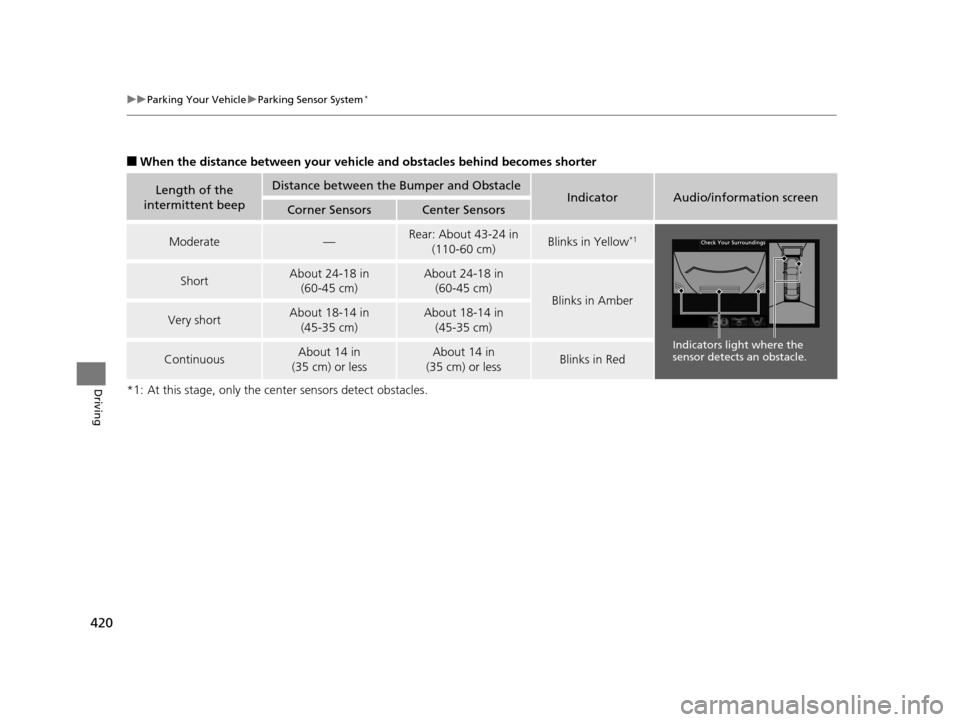
■When the distance between your vehicl e and obstacles behind becomes shorter
*1: At this stage, only the ce nter sensors detect obstacles.
Length of the
intermittent beepDistance between the Bumper and ObstacleIndicatorAudio/information screenCorner SensorsCenter Sensors
Moderate—Rear: About 43-24 in (110-60 cm) Blinks in Yellow*1
ShortAbout 24-18 in (60-45 cm) About 24-18 in (60-45 cm)
Blinks in Amber
Very shortAbout 18-14 in
(45-35 cm) About 18-14 in (45-35 cm)
ContinuousAbout 14 in
(35 cm) or lessAbout 14 in
(35 cm) or lessBlinks in Red
Indicators light where the
sensor detects an obstacle.
17 ACURA RLX-31TY26300.book 420 ページ 2016年6月17日 金曜日 午前8時12分
Page 425 of 557

uuParking Your Vehicle uCross Traffic Monitor*
424
Driving
An arrow icon appears on the side a vehicle is approaching on the audio/information
screen.
■When the System Detects a Vehicle1When the System Detects a Vehicle
If on the lower right ch anges to (amber) when
the shift lever is in
( R, mud snow or ice, etc. may
have accumulated in the vi cinity of the sensor. The
system is temporarily canceled. Check the bumper
corners for any obstructions, and thoroughly clean
the area if necessary.
If (amber) comes on when the shift lever is in
( R,
there may be a problem with the Cross Traffic
Monitor system. Do not use the system and have your
vehicle checked by a dealer.
If the display remains the same with the shift lever in
( R, there may be a problem with the rear camera
system and the Cross Traffic Monitor system.
Do not use the system and have your vehicle checked
by a dealer.
Rear Wide View Rear Normal View Arrow Icon
Arrow Icon
Models with surround view camera system
Rear Ground View
Models with multi-view rear camera
Wide View
Normal ViewTop Down View
17 ACURA RLX-31TY26300.book 424 ページ 2016年6月17日 金曜日 午前8時12分
Page 426 of 557
425
uuParking Your Vehicle uCross Traffic Monitor*
Driving
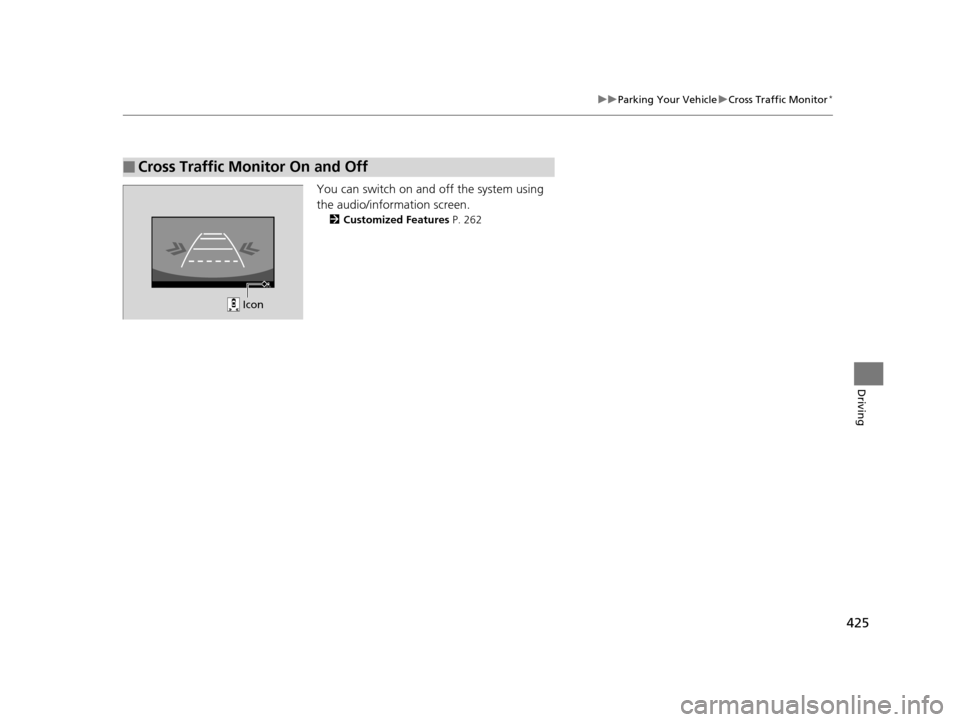
You can switch on and off the system using
the audio/information screen.
2 Customized Features P. 262
■Cross Traffic Monitor On and Off
Icon
17 ACURA RLX-31TY26300.book 425 ページ 2016年6月17日 金曜日 午前8時12分
Page 427 of 557

426
Driving
Multi-View Rear Camera*
About Your Multi-View Rear Camera
The audio/information screen can display your vehicle’s rear view. The display
automatically changes to the rear view when the shift lever is moved to
(R.
You can view three different camera angl es on the rearview display. Press the
interface dial to switch the angle.
If Top View is last used before you turn the power mode to OFF, Wide mode is
selected next time you turn the pow er on and move the shift lever to
(R.
■Multi-View Rear Camera Display Area
1About Your Multi-View Rear Camera
The rear camera view is restricted. You cannot see
the corner ends of the bum per or what is underneath
the bumper. Its unique le ns also makes objects
appear closer or farther than they actually are.
Visually confirm that it is safe to drive before backing
up. Certain conditions (such as weather, lighting, and
high temperatures) may also re strict the rear view. Do
not rely on the rearview display which does not give
you all information about conditions at the back of
your vehicle.
If the camera lens is cove red with dirt or moisture,
use a soft, moist cloth to keep the lens clean and free
of debris.
You can change the Fixed Guideline and Dynamic
Guideline settings. 2 Customized Features P. 262
Fixed Guideline
On : Guidelines appear when you shift into
(R.
Off : Guidelines do not appear when the dynamic
guideline is off.
Dynamic Guideline
On : Guidelines move according to the steering wheel
direction.
Off : Guidelines do not move.
Top Down View Mode Normal View Mode Wide View Mode
Guidelines
Bumper
Camera
Approx. 118 inches (3 m)Approx. 79 inches (2 m)Approx. 39 inches (1 m)
Approx. 20 inches (50 cm)
* Not available on all models
17 ACURA RLX-31TY26300.book 426 ページ 2016年6月17日 金曜日 午前8時12分
Page 430 of 557

429
uuSurround View Camera System*uDisplaying an Image From the Surround View Cameras
Continued
Driving
■Camera Locations and Images
Ground View
An overhead view created by the
combination of images captured
by four cameras.
Left and Right
Side View
Front Ground View
Right Side View Front Wide View
Sideview Camera
(Passenger side)Sideview Camera
(Driver side)
Rearview Camera
Front-view Camera
The unique surround view camera lenses make distances appear
differently than they actually are - objects seen on the audio/information
screen may appear closer or further away, and may be distorted. This
becomes more apparent the further aw
ay an object is from your vehicle.
CAMERA
Button
Rear
Ground
View
Rear
Wide
View
Rear
Normal
View
CAMERA Button
CAMERA Button
CAMERA
Button
Press and
hold
CAMERA
button.CAMERA
Button
CAMERA Button
17 ACURA RLX-31TY26300.book 429 ページ 2016年6月17日 金曜日 午前8時12分