radio Acura TLX 2017 User Guide
[x] Cancel search | Manufacturer: ACURA, Model Year: 2017, Model line: TLX, Model: Acura TLX 2017Pages: 553, PDF Size: 33.77 MB
Page 227 of 553
uuAudio System Basic Operation uPlaying AM/FM Radio
226
Features
To store a station:
1. Tune to the selected station.
2. Press the MENU button.
3. Rotate to select Save Preset, then press .
4. Rotate to select the preset number you want to store that station, then press
.
You can also store that statio n by the following procedure.
1. Tune to the selected station.
2. Rotate to select the preset number you want to store the station.
3. Press and hold for a few seconds.
1. Tune to the selected station.
2. Select More.
3. Select Save Preset .
4. Select the preset number you wa nt to store that station.
You can also store that statio n by the following procedure.
1. Tune to the selected station.
2. Change the display to the preset screen.
3. Select and hold the preset number you want to store that station.
■Preset Memory1Playing AM/FM Radio
The ST indicator appears on the display indicating
stereo FM broadcasts.
Stereo reproduction in AM is not available.
Switching the Audio Mode
Press the SOURCE button on the steering wheel.
2 Audio Remote Controls P. 211
You can also switch the mode by pressing the MENU
button and selecting Change Source on the Audio
menu screen.
You can store 6 AM stations and 12 FM stations into
the preset memory.
Interface Dial
On Demand Multi-Use DisplayTM
17 ACURA TLX-31TZ36200.book 226 ページ 2016年6月10日 金曜日 午後6時39分
Page 228 of 553
227
uuAudio System Basic Operation uPlaying AM/FM Radio
Continued
Features
Provides text data information related to your selected RDS-capable FM station.
■To find an RDS station from Station List
1. Press the MENU button while listening to an FM station.
2. Rotate to select Station List, then press .
3. Rotate to select the station, then press .
■Manual update
Updates your available st ation list at any time.
1. Press the MENU button while listening to an FM station.
2. Rotate to select Station List, then press .
3. Rotate to select Refresh, then press .
■Radio Data System (RDS)
17 ACURA TLX-31TZ36200.book 227 ページ 2016年6月10日 金曜日 午後6時39分
Page 229 of 553
uuAudio System Basic Operation uPlaying AM/FM Radio
228
Features
■Radio text
Display the radio text information of the selected RDS station.
4. Press the MENU button.
5. Rotate to select Radio Text, then press .
■Scan
Samples each of the strongest stations on the selected band for 10 seconds.
1. Press the MENU button.
2. Rotate to select Scan, then press .
To turn off scan, press to select Cancel Scan, or press the BACK button.
1. Select More.
2. Select Scan.
To turn off scan, select Cancel Scan.
1Radio text
The text indicator comes on when you received a text
message. The indicator stays on until you read the
message.
Interface Dial
On Demand Multi-Use DisplayTM
17 ACURA TLX-31TZ36200.book 228 ページ 2016年6月10日 金曜日 午後6時39分
Page 230 of 553
229
uuAudio System Basic Operation uPlaying SiriusXM ® Radio
Continued
Features
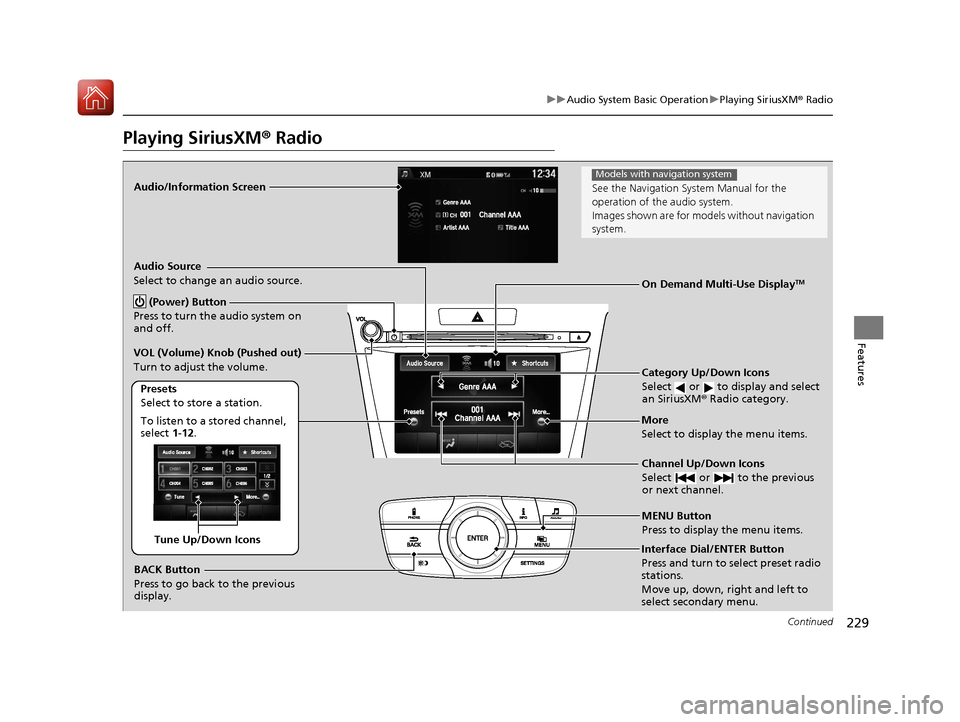
Playing SiriusXM® Radio
Audio/Information Screen
Category Up/Down Icons
Select or to display and select
an SiriusXM® Radio category.
MENU Button
Press to display the menu items.
(Power) Button
Press to turn the audio system on
and off.
Audio Source
Select to change an audio source.
To listen to a stored channel,
select 1-12.
Presets
Select to store a station.
Channel Up/Down Icons
Select or to the previous
or next channel.More
Select to display the menu items.
BACK Button
Press to go back to the previous
display.
VOL (Volume) Knob (Pushed out)
Turn to adjust the volume.
Interface Dial/ENTER Button
Press and turn to select preset radio
stations.
Move up, down, right and left to
select secondary menu.
On Demand Multi-Use DisplayTM
Tune Up/Down Icons
See the Navigation Sy
stem Manual for the
operation of the audio system.
Images shown are for mode ls without navigation
system.
Models with navigation system
17 ACURA TLX-31TZ36200.book 229 ページ 2016年6月10日 金曜日 午後6時39分
Page 231 of 553
uuAudio System Basic Operation uPlaying SiriusXM ® Radio
230
Features
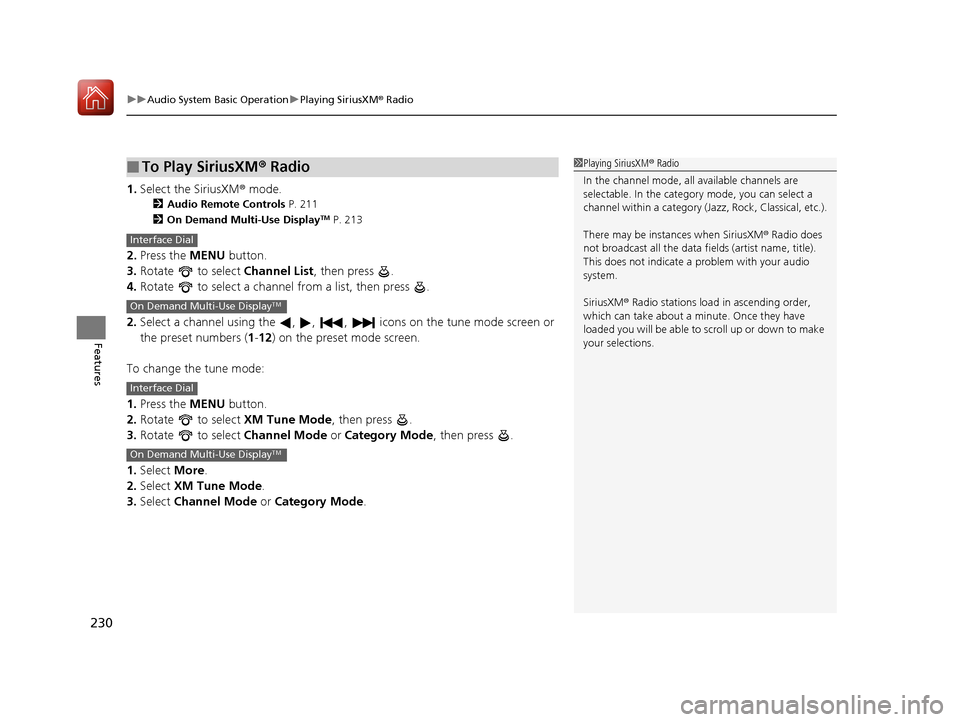
1. Select the SiriusXM® mode.
2 Audio Remote Controls P. 211
2 On Demand Multi-Use DisplayTM P. 213
2.Press the MENU button.
3. Rotate to select Channel List, then press .
4. Rotate to select a channel from a list, then press .
2. Select a channel using the , , , ic ons on the tune mode screen or
the preset numbers ( 1-12) on the preset mode screen.
To change the tune mode:
1. Press the MENU button.
2. Rotate to select XM Tune Mode, then press .
3. Rotate to select Channel Mode or Category Mode , then press .
1. Select More.
2. Select XM Tune Mode .
3. Select Channel Mode or Category Mode .
■To Play SiriusXM ® Radio1 Playing SiriusXM ® Radio
In the channel mode, all available channels are
selectable. In the categor y mode, you can select a
channel within a ca tegory (Jazz, Rock, Classical, etc.).
There may be instances when SiriusXM ® Radio does
not broadcast all the data fi elds (artist name, title).
This does not indicate a problem with your audio
system.
SiriusXM ® Radio stations load in ascending order,
which can take about a minute. Once they have
loaded you will be able to scroll up or down to make
your selections.
Interface Dial
On Demand Multi-Use DisplayTM
Interface Dial
On Demand Multi-Use DisplayTM
17 ACURA TLX-31TZ36200.book 230 ページ 2016年6月10日 金曜日 午後6時39分
Page 232 of 553
231
uuAudio System Basic Operation uPlaying SiriusXM ® Radio
Features
To store a station:
1. Tune to the selected station.
2. Press the MENU button.
3. Rotate to select Save Preset, then press .
4. Rotate to select the preset number you want to store that station, then press
.
You can also store that station by the following procedure.
1. Tune to the selected station.
2. Rotate to select the preset number you want to store the station.
3. Press and hold for a few seconds.
1. Tune to the selected station.
2. Select More.
3. Select Save Preset .
4. Select the preset number you want to store that station.
You can also store that station by the following procedure.
1. Tune to the selected station.
2. Change the display to the preset screen.
3. Select and hold the preset number you want to store that station.
■Preset Memory1Playing SiriusXM ® Radio
You can store 12 SiriusXM ® stations into the preset
memory.
Interface Dial
On Demand Multi-Use DisplayTM
17 ACURA TLX-31TZ36200.book 231 ページ 2016年6月10日 金曜日 午後6時39分
Page 240 of 553
239
uuAudio System Basic Operation uPlaying Internet Radio
Continued
Features
Playing Internet Radio
Connect a compatible phone through Bluetooth®.
You can also connect the phone using your dock connector to the USB port.
Select Audio Source to select Pandora or Aha mode.
Compatible phones only
1Playing Internet Radio
See the Navigation System Manual for the operation
of the audio system.
Images shown are for m odels without navigation
system.
Models with navigation system
iPhone
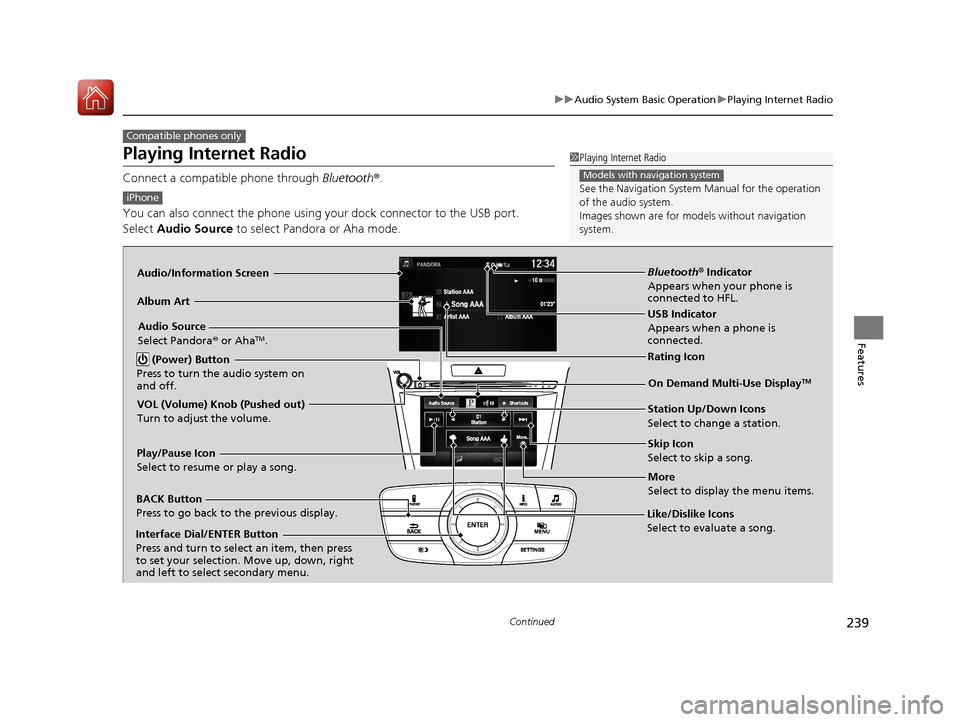
Audio/Information Screen
Album ArtUSB Indicator
Appears when a phone is
connected.
Rating Icon
BACK Button
Press to go back to the previous display.
Skip Icon
Select to skip a song.
More
Select to display the menu items.
Station Up/Down Icons
Select to change a station.
Audio Source
Select Pandora
® or Aha
TM.
Play/Pause Icon
Select to resume or play a song.
Like/Dislike Icons
Select to evaluate a song.
(Power) Button
Press to turn the audio system on
and off.
Interface Dial/ENTER Button
Press and turn to select an item, then press
to set your selection. Move up, down, right
and left to select secondary menu.
On Demand Multi-Use DisplayTM
VOL (Volume) Knob (Pushed out)
Turn to adjust the volume.
Bluetooth ® Indicator
Appears when your phone is
connected to HFL.
17 ACURA TLX-31TZ36200.book 239 ページ 2016年6月10日 金曜日 午後6時39分
Page 241 of 553
uuAudio System Basic Operation uPlaying Internet Radio
240
Features
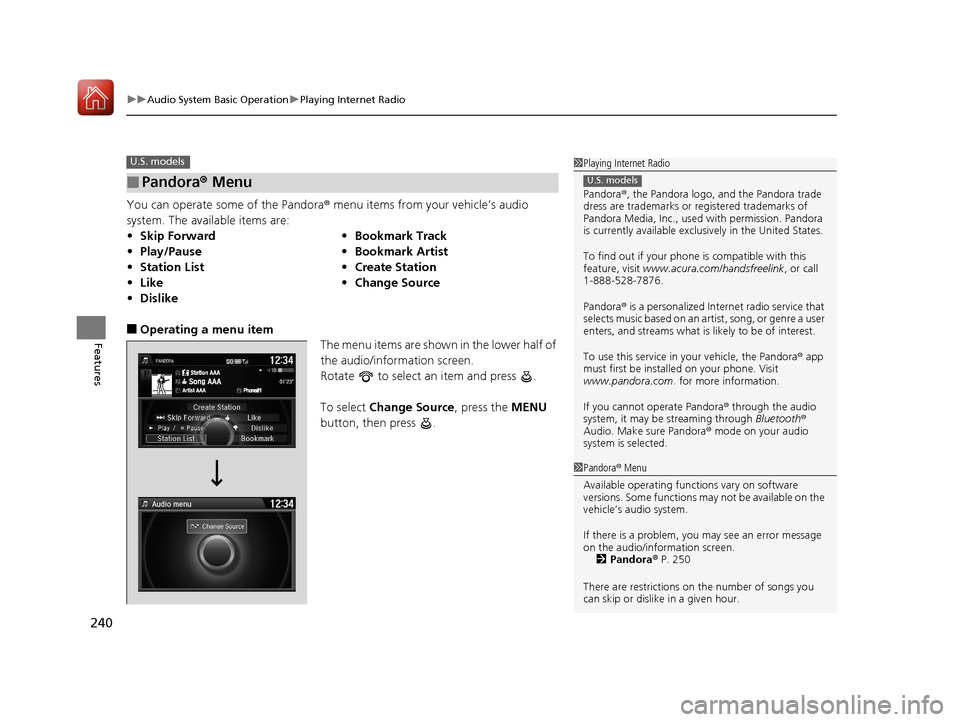
You can operate some of the Pandora® menu items from your vehicle’s audio
system. The available items are:
■Operating a menu item The menu items are shown in the lower half of
the audio/information screen.
Rotate to select an item and press .
To select Change Source, press the MENU
button, then press .
■Pandora® Menu
•Skip Forward •Bookmark Track
• Play/Pause •Bookmark Artist
• Station List •Create Station
• Like •Change Source
• Dislike
U.S. models1Playing Internet Radio
Pandora ®, the Pandora logo, and the Pandora trade
dress are trademarks or registered trademarks of
Pandora Media, Inc., used with permission. Pandora
is currently available exclusively in the United States.
To find out if your phone is compatible with this
feature, visit www.acura.com/handsfreelink , or call
1-888-528-7876.
Pandora ® is a personalized Internet radio service that
selects music based on an artist, song, or genre a user
enters, and streams what is likely to be of interest.
To use this service in your vehicle, the Pandora ® app
must first be installed on your phone. Visit
www.pandora.com . for more information.
If you cannot operate Pandora ® through the audio
system, it may be streaming through Bluetooth®
Audio. Make sure Pandora ® mode on your audio
system is selected.
U.S. models
1 Pandora ® Menu
Available operating functi ons vary on software
versions. Some functions ma y not be available on the
vehicle’s audio system.
If there is a problem, you may see an error message
on the audio/information screen. 2 Pandora ® P. 250
There are restrictions on the number of songs you
can skip or dislike in a given hour.
17 ACURA TLX-31TZ36200.book 240 ページ 2016年6月10日 金曜日 午後6時39分
Page 242 of 553
241
uuAudio System Basic Operation uPlaying Internet Radio
Features
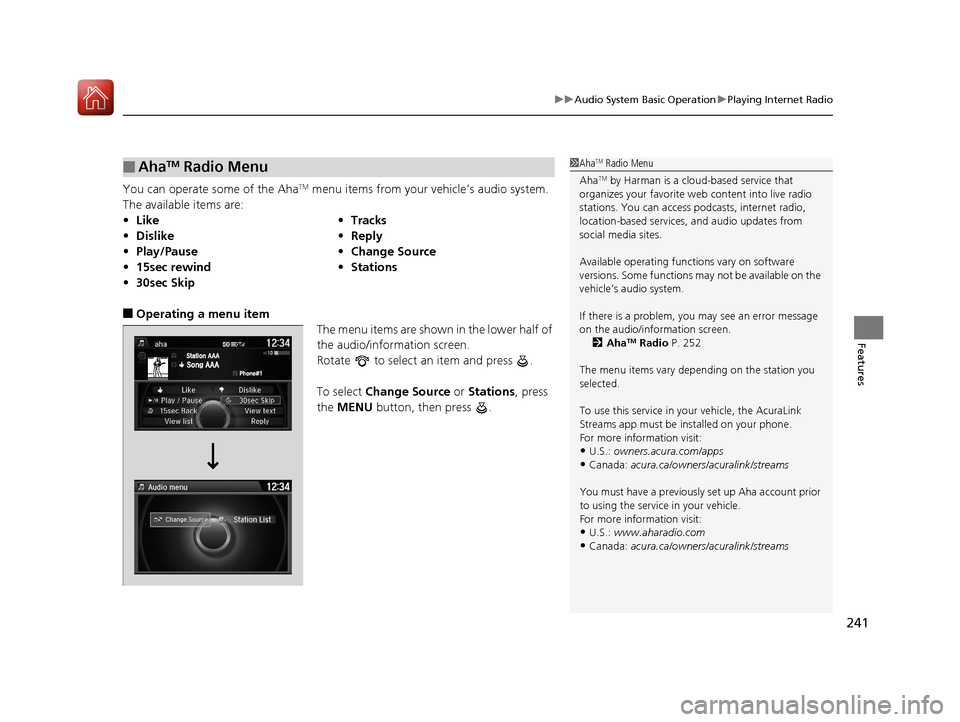
You can operate some of the AhaTM menu items from your vehicle’s audio system.
The available items are:
■Operating a menu item The menu items are shown in the lower half of
the audio/information screen.
Rotate to select an item and press .
To select Change Source or Stations , press
the MENU button, then press .
■AhaTM Radio Menu
•Like •Tracks
• Dislike •Reply
• Play/Pause •Change Source
• 15sec rewind •Stations
• 30sec Skip
1AhaTM Radio Menu
Aha
TM by Harman is a clou d-based service that
organizes your favorite we b content into live radio
stations. You can access podcasts, internet radio,
location-based services , and audio updates from
social media sites.
Available operating functi ons vary on software
versions. Some functions ma y not be available on the
vehicle’s audio system.
If there is a problem, you may see an error message
on the audio/information screen. 2 Aha
TM Radio P. 252
The menu items vary depending on the station you
selected.
To use this service in y our vehicle, the AcuraLink
Streams app must be installed on your phone.
For more information visit:
•U.S.: owners.acura.com/apps
•Canada: acura.ca/owners/acuralink/streams
You must have a previously set up Aha account prior
to using the service in your vehicle.
For more information visit:
•U.S.: www.aharadio.com
•Canada: acura.ca/owners/acuralink/streams
17 ACURA TLX-31TZ36200.book 241 ページ 2016年6月10日 金曜日 午後6時39分
Page 253 of 553
252
uuAudio Error Messages uAhaTM Radio
Features
AhaTM Radio
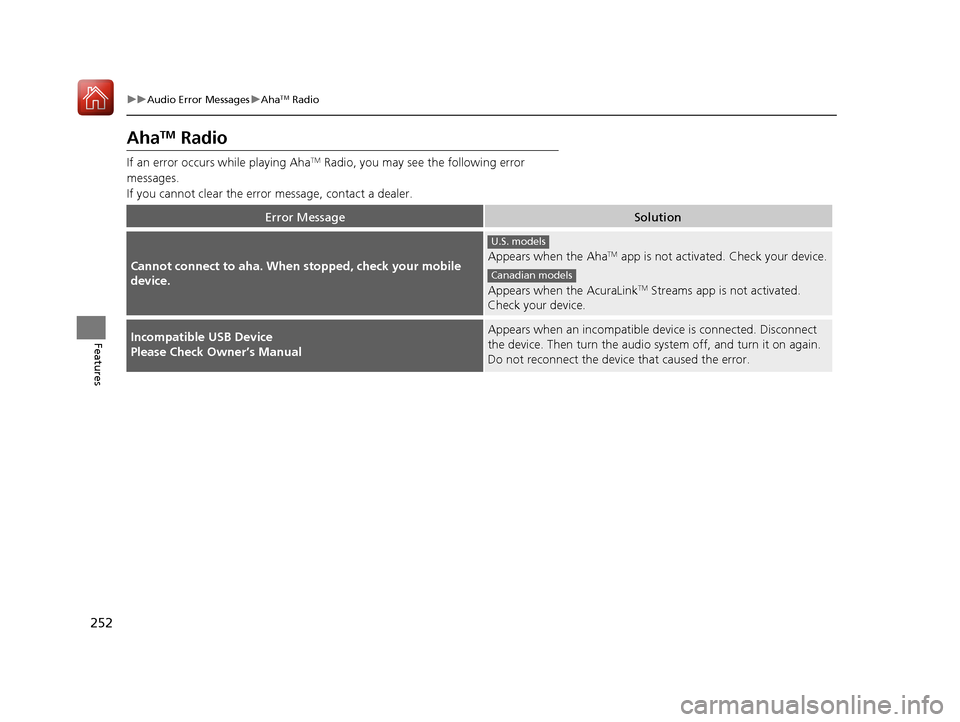
If an error occurs while playing AhaTM Radio, you may see the following error
messages.
If you cannot clear the error message, contact a dealer.
Error MessageSolution
Cannot connect to aha. When stopped, check your mobile
device.Appears when the AhaTM app is not activated. Check your device.
Appears when the AcuraLink
TM Streams app is not activated.
Check your device.
Incompatible USB Device
Please Check Owner’s ManualAppears when an incompatible device is connected. Disconnect
the device. Then turn the audio syst em off, and turn it on again.
Do not reconnect the device that caused the error.
U.S. models
Canadian models
17 ACURA TLX-31TZ36200.book 252 ページ 2016年6月10日 金曜日 午後6時39分