reset Acura TLX 2017 User Guide
[x] Cancel search | Manufacturer: ACURA, Model Year: 2017, Model line: TLX, Model: Acura TLX 2017Pages: 553, PDF Size: 33.77 MB
Page 136 of 553
135
uuGauges and Multi-Information Display uMulti-Information Display
Instrument Panel
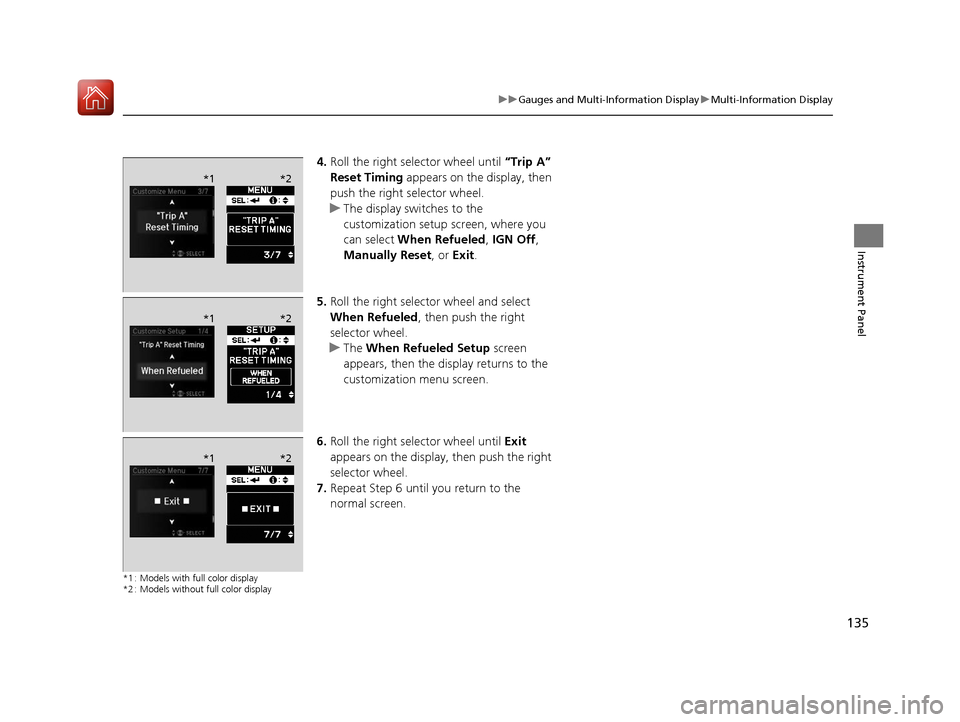
4. Roll the right selector wheel until “Trip A”
Reset Timing appears on the display, then
push the right selector wheel.
u The display swit ches to the
customization setup screen, where you
can select When Refueled , IGN Off,
Manually Reset , or Exit .
5. Roll the right selector wheel and select
When Refueled , then push the right
selector wheel.
u The When Refueled Setup screen
appears, then the di splay returns to the
customization menu screen.
6. Roll the right selector wheel until Exit
appears on the display, then push the right
selector wheel.
7. Repeat Step 6 until you return to the
normal screen.
*1 : Models with full color display
*2 : Models without full color display
*1 *2
*1*2
*1*2
17 ACURA TLX-31TZ36200.book 135 ページ 2016年6月10日 金曜日 午後6時39分
Page 175 of 553
174
uuOperating the Switches Around the Steering Wheel uDriving Position Memory System
Controls
Driving Position Memory System
You can store two driver’s seat (except for power lumbar) and door mirror positions
with the driving position memory system.
When you unlock and open th e driver’s door with a remote transmitter, or keyless
access system, the seat and door mirrors adjust automatically to one of the two
preset positions.
When you enter the vehicle, the multi-in formation display briefly shows you which
remote transmitter you used to unlock the vehicle.
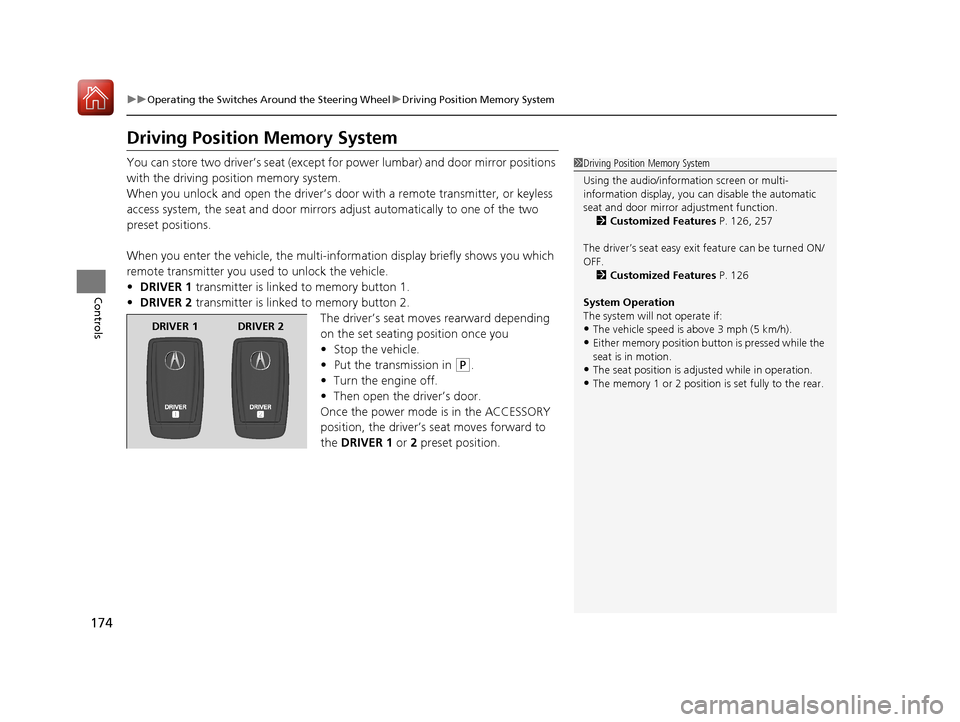
• DRIVER 1 transmitter is linked to memory button 1.
• DRIVER 2 transmitter is linked to memory button 2.
The driver’s seat moves rearward depending
on the set seating position once you
•Stop the vehicle.
• Put the transmission in
(P.
• Turn the engine off.
• Then open the driver’s door.
Once the power mode is in the ACCESSORY
position, the driver’s seat moves forward to
the DRIVER 1 or 2 preset position.
1 Driving Position Memory System
Using the audio/information screen or multi-
information display, you can disable the automatic
seat and door mirror adjustment function. 2 Customized Features P. 126, 257
The driver’s seat easy exit feature can be turned ON/
OFF. 2 Customized Features P. 126
System Operation
The system will not operate if:
•The vehicle speed is above 3 mph (5 km/h).
•Either memory position button is pressed while the
seat is in motion.
•The seat position is adju sted while in operation.
•The memory 1 or 2 position is set fully to the rear.
DRIVER 1 DRIVER 2
17 ACURA TLX-31TZ36200.book 174 ページ 2016年6月10日 金曜日 午後6時39分
Page 205 of 553
uuClimate Control System uUsing Automatic Climate Control
204
Controls
You can store two sets of your preferred temperature, fan speed, and vent mode
settings to the climate control system.
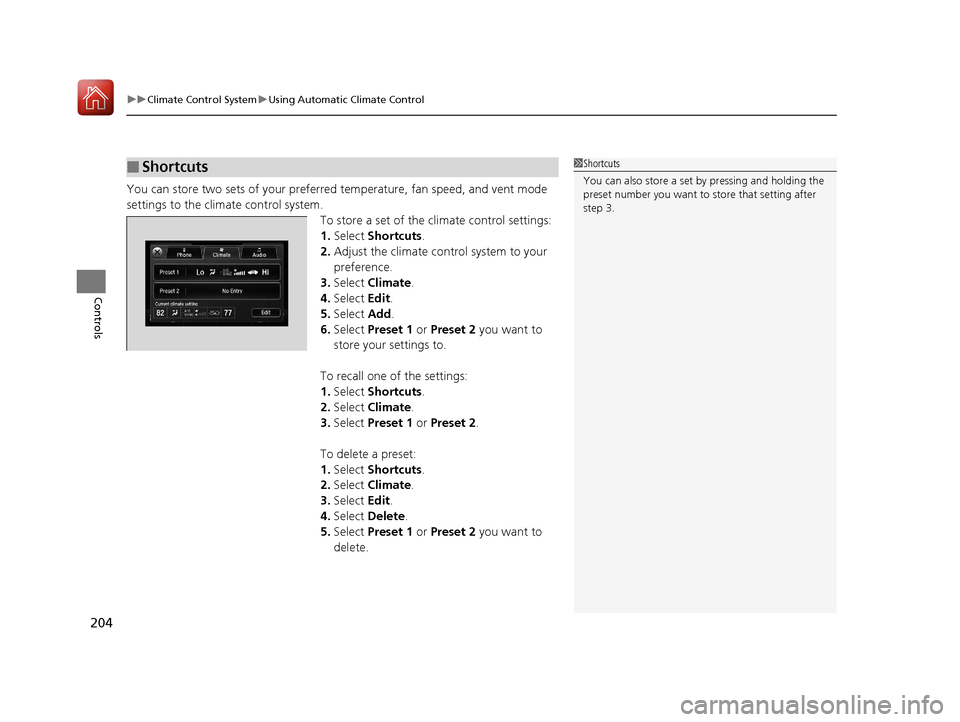
To store a set of the climate control settings:
1.Select Shortcuts .
2. Adjust the climate control system to your
preference.
3. Select Climate .
4. Select Edit.
5. Select Add.
6. Select Preset 1 or Preset 2 you want to
store your settings to.
To recall one of the settings:
1. Select Shortcuts .
2. Select Climate .
3. Select Preset 1 or Preset 2 .
To delete a preset:
1. Select Shortcuts .
2. Select Climate .
3. Select Edit.
4. Select Delete.
5. Select Preset 1 or Preset 2 you want to
delete.
■Shortcuts1 Shortcuts
You can also store a set by pressing and holding the
preset number you want to store that setting after
step 3.
17 ACURA TLX-31TZ36200.book 204 ページ 2016年6月10日 金曜日 午後6時39分
Page 212 of 553
211
uuAudio System uAudio Remote Controls
Features
Audio Remote Controls
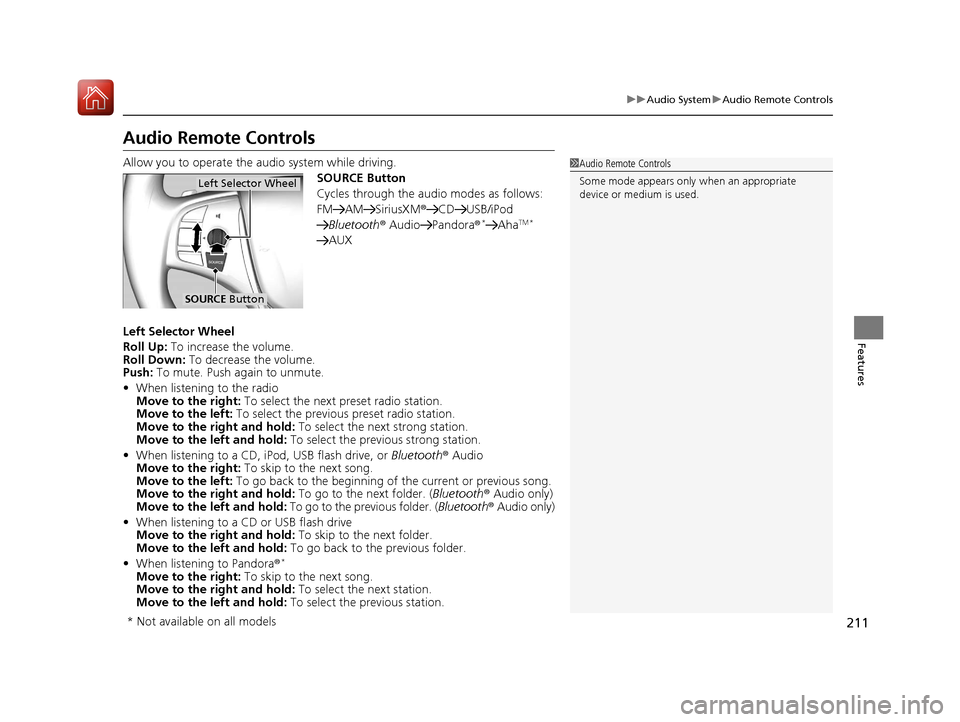
Allow you to operate the au dio system while driving.
SOURCE Button
Cycles through the audio modes as follows:
FM AM SiriusXM ®CD USB/iPod
Bluetooth ® Audio Pandora ®
*AhaTM *
AUX
Left Selector Wheel
Roll Up: To increase the volume.
Roll Down: To decrease the volume.
Push: To mute. Push again to unmute.
• When listening to the radio
Move to the right: To select the next preset radio station.
Move to the left: To select the previous preset radio station.
Move to the right and hold: To select the next strong station.
Move to the left and hold: To select the previous strong station.
• When listening to a CD, iPod, USB flash drive, or Bluetooth® Audio
Move to the right: To skip to the next song.
Move to the left: To go back to the beginning of the current or previous song.
Move to the right and hold: To go to the next folder. (Bluetooth® Audio only)
Move to the left and hold: To go to the previous folder. ( Bluetooth® Audio only)
• When listening to a CD or USB flash drive
Move to the right and hold: To skip to the next folder.
Move to the left and hold: To go back to the previous folder.
• When listening to Pandora®
*
Move to the right: To skip to the next song.
Move to the right and hold: To select the next station.
Move to the left and hold: To select the previous station.
1Audio Remote Controls
Some mode appears only when an appropriate
device or medium is used.
Left Selector Wheel
SOURCE Button
* Not available on all models
17 ACURA TLX-31TZ36200.book 211 ページ 2016年6月10日 金曜日 午後6時39分
Page 213 of 553
212
Features
Audio System Basic Operation
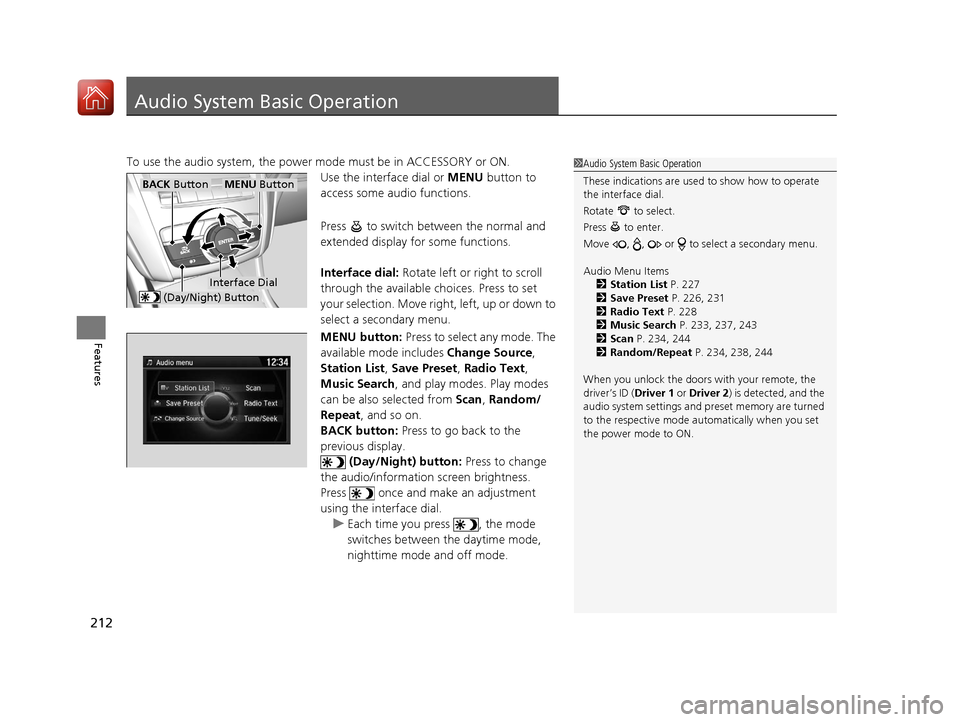
To use the audio system, the power mode must be in ACCESSORY or ON.
Use the interface dial or MENU button to
access some audio functions.
Press to switch between the normal and
extended display fo r some functions.
Interface dial: Rotate left or right to scroll
through the available choices. Press to set
your selection. Move right, left, up or down to
select a secondary menu.
MENU button: Press to select any mode. The
available mode includes Change Source,
Station List , Save Preset , Radio Text ,
Music Search, and play modes. Play modes
can be also selected from Scan, Random/
Repeat , and so on.
BACK button: Press to go back to the
previous display. (Day/Night) button: Press to change
the audio/information screen brightness.
Press once and make an adjustment
using the interface dial. u Each time you press , the mode
switches between the daytime mode,
nighttime mode and off mode.1Audio System Basic Operation
These indications are used to show how to operate
the interface dial.
Rotate to select.
Press to enter.
Move , , or to se lect a secondary menu.
Audio Menu Items 2 Station List P. 227
2 Save Preset P. 226, 231
2 Radio Text P. 228
2 Music Search P. 233, 237, 243
2 Scan P. 234, 244
2 Random/Repeat P. 234, 238, 244
When you unlock the doors with your remote, the
driver’s ID ( Driver 1 or Driver 2) is detected, and the
audio system settings and pr eset memory are turned
to the respective mode automatically when you set
the power mode to ON.
Interface Dial
MENU ButtonBACK Button
(Day/Night) Button
17 ACURA TLX-31TZ36200.book 212 ページ 2016年6月10日 金曜日 午後6時39分
Page 215 of 553
214
uuAudio System Basic Operation uOn Demand Multi-Use DisplayTM
Features
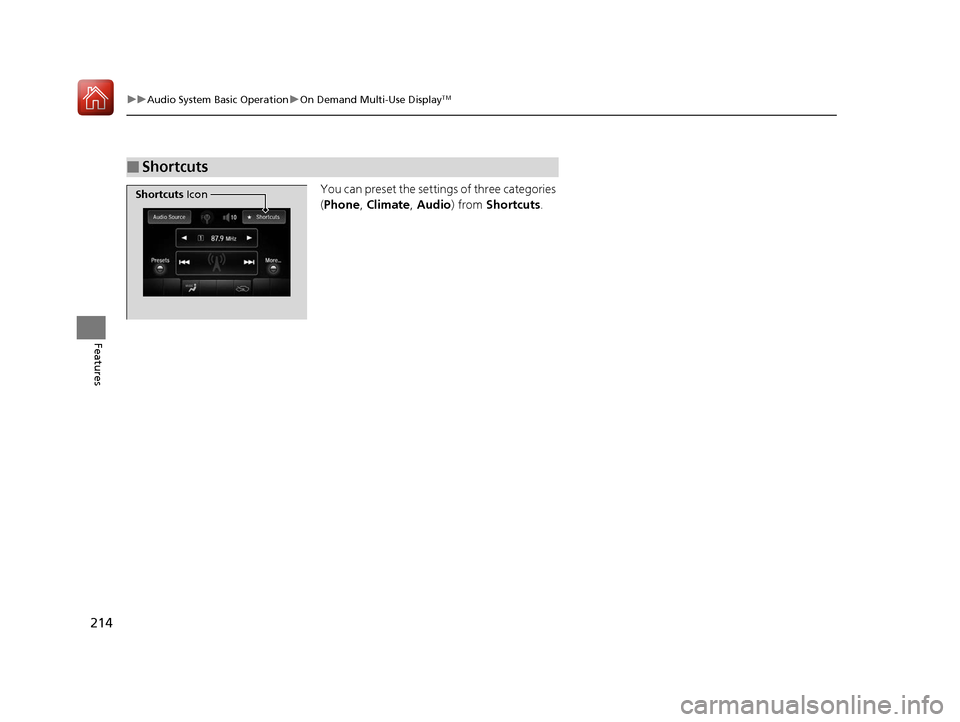
You can preset the settings of three categories
(Phone , Climate , Audio ) from Shortcuts .
■Shortcuts
Shortcuts Icon
17 ACURA TLX-31TZ36200.book 214 ページ 2016年6月10日 金曜日 午後6時39分
Page 216 of 553

Continued215
uuAudio System Basic Operation uOn Demand Multi-Use DisplayTM
Features
■Phone
You can preset five speed dial entries, and make a call from one of the preset
numbers, or call history when the phone is paired and connected to the vehicle‘s
Bluetooth ® HandsFreeLink ® (HFL) system.
2 Phone Setup P. 285
To preset a speed dial:
1.Select Shortcuts .
2. Select Phone.
3. Select Speed Dial .
4. Select Edit or No Entry .
u If you select No Entry, go to step 6.
5. Select Add.
u Five presets appear. Select a No Entry
preset or an existing preset.
u The screen changes to a list of previously
stored speed dial entries.
6. Select a number you want to store as a
shortcut.
To make a call from a speed dial entry:
1. Select Shortcuts .
2. Select Phone.
3. Select Speed Dial .
4. Select a preset number.
u Dialing starts automatically.
1Phone
Dial icon
You can make a call using the keyboard on the On
Demand Multi-Use Display
TM to input numbers.
2 To make a call using a phone number
P. 301
17 ACURA TLX-31TZ36200.book 215 ページ 2016年6月10日 金曜日 午後6時39分
Page 217 of 553
uuAudio System Basic Operation uOn Demand Multi-Use DisplayTM
216
Features
To delete a speed dial:
1. Select Shortcuts .
2. Select Phone .
3. Select Speed Dial .
4. Select Edit.
5. Select Delete.
6. Select the preset number with the phone
number you want to delete.
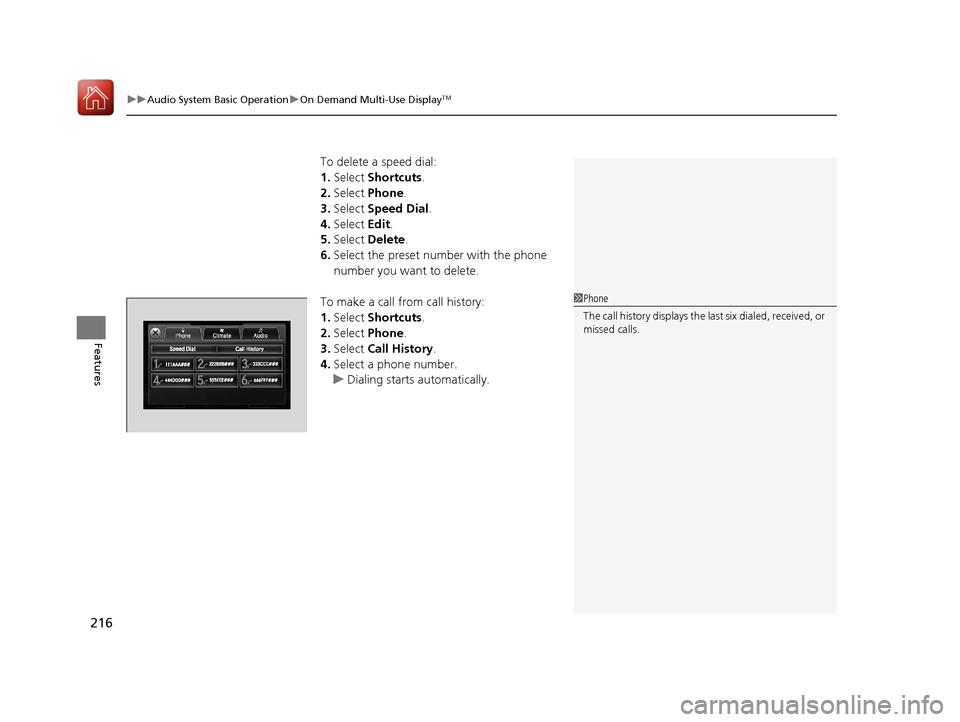
To make a call from call history:
1. Select Shortcuts .
2. Select Phone .
3. Select Call History .
4. Select a phone number.
u Dialing starts automatically.
1Phone
The call history displays the last six dialed, received, or
missed calls.
17 ACURA TLX-31TZ36200.book 216 ページ 2016年6月10日 金曜日 午後6時39分
Page 218 of 553
Continued217
uuAudio System Basic Operation uOn Demand Multi-Use DisplayTM
Features
■Audio
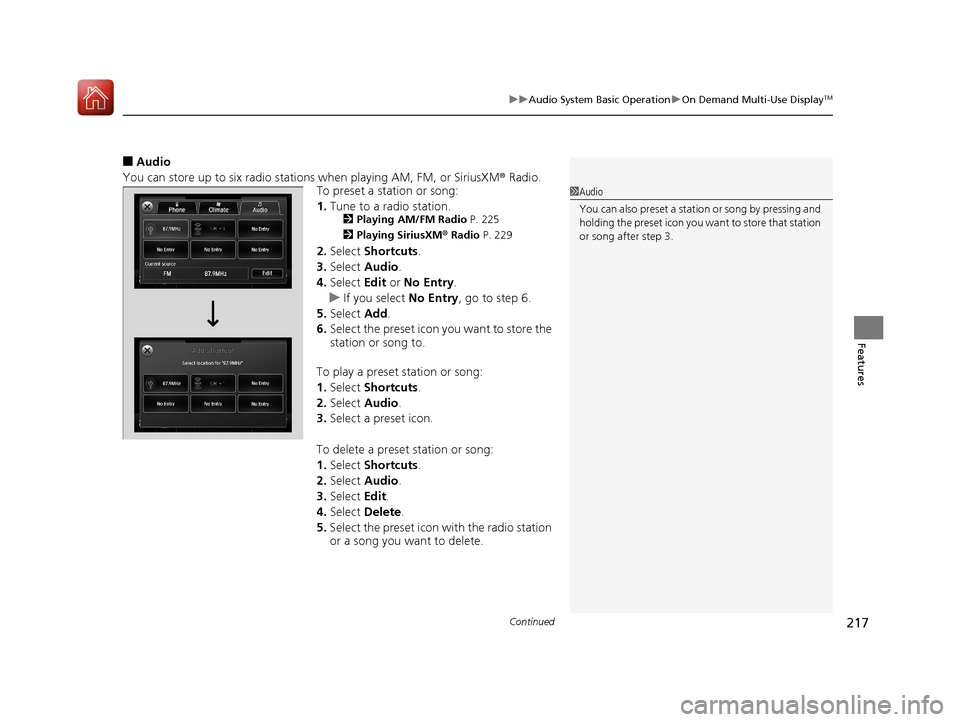
You can store up to six radio stations when playing AM, FM, or SiriusXM ® Radio.
To preset a station or song:
1. Tune to a radio station.
2 Playing AM/FM Radio P. 225
2 Playing SiriusXM ® Radio P. 229
2.Select Shortcuts .
3. Select Audio .
4. Select Edit or No Entry .
u If you select No Entry, go to step 6.
5. Select Add.
6. Select the preset icon you want to store the
station or song to.
To play a preset station or song:
1. Select Shortcuts .
2. Select Audio .
3. Select a preset icon.
To delete a preset station or song:
1. Select Shortcuts .
2. Select Audio .
3. Select Edit.
4. Select Delete .
5. Select the preset icon with the radio station
or a song you want to delete.
1Audio
You can also preset a stat ion or song by pressing and
holding the preset icon you want to store that station
or song after step 3.
17 ACURA TLX-31TZ36200.book 217 ページ 2016年6月10日 金曜日 午後6時39分
Page 221 of 553
220
uuAudio System Basic Operation uAudio/Information Screen
Features
■Audio
Shows the current audio information.
■Phone
Shows the HFL information.
2 Bluetooth ® HandsFreeLink® P. 278
■Info
Shows the Trip Computer or Clock/Wallpaper and other information. Rotate
to select an item, then press .
■Trip computer (Current Drive)
Shows the range and instant and average fuel economy of the current trip, as well
as the average fuel economy from your last trip.
■Trip computer (History of Trip A)
Shows the range, average fuel economy an d distances traveled for the current trip,
as well as the average fuel economy and distances traveled during the last three
driving cycles.
Each time you reset the trip meter A, the information on the display updates. The
history of the previous th ree driving cycles is kept.
■Deleting the history manually
1. Move on the History of Trip A screen to select Delete History, then press .
2. A confirmation message appears on the screen. Rotate to select Yes, then
press .
■Clock/Wallpaper
Shows a clock screen or an image you import.
17 ACURA TLX-31TZ36200.book 220 ページ 2016年6月10日 金曜日 午後6時39分