USB port Acura TLX 2019 Owner's Manual
[x] Cancel search | Manufacturer: ACURA, Model Year: 2019, Model line: TLX, Model: Acura TLX 2019Pages: 591, PDF Size: 34.5 MB
Page 8 of 591
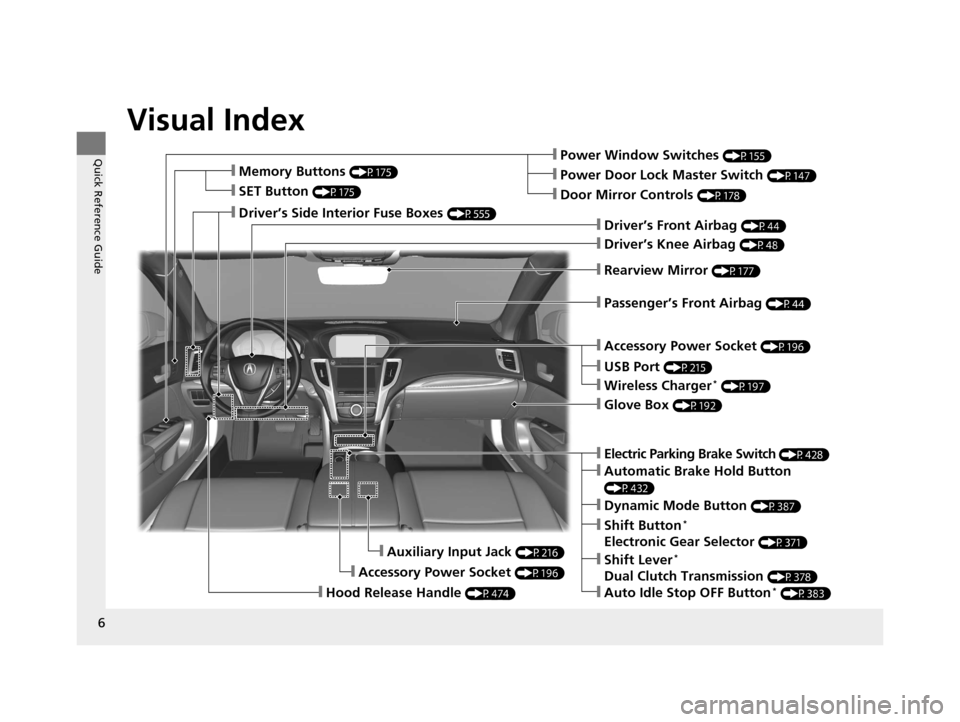
Visual Index
6
Quick Reference Guide❙Power Window Switches (P155)
❙Driver’s Front Airbag (P44)
❙Driver’s Knee Airbag (P48)
❙Door Mirror Controls (P178)
❙Power Door Lock Master Switch (P147)
❙Accessory Power Socket (P196)
❙Auxiliary Input Jack (P216)
❙Accessory Power Socket (P196)
❙Rearview Mirror (P177)
❙Hood Release Handle (P474)
❙Memory Buttons (P175)
❙SET Button (P175)
❙Glove Box (P192)
❙Passenger’s Front Airbag (P44)
❙Driver’s Side Interior Fuse Boxes (P555)
❙Electric Parking Brake Switch (P428)
❙Dynamic Mode Button (P387)
❙Shift Button*
Electronic Gear Selector (P371)
❙Automatic Brake Hold Button
(P432)
❙Shift Lever*
Dual Clutch Transmission (P378)
❙Auto Idle Stop OFF Button* (P383)
❙Wireless Charger* (P197)
❙USB Port (P215)
19 ACURA TLX-31TZ36400.book 6 ページ 2018年2月16日 金曜日 午後12時22分
Page 215 of 591
213
Features
This chapter describes how to operate technology features.
Audio SystemAbout Your Audio System ................ 214
USB Port .......................................... 215
Auxiliary Input Jack .......................... 216
Audio System Theft Protection ......... 216
Audio Remote Controls .................... 217
Audio System Basic Operation ........ 219
On Demand Multi-Use Display
TM....... 220
Information Screen .......................... 223
Adjusting the Sound ........................ 228
Display Setup ................................... 229
Playing AM/FM Radio ....................... 230 Playing SiriusXM
® Radio ................... 233
Playing a CD .................................... 244
Playing an iPod ................................ 247
Playing Pandora ®............................. 250
Playing a USB Flash Drive ................. 252
Playing Bluetooth ® Audio................. 255
Siri Eyes Free .................................... 257
Apple CarPlay .................................. 258
Android Auto................................... 262
Audio Error Messages ...................... 267 General Information on the Audio
System ............................................. 274
Customized Features ........................ 292
HomeLink ® Universal Transceiver ... 314
Bluetooth® HandsFreeLink® ............. 317
Compass
*.......................................... 352
* Not available on all models
19 ACURA TLX-31TZ36400.book 213 ページ 2018年2月16日 金曜日 午後12時22分
Page 216 of 591
214
Features
Audio System
About Your Audio System
The audio system features AM/FM radio and the SiriusXM® Radio service. It can also
play audio CDs, WMA/MP3/AAC files, USB flash drives, and iPod, iPhone and
Bluetooth ® devices.
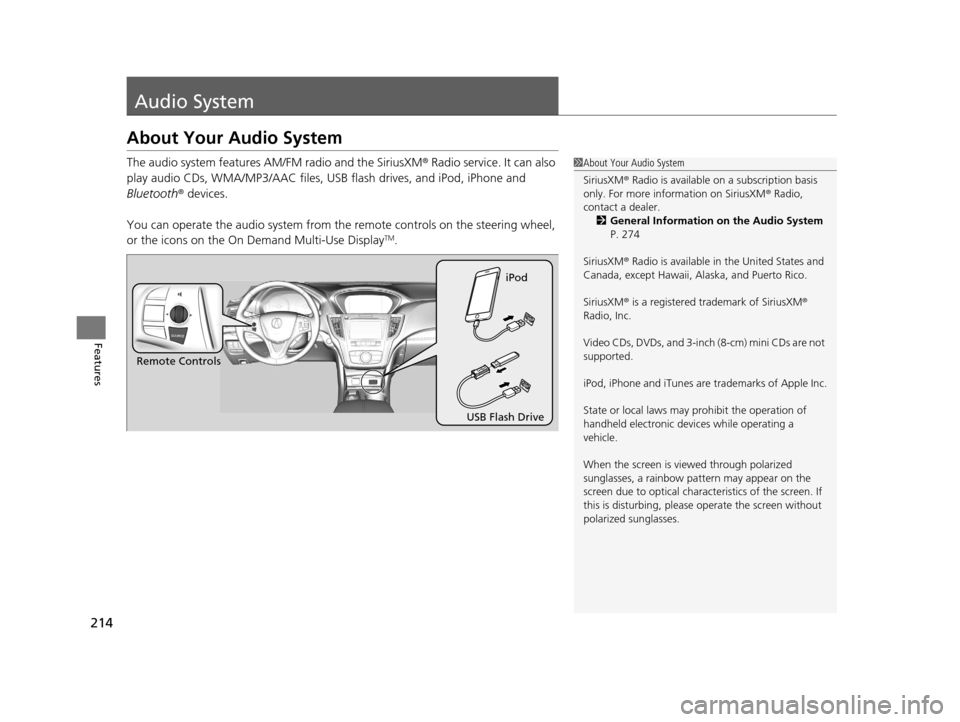
You can operate the audio system from th e remote controls on the steering wheel,
or the icons on the On Demand Multi-Use Display
TM.
1 About Your Audio System
SiriusXM ® Radio is available on a subscription basis
only. For more information on SiriusXM ® Radio,
contact a dealer.
2 General Information on the Audio System
P. 274
SiriusXM ® Radio is available in the United States and
Canada, except Ha waii, Alaska, and Puerto Rico.
SiriusXM ® is a registered trademark of SiriusXM ®
Radio, Inc.
Video CDs, DVDs, and 3-inch (8-cm) mini CDs are not
supported.
iPod, iPhone and iTunes are trademarks of Apple Inc.
State or local laws may pr ohibit the operation of
handheld electronic devices while operating a
vehicle.
When the screen is vi ewed through polarized
sunglasses, a rainbow pa ttern may appear on the
screen due to optical characteristics of the screen. If
this is disturbing, please operate the screen without
polarized sunglasses.
Remote Controls iPod
USB Flash Drive
19 ACURA TLX-31TZ36400.book 214 ページ 2018年2月16日 金曜日 午後12時22分
Page 217 of 591
215
uuAudio System uUSB Port
Features
USB Port
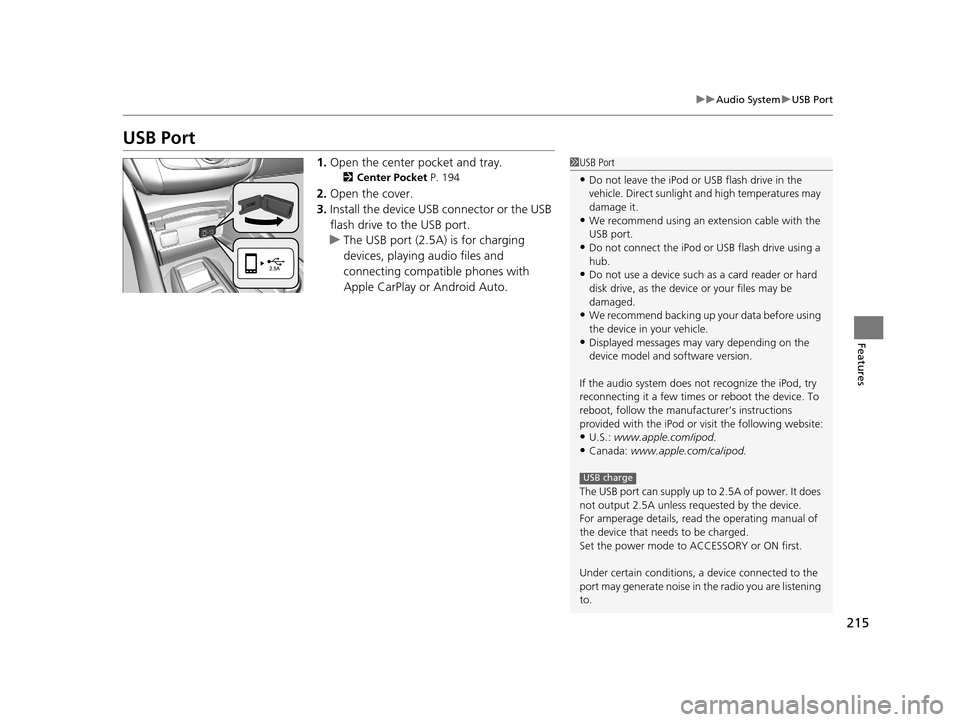
1. Open the center pocket and tray.
2 Center Pocket P. 194
2.Open the cover.
3. Install the device USB connector or the USB
flash drive to the USB port.
u The USB port (2.5A) is for charging
devices, playing audio files and
connecting compatib le phones with
Apple CarPlay or Android Auto.
1 USB Port
•Do not leave the iPod or USB flash drive in the
vehicle. Direct sunlight and high temperatures may
damage it.
•We recommend using an ex tension cable with the
USB port.
•Do not connect the iPod or USB flash drive using a
hub.
•Do not use a device such as a card reader or hard
disk drive, as the device or your files may be
damaged.
•We recommend backing up yo ur data before using
the device in your vehicle.
•Displayed messages may vary depending on the
device model and software version.
If the audio system does not recognize the iPod, try
reconnecting it a few times or reboot the device. To
reboot, follow the manufac turer’s instructions
provided with the iPod or visit the following website:
•U.S.: www.apple.com/ipod.
•Canada: www.apple.com/ca/ipod.
The USB port can supply up to 2.5A of power. It does
not output 2.5A unless requested by the device.
For amperage details, read the operating manual of
the device that ne eds to be charged.
Set the power mode to ACCESSORY or ON first.
Under certain condi tions, a device connected to the
port may generate noise in the radio you are listening
to.
USB charge
19 ACURA TLX-31TZ36400.book 215 ページ 2018年2月16日 金曜日 午後12時22分
Page 228 of 591

uuAudio System Basic Operation uInformation Screen
226
Features
You can change, store, and delete the wallpaper on the information screen.
■Import wallpaper
You can import up to three images, one at a time, for wallpaper from a USB flash
drive. 1.Connect the USB flash drive to the USB
port.
2 USB Port P. 215
2.Press the SETTINGS button.
3. Rotate to select Clock Settings, then
press .
u Repeat the procedure to select Clock/
Wallpaper Type .
4. Move to select Wallpaper tab.
u The screen will change to the wallpaper
list.
5. Rotate to select Options…, then press
.
u Repeat the procedure to select, Add
New Wallpaper .
6. Rotate to select a desired picture.
u The preview is displayed on the left side
on the screen.
7. Rotate to select Start Import, then
press to save the data.
u The display will return to the wallpaper
list.
■Wallpaper Setup1Wallpaper Setup
•When importing wallpaper files, the image must be
in the USB flash driv e’s root directory.
Images in a folder cannot be imported.
•The file name must be fewer than 255 characters.•The file format of the im age that can be imported
is BMP (bmp) or JPEG (jpg).
•The individual file size limit is 2 MB.•The maximum image size is 1,680 x 936 pixels.
•If the USB flash drive doe s not have any pictures,
the No files detected message appears.
19 ACURA TLX-31TZ36400.book 226 ページ 2018年2月16日 金曜日 午後12時22分
Page 249 of 591
247
uuAudio System Basic Operation uPlaying an iPod
Continued
Features
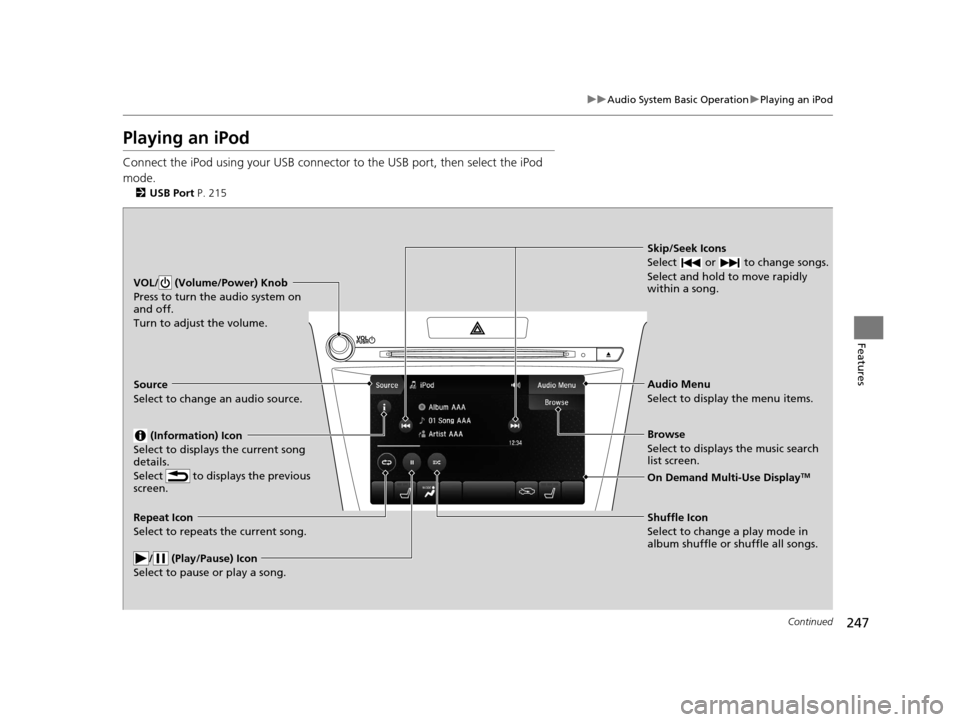
Playing an iPod
Connect the iPod using your USB connector to the USB port, then select the iPod
mode.
2 USB Port P. 215
Skip/Seek Icons
Select or to change songs.
Select and hold to move rapidly
within a song.
VOL/ (Volume/Power) Knob
Press to turn the audio system on
and off.
Turn to adjust the volume.
Audio Menu
Select to display the menu items.
Source
Select to change an audio source.
(Information) Icon
Select to displays the current song
details.
Select to displays the previous
screen.
Browse
Select to displays the music search
list screen.
On Demand Multi-Use DisplayTM
Repeat Icon
Select to repeats the current song.
/ (Play/Pause) Icon
Select to pause or play a song.Shuffle Icon
Select to change a play mode in
album shuffle or shuffle all songs.
19 ACURA TLX-31TZ36400.book 247 ページ 2018年2月16日 金曜日 午後12時22分
Page 252 of 591
250
uuAudio System Basic Operation uPlaying Pandora ®
Features
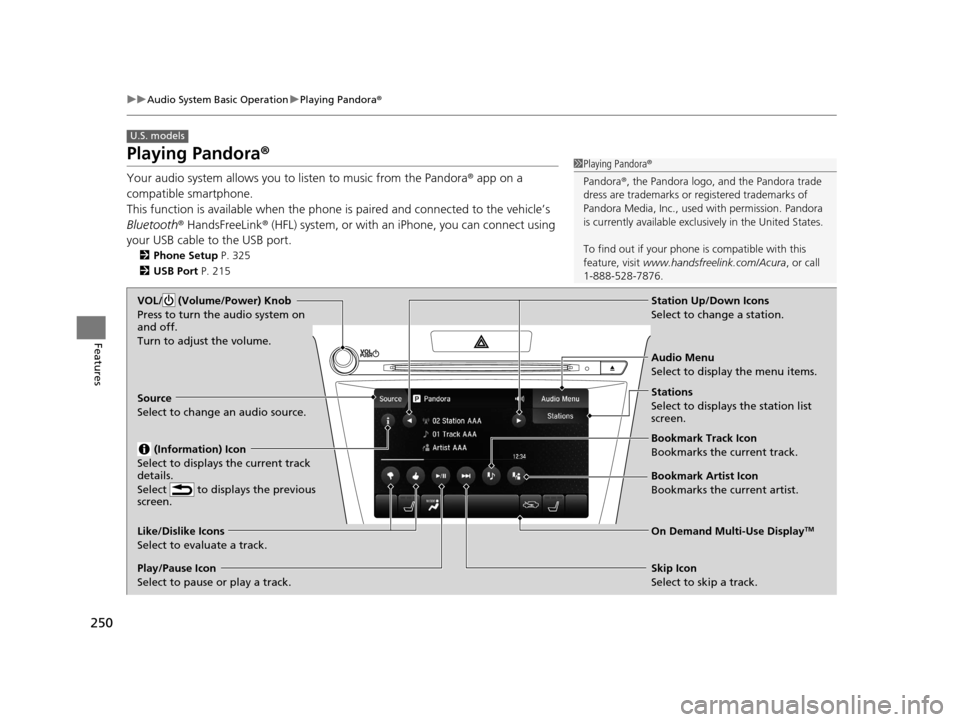
Playing Pandora ®
Your audio system allows you to listen to music from the Pandora ® app on a
compatible smartphone.
This function is available when the phone is paired and connected to the vehicle’s
Bluetooth ® HandsFreeLink ® (HFL) system, or with an iPhone, you can connect using
your USB cable to the USB port.
2 Phone Setup P. 325
2 USB Port P. 215
U.S. models
1Playing Pandora ®
Pandora ®, the Pandora logo, and the Pandora trade
dress are trademarks or registered trademarks of
Pandora Media, Inc., used with permission. Pandora
is currently available exclusively in the United States.
To find out if your phone is compatible with this
feature, visit www.handsfreelink.com/Acura , or call
1-888-528-7876.
VOL/ (Volume/Power) Knob
Press to turn the audio system on
and off.
Turn to adjust the volume.
Audio Menu
Select to display the menu items.
Source
Select to change an audio source.
(Information) Icon
Select to displays the current track
details.
Select to displays the previous
screen.
Stations
Select to displays the station list
screen.
On Demand Multi-Use DisplayTMLike/Dislike Icons
Select to evaluate a track.
Skip Icon
Select to skip a track.
Play/Pause Icon
Select to pause or play a track.Station Up/Down Icons
Select to change a station.
Bookmark Track Icon
Bookmarks the current track.
Bookmark Artist Icon
Bookmarks the current artist.
19 ACURA TLX-31TZ36400.book 250 ページ 2018年2月16日 金曜日 午後12時22分
Page 254 of 591
252
uuAudio System Basic Operation uPlaying a USB Flash Drive
Features
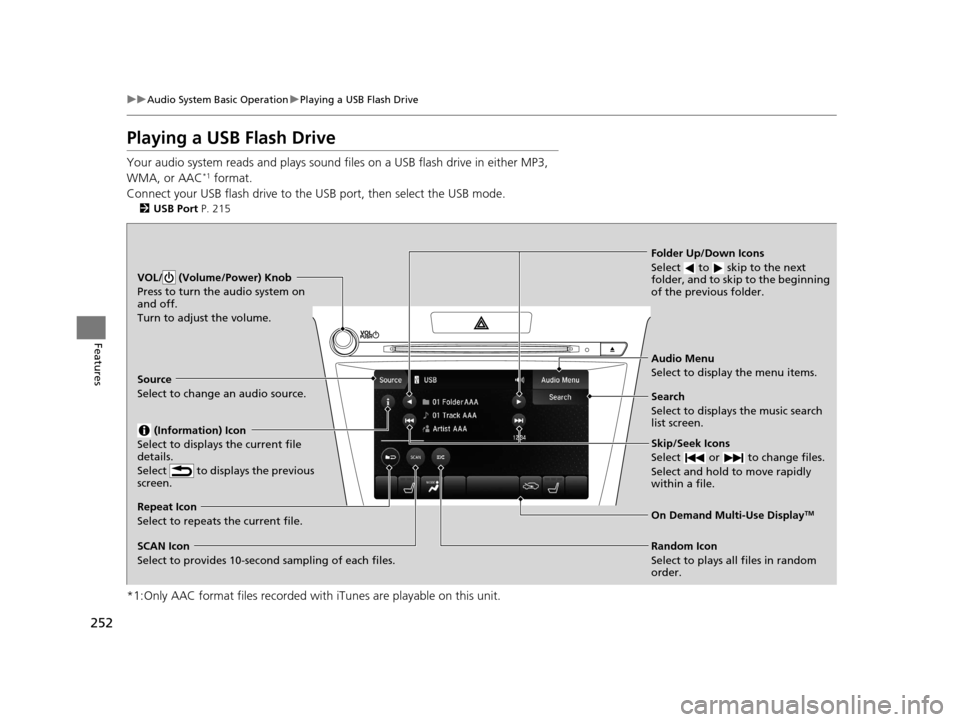
Playing a USB Flash Drive
Your audio system reads and plays sound files on a USB flash drive in either MP3,
WMA, or AAC*1 format.
Connect your USB flash drive to the USB port, then select the USB mode.
2USB Port P. 215
*1:Only AAC format files recorded with iTunes are playable on this unit.
VOL/ (Volume/Power) Knob
Press to turn the audio system on
and off.
Turn to adjust the volume.
Skip/Seek Icons
Select or to change files.
Select and hold to move rapidly
within a file.
Audio Menu
Select to display the menu items.
Source
Select to change an audio source.
(Information) Icon
Select to displays the current file
details.
Select to displays the previous
screen.
Search
Select to displays the music search
list screen.
Folder Up/Down Icons
Select to skip to the next
folder, and to skip to the beginning
of the previous folder.
On Demand Multi-Use DisplayTMRepeat Icon
Select to repeats the current file.
SCAN Icon
Select to provides 10-second sampling of each files. Random Icon
Select to plays all files in random
order.
19 ACURA TLX-31TZ36400.book 252 ページ 2018年2月16日 金曜日 午後12時22分
Page 260 of 591

258
uuAudio System Basic Operation uApple CarPlay
Features
Apple CarPlay
If you connect an Apple CarPlay-compatible iPhone to the system via the 2.5A USB
port, you can use the information screen, in stead of the iPhone display, to make a
phone call, listen to musi c, view maps (navigation), and access messages.
2USB Port P. 215
*1:The operation methods may differ from your connected iPhone.
■Apple CarPlay Menu
1Apple CarPlay
Only iPhone 5 or newer versi ons with iOS 8.4 or later
are compatible with Apple CarPlay.
Park in a safe place before connecting your iPhone to
Apple CarPlay and when launching any compatible
apps.
To use Apple CarPlay, connect the USB cable to the
2.5A USB port. 2 USB Port P. 215
To directly access the Appl e CarPlay phone function,
press the PHONE button. While connected to Apple
CarPlay, call s are only made through Apple CarPlay. If
you want to make a call with Bluetooth®
HandsFreeLink ®, turn Apple CarPlay OFF or detach
the USB cable from your iPhone.
2 Setting Up Apple CarPlay P. 260
When your iPhone is connected to Apple CarPlay, it is
not possible to use the Bluetooth® Audio or
Bluetooth ® HandsFreeLink ®. However, other
previously paired phones can stream audio via
Bluetooth ® while Apple CarPlay is connected.
2 Phone Setup P. 325
For details on c ountries and regions where Apple
CarPlay is available, as well as information pertaining
to function, refer to the Apple homepage.
Go back to the previous
screen of this audio system.
Information Screen
Apple CarPlay menu screen
Go back to the Apple CarPlay menu screen
SMARTPHONE Button
Press to display the Apple CarPlay menu screen.
Interface Dial ( ENTER/MENU Button)
*1
Move the interface dial to select the item.
Press to enter the item.
BACK Button*1
Press to go back to the previous display.
19 ACURA TLX-31TZ36400.book 258 ページ 2018年2月16日 金曜日 午後12時22分
Page 262 of 591

uuAudio System Basic Operation uApple CarPlay
260
Features
After you have connected your iPhone to the system via the 2.5A USB port, use the
following procedure to set up Apple CarPlay. Use of Apple CarPlay will result in the
transmission of certain user and vehicle information (such as vehicle location, speed,
and status) to your iPhone to enhance th e Apple CarPlay experience. You will need
to consent to the sharing of this information on the information screen.
■Enabling Apple CarPlay
Enable Once: Allows only once. (Prompt
shows again next time.)
Always Enable : Allows anytime. (Prompt
does not show again.)
Cancel : Does not allow this consent.
You may change the consent settings under
the Smartphone Settings menu.
■Setting Up Apple CarPlay1Setting Up Apple CarPlay
You can also use the method below to set up Apple
CarPlay:
Press the SETTINGS Select Smartphone
Settings Apple CarPlay Device List
Use of user and vehicle information
The use and handling of user and vehicle information
transmitted to/from your iP hone by Apple CarPlay is
governed by the Apple iOS terms and conditions and
Apple’s Privacy Policy.
19 ACURA TLX-31TZ36400.book 260 ページ 2018年2月16日 金曜日 午後12時22分