audio ACURA TLX 2022 Service Manual
[x] Cancel search | Manufacturer: ACURA, Model Year: 2022, Model line: TLX, Model: ACURA TLX 2022Pages: 656, PDF Size: 26.43 MB
Page 227 of 656

225
uuAudio System Basic Operation uAudio/Information Screen
Continued
Features
You can edit, show, or hide the audio, phone and navigation* contents on the multi-
information display or the head-up display*.
■To add or remove an items 1.Press the APPS button on the steering
wheel.
2. Roll down the left selector wheel to select
Customize Apps .
3. Move the left selector wheel left to select
Add/Remove.
4. Select an item then press the left selector
wheel.
u The checked items are displayed on the
multi-information display or the head-up
display
*.
■Customizing the Meter or Head-Up Display*
On Multi-Information Display
On Head-Up Display
*
* Not available on all models
22 ACURA TLX-31TGV6100.book 225 \b
Page 228 of 656

226
uuAudio System Basic Operation uAudio/Information Screen
Features
■Editing order
1.Press the APPS button on the steering
wheel.
2. Using the left selector wheel, scroll to
Customize Apps and then press the
selector wheel.
3. Move the selector wheel to the right to go
to the Reorder screen.
4. Scroll to an item you want to move, then
press the left selector wheel.
5. Scroll to where you want to move the
contents, then press the left selector wheel.
On Multi-Information Display
On Head-Up Display
*
* Not available on all models
22 ACURA TLX-31TGV6100.book 226 \b
Page 229 of 656

227
uuAudio System Basic Operation uSystem Updates
Continued
Features
System Updates
The audio system’s firmware can be updated with the telematics control unit (TCU)
through the subscrip tion-based service.
■Wireless connection mode setup
1.Press the (home) button.
2. Select System Updates .
3. Select MENU .
4. Select Connection Setup.
5. Select Change Mode .
6. Select Network .
u The display will return to the network list.
7. Select an access point from the network list,
then select OK.
u If the access point requires a password,
enter a password.
■How to Update Wirelessly
22 ACURA TLX-31TGV6100.book 227 \b
Page 230 of 656

228
uuAudio System Basic Operation uSystem Updates
Features
■How to update
When an audio system update is available, the notification is shown on the audio/
information screen. Use the following procedure to update the system.
1.Press the (home) button.
2. Select System Updates .
3. Select via Wireless Connection .
u When the download is complete, the
screen for step 5 will be displayed.
4. Select Download Now .
u A notification will appear on the screen.
Notification
22 ACURA TLX-31TGV6100.book 228 \b
Page 231 of 656
Continued229
uuAudio System Basic Operation uSystem Updates
Features
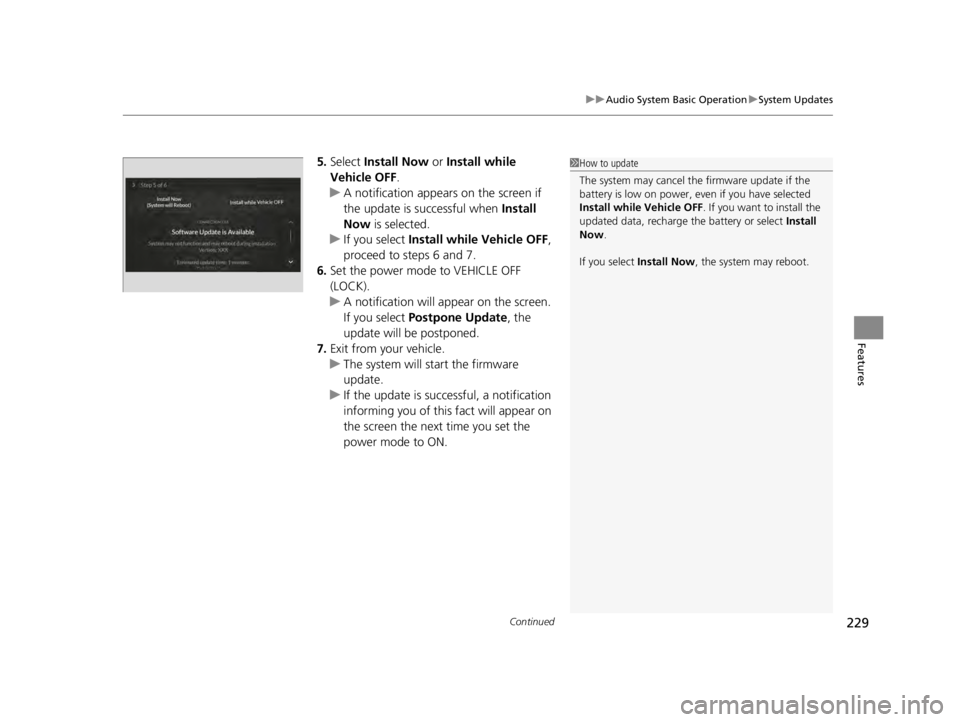
5. Select Install Now or Install while
Vehicle OFF .
u A notification appears on the screen if
the update is successful when Install
Now is selected.
u If you select Install while Vehicle OFF ,
proceed to steps 6 and 7.
6. Set the power mode to VEHICLE OFF
(LOCK).
u A notification will appear on the screen.
If you select Postpone Update , the
update will be postponed.
7. Exit from your vehicle.
u The system will start the firmware
update.
u If the update is succ essful, a notification
informing you of this fact will appear on
the screen the next time you set the
power mode to ON.1 How to update
The system may cancel the firmware update if the
battery is low on power, even if you have selected
Install while Vehicle OFF . If you want to install the
updated data, recharge th e battery or select Install
Now .
If you select Install Now, the system may reboot.
22 ACURA TLX-31TGV6100.book 229 \b
Page 232 of 656
230
uuAudio System Basic Operation uSystem Updates
Features
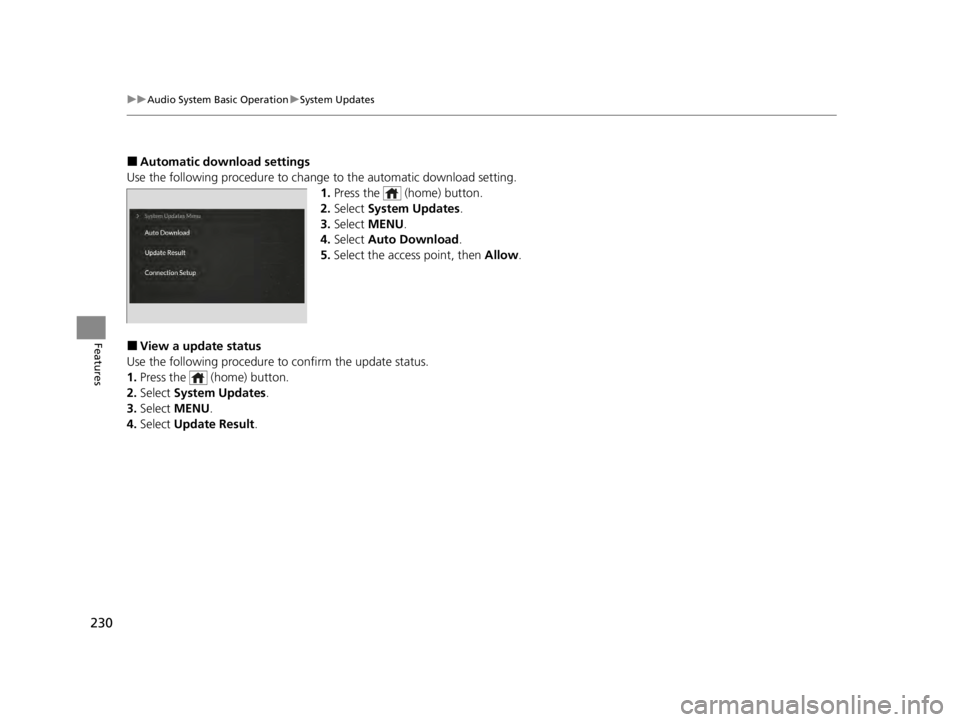
■Automatic download settings
Use the following procedure to change to the automatic download setting.
1. Press the (home) button.
2. Select System Updates .
3. Select MENU .
4. Select Auto Download .
5. Select the access point, then Allow.
■View a update status
Use the following procedure to confirm the update status.
1. Press the (home) button.
2. Select System Updates .
3. Select MENU .
4. Select Update Result .
22 ACURA TLX-31TGV6100.book 230 \b
Page 233 of 656
Continued231
uuAudio System Basic Operation uSystem Updates
Features
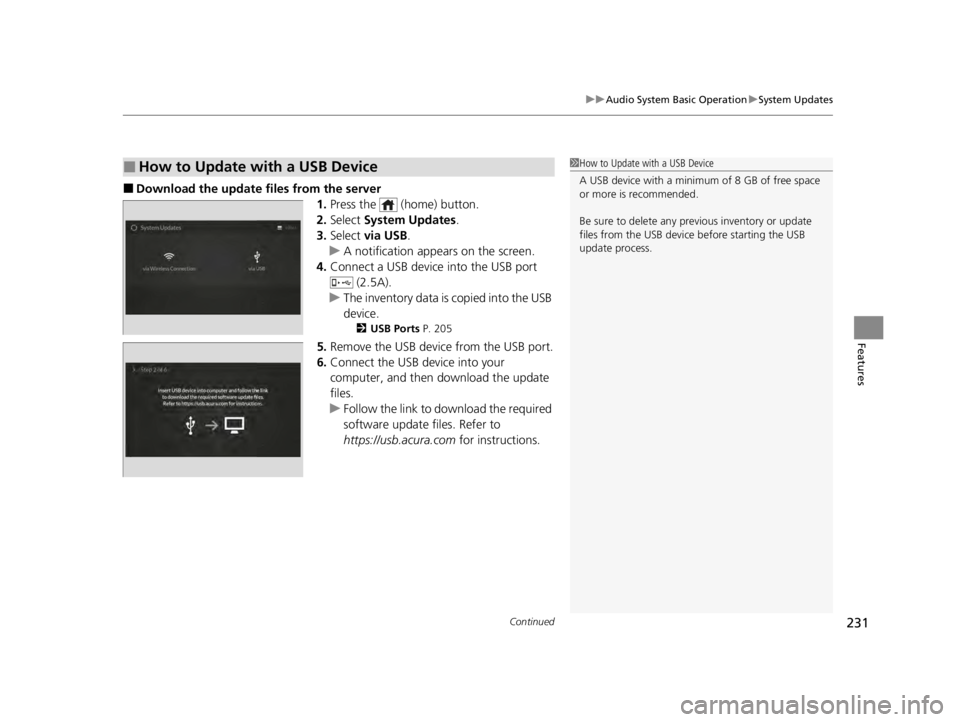
■Download the up date files from the server
1.Press the (home) button.
2. Select System Updates .
3. Select via USB .
u A notification appears on the screen.
4. Connect a USB device into the USB port
(2.5A).
u The inventory data is copied into the USB
device.
2 USB Ports P. 205
5.Remove the USB device from the USB port.
6. Connect the USB device into your
computer, and then download the update
files.
u Follow the link to do wnload the required
software update files. Refer to
https://usb.acura.com for instructions.
■How to Update with a USB Device1How to Update with a USB Device
A USB device with a minimum of 8 GB of free space
or more is recommended.
Be sure to delete any pr evious inventory or update
files from the USB device before starting the USB
update process.
22 ACURA TLX-31TGV6100.book 231 \b
Page 234 of 656
uuAudio System Basic Operation uSystem Updates
232
Features
■Update the audio system
1.Press the (home) button.
2. Select System Updates .
3. Select via USB .
u A notification appears on the screen.
4. Connect the USB device with the update
files into the USB port.
u A notification appears on the screen.
2 USB Ports P. 205
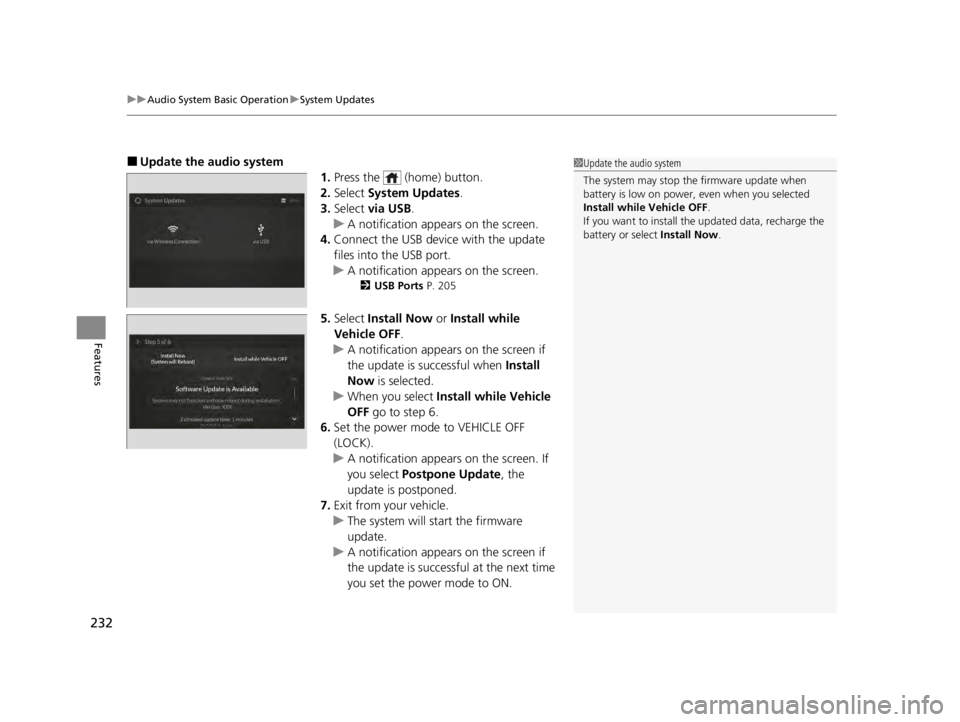
5.Select Install Now or Install while
Vehicle OFF .
u A notification appears on the screen if
the update is successful when Install
Now is selected.
u When you select Install while Vehicle
OFF go to step 6.
6. Set the power mode to VEHICLE OFF
(LOCK).
u A notification appears on the screen. If
you select Postpone Update , the
update is postponed.
7. Exit from your vehicle.
u The system will start the firmware
update.
u A notification appears on the screen if
the update is successful at the next time
you set the power mode to ON.
1Update the audio system
The system may stop the firmware update when
battery is low on power, even when you selected
Install while Vehicle OFF .
If you want to install the updated data, recharge the
battery or select Install Now.
22 ACURA TLX-31TGV6100.book 232 \b
Page 235 of 656
233
uuAudio System Basic Operation uAdjusting the Sound
Features
Adjusting the Sound
1. Press the (home) button.
2. Select an audio source icon.
3. Select SOUND.
4. Select the setting you want.
3. Select MENU .
4. Select Sound Settings .
5. Select the setting you want.
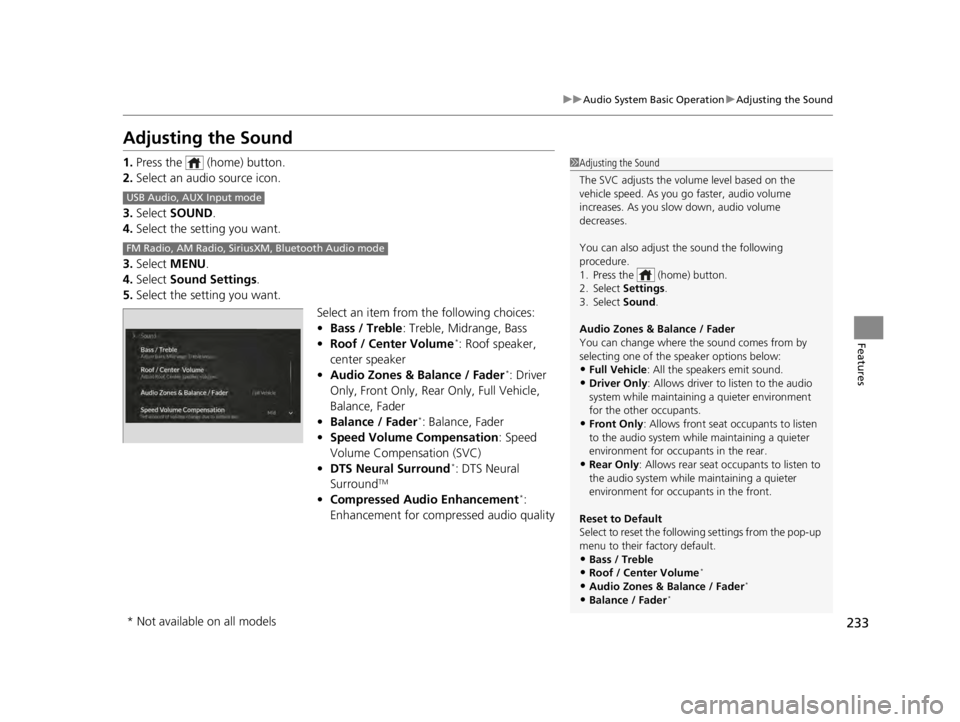
Select an item from the following choices:
•Bass / Treble : Treble, Midrange, Bass
• Roof / Center Volume
*: Roof speaker,
center speaker
• Audio Zones & Balance / Fader
*: Driver
Only, Front Only, Rear Only, Full Vehicle,
Balance, Fader
• Balance / Fader
*: Balance, Fader
• Speed Volume Compensation: Speed
Volume Compensation (SVC)
• DTS Neural Surround
*: DTS Neural
SurroundTM
• Compressed Audio Enhancement*:
Enhancement for compressed audio quality
1 Adjusting the Sound
The SVC adjusts the volume level based on the
vehicle speed. As you go faster, audio volume
increases. As you slow down, audio volume
decreases.
You can also adjust the sound the following
procedure.
1. Press the (home) button.
2. Select Settings .
3. Select Sound .
Audio Zones & Balance / Fader
You can change where the sound comes from by
selecting one of the speaker options below:
•Full Vehicle: All the speakers emit sound. •Driver Only: Allows driver to listen to the audio
system while maintaini ng a quieter environment
for the other occupants.
•Front Only : Allows front seat occupants to listen
to the audio system while maintaining a quieter
environment for occupants in the rear.
•Rear Only: Allows rear seat o ccupants to listen to
the audio system while maintaining a quieter
environment for occupants in the front.
Reset to Default
Select to reset the followi ng settings from the pop-up
menu to their factory default.
•Bass / Treble
•Roof / Center Volume*
•Audio Zones & Balance / Fader*
•Balance / Fader*
USB Audio, AUX Input mode
FM Radio, AM Radio, Siri usXM, Bluetooth Audio mode
* Not available on all models
22 ACURA TLX-31TGV6100.book 233 \b
Page 236 of 656
234
uuAudio System Basic Operation uDisplay Setup
Features
Display Setup
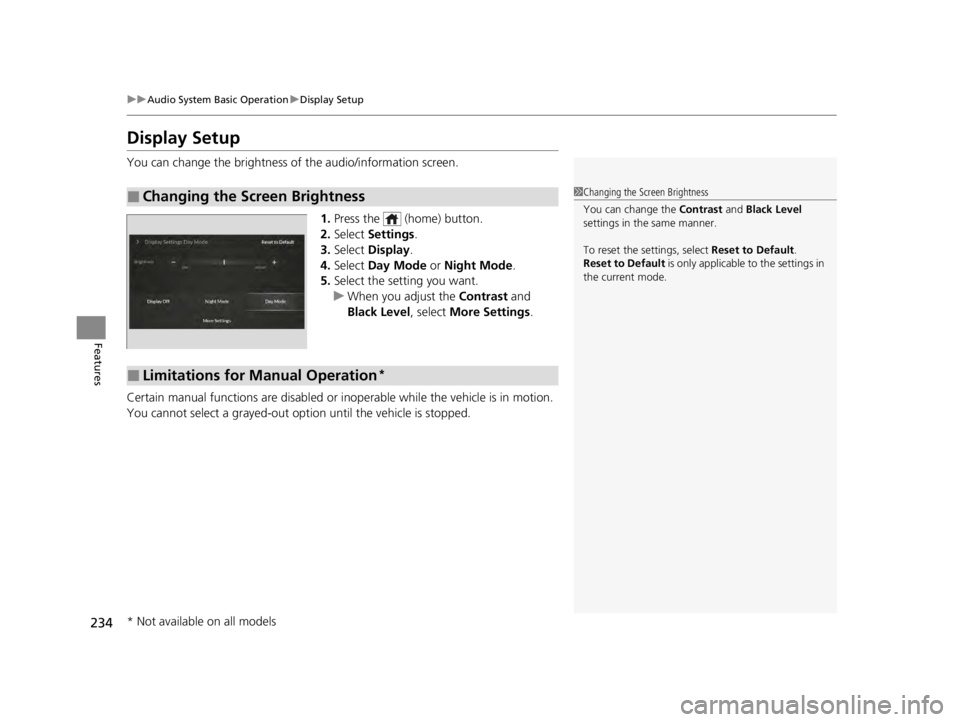
You can change the brightness of the audio/information screen.
1.Press the (home) button.
2. Select Settings .
3. Select Display .
4. Select Day Mode or Night Mode .
5. Select the setting you want.
u When you adjust the Contrast and
Black Level , select More Settings .
Certain manual functions are disabled or inoperable while the vehicle is in motion.
You cannot select a grayed-out option until the vehicle is stopped.
■Changing the Screen Brightness1 Changing the Screen Brightness
You can change the Contrast and Black Level
settings in the same manner.
To reset the settings, select Reset to Default.
Reset to Default is only applicable to the settings in
the current mode.
■Limitations for Manual Operation*
* Not available on all models
22 ACURA TLX-31TGV6100.book 234 \b