lock ACURA TLX 2023 Repair Manual
[x] Cancel search | Manufacturer: ACURA, Model Year: 2023, Model line: TLX, Model: ACURA TLX 2023Pages: 658, PDF Size: 21.27 MB
Page 184 of 658

182
uuInterior Convenience Items uStorage Items
Controls
Storage Items
Pull the handle to open the glove box. You
can lock the glove box with the built-in key.
■Glove Box1Glove Box
The glove box light comes on when the parking lights
are on.
3WARNING
An open glove box can cause serious injury
to your passenger in a crash, even if the
passenger is wearing the seat belt.
Always keep the glove box closed while
driving.
To Lock
Glove Box
Handle
23 ACURA TLX-31TGV6200.book 182 ページ 2022年8月4日 木曜日 午後1時59分
Page 200 of 658

uuClimate Control System uUsing Automatic Climate Control
198
Controls
■Switching between the recirc ulation and fresh air modes
Press the (recirculation) button and switch the mode depending on
environmental conditions.
Recirculation mode (indicator on): Recirculates air from the vehicle’s interior through
the system.
Fresh air mode (indicator off): Maintains ou tside ventilation. Keep the system in
fresh air mode in normal situations.1 Using Automatic Climate Control
When you unlock the doors with your remote, the
driver’s ID (DRIVER 1 or DRIVER 2) is detected, and
the climate control settings are turned to the
respective mode automatically when you set the
power mode to ON.
23 ACURA TLX-31TGV6200.book 198 ページ 2022年8月4日 木曜日 午後1時59分
Page 206 of 658
204
Features
Audio System
About Your Audio System
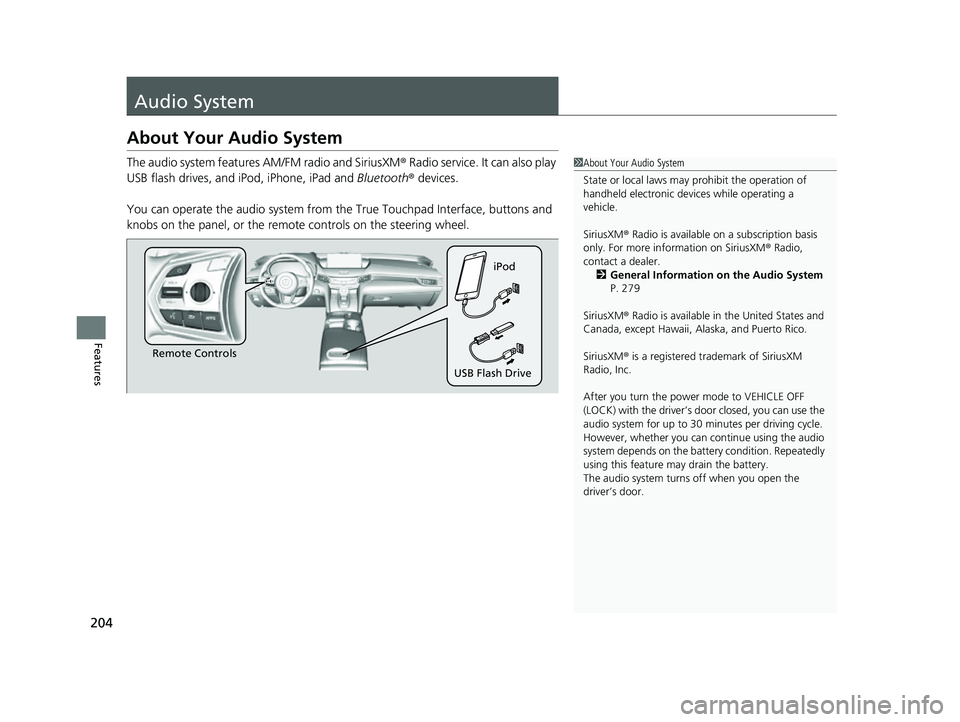
The audio system features AM/FM radio and SiriusXM® Radio service. It can also play
USB flash drives, and iPod, iPhone, iPad and Bluetooth® devices.
You can operate the audio sy stem from the True Touchpad Interface, buttons and
knobs on the panel, or the remote controls on the steering wheel.1About Your Audio System
State or local laws may prohibit the operation of
handheld electronic devi ces while operating a
vehicle.
SiriusXM ® Radio is available on a subscription basis
only. For more information on SiriusXM ® Radio,
contact a dealer. 2 General Information on the Audio System
P. 279
SiriusXM ® Radio is available in the United States and
Canada, except Ha waii, Alaska, and Puerto Rico.
SiriusXM ® is a registered trademark of SiriusXM
Radio, Inc.
After you turn the power mode to VEHICLE OFF
(LOCK) with the driver’s door closed, you can use the
audio system for up to 30 minutes per driving cycle.
However, whether you can continue using the audio
system depends on the batter y condition. Repeatedly
using this feature ma y drain the battery.
The audio system turns off when you open the
driver’s door.
Remote Controls iPod
USB Flash Drive
23 ACURA TLX-31TGV6200.book 204 ページ 2022年8月4日 木曜日 午後1時59分
Page 212 of 658

210
Features
Audio System Basic Operation
You can use the audio system for 30 minutes when the power mode is set to
VEHICLE OFF (LOCK) with the driver’s door closed. The system will then turn off
automatically.
If you want to keep using it, we reco mmend that you turn the power mode to
ACCESSORY or ON.
VOL (Volume/Power) Knob: Push to turn the audio system on and off. Turn to
adjust the volume when the audio system is on.
/ (Seek/Skip) Button: Press to change the station, channel, song or file.
(Back) Button: Press to go back to the previous display.
(Home) Button: Press to go to the home screen.
(Cards Li st) Button: Press to display the cards list of the B-zone on the audio/
information screen.
2 B-Zone P. 216
A-Zone Touchpad: Click or swipe the pad with your finger or move your finger
along the pad to operate the A-zone on the audio/information screen.
B-Zone Touchpad: Click or swipe the pad with your finger to operate the B-zone
on the audio/information screen.
1 Audio System Basic Operation
True Touchpad Interface
2 True Touchpad Interface P. 211
A-Zone 2 A-Zone P. 214
B-Zone 2 B-Zone P. 216
/ (Seek/
Skip) Button
VOL
(Volume/Power)
Knob
(Home) Button
(Back) Button
(Cards List)
Button
A-Zone Touchpad
B-Zone Touchpad
23 ACURA TLX-31TGV6200.book 210 ページ 2022年8月4日 木曜日 午後1時59分
Page 218 of 658

uuAudio System Basic Operation uAudio/Information Screen
216
Features
You can see the audio, HFL information, navigation mini map*, and clock
information on the B-zone us ing the B-zone touchpad.
■Switching the card
Swipe up or down on the B-zone touchpad to cycle through the following screen.
■B-Zone1 B-Zone
SiriusXM ® radio service notifications are displayed in
the B-zone.
B-Zone
1 Switching the card
The card in the B-zone wi ll change depending on the
screen displayed in the A-zone.
*1: Appears only when you set a destination on the
Apple CarPlay or Android Auto navigation function.
2 Apple CarPlay P. 268
2 Android Auto
TM P. 272
Models without navigation systemNow Playing Audi–
Navigation*1
Clock
* Not available on all models
23 ACURA TLX-31TGV6200.book 216 ページ 2022年8月4日 木曜日 午後1時59分
Page 231 of 658

Continued229
uuAudio System Basic Operation uSystem Updates
Features
5. Select Install Now or Install while
Vehicle OFF .
u A notification appears on the screen if
the update is su ccessful when Install
Now is selected.
u If you select Install while Vehicle OFF ,
proceed to steps 6 and 7.
6. Set the power mode to VEHICLE OFF
(LOCK).
u A notification will appear on the screen.
If you select Postpone Update , the
update will be postponed.
7. Exit from your vehicle.
u The system will start the firmware
update.
u If the update is succ essful, a notification
informing you of this fact will appear on
the screen the next time you set the
power mode to ON.1 How to update
The system may cancel the firmware update if the
battery is low on power, even if you have selected
Install while Vehicle OFF . If you want to install the
updated data, recharge th e battery or select Install
Now .
If you select Install Now , the system may reboot.
23 ACURA TLX-31TGV6200.book 229 ページ 2022年8月4日 木曜日 午後1時59分
Page 234 of 658

uuAudio System Basic Operation uSystem Updates
232
Features
■Update the audio system
1.Press the (home) button.
2. Select System Updates .
3. Select via USB .
u A notification appears on the screen.
4. Connect the USB device with the update
files into the USB port.
u A notification appears on the screen.
2 USB Ports P. 205
5.Select Install Now or Install while
Vehicle OFF .
u A notification appears on the screen if
the update is successful when Install
Now is selected.
u When you select Install while Vehicle
OFF go to step 6.
6. Set the power mode to VEHICLE OFF
(LOCK).
u A notification appears on the screen. If
you select Postpone Update , the
update is postponed.
7. Exit from your vehicle.
u The system will start the firmware
update.
u A notification appears on the screen if
the update is successful at the next time
you set the power mode to ON.
1Update the audio system
The system may stop the firmware update when
battery is low on power, even when you selected
Install while Vehicle OFF .
If you want to install the updated data, recharge the
battery or select Install Now.
23 ACURA TLX-31TGV6200.book 232 ページ 2022年8月4日 木曜日 午後1時59分
Page 281 of 658
279
Features
General Information on the Audio System
SiriusXM® Radio Service
1.You need your radio ID ready before regist ering for subscription. To see the ID in
the screen, select channel up/down icons to Ch.0.
2. Have your radio ID ready, and either call or visit the SiriusXM® website to
subscribe.
Switch to the SiriusXM ® mode by using the audio remote controls on the steering
wheel, or through the audio/information sc reen, and stay in this mode for about 30
minutes until the service is activated. Make su re your vehicle is in an open area with
good reception.
Channel **** not subscribed. Call SiriusXM to subscribe.
*1
You are not subscribed to the channel selected.
Subscription updated:
SiriusXM ® radio is receiving informat ion update from the network.
Channel Not Available:
No such channel exits, or the artist or title information is unavailable.
No Signal:
The signal is too weak in the current location.
Check Tuner:
There is a problem with the SiriusXM ® tuner. Contact a dealer.
Check Antenna:
There is a problem with the SiriusXM ® antenna. Contact a dealer.
*1 : ****part is variable characters, and will change depending upon where an subscribe.
■Subscribing to SiriusXM® Radio
■Receiving SiriusXM ® Radio
■SiriusXM ® Radio Display Messages
1 Subscribing to SiriusXM ® Radio
Contact Information for SiriusXM ® Radio:
•US: SiriusXM ® Radio at
www.siriusxm.com/subscribenow , or 1-866-635-
2349
•Canada: SiriusXM ® Canada at
www.siriusxm.ca/subscribe-now , or 1-877-209-
0079
1 Receiving SiriusXM ® Radio
The SiriusXM ® satellites are in orbit over the equator;
therefore, objects south of the vehicle may cause
satellite rece ption interruptions. Sa tellite signals are
more likely to be blocked by tall buildings and
mountains the farther north you travel from the
equator.
You may experience rece ption problems under the
following circumstances:
•In a location with an obstruction to the south of
your vehicle.
•In tunnels•On the lower level of a multi-tiered road
•Large items carried on the roof rack
23 ACURA TLX-31TGV6200.book 279 ページ 2022年8月4日 木曜日 午後1時59分
Page 283 of 658
281
uuGeneral Information on the Audio System uCompatible iPod, iPad, iPhone, and USB Flash Drives
Features
• A USB flash drive of 256 MB or higher is recommended.
• Some digital audio players may not be compatible.
• Some USB flash drives (e.g., a device with security lockout) may not work.
• Some software files may not allow for audio play or text data display.
• Some versions of playable file formats may be unsupported.
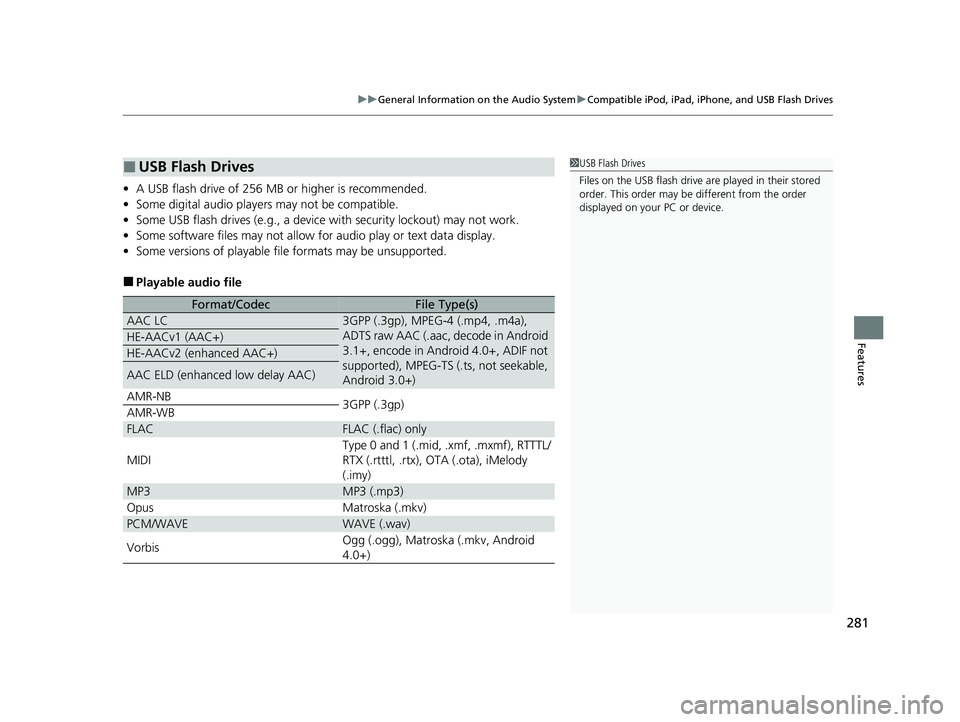
■Playable audio file
■USB Flash Drives
Format/CodecFile Type(s)
AAC LC3GPP (.3gp), MPEG-4 (.mp4, .m4a),
ADTS raw AAC (.aac, decode in Android
3.1+, encode in Android 4.0+, ADIF not
supported), MPEG-TS (.ts, not seekable,
Android 3.0+)
HE-AACv1 (AAC+)
HE-AACv2 (enhanced AAC+)
AAC ELD (enhanced low delay AAC)
AMR-NB 3GPP (.3gp)
AMR-WB
FLACFLAC (.flac) only
MIDI
Type 0 and 1 (.mid, .xmf, .mxmf), RTTTL/
RTX (.rtttl, .rtx), OTA (.ota), iMelody
(.imy)
MP3MP3 (.mp3)
OpusMatroska (.mkv)
PCM/WAVEWAVE (.wav)
VorbisOgg (.ogg), Matroska (.mkv, Android
4.0+)
1 USB Flash Drives
Files on the USB flash drive are played in their stored
order. This order may be different from the order
displayed on your PC or device.
23 ACURA TLX-31TGV6200.book 281 ページ 2022年8月4日 木曜日 午後1時59分
Page 308 of 658

306
uuCustomized Features u
Features
Key and Remote Unlock Mode
Auto Door Lock
Auto Door Unlock
Door Setup
Keyless Lock Answer Back
Security Relock Timer
Accent Light Brightness*
Accent Light Theme*
Interior Light Dimming Time
Headlight Auto Off Timer
Auto Interior Illumi nation Sensitivity
Lighting Setup
Auto Folding Door Mirror*
Door Unlock Mode
Keyless Access Light Flash
Keyless Access Beep
Remote Start System On/Off*
Walk Away Auto Lock
Keyless Access Setup
Auto Headlight On with Wiper On
Auto Light Sensitivity*
* Not available on all models
23 ACURA TLX-31TGV6200.book 306 ページ 2022年8月4日 木曜日 午後1時59分