radio ALFA ROMEO GIULIA 2023 Owner's Manual
[x] Cancel search | Manufacturer: ALFA ROMEO, Model Year: 2023, Model line: GIULIA, Model: ALFA ROMEO GIULIA 2023Pages: 248, PDF Size: 9.62 MB
Page 56 of 248

GETTING TO KNOW YOUR VEHICLE
54
Floor ModeAir comes from the floor outlets. A slight
amount of air is directed through the
defrost and side window demister
outlets. This setting heats the
passenger compartment the quickest.
Mix Mode
Air is directed through the floor, defrost,
and side window demister outlets. This
setting works best in cold or snowy
conditions that require extra heat to the
windshield. This setting is good for maintaining
comfort while reducing moisture on the
windshield.
Front Defrost And Panel Mode
Air flow is distributed between the
windshield demisting/defrosting vents
and side/central dashboard vents. This
setting allows air to flow to the
windshield on sunny days.
Front Defrost And Bi-Level Mode
Air flow is distributed to all vents.
Switching The Climate Control System On/Off
To Turn Off The Climate Control System
Rotate the Air Speed Adjustment Knob
completely counterclockwise to turn off the
Climate Control system.
When the air conditioner is off:
Air recirculation is on
The A/C compressor is off
The fan is off
The heated rear window can be activated/
deactivated
NOTE:
The climate control system stores the previously
set temperatures and resumes operation when
any button on the system is pushed.
To Turn On The Climate Control System
To switch the climate control system on in
automatic mode, push the AUTO button.
Operating Mode
The Climate Control system can be activated in
different ways. It is recommended to use the
automatic function. Push the AUTO button and
set the desired temperatures.
The automatic system adjusts the temperature,
quantity, and distribution of air introduced into
the passenger compartment. It also controls air
recirculation and the activation of the air
conditioner.
At any time during automatic operation, you can
change the temperature, activate or deactivate
the Rear Defrost, activate SYNC, activate or
deactivate the air conditioner, and activate or
deactivate air recirculation. The system will
automatically adjust to the new settings.
Climate Control Display Settings
The Climate Control settings are visible on the
radio screen.
The display on the radio system is a pop up
window, which is activated by pushing the
buttons or turning the knobs on the Climate
Control system. The indicator lights located on the number of buttons and knobs indicate that
the selected feature is on/off. If no operation is
performed for a predetermined time, the pop-up
will close on the display.
Humidity Sensor
The Humidity Sensor helps prevent the windows
from fogging up. The AUTO function (indicator
illuminated) must be on for the Humidity Sensor
to function.
When outside temperature is low, the system
may turn the compressor on and turn air recircu
-
lation off for safer driving.
Stop/Start
The Stop/Start system shuts off the engine when
the vehicle speed is 0 mph (0 km/h), as a fuel
conservation measure.
In order to maintain comfort in the cabin, the
Stop/Start feature will not activate if any of the
following conditions exist:
The climate control system is in AUTO mode
(indicator illuminated), and the vehicle has yet
to reach the set temperature
The climate control system is in LO maximum
cooling
The climate control system is in HI maximum
heating
The climate control system is in the MAX-DEF
status
When the Stop/Start system is active, the engine
will restart if the inside temperature changes
significantly, or if the LO setting, or MAX-DEF
setting, is activated.
23_GA_OM_EN_USC_t.book Page 54
Page 59 of 248
57
WIRELESS CHARGING PAD — IF EQUIPPED
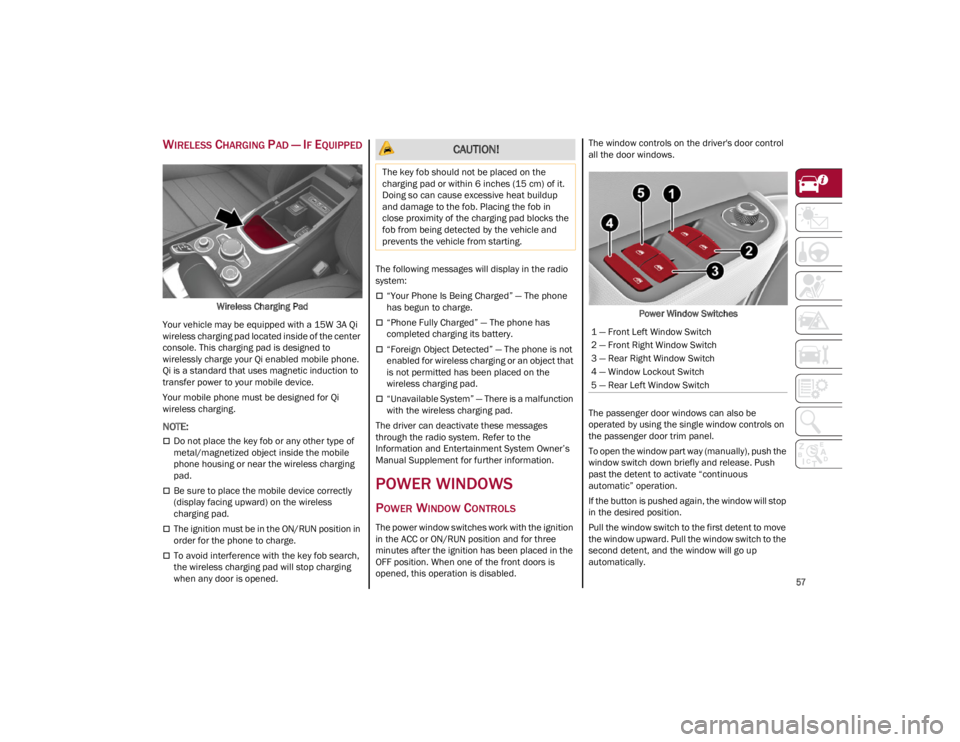
Wireless Charging Pad
Your vehicle may be equipped with a 15W 3A Qi
wireless charging pad located inside of the center
console. This charging pad is designed to
wirelessly charge your Qi enabled mobile phone.
Qi is a standard that uses magnetic induction to
transfer power to your mobile device.
Your mobile phone must be designed for Qi
wireless charging.
NOTE:
Do not place the key fob or any other type of
metal/magnetized object inside the mobile
phone housing or near the wireless charging
pad.
Be sure to place the mobile device correctly
(display facing upward) on the wireless
charging pad.
The ignition must be in the ON/RUN position in
order for the phone to charge.
To avoid interference with the key fob search,
the wireless charging pad will stop charging
when any door is opened. The following messages will display in the radio
system:
“Your Phone Is Being Charged” — The phone
has begun to charge.
“Phone Fully Charged” — The phone has
completed charging its battery.
“Foreign Object Detected” — The phone is not
enabled for wireless charging or an object that
is not permitted has been placed on the
wireless charging pad.
“Unavailable System” — There is a malfunction
with the wireless charging pad.
The driver can deactivate these messages
through the radio system. Refer to the
Information and Entertainment System Owner’s
Manual Supplement for further information.
POWER WINDOWS
POWER WINDOW CONTROLS
The power window switches work with the ignition
in the ACC or ON/RUN position and for three
minutes after the ignition has been placed in the
OFF position. When one of the front doors is
opened, this operation is disabled. The window controls on the driver's door control
all the door windows.
Power Window Switches
The passenger door windows can also be
operated by using the single window controls on
the passenger door trim panel.
To open the window part way (manually), push the
window switch down briefly and release. Push
past the detent to activate “continuous
automatic” operation.
If the button is pushed again, the window will stop
in the desired position.
Pull the window switch to the first detent to move
the window upward. Pull the window switch to the
second detent, and the window will go up
automatically.
CAUTION!
The key fob should not be placed on the
charging pad or within 6 inches (15 cm) of it.
Doing so can cause excessive heat buildup
and damage to the fob. Placing the fob in
close proximity of the charging pad blocks the
fob from being detected by the vehicle and
prevents the vehicle from starting.
1 — Front Left Window Switch
2 — Front Right Window Switch
3 — Rear Right Window Switch
4 — Window Lockout Switch
5 — Rear Left Window Switch
23_GA_OM_EN_USC_t.book Page 57
Page 71 of 248
69
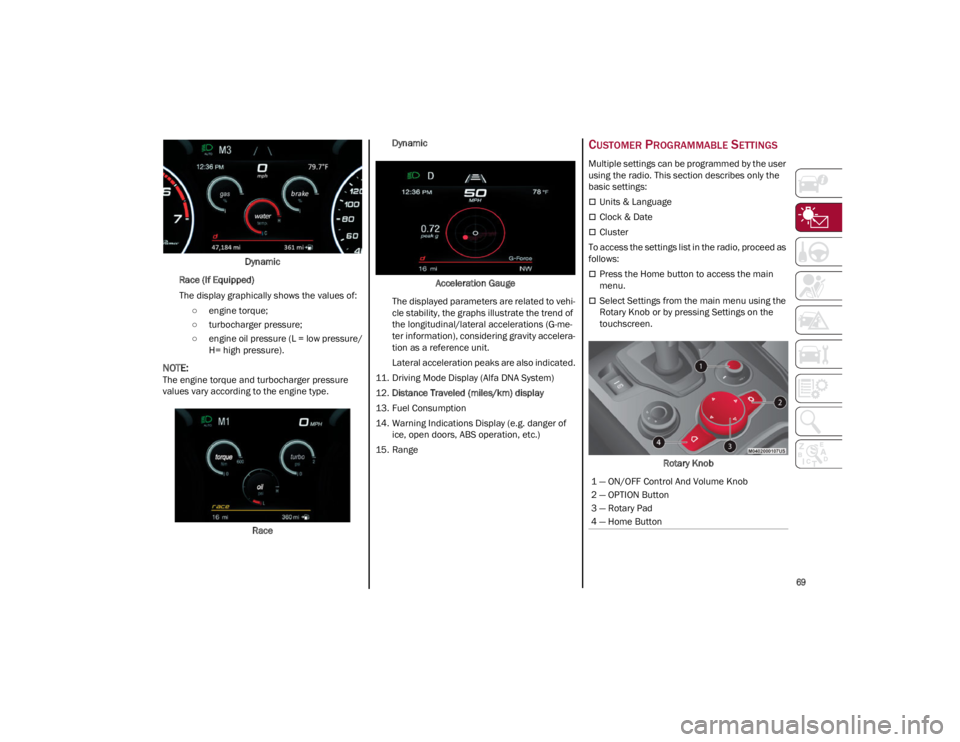
Dynamic
Race (If Equipped)
The display graphically shows the values of: ○ engine torque;
○ turbocharger pressure;
○ engine oil pressure (L = low pressure/ H= high pressure).
NOTE:
The engine torque and turbocharger pressure
values vary according to the engine type.
Race Dynamic
Acceleration Gauge
The displayed parameters are related to vehi -
cle stability, the graphs illustrate the trend of
the longitudinal/lateral accelerations (G-me -
ter information), considering gravity accelera -
tion as a reference unit.
Lateral acceleration peaks are also indicated.
11. Driving Mode Display (Alfa DNA System)
12. Distance Traveled (miles/km) display
13. Fuel Consumption
14. Warning Indications Display (e.g. danger of ice, open doors, ABS operation, etc.)
15. Range
CUSTOMER PROGRAMMABLE SETTINGS
Multiple settings can be programmed by the user
using the radio. This section describes only the
basic settings:
Units & Language
Clock & Date
Cluster
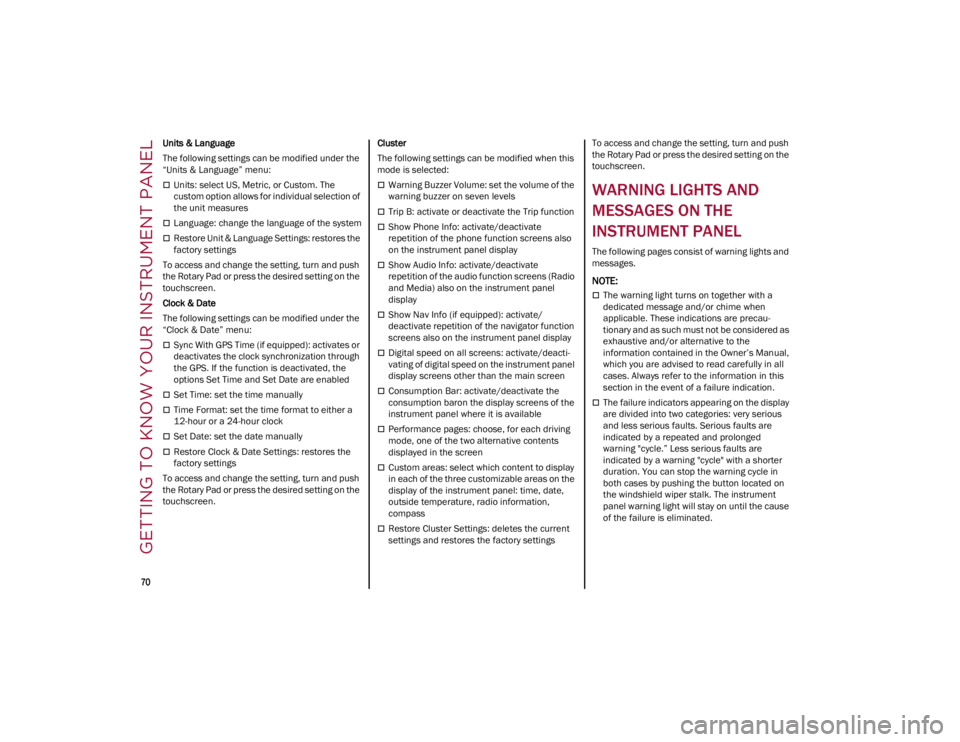
To access the settings list in the radio, proceed as
follows:
Press the Home button to access the main
menu.
Select Settings from the main menu using the
Rotary Knob or by pressing Settings on the
touchscreen.
Rotary Knob
1 — ON/OFF Control And Volume Knob
2 — OPTION Button
3 — Rotary Pad
4 — Home Button
23_GA_OM_EN_USC_t.book Page 69
Page 72 of 248
GETTING TO KNOW YOUR INSTRUMENT PANEL
70
Units & Language
The following settings can be modified under the
“Units & Language” menu:
Units: select US, Metric, or Custom. The
custom option allows for individual selection of
the unit measures
Language: change the language of the system
Restore Unit & Language Settings: restores the
factory settings
To access and change the setting, turn and push
the Rotary Pad or press the desired setting on the
touchscreen.
Clock & Date
The following settings can be modified under the
“Clock & Date” menu:
Sync With GPS Time (if equipped): activates or
deactivates the clock synchronization through
the GPS. If the function is deactivated, the
options Set Time and Set Date are enabled
Set Time: set the time manually
Time Format: set the time format to either a
12-hour or a 24-hour clock
Set Date: set the date manually
Restore Clock & Date Settings: restores the
factory settings
To access and change the setting, turn and push
the Rotary Pad or press the desired setting on the
touchscreen. Cluster
The following settings can be modified when this
mode is selected:
Warning Buzzer Volume: set the volume of the
warning buzzer on seven levels
Trip B: activate or deactivate the Trip function
Show Phone Info: activate/deactivate
repetition of the phone function screens also
on the instrument panel display
Show Audio Info: activate/deactivate
repetition of the audio function screens (Radio
and Media) also on the instrument panel
display
Show Nav Info (if equipped): activate/
deactivate repetition of the navigator function
screens also on the instrument panel display
Digital speed on all screens: activate/deacti
-
vating of digital speed on the instrument panel
display screens other than the main screen
Consumption Bar: activate/deactivate the
consumption baron the display screens of the
instrument panel where it is available
Performance pages: choose, for each driving
mode, one of the two alternative contents
displayed in the screen
Custom areas: select which content to display
in each of the three customizable areas on the
display of the instrument panel: time, date,
outside temperature, radio information,
compass
Restore Cluster Settings: deletes the current
settings and restores the factory settings To access and change the setting, turn and push
the Rotary Pad or press the desired setting on the
touchscreen.
WARNING LIGHTS AND
MESSAGES ON THE
INSTRUMENT PANEL
The following pages consist of warning lights and
messages.
NOTE:
The warning light turns on together with a
dedicated message and/or chime when
applicable. These indications are precau
-
tionary and as such must not be considered as
exhaustive and/or alternative to the
information contained in the Owner’s Manual,
which you are advised to read carefully in all
cases. Always refer to the information in this
section in the event of a failure indication.
The failure indicators appearing on the display
are divided into two categories: very serious
and less serious faults. Serious faults are
indicated by a repeated and prolonged
warning "cycle.” Less serious faults are
indicated by a warning "cycle" with a shorter
duration. You can stop the warning cycle in
both cases by pushing the button located on
the windshield wiper stalk. The instrument
panel warning light will stay on until the cause
of the failure is eliminated.
23_GA_OM_EN_USC_t.book Page 70
Page 99 of 248
97
ACTIVATION
The feature can be activated/deactivated
through the radio system.
Activating The Device
To access this feature, select the “Driver
Assistance” widget in the radio system, then
select the following items in sequence:
1. Speed Limiter
2. ON
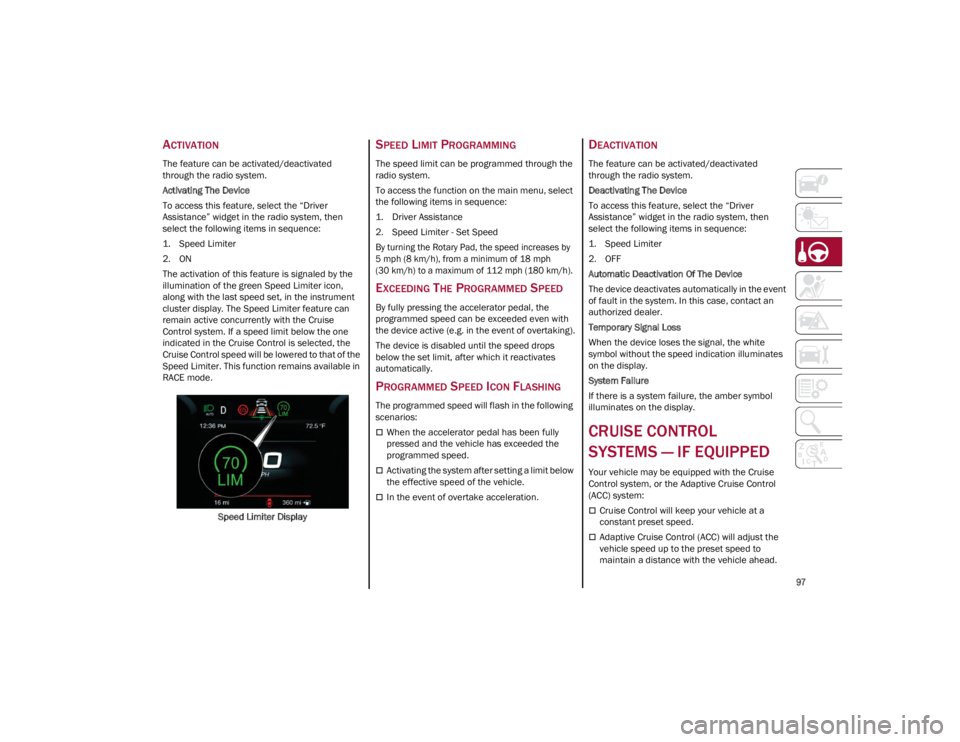
The activation of this feature is signaled by the
illumination of the green Speed Limiter icon,
along with the last speed set, in the instrument
cluster display. The Speed Limiter feature can
remain active concurrently with the Cruise
Control system. If a speed limit below the one
indicated in the Cruise Control is selected, the
Cruise Control speed will be lowered to that of the
Speed Limiter. This function remains available in
RACE mode.Speed Limiter Display
SPEED LIMIT PROGRAMMING
The speed limit can be programmed through the
radio system.
To access the function on the main menu, select
the following items in sequence:
1. Driver Assistance
2. Speed Limiter - Set Speed
By turning the Rotary Pad, the speed increases by
5 mph (8 km/h), from a minimum of 18 mph
(30 km/h) to a maximum of 112 mph (180 km/h).
EXCEEDING THE PROGRAMMED SPEED
By fully pressing the accelerator pedal, the
programmed speed can be exceeded even with
the device active (e.g. in the event of overtaking).
The device is disabled until the speed drops
below the set limit, after which it reactivates
automatically.
PROGRAMMED SPEED ICON FLASHING
The programmed speed will flash in the following
scenarios:
When the accelerator pedal has been fully
pressed and the vehicle has exceeded the
programmed speed.
Activating the system after setting a limit below
the effective speed of the vehicle.
In the event of overtake acceleration.
DEACTIVATION
The feature can be activated/deactivated
through the radio system.
Deactivating The Device
To access this feature, select the “Driver
Assistance” widget in the radio system, then
select the following items in sequence:
1. Speed Limiter
2. OFF
Automatic Deactivation Of The Device
The device deactivates automatically in the event
of fault in the system. In this case, contact an
authorized dealer.
Temporary Signal Loss
When the device loses the signal, the white
symbol without the speed indication illuminates
on the display.
System Failure
If there is a system failure, the amber symbol
illuminates on the display.
CRUISE CONTROL
SYSTEMS — IF EQUIPPED
Your vehicle may be equipped with the Cruise
Control system, or the Adaptive Cruise Control
(ACC) system:
Cruise Control will keep your vehicle at a
constant preset speed.
Adaptive Cruise Control (ACC) will adjust the
vehicle speed up to the preset speed to
maintain a distance with the vehicle ahead.
23_GA_OM_EN_USC_t.book Page 97
Page 101 of 248
99
If needed (when overtaking for instance), you can
accelerate beyond the set speed by pressing the
accelerator. When you release the pedal, the
vehicle will return to the previously set speed.
When traveling downhill with the system active,
the vehicle speed may slightly exceed the set one.
NOTE:
Before pushing the SET switch, the vehicle must
be traveling at a constant speed on a flat surface.
To Vary The Speed Setting
To Increase Or Decrease The Set Speed
When the Cruise Control is set, you can increase
the speed by pushing the SET switch upward or
decrease the speed by pushing the SET switch
downward.
U.S. Speed (mph)
Pushing the SET switch once will result in a
1 mph speed adjustment. Each subsequent
movement of the switch results in an
adjustment of 1 mph.
If the switch is continually pushed, the set
speed will continue to adjust until the switch is
released, then the new set speed will be
established.
Metric Speed (km/h)
Pushing the SET switch once will result in a
1 km/h speed adjustment. Each subsequent
movement of the switch results in an
adjustment of 1 km/h.
If the switch is continually pushed, the set
speed will continue to adjust until the switch is
released, then the new set speed will be
established.
NOTE:
Moving the SET switch allows for adjusting of the
speed according to the selected unit of measure -
ment set on the radio system. Refer to the Infor -
mation and Entertainment System Owner’s
Manual for more information.
To Accelerate For Passing
While the Cruise Control is set, press the
accelerator to pass as you would normally. When
the pedal is released, the vehicle will return to the
set speed.
Using Cruise Control On Hills
The transmission may downshift on hills to
maintain the vehicle set speed.
The Cruise Control system maintains speed up
and down hills. A slight speed change on
moderate hills is normal. On steep hills, a greater
speed loss or gain may occur so it may be
preferable to drive without Cruise Control.
To Resume Speed
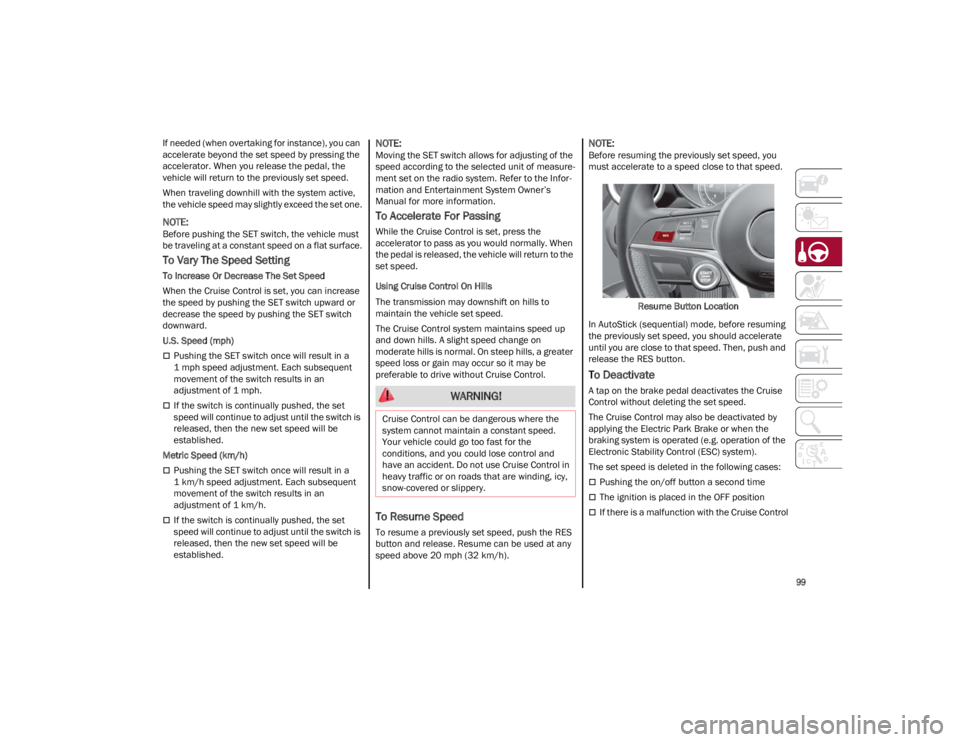
To resume a previously set speed, push the RES
button and release. Resume can be used at any
speed above 20 mph (32 km/h).
NOTE:
Before resuming the previously set speed, you
must accelerate to a speed close to that speed.
Resume Button Location
In AutoStick (sequential) mode, before resuming
the previously set speed, you should accelerate
until you are close to that speed. Then, push and
release the RES button.
To Deactivate
A tap on the brake pedal deactivates the Cruise
Control without deleting the set speed.
The Cruise Control may also be deactivated by
applying the Electric Park Brake or when the
braking system is operated (e.g. operation of the
Electronic Stability Control (ESC) system).
The set speed is deleted in the following cases:
Pushing the on/off button a second time
The ignition is placed in the OFF position
If there is a malfunction with the Cruise Control
WARNING!
Cruise Control can be dangerous where the
system cannot maintain a constant speed.
Your vehicle could go too fast for the
conditions, and you could lose control and
have an accident. Do not use Cruise Control in
heavy traffic or on roads that are winding, icy,
snow-covered or slippery.
23_GA_OM_EN_USC_t.book Page 99
Page 104 of 248
STARTING AND OPERATING
102
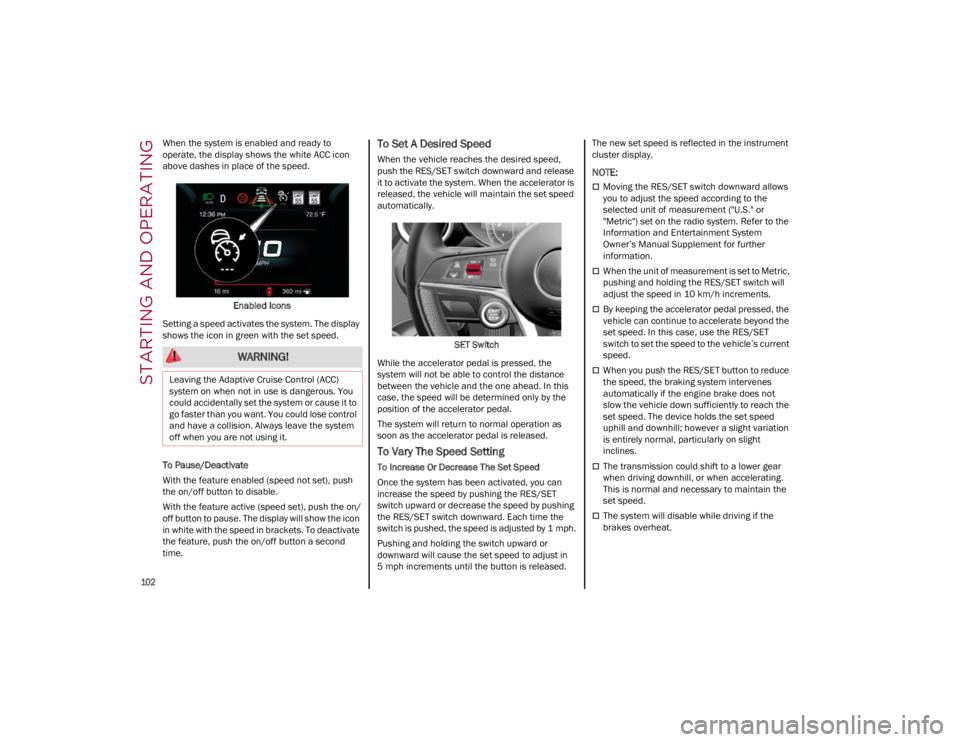
When the system is enabled and ready to
operate, the display shows the white ACC icon
above dashes in place of the speed.Enabled Icons
Setting a speed activates the system. The display
shows the icon in green with the set speed.
To Pause/Deactivate
With the feature enabled (speed not set), push
the on/off button to disable.
With the feature active (speed set), push the on/
off button to pause. The display will show the icon
in white with the speed in brackets. To deactivate
the feature, push the on/off button a second
time.To Set A Desired Speed
When the vehicle reaches the desired speed,
push the RES/SET switch downward and release
it to activate the system. When the accelerator is
released, the vehicle will maintain the set speed
automatically.
SET Switch
While the accelerator pedal is pressed, the
system will not be able to control the distance
between the vehicle and the one ahead. In this
case, the speed will be determined only by the
position of the accelerator pedal.
The system will return to normal operation as
soon as the accelerator pedal is released.
To Vary The Speed Setting
To Increase Or Decrease The Set Speed
Once the system has been activated, you can
increase the speed by pushing the RES/SET
switch upward or decrease the speed by pushing
the RES/SET switch downward. Each time the
switch is pushed, the speed is adjusted by 1 mph.
Pushing and holding the switch upward or
downward will cause the set speed to adjust in
5 mph increments until the button is released. The new set speed is reflected in the instrument
cluster display.
NOTE:
Moving the RES/SET switch downward allows
you to adjust the speed according to the
selected unit of measurement ("U.S." or
"Metric") set on the radio system. Refer to the
Information and Entertainment System
Owner’s Manual Supplement for further
information.
When the unit of measurement is set to Metric,
pushing and holding the RES/SET switch will
adjust the speed in 10 km/h increments.
By keeping the accelerator pedal pressed, the
vehicle can continue to accelerate beyond the
set speed. In this case, use the RES/SET
switch to set the speed to the vehicle’s current
speed.
When you push the RES/SET button to reduce
the speed, the braking system intervenes
automatically if the engine brake does not
slow the vehicle down sufficiently to reach the
set speed. The device holds the set speed
uphill and downhill; however a slight variation
is entirely normal, particularly on slight
inclines.
The transmission could shift to a lower gear
when driving downhill, or when accelerating.
This is normal and necessary to maintain the
set speed.
The system will disable while driving if the
brakes overheat.
WARNING!
Leaving the Adaptive Cruise Control (ACC)
system on when not in use is dangerous. You
could accidentally set the system or cause it to
go faster than you want. You could lose control
and have a collision. Always leave the system
off when you are not using it.
23_GA_OM_EN_USC_t.book Page 102
Page 108 of 248
STARTING AND OPERATING
106
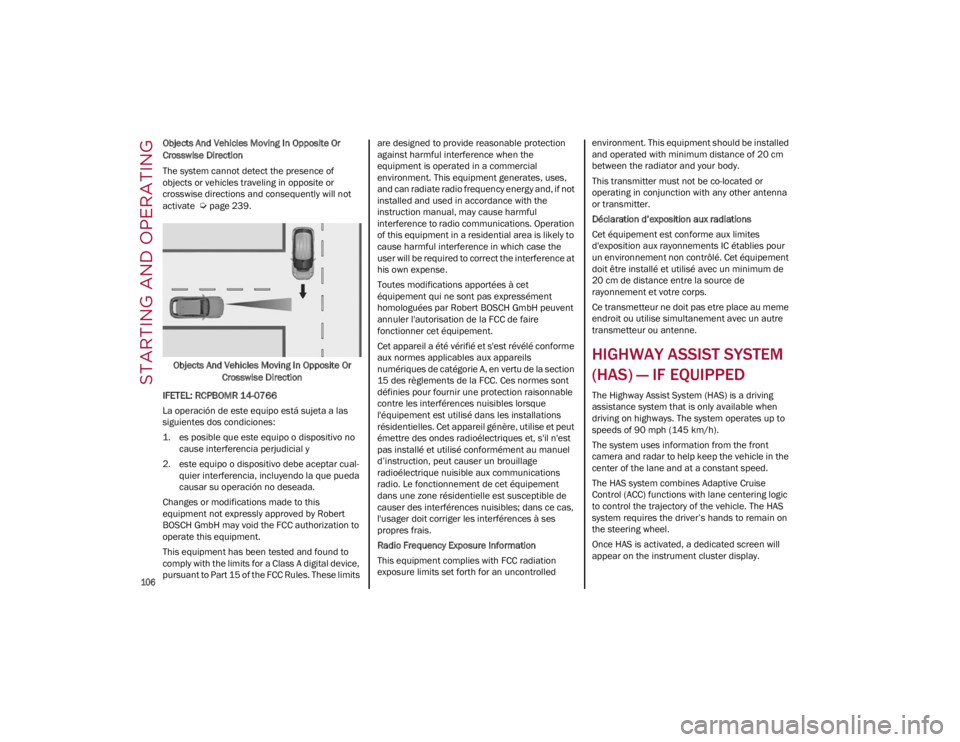
Objects And Vehicles Moving In Opposite Or
Crosswise Direction
The system cannot detect the presence of
objects or vehicles traveling in opposite or
crosswise directions and consequently will not
activate
Ú
page 239.
Objects And Vehicles Moving In Opposite Or Crosswise Direction
IFETEL: RCPBOMR 14-0766
La operación de este equipo está sujeta a las
siguientes dos condiciones:
1. es posible que este equipo o dispositivo no cause interferencia perjudicial y
2. este equipo o dispositivo debe aceptar cual -
quier interferencia, incluyendo la que pueda
causar su operación no deseada.
Changes or modifications made to this
equipment not expressly approved by Robert
BOSCH GmbH may void the FCC authorization to
operate this equipment.
This equipment has been tested and found to
comply with the limits for a Class A digital device,
pursuant to Part 15 of the FCC Rules. These limits are designed to provide reasonable protection
against harmful interference when the
equipment is operated in a commercial
environment. This equipment generates, uses,
and can radiate radio frequency energy and, if not
installed and used in accordance with the
instruction manual, may cause harmful
interference to radio communications. Operation
of this equipment in a residential area is likely to
cause harmful interference in which case the
user will be required to correct the interference at
his own expense.
Toutes modifications apportées à cet
équipement qui ne sont pas expressément
homologuées par Robert BOSCH GmbH peuvent
annuler l'autorisation de la FCC de faire
fonctionner cet équipement.
Cet appareil a été vérifié et s'est révélé conforme
aux normes applicables aux appareils
numériques de catégorie A, en vertu de la section
15 des règlements de la FCC. Ces normes sont
définies pour fournir une protection raisonnable
contre les interférences nuisibles lorsque
l'équipement est utilisé dans les installations
résidentielles. Cet appareil génère, utilise et peut
émettre des ondes radioélectriques et, s'il n'est
pas installé et utilisé conformément au manuel
d’instruction, peut causer un brouillage
radioélectrique nuisible aux communications
radio. Le fonctionnement de cet équipement
dans une zone résidentielle est susceptible de
causer des interférences nuisibles; dans ce cas,
l'usager doit corriger les interférences à ses
propres frais.
Radio Frequency Exposure Information
This equipment complies with FCC radiation
exposure limits set forth for an uncontrolled
environment. This equipment should be installed
and operated with minimum distance of 20 cm
between the radiator and your body.
This transmitter must not be co-located or
operating in conjunction with any other antenna
or transmitter.
Déclaration d’exposition aux radiations
Cet équipement est conforme aux limites
d'exposition aux rayonnements IC établies pour
un environnement non contrôlé. Cet équipement
doit être installé et utilisé avec un minimum de
20 cm de distance entre la source de
rayonnement et votre corps.
Ce transmetteur ne doit pas etre place au meme
endroit ou utilise simultanement avec un autre
transmetteur ou antenne.
HIGHWAY ASSIST SYSTEM
(HAS) — IF EQUIPPED
The Highway Assist System (HAS) is a driving
assistance system that is only available when
driving on highways. The system operates up to
speeds of 90 mph (145 km/h).
The system uses information from the front
camera and radar to help keep the vehicle in the
center of the lane and at a constant speed.
The HAS system combines Adaptive Cruise
Control (ACC) functions with lane centering logic
to control the trajectory of the vehicle. The HAS
system requires the driver’s hands to remain on
the steering wheel.
Once HAS is activated, a dedicated screen will
appear on the instrument cluster display.
23_GA_OM_EN_USC_t.book Page 106
Page 110 of 248
STARTING AND OPERATING
108
The camera, radar, and radio system must be
functioning properly
The road lane width must be between 8.5 ft
and 13.7 ft (2.6 m and 4.2 m)
The turn signals must not be activated
The HAS system must be functioning properly
Other operating limits:
If the speed of ACC can be set to a higher value
(top speed 110 mph (180 km/h), HAS is only
available as long as the vehicle speed is equal
to or less than 90 mph (145 km/h).
When the ACC speed is reduced and the
vehicle speed is less than 90 mph (145 km/h),
the system will automatically reactivate.
If the ACC speed is set to 90 mph (145 km/h), traveling downhill may increase the vehicle
speed. The HAS system will deactivate until the
speed returns to 90 mph (145 km/h).
INDICATIONS ON THE DISPLAY
The HAS system status can always be viewed in
the instrument cluster display.
The system status is indicated by the color of the
symbol on the display.
The HAS system uses sensors in the steering
wheel to detect if the driver’s hands are on it.
If the driver’s hands are not on the steering
wheel, a series of warnings will appear in the
instrument cluster display to alert the driver to
reposition their hands on the steering wheel. An
acoustic signal will also sound. After a period of
time, the HAS system will disable if the driver’s
hands do not return to the steering wheel. After a period of time, the HAS system will disable
if the driver has not repositioned their hands on
the steering wheel.
When the system does not detect hands on the
steering wheel, it will warn the driver by displaying
a dedicated screen on the instrument cluster
display.
SYSTEM STATUS
Active System
When the system is active, the following screen
will appear in the “Driver Assistance” menu on
the instrument cluster display.
HAS Active
If on a different menu screen, a symbol will
appear on the instrument cluster display
indicating that the system is active.
When the driver’s hands are removed from the
steering wheel, the system disables after a few
seconds. A screen will appear in the instrument
cluster display warning the driver to return their
hands to the steering wheel. Active System (Hands Removed From The
Steering Wheel For A Short Time)
As soon as the driver removes their hands from
the steering wheel, the following screen will
appear in the instrument cluster display. The
system will remain active at this time.
Hands Removed Initial Warning
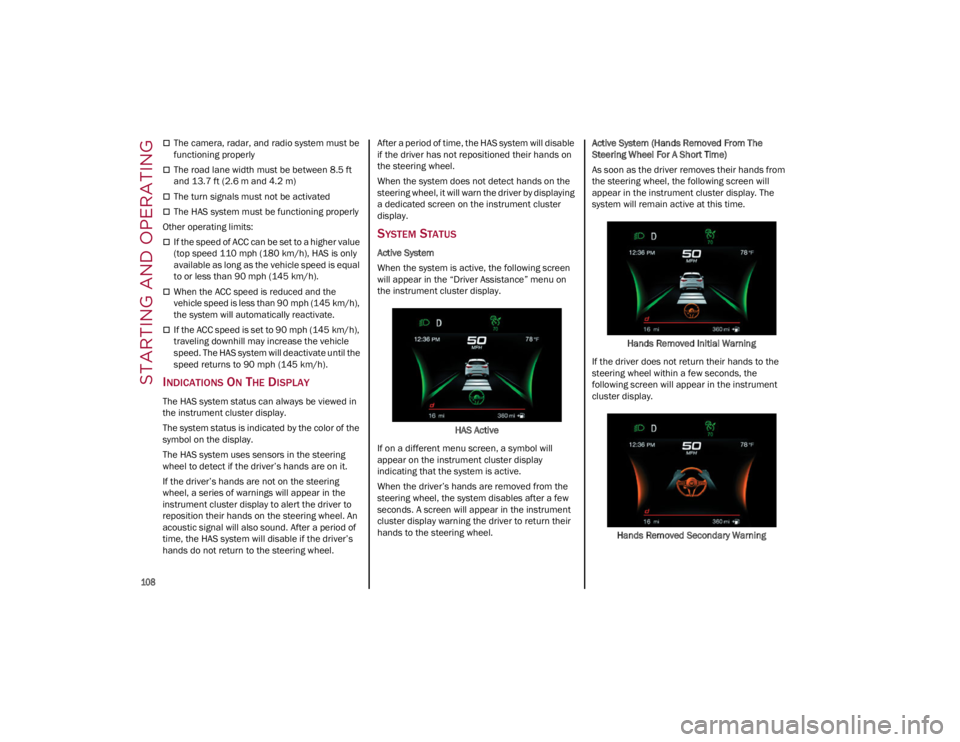
If the driver does not return their hands to the
steering wheel within a few seconds, the
following screen will appear in the instrument
cluster display.
Hands Removed Secondary Warning
23_GA_OM_EN_USC_t.book Page 108
Page 111 of 248
109
(Continued)
Active System (Hands Removed From The
Steering Wheel For A Long Time)
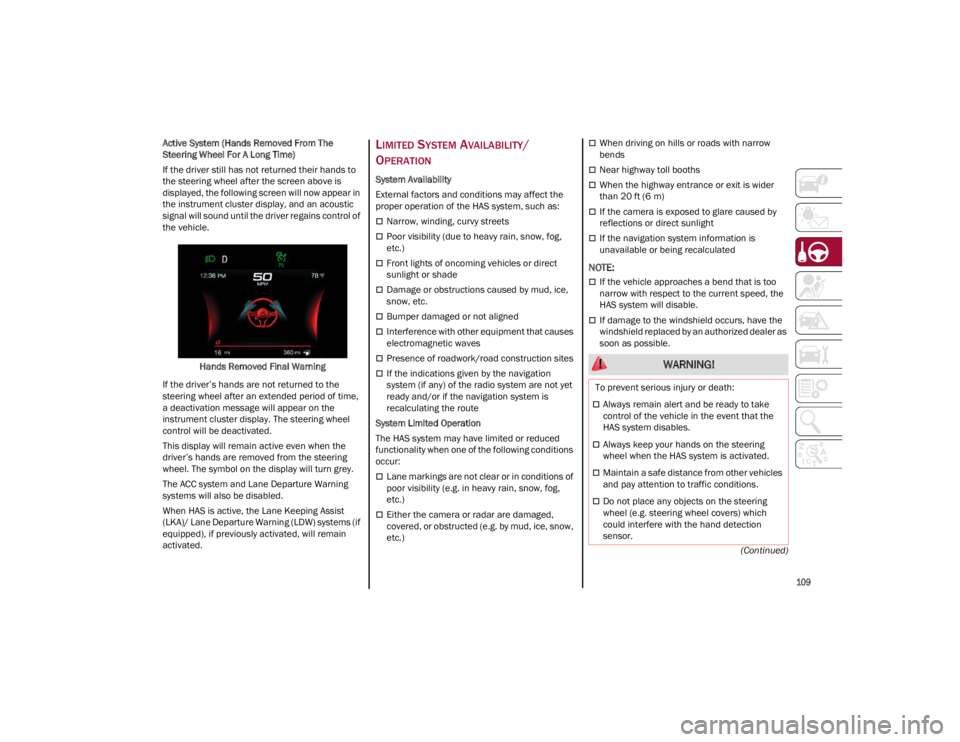
If the driver still has not returned their hands to
the steering wheel after the screen above is
displayed, the following screen will now appear in
the instrument cluster display, and an acoustic
signal will sound until the driver regains control of
the vehicle.
Hands Removed Final Warning
If the driver’s hands are not returned to the
steering wheel after an extended period of time,
a deactivation message will appear on the
instrument cluster display. The steering wheel
control will be deactivated.
This display will remain active even when the
driver’s hands are removed from the steering
wheel. The symbol on the display will turn grey.
The ACC system and Lane Departure Warning
systems will also be disabled.
When HAS is active, the Lane Keeping Assist
(LKA)/ Lane Departure Warning (LDW) systems (if
equipped), if previously activated, will remain
activated.
LIMITED SYSTEM AVAILABILITY/
O
PERATION
System Availability
External factors and conditions may affect the
proper operation of the HAS system, such as:
Narrow, winding, curvy streets
Poor visibility (due to heavy rain, snow, fog,
etc.)
Front lights of oncoming vehicles or direct
sunlight or shade
Damage or obstructions caused by mud, ice,
snow, etc.
Bumper damaged or not aligned
Interference with other equipment that causes
electromagnetic waves
Presence of roadwork/road construction sites
If the indications given by the navigation
system (if any) of the radio system are not yet
ready and/or if the navigation system is
recalculating the route
System Limited Operation
The HAS system may have limited or reduced
functionality when one of the following conditions
occur:
Lane markings are not clear or in conditions of
poor visibility (e.g. in heavy rain, snow, fog,
etc.)
Either the camera or radar are damaged,
covered, or obstructed (e.g. by mud, ice, snow,
etc.)
When driving on hills or roads with narrow
bends
Near highway toll booths
When the highway entrance or exit is wider
than 20 ft (6 m)
If the camera is exposed to glare caused by
reflections or direct sunlight
If the navigation system information is
unavailable or being recalculated
NOTE:
If the vehicle approaches a bend that is too
narrow with respect to the current speed, the
HAS system will disable.
If damage to the windshield occurs, have the
windshield replaced by an authorized dealer as
soon as possible.
WARNING!
To prevent serious injury or death:
Always remain alert and be ready to take
control of the vehicle in the event that the
HAS system disables.
Always keep your hands on the steering
wheel when the HAS system is activated.
Maintain a safe distance from other vehicles
and pay attention to traffic conditions.
Do not place any objects on the steering
wheel (e.g. steering wheel covers) which
could interfere with the hand detection
sensor.
23_GA_OM_EN_USC_t.book Page 109