change time Alfa Romeo Giulietta 2017 User Guide
[x] Cancel search | Manufacturer: ALFA ROMEO, Model Year: 2017, Model line: Giulietta, Model: Alfa Romeo Giulietta 2017Pages: 212, PDF Size: 4.56 MB
Page 115 of 212
119)The vehicle's driving characteristics
will be modified with the space-saver wheel
fitted. Avoid violent acceleration and
braking, abrupt steering and fast cornering.
The overall duration of the space-saver
wheel is about 3000 km, after which the
relevant tyre must be replaced with another
one of the same type. Never install a
traditional tyre on a rim designed to be used
as a space-saver wheel. Have the wheel
repaired and refitted as soon as possible.
Using two or more space-saver wheels at the
same time is forbidden. Do not apply grease
to the bolt threads before fitting: they could
come unscrewed.
120)The jack may be used to replace
wheels only on the car that it comes with or
other cars of the same model. Never use the
jack for other purposes, such as lifting other
vehicle models. Never use it for repair
operations under the vehicle. Incorrect
positioning of the jack may cause the vehicle
to fall. Do not use the jack for loads higher
than the one shown on its label. Never install
snow chains on the space-saver wheel; if a
front tyre (driving wheel) is punctured and
you need to use snow chains, use a standard
wheel from the rear axle and install the
space-saver wheel on the rear axle. In this
way, with two normal front drive wheels, it is
possible to use snow chains.
121)Incorrectly fitting the wheel cap may
cause it to fall off when the car is in motion.
Never tamper with the inflation valve. Never
introduce tools of any kind between rim and
tyre. Regularly check the inflation pressure
of the tyres and space-saver wheel (see
chapter "Technical specifications").122)The jack is a tool developed and
designed only for changing a wheel, if a tyre
gets punctured or damaged, on the vehicle
with which it is supplied or on other vehicles
of the same model. Any other use, e.g. to jack
up other vehicle models or different things,
is strictly prohibited. Never use for
maintenance or repair activities under the
car or to exchange the summer/winter
wheels and vice versa. Never go under the
raised vehicle. Should it be necessary to
work under the vehicle, contact an Alfa
Romeo Dealership. Incorrect positioning of
the jack may cause the raised vehicle to fall:
use only in the positions indicated. Do not
use the jack for loads higher than the one
shown on its label. Never start the engine
with vehicle raised. If the vehicle is raised
more than necessary, everything can
become more unstable, with the risk of the
vehicle dropping violently. Thus, lift the
vehicle only as needed in order to access the
spare wheel.
IMPORTANT
35)When turning the jack handle make sure
that it can turn freely without scraping your
hand against the ground. The moving
components of the jack ("worm screw" and
joints) can also cause injuries: avoid touching
them. If you come into contact with
lubricating grease, clean yourself
thoroughly.
36)Contact an Alfa Romeo Dealership as
soon as possible to have the correct
tightening of the wheel bolts checked.
FIX&GO KIT
123) 124)
37)
DESCRIPTION
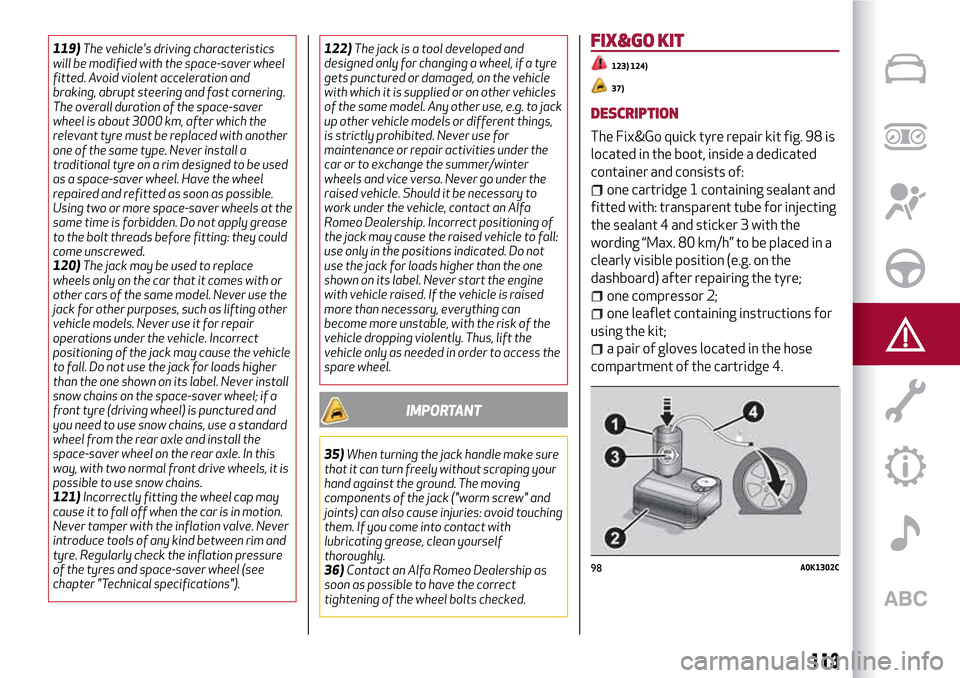
The Fix&Go quick tyre repair kit fig. 98 is
located in the boot, inside a dedicated
container and consists of:
one cartridge 1 containing sealant and
fitted with: transparent tube for injecting
the sealant 4 and sticker 3 with the
wording “Max. 80 km/h” to be placed in a
clearly visible position (e.g. on the
dashboard) after repairing the tyre;
one compressor 2;
one leaflet containing instructions for
using the kit;
a pair of gloves located in the hose
compartment of the cartridge 4.
98A0K1302C
113
Page 138 of 212
134)The cooling system is pressurised. If
necessary, only replace the plug with
another original or the operation of the
system may be adversely affected. Do not
remove the reservoir plug when the engine is
hot: you risk scalding yourself.
135)Do not travel with the windscreen
washer fluid reservoir empty: the
windscreen washer is essential for
improving visibility. Repeated operation of
the system without fluid could damage or
cause rapid deterioration of some system
components.
136)Some commercial additives for
windscreen washer fluid are flammable. The
engine compartment contains hot
components which may start a fire.
137)Brake fluid is poisonous and highly
corrosive. In the event of accidental contact,
immediately wash the affected parts with
water and mild soap. Then rinse thoroughly.
Call a doctor immediately if swallowed.
138)The symbol
, on the brake fluid
container indicates if a brake fluid is
synthetic or mineral-based. Use of mineral
type fluids will damage the special rubber
seals of the braking system beyond repair.
IMPORTANT
3)Used engine oil and oil filters contain
substances which are harmful to the
environment. To change the oil and filters, we
advise you to contact an Alfa Romeo
Dealership.
4)Used transmission fluid contains
substances that are harmful to the
environment. You are advised to contact an
Alfa Romeo Dealership for oil changes.
BATTERY RECHARGING
IMPORTANT The battery recharging
procedure is given as information only. To
carry out this operation contact an Alfa
Romeo Dealership.
IMPORTANT After turning the ignition
key to STOP and having closed the
driver's side door, wait at least one
minute before disconnecting and then
reconnecting the electrical supply to the
battery.
Charging should be slow at a low ampere
rating for approximately 24 hours.
Charging for a longer time may damage
the battery.
IMPORTANT The cables of the electrical
system must be correctly reconnected to
the battery, i.e. the positive cable (+) to
the positive terminal and the negative
cable (–) to the negative terminal. The
battery terminals are marked with the
positive (+) and negative (–) symbols, and
are shown on the battery cover. The
battery terminals must also be
corrosion-free and firmly secured to the
terminals. If a "quick-type" battery
charger is used with the battery fitted on
the vehicle, before connecting it
disconnect both cables of the battery
itself. Do not use a "quick-type" battery
charger to provide the starting voltage.The cables of the electrical system must
be correctly reconnected to the battery,
i.e. the positive cable (+) to the positive
terminal and the negative cable (–) to the
negative terminal. The battery terminals
are marked with the positive (+) and
negative (–) symbols, and are shown on
the battery cover. The battery terminals
must also be corrosion-free and firmly
secured to the terminals.
VERSIONS WITHOUT START&STOP
SYSTEM
(for versions/markets, where provided)
To recharge, proceed as follows:
disconnect the terminal from the
negative battery pole;
connect the charger cables to the
battery terminals, observing the polarity;
turn on the charger;
when it is recharged, turn the charger
off before disconnecting it from the
battery;
reconnect the terminal to the negative
battery pole.
VERSIONS WITH START&STOP
SYSTEM
(for versions/markets, where provided)
To recharge, proceed as follows:
disconnect the connector 1 fig. 122
(pressing the button 2) from the sensor
3 monitoring the battery conditions, on
the negative pole (–) 4 of the battery;
136
SERVICING AND MAINTENANCE
Page 174 of 212
TIPS, CONTROLS AND GENERAL
INFORMATION
TIPS
Road safety
Learn how to use the various system
functions before setting off.
Read the instructions for the system
carefully before setting off.
147) 148)
Reception conditions
Reception conditions change constantly
while driving. Reception may be
interfered with by the presence of
mountains, buildings or bridges,
especially when you are far away from
the broadcaster.
IMPORTANT The volume may be
increased when receiving traffic
bulletins.
Care and maintenance
52) 53)
Observe the following precautions to
ensure the system is fully operational:
never use alcohol, petrol or
petroleum-based solvents to clean the
display screen;
the display is sensitive to scratching,
liquids and detergents. The display
should not come into contact with
pointed or rigid objects which could
damage its surface. Do not press on the
display when cleaning it;
prevent any liquid from entering the
system: this could damage it beyond
repair.
SAFETY SETTINGS
Look at the screen only and when it is
necessary and safe. If you need to look at
the screen for a long time, pull over to a
safe place so as not to be distracted
while driving.
Immediately stop using the system in the
event of a fault. Otherwise the system
might be damaged. Contact an Alfa
Romeo Dealership as soon as possible to
have the system repaired.
WARNING
147)Follow the safety rules here below:
otherwise serious injuries may occur to the
occupants or the system may be damaged.
148)If the volume is too loud this can be
dangerous. Adjust the volume so that you
can still hear background noises (e.g. horns,
ambulances, police vehicles, etc.).
IMPORTANT
52)Only clean the front panel and the
display lens with a soft, clean, dry, anti-static
cloth. Cleaning and polishing products may
damage the surface. Never use alcohol,
petrols and derivatives.53)Do not use the display as a base for
supports with suction pads or adhesives for
external navigators or smartphones or
similar devices
172
MULTIMEDIA
Page 180 of 212
If you are tuned to a radio station that
you wish to store, hold down the button
on the display which corresponds to the
desired preset or until an acoustic
confirmation signal is emitted.
The system can store up to 12 radio
stations in each mode: 3 radio stations
are displayed in the upper area.
Press the "All" button on the display to
show all the radio stations stored in the
frequency band selected.
Audio
To access the "Audio" menu, press the
SETTINGS button on the front panel,
scroll through the menu, then select and
press the "Audio" option on the display.
The following adjustments can be carried
out using the "Audio" menu:
"Equalizer" (for versions/markets,
where provided): to adjust the bass,
medium and treble settings;
"Balance/Fader" (left/right and
front/rear audio balance adjustment);
"Volume/Speed" (excluding versions
with Hi-Fi system) speed-dependent
automatic volume adjustment;
"Loudness" (for versions/markets,
where provided): improves audio quality
at low volumes;
"Auto-On Radio": provides the options
of radio on, radio off or restore status
when the ignition key was last turned to
STOP.
"Radio Off Delay": keeps the radio on
for a preset time after the ignition key is
turned to STOP.
MEDIA MODE
This chapter describes the interaction
modes for CD,
Bluetooth®, AUX and
USB/iPod operation.
Press the "Source" button to select the
desired audio source from those
available.
Change track (next/previous)
Briefly press the
button or press
on the steering wheel or, alternatively,
turn the BROWSE ENTER button/knob
clockwise to play the next track. Briefly
press the
button or presson the
steering wheel or, alternatively, turn the
BROWSE ENTER button/knob clockwise
to return to the beginning of the track or
return to the beginning of the previous
track of the track has been playing for
less than 8 seconds.
Fast forward/rewind through tracks
Press and hold down the
button to
fast forward the selected track or keep
the
button pressed to fast rewind
the track.
Track selection (Browse)
The selection options depend on the
device connected or the CD type
inserted.NOTE
Bluetooth®devices do not offer
the possibility of scrolling through tracks
using the above categories.
NOTE This button might be disabled for
some
Apple®devices.
Press the "Browse" button to activate
this function on the source being played.
Turn the BROWSE ENTER button/knob
to select the desired category and then
press the button/knob to confirm the
selection.
Press the "X" button to cancel the
function.
Track information display
Press the "Info" button to display the
information on the track being listened to
for devices that support the function.
Press the "X" button to exit the screen.
Shuffle
Press the ">" button then the "Shuffle"
button to play the tracks on the CD,
USB/iPod or
Bluetooth®in a random
order.
Press the "Shuffle" button again to
deactivate the function.
Repeat
Press the ">" button then the "Repeat"
button to activate the function.
Press the "Repeat" button again to
deactivate the function.
178
MULTIMEDIA
Page 184 of 212
Before you can use the connected
services, you must first do the
Bluetooth®pairing, then complete the
activation procedure by following the
instructions that appear in the
Uconnect™LIVEapp.
Settings of the Uconnect™ LIVE
services that can be managed through
the radio
From the dedicated radio menu for
Uconnect™LIVE servicesyou can access
the "Settings" section using the l'icon
In this section you can check the
system options and change them to suit
your own preferences.
System updates
If an update for theUconnect™LIVE
system is available while the
Uconnect™LIVEservices are being used,
the user will be informed with a message
on the radio screen.
Connected services that can be
accessed on the vehicle
The Efficient Drive and my:Car
applications were developed to improve
the customer's driving experience,
therefore they are available in all
markets where theUconnect™LIVE
services can be accessed.
If the navigation system is installed in the
radio, accessing theUconnect™LIVE
services enables use of the "Live"
services.Efficient Drive
The Efficient Drive application allows you
to display your driving behaviour in real
time, in order to help you reach a more
efficient driving style as far as
consumption and emissions are
concerned.
Driving style is evaluated by means of
four indices which monitor the following
parameters: acceleration, deceleration,
gearchange, speed
Display of the Efficient Drive
Press the Efficient Drive button to
interact with the function.
A screen will appear on the radio showing
4 indices: Acceleration, Deceleration,
Speed and Gear. These indices are grey
until the system has enough data to
evaluate the driving style. Once sufficient
data are available, the indices will have
5 colours depending on the evaluation:
dark green (very good), light green,
yellow, orange and red (very bad).
In the event of extended inactivity, the
display will show the average of the
indices until that moment (the "Average
index"), then the indices will be coloured
again in real time as soon as the vehicle is
restarted.my:Car
my:Car allows you to keep the "health" of
your vehicle always under control.
my:Car can detect malfunction in real
time and inform the user about the expiry
of the servicing interval. Press the
"my:Car" button to interact with the
application.
The display will show a screen with the
"care:Index" section, which provides all
the detailed information about the status
of the vehicle. Press the "Active
warnings" button to show (if present) the
details of the vehicle's faults which
caused a warning light to switch on.
SETTINGS
Press the SETTINGS button on the front
panel to display the main Settings menu.
NOTE The menu items displayed vary
according to the versions.
Display;
Clock & Date;
Safety/Assistance (for
versions/markets, where provided);
Lights (for versions/markets where
provided);
Doors and Door lock;
Audio;
Phone/Bluetooth;
Radio
Restore Default Settings.
182
MULTIMEDIA
Page 186 of 212
ANTITHEFT PROTECTION
The system is equipped with an anti-theft
protection system based on the
exchange of information with the
electronic control unit (Body Computer)
on the vehicle.
This guarantees maximum safety and
prevents the secret code from being
entered after the power supply has been
disconnected.
If the check has a positive outcome, the
system will start to operate.
If the comparison codes are not the same
or if the electronic control unit (Body
Computer) is replaced, the system will
ask the user to enter the secret code
according to the procedure described in
the paragraph below.
Entering the secret code
When the system is switched on, if the
code is requested, the display will show
"Please enter Anti-Theft Code" followed
by the screen showing a keypad to enter
the secret code.
The secret code is made up of four digits,
from 0 to 9: to insert the first number of
the code press the corresponding key on
the display. Enter the other code digits in
the same way.After entering the fourth digit, the
system begins operating.
If an incorrect code is entered, the
system displays "Incorrect Code" to
notify the user of the need to enter the
correct code.
After the 3 available attempts to enter
the code, the system displays "Incorrect
Code. Radio locked. Please wait
30 minutes": the waiting time is
displayed. After the text has disappeared
it is possible to start the code entering
procedure again.
Vehicle radio passport
This document certifies ownership of the
system. The vehicle radio passport shows
the system model, serial number and
secret code.
In the event that the radio passport is
lost, contact an Alfa Romeo Dealership,
taking an ID document and the car
ownership documents.
WARNING Keep the vehicle radio
passport in a safe place so that you can
give the information to the relevant
authorities if the system is stolen.
184
MULTIMEDIA
Page 192 of 212
Audio
To access the "Audio" menu, press the
"audio" button on the display.
The following adjustments can be carried
out using the "Audio" menu:
"Balance/Fader" (left/right and
front/rear audio balance adjustment);
"Equalizer" (for versions/markets,
where provided): to adjust the bass,
medium and treble settings;
"Volume/Speed" (excluding versions
with Hi-Fi system) speed-dependent
automatic volume adjustment;
"Loudness" (for versions/markets,
where provided): improves audio quality
at low volumes;
"Auto-On Radio": provides the options
of radio on, radio off or restore status
when the ignition key was last turned to
STOP.
MEDIA MODE
This chapter describes the interaction
modes related to operation of the SD
card (for versions/markets, where
provided) and the
Bluetooth®, AUX and
USB/iPod devices.
Press the “select source” button to select
the desired audio source from those
available.Change track (next/previous)
Briefly press the
button or turn the
BROWSE ENTER button/knob clockwise
to play the next track or briefly press the
button or turn the BROWSE ENTER
button/knob anticlockwise to return to
the beginning of the selected track or to
the beginning of the previous track if this
has been played for less than 8 seconds.
Fast forward/rewind through tracks
Press and hold down the
button to
fast forward the selected track or keep
the
button pressed to fast rewind
the track.
Track selection (Browse)
NOTE
Bluetooth®devices do not offer
the possibility of scrolling through tracks
using the above categories.
NOTE This button might be disabled for
some
Apple®devices.
Press the "Browse" button to activate
this function on the source being played.
Turn the BROWSE ENTER button/knob
to select the desired category and then
press the button/knob to confirm the
selection.
Press the "X" button to cancel the
function.Track information display
Press the "Info" button to display the
information on the track being listened to
for devices that support the function.
Press the "X" button to exit the screen.
Shuffle
Press the ">" button then the "Shuffle"
button to play the tracks on the SD card
(for versions/markets, where provided),
or on the USB/iPod or
Bluetooth®
devices in a random order.
Press the "Shuffle" button again to
deactivate the function.
Repeat
Press the ">" button then the "Repeat"
button to activate the function.
Press the "Repeat" button again to
deactivate the function.
Bluetooth® SOURCE
Pairing aBluetooth®deviceactivate theBluetooth®function on
the device;
press the MEDIA button on the front
panel;
if the “Media” source is active, press he
“select resource” button
select theBluetooth®Media source;press the "Add Device" button;
look forUconnect™on theBluetooth®
audio device.
190
MULTIMEDIA
Page 194 of 212
select "Yes" to start the pairing
procedure, then search for the
Uconnect™device on the mobile phone;
when prompted by the mobile phone,
use its keypad to enter the PIN code
shown on the system display or confirm
on the mobile phone the PIN displayed;
from the "Phone" screen you can
always pair a mobile phone by pressing
the "Settings" button: press the "Add
Device" button and proceed as described
above;
select "Yes" or “No” at the request to
pair the mobile phone as the preferred
device;
NOTE After updating the phone software,
for proper operation, it is recommended
to remove the phone from the list of
devices linked to the radio, delete the
previous system pairing also from the list
of Bluetooth devices on the phone and
make a new pairing.
Transferring phone data (phonebook
and recent calls)
If your mobile phone has a function for
sending the phonebook via
Bluetooth®
technology.
Answer "Yes" when asked to copy the
phonebook to the system.
Answer "No" to carry out the operation
later on.Making a phone call
The operations described below can only
be accessed if supported by the mobile
phone in use.
A call can be made by:
selecting theicon (mobile phone
phonebook);
selecting "Recent Calls";
selecting the icon(Keypad);
pressing the "Redial" button.
Handling an incoming call
The buttons on the display allow the
following phone call functions to be
managed:
To answer a call: press the "Answer"
button or the
button on the steering
wheel controls;
To end a call: press the "Ignore" button
or the
button on the steering wheel
controls;
Ignore;
Put on hold/resume;
Deactivate/activate the microphone;
Transfer the call;
Switch from one call to the other;
Conference/merge two active calls.
Text message reader
To use this function the mobile phone
must support the SMS exchange function
throughBluetooth™.If this function is not supported by the
phone, the corresponding
button is
deactivated (grey).
When a text message is received, the
display will show a screen where the
options "Listen", "Call" or "Ignore" can be
selected.
The list of SMS messages received from
the mobile phone can be accessed by
pressing the
button.
NOTE Some mobile phones may not take
the SMS delivery confirmation settings
into account when interfacing with
Uconnect™. If an SMS message is sent via
Uconnect™, the user could face an
additional cost, without any warning, due
to the SMS delivery confirmation request
sent by the phone. For any problems
related to the above, contact your
telephone service provider.
Siri Eyes Free
Siri allows you to use your voice to send
text message, manage media sources,
phone calls and much more. You can keep
your eyes on the road and your hands on
the steering wheel, while using Siri to
perform other useful operations.
Press the
button on the steering wheel
(long press) to activate Siri. When you
hear a double beep you can begin to
interact with Siri.
192
MULTIMEDIA
Page 195 of 212
NOTE the Siri enabled device must be
paired with theUconnect™system using
the pairing procedure (see the related
paragraph).
Speak clearly with a normal rhythm and
volume.
Siri is available on the iPhone 4S and
subsequent versions.
NAVIGATION MODE
Main navigation menu
IMPORTANT The volume of the navigator
can only be adjusted while the voice
guidance instructions are being
reproduced by operating button/knob
(ON/OFF).
To activate the navigation main menu,
press the NAV button on the front panel,
then press one of the following buttons
on the screen:
"Where to?": find or navigate to the
destination;
"View map": display the map;
"Info": display all the navigation
information;
"Emergency": search for Hospitals,
Police stations, etc.
The following graphic buttons are also
present:
“Settings”: choose the system
settings;
"Stop": interrupt navigation;
“Reroute”: possible diversions from
the set route;
"Repeat": recalculate route to the last
direction selected.
Where to?
From the Navigation Main Menu, press
the "Where To?" button then select one of
the following options to reach the
destination:
“Address": find a destination by
entering the street name and number;
“Recent”: recall a previous destination;
"Point of interest": plan a journey to a
(POI) chosen from a list of locales and
public places;
"Favourites": recall previously stored
addresses and destinations;
"Junction": travel to a road junction;
"Go Home": plan or confirm a journey
to your home address;
"Trip": plan a new journey or recall one
which is already stored;
"City Centre": travel to the centre of
the specified city;
"Closest Towns": travel to a nearby
town.
"Trips": store the route that you are
taking in order to recall it later on.
You can also select a destination by
entering the geographical coordinates,
selecting a point on the map or by its POI
(Point of Interest) number.View Map
Press the "Map view" button in the
Navigation Main Menu to display the map
relative to the current position.
When the display shows the map, the
following options are available:
"Menu": return to the Navigation Main
Menu;
"+/–": map zoom;
Arrival time/Time to destination
time/Distances": display one of the
following options: "Arrival time", "Time to
destination", "Distances" (during
navigation only);
“Turn list”: displays a list of the
possible diversions along the route (only
while navigating);
"Options": allows you to change the
map view, change the navigator settings,
repeat the last direction, view the list of
directions and interrupt navigation.
Map update
To update the navigator maps, contact an
Alfa Romeo Dealership.
Settings Menu
The following settings are available for
the Map:
"Map configuration": customization of
the map display mode;
"Speed limit": activation/deactivation
of the acoustic warning given on
exceeding the speed limit and speed limit
value setting;
193
Page 196 of 212
"Guide": navigation customization;
"DMS": change display of the GPS
signal;
"TMC Station List": display the list of
radio stations that transmit TMC (Traffic
Message Channel) traffic information.
Information
Press the "Information" button in the
Navigation Main Menu to select from the
following information:
Traffic;
Where am I?: display your current
position on the map;
Trip Computer: summarises the main
information about the current route.
Emergency
Press the "Emergency" button to select
and navigate to the nearest hospital or
police station.
"APPS" Mode
Press the APPS button on the front panel
to display the following application
functions:
Media/Radio Information
General information
External temperature
Trip Computer
Clock
Bush
Uconnect™LIVE
Uconnect™LIVE SERVICES
Press the APPS button to access the
Uconnect™LIVEapplications.
The services available depend on the car
configuration and the market.
To use theUconnect™LIVEservices, you
need to download theUconnect™LIVE
app from Google Play or Apple Store and
register using the app or on
www.DriveUconnect.eu.
First access to the vehicle
Once you have launched the
Uconnect™LIVEApp and entered your
details, you have to pair the Bluetooth
with your smartphone and the radio, as
described in the "Pairing a mobile phone"
chapter, to access theUconnect™LIVE
services in your vehicle.
When pairing is complete, the connected
services can be accessed by pressing the
Uconnect™LIVEicon on the radio.
Before you can use the connected
services, you must first do the
Bluetooth®pairing, then complete the
activation procedure by following the
instructions that appear in the
Uconnect™LIVEapp.Settings of the Uconnect™ LIVE
services that can be managed through
the radio
From the dedicated radio menu for
Uconnect™LIVE servicesyou can access
the "Settings" section using the l'icon
In this section you can check the
system options and change them to suit
your own preferences.
System updates
If an update for theUconnect™LIVE
system is available while the
Uconnect™LIVEservices are being used,
the user will be informed with a message
on the radio screen.
Connected services that can be
accessed on the vehicle
The Efficient Drive, Performance and
my:Car applications were developed to
improve the customer's driving
experience, therefore they are available
in all markets where theUconnect™LIVE
services can be accessed.
If the navigation system is installed in the
radio, accessing theUconnect™LIVE
services enables use of the TomTom
"Live" services.
Performance
The Performance application creates
driving confidence and make drivers
more aware of their car’s capabilities.
194
MULTIMEDIA