buttons Alfa Romeo Giulietta 2017 Owner's Manual
[x] Cancel search | Manufacturer: ALFA ROMEO, Model Year: 2017, Model line: Giulietta, Model: Alfa Romeo Giulietta 2017Pages: 212, PDF Size: 4.56 MB
Page 15 of 212
SEATS
FRONT SEATS
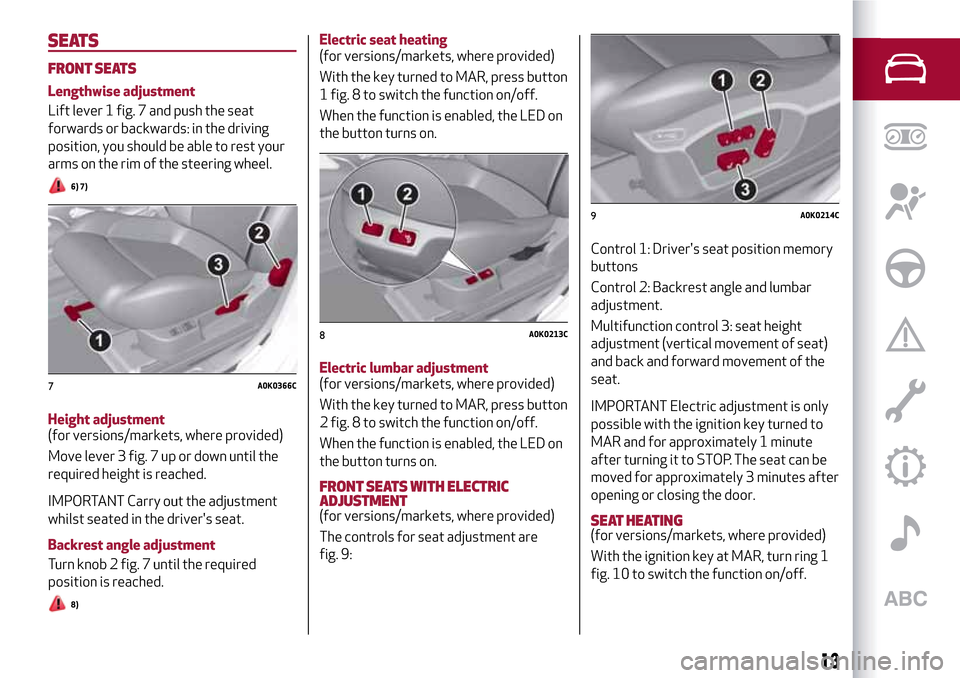
Lengthwise adjustment
Lift lever 1 fig. 7 and push the seat
forwards or backwards: in the driving
position, you should be able to rest your
arms on the rim of the steering wheel.
6) 7)
Height adjustment
(for versions/markets, where provided)
Move lever 3 fig. 7 up or down until the
required height is reached.
IMPORTANT Carry out the adjustment
whilst seated in the driver's seat.
Backrest angle adjustment
Turn knob 2 fig. 7 until the required
position is reached.
8)
Electric seat heating
(for versions/markets, where provided)
With the key turned to MAR, press button
1 fig. 8 to switch the function on/off.
When the function is enabled, the LED on
the button turns on.
Electric lumbar adjustment
(for versions/markets, where provided)
With the key turned to MAR, press button
2 fig. 8 to switch the function on/off.
When the function is enabled, the LED on
the button turns on.
FRONT SEATS WITH ELECTRIC
ADJUSTMENT
(for versions/markets, where provided)
The controls for seat adjustment are
fig. 9:Control 1: Driver's seat position memory
buttons
Control 2: Backrest angle and lumbar
adjustment.
Multifunction control 3: seat height
adjustment (vertical movement of seat)
and back and forward movement of the
seat.
IMPORTANT Electric adjustment is only
possible with the ignition key turned to
MAR and for approximately 1 minute
after turning it to STOP. The seat can be
moved for approximately 3 minutes after
opening or closing the door.
SEAT HEATING
(for versions/markets, where provided)
With the ignition key at MAR, turn ring 1
fig. 10 to switch the function on/off.
7A0K0366C
8A0K0213C
9A0K0214C
13
Page 17 of 212
HEADRESTS
FRONT
These are height-adjustable and lock into
the desired position automatically.
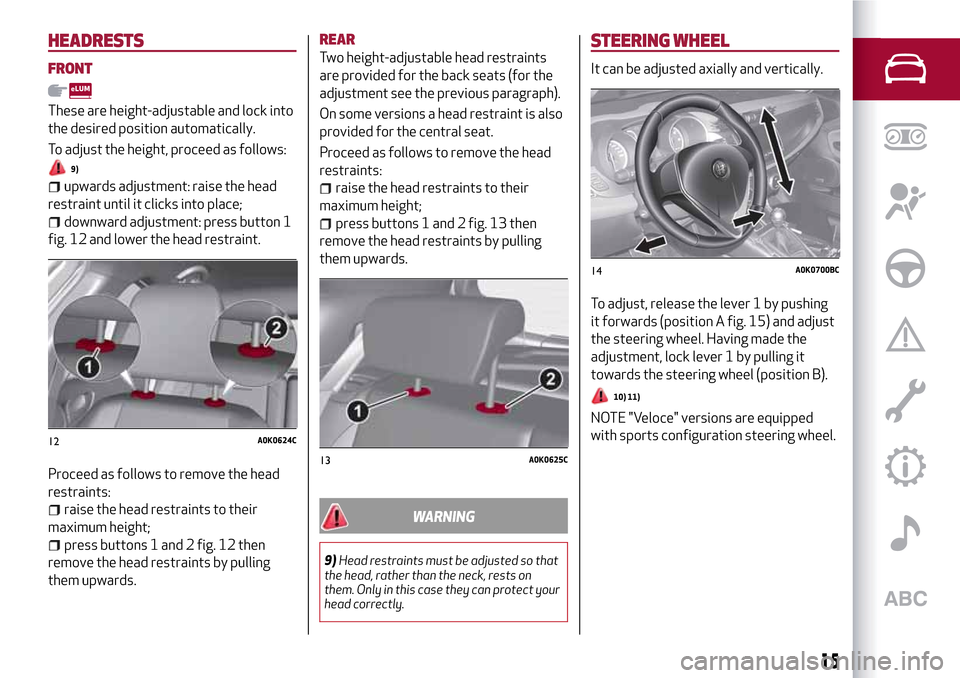
To adjust the height, proceed as follows:
9)
upwards adjustment: raise the head
restraint until it clicks into place;
downward adjustment: press button 1
fig. 12 and lower the head restraint.
Proceed as follows to remove the head
restraints:
raise the head restraints to their
maximum height;
press buttons 1 and 2 fig. 12 then
remove the head restraints by pulling
them upwards.
REAR
Two height-adjustable head restraints
are provided for the back seats (for the
adjustment see the previous paragraph).
On some versions a head restraint is also
provided for the central seat.
Proceed as follows to remove the head
restraints:
raise the head restraints to their
maximum height;
press buttons 1 and 2 fig. 13 then
remove the head restraints by pulling
them upwards.
WARNING
9)Head restraints must be adjusted so that
the head, rather than the neck, rests on
them. Only in this case they can protect your
head correctly.
STEERING WHEEL
It can be adjusted axially and vertically.
To adjust, release the lever 1 by pushing
it forwards (position A fig. 15) and adjust
the steering wheel. Having made the
adjustment, lock lever 1 by pulling it
towards the steering wheel (position B).
10) 11)
NOTE "Veloce" versions are equipped
with sports configuration steering wheel.
12A0K0624C
13A0K0625C
14A0K0700BC
15
Page 20 of 212
Activation
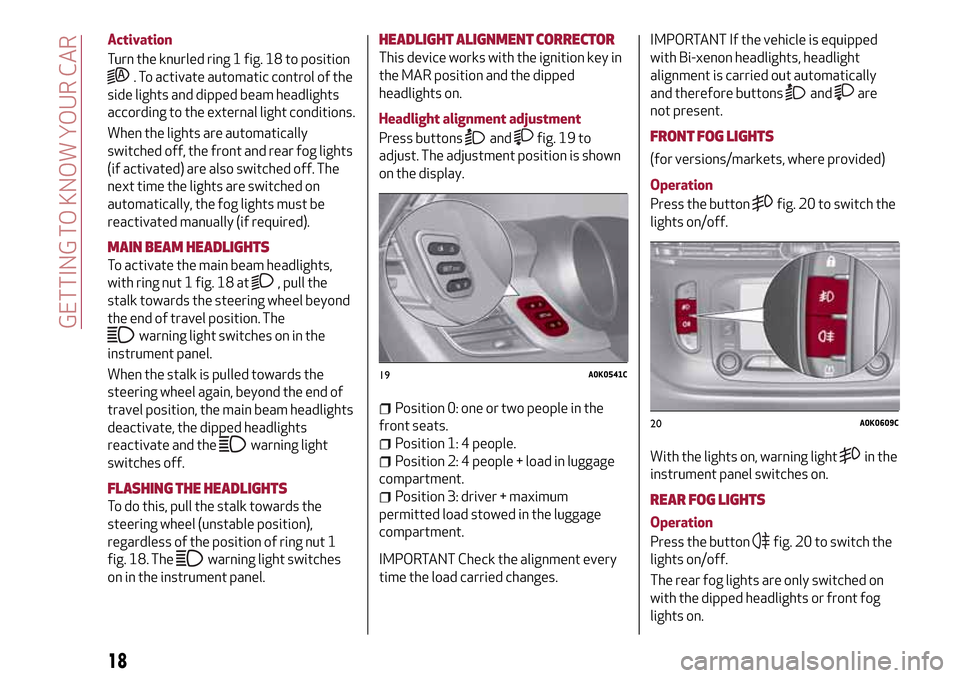
Turn the knurled ring 1 fig. 18 to position
. To activate automatic control of the
side lights and dipped beam headlights
according to the external light conditions.
When the lights are automatically
switched off, the front and rear fog lights
(if activated) are also switched off. The
next time the lights are switched on
automatically, the fog lights must be
reactivated manually (if required).
MAIN BEAM HEADLIGHTS
To activate the main beam headlights,
with ring nut 1 fig. 18 at
, pull the
stalk towards the steering wheel beyond
the end of travel position. The
warning light switches on in the
instrument panel.
When the stalk is pulled towards the
steering wheel again, beyond the end of
travel position, the main beam headlights
deactivate, the dipped headlights
reactivate and the
warning light
switches off.
FLASHING THE HEADLIGHTS
To do this, pull the stalk towards the
steering wheel (unstable position),
regardless of the position of ring nut 1
fig. 18. The
warning light switches
on in the instrument panel.
HEADLIGHT ALIGNMENT CORRECTOR
This device works with the ignition key in
the MAR position and the dipped
headlights on.
Headlight alignment adjustment
Press buttons
andfig. 19 to
adjust. The adjustment position is shown
on the display.
Position 0: one or two people in the
front seats.
Position 1: 4 people.
Position 2: 4 people + load in luggage
compartment.
Position 3: driver + maximum
permitted load stowed in the luggage
compartment.
IMPORTANT Check the alignment every
time the load carried changes.IMPORTANT If the vehicle is equipped
with Bi-xenon headlights, headlight
alignment is carried out automatically
and therefore buttons
andare
not present.
FRONT FOG LIGHTS
(for versions/markets, where provided)
Operation
Press the button
fig. 20 to switch the
lights on/off.
With the lights on, warning light
in the
instrument panel switches on.
REAR FOG LIGHTS
Operation
Press the button
fig. 20 to switch the
lights on/off.
The rear fog lights are only switched on
with the dipped headlights or front fog
lights on.
19A0K0541C
20A0K0609C
18
GETTING TO KNOW YOUR CAR
Page 27 of 212
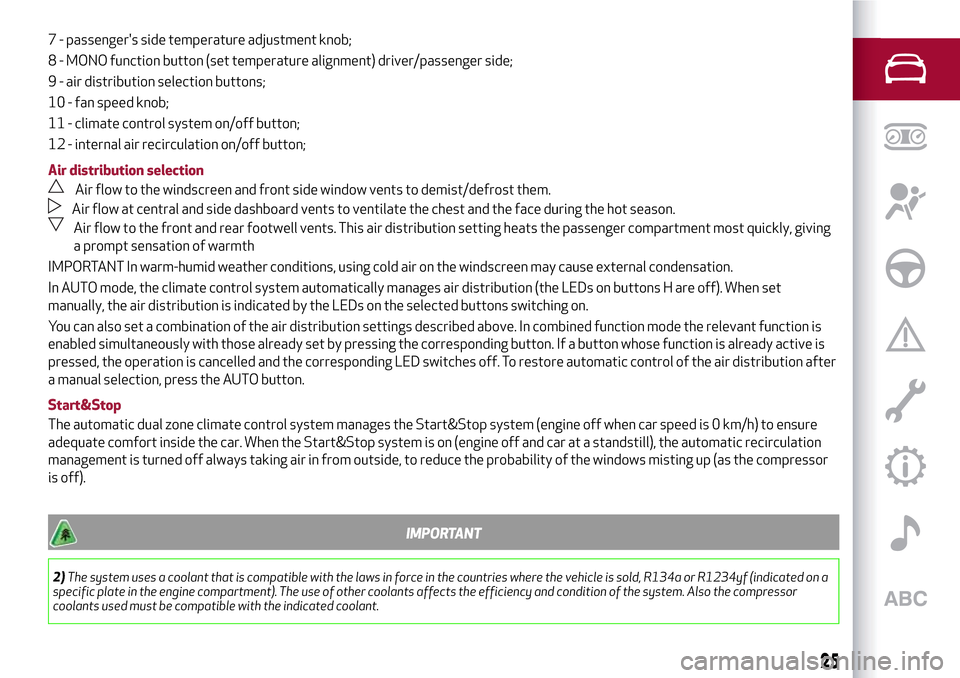
7 - passenger's side temperature adjustment knob;
8 - MONO function button (set temperature alignment) driver/passenger side;
9 - air distribution selection buttons;
10 - fan speed knob;
11 - climate control system on/off button;
12 - internal air recirculation on/off button;
Air distribution selection
Air flow to the windscreen and front side window vents to demist/defrost them.
Air flow at central and side dashboard vents to ventilate the chest and the face during the hot season.
Air flow to the front and rear footwell vents. This air distribution setting heats the passenger compartment most quickly, giving
a prompt sensation of warmth
IMPORTANT In warm-humid weather conditions, using cold air on the windscreen may cause external condensation.
In AUTO mode, the climate control system automatically manages air distribution (the LEDs on buttons H are off). When set
manually, the air distribution is indicated by the LEDs on the selected buttons switching on.
You can also set a combination of the air distribution settings described above. In combined function mode the relevant function is
enabled simultaneously with those already set by pressing the corresponding button. If a button whose function is already active is
pressed, the operation is cancelled and the corresponding LED switches off. To restore automatic control of the air distribution after
a manual selection, press the AUTO button.
Start&Stop
The automatic dual zone climate control system manages the Start&Stop system (engine off when car speed is 0 km/h) to ensure
adequate comfort inside the car. When the Start&Stop system is on (engine off and car at a standstill), the automatic recirculation
management is turned off always taking air in from outside, to reduce the probability of the windows misting up (as the compressor
is off).
IMPORTANT
2)The system uses a coolant that is compatible with the laws in force in the countries where the vehicle is sold, R134a or R1234yf (indicated on a
specific plate in the engine compartment). The use of other coolants affects the efficiency and condition of the system. Also the compressor
coolants used must be compatible with the indicated coolant.
25
Page 28 of 212
ELECTRIC WINDOWS
These operate when the ignition key is
turned to MAR and for about 3 minutes
after turning the key to STOP or
removing it if one of the front doors is
open.
The buttons are located in the door panel
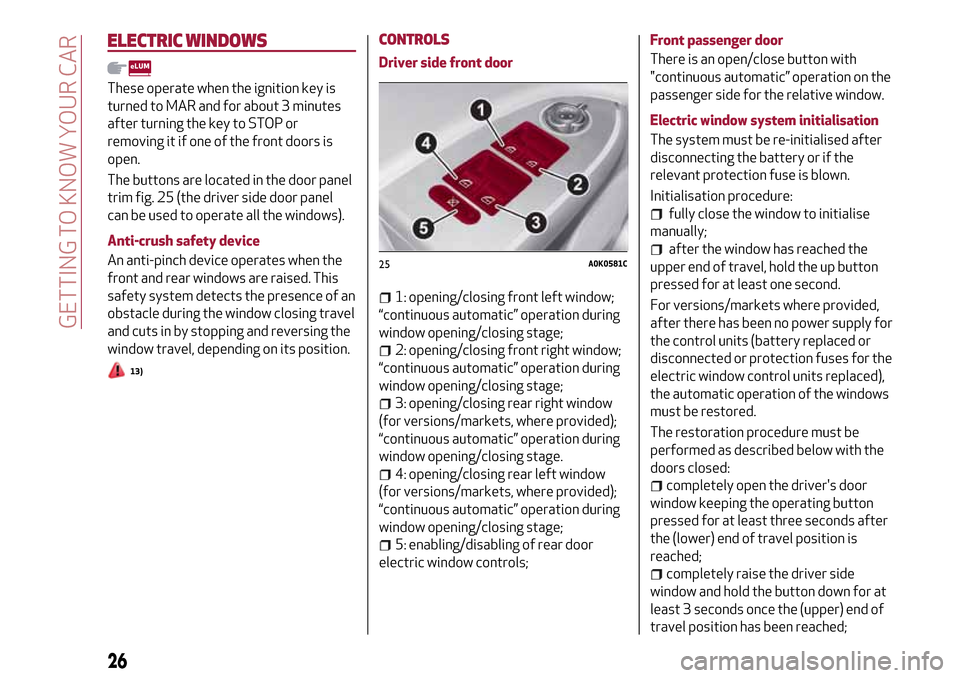
trim fig. 25 (the driver side door panel
can be used to operate all the windows).
Anti-crush safety device
An anti-pinch device operates when the
front and rear windows are raised. This
safety system detects the presence of an
obstacle during the window closing travel
and cuts in by stopping and reversing the
window travel, depending on its position.
13)
CONTROLS
Driver side front door
1: opening/closing front left window;
“continuous automatic” operation during
window opening/closing stage;
2: opening/closing front right window;
“continuous automatic” operation during
window opening/closing stage;
3: opening/closing rear right window
(for versions/markets, where provided);
“continuous automatic” operation during
window opening/closing stage.
4: opening/closing rear left window
(for versions/markets, where provided);
“continuous automatic” operation during
window opening/closing stage;
5: enabling/disabling of rear door
electric window controls;Front passenger door
There is an open/close button with
"continuous automatic” operation on the
passenger side for the relative window.
Electric window system initialisation
The system must be re-initialised after
disconnecting the battery or if the
relevant protection fuse is blown.
Initialisation procedure:
fully close the window to initialise
manually;
after the window has reached the
upper end of travel, hold the up button
pressed for at least one second.
For versions/markets where provided,
after there has been no power supply for
the control units (battery replaced or
disconnected or protection fuses for the
electric window control units replaced),
the automatic operation of the windows
must be restored.
The restoration procedure must be
performed as described below with the
doors closed:
completely open the driver's door
window keeping the operating button
pressed for at least three seconds after
the (lower) end of travel position is
reached;
completely raise the driver side
window and hold the button down for at
least 3 seconds once the (upper) end of
travel position has been reached;
25A0K0581C
26
GETTING TO KNOW YOUR CAR
Page 40 of 212
DISPLAY
The car is equipped with a reconfigurable
multifunction display that, according to
the previously applied settings, will show
useful driving information.
With the ignition key removed, the
display lights up and shows the time and
total odometer reading (in km or miles)
for a few seconds when a door is
opened/closed.
RECONFIGURABLE MULTIFUNCTION
DISPLAY
The following information is shown on the
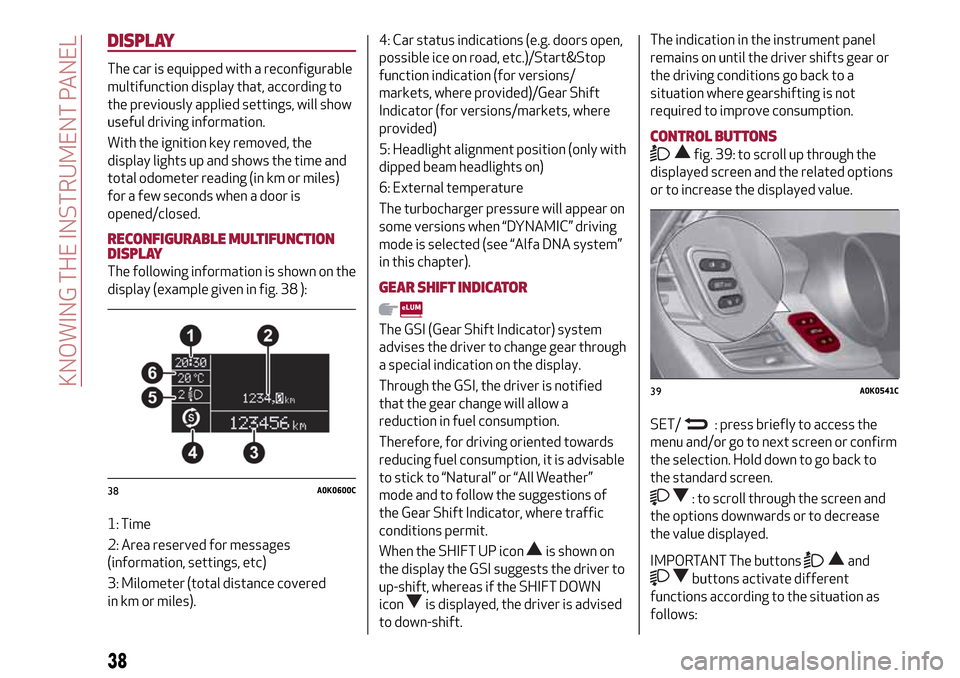
display (example given in fig. 38 ):
1: Time
2: Area reserved for messages
(information, settings, etc)
3: Milometer (total distance covered
in km or miles).4: Car status indications (e.g. doors open,
possible ice on road, etc.)/Start&Stop
function indication (for versions/
markets, where provided)/Gear Shift
Indicator (for versions/markets, where
provided)
5: Headlight alignment position (only with
dipped beam headlights on)
6: External temperature
The turbocharger pressure will appear on
some versions when “DYNAMIC” driving
mode is selected (see “Alfa DNA system”
in this chapter).GEAR SHIFT INDICATOR
The GSI (Gear Shift Indicator) system
advises the driver to change gear through
a special indication on the display.
Through the GSI, the driver is notified
that the gear change will allow a
reduction in fuel consumption.
Therefore, for driving oriented towards
reducing fuel consumption, it is advisable
to stick to “Natural” or “All Weather”
mode and to follow the suggestions of
the Gear Shift Indicator, where traffic
conditions permit.
When the SHIFT UP icon
is shown on
the display the GSI suggests the driver to
up-shift, whereas if the SHIFT DOWN
icon
is displayed, the driver is advised
to down-shift.
The indication in the instrument panel
remains on until the driver shifts gear or
the driving conditions go back to a
situation where gearshifting is not
required to improve consumption.
CONTROL BUTTONS
fig. 39: to scroll up through the
displayed screen and the related options
or to increase the displayed value.
SET/
: press briefly to access the
menu and/or go to next screen or confirm
the selection. Hold down to go back to
the standard screen.
: to scroll through the screen and
the options downwards or to decrease
the value displayed.
IMPORTANT The buttonsand
buttons activate different
functions according to the situation as
follows:
38A0K0600C
39A0K0541C
38
KNOWING THE INSTRUMENT PANEL
Page 41 of 212
within the menu, they allow you to
scroll up or down through the options;
during setting operations, they
increase or decrease values.
MAIN MENU
The menu comprises a series of options
which can be selected using the buttons
andto access the different
selection and setting (Setup) operations
indicated below.
Some options have a submenu. The menu
can be activated by briefly pressing the
SET/ button
.
The menu includes the following items:
MENU
LIGHTING
SPEED WARNING
HEADLIGHT SENSOR (for
versions/markets where provided)
RAIN SENSOR (for versions/markets,
where provided)
TRIP B ACTIVATION
SET TIME
SET DATE
FIRST PAGE (for versions/markets,
where provided)
AUTOCLOSE
MEASUREMENT UNIT
LANGUAGE
BUZZER VOLUME
SEAT BELT BEEP
SERVICE
PASSENGER AIRBAG
DAYTIME RUNNING LIGHTS
ADAPTIVE LIGHTS (for
versions/markets, where provided)
COURTESY LIGHTS
EXIT MENU
Some menu items are shown on the
navigator display in models equipped
with radio-navigation systems (for
versions/markets, where provided).
Selecting an option from the main
menu without a submenu:
press the SET/ buttonbriefly to
select the main menu setting you wish to
change;
press the buttonsor
(with single presses) to select the
new setting;
press the SET/ buttonbriefly to
save the new setting and go back to the
previous main menu option.
Selecting an option from the main
menu with a submenu:
briefly press the SET/ buttonto
display the first submenu option;
press the buttonsor
(with single presses) to scroll
through all the submenu options;
press the SET/ buttonbriefly to
select the displayed submenu option and
to open the relevant settings menu;
press the buttonsor
(with single presses) to select the
new setting for this submenu option;
press the SET/ buttonbriefly to
store the new setting and go back to the
previous submenu option.
39
Page 179 of 212
SWITCHING THESYSTEM ON/OFF
The system is switched on/off by
pressing the
(ON/OFF) button/knob.
Turn the button/knob clockwise to
increase the radio volume or
anticlockwise to decrease it.
RADIO (TUNER) MODE
Press the RADIO button on the front
panel to activate radio mode.
Select the band by pressing the
corresponding button: “AM”, “FM” or
“DAB”.
Selecting a frequency band
Briefly press the "AM/FM" button to
switch from AM to FM and vice versa.
If the DAB tuner is available, briefly press
the "AM/FM", "AM/DAB", "FM/DAB"
buttons to select the desired band.
Indications on display
After the desired radio station is
selected, the following information is
shown on the display:
At the top: the list of radio stations
stored (presets) is displayed; the station
currently playing is highlighted.
In the middle: display of the name of the
current radio station and the buttons for
selecting the previous or next radio
station.
At the bottom:radio station selection,
radio band, tuning, track information and
audio settings.Searching for the previous/next radio
station
To search for the desired radio station,
rotate the BROWSE ENTER button/knob,
press the
orbuttons or use
the steering wheel controls
.
When searching forwards, if the system
reaches the end of the band, it will
automatically stop on the station where
the search has started from.
Previous/next radio station fast search
Hold down buttonson the
display: when the button is released, the
first tunable radio station will be
displayed.
Tuning the radio (AM/FM)
Press the "Tune" button on the display
and then enter the frequency of the radio
station using the keypad on the display.
In this mode, use buttons + and – to
fine-tune the frequency.
To delete an incorrect number (and enter
the correct station number) press the
(Delete) button.
After entering the last digit of the
station, the screen is deactivated and the
system tunes automatically to the
station selected (the number of the radio
station is displayed in the "Tune" text
box).The screen disappears automatically
after 5 seconds or manually by pressing
the "OK" or “X” buttons.
Exit the "Direct Tune" screen
Press the "Exit" or "Radio" button on the
display to return to the main system
screen.
DAB Radio
(for versions/markets, where provided)
Once DAB radio mode is selected, the
information on the current station is
displayed and the following functions.
Selection of the previous/next radio
station by:
turning the BROWSE ENTER
button/knob;
briefly pressing theor
buttons on the display;
Steering wheel control press.
Hold down the
buttons to
fast scroll the station list.
The "Browse" button is used to display:
the list of all DAB stations;
the list of stations filtered by "Genres";
the list of stations filtered by
"Ensembles" (broadcast group).
Setting the presets
Presets are available in all system modes
and are activated by touching one of the
preset buttons located in the upper area
of the display.
177
or
or
Page 182 of 212
PHONE MODE
Phone mode activation
Press the PHONE button on the front
panel to activate the Phone mode.
A message on the display confirms
connection of the phone.
NOTE To consult the list of mobile phones
and supported functions, visit the
www.driveuconnect.eu website
Main functions
Use the buttons on the display to:
dial the phone number (using the
graphic keypad on the display);
display and call the contacts in the
mobile phone phonebook;
display and call contacts from the
registers of previous calls;
pair up to 10 phones/audio devices to
make access and connection easier and
quicker;
transfer calls from the system to the
mobile phone and vice versa and
deactivate the microphone audio for
private conversations.
To see the list of mobile phones and
supported functions, visit the
www.driveuconnect.eu website or call
Customer Service (the number may vary
depending on the country: please refer to
the reference table in the paragraph
“Customer Service number list” in the
Uconnect™attachments).Pairing a mobile phone
To pair the mobile phone, proceed as
follows:
activate theBluetooth®function on
the mobile phone;
press the PHONE button on the front
panel;
if no phone is paired with the system
yet, the display shows a dedicated
screen;
select "Yes" to start the pairing
procedure, then search for the
Uconnect™device on the mobile phone;
when prompted by the mobile phone,
use its keypad to enter the PIN code
shown on the system display or confirm
on the mobile phone the PIN displayed;
from the "Phone" screen you can
always pair a mobile phone by pressing
the "Settings" button: press the "Add
Device" button and proceed as described
above;
select "Yes" or “No” at the request to
pair the mobile phone as the preferred
device;
NOTE After updating the phone software,
for proper operation, it is recommended
to remove the phone from the list of
devices linked to the radio, delete the
previous system pairing also from the list
of
Bluetooth®devices on the phone and
make a new pairing.Storing names/numbers in the mobile
phone phonebook
Before pairing your mobile phone, make
sure you have stored the names you want
to contact in the phonebook on your
mobile phone so that you can call them
using the hands-free system of the car.
Transferring phone data (phonebook
and recent calls)
If your mobile phone has a function for
sending the phonebook via
Bluetooth®
technology.
Answer "Yes" when asked to copy the
phonebook to the system.
Answer "No" to carry out the operation
later on.
Making a phone call
The operations described below can only
be accessed if supported by the mobile
phone in use.
A call can be made by:
selecting theicon (mobile phone
phonebook);
selecting "Recent Calls";
selecting the icon(Keypad);
pressing the "Redial" button.
180
MULTIMEDIA
Page 183 of 212
Managing an incoming call
The buttons on the display allow the
following phone call functions to be
managed:
To answer a call: press the "Answer"
button or the
button on the steering
wheel controls;
To end a call: press the "Ignore" button
or the
button on the steering wheel
controls;
Ignore;
Put on hold/resume;
Deactivate/activate the microphone;
Transfer the call;
Switch from one call to the other;
Conference/merge two active calls.
Text message reader
To use this function the mobile phone
must support the SMS exchange function
through
Bluetooth®.
If this function is not supported by the
phone, the corresponding
button is
deactivated (grey).
When a text message is received, the
display will show a screen where the
options "Listen", "Call" or "Ignore" can be
selected.
The list of SMS messages received from
the mobile phone can be accessed by
pressing the
button.
NOTE Some mobile phones may not take
the SMS delivery confirmation settings
into account when interfacing withUconnect™. If an SMS message is sent via
Uconnect™, the user could face an
additional cost, without any warning, due
to the SMS delivery confirmation request
sent by the phone. For any problems
related to the above, contact your
telephone service provider.
SMS message options
Default SMS messages are stored in the
system memory and can be sent to
answer a received message or as a new
message:
Yes.
No.
Okay.
I can't talk right now.
Call me.
I'll call you later.
I'm on my way.
Thanks.
I will be late.
Stuck in traffic.
Start without me.
Where are you?
Are you there yet?
I need directions.
I'm lost.
See you later.
I will be 5 (or 10, 15, 20, 25, 30, 45,
60)* minutes late.
See you in 5 (or 10, 15, 20, 25, 30, 45,
60)* minutes.* Only use the numbers listed, otherwise
the system will not take the message.
“APPS” MODE
Press the APPS button on the front panel
to display the following operating
settings:
External temperature
Trip Computer
Clock
Bush
Uconnect™LIVE
Uconnect™LIVE SERVICES
Press the APPS button to access the
Uconnect™LIVEapplications.
The services available depend on the car
configuration and the market.
To use theUconnect™LIVEservices, you
need to download theUconnect™LIVE
app from Google Play or Apple Store and
register using the app or on
www.DriveUconnect.eu.
First access to the vehicle
Once you have launched the
Uconnect™LIVEApp and entered your
details, you have to pair the
Bluetooth®
with your smartphone and the radio, as
described in the "Pairing a mobile phone"
chapter, to access theUconnect™LIVE
services in your vehicle.
When pairing is complete, the connected
services can be accessed by pressing the
Uconnect™LIVEicon on the radio.
181