steering wheel AUDI A3 2015 User Guide
[x] Cancel search | Manufacturer: AUDI, Model Year: 2015, Model line: A3, Model: AUDI A3 2015Pages: 288, PDF Size: 71.46 MB
Page 79 of 288
& WARNING
-Do not press the accelerator pedal inad
vertently when the vehicle is stationary and the engine is running and a gear is
selected. Otherwise the vehicle will start
to move immediately and could result in
a crash.
- If the power supply fails, the released
parking brake can no longer engage. In
this case, park the vehicle on level ground and secure it by placing these
lector lever in the P position (automatic
transmission). See your authorized Audi dealer or qualified repair facility.
(D Note
If the symbol . in the display or the indi
cator light. (USA models)/ . (Canada
models) in the instrument cluster flashes,
there is a malfunction in the brake system.
Please refer to the detailed description of
the indicator lights¢
page 18.
-If the indicator light . (USA models)/
• (Canada models) or
Ill turns on,
there may be a malfunction in the park
ing brake ¢
page 19.
(D Tips
-You can set the parking brake at any time
-even with the ignition turned
off. To re-
lease the parking brake, the ignition
must be turned on and the brake pedal
must be pressed.
- If driver 's door is opened while the igni
tion is switched on, the parking brake
sets automatically. This prevents unin
tended rolling of the vehicle .
- Occasional noises when the parking
brake is set and released are normal and
are not a cause for concern.
- When the vehicle is parked, the parking
brake goes through a self -test cycle at
regular intervals. Any noises associated
with this are normal.
- If there is a power failure, the parking
brake will not set if it is released, and it
will not release if it is set ¢,&. . See your
Driving 77
authorized Audi dealer or qualified repair
facility.
· Parking
.. Press the brake ped al to stop the vehicle .
.. Pull the switch @ ¢
page 76 , fig . 68 to set
the parking brake.
.. Place the selector lever in the P position .
.. Turn the engine off¢.&_ .
.,. Turn the steering wheel when parking on in
clines so that the wheels will roll into the
curb if the vehicle starts moving.
& WARNING ~ -
-Always take the vehicle key with you
when leaving the vehicle, even for a short period of time. This applies partic
ularly when children remain in the vehi
cle. Otherwise children could start the
engine, release the parking brake or op
erate electrical equipment such as power
windows, which increases the risk of an
accident .
- No one should remain in the vehicle
when it is locked, especially children.
Locked doors make it more difficult for
emergency workers to get into the vehi
cle, which puts lives at risk.
Starting from a stop
The start assist function ensures that the
parking brake is released automatically upon starting.
Stopping and applying the parking brake
.. Pull the switch@¢ page 76, fig . 68 to set
the parking brake.
Starting and automatically releasing the
parking brake
Requirement: The driver's door must be
locked and the driver's safety belt must be
fastened.
.. When you press the accelerator pedal , the
parking brake is automatically released and
your vehicle begins to move.
•
Page 87 of 288
.. Automa tic transmission: To activate the reg
ulation while stationary , you must press the
brake pedal.
Switching adaptiv e cruise control off
.. Push the lever away from you into position
@ until it cl icks into p lace. The message
A CC: off appears.
The stored speed in the L ED line is erased.
@ Indicato r lights
II -adaptive cruise contro l is switched on . No
objects are detected ahead. The sto red speed
is ma inta ined .
• -An object ahead was detected . The adap
tive cruise control system regulates the speed
and distance to the object ahead and brakes/
accelerates automatica lly.
fai -Automatic transmission: The adapt ive
cr uise control is switched on . An object ahead
was detected. Your vehicle remains stopped
and will not start driving automatically .
• -The automatic brak ing is not eno ugh to
maintain a sufficient d istance to an object
ahead . Yo u must intervene
¢ page 88, Re
quest for driver intervention.
© Instrument cluster display
I f adap tive cruise contro l is not shown in the
instr ument cluster disp lay, you ca n call it up
using the mu ltifunction steering wheel but
tons
¢ page 2 7 .
B ased on t he g raphics in the display, you can
dete rmine if the system is maintaining a dis
tance to a veh icle ahead and what that dis
tance to this vehicle is:
N o vehicle -No object ahead was detec ted .
White vehicle -An object ahead was detected .
Red vehicle -Request for the dr iver to take ac
t ion ¢
page 88 .
Both arrows on the scale © indicate the dis
tance to the object ahead. No arrow appears
when the vehicle is on an open road and there
Audi ad apti ve crui se control 85
is no object ahead. If an object is detected
ahead, the ar row moves on t he scale.
T he green zone on t he sca le indicates the
store dis tance . Fo r informa tion on chang ing
the distance, refe r to ¢
page 87. If the dis
tance selected is exceeded or not reached, the
arrow moves into the red zone on the scale.
_& WARNING
Improper use of the adaptive cruise con
trol can cause collisi ons, other accidents
a nd se rious personal injur ies.
- Automatic transmission: If you press the
ISETI butto n when dr iv ing at speeds be
low 20 mph (30 km/h) , the veh icle accel
erates au tomatically up to 20 mph
(30 km/h), which is the mi nimum speed
th at can be set.
{i) Tips
- If you switch the ignit ion or the adaptive
cruise cont rol system off, the set speed
is e rased fo r safety reason.
- With the adaptive cruise control activat
ed the ESC spo rt mod e cannot be activat
ed.
- The e lectronic stab ilizat ion cont ro l (E SC)
and the anti-slip-regulat ion (ASR) are a u
t oma tic a lly turned on w hen the adapt ive
c ruise cont ro l is turned on. Bot h sys tems
canno t be turned off if the a daptive
cruise cont rol is turned on .
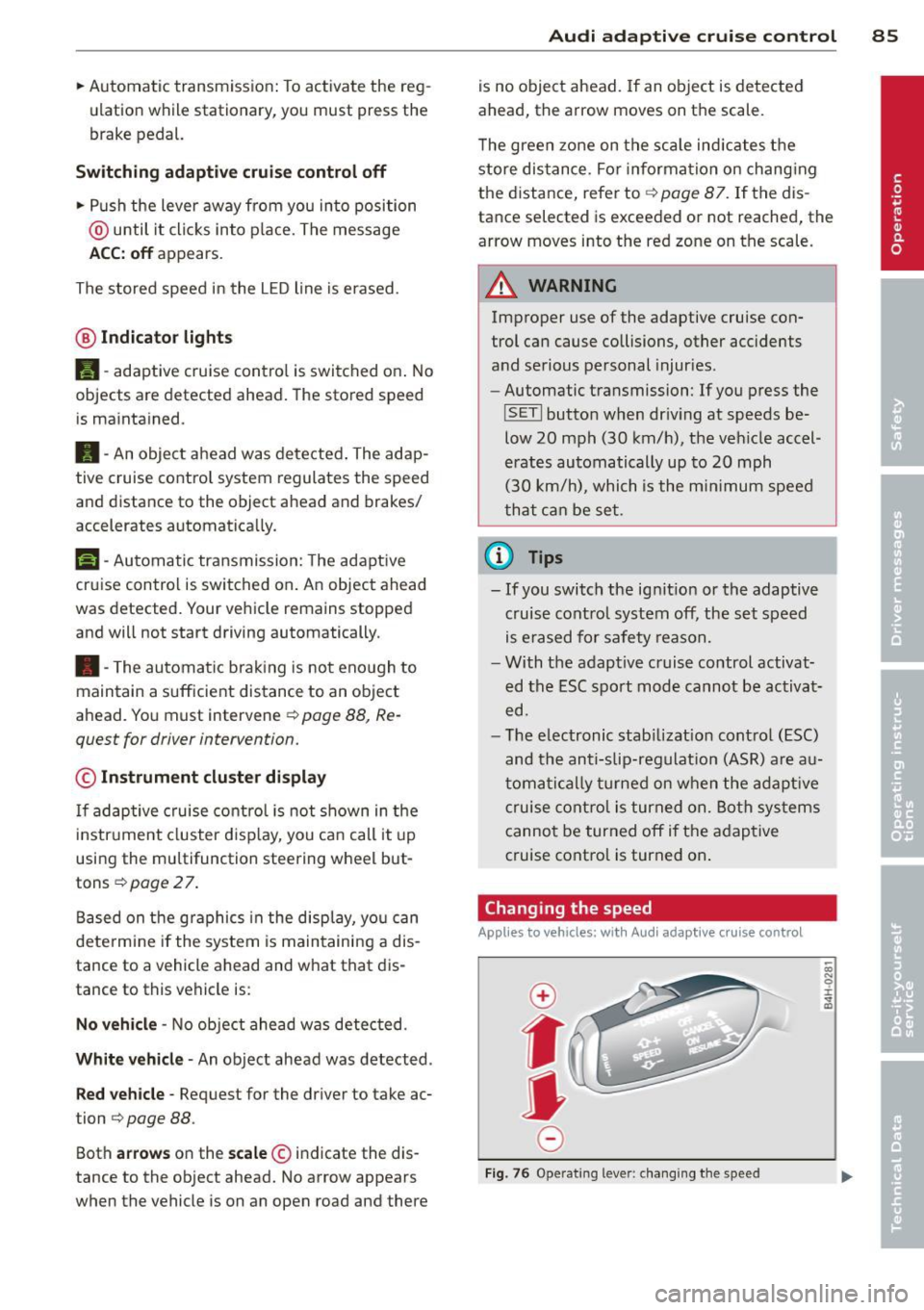
Changing the speed
Applies to vehicles: with Audi adaptive cru ise control
0
f
jJ
0
Fi g. 76 Operat ing leve r: c ha ng in g the spee d
0)
"' 0 i.
" a,
Page 96 of 288
94 Audi acti ve lan e assi st
Audi active lane assist
Lane assist
Description
App lies to vehicles: with Audi active lane assist
Active lane ass ist detects lane marker lines
within the limits of the system using a camera
in the windshield . If you are approaching a de
tected lane marker line and it appears likely
that you wi ll leave the lane, the system will
warn you with corrective steering. You can
ove rride this steering at any time . If you pass
over a line, the steering wheel will vibrate lightly. In order for this warning vibration to
occur, it must first be switched on in the MMI.
Active lane ass ist is operable when the lane
marker line is detected on at least one side of
the vehicle .
The system will not warn you before cross ing
a lane marker Line if you have activated the
turn signal. In t his case, it assumes that you
a re changing lanes intent ionally.
The system is designed for driv ing on express
ways and h ighways and therefore only acti
vates at speeds above app roximately 40 mp h
(65 km/h).
A WARNING
- The sys tem w arns the d river that the ve
hicle is leaving the lane us ing corrective
steering . The driver is always responsible
for keeping the vehicle within the lane .
- The system can help you keep the vehicle
in the lane, but it does not drive by itself.
Always keep your hands on the steering
wheel.
- Co rrective stee ring may not occur in cer
tain situations, such as d uring heavy
braking.
- There may be cases where the camera
does not recognize all lane marker lines.
Corrective steering can only take p lace
on the side of the veh icle where lane
marke r lines a re detected .
l) Thi s func tion is not available in a ll co untries.
- Other road structures or objects cou ld
possibly be identified un intent ionally as
lane marker lines. As a result, correct ive
steer ing may be unexpected or may not
occ ur.
- The camera view can be restricted, for
examp le by vehicles driving ahead or by
ra in, snow , heavy spray light shining into
the camera or by dirt on the window . T his
can result in act ive lane assist not detect
ing the lane marke r lines or detec ting
them incorrect ly .
- I n certain sit uat ions where visibili ty is
low, the vehicle may swi tch from "early"
to "late" corrective steering
l).
-Unde r ce rtain condi tions such as ruts in
the road, an incl ined roadway or c ross
winds, the corrective steering alone may not be enough to keep the vehicle in the
middle of the lane.
- For safety reasons, active lane assist
must not be used when the re a re poor
road and/or weather conditions such as
slippery roads, fog, grave l, heavy rain,
snow and the potential for hydroplaning .
Using act ive lane assist under these con
d itions may increase the risk of a c rash .
Page 97 of 288
Switching on and off
Applies to vehicles: with Audi active lane assist
•
Fig. 81 Turn signal lever: butto n for act ive la n e ass ist
Fig. 82 Windsh ield: ca mera w indow for act ive lane as
s is t
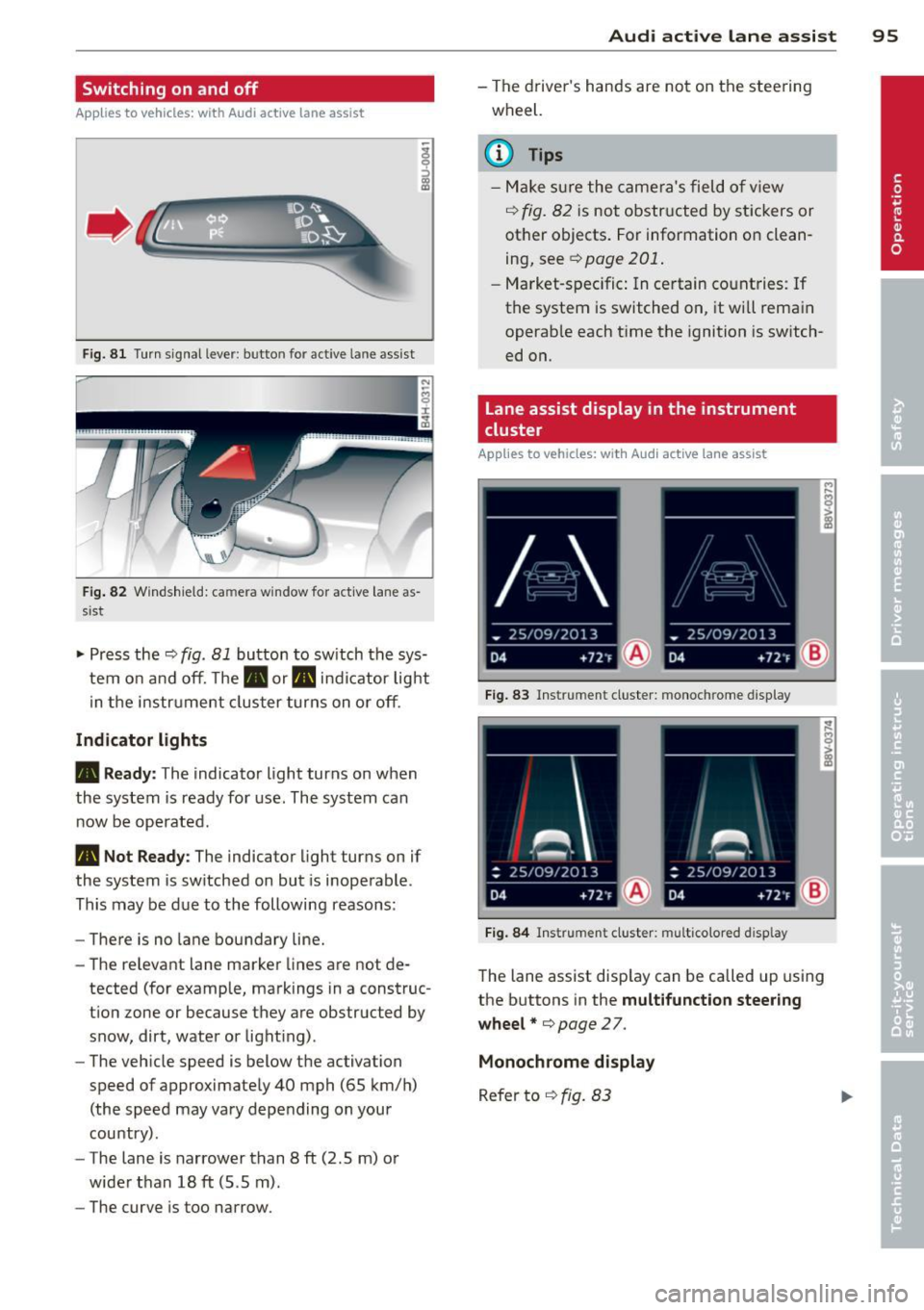
.. Press the~ fig. 81 button to switch the sys
tem on and off. The . or. indicator light
in the instr ument cluster turns on or off.
Indicator lights
• Ready:
The indicator light turns on when
the system is ready for use. The system can
now be operated .
• Not Ready : The indica tor light turns on if
the system is switched on but is inoperable.
This may be due to the following reasons:
- There is no lane boundary line.
- The relevant lane marker lines are not de-
tected (for example, markings in a construc
tion zone or because they are obstructed by
snow, dirt, water or light ing) .
- The vehicle speed is below the activation
speed of approximately 40 mph (65 km/h)
(the speed may vary depending on your
country) .
- The lane is narrower than 8
ft (2 .5 m) or
wider than 18
ft (5.5 m).
- The curve is too narrow.
Audi active lane assist 95
-The driver's hands are not on the steering
wheel.
a) Tips
- Make sure the camera's field of view
~ fig. 82 is not obstructed by stickers or
other objects. For information on clean
ing, see¢
page 201 .
-Market-specific: In certain countries: If
the system is switched on, it wi ll remain
operab le each time the ignition is switch
ed on.
lane assist display in the instrument
cluster
Applies to vehicles: with Audi active lane assist
Fig. 83 Ins trumen t cluster: monoc hrome d ispl ay
Fig. 84 Instrume nt clust er: mult icolored d isp lay
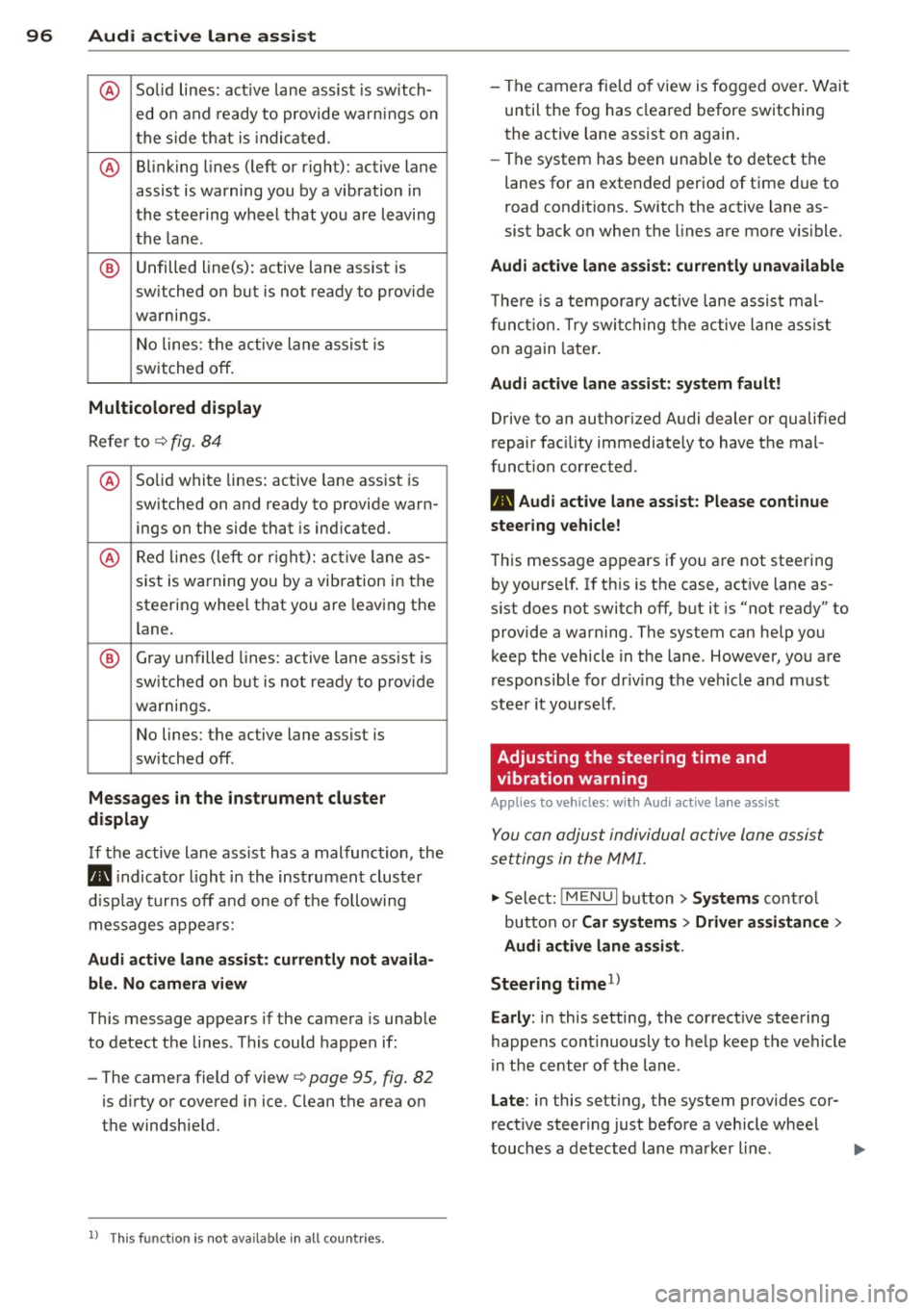
The lane assist display can be called up using
the buttons in the
multifunction steering
wheel* ¢
page 27.
Monochrome display
Refer to ~ fig. 83
Page 98 of 288
96 Audi active lane assist
@ So lid lines: act ive la ne assist is sw itch-
ed on and ready to provide wa rn in gs on
t he s ide th at is indica ted.
@ B linking lines ( left or right): active lane
assist is warning you by a vibration in
t he stee ring wheel that yo u are l eaving
t h e l ane.
® Unfilled line(s): active lane assist is
switched on but is not rea dy to prov ide
warnings.
N o lines: t he active lane assist is
switched
off .
Multicolored display
Refe r to¢ fig. 8 4
@ Solid white lines : active la ne assist is
switched on and ready to provide warn-
ings on the side that is ind icated.
@ Red lin es (left or r igh t): ac tive lane as-
sis t is warning you by a vibration in t he
steering whee l th at you a re leav ing the
lane.
® Gray unfilled lines: active lane ass ist is
s witched on but is not ready to prov ide
w ar nings.
N o lines: the active lane assist is
switched
off.
Messages in the instrument cluster
display
I f the active lane ass ist has a mal func tion, the
B indicato r light in the inst rumen t cluste r
di spl ay t urn s
off and one of the followi ng
me ssages appe ars:
Audi active lane assist: currently not avai la
ble. No camera view
This message appears if the camera is unable
to detect the li nes . This co uld happe n if:
- The came ra field of view ¢
page 95, fig. 82
is dirty o r covered i n ice. Clean the area on
t h e windshie ld.
l ) Thi s function is not available in all cou ntr ies.
- The camera field o f view is fo gged ove r. Wa it
until the fog has cleared before switching
the act ive lane assist on agai n.
- The system has bee n una ble to detect t he
lanes for an exten ded period of t ime due to
road conditions. Switch the active lane as
sist bac k on when the lines are more v is ible.
Audi active lane assist: currently unavailable
T he re is a te mporary a ct ive lane assis t mal
f unc tion. Try swi tching the active lane assi st
o n again later .
Audi active lane assist: system fault!
Drive to an authorized A udi dealer or qualified
repair fac ility immediately to have the mal
funct ion corrected.
B Audi active lane assist: Please continue
steering vehicle!
T his messa ge ap pears if yo u are not stee ring
by yoursel f. If th is is t he case, act ive lane as
s ist does not switch
off, but it is "not ready" to
provide a warning. The system can help you
kee p the vehicle in the lane. However, yo u are
r esponsible for dr iv ing the vehicle and must
stee r it yourse lf .
Adjusting the steering time and
vibration warning
App lies to veh icles: w ith Audi ac tive la ne ass ist
You can adju st individual active lane assis t
se ttings in the MMI.
"' Select: !ME NUI button> Systems cont ro l
but to n or
Car sy stem s > Driver assistance >
Audi active lane assist .
Steering timel)
Early :
in this setting, the correct ive steering
happens con tinuously to he lp keep the vehicle
i n t he c ent er of t he lane.
Late : in this setting, the system provides cor
rect ive steer ing just befo re a vehicle whee l
touches a detected lane marke r line . ..,.
Page 99 of 288
Vibration warning
You can switch the additional v ibrating wa rn
ing in the steering wheel on or off .
&_ WARNING ,~
With the vibration warning switched off,
no v isible warning will appear in the in
strument cluster display when cross ing a
lane marker.
(D Tips
Market-specific: Your settings are auto
matically stored and assigned to the re
mote control key being used.
Audi active lane assist 97
•
Page 113 of 288
Launch Control-Program
App lies to vehicles: with launch control
The Launch Control Program enables maxi
mum acceleration.
Requirement : The engine must be at operat
ing temperature and the steering wheel must
not be turned .
.. With the engine running, press the
!~ OFFI
button briefly one time 1).
.. Pull the selector lever back out of the 0/S
position briefly to select the S position, or
press it toward the right into the tipt ronic
pos it ion or select the
d ynamic dr iv ing mode
i n drive select*
~page 102.
.. Press the brake peda l firmly with your left
f oot and hold it all the way down for at least
1 second.
.. At the same time, press the gas peda l all the
way down with your right foot unti l the en
gine reaches and stays at a high RPM level.
.. Remove your left foot from the brake.
A WARNING
- Always adapt your driving to the traffic
flow.
- Only use Launch Cont ro l when road and
t raff ic conditions a llow it and other driv
ers wi ll not be endangered or impacted
by you r driving and the veh icle's acceler
ation.
- Please note tha t the dr ive whee ls can
spin and the vehicle can break away
when sport mode is switched on, espe
c ially when the road is sl ippery.
- Once the vehi cle has started moving,
press the
I ~ OFF I button br iefly to turn
the sport mode off.
(j) Tips
- The transm ission tempe rat ure may in
crease significantly after using the
l ) In vehicles with a dr iver info rmat ion system, an ESC
light in the in stru m ent cl us ter stays on contin uo usly
and the m essage
Stabilizatio n cont rol (ESC): spor t.
Warning! Restricted stability
appears temporarily.
Automa tic tran sm iss ion 11 1
Launch Control Program . If that hap
pens, the program may not be availab le
for a few m inutes. It will be ava ilable
again after a cool-down per iod.
- When accelerating using the Launch
Contro l Program, all vehicle parts are
subject to heavy loads. Th is can lead to
increased wear .
Emergency mode
Applies to vehicles: with S tronic transm ission
In the event of a system malfunction, there is
an emergency program.
If all of the selector lever positions are high
li ghted with a light backgro und in the instru
ment cluster d isplay, there is a system mal
funct ion and the S tronic transmission is run
ning in the emergency program . The vehicle
can still be driven in emergency mode, but on
ly w ith reduced speed and not in all gears. In
some cases, the veh icle
c ann ot driv e in re
v e rs e .
(D Note
If the transmission runs in emergency
mode, drive to your author ized Audi dealer
or q ua lified repa ir facil ity immed iate ly to
have the ma lf u nction corrected.
Transmission malfunction
• Tran smiss ion malfuncti on! Please stop
the vehicle and select P
T here is a malfunction in the transmiss ion .
Park the vehicle securely and do not continue
driv ing. See your authorized A udi dealer or
qualified repair facility.
• Transmi ssion overh eatin g! Plea se stop
the vehicle!
The transm iss io n is too hot and can become
damaged . Stop and let the transmission cool .,.
•
Page 119 of 288
General information
Applies to vehicles: with park ing system p lus wit h rear
view ca mera
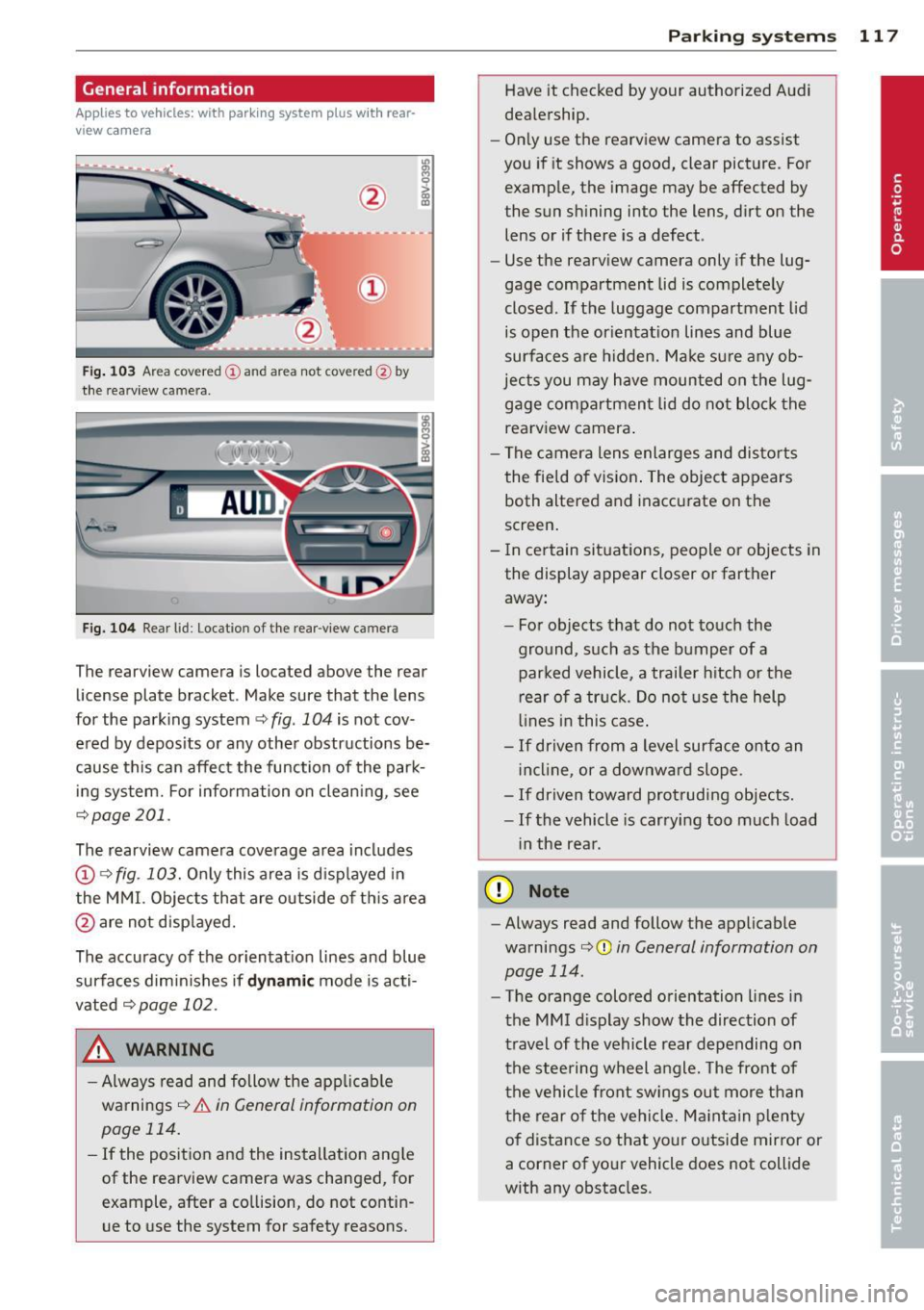
Fig. 103 Ar ea cov ere d
(D and are a not cov ered @ by
the rea rview c amera .
Fig. 104 Rear l id: Locat ion of the rear-view cam era
The rearview camera is located above the rear
license plate bracket . Make sure that the lens
for the parking system~
fig. 104 is not cov
ered by deposits or any other obstructions be
cause this can affect the function of the park
ing system. For information on cleaning, see
~ page 201.
The rearview camera coverage area includes
(D ¢ fig. 103. Only this area is displayed in
the MMI. Objects that are outside of this area
@ are not displayed.
The accuracy of the orientation lines and blue
surfaces diminishes if
dynamic mode is acti
vated ¢
page 102 .
_& WARNING
-Always read and follow the applicable
warnings ¢
& in General information on
page 114.
- If the position and the installation angle
of the rearview camera was changed, for
example, after a collision, do not contin
ue to use the system for safety reasons.
Parking systems 117
Have it checked by your authorized Audi
dealership.
- Only use the rearview camera to assist
you if it shows a good, clear picture . For
example, the image may be affected by
t he sun shining into the lens, dirt on the
lens or if there is a defect .
- Use the rearview camera only if the lug
gage compartment lid is completely
closed.
If the luggage compartment lid
is open the orientation lines and blue
surfaces are hidden. Make sure any ob
jects you may have mounted on the lug gage compartment lid do not block the rearview camera.
- The camera lens enlarges and distorts
the field of vision. The object appears
both altered and inaccurate on the
screen.
- In certain situations, people or objects in
the display appear closer or farther away:
- For objects that do not touch the
ground, such as the bumper of a
parked vehicle, a trailer hitch or the
rear of a truck. Do not use the help
lines in this case.
-If driven from a level surface onto an
incline , or a downward slope .
-If driven toward protruding objects.
-If the vehicle is carrying too much load
in the rear .
(D Note
-Always read and follow the applicable
warnings
c:> (D in General information on
page 114.
- The orange colored orientation lines in
the MMI display show the direction of
travel of the vehicle rear depending on
the steering wheel angle. The front of
the vehicle front swings out more than
the rear of the vehicle. Maintain plenty
of distance so that your outside mirror or
a corner of your vehicle does not collide
with any obstacles .
Page 121 of 288
Parallel parking
Applies to vehicles: with parking system p lus wit h rear
view ca mera
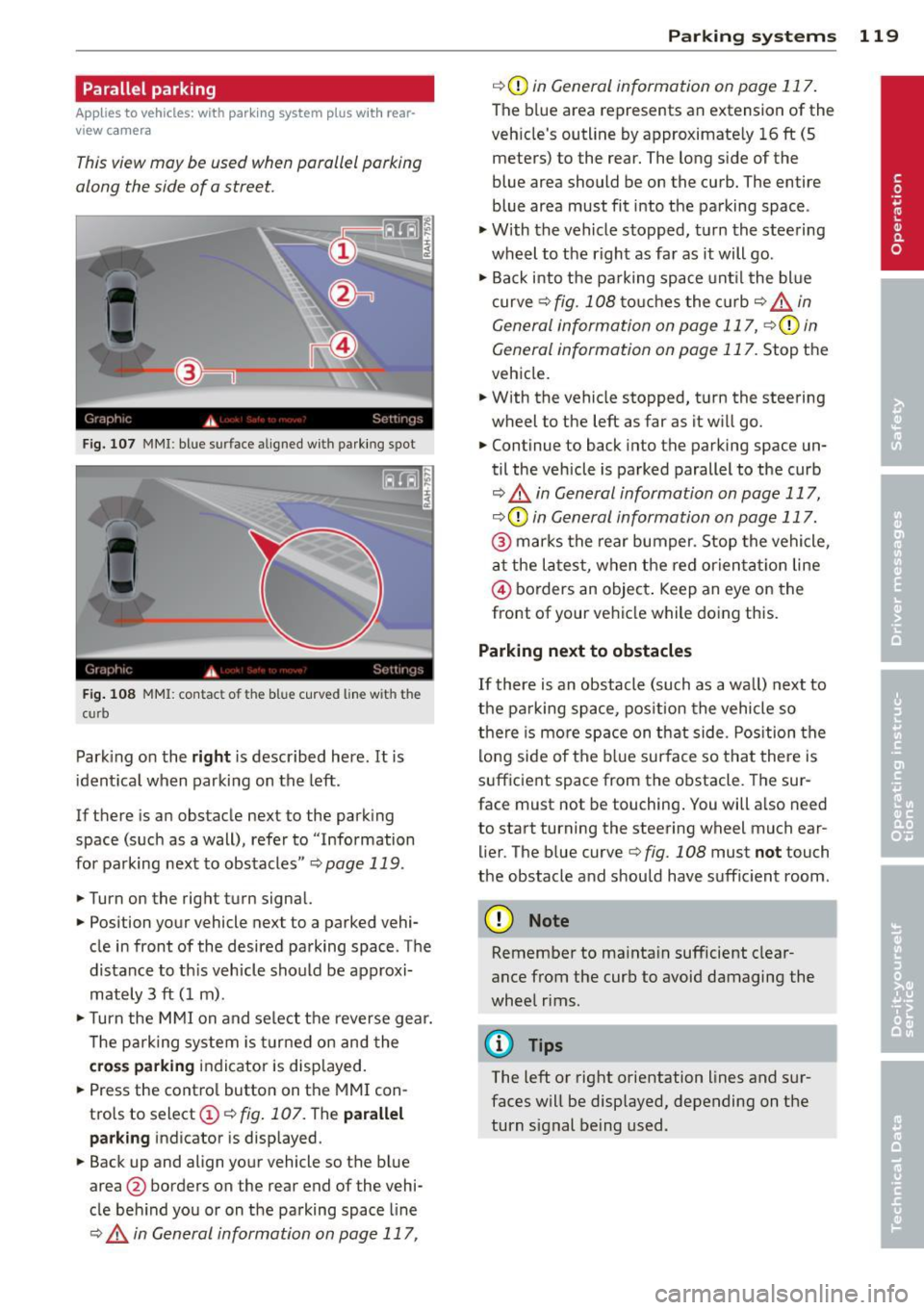
This view may be used when parallel parking
along the side of a street.
Fig. 107 MMI : blue su rface aligned wit h parking spot
Fig. 108 MMI: contac t o f t he b lue curved line w it h th e
c urb
Parking on the right is described here . It is
identical when parking on the left.
If there is an obstacle next to the parking
space (such as a wall), refer to "Information
for parking next to obstacles "¢
page 119.
.. Turn on the right turn signal.
.. Position your vehicle next to a parked vehi
cle in front of the desired parking space . The
distance to th is veh icle should be approxi
mately 3 ft (1 m) .
.. Turn the MMI on and select the reverse gear.
The parking system is turned on and the
cross parking indicator is displayed.
.. Press the control button on the MMI con
trols to select@¢
fig. 107. The parallel
parking
indicator is displayed .
.. Back up and align your vehicle so the blue
area @ borders on the rear end of the vehi
cle behind you or on the parking space line
¢.&. in General information on page 117,
Parking systems 119
¢ CD in General information on page 117.
The blue area represents an extension of the
veh icle's outline by approximate ly 16 ft (5
meters) to the rear. The long side of the
blue area should be on the curb. The entire
blue area must fit into the parking space .
.,. With the vehicle stopped, turn the steering
wheel to the right as far as it will go .
.. Back i nto the parking space unt il the blue
curve ¢
fig. 108 touches the curb ¢,&_ in
General information on page 117, ¢(Din
General information on page 117 .
Stop the
vehicle .
.. With the vehicle stopped, turn the steering
wheel to the left as far as it w ill go.
.. Continue to back into the parking space un
til the vehicle is parked parallel to the curb
¢ .&. in General information on page 117,
¢ CD in General information on page 117.
@ marks the rear bumper. Stop the vehicle,
at the latest, when the red orientat ion line
© borders an object . Keep an eye on the
front of your vehicle while doing this.
Parking next to obstacles
If there is an obstacle (such as a wall) next to
the parking space, position the vehicle so
there is more space on that side. Position the
lo ng side of the blue surface so that there is
sufficient space from the obstacle . The sur
face must not be touching. You will a lso need
to start turning the steering wheel much ear lier. The blue curve¢
fig. 108 must not touch
the obstacle and should have sufficient room .
(D Note
Remember to mainta in sufficient clear
ance from the curb to avoid damaging the
wheel rims .
{!) Tips
The left or right orientation lines and sur
faces will be displayed, depending on the
turn signal being used .
Page 124 of 288
122 Driving safety
• Make sure that the tire pressure is correct.
• Make sure that all windows are clean and af
ford good visib ility to the outside .
• Secure a ll luggage and other items carefully
r:=:> page 60, r:=:> page 58.
• Make sure that noth ing can interfere wit h
the pedals.
• Adjust front seat , head restraint and mirrors
correctly for your he ight.
• Instruct passengers to adjust the head re
stra ints according to their height.
• Make sure to use the right child restraint
correct ly to protect children
r:::;, page 166,
Child Safety .
• Sit properly in your seat and make sure that
your passengers do the same
r=:> page 53,
Front seats.
• Fasten your safety belt a nd wear it properly .
Also instruct your passengers to fasten th eir
safety belts properly
r:::;.page 131 .
What impairs driving safety?
Safe driving is directly related to the condi
tion of the vehicle, the driver as well as the
driver 's ability to concentrate on the rood
without being distracted.
The driver is respons ible for the safety of the
vehicle and all of its occupants.
If your ability
to drive is impa ired, safety r isks for everybody
in the vehicle increase and yo u also become a
hazard to everyone else on the road
r:::;, &,.
Therefore:
• Do not let yourself be dis tracted by passe n
gers or by using a cellular telephone.
• NEVER drive when your driving ability is im
paired (by medications, alcohol, drugs, etc.).
• Observe all traffic laws, rules of the road
and speed limits and plain common sense.
• ALWAYS adjust your speed to road, traffic
and weather condit ions .
• Take frequent breaks on long trips . Do not
dr ive for more than two hours at a stretc h.
• Do NOT drive when you are t ired, under
pressure or when you are st ressed.
A WARNING
-Impaired dr iving safety increases the risk
of ser ious personal injury and death when
ever a vehicle is being used.
Proper occupant
seating positions
Proper seating position for the driver
The proper driver seating position is impor
tant for safe, relaxed driving.
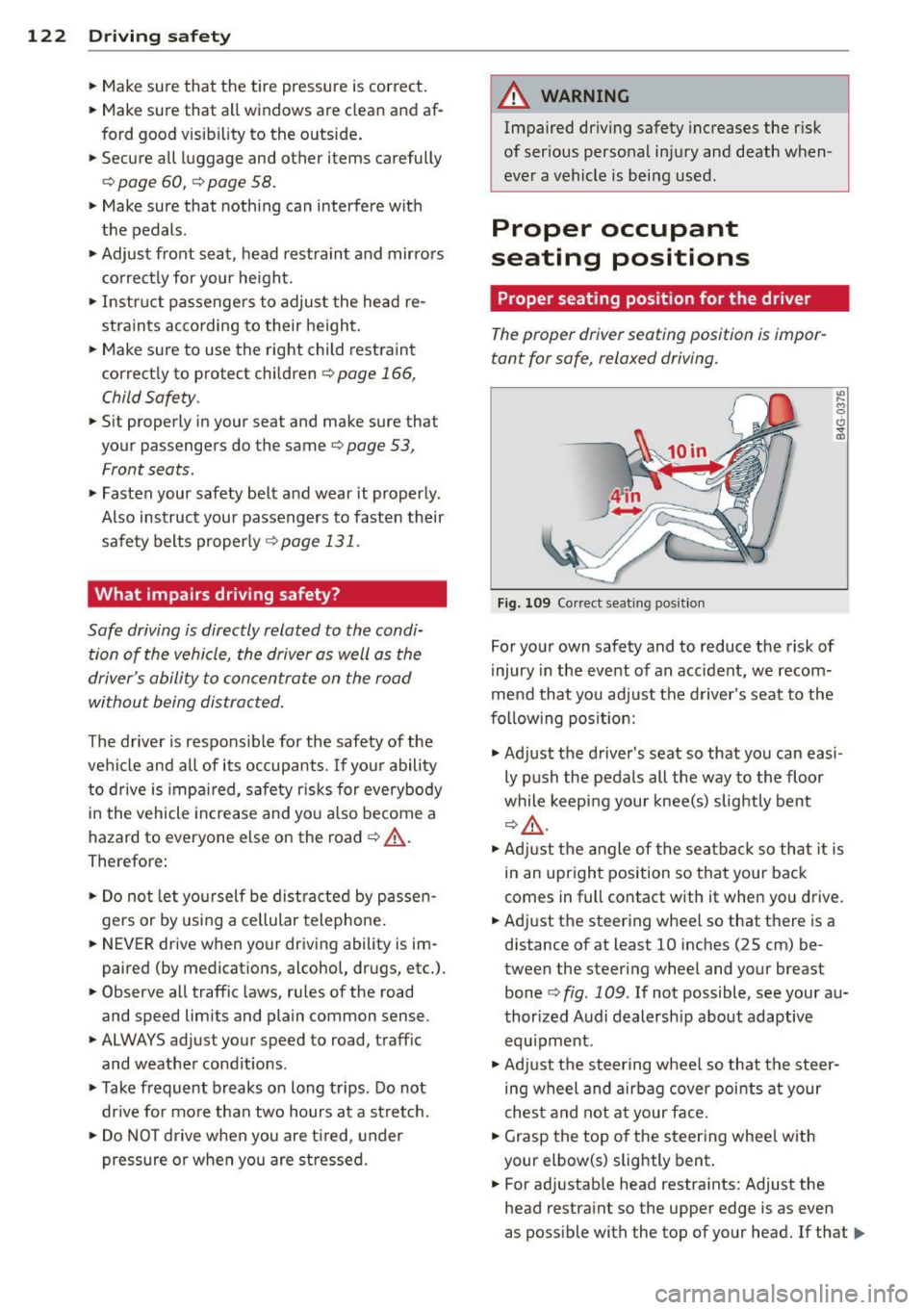
Fig . 109 Correct seat ing posit ion
For your own safety and to reduce the risk of
injury in the event of an accident, we recom
mend that you adjust the driver's seat to the
following position:
.,. Adjust the driver's seat so that you can easi
ly push the pedals all the way to the floor
while keeping your knee(s) slightly bent
r:::;,A .
.,. Adjust the angle of the seatback so that it is
in an upright position so that your back
comes in full contact with it when you drive.
• Adj ust the steering wheel so that there is a
distance of at least 10 inches (25 cm) be
tween the steering wheel and your breast
bone
c:::> fig. 109 . If not possible, see your au
thorized Audi dealersh ip about adaptive
equ ipment .
.. Adjust the steering wheel so that the steer
ing wheel and airbag cover points at your
chest and not at your face.
• Grasp the top of the steering whee l with
your elbow(s) slightly bent .
• For adjustable head restraints: Adjust the
head restraint so the upper edge is as even
as possible with the top of your head. If that..,_