audio AUDI A3 2020 Owner´s Manual
[x] Cancel search | Manufacturer: AUDI, Model Year: 2020, Model line: A3, Model: AUDI A3 2020Pages: 400, PDF Size: 107.47 MB
Page 217 of 400

8V2012721BK
Media
Requirement: the Wi-Fi function on your media
player must be switched on. The myAudi app or a
UPnP server app is installed on your media play-
er, or your media player has an integrated UPnP/
DLNA server.
— Connecting a media player: press the [MEDIA
button. Press the left control button until the
sources overview > page 219 is displayed. Se-
lect and confirm Wi-Fi audio player 7)
=> page 219, fig. 192.
— If necessary, select and confirm Wi-Fi turned
off > Turn on Wi-Fi to activate Wi-Fi in the
MMI. Select Wi-Fi settings, if necessary. Select
the same settings on the wireless media player
that are used for the Wi-Fi hotspot.
— Starting the Wi-Fi audio player: start the
myAudi app or a UPnP server app, or set media
permissions on your media player.
Operating the media player: the media player is
operated through the MMI.
— Press the left control button repeatedly until
the Folders menu item appears. Select and con-
firm
Folders.
— Playing music from the media player: select
and confirm Media center.
Web radio: see > page 215.
ZA\ WARNING
— As the driver, do not allow usage of the Wi-
Fi hotspot to distract you from driving, as
this could increase the risk of an accident.
—To reduce the risk of an accident, only use
Audi connect services and the Wi-Fi hotspot
only if the traffic situation permits it. Read
and follow the guidelines provided in
=> page 146, Traffic safety information.
— It is only safe to use tablets, laptops, mobile
devices and other similar devices when the
vehicle is stationary because, like all loose
objects, they could be thrown around the in-
side of the vehicle in a crash and cause seri-
ous injuries. Store these types of devices se-
curely while driving. Also read the warnings
in the chapter > page 257, Front airbags.
CG) Note
Always follow the information found in >@ in
General information on page 182.
@) Tips
— Always read the chapter > page 182, Audi
connect.
— Please note that a Wi-Fi connection does
not automatically make it possible to use
the Internet. For additional information,
see > page 182.
—To avoid interruptions during playback, de-
activate the power saving function on the
media player or connect it to a charger.
—The loading times for the audio data depend
on the media player used and the number of
files
that it contains.
—A maximum of 2,000 entries per directory
are displayed in the MMI.
— Songs downloaded for offline use using mu-
sic streaming services are stored on your
mobile device (such as a smartphone) and
may be DRM protected. The Wi-Fi audio
player will not play DRM protected files.
— Contact an authorized Audi dealer or au-
thorized Audi Service Facility for additional
information on the Wi-Fi audio player.
Online media and
Internet radio
Applies to: vehicles with Audi connect Infotainment
sh
Fig. 189 Infotainment system: online media
You can playback and operate various online me-
dia services and Internet radio using the MMI.
> Press the [MEDIA] button. Press the left control
button until the sources overview > fig. 189 is
displayed.
215
>
Page 221 of 400
8V2012721BK
Media
Two USB charging ports* are located at the back
of the center console.
— USB adapter: refer to > page 217, USB adapter
for Audi music interface.
— Charging a mobile device using the USB
adapter: connect your mobile device to a USB
charging port using a suitable USB adapter.
— Disconnecting a mobile device from the charg-
ing port: remove the USB adapter from the USB
charging port.
— Disconnecting mobile devices with an Apple
Dock connector: remove the Apple Dock con-
nector from the Apple device with the release
tabs pressed in.
ZA\ WARNING
Driving requires your complete and undivided
attention. As the driver, you have complete re-
sponsibility for safety in traffic. Never operate
your mobile devices while driving, because
this increases the risk of an accident.
@ Note
Extremely high or low temperatures that can
occur inside vehicles can damage mobile devi-
ces and/or impair their performance. Never
leave mobile devices in the vehicle in ex-
tremely high or low temperatures.
G) Tips
— Always follow the information found in
=> page 59.
— When you switch the ignition off, the USB
ports are still supplied with power until the
energy management intervenes.
— Do not use any additional USB extension ca-
bles or adapters to connect mobile devices
to the USB charging port that have already
been connected by a USB adapter. Using an
additional adapter or US extension cable
may impair functionality.
— USB hubs are not supported.
— Refer to the manufacturer's operating man-
ual for important information regarding the
operation of your mobile device.
— Correct function of all mobile devices can-
not be guaranteed.
— The vehicle battery drains when mobile de-
vices are turned on but the engine is off.
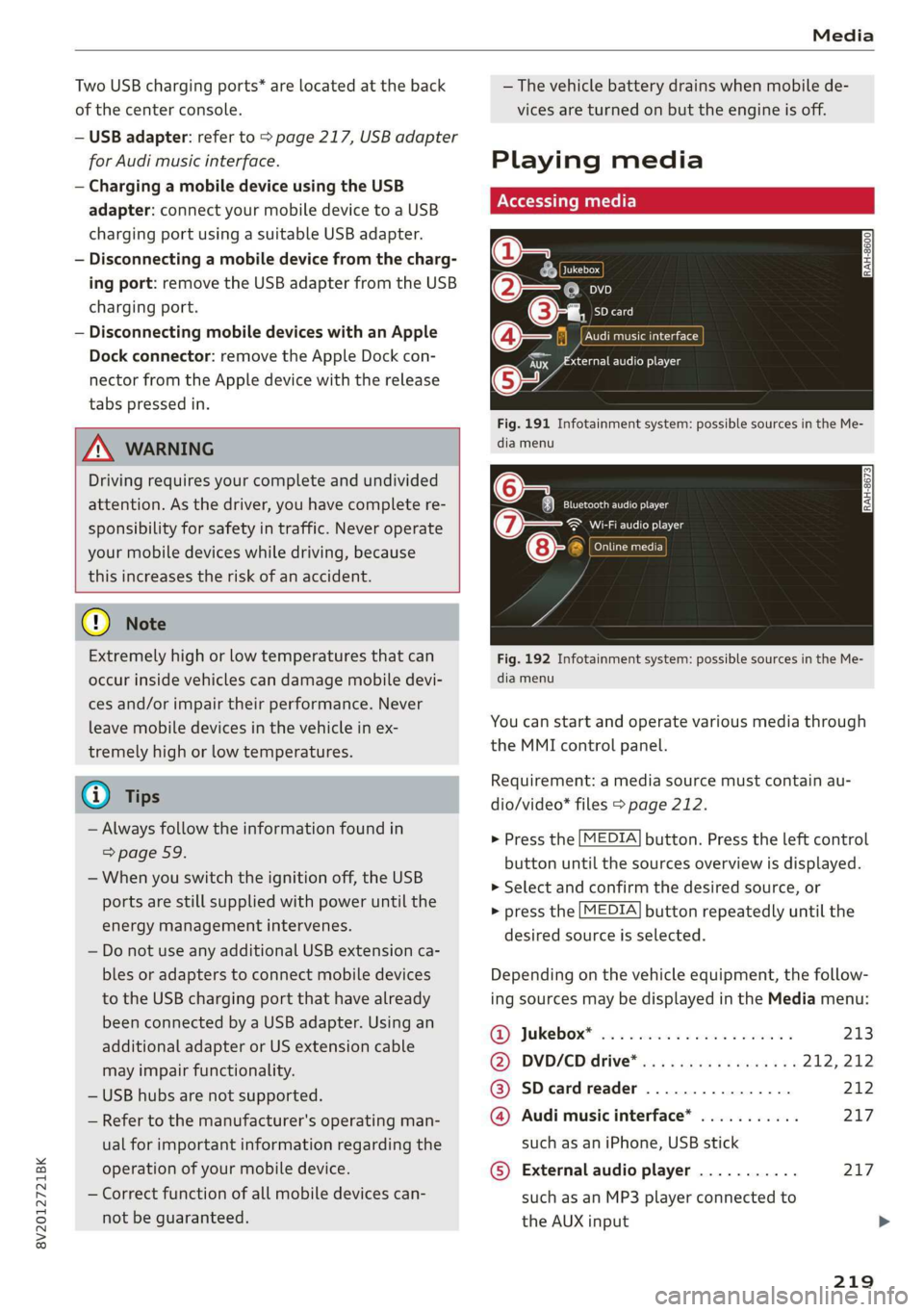
Playing media
\ La Coton
(2
©-«n ei]
So
eTocs
yee Per
Fig. 191 Infotainment system: possible sources in the Me-
dia menu
o~ Se eC e Ng
Cela ttn ant)
Eitan en Ns
7:
Fig. 192 Infotainment system: possible sources in the Me-
dia menu
You can start and operate various media through
the MMI control panel.
Requirement: a media source must contain au-
dio/video* files > page 212.
> Press the [MEDIA] button. Press the left control
button until the sources overview is displayed.
> Select and confirm the desired source, or
> press the [MEDIA] button repeatedly until the
desired source is selected.
Depending on the vehicle equipment, the follow-
ing sources may be displayed in the Media menu:
GD) Jukebox? sc. so secose so series ween ns 213
@) DVD/CD drive® ss ¢ « seas: eames ne 212, 212
@ SDeardreader ................ 212
@ Audi music interface* ........... 217
such as an iPhone, USB stick
© External audio player ........... 217
such as an MP3 player connected to
the AUX input >
219
Page 222 of 400

Media
© Bluetooth audio player* ........ 214
@ Wi-Fi audio player* ............ 214
Online media* and Internet radio” . 215
— Playing audio/video files: select a source in the
Media menu > category (such as artists > al-
bum > track).
— Moving one level up in the folder structure:
press the [BACK] button, or select and confirm
Folder up.
— Selecting the previous or next track/chap-
ter*)): press the On/Off knob on the MMI con-
trol panel briefly to the left Kd or right Pe.
— Fast-forwarding and rewinding audio/video*
files: press and hold the On/Off knob on the
MMI control panel to the left Kd or right Pol for
a longer time.
— Pausing or resuming playback: press the
On/Off knob on the MMI control panel briefly.
@ Tips
— You can scroll through long lists quickly by
turning the control knob quickly. The scroll-
ing speed depends on the number of list en-
tries.
— For safety reasons, the video image is only
displayed when the vehicle is stationary. On-
ly the sound from the video plays while driv-
ing.
Fig. 193 Infotainment system: USB flash drive categories
)) Depending on the DVD, this may not be possible during
playback.
220
Track
Folders Oa
Se aaeytses
Videos
Fig. 194 Infotainment system: USB flash drive categories
Various categories for selecting audio/video” files
are available in the media center.
> Press the [MEDIA] button. Press the left control
button until the sources overview is displayed.
Select and confirm the desired source.
@ Active source
The active source is highlighted. The active
source symbol @) may change depending on the
connected device, the online media service* or
Internet radio*. The device name may be dis-
played (for example: myPhone). As an example, a
USB stick is shown > fig. 193 connected to the
Audi music interface*.
Depending on the active source, you can select
audio/video files* from the following categories
and add them to the playlist:
@ Favorites
The Favorites category appears if at least one en-
try is stored in the favorites list. > page 222.
@ Artists
All available artists are displayed. Select and con-
firm
an artist, an album and then a track.
@ Albums
All available albums are displayed. Select and
confirm an album and then a track.
© Genres
All available genres are displayed. Select and con-
firm
a genre (such as Pop), an artist, an album
and then a song.
Page 223 of 400
8V2012721BK
Media
© Tracks
All available tracks are displayed. Select and con-
firm
a track.
@ Folders
The folder structure or track/chapter list is dis-
played. Select a folder, if necessary. Select and
confirm a track.
Playlists
All available playlists from the source and the
smart playlists are displayed. Select and confirm
a playlist and then a track.
Smart playlists:
— Last played tracks: the last tracks played in the
selected source are displayed.
— Most played: the most played tracks in the se-
lected source are displayed.
— 5 stars to 1 star: tracks from the selected
source are displayed according to their rating.
— Unrated: all files from the selected source
without rating information (for example, in the
ID3 tag) are displayed.
© Videos*
All available video files are displayed. Select and
confirm a video file.
@ Tips
— Only the categories supported by the medi-
um are available. For example, CD/DVD-
ROM tracks cannot be selected with catego-
ries such as Artists, Albums or Genres.
With an iPod/iPhone (source: Audi music in-
terface* > page 217), the Podcasts, Audio
books and Composers categories are also
available.
— For safety reasons, the video image is only
displayed when the vehicle is stationary. On-
ly the sound from the video plays while driv-
ing.
—When synchronizing a portable device with
"Cloud“ services, playlists may display incor-
rectly
in the MMI. Use the media center in
the device.
a \ey dary tLe)
Applies to: vehicles with free text search
Oxree Rock Band
Rock Band
©- Rock Band
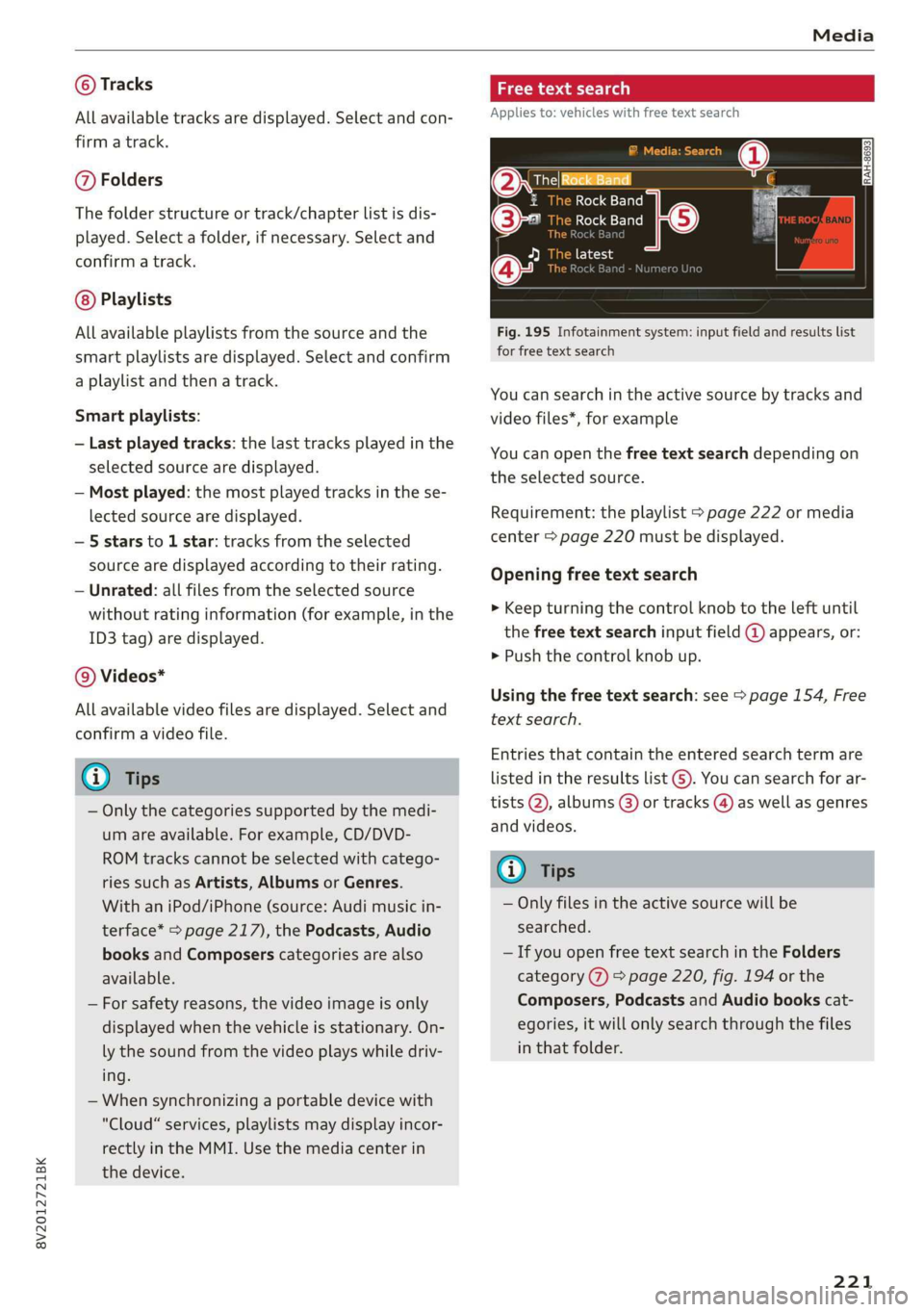
Fig. 195 Infotainment system: input field and results list
for free text search
You can search in the active source by tracks and
video files*, for example
You can open the free text search depending on
the selected source.
Requirement: the playlist > page 222 or media
center > page 220 must be displayed.
Opening free text search
> Keep turning the control knob to the left until
the free text search input field @ appears, or:
> Push the control knob up.
Using the free text search: see > page 154, Free
text search.
Entries that contain the entered search term are
listed
in the results list G). You can search for ar-
tists @, albums (8) or tracks @) as well as genres
and videos.
(i) Tips
— Only files in the active source will be
searched.
— If you open free text search in the Folders
category (7) > page 220, fig. 194 or the
Composers, Podcasts and Audio books cat-
egories, it will only search through the files
in that folder.
221
Page 226 of 400
Media
— Selecting a menu item: select and confirm a
menu item, or move your finger on the MMI
touch control pad* and press the control knob.
Audio track!)
You can manually set the audio track (language
and audio format). The language and audio for-
mat options depend on the video DVD.
Subtitles»)
You can manually select subtitles for playback.
The languages available depend on the DVD.
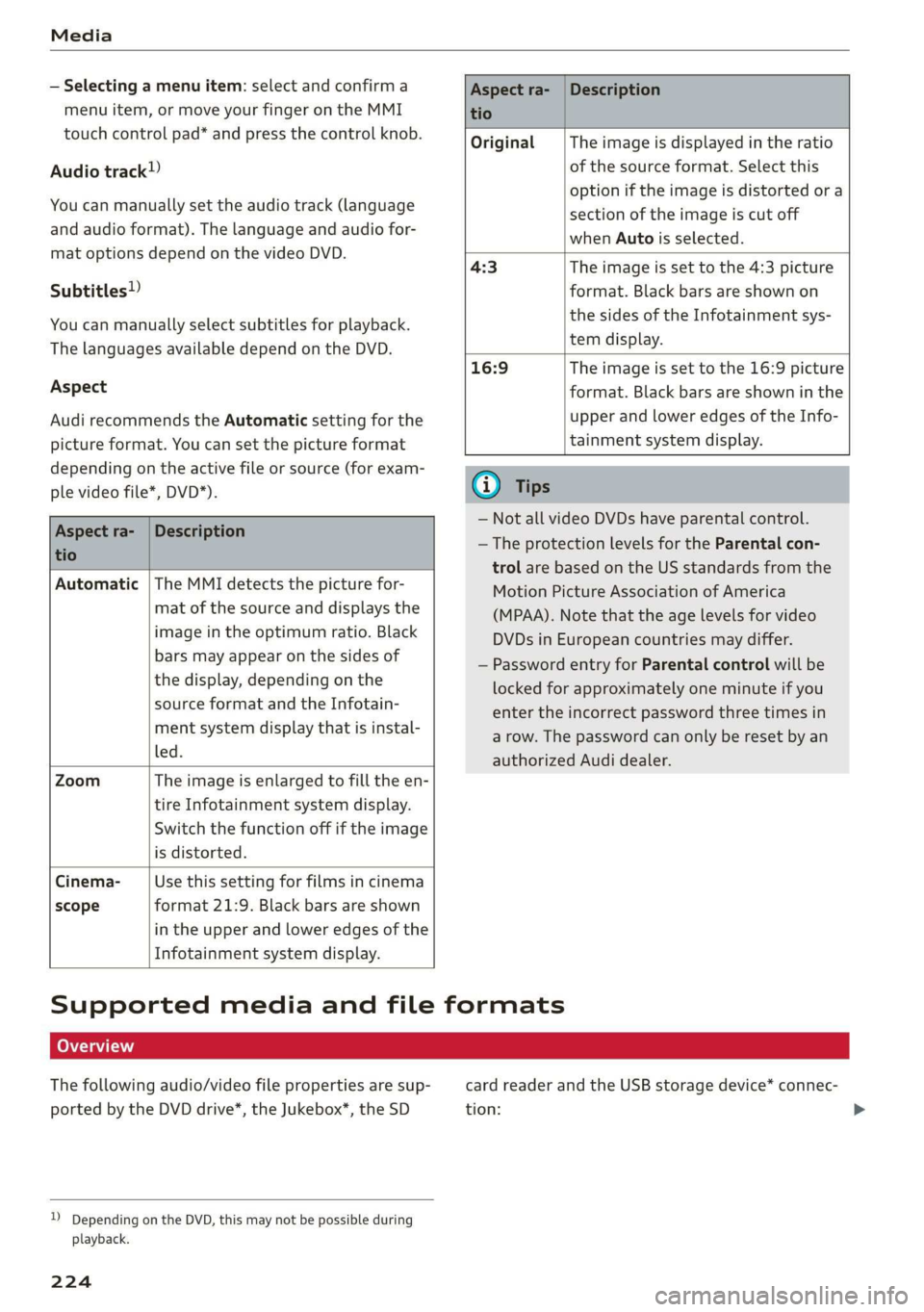
Aspect
Audi recommends the Automatic setting for the
picture format. You can set the picture format
depending on the active file or source (for exam-
ple video file*, DVD*).
Aspect ra-
tio
Description
Original The image is displayed in the ratio
of the source format. Select this
option if the image is distorted or a
section of the image is cut off
when Auto is selected.
4:3 The image is set to the 4:3 picture
format. Black bars are shown on
the sides of the Infotainment sys-
tem display.
16:9 The image is set to the 16:9 picture
format. Black bars are shown in the
upper and lower edges of the Info-
tainment system display.
Aspect ra- |Description
tio
Automatic |The MMI detects the picture for-
mat of the source and displays the
image in the optimum ratio. Black
bars may appear on the sides of
the display, depending on the
source format and the Infotain-
ment system display that is instal-
led.
Zoom The image is enlarged to fill the en-
tire Infotainment system display.
Switch the function off if the image
is distorted.
Cinema- Use this setting for films in cinema
scope format 21:9. Black bars are shown
in the upper and lower edges of the
Infotainment system display.
@) Tips
— Not all video DVDs have parental control.
— The protection levels for the Parental con-
trol are based on the US standards from the
Motion Picture Association of America
(MPAA). Note that the age levels for video
DVDs in European countries may differ.
— Password entry for Parental control will be
locked for approximately one minute if you
enter the incorrect password three times in
a row. The password can only be reset by an
authorized Audi dealer.
Supported media and file formats
LO TaV TN]
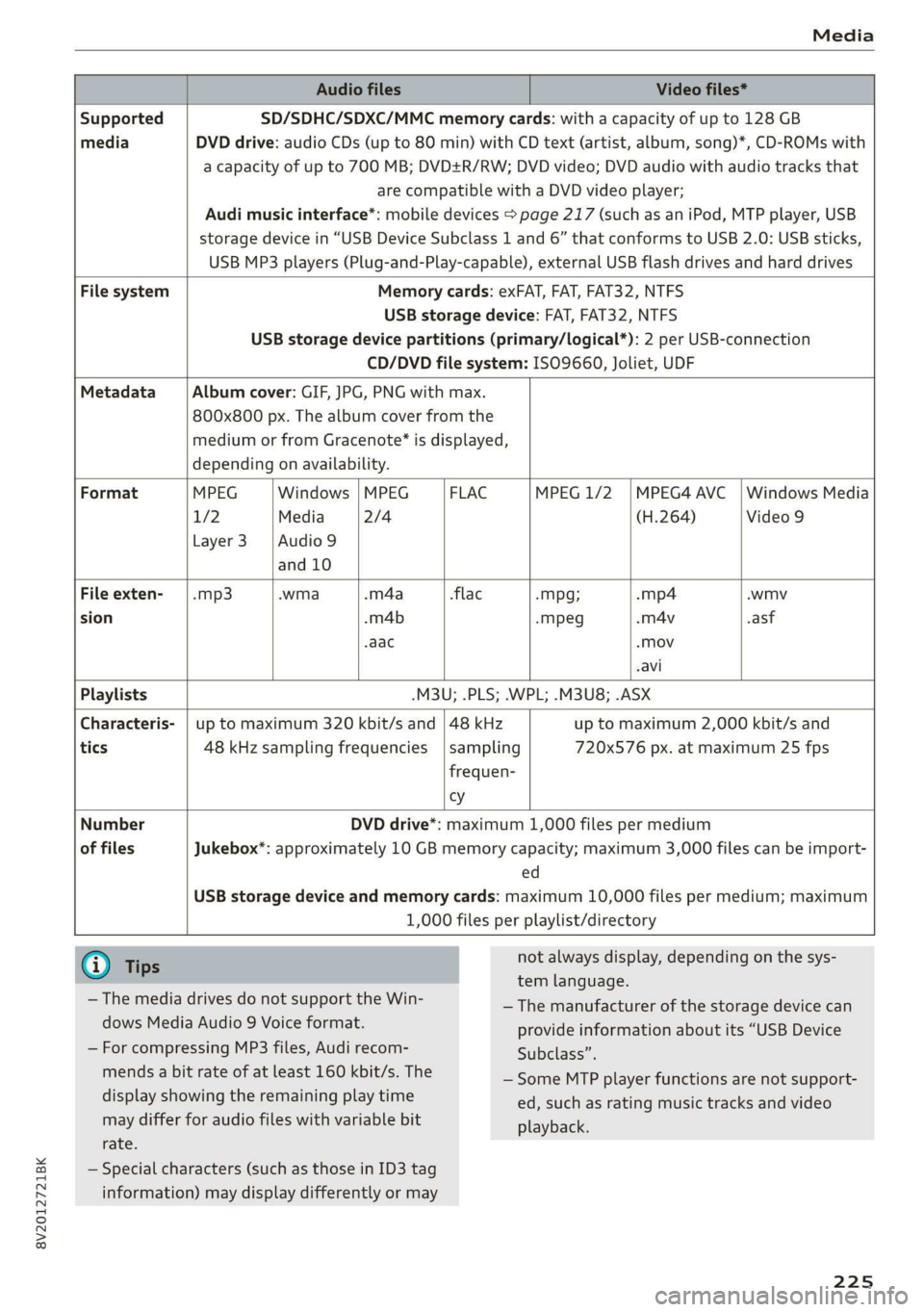
The following audio/video file properties are sup-
ported by the DVD drive*, the Jukebox”, the SD
)) Depending on the DVD, this may not be possible during
playback.
224
card reader and the USB storage device* connec-
tion:
Page 227 of 400
8V2012721BK
Media
Audio files Video files*
Supported SD/SDHC/SDXC/MMC memory cards: with a capacity of up to 128 GB
media DVD drive: audio CDs (up to 80 min) with CD text (artist, album, song)*, CD-ROMs with
a capacity of up to 700 MB; DVD+R/RW; DVD video; DVD audio with audio tracks that
are compatible with a DVD video player;
Audi music interface*: mobile devices > page 217 (such as an iPod, MTP player, USB
storage device in “USB Device Subclass 1 and 6” that conforms to USB 2.0: USB sticks,
USB MP3 players (Plug-and-Play-capable), external USB flash drives and hard drives
File system Memory cards: exFAT, FAT, FAT32, NTFS
USB storage device: FAT, FAT32, NTFS
USB storage device partitions (primary/logical*): 2 per USB-connection
CD/DVD file system: ISO9660, Joliet, UDF
Metadata Album cover: GIF, JPG, PNG with max.
800x800 px. The album cover from the
medium or from Gracenote® is displayed,
depending on availability.
Format MPEG |Windows |MPEG — | FLAC MPEG 1/2 |MPEG4 AVC_| Windows Media
1/2 Media 2/4 (H.264) Video 9
Layer3 |Audio9
and 10
File exten- | .mp3 .wma .m4a flac -Mpg; -mp4 .wmv
sion .m4b -mpeg -m4v .asf
.aac «Mov
-avi
Playlists .M3U; .PLS; .WPL; .M3U8; .ASX
Characteris- | up to maximum 320 kbit/s and | 48 kHz up to maximum 2,000 kbit/s and
tics 48 kHz sampling frequencies |sampling 720x576 px. at maximum 25 fps
frequen-
vy
Number
of files
DVD drive*: maximum 1,000 files per medium
Jukebox*: approximately 10 GB memory capacity; maximum 3,000 files can be import-
ed
USB storage device and memory cards: maximum 10,000 files per medium; maximum
1,000 files per playlist/directory
G) Tips
— The media drives do not support the Win-
dows Media Audio 9 Voice format.
— For compressing MP3 files, Audi recom-
mends a bit rate of at least 160 kbit/s. The
display showing the remaining play time
may differ for audio files with variable bit
rate.
not always display, depending on the sys-
tem language.
— The manufacturer of the storage device can
provide information about its “USB Device
Subclass”.
— Some MTP player functions are not support-
ed, such as rating music tracks and video
playback.
— Special characters (such as those in ID3 tag
information) may display differently or may
225
Page 228 of 400
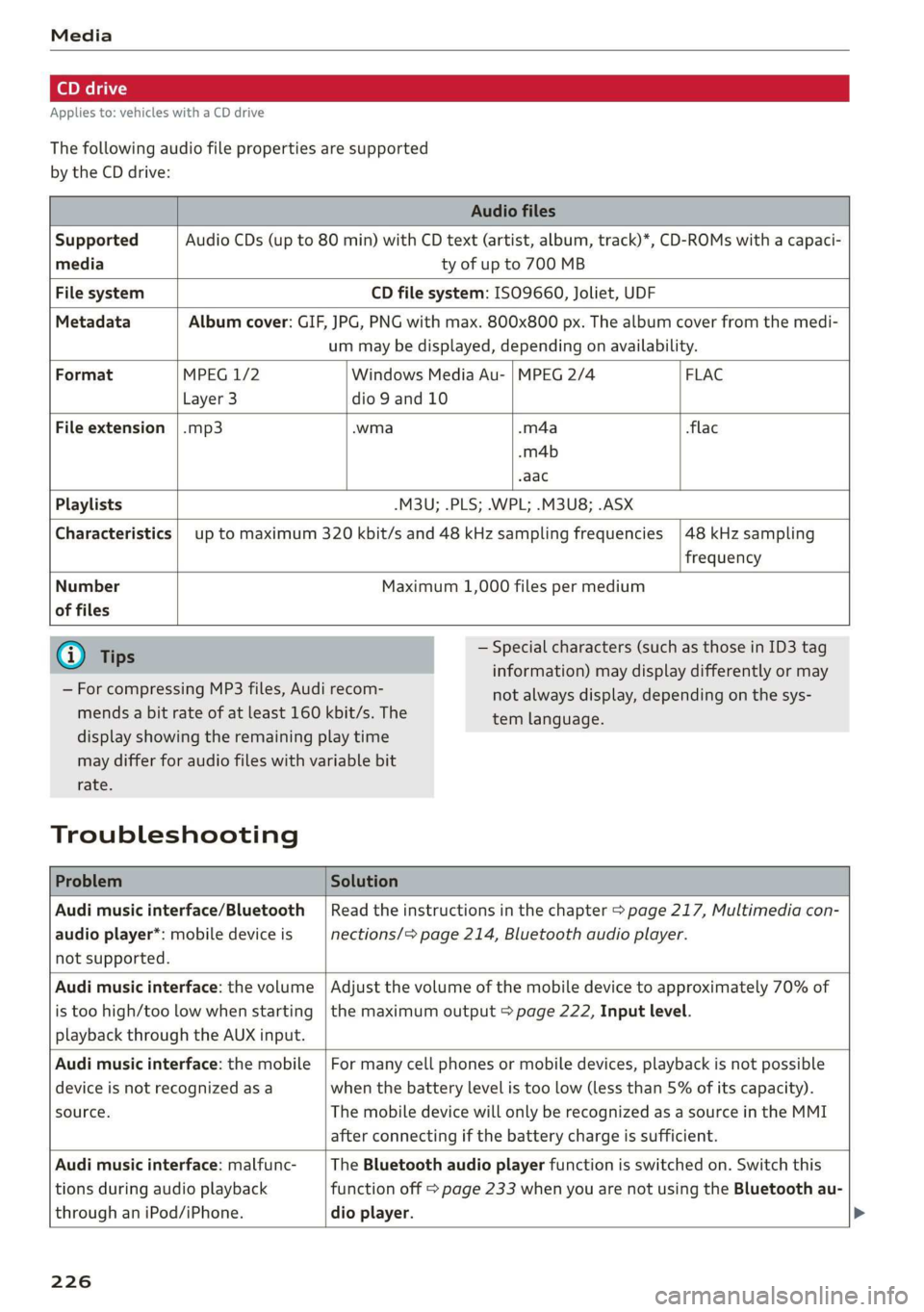
Applies to: vehicles with a CD drive
The following audio file properties are supported
by the CD drive:
Audio files
Supported Audio CDs (up to 80 min) with CD text (artist, album, track)*, CD-ROMs with a capaci-
media ty of up to 700 MB
File system CD file system: ISO9660, Joliet, UDF
Metadata Album cover: GIF, JPG, PNG with max. 800x800 px. The album cover from the medi-
um may be displayed, depending on availability.
Format MPEG 1/2 Windows Media Au- | MPEG 2/4 FLAC
Layer 3 dio 9 and 10
File extension |.mp3 -wma -m4a flac
-m4b
aac
Playlists -M3U; .PLS; .WPL; .M3U8; .ASX
Characteristics up to maximum 320 kbit/s and 48 kHz sampling frequencies 48 kHz sampling
frequency
Number
of files
Maximum 1,000 files per medium
@ Tips
— For compressing MP3 files, Audi recom-
mends a bit rate of at least 160 kbit/s. The
— Special characters (such as those in ID3 tag
information) may display differently or may
not always display, depending on the sys-
tem language.
display showing the remaining play time
may differ for audio files with variable bit
rate.
Troubleshooting
Problem Solution
Audi music interface/Bluetooth
audio player*: mobile device is
not supported.
Read the instructions in the chapter > page 217, Multimedia con-
nections/> page 214, Bluetooth audio player.
Audi music interface: the volume
is too high/too low when starting
playback through the AUX input.
Adjust the volume of the mobile device to approximately 70% of
the maximum output > page 222, Input level.
Audi music interface: the mobile
device is not recognized asa
source.
For many cell phones or mobile devices, playback is not possible
when the battery level is too low (less than 5% of its capacity).
The mobile device will only be recognized as a source in the MMI
after connecting if the battery charge is sufficient.
Audi music interface: malfunc-
tions during audio playback
through an iPod/iPhone.
The Bluetooth audio player function is switched on. Switch this
function off > page 233 when you are not using the Bluetooth au-
dio
player.
226
Page 229 of 400
8V2012721BK
Media
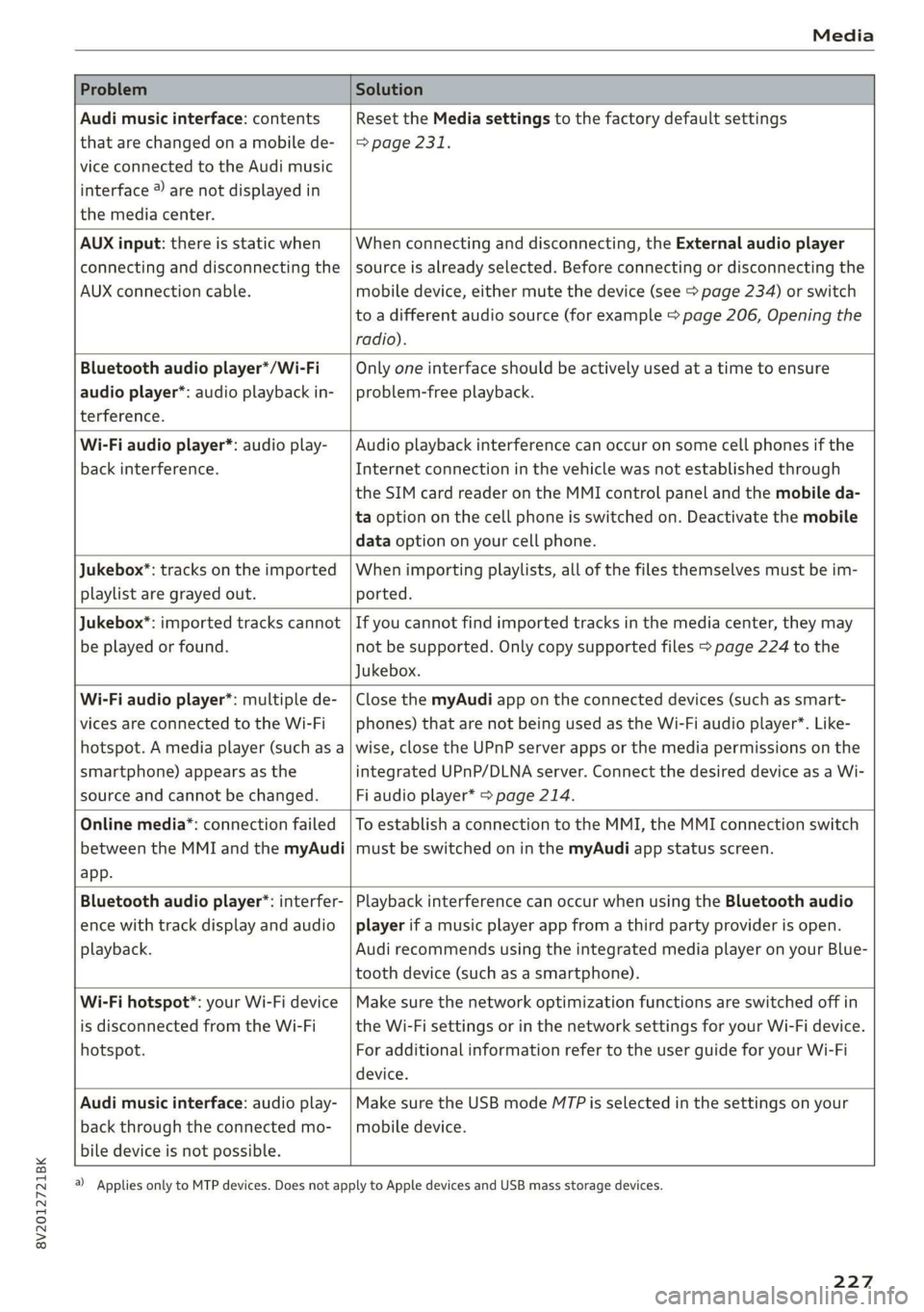
Problem Solution
Audi music interface: contents
that are changed on a mobile de-
vice connected to the Audi music
interface ®) are not displayed in
the media center.
Reset the Media settings to the factory default settings
=> page 231.
AUX input: there is static when
connecting and disconnecting the
AUX connection cable.
When connecting and disconnecting, the External audio player
source is already selected. Before connecting or disconnecting the
mobile device, either mute the device (see > page 234) or switch
to a different audio source (for example > page 206, Opening the
radio).
Bluetooth audio player*/Wi-Fi
audio player*: audio playback in-
terference.
Only one interface should be actively used at a time to ensure
problem-free playback.
Wi-Fi audio player*: audio play-
back interference.
Audio playback interference can occur on some cell phones if the
Internet connection in the vehicle was not established through
the SIM card reader on the MMI control panel and the mobile da-
ta option on the cell phone is switched on. Deactivate the mobile
data option on your cell phone.
Jukebox”: tracks on the imported
playlist are grayed out.
When importing playlists, all of the files themselves must be im-
ported.
Jukebox*: imported tracks cannot
be played or found.
If you cannot find imported tracks in the media center, they may
not be supported. Only copy supported files > page 224 to the
Jukebox.
Wi-Fi audio player*: multiple de-
vices are connected to the Wi-Fi
hotspot. A media player (such as a
smartphone) appears as the
source and cannot be changed.
Close the myAudi app on the connected devices (such as smart-
phones) that are not being used as the Wi-Fi audio player*. Like-
wise, close the UPnP server apps or the media permissions on the
integrated UPnP/DLNA server. Connect the desired device as a Wi-
Fi audio player* > page 214.
Online media*: connection failed
between the MMI and the myAudi
app.
To establish a connection to the MMI, the MMI connection switch
must be switched on in the myAudi app status screen.
Bluetooth audio player*: interfer-
ence with track display and audio
playback.
Playback interference can occur when using the Bluetooth audio
player if a music player app from a third party provider is open.
Audi recommends using the integrated media player on your Blue-
tooth device (such as a smartphone).
Wi-Fi hotspot*: your Wi-Fi device
is disconnected from the Wi-Fi
hotspot.
Make sure the network optimization functions are switched off in
the Wi-Fi settings or in the network settings for your Wi-Fi device.
For additional information refer to the user guide for your Wi-Fi
device.
Audi music interface: audio play-
back through the connected mo-
bile device is not possible.
Make sure the USB mode MTP is selected in the settings on your
mobile device.
a) Applies only to MTP devices. Does not apply to Apple devices and USB mass storage devices.
227
Page 234 of 400
System settings
visibility of the MMI > page 233 and mobile de-
vice must be switched on. The mobile device to
be connected must not be connected to any other
Bluetooth device.
aeluatleva daeyit
Applies to: vehicles with telephone
> Connect new device: search for and connect a
cell phone.
> List of devices already paired: select your cell
phone from the list of all the devices that are
already paired.
Toate Tava en
Applies to: vehicles with telephone, and Audi phone box
> Connect new device: search for and connect a
cell phone.
> List of devices already paired: select your cell
phone from the list of all the devices that are
already paired.
PELE Mel a-Vaaleya)
Applies to: vehicles with Audi connect Infotainment
The data connection is made using the embedded
SIM card ) > page 183. You do not need to ad-
just any additional settings.
@) Note
Always follow the information found in 9@ in
General information on page 182.
myAudi app
Applies to: vehicles with Audi connect Infotainment
Requirement: the myAudi app must be installed
and open on your mobile device.
> Connect new device: search for and connect a
mobile device (such as a smartphone).
> List of devices already paired: select your mo-
bile device from the list of all the devices that
are already paired.
D_ SIM card installed in the vehicle at the factory.
232
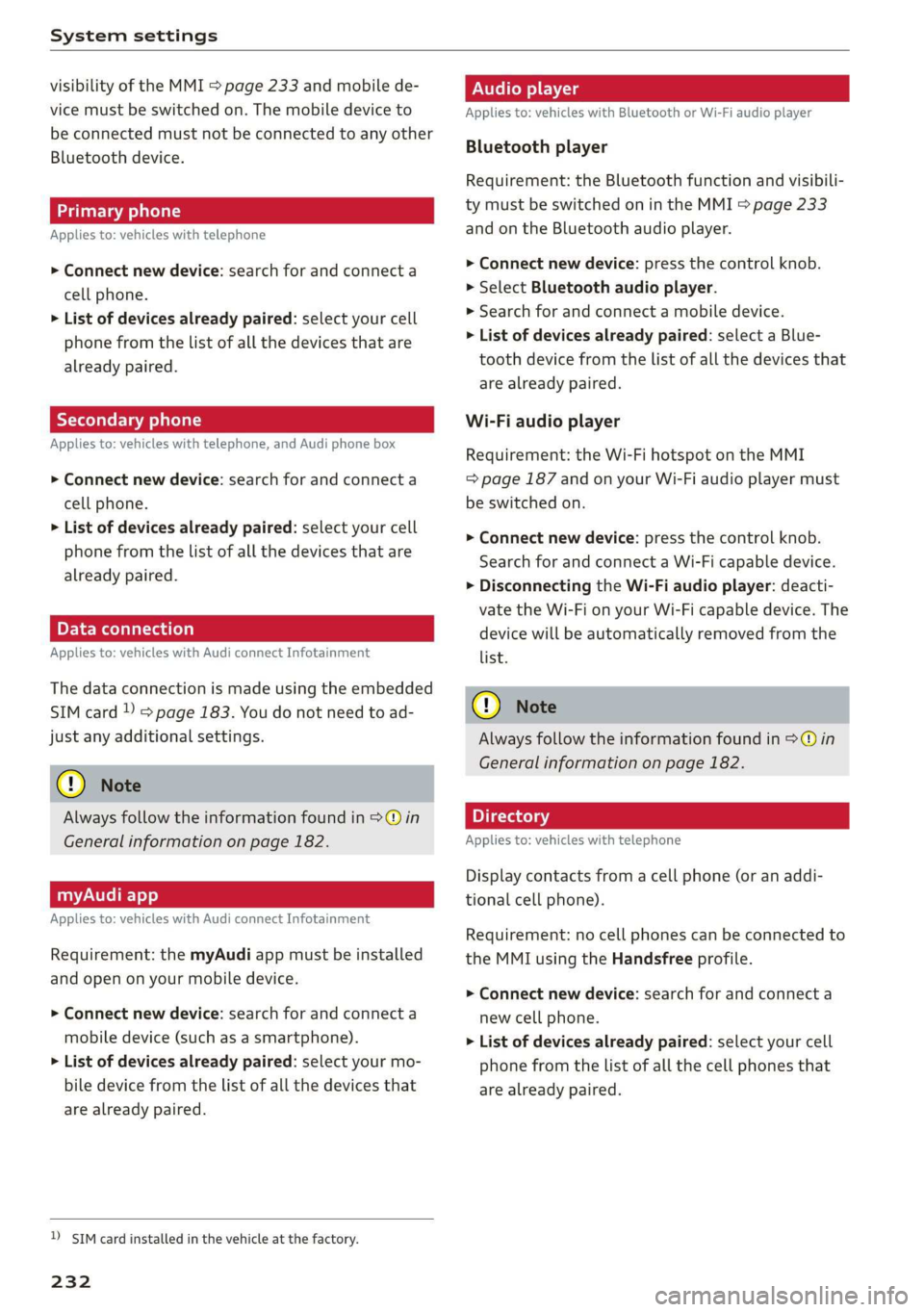
Audio player
Applies to: vehicles with Bluetooth or Wi-Fi audio player
Bluetooth player
Requirement: the Bluetooth function and visibili-
ty must be switched on in the MMI > page 233
and on the Bluetooth audio player.
> Connect new device: press the control knob.
> Select Bluetooth audio player.
» Search for and connect a mobile device.
> List of devices already paired: select a Blue-
tooth device from the list of all the devices that
are already paired.
Wi-Fi audio player
Requirement: the Wi-Fi hotspot on the MMI
=> page 187 and on your Wi-Fi audio player must
be switched on.
> Connect new device: press the control knob.
Search for and connect a Wi-Fi capable device.
> Disconnecting the Wi-Fi audio player: deacti-
vate the Wi-Fi on your Wi-Fi capable device. The
device will be automatically removed from the
list.
() Note
Always follow the information found in S@ in
General information on page 182.
Applies to: vehicles with telephone
Display contacts from a cell phone (or an addi-
tional cell phone).
Requirement: no cell phones can be connected to
the MMI using the Handsfree profile.
> Connect new device: search for and connect a
new cell phone.
> List of devices already paired: select your cell
phone from the list of all the cell phones that
are already paired.
Page 235 of 400
8V2012721BK
System settings
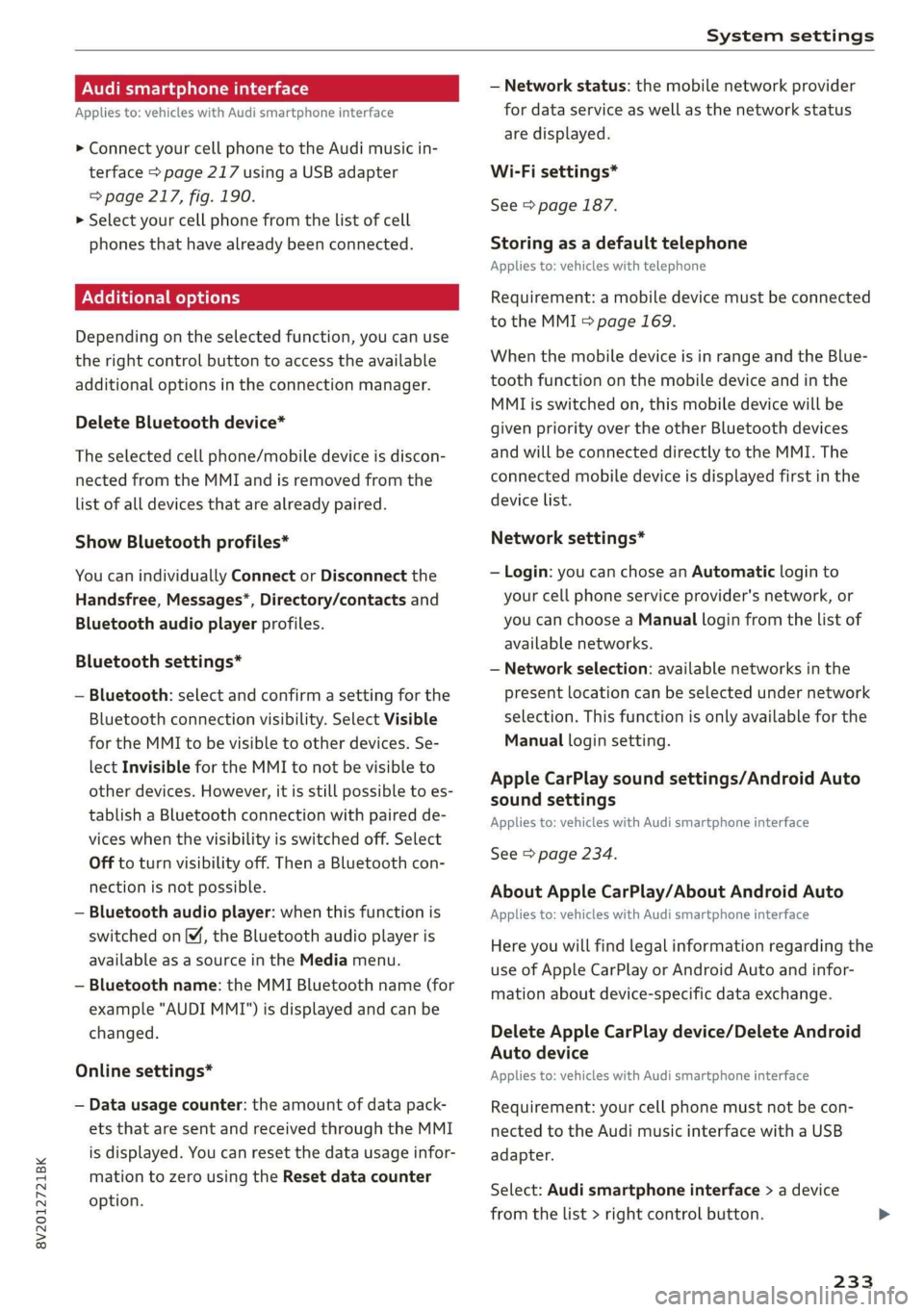
Audi smartphone interface
Applies to: vehicles with Audi smartphone interface
> Connect your cell phone to the Audi music in-
terface > page 217 using a USB adapter
=> page 217, fig. 190.
> Select your cell phone from the list of cell
phones that have already been connected.
Additional options
Depending on the selected function, you can use
the right control button to access the available
additional options in the connection manager.
Delete Bluetooth device*
The selected cell phone/mobile device is discon-
nected from the MMI and is removed from the
list of all devices that are already paired.
Show Bluetooth profiles*
You can individually Connect or Disconnect the
Handsfree, Messages*, Directory/contacts and
Bluetooth audio player profiles.
Bluetooth settings*
— Bluetooth: select and confirm a setting for the
Bluetooth connection visibility. Select Visible
for the MMI to be visible to other devices. Se-
lect Invisible for the MMI to not be visible to
other devices. However, it is still possible to es-
tablish a Bluetooth connection with paired de-
vices when the visibility is switched off. Select
Off to turn visibility off. Then a Bluetooth con-
nection is not possible.
— Bluetooth audio player: when this function is
switched on [M, the Bluetooth audio player is
available as a source in the Media menu.
— Bluetooth name: the MMI Bluetooth name (for
example "AUDI MMI") is displayed and can be
changed.
Online settings*
— Data usage counter: the amount of data pack-
ets that are sent and received through the MMI
is displayed. You can reset the data usage infor-
mation to zero using the Reset data counter
option.
— Network status: the mobile network provider
for data service as well as the network status
are displayed.
Wi-Fi settings*
See > page 187.
Storing as a default telephone
Applies to: vehicles with telephone
Requirement: a mobile device must be connected
to the MMI > page 169.
When the mobile device is in range and the Blue-
tooth function on the mobile device and in the
MML is switched on, this mobile device will be
given priority over the other Bluetooth devices
and will be connected directly to the MMI. The
connected mobile device is displayed first in the
device list.
Network settings*
— Login: you can chose an Automatic login to
your cell phone service provider's network, or
you can choose a Manual login from the list of
available networks.
— Network selection: available networks in the
present location can be selected under network
selection. This function is only available for the
Manual login setting.
Apple CarPlay sound settings/Android Auto
sound settings
Applies to: vehicles with Audi smartphone interface
See > page 234.
About Apple CarPlay/About Android Auto
Applies to: vehicles with Audi smartphone interface
Here you will find legal information regarding the
use of Apple CarPlay or Android Auto and infor-
mation about device-specific data exchange.
Delete Apple CarPlay device/Delete Android
Auto device
Applies to: vehicles with Audi smartphone interface
Requirement: your cell phone must not be con-
nected to the Audi music interface with a USB
adapter.
Select: Audi smartphone interface > a device
from the list > right control button.
233