phone AUDI A3 2020 Owner´s Manual
[x] Cancel search | Manufacturer: AUDI, Model Year: 2020, Model line: A3, Model: AUDI A3 2020Pages: 400, PDF Size: 107.47 MB
Page 229 of 400
8V2012721BK
Media
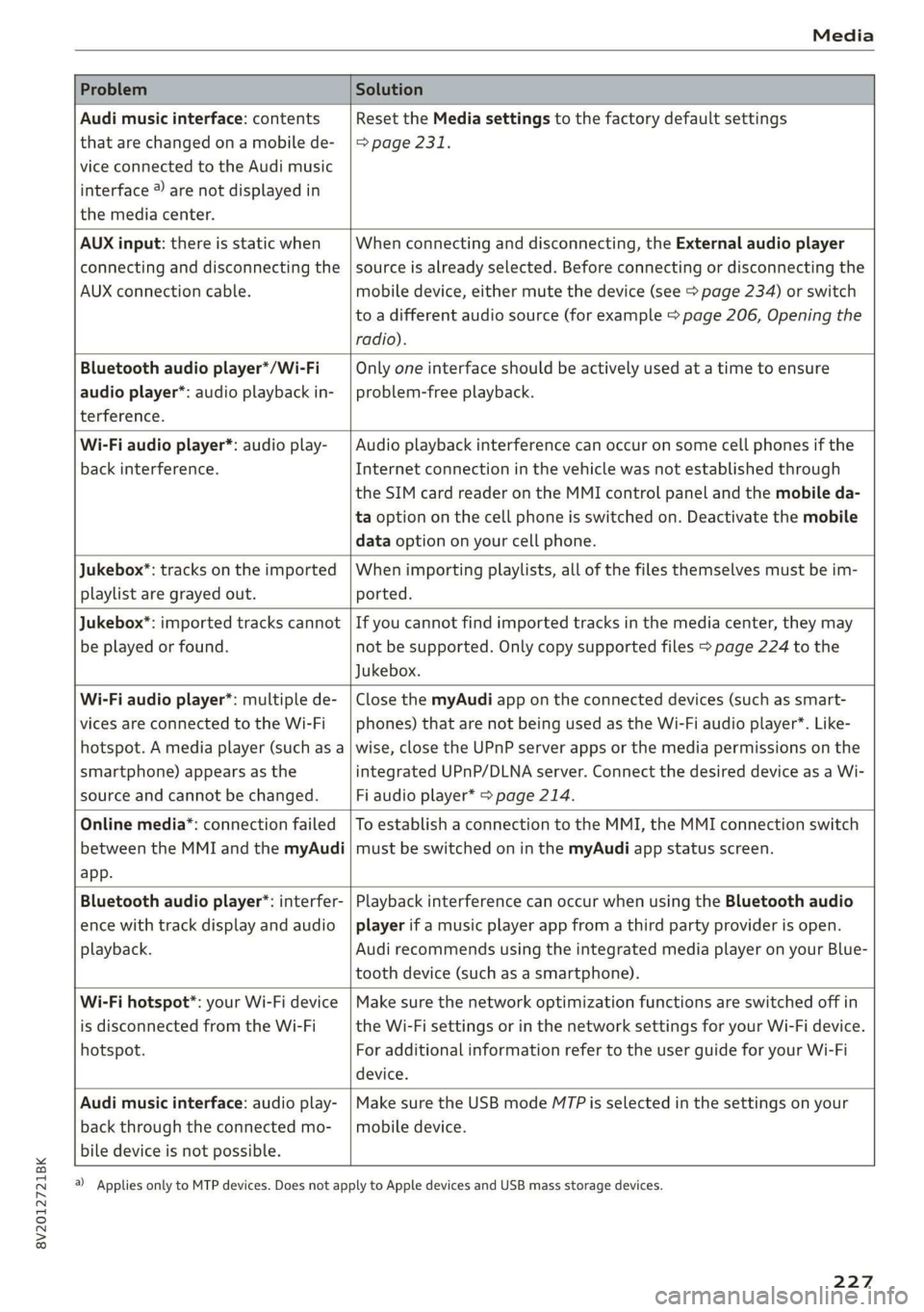
Problem Solution
Audi music interface: contents
that are changed on a mobile de-
vice connected to the Audi music
interface ®) are not displayed in
the media center.
Reset the Media settings to the factory default settings
=> page 231.
AUX input: there is static when
connecting and disconnecting the
AUX connection cable.
When connecting and disconnecting, the External audio player
source is already selected. Before connecting or disconnecting the
mobile device, either mute the device (see > page 234) or switch
to a different audio source (for example > page 206, Opening the
radio).
Bluetooth audio player*/Wi-Fi
audio player*: audio playback in-
terference.
Only one interface should be actively used at a time to ensure
problem-free playback.
Wi-Fi audio player*: audio play-
back interference.
Audio playback interference can occur on some cell phones if the
Internet connection in the vehicle was not established through
the SIM card reader on the MMI control panel and the mobile da-
ta option on the cell phone is switched on. Deactivate the mobile
data option on your cell phone.
Jukebox”: tracks on the imported
playlist are grayed out.
When importing playlists, all of the files themselves must be im-
ported.
Jukebox*: imported tracks cannot
be played or found.
If you cannot find imported tracks in the media center, they may
not be supported. Only copy supported files > page 224 to the
Jukebox.
Wi-Fi audio player*: multiple de-
vices are connected to the Wi-Fi
hotspot. A media player (such as a
smartphone) appears as the
source and cannot be changed.
Close the myAudi app on the connected devices (such as smart-
phones) that are not being used as the Wi-Fi audio player*. Like-
wise, close the UPnP server apps or the media permissions on the
integrated UPnP/DLNA server. Connect the desired device as a Wi-
Fi audio player* > page 214.
Online media*: connection failed
between the MMI and the myAudi
app.
To establish a connection to the MMI, the MMI connection switch
must be switched on in the myAudi app status screen.
Bluetooth audio player*: interfer-
ence with track display and audio
playback.
Playback interference can occur when using the Bluetooth audio
player if a music player app from a third party provider is open.
Audi recommends using the integrated media player on your Blue-
tooth device (such as a smartphone).
Wi-Fi hotspot*: your Wi-Fi device
is disconnected from the Wi-Fi
hotspot.
Make sure the network optimization functions are switched off in
the Wi-Fi settings or in the network settings for your Wi-Fi device.
For additional information refer to the user guide for your Wi-Fi
device.
Audi music interface: audio play-
back through the connected mo-
bile device is not possible.
Make sure the USB mode MTP is selected in the settings on your
mobile device.
a) Applies only to MTP devices. Does not apply to Apple devices and USB mass storage devices.
227
Page 230 of 400
Audi smartphone interface
Audi smartphone
interface
Setup
Applies to: vehicles with Audi smartphone interface
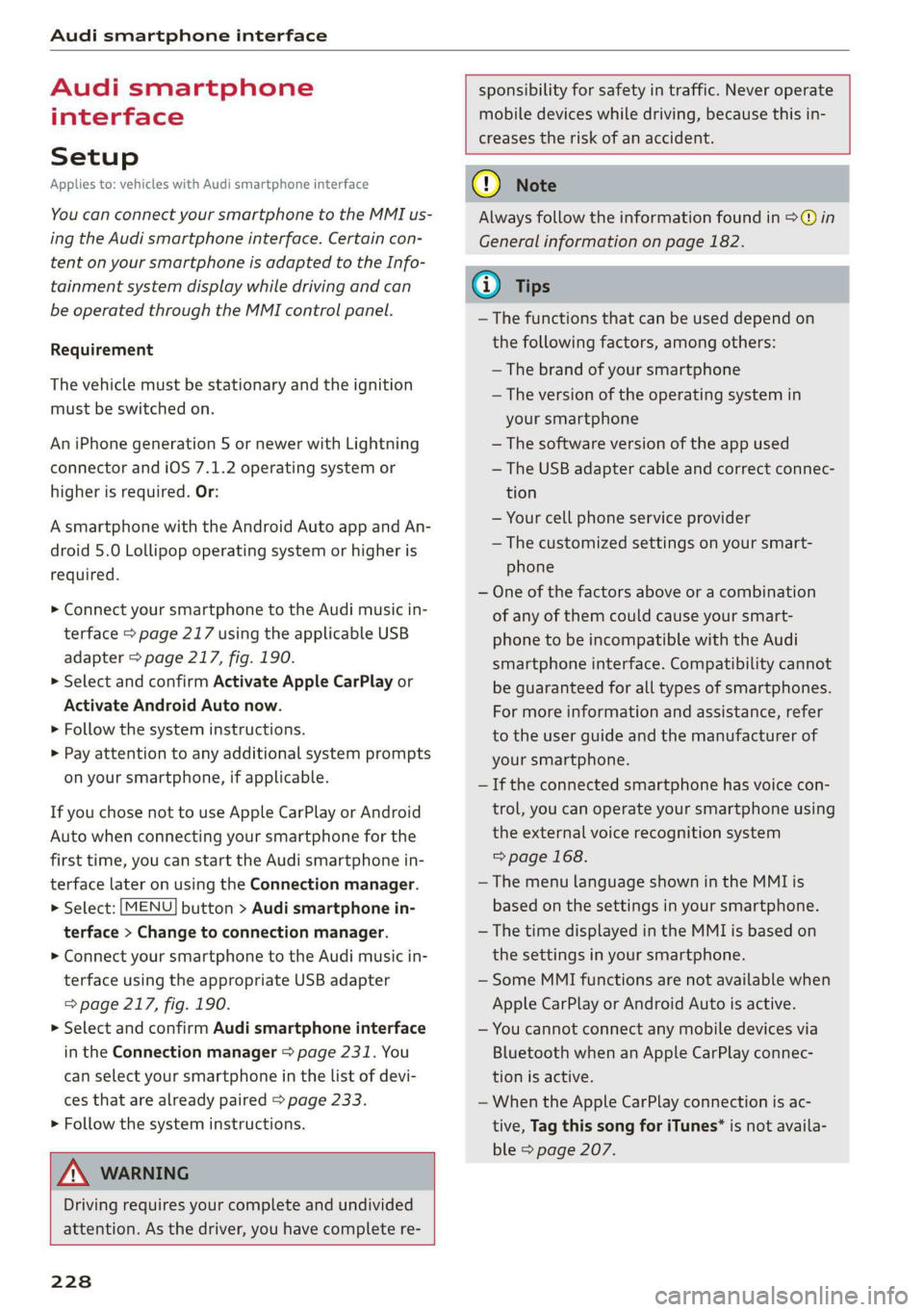
You can connect your smartphone to the MMI us-
ing the Audi smartphone interface. Certain con-
tent on your smartphone is adapted to the Info-
tainment system display while driving and can
be operated through the MMI control panel.
Requirement
The vehicle must be stationary and the ignition
must be switched on.
An iPhone generation 5 or newer with Lightning
connector and iOS 7.1.2 operating system or
higher is required. Or:
A smartphone with the Android Auto app and An-
droid 5.0 Lollipop operating system or higher is
required.
> Connect your smartphone to the Audi music in-
terface > page 217 using the applicable USB
adapter > page 217, fig. 190.
> Select and confirm Activate Apple CarPlay or
Activate Android Auto now.
> Follow the system instructions.
> Pay attention to any additional system prompts
on your smartphone, if applicable.
If you chose not to use Apple CarPlay or Android
Auto when connecting your smartphone for the
first time, you can start the Audi smartphone in-
terface later on using the Connection manager.
> Select: [MENU] button > Audi smartphone in-
terface > Change to connection manager.
> Connect your smartphone to the Audi music in-
terface using the appropriate USB adapter
=> page 217, fig. 190.
>» Select and confirm Audi smartphone interface
in the Connection manager > page 231. You
can select your smartphone in the list of devi-
ces that are already paired > page 233.
> Follow the system instructions.
sponsibility for safety in traffic. Never operate
mobile devices while driving, because this in-
creases the risk of an accident.
Z\ WARNING
Driving requires your complete and undivided
attention. As the driver, you have complete re-
228
C) Note
Always follow the information found in >@ in
General information on page 182.
@) Tips
— The functions that can be used depend on
the following factors, among others:
— The brand of your smartphone
—The version of the operating system in
your smartphone
— The software version of the app used
— The USB adapter cable and correct connec-
tion
— Your cell phone service provider
— The customized settings on your smart-
phone
— One of the factors above or a combination
of any of them could cause your smart-
phone to be incompatible with the Audi
smartphone interface. Compatibility cannot
be guaranteed for all types of smartphones.
For more information and assistance, refer
to the user guide and the manufacturer of
your smartphone.
— If the connected smartphone has voice con-
trol, you can operate your smartphone using
the external voice recognition system
=> page 168.
— The menu language shown in the MMI is
based on the settings in your smartphone.
— The time displayed in the MMI is based on
the settings in your smartphone.
— Some MMI functions are not available when
Apple CarPlay or Android Auto is active.
— You cannot connect any mobile devices via
Bluetooth when an Apple CarPlay connec-
tion is active.
— When the Apple CarPlay connection is ac-
tive, Tag this song for iTunes* is not availa-
ble > page 207.
Page 231 of 400
8V2012721BK
Audi smartphone interface
Operating Android Auto: to go back to the Android Auto
Applies to: vehicles with Audi smartphone interface menu bar, push the control knob down.
Opening a menu Opening a menu item
Apple CarPlay: you can go back to the Apple Car- Select and confirm a menu item using the MMI
Play main menu regardless of the selected menu control panel.
item by pressing and holding the [BACK] button.
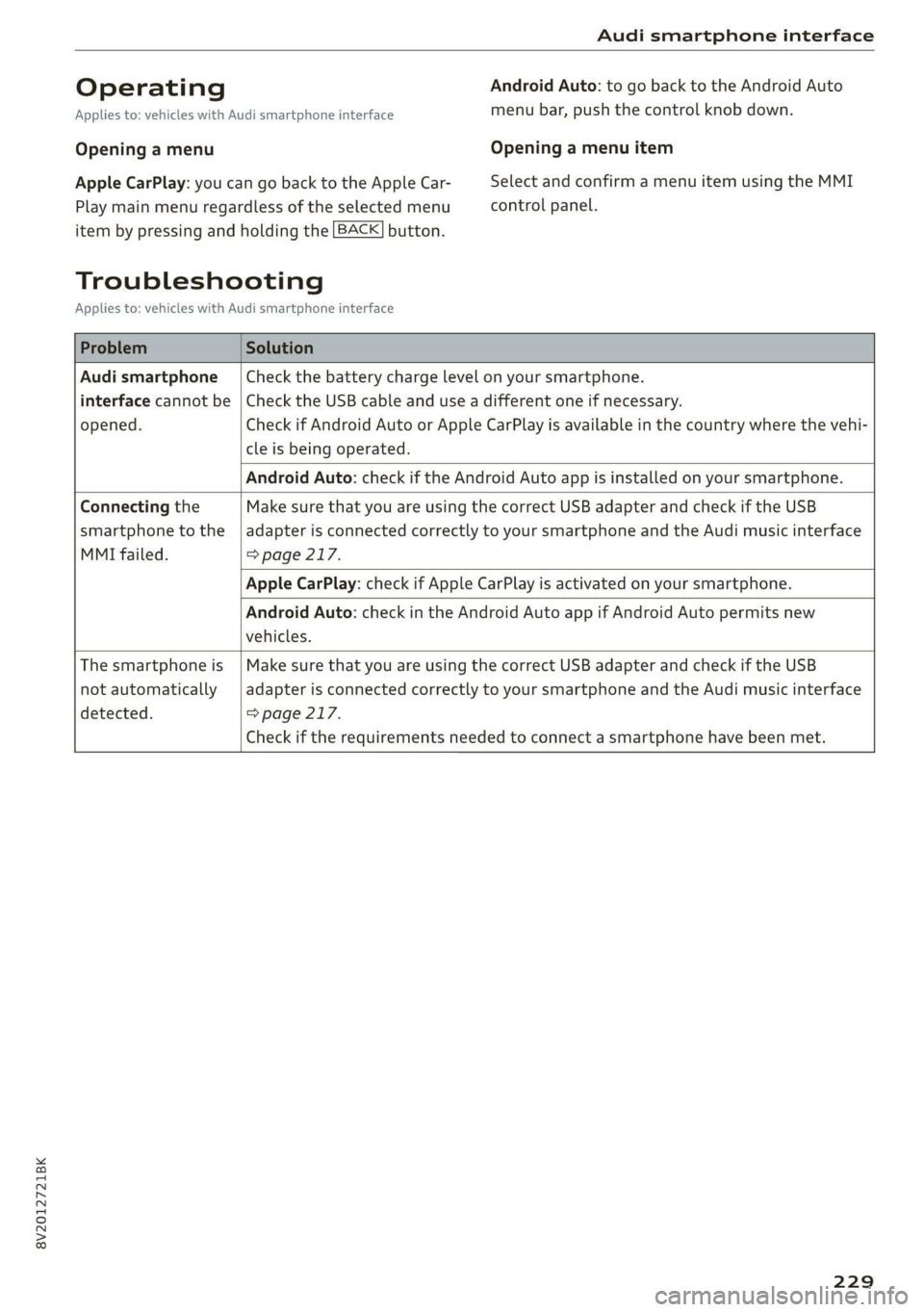
Troubleshooting
Applies to: vehicles with Audi smartphone interface
Problem Solution
Audi smartphone
interface cannot be
opened.
Check the battery charge level on your smartphone.
Check the USB cable and use a different one if necessary.
Check if Android Auto or Apple CarPlay is available in the country where the vehi-
cle is being operated.
Android Auto: check if the Android Auto app is installed on your smartphone.
Connecting the
smartphone to the
MMI failed.
Make sure that you are using the correct USB adapter and check if the USB
adapter is connected correctly to your smartphone and the Audi music interface
=>page 217.
Apple CarPlay: check if Apple CarPlay is activated on your smartphone.
Android Auto: check in the Android Auto app if Android Auto permits new
vehicles.
The smartphone is
not automatically
detected.
Make sure that you are using the correct USB adapter and check if the USB
adapter is connected correctly to your smartphone and the Audi music interface
=> page 217.
Check if the requirements needed to connect a smartphone have been met.
229
Page 232 of 400
![AUDI A3 2020 Owner´s Manual System settings
System settings
Setting the date and
time
You can set the clock time manually or using the
GPS*.
> Select: [MENU] button > Settings > left control
button > MMI settings](/img/6/40265/w960_40265-231.png "AUDI A3 2020 Owner´s Manual System settings
System settings
Setting the date and
time
You can set the clock time manually or using the
GPS*.
> Select: [MENU] button > Settings > left control
button > MMI settings")
System settings
System settings
Setting the date and
time
You can set the clock time manually or using the
GPS*.
> Select: [MENU] button > Settings > left control
button > MMI settings > Date & time, or:
> Select: [MENU] button > Vehicle > left control
button > Vehicle settings > Date & time.
Automatic setting
When this function is switched on ¥, the time
and date are automatically set.
Time
Requirement: the Automatic setting must be
switched off.
Press the control knob. You can set the Time
manually by turning and pressing the control
knob.
Date
Requirement: the Automatic setting must be
switched off.
Press the control knob. You can set the Date
manually by turning and pressing the control
knob.
Time zone
When selecting the appropriate time zone, a
sampling of countries in this zone will be listed.
Automatic time zone*
When this function is switched on ¥, the time
will automatically adjust to the corresponding
time zone.
Automatic daylight saving time*
When this function is switched on M, the time
will automatically switch to daylight saving time.
) The Qi standard makes it possible to charge your mobile
device wirelessly.
230
Time format
If you select 24h, the clock will display, for exam-
ple, 13:00. If you select AM/PM, the clock will
display, for example, 1:00 PM.
Date format
If you select DD.MM.YYYY, the date display will
show, for example, 31.03.2019. If you select
MM/DD/YYYY, the date display will show, for ex-
ample, 03/31/2019. If you select YYYY-MM-DD,
the date display will show, for example,
2019-03-31.
MMI settings
> Select: [MENU] button > Settings > left control
button > MMI settings.
Language
You can change the display language as well as
the language for the voice guidance* and voice
recognition system*.
The number of languages available depends on
the country.
Measurement units
The following measurement units can be set de-
pending on availability: Speed, Distance, Tem-
perature, Fuel consumption, Volume, Pressure.
Mobile device reminder signal
Applies to: vehicles with Audi phone box
Requirement: your cell phone must be Qi-capa-
ble ) or connected to the Audi music interface @
with a USB adapter cable > page 171, fig. 162.
When the device reminder signal is switched on,
you will be notified that your mobile device is still
in the Audi phone box when you leave the vehicle.
You can select between Spoken cue, Signal tone
and Off.
Mobile device reminder signal volume: you can
adjust the reminder signal volume by turning the
control knob.
Page 233 of 400

8V2012721BK
System settings
Switch off pop-up: when the function is switched
on [M, the messages in the Infotainment system
display regarding the charging status of your cell
phone in the Audi phone box are hidden. The re-
minder not to forget your cell phone when leav-
ing the vehicle is also switched off.
Tool tips
When this function is switched on M, your MMI
shows you tips for input. The frequency of how
often it displays decreases with time.
Speech dialog system
Applies to: vehicles with voice recognition system
Depending on vehicle equipment, the following
functions
may be available:
Command display: when this function is switch-
ed on [M, the MMI will show you the possible
commands for voice input in the respective
menu.
Short dialog: when this function is switched on
, a shorter form of the prompts is used.
Command during voice output: this function is
switched on at the factory. When this function is
switched on M, you can say new commands dur-
ing announcements. You do not need to wait for
the signal tone (beep) during an announcement.
When the function is switched off (J, you need to
wait for the signal tone (beep) to say a new com-
mand.
Volume: you can adjust the volume of the
prompts by turning the control knob.
Individual speech training (only when the vehi-
cle is stationary): you can adapt the voice recog-
nition system to your voice or pronunciation in or-
der to improve the system's ability to recognize
your speech. Individual speech training is com-
prised of 20 speech entries that consist of com-
mands and sequences of numbers. You can de-
lete the programmed voice training with the Re-
set individual speech training function.
Display brightness
You can adjust the brightness of the Infotain-
ment system display by turning the control knob.
Factory settings
Depending on the vehicle equipment, the follow-
ing functions can be reset to factory settings:
— Sound settings
— Radio
— Media settings
— Jukebox
— Directory
— Telephone
— Bluetooth and Wi-Fi
— Navigation settings
— Navigation and online memory
— Speech dialog system
— Message settings
— Apps
—Tool tips
— Audi connect
— Audi smartphone interface
You can select the desired functions individually
or all at once with the option Select all entries.
Select and confirm Restore factory settings.
@ Tips
Make sure that not only the settings were de-
leted but also the stored data, if necessary.
Connection manager
Introduction
The connection manager provides an overview of
your connected devices and their network status:
> Select: [MENU] button > Settings > left control
button > MMI settings > Connection manager.
> Select and confirm a menu item.
If a mobile device was already connected and you
select
and confirm the corresponding menu item,
the device name and connection status are dis-
played under the menu item.
You can individually connect () or disconnect
(L)) a paired device.
Requirement: the vehicle must be stationary and
the ignition must be switched on. The Bluetooth
settings will open on your mobile device during
the connection setup. The Bluetooth function and >
231
Page 234 of 400
System settings
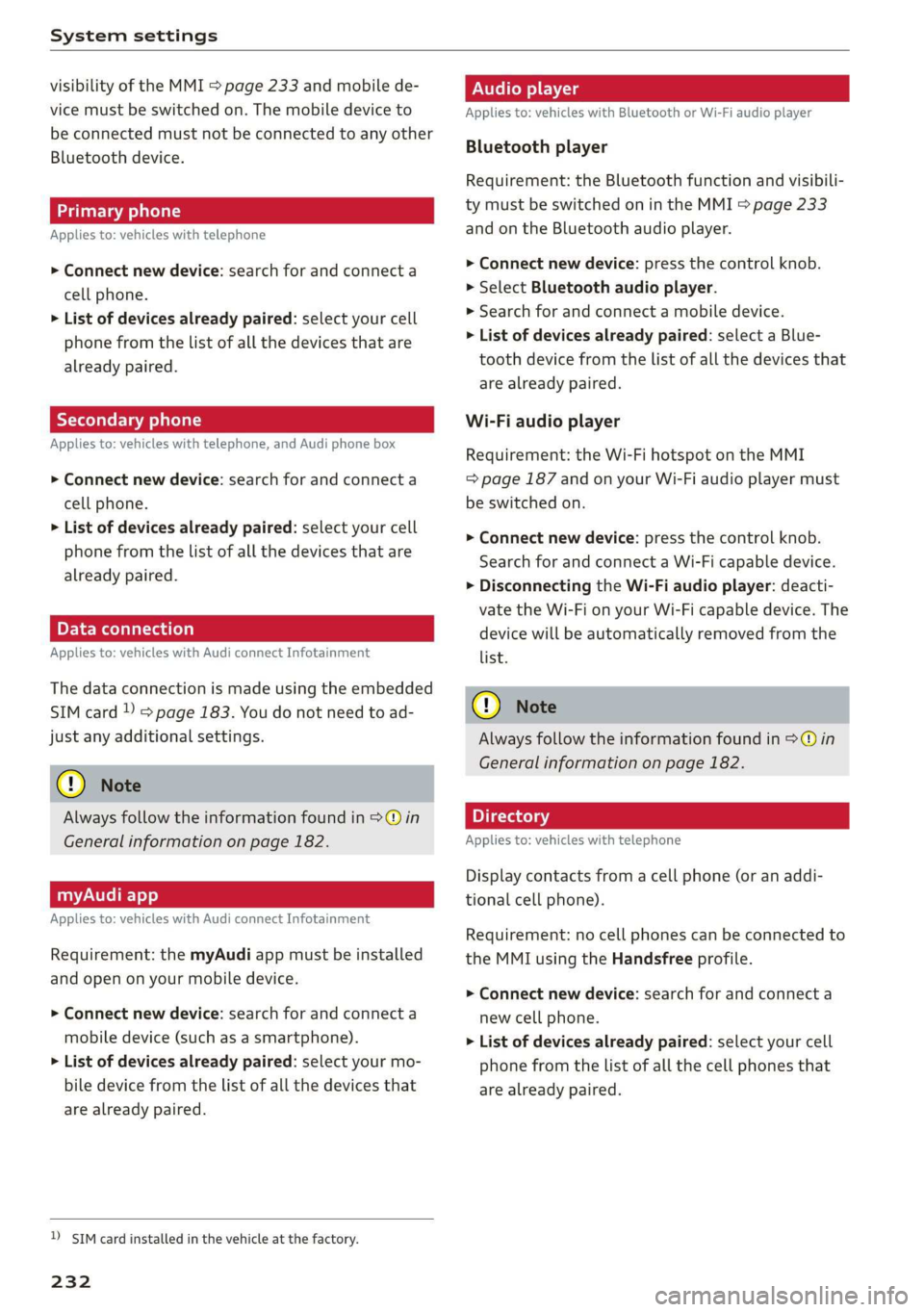
visibility of the MMI > page 233 and mobile de-
vice must be switched on. The mobile device to
be connected must not be connected to any other
Bluetooth device.
aeluatleva daeyit
Applies to: vehicles with telephone
> Connect new device: search for and connect a
cell phone.
> List of devices already paired: select your cell
phone from the list of all the devices that are
already paired.
Toate Tava en
Applies to: vehicles with telephone, and Audi phone box
> Connect new device: search for and connect a
cell phone.
> List of devices already paired: select your cell
phone from the list of all the devices that are
already paired.
PELE Mel a-Vaaleya)
Applies to: vehicles with Audi connect Infotainment
The data connection is made using the embedded
SIM card ) > page 183. You do not need to ad-
just any additional settings.
@) Note
Always follow the information found in 9@ in
General information on page 182.
myAudi app
Applies to: vehicles with Audi connect Infotainment
Requirement: the myAudi app must be installed
and open on your mobile device.
> Connect new device: search for and connect a
mobile device (such as a smartphone).
> List of devices already paired: select your mo-
bile device from the list of all the devices that
are already paired.
D_ SIM card installed in the vehicle at the factory.
232
Audio player
Applies to: vehicles with Bluetooth or Wi-Fi audio player
Bluetooth player
Requirement: the Bluetooth function and visibili-
ty must be switched on in the MMI > page 233
and on the Bluetooth audio player.
> Connect new device: press the control knob.
> Select Bluetooth audio player.
» Search for and connect a mobile device.
> List of devices already paired: select a Blue-
tooth device from the list of all the devices that
are already paired.
Wi-Fi audio player
Requirement: the Wi-Fi hotspot on the MMI
=> page 187 and on your Wi-Fi audio player must
be switched on.
> Connect new device: press the control knob.
Search for and connect a Wi-Fi capable device.
> Disconnecting the Wi-Fi audio player: deacti-
vate the Wi-Fi on your Wi-Fi capable device. The
device will be automatically removed from the
list.
() Note
Always follow the information found in S@ in
General information on page 182.
Applies to: vehicles with telephone
Display contacts from a cell phone (or an addi-
tional cell phone).
Requirement: no cell phones can be connected to
the MMI using the Handsfree profile.
> Connect new device: search for and connect a
new cell phone.
> List of devices already paired: select your cell
phone from the list of all the cell phones that
are already paired.
Page 235 of 400
8V2012721BK
System settings
Audi smartphone interface
Applies to: vehicles with Audi smartphone interface
> Connect your cell phone to the Audi music in-
terface > page 217 using a USB adapter
=> page 217, fig. 190.
> Select your cell phone from the list of cell
phones that have already been connected.
Additional options
Depending on the selected function, you can use
the right control button to access the available
additional options in the connection manager.
Delete Bluetooth device*
The selected cell phone/mobile device is discon-
nected from the MMI and is removed from the
list of all devices that are already paired.
Show Bluetooth profiles*
You can individually Connect or Disconnect the
Handsfree, Messages*, Directory/contacts and
Bluetooth audio player profiles.
Bluetooth settings*
— Bluetooth: select and confirm a setting for the
Bluetooth connection visibility. Select Visible
for the MMI to be visible to other devices. Se-
lect Invisible for the MMI to not be visible to
other devices. However, it is still possible to es-
tablish a Bluetooth connection with paired de-
vices when the visibility is switched off. Select
Off to turn visibility off. Then a Bluetooth con-
nection is not possible.
— Bluetooth audio player: when this function is
switched on [M, the Bluetooth audio player is
available as a source in the Media menu.
— Bluetooth name: the MMI Bluetooth name (for
example "AUDI MMI") is displayed and can be
changed.
Online settings*
— Data usage counter: the amount of data pack-
ets that are sent and received through the MMI
is displayed. You can reset the data usage infor-
mation to zero using the Reset data counter
option.
— Network status: the mobile network provider
for data service as well as the network status
are displayed.
Wi-Fi settings*
See > page 187.
Storing as a default telephone
Applies to: vehicles with telephone
Requirement: a mobile device must be connected
to the MMI > page 169.
When the mobile device is in range and the Blue-
tooth function on the mobile device and in the
MML is switched on, this mobile device will be
given priority over the other Bluetooth devices
and will be connected directly to the MMI. The
connected mobile device is displayed first in the
device list.
Network settings*
— Login: you can chose an Automatic login to
your cell phone service provider's network, or
you can choose a Manual login from the list of
available networks.
— Network selection: available networks in the
present location can be selected under network
selection. This function is only available for the
Manual login setting.
Apple CarPlay sound settings/Android Auto
sound settings
Applies to: vehicles with Audi smartphone interface
See > page 234.
About Apple CarPlay/About Android Auto
Applies to: vehicles with Audi smartphone interface
Here you will find legal information regarding the
use of Apple CarPlay or Android Auto and infor-
mation about device-specific data exchange.
Delete Apple CarPlay device/Delete Android
Auto device
Applies to: vehicles with Audi smartphone interface
Requirement: your cell phone must not be con-
nected to the Audi music interface with a USB
adapter.
Select: Audi smartphone interface > a device
from the list > right control button.
233
Page 237 of 400

8V2012721BK
System settings
police and fire sirens, can be heard easily at all
times.
@) Tips
The volume is automatically adjusted to a pre-
set level when the MMI is switched on.
Adjusting the system volume
> Select: [MENU] button > Sound > left control
button.
Telephone
Applies to: vehicles with telephone
Mute telephone: messages and ringtones are set
to mute.
Ringtone: see > page 180, Ringtone and volume
settings.
Ringtone volume: you can adjust the volume of
the selected ringtone by turning the control
knob.
Message volume: you can adjust the volume of
the notification for an incoming text message by
turning the control knob.
Microphone input level: you can adjust the call
volume during a phone call by turning the control
knob.
Navigation
Applies to: vehicles with navigation system
Voice guidance: see > page 198.
Voice guidance during phone call: see
=> page 198.
Voice guidance volume: you can adjust the voice
guidance volume by turning the control knob or
you can adjust it while route guidance is active by
turning the On/Off knob.
Entertainment fader: the volume of audio play-
back can be temporarily lowered when the park-
ing system or voice guidance is active.
Voice recognition system
Applies to: vehicles with voice recognition system
Command display: see > page 231.
Short dialog: see > page 231.
Speech dialog system volume: see > page 231.
Individual speech training: see > page 231.
Parking aid*
You can adjust the volume of the signal tone by
turning the control knob.
— Adjusting the Front volume: select and con-
firm High, Medium or Low.
— Adjusting the Rear volume: select and confirm
High, Medium or Low.
MMI touch*
Turn the control knob to adjust the volume of the
spoken prompts from the MMI touch*.
Restarting the MMI
wv
RAH-8611
= 5
Fig. 197 MMI control panel: button combination for re-
start
> Briefly press the control knob and both buttons
at the same time to immediately open the
menu upward > fig. 197.
Software License
information
Information on MMI software and licensing
agreements
> Select: [MENU] button > Settings > left control
button > System maintenance > Version infor-
mation, or:
> online at www.audi.com/softwareinfo.
235
Page 239 of 400
8V2012721BK
Driving safety
Driving safety
Basics
SER Nails mali
Please remember - safety first!
The individual safety features of your vehicle can
work together as a system to help protect you
and
your passengers in a wide range of accidents.
These features cannot work as a system if they
are not always correctly adjusted and correctly
used.
This chapter contains important information,
tips, instructions and warnings that you need to
read and observe for your own safety, the safety
of your passengers and others. We have summar-
ized here what you need to know about safety
belts, airbags, child restraints as well as child
safety. Your safety is for us priority number 1. Al-
ways observe the information and warnings in
this section - for your own safety as well as that
of your passengers.
The information in this section applies to all
model versions of your vehicle. Some of the fea-
tures described in this sections may be standard
equipment on some models, or may be optional
equipment on others. If you are not sure, ask
your authorized Audi dealer.
ZA WARNING
— Always make sure that you follow the in-
structions and heed the WARNINGS in this
Manual. It is in your interest and in the in-
terest of your passengers.
— Always keep the complete Owner's Litera-
ture in your Audi when you lend or sell your
vehicle so that this important information
will always be available to the driver and
passengers.
— Always keep the Owner's literature handy so
that you can find it easily if you have ques-
tions.
Important things to do before driving
Safety is everybody's job! Vehicle and occupant
safety always depends on the informed and care-
ful driver.
For
your safety and the safety of your passen-
gers, before driving always:
> Make sure that all lights and signals are operat-
ing correctly.
> Make sure that the tire pressure is correct.
> Make sure that all windows are clean and afford
good visibility to the outside.
> Secure all luggage and other items carefully
= page 60, > page 60.
> Make sure that nothing can interfere with the
pedals.
> Adjust front seat, head restraint and mirrors
correctly for your height.
> Instruct passengers to adjust the head re-
straints according to their height.
> Make sure to use the right child restraint cor-
rectly to protect children > page 278, Child
safety.
» Sit properly in your seat and make sure that
your passengers do the same > page 54, Front
seats.
> Fasten your safety belt and wear it properly. Al-
so instruct your passengers to fasten their safe-
ty belts properly > page 245.
What impairs driving safety?
Safe driving is directly related to the condition of
the vehicle, the driver as well as the driver’s abili-
ty to concentrate on the road without being dis-
tracted.
The driver is responsible for the safety of the ve-
hicle and all of its occupants. If your ability to
drive is impaired, safety risks for everybody in the
vehicle increase and you also become a hazard to
everyone else on the road > /\. Therefore:
> Do not let yourself be distracted by passengers
or by using a cellular telephone.
> NEVER drive when your driving ability is im-
paired (by medications, alcohol, drugs, etc.).
> Observe all traffic laws, rules of the road and
speed limits and plain common sense.
237
Page 260 of 400
Airbag system
— Never hold the steering wheel at the 12
o'clock position or with your hands any-
where inside the steering wheel or on the
steering wheel hub. Holding the steering
wheel the wrong way increases the risk of
severe injury to the arms, hands, and head if
the driver airbag deploys.
ZA\ WARNING
Objects between you and the airbag will in-
crease the risk of injury in a crash by interfer-
ing with the way the airbag unfolds and/or by
being pushed into you as the airbag inflates.
— Always make sure nothing is in the front air-
bag deployment zone that could be struck
by the airbag when it inflates.
— Objects in the zone of a deploying airbag can
become projectiles when the airbag deploys
and cause serious personal injury.
— Never hold things in your hands or on your
lap when the vehicle is in use.
— Never place accessories or other objects
(such as cup holders, telephone brackets,
note pads, navigation systems, or things
that are large, heavy, or bulky) on the doors;
never attach them to the doors or the wind-
shield; never place them over or near or at-
tach them to the area marked ,, AIRBAG“ on
the steering wheel, instrument panel or the
seat backrests; never place them between
these areas and you or any other person in
the vehicle.
— Never attach objects to the windshield
above the passenger front airbag, such as
accessory GPS navigation units or music
players. Such objects could cause serious in-
jury in a collision, especially when the air-
bags inflate.
— Never recline the front passenger seat to
transport objects. Items can also move into
the deployment area of the side airbags or
the front airbag during breaking or in a sud-
den maneuver. Objects near the airbags can
fly dangerously through the passenger com-
partment and cause injury, particularly
when the seat is reclined and the airbags in-
flate.
258
Z\ WARNING
A person on the front passenger seat, espe-
cially infants and small children, will receive
serious injuries and can even be killed by be-
ing too close to the airbag when it inflates.
— Although the Advanced Airbag System in
your vehicle is designed to turn off the front
passenger airbag if an infant or a small child
is on the front passenger seat, nobody can
absolutely guarantee that deployment un-
der these special conditions is impossible in
all conceivable situations that may happen
during the useful life of your vehicle.
— The Advanced Airbag System can deploy in
accordance with the ,,low risk“ option for 3-
and 6-year-old children under the U.S. Fed-
eral Standard if a child with electrical capac-
itance greater than the combined capaci-
tance of a typical one-year old infant re-
strained in one of the forward facing or rear-
ward-facing child seats with which your ve-
hicle was certified is on the front passenger
seat and the other conditions for airbag de-
ployment are met.
— Accident statistics have shown that children
are generally safer in the rear seat area than
in the front seating position.
— For their own safety, all children, especially
12 years and younger, should always ride in
the back properly restrained for their age
and
size.
Advanced front airbag system
Your vehicle is equipped with a front Advanced
Airbag System in compliance with United States
Federal Motor Vehicle Safety Standard 208, as
well as Canada Motor Vehicle Safety Standard
(CMVSS) 208 as applicable at the time your vehi-
cle was manufactured.
The front Advanced Airbag System supplements
the safety belts to provide additional protection
for the driver's and front passenger's heads and
upper bodies in frontal crashes. The airbags in-
flate only in frontal impacts when the vehicle de-
celeration is high enough.