wheel AUDI A3 SEDAN 2017 User Guide
[x] Cancel search | Manufacturer: AUDI, Model Year: 2017, Model line: A3 SEDAN, Model: AUDI A3 SEDAN 2017Pages: 400, PDF Size: 67.32 MB
Page 21 of 400
CXl CXl .... N ,.__
N .... 0 N > 00
Opening the vehicle functions
"'Open the first Vehicle tab (trip computer) using
the
l<1 t> I button on the multifunction steering
whee l.
"' Press the l11ID I button on the multifunction steer
ing wheel and select
Vehicle functions or Effi
c iency program in the menu.
The following displays are available, depending
on vehicle equipment:
- T rip computer
O fl o page 19
- E fficiency program ii opage 19
-Digital speedometer
- Ass ist
o page 123
- Lap timer opage 125
-Reduced display
Trip computer
In the trip computer, you can call up the follow
ing displays one after the other by turning the
l eft th umbwhee l on the mu ltifunction steering
wheel.
- Date
o page 241
-Remaining range
- Plug- in hybrid drive*: Tachometer
o page 97,
Range o page 99, Energy flow display
o page 102
-Short-term memory 0
-Average consumpt ion
- Long-term memory
fl
-Engine oil temperature*
The short -term memory collects driving informa
tion from the time the ignition is switched on un
til it is switched off . If you continue driving with
in two hours after switching the ignition off, the
new values are included when calculat ing the cur
rent tr ip informat ion.
Unlike the short-term memory, the long-term
memory is not erased automat ica lly. You can se
lect the time period for evaluat ing trip informa
tion yourself .
Efficiency program ii
Applies to: vehicles with efficiency program
The efficiency program can help you to use less
fuel.
It evaluates driving information in reference
Cockpit overview
to fuel consumption and shows other equipment
influencing consumption. Economy tips provide
advice for efficient driving.
T he eff iciency program receives distance and con
sumption data from the short -term memory. If
the data in the efficiency program is deleted, the
val ues in the short-term memory are a lso reset.
T he following additional displays may be availa
ble in the eff ic iency p rogram , depending on vehi
cle equipment :
-Other equipment : other equipm ent that is cur
rently affecting fu el consumption is listed in
the efficiency program . The display shows up to
three other equipment items. The equipment
using the most power is listed first. If more
than three items using power are sw itched on,
the equipment that is currently using the most
power is displayed . A chart also shows you the
current total of all other consume rs .
- Economy tips : in certain s ituations, economy
tips appear automatically for a short time in
the efficiency program.
If you follow these
economy tips, you can reduce your vehicle's fuel
consumption. To turn an economy message off
immed iate ly after it appears, p ress any button
on the multifunction steer ing whee l.
(D Tips
The date, time of day and time and date for
mat can be set in the Infotainment system
~ page 241.
Radio
Requirement: radio mode must be started
o page 217 and the radio/media tab must be
displayed.
.. Press either the i][]button o r the left contro l
button
o page 14, depending on vehicle equip
ment.
Depending on vehicle equipment, the following
functions may be available in the driver informa
t ion system.
- Selecting the frequency band: select and con-
firm a frequency band.
..,_
19
Page 22 of 400
Cockpit overview
-Selecting a station from the presets li st* : se
l ect :
Presets > the desired radio station.
-Selecting a station from the station list* : se
l ect and co nfirm a radio station.
-Selecting a station from the favorites list : se
lect :
Preset s> the desired radio station.
-Opening a media source : select an d co nfirm
Switch to media .
Additional settings
Applies to: vehicles with Aud i v irtual cockp it
-Se lect: rig ht contro l bu tton > desired entry .
Depending on the function selected, the follow
i n g addit io nal settings may be poss ible:
-Show "Now Playing " screen : see c:!) page 221.
Media
Requir ement: a media dr ive m ust conta in a udio/
video fi les
¢ page 223 and the radio/media tab
m ust be displayed .
~ Press either the @lbutton or the left cont rol
button ¢ page 14, depend ing on ve hicle eq uip
ment .
Depending on vehicle equipment, the following
f u nctions may be availab le in the d river in fo rma
tion system.
-Selecting a media source : select and confi rm a
source such as the
"SO car d".
-Playing an audio/video file : selec t and conf irm
a track/file.
-Pau sing/resuming playback: p ress the r ight
th umbwheel @¢page 15, fig . 11. To resume
p layback, p ress the r ight thum bw heel again.
-Restarting playback of an audio file : select the
file that is currently playing, if necessary . Press
the left th umbwhee l.
Applies to: vehicles with analog instrument cluster
-Switching to radio: select and confirm a fre
quen cy band (such as
FM ).
App lies to: vehicles with Aud i v irtual cockp it
-Switching to the radio : select and confirm
Switch to radio .
-Opening additional track information: select:
rig ht cont ro l button
> Show "Now Playing"
20
screen . Fo r additiona l informa tion, see
¢ page 233.
(D Tips
-Th e me dia dr ives d o no t pla y files that a re
protec te d by ORM and that are i dent ified
with the symbol
1'.D .
-Ple ase note th at within a medi a source in
t h e drive r informat io n system, only p lay lists
t h at were selected thro ugh the MMI control
p ane l can be
p layed <=> page 231 .
-Al wa ys pay attent io n to the I nfot ainme nt
system display. Addi tional ope ration
throug h the MMI control pane l may be nec
essary, depending on the se lected function.
Telephone
Applies to: vehicles with telephone
Requireme nt: a cell phone must be connected to
t he M MI
<=> page 177 and the te lep hon e tab
mus t be displ ayed .
~ Press either the @lbutton or the left control
but ton
<=> p ag e l4, dep en ding on vehicle equip
m ent .
Depend ing on veh icle equipment , the following
funct io ns may be ava ila ble in the dr ive r informa
t ion sys tem .
-Accessing a contact : select and con firm Call
list / Favorites / Directory .
Select and confirm
a contact.
-Directory contacts : the driver information sys
tem only d isplays d irecto ry contacts that have a
phone number sto red. If s eve ral ph one num
bers a re stored wi th a con tact , the list of sto re d
numb ers is dis play ed first w he n the e ntry is se
le cted. For more inform ation a bout the dis
pl aye d sy mbols , refe r to
<=> page 185.
-Recent calls : the recen t ca lls list contains a ll in
c oming, outg oi ng and mis se d ca lls.
-Caller information *: the name, pho ne numb er
or Unknown ap pea rs in t he dr iver in form ation
syste m displ ay depe nding on whe ther the calle r
h as bee n sto red in t he di rec tory an d if th e
phone number has bee n transmitted.
Functions during an incoming call II>-
Page 23 of 400
CXl CXl .... N ,.__
N .... 0 N > 00
-Accepting a call : press the left thumbwheel
when there is an incoming ca ll.
-D eclining a call: select and confirm Declin e
when there is an incoming call.
-Ending a phone call : select and confi rm End
call .
Funct ion s du ring a phon e ca ll
Applies to: ve hicles with analog instrument clus ter
-Making an addition al call : select Hold > ~
button > Directo ry or C all list > an entry in the
list.
- Ac cepting an incom ing call when there is an
act ive call and a call on hold :
select and con
firm
Replace . The active call is replaced with
the incoming call.
Applies to: vehicles with Audi virtual cockpit
-Making an additional call : selec t: Hold call >
le ft control b utton > Director y or Call list > an
entry .
-Acc epting an inc oming call when there i s an
acti ve call and a call on hold :
select and con
firm
An sw er. The active call is replaced with the
incoming call.
Addit ional functions incl ude:
Mute : if you se lect and co nfirm this function , the
o ther pe rson on the phone cannot hear yo u. You
can hea r the other person.
Holding or r esumin g a call : you can put an ex ist
i ng phone call o n hold and resume it .
S w ap call : you can alternate between two phone
calls at the same time . One of the calls w ill be on
hold.
End call ends the active phone call. A call
that was placed on hold stays on ho ld a nd can be
taken off hold with
Re sume .
Confe rence call :
a call on hold and up to five ac
tive parties (depending on the cell phone service p rovider) can be added to a conference ca ll. To
make an addit ional call, put all pa rti ci pants in
the curren t confe rence ca ll on ho ld using
Hold .
By pressing the left contro l button, yo u can make
additional calls from the directory or the call list.
Re sume takes all parties off ho ld .
Coc kpit o ve rv iew
{!) Tips
-The telephone functions can on ly be con
trolled with the multif unction steering
wheel if the telephone equipment was in
stalled
at the factory.
- The telephone functions depend on the cell phone and whether they are supported by
your cell phone service provider or not.
- The
Call waiting function must be act ivated
in your cell phone and in the MMI to be
alerted when there is an incoming call dur
ing an act ive call. The call options depend
on the cell phone and se rvice provide r. You
can obta in mo re information from your cell
phone serv ice provider.
Navigation
Applies to: vehicles wi th naviga tion system
Requirement: the navigation tab must be dis
played.
If you have not star ted rou te guidance, a com
pass will disp lay in the drive r information sys
tem. The map is displayed in the Audi v irtual
cockpit *.
.,. Press eithe r the ~ button o r the left contro l
but ton
q page 14, depending on vehicle equip
ment .
Depend ing on veh icle equ ipment, the followi ng
funct ions may be ava ilable i n the dr iver informa
t ion system.
-A ccessing last d estinations : select and confirm
Last destinations > the desired destination.
-Accessing favorites ": select and confirm F av or
ite s>
the desired destination.
Applies to: vehicles with analog instru men t cluster
-Showing na vigation when route guidance is
a cti ve :
select and confirm Route gu idance .
-Showing compas s when route guidance is not
a ctive:
select and confirm Compass .
- Starting route guidance to the stored home
add re ss :
if necessary, first select and confirm
Stop route guidance and then Fav orite s >
Home a ddre ss .
- Canceling act ive route guidan ce :
se lect and
confirm
Stop route guidance .
21
Page 25 of 400
a, a, ..... N
" N .... 0 N > 00
of the street name, you should turn onto the
street shown .
® Direction arrow for the upcoming maneuver
@ La ne recommendat ion
(J) A bar graph appears when a direction arrow
is displayed. The fewer bars are shown, the
shorter the distance is until the turn .
The fo llowing functions are also available when
route guidance is active:
- Repeating the last navigation prompt: press
the~ button.
-Changing the voice guidance volume : turn the
right thumbwheel up or down during voice
guidance.
A WARNING
The route calc ulated by the navigation system
is a recommendation for reaching your desti
nation. Obey traffic lights, stopping restric
tions, one-way streets, lane change restr ic
tions, etc.
{!) Tips
-Also refer to the chapter ¢ page 8, Controls
at a glance
- An exclamation point" !" in front of the
street name indicates that the informat ion
about this street or this section of the route
i s not complete in the navigation data con
tained in the MMI. Obey traffic laws in one
way streets and pedestrian zones.
On Board Diagnostic
System (OBD)
Malfunction indicator lamp (MIL)
The malfunction indicator lamp (MIL) ¢4 in the
in strument cluster is part of the On Board Diag
n ostic System (080 II).
The indicator light turns on when the ign ition is
switched on and turns off once the engine is
started and is running in idle at a stab le speed.
This indicates that the MIL is functioning correct
l y .
Cockpit overview
If the light does not turn off after starting the
engine
or turns on while driving, this may indi
cate there is a malfunction in the engine.
If the
indicator turns on, the cata lytic converter may be
damaged .
Drive
with reduced engine performance (avoid
high speeds for extended periods of time and/or
fast acceleration) and have the malfunction cor
rected . See an authorized Audi dealer or author
ized Audi Service Facility.
The electronic speed limiter may be fau lty if the
indicator light turns on. For additional informa
tion, see
Q page 23 .
The MIL may also turn on if the fuel filler cap is
not closed correctly
Q page 314.
On-Board Diagnostics
Fig. 19 Locat ion of Data Link Co nnector (D LC)
On-Boa rd Diagnostics monitors the components
of your emission control system . Each monitored
component in your engine system has been as
signed a code. In case of a malfunction, the com ponent will be identified and the fault stored as a
code in the control module memory .
The MIL light may also illuminate if there is a
leak in the on-board fuel vapor recovery system.
If the light illuminates after a refuelling, stop
the vehicle and make sure the fuel filler cap is properly closed
¢ page 314.
In order to make an accurate diagnosis, the stor
ed data can only be displayed using special diag
nostic equipment (generic scan tool for 080) .
In order to connect the special diagnostic equip
ment, push the plug into the Data Link
Connector .,.
23
Page 26 of 400
Cockpit over view
(D LC). The DLC is located to the rig ht o f the hood
release
¢ fig. 19 .
Your author ized Audi dealer or a qualified service
s ta tion can interpret the code and perform the
necessary repair.
A WARNING
Do not use the diagnostic connector for per
sonal use. Incorrect usage can cause malfunc
tions, which can increase the risk of a colli
sion!
Indicator Lights
Description
The indica to r lights in the inst rument cluste r
blink or t urn on. They indicate funct ions or ma l
functions .
-
Messages may appea r wi th some indi cato r lights.
A wa rning signal w ill so und at the same time.
The indicator ligh ts and messages in the instru
ment cluster display can be covered by other dis
p lays. Yo u can have these displayed again in the
drive r information system by opening the second
Veh icle tab (messages) using the
l <1 ~ I button on
the multifunction steering wheel. If there are
several malfunctions, you can d isplay them one
at a time us ing the thumbwhee l.
Some ind icator lights in the display can display in
several colors .
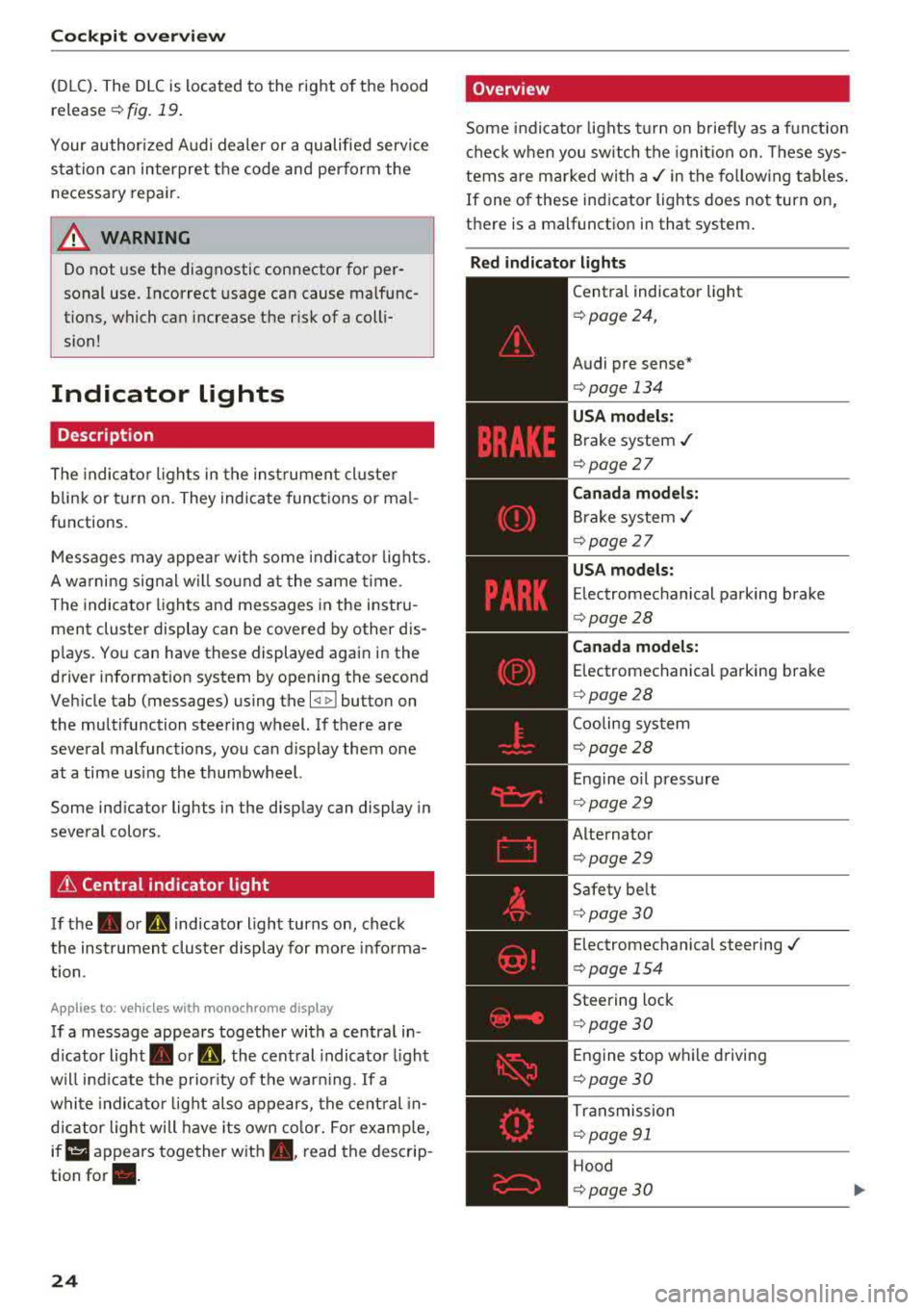
& Central indicator light
If the. or mi indicator light turns on, check
the instrument cluster display for more info rma
tion .
App lies to: ve hicles w ith monochro me display
If a message appears together with a central in
d icator light . or
Q. the central indicato r ligh t
will ind icate the prior ity of t he war ning . If a
whi te indicato r light also appears, the cent ral in
d ica tor light will have its own co lor. For e xamp le,
ir ii :ippears together w ith . , read the descrip
tion
for •.
24
'Overview
Some indicator lights t urn on b riefly as a f unction
c h eck when you switch the ignition on. These sys
tems are marked wi th
a ,/ in the fo llow ing tab les .
If one of these indicator lights does not turn on,
there is a malfunctio n in that system .
Red indicator light s
--------------
Central indicator light
¢ page 24,
Audi pre sense *
¢page 134
USA model s:
Brake system ./
¢ page 27
Canada models:
Brake system ,/
¢page 27
USA models:
Electromechanical parking brake
¢ page28
Canada model s:
E lectromechanical parking brake
¢ page28
Coo ling system
¢ page28
Engine o il press ure
¢ page29
Alternator
¢page29
Safety be lt
¢ page30
Electromechanical steering ./
¢ page 154
Steering lock
¢page 30
Engine stop w hile driving
¢ page 30
Tr ansmission
¢ page 91
Hood
¢page30
Page 50 of 400
Power top
-Be careful when installing so you do not
pinch your fingers.
-Pay attention to the traffic when insta lling
the wind def lector. Install the w ind deflec
tor from the s ide of the vehicle that is away
from traffic.
(D Note
Do not lean against the veh icle when insta l
ling the wind deflector. Hard objects and dec
orations on clothing such as belt buckles can
scratch the pa int.
{!) Tips
-The wind deflector works best when a ll of
the w indows are rolled up wh ile driving.
- Only store the wind deflector in the storage
bag * when it is dry.
Power top emergency
operation
General information
A pp lies to: ve hicles w ith power top
The power top can be closed manually if there is
a malfunction .
.,. Set the parking brake.
.,. Open all windows.
,.. Switch the ignition of f .
.,. Pu ll the button @ for approximately 10 to
15 seconds to reduce the pressure in the power
top hydraulics
r::;, page 44, fig. 35.
Only close the power top manua lly in an emer
gency . Have a second person assist . Drive to an
authorized Audi dealer or author ized Audi Service
Facility immediately to have the malfunction cor
rected.
A WARNING
-There is a r isk of pinching the hands or othe r
people during all of the powe r top emergen
cy operat ion steps.
-Ma ke sure a ll windows a re lowered d uring
emergency operation.
48
-Do not reach into the power top supports
or other mov ing components.
-Never drive when the power top is not
locked correct ly. The wind from driving
could cause the power top to open. This can
result in injur ies and damage to the vehicle.
{!) Tips
The power top storage compartment cover is
not latched after the emergency operation is
complete. Dr ive to an authorized Audi dealer
or authorized Audi Service Facility immediate ly to have the malfu nction corrected.
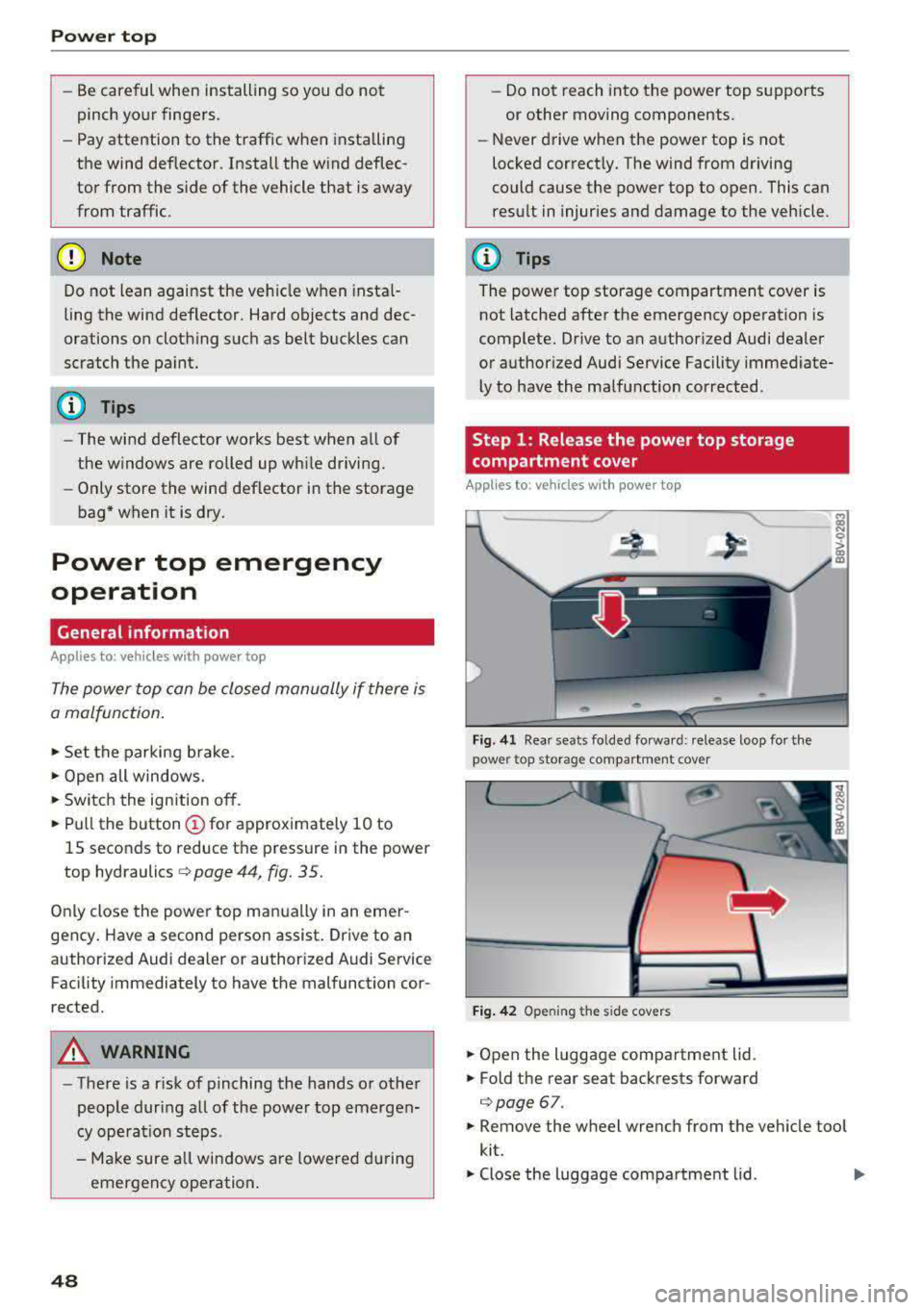
Step 1: Release the power top storage
compartment cover
App lies to: vehicles wi th power top
Fig. 41 Rear seats fo lded fo rward: release loop fo r the
power top storage compartment cover
Fig. 4 2 Opening the side covers
.,. Open the luggage compartment lid .
.,. Fold the rear seat backrests forward
c:;, page 67.
.,. Remove the wheel wrench from the vehicle too l
kit.
.,. Close the luggage compartment lid . Ill>
Page 51 of 400
a, a, ..... N
" N ..... 0 N > 00
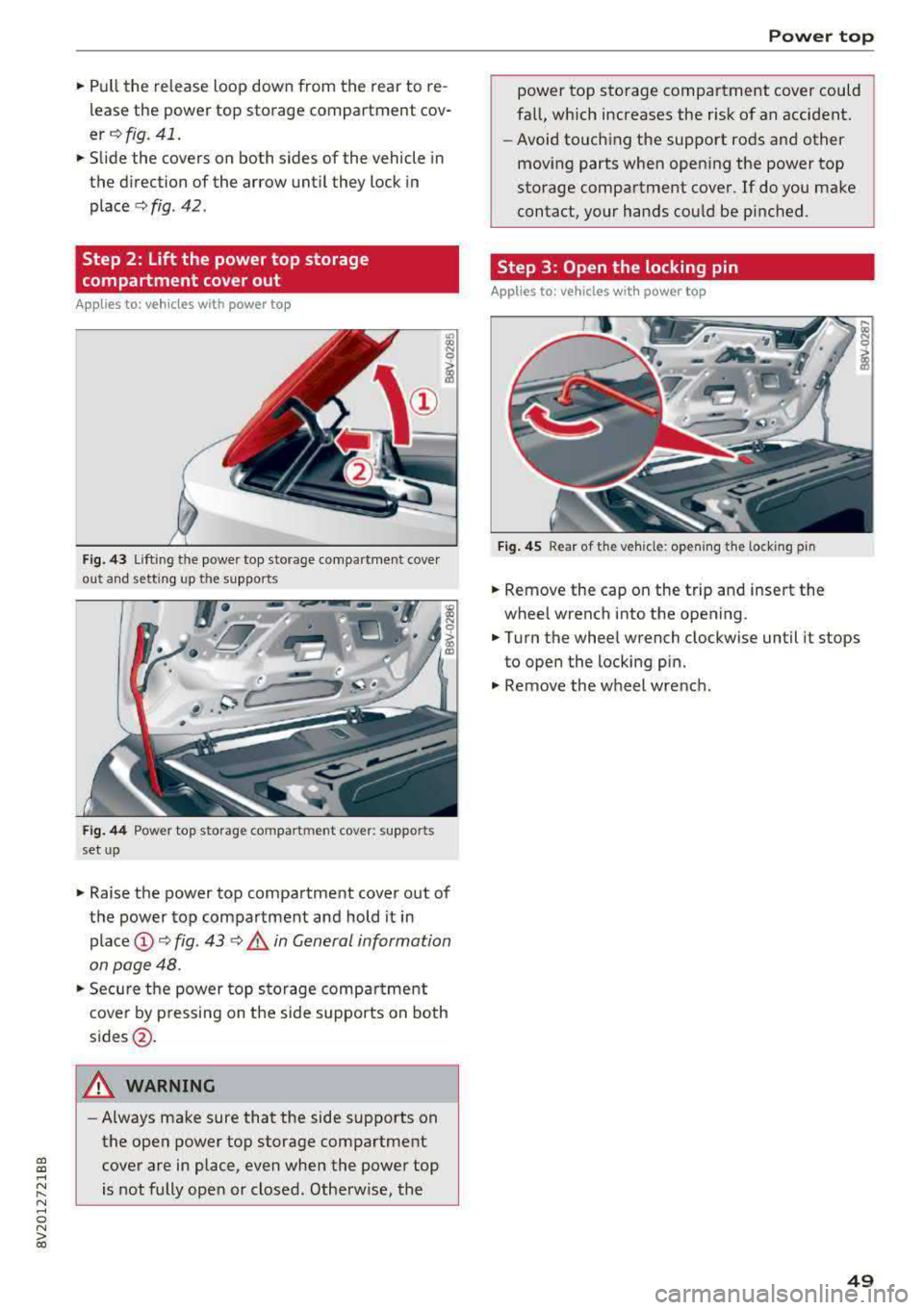
.. Pull the release loop down from the rear to re
lease the power top storage compartment cov
er ¢ fig. 41 .
.. Slide the covers on both sides of the vehicle in
the direction of the arrow until they lock in
place
¢ fig . 42 .
Step 2 : Lift the power top storage
compartment cover out
Appl ies to: vehicles wit h powe r top
Fig. 43 Lift ing t he powe r top sto rage compa rtment cove r
ou t ahd setting up t he supports
Fig. 44 Power to p storag e com pa rtm ent cove r: suppor ts
set up
.. Raise the power top compartment cover out of
the power top compartment and hold it in
place@¢ fig. 43 <:> .&, in General information
on page 48 .
.. Secure the power top stora ge compa rtment
cover by pressing on the side supports on both
sides@.
A WARNING
-Always make sure that the side supports on
the open power top storage compartment cover are in place, even when the power top
is not fully open or closed. Otherw ise, the
Power top
power top storage compartment cover could
fall, which increases the r isk of an accident.
- Avoid touching the support rods and other
moving parts when open ing the power top
storage compartment cover . If do you make
contact, your hands could be pinched.
Step 3: Open the locking pin
Applies to: veh icles w ith power top
Fig. 4 5 Rear of the veh icle : open ing the lock ing pin
.. Remove the cap on the trip and insert the
wheel wrench into the opening .
.. Turn the wheel wrench clockwise until it stops
to open the locking pin .
.. Remove the wheel wre nch .
49
Page 52 of 400
Power top
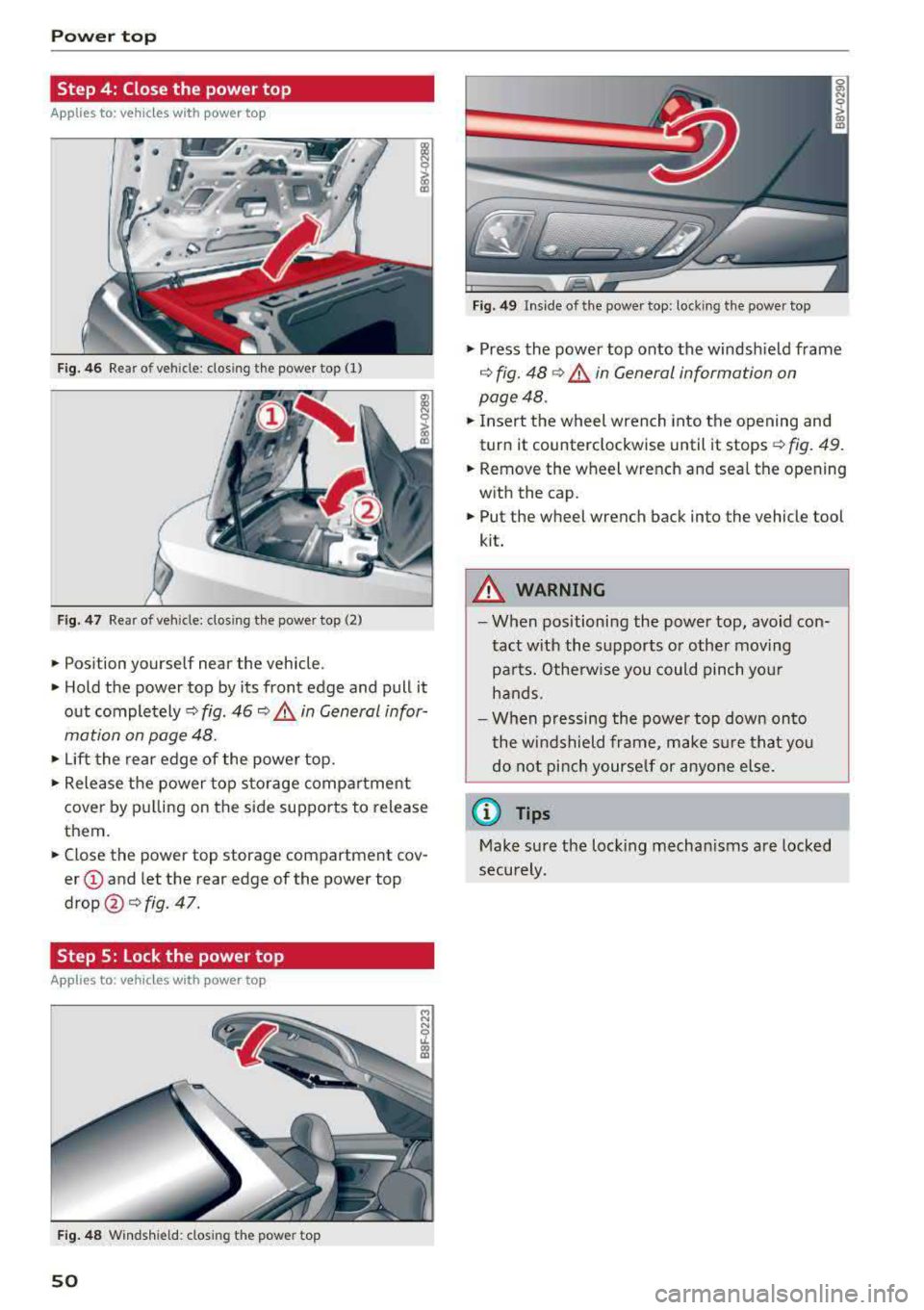
Step 4: Close the power top
Applies to: vehicles w ith power top
Fig. 46 Rear of vehicle: closing the power top (1)
Fig. 47 Rear of veh icle: clos ing the power top (2)
• Position yourself near the vehicle .
• Hold the power top by its front edge and pull it
out
completely¢ fig. 46 ~ .&. in General infor
mation on page 48.
• Lift the rear edge of the power top.
• Release the power top storage compartment
cover by pulling on the side supports to release
them.
• Close the power top storage compartment cov
er @ and let the rear edge of the power top
drop @¢ fig. 47.
Step 5: Lock the power top
Appl ies to : ve hicles w ith power top
Fig. 48 Windshield: closing the power top
50
Fig. 49 In side of the power top: locking the power top
• Press the power top onto the windshield frame
¢ fig. 48 ¢.&. in General information on
page 48.
• Insert the wheel wrench into the opening and
turn it counterclockwise until it stops¢
fig. 49.
• Remove the wheel wrench and seal the opening
with the cap.
• Put the wheel wrench back into the vehicle tool
kit.
&_ WARNING
- When positioning the power top, avoid con
tact with the supports or other moving
parts. Otherwise you could pinch your
hands.
- When pressing the power top down onto
the windshield frame, make sure that you
do not pinch yourself or anyone else.
(D Tips
Make sure the locking mechanisms are locked
securely.
Page 63 of 400
a, a, ..... N
" N ..... 0 N > 00
Seats and storage
General information
A WARNING
Refer to the chapter Driving Safely
~ page 247, Driving safety for important in
formation, tips, suggestions and warnings
that you should read and follow for your own
safety and the safety of your passengers.
Front seats
Manual seat adjustment
Applies to vehicles with manual adjustable seats
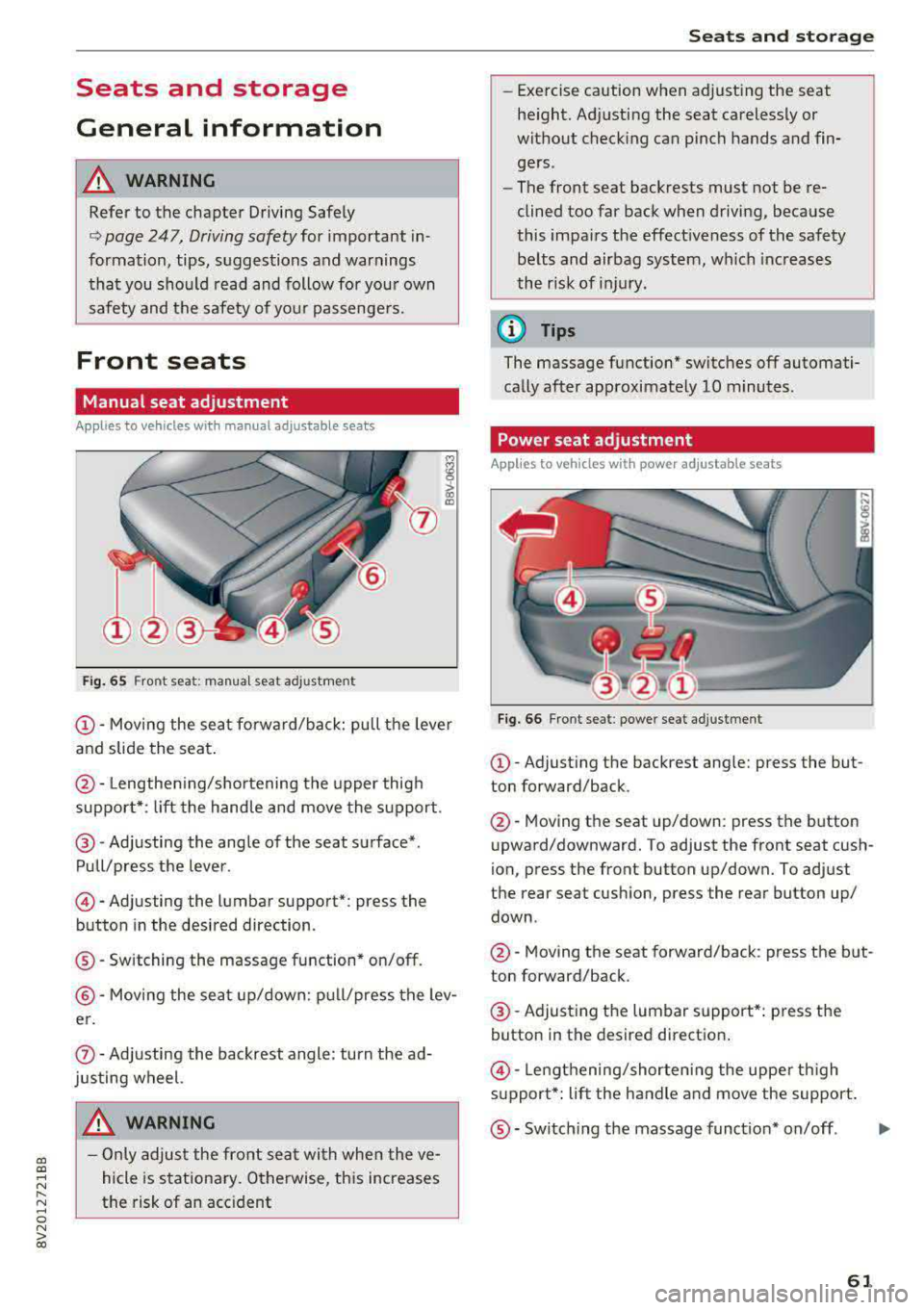
Fig. 65 Fro nt seat: manual seat adj ustment
@ -Moving the seat forward/back: pu ll the lever
and slide the seat .
@-Lengthening/shortening the upper thigh
support* : lift the handle and move the support.
@-Adjusting the angle of the seat surface*.
Pull/press the lever .
@-Adjusting the lumbar support* : press the
button in the desired direction .
®-Switching the massage function* on/off.
@ -Moving the seat up/down: pull/press the lev
er.
0 -Adjusting the backrest angle : turn the ad
justing wheel.
A WARNING
- Only adjust the front seat with when the ve
hicle is stationary. Otherwise, this increases
the risk of an accident
Seats and storage
-Exercise caution when adjusting the seat
height. Adjusting the seat carelessly or
without checking can pinch hands and fin
gers .
- The front seat backrests must not be re
clined too far back when driving, because
this impairs the effectiveness of the safety
belts and airbag system, which increases
the risk of injury.
(D Tips
The massage function* switches off automati
cally after approximately 10 minutes.
Power seat adjustment
Applies to vehicles w ith power adjustab le seats
Fig. 66 Front seat : power seat adj ustment
@ -Adjusting the backrest angle: press the but
ton forward/back .
@-Moving the seat up/down: press the button
upward/downward. To adjust the front seat cush
ion, press the front button up/down. To adjust
the rear seat cushion, press the rear button up/
down .
@-Moving the seat forward/back : press the but
ton forward/back .
@-Adjusting the lumbar support*: press the
button in the desired direction .
@-Lengthening/shortening the upper thigh
support*: lift the handle and move the support.
®-Switching the massage function* on/off .
61
...
Page 75 of 400
a, a, ..... N
" N ..... 0 N > 00
_& WARNING
-You should not use the recirculation mode
for an extended period of time, because no
fresh a ir is drawn in and the windows can
fog when coo ling mode* is switched off .
T his increases the r is k of an accide nt.
- Individuals with reduced sensitivity to pain
o r temperat ure cou ld develop burns when
using the seat heating fu nction . To reduce
the risk of injury, these ind iv iduals should
not use seat heating.
(D Note
To avoid damage to the heat ing elements in
the seats, do not kneel on the sea ts or place
heavy loads on a small area of the seat.
@ Tips
-The setting for the seat heating on the driv
er's side is ass igned to the key that is in use.
-If the front passenger's seat heat ing is
turned on, it will not turn on again automat
i ca lly if more than 10 m inutes have passed
between sw itching the ign ition off and
switching it on again .
Adjusting the air vents
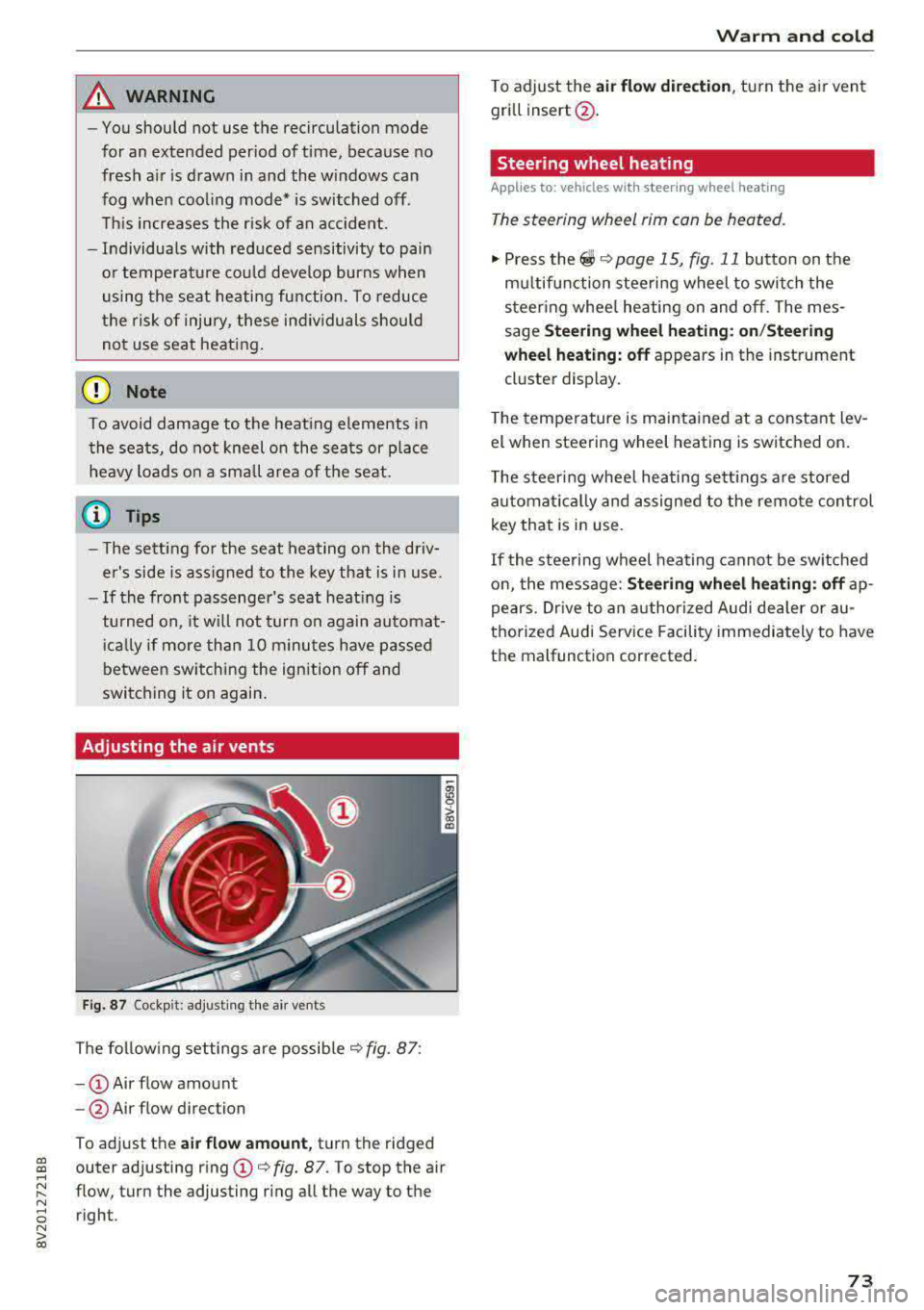
Fig. 87 Cockp it: adjust ing the air vents
The fol low ing settings are possib le ¢fig. 87:
- CD Air flow amount
-@ Air flow direction
To adjust the
air fl ow a mount , turn the ridged
outer adjusting ring
CD ¢ fig. 87. To stop the air
flow, turn the adjusting ring all the way to the right .
Warm and cold
To adjust the air fl ow directio n, turn the air vent
gri ll insert @.
Steering wheel heating
Applies to: vehicles with steering wheel heating
The steering wheel rim can be heated.
"' Press the ~ ¢ page 15, fig. 11 button on the
mu ltifunction steering wheel to switch the
steering whee l heating on and off. The mes
sage
St ee ring wheel h eatin g: on/St eering
w hee l heating: off
appears in the instrument
cluster display.
T he temperature is mainta ined at a constant lev
el when steering wheel heating is switched on.
T he s teering wheel heating settings a re stored
automat ica lly and assigned to the remote control
key that is in use .
If the steering wheel heating cannot be sw itched
on, the message:
S te e ring wh eel h eating : off ap
pears. Dr ive to an authorized Audi dea ler or au
thorized Audi Service Facility immediately to have
the malfunction corrected.
73