ac setting AUDI A3 SEDAN 2017 Repair Manual
[x] Cancel search | Manufacturer: AUDI, Model Year: 2017, Model line: A3 SEDAN, Model: AUDI A3 SEDAN 2017Pages: 400, PDF Size: 67.32 MB
Page 218 of 400
Navigation
reports of traffic situations as well as traffic
forecasting. Your vehicle transmits and
processes its anonymous, encrypted posi
tion information at regular intervals to the
traffic data provider. If you do not want to use this, you can switch off the
on line traf
fic information
function at any time .
- The
online traffic information network is
currently not available in all countries, and
the coverage is not nationwide. Additional
in format ion can be found unde r
www.audiusa.com/audiconnect .
e-tron navigation
functions
Electric range
Applies to: ve hicles w ith p lug -in hybr id drive
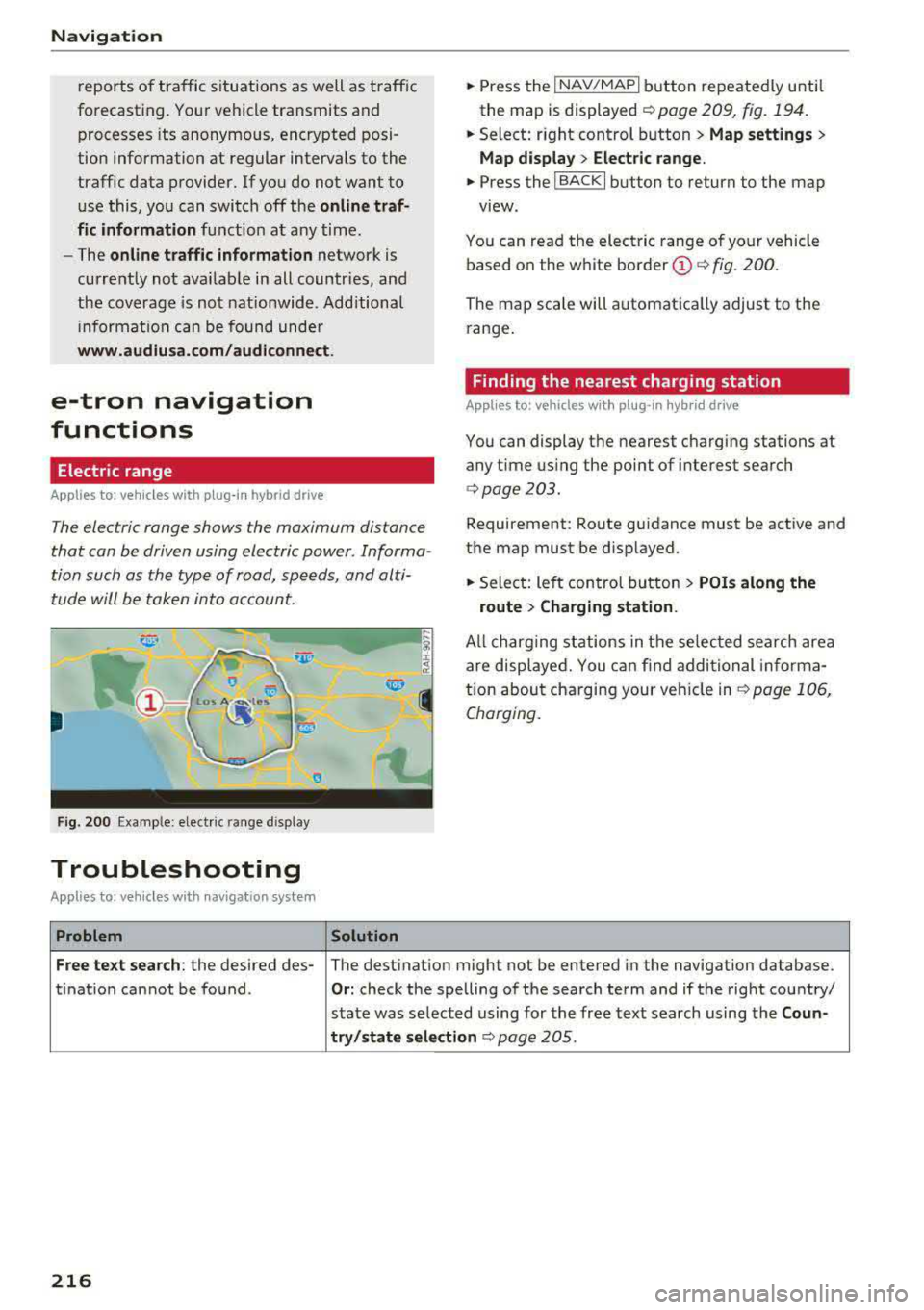
The electric range shows the maximum distance
that can be driven using electric power. Informa
tion such as the type of road, speeds, and alti
tude will be taken into account.
F ig. 200 Example: elect ric range d isp lay
Troubleshooting
A pplies to: ve hicles with navigat ion system
Problem Solution
.,. Press the I NAV/MAPI button repeatedly until
the map is
displayed ¢ page 209, fig. 194.
.,. Select: right control button> Map settings>
Map display > Electric range .
.,. Press the I BACKI button to return to the map
view.
You can read the electric range of your vehicle
based on the white border
(D ¢ fig. 200.
The map scale will automatically adjust to the
range.
Finding the nearest charging station
App lies to: vehicles wit h pl ug -in hyb rid drive
You can display the nearest charging stations at
any time using the point of interest search
<:!> page 203 .
Requirement: Route guidance must be active and
the map must be d isplayed .
.,. Select: left control button > POis along the
route > Charging station.
All charging stations in the selected search area
are displayed. You can find additional in forma
tion about charging your veh icle
in ¢ page 106,
Charging.
Free text search: the desired des- The destination might not be entered in the navigation database.
ti nat ion cannot be found .
Or: check the spelling of the search term and if the right country/
state was selected using for the free text search using the
Coun-
try/state selection
c::;,page 205 .
216
Page 219 of 400
Radio
Opening the radio
The radio supports the F M , AM and SiriusXM *
(satellite radio) bands. Using the HO Radio re
ceiver also allows you to receive radio stations
on the FM and AM bands in digital format.
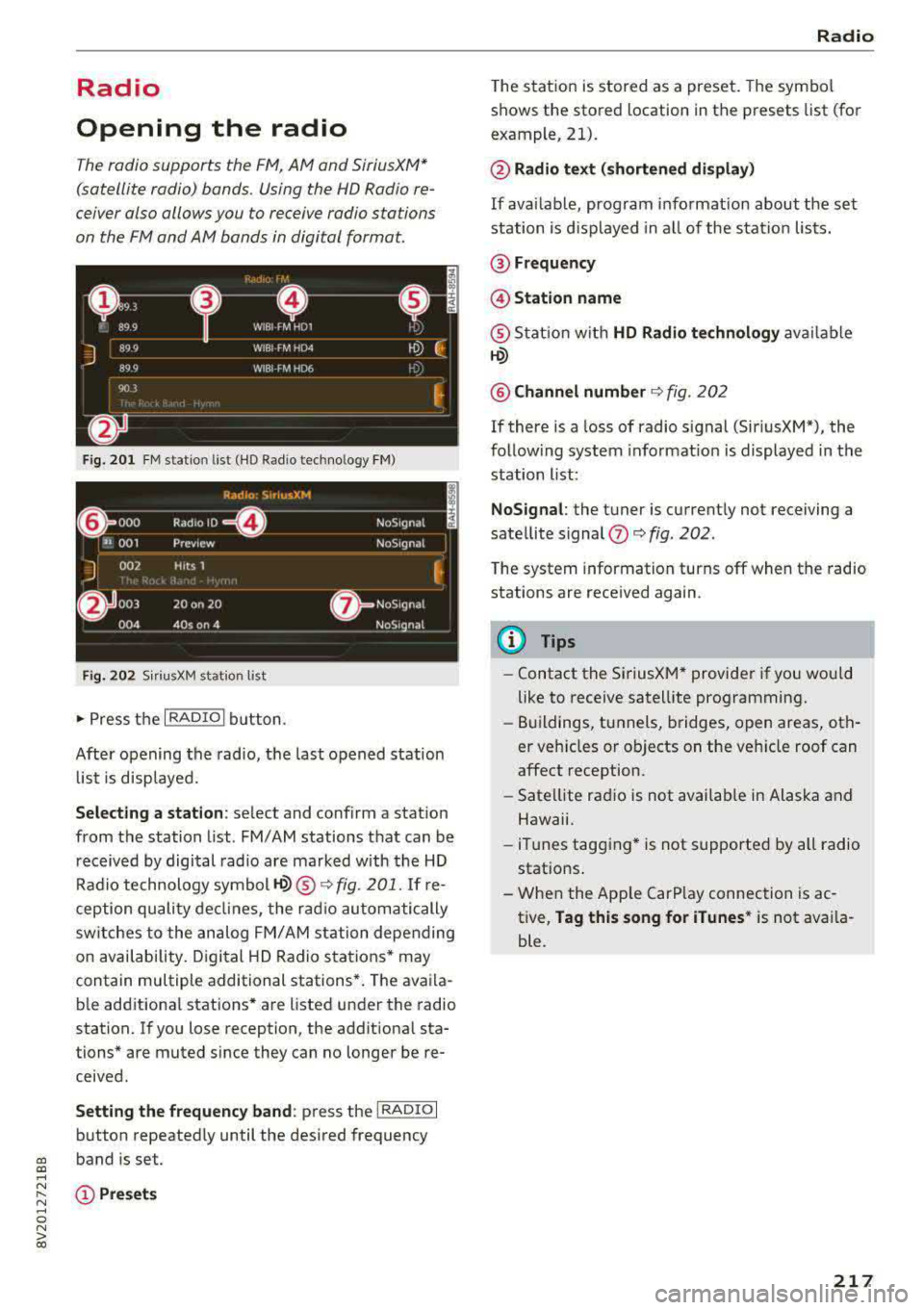
Fig . 201 FM stat ion list ( HO Ra dio tec hn ology FM)
Radio: SiriusXM
~ 000 Rad,olD e· N oS,gnal
'JI 001 Prev iew N oS,gnal
J 002 H tts 1
~
f) 003 20 on 20
NoStgna l
004 40s on 4 NoS,gnal
F ig. 202 Siri usXM station list
.. P ress the I RAD IO I bu tton.
Afte r opening the rad io, t he last opened station
lis t is disp laye d.
.
I
Selecting a station : select and confirm a stat io n
from the station list . FM/ AM stations t hat can be
received by digital rad io are ma rked w ith the HD
R adio technology symbol
tQ) ® ¢fig. 201. If re
ception quality decl ines, the r adio automatically
switches to the analog FM/AM station depe nding
on availability , D igi tal HD Radio s ta tions * may
contain multiple additional stations* . The ava ila
b le add itiona l stations* are listed under the radio
station. I f you lose reception, the add it iona l sta
tions* are muted since they can no longer be re
ceived.
Setting the frequency band : press the I RADIO I
button repeated ly until the desired frequency
a, band is set. a, ....
~ (D Pre sets
.... 0 N > 00
Radio
T he s tation is stored as a preset . The symbol
shows the stored location in the presets list (for
example, 21).
@ Radio text (shortened display )
If availab le, program i nfo rmat ion about the set
station is d isplayed in a ll of the station lists.
@ Frequency
@ Station name
® Stat ion w it h HD Radio te chnology av aila ble
tQ)
@ Channel number ¢ fig. 202
If there is a loss of radio s ignal (Sir iusXM*), the
follow ing system informat io n is displayed in the
station list:
NoSignal : the tu ner is current ly not receiving a
sate llite signal
(fJ ¢ fig. 202 .
The system information turns off when the radio
stations are received again.
(D Tips
-Contact the Si riusXM* provider if you wou ld
like to receive satell ite programming .
- Buildings, tu nnels, b ridges, open areas, oth
er veh icles or objects on the veh icle roof can
affect reception.
- Sate llite rad io is not availab le in Alaska and
Hawaii.
- iTun es tagging * is not supported by all radio
statio ns.
- When the App le CarPlay connection is ac
tive,
Tag this song for iTunes * is not ava ila
ble.
217
Page 220 of 400
Radio
Radio functions
Free text search
App lies to: ve hicles w ith free text search
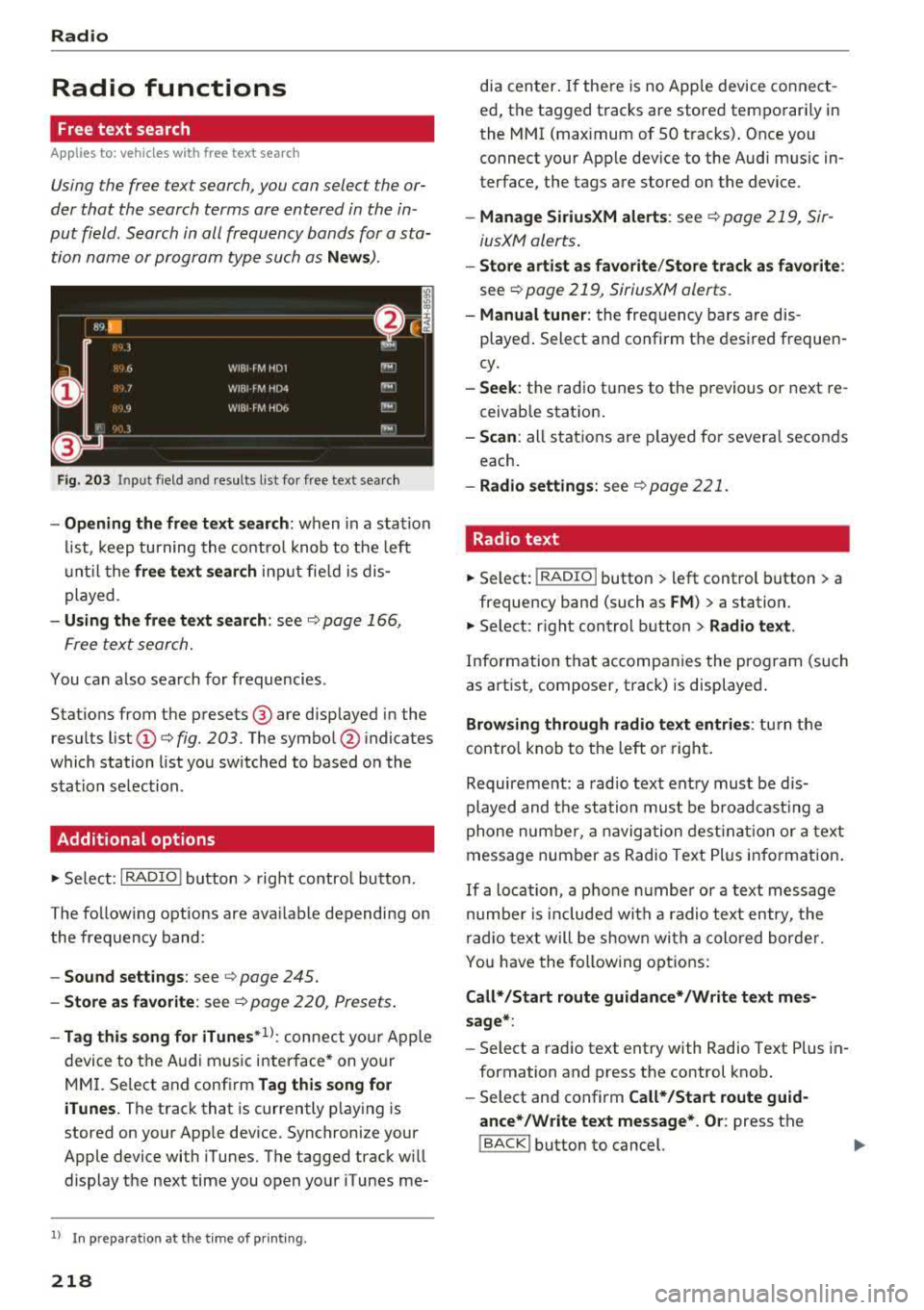
Using the free text search, you can select the or
der that the search terms are entered in the in
put field. Search in all frequency bands for a sta tion name or program type such as
News ).
Fig. 203 Input field and results list fo r free text sea rch
- Opening the free text search : when in a s ta tion
list, keep turning the control knob to the left
u nt il the
free text search input fie ld is dis
played .
-Using the free text search: see c::> page 166,
Free text search.
You can a lso search for frequencies.
Stat ions from the presets @ are disp layed in the
results list
(D c::> fig. 203. The symbo l@ indicates
which station list you sw itched to based on the
station selection.
Additional options
.,. Se lect: I RADIO I button > r ight contro l button.
The follow ing options are ava ilable depending on
the frequency band:
- Sound settings : see c::> page 245.
-Store as favorite : see c::> page 220, Presets.
-Tag this song for iTunes*1>: connect your Apple
device to the Audi music interface* on yo ur
MM I. Select and confi rm
Tag this song for
iTunes.
The track that is currently p laying is
stored on your App le device. Synchronize your
Apple device with iTunes. The tagged track w ill
display the next time you open your iTunes me-
1> I n preparation at the t ime of pr inting.
218
dia center . If the re is no Apple device connect
ed, the tagged tracks are stored temporarily in
the MMI (max imum of 50 tracks) . Once you
connect your Apple dev ice to the Audi music in
terface, the tags are stored on the device.
- Manage SiriusXM alerts : see c::> page 219, Sir
iusXM alerts .
-Store artist as favorite /Store track as favorite :
see c::> page 219, SiriusXM alerts.
-Manual tuner : the freq uency bars are dis
played . Select and confirm the desired frequen
cy.
- Seek: the radio tunes to the previous or next re
ceivab le station .
-Scan : all stations are played for severa l seconds
each.
- Radio settings: see c::> page 221.
Radio text
.,. Select: I RADIO I button > left control button > a
frequency band (such as
FM ) > a station.
.,. Select: r ight control button> Radio text .
Information that accompanies the program (such
as artist, composer, t rack) is displayed.
Browsing through radio text entries: turn the
contro l knob to the left o r right.
Requirement: a radio text entry must be d is
played and the station must be broadcast ing a
phone number, a navigation destination or a text
message number as Radio Text Plus information .
If a location, a phone number or a text message
number is included with a radio text entry, the
radio text will be shown with a colored borde r.
You have the following options:
Call* /Start route guidance* /Write text mes
sage* :
-Select a radio text entry with Radio Text Plus in
formation and press the control knob.
- Select and confirm
Call* /Start route guid
ance* /Write text message* . Or :
press the
I BACK I button to cancel.
Page 222 of 400
Radio
Radio text is availab le for the selected stat ion.
Ref er to
~ page 218.
@ iTunes tagging
The Tag this song for iTunes option is available
for the set station . Refer
to ~ page 218 , Addi
tional options.
@ FM HD Radio technology
The station is received through FM HD Radio
technology.
@ Screen view
Display Cover art or Station logo. Refer to
~ page 221, Preferred picture view *.
Displaying the station list:
Turn the control knob. Or: press the !BACK ! but
ton .
Radio menu
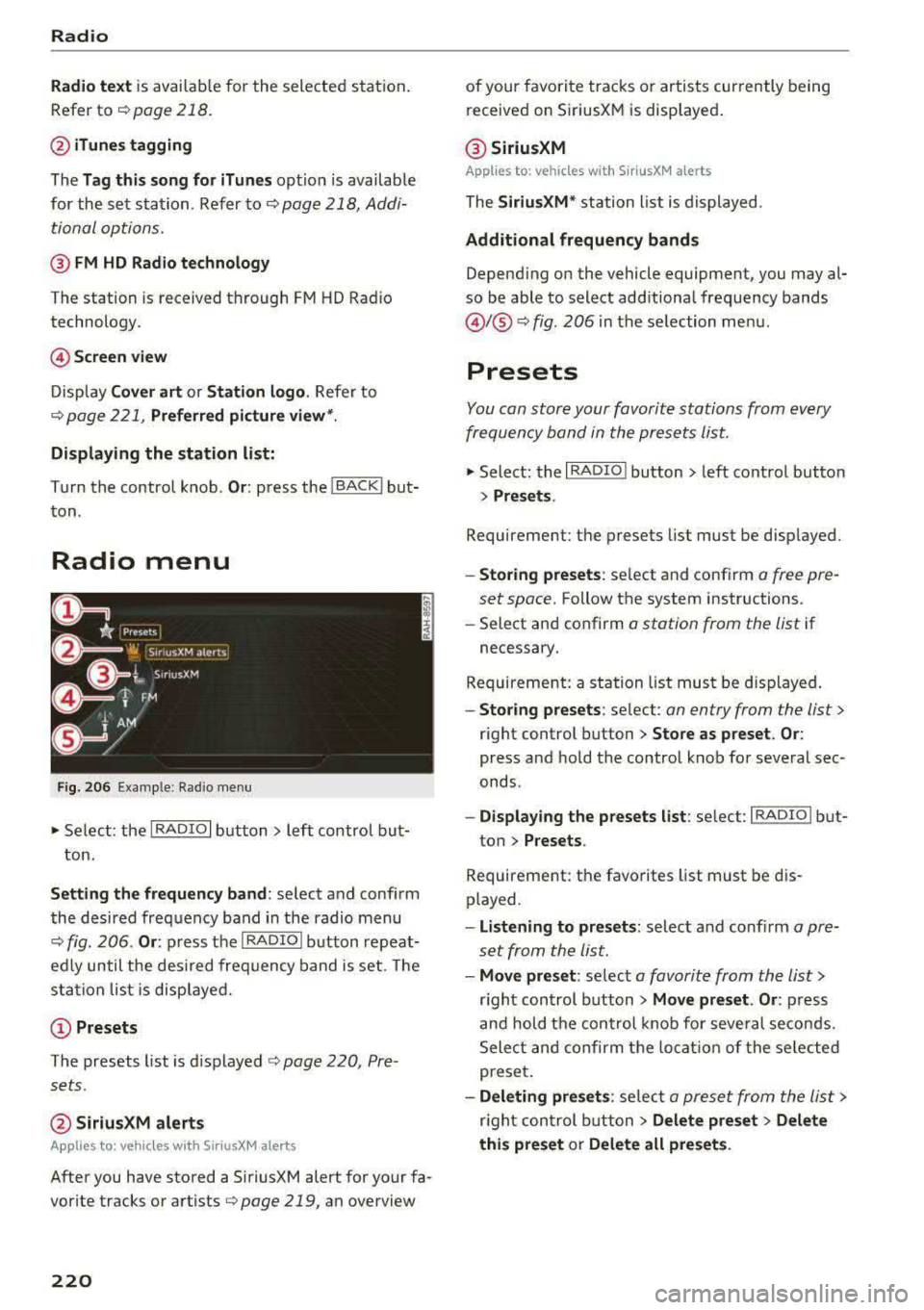
Fig. 206 Example : Rad io menu
~ Select: the I RADIO I button> left control but
ton.
Setting the frequency band : select and confirm
the desired frequency band in the radio menu
~ fig . 206 . Or: press the I RADIO I button repeat
edly until the desired frequency band is set. The
sta tion list is displayed.
(!) Presets
The presets list is displayed ~ page 220, Pre
sets .
@SiriusXM alerts
Applies to: veh icles with SiriusXM alerts
After you have stored a SiriusXM alert for your fa
vor ite tracks or artists
q poge 219, an overview
220
of your favorite tracks or artists currently being
received on S iriusXM is displayed .
@ SiriusXM
Applies to: vehicles with SiriusXM alerts
The SiriusXM * station list is displayed .
Additional frequency bands
Depending on the vehicle equipment, you may al
so be able to select additional frequency bands
@ !@ ~ fig. 206 in the selection menu.
Presets
You con store your favorite stations from every
frequency bond in the presets list.
~ Select: the I RADIO I button > left control button
> Presets .
Requirement: the presets list must be displayed.
-Storing presets: select and conf irm o free pre
set space.
Follow the system instructions .
-Select and confirm a station from the list if
necessary.
Requirement: a station list must be displayed.
-Storing presets: select: on entry from the list>
right control button > Store as preset. Or :
press and hold the control knob for several sec
onds .
-Displaying the presets list : select: IRADIOI but-
ton >
Presets .
Requirement: the favorites list must be dis
played.
-Listening to presets: select and confirm a pre
set from the list.
-Move preset : select a favorite from the list>
right control button > Move preset . Or : press
and hold the control knob for several seconds.
Select and confirm the locat ion of the selected
preset.
-Deleting presets : select a preset from the list >
r ig ht con trol button
> Delete preset > Delete
this preset or Delete all presets .
Page 223 of 400
CXl CXl .... N ,.__
N .... 0 N > 00
Additional settings
Radio settings
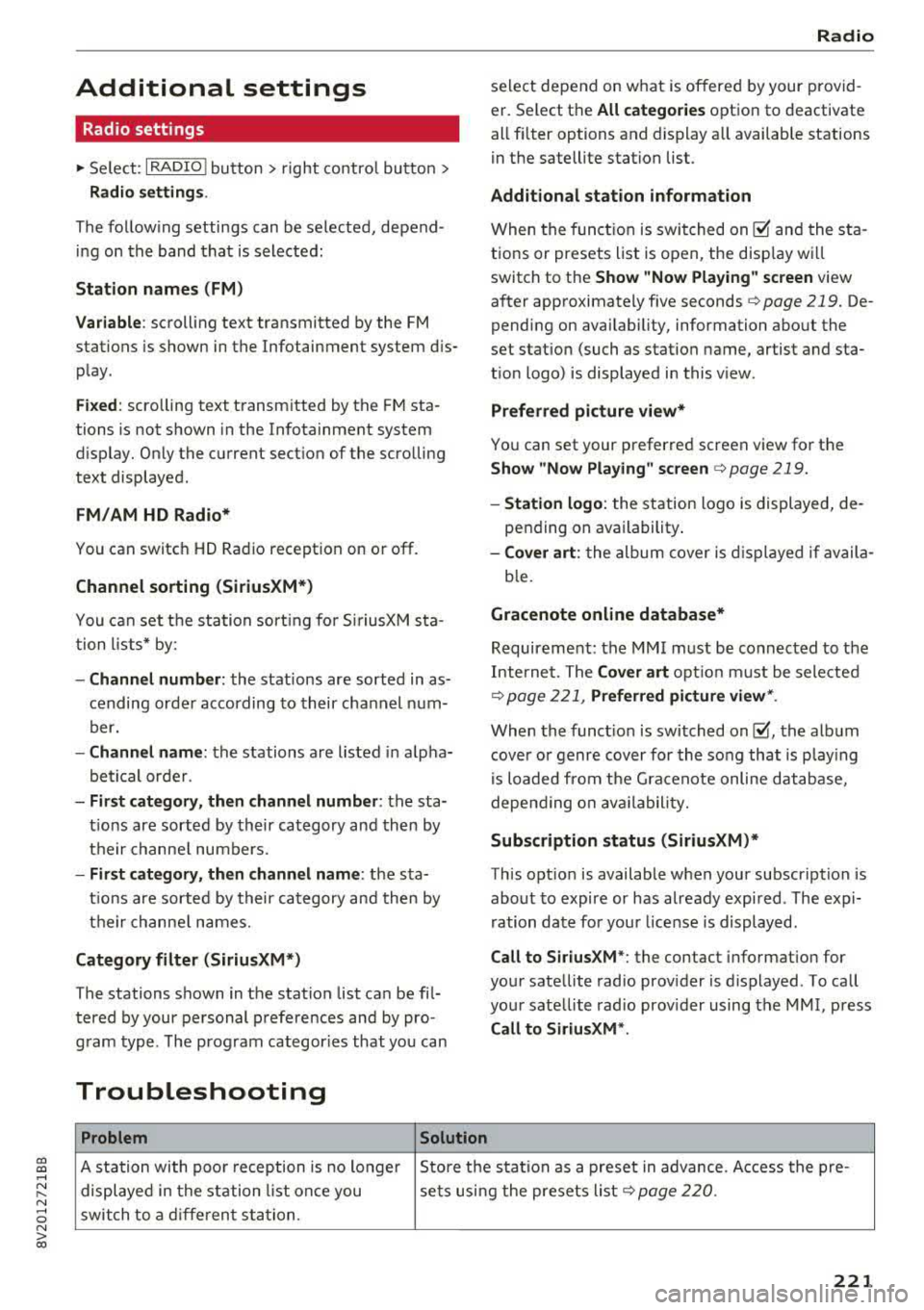
"'Select: I RADIO! button> right control button>
Radio settings.
The following settings can be selected, depend
ing on the band that is selected :
Station names (FM)
Variable:
scrolling text transmitted by the FM
stations is shown in the Infotainment system dis play.
Fixed : scrolling text transmitted by the FM sta
tions is not shown in the Infotainment system
display. Only the current section of the scrolling
text displayed.
FM/ AM HD Radio*
You can switch HD Radio reception on or off.
Channel sorting (SiriusXM*)
You can set the station sort ing for SiriusXM sta
tion lists* by:
-Channel number: the stat ions are sorted in as
cending order according to their channel num
ber.
- Channel name: the stations are listed in alpha
betical order.
-First category, then channel number: the sta
t ions are sorted by their category and then by
their channe l numbers.
- First category, then channel name : the sta
t ions are sorted by their category and then by
their channe l names.
Category filter (SiriusXM*)
The stations shown in the station list can be fil
tered by your personal preferences and by pro
gram type. The program categor ies that you can
Troubleshooting
Problem
Solution
Radio
select depend on what is offered by your provid
er. Select the
All categories option to deactivate
all filter options and display all available stations
in the satellite station list.
Additional station information
When the function is switched on~ and the sta
tions or presets list is open, the disp lay will
switch to the
Show "Now Playing" screen view
after approximately five seconds
c> page 219. De
pending on availabi lity, information about the
set station (such as station name, artist and sta
tion logo) is displayed in this view .
Preferred picture view*
You can set your preferred screen view for the
Show "Now Playing" screen r=> page 219.
-Station logo: the station logo is displayed, de
pending on availability .
-Cover art: the album cover is displayed if availa-
ble.
Gracenote online database*
Requirement: the MMI must be connected to the
Internet. The
Cover art optio n must be selected
c> page 221, Preferred picture view*.
When the funct ion is switched on~, the album
cover or genre cover for the song that is p lay ing
is loaded from the Gracenote online database,
depending on availability.
Subscription status (SiriusXM)*
This opt ion is available when your subscription is
about to expire or has already expired . The expi
ration date for your license is displayed.
Call to SiriusXM*: the contact information for
your satellite radio provider is displayed . To call
your satellite radio provider using the MMI, press
Call to SiriusXM *.
A station with poo r reception is no longer Store the station as a preset in advance. Access the pre-
displayed in the station list once you sets usi ng the presets list
c> page 220 .
switch to a different station .
221
Page 228 of 400
Media
(D Tips
-Check for any connection requests on your
Bluetooth dev ice .
- Mult iple Bluetooth audio players can be
connected to the MMI, but only one mobile
device can be active.
- Bluetooth protocols AVRCP ( 1.0/1.3/1.4)
and A2DP are suppo rted.
- Note the volume setting on your Bluetooth device. A ud i recommends setting your mo
bile device to the maxim um vo lume when
us ing it as a Bluetooth audio player.
- The supported media functions (such as
sh uffle) depend on the Bluetooth device be
i ng used.
- For more information on the supported de
v ices, visit
www.aud iusa.com /bluetooth or
contact an author ized Audi dealer or author
i zed Audi Service Facility.
Wi-Fi audio player
A ppl ies to: ve hicles w ith Wi-F i
Using the Wi-Fi audio player media source on the
MMI, you can connect and operate your Wi-Fi-ca
pable media player (such as a smartphone) to wirelessly play music from your media player
li
brary. The media player is connected through the
vehicle's Wi -Fi hotspot. A UPnP Server opp or an
integrated UPnPIDLNA server on your media
player is required to access your media player
li
brary.
Requirement: the Wi-Fi function on your media
p layer must be sw itched on. The
Aud i MMI con
n ect
app or a UPnP server app must be installed
on your med ia p layer .
Or: you must be us ing a
media player with an integrated UPnP/DLNA
server.
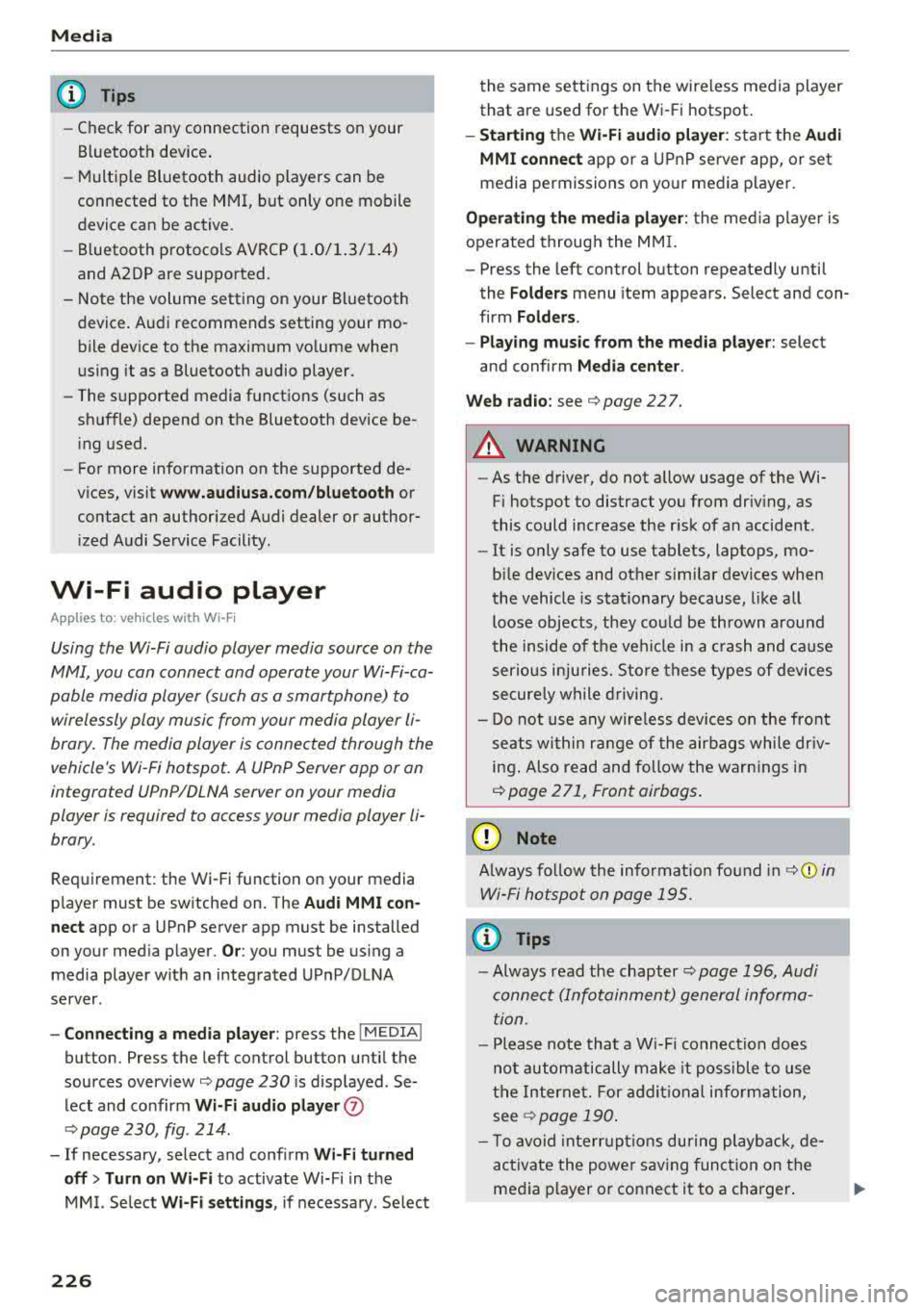
- Connecting a medi a playe r: press the I MEDIA !
button. Press the left control button unti l the
sources
overview ¢ page 230 is displayed . Se
lect and co nfirm
W i-Fi audio play er 0
¢ page 230, fig . 214 .
- If necessary, select and confirm Wi-F i turn ed
off > Turn on Wi-Fi
to activate Wi-Fi in the
MMI. Select
Wi-Fi s etti ng s, if necessa ry . Se lect
226
the same settings on the wireless media player
that are used for the Wi- Fi hotspot .
-Starting the Wi-Fi audio pla yer : start the Audi
MMI connect
app or a UPnP server app, or set
media permissions on your media player.
Operating the medi a pl ayer : the med ia p layer is
operated through the MM I.
- Press the left control button repeatedly until
the
Folders menu item appears. Select and con
firm
Folder s.
- Playing music from the medi a pla yer:
select
and confirm
M edia cent er.
Web r adio :
see ¢ page 22 7.
A WARNING
-As the d river, do not allow usage of the Wi
Fi hotspot to distract you from driving, as
this could increase the r isk of an accident.
- It is on ly safe to use tablets, laptops, mo
bi le devices and other similar dev ices when
the vehicle is stat ionary because, like all
loose objects, they co uld be thrown around
the inside of the ve hicle in a c rash and ca use
serio us inju ries . Store these types of devices
secure ly while driving.
- Do not use any wire less devices on the front
seats wi thin range of the airbags while dr iv
ing . Also read and follow the warn ings in
¢ page 271, Front airbags.
(D Note
A lways fo llow the information fo und in ¢ (!) in
Wi -Fi hotspo t on page 195.
(D Tips
- Always read the chapter¢ page 196, Audi
connect (Infotainment) general informa
tion.
- Please note that a Wi-F i connection does
not automatically make it possible to use
the Interne t. For addit io nal info rm ation,
see
¢ page 190 .
- To avoid interr upt ions du ring playback, de
act ivate the powe r saving function on the
media player or connect it to a charger.
Page 229 of 400
a, a, ..... N
" N ..... 0 N > 00
-The loading times for the audio data depend
on the media player used and the number of
files that it contains.
- A maximum of 2,000 entries per directory
are displayed in the MMI.
-Songs downloaded for offline use using mu
sic streaming services are stored on your mobile device (such as a smartphone) and
may be ORM protected. The Wi-Fi audio
player will not play ORM protected files.
-Contact an authorized Audi dealer or au
thorized Audi Service Facility for additional information on the Wi-Fi audio player .
Online media and
Internet radio
Applies to: vehicles with Audi connect (Infotainment)
You can playback and operate various online me
dia services and Internet radio using the MMI .
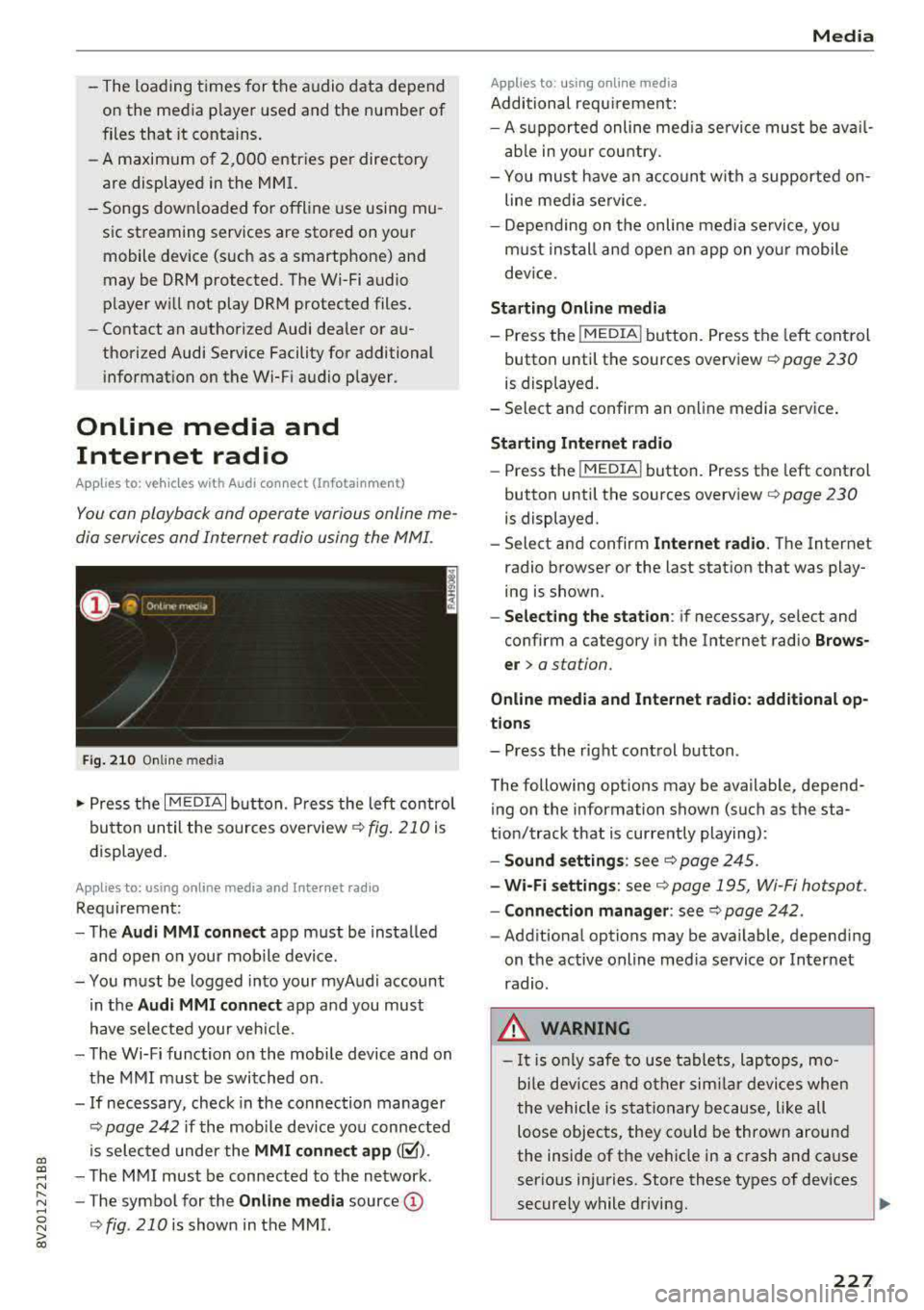
Fig. 210 Online med ia
... Press the I MEDIAi button. Press the left contro l
button until the sources overview
c:> fig. 210 is
displayed.
Applies to: using online media and Internet radio
Requirement:
-The Audi MMI connect app must be installed
and open on your mobile device.
-You must be logged into your myAudi account in the
Audi MMI connect app and you must
have selected your veh icle.
-The Wi-Fi function on the mobile device and on
the MMI must be switched on .
-If necessary, check in the connection manager
c:> page 242 if the mobile dev ice you connected
is selected under the
MMI connect app (~).
-The MMI must be connected to the network .
-The symbol for the Online media source@
<::>fig . 210 is shown in the MMI.
Applies to: using online media
Additional requirement:
Media
-A supported online med ia service must be avail
able in your country.
-You mus t have an account with a supported on
line media service .
-Depending on the on line media service, you
must install and open an app on your mobile
dev ice.
Starting Online media
-Press the I MEDIA i button. Press the left control
button until the sources overview
c:> page 230
is displayed.
-Select and confirm an online media service .
Starting Internet radio
-Press the I MEDIAi button. Press the left control
button until the sources overview
c:> page 230
is displayed.
-Select and confirm Internet radio. The Internet
radio browser or the last station that was play
ing is shown.
-Selecting the station: if necessary, select and
confirm a category in the Internet radio
Brows
er>
a station.
Online media and Internet radio: additional op
tions
-Press the right control button.
The following options may be available, depend ing on the information shown (such as the sta
tion/track that is currently playing):
-Sound settings: see c:> page 245.
-Wi-Fi settings: see c:> page 195, Wi-Fi hotspot.
-Connection manager: see c:> page 242.
-Additional options may be available, depending
on the active online media service or Internet
radio.
_& WARNING
-It is only safe to use tablets, laptops, mo
b ile devices and other similar devices when
the vehicle is stationary because, like all
loose objects, they could be thrown around
the inside of the vehicle in a crash and cause
serious injuries. Store these types of devices
securely while driving.
~
227
Page 232 of 400
Media
-Changed content on a mobile device l) that
is connect ed to the Audi music interface
may not be disp layed in the med ia center .
In this case, reset t he
Med ia settings back
to
Factory settings ¢ page 242.
- Video p layback through the Audi music in
terface is only supported if the connected
device is recog nized as a USB storage device
(fo r example a USB s tic k). Apple devices and
M TP devices (s uch as smartphones) a re not
r e cogni ze d as US B storage devices .
- i Pod/iPhone malfunct io ns also affect the
ope ration of the MMI. Reset your iPod/
iPhone if th is happens.
- For importa nt information on operating
your iPod/iPhone, ref er to th e user guide for
the dev ice. Audi re comme nds up dat ing the
i Po d/i Pho ne so ftwa re to t he lates t ve rsion .
- Fo r more information about the Audi music
i nte rfa ce and supporte d device s, check the
A ud i d ata base fo r mobile devices at
www.audiusa.com/bluetooth or contact an
authorized Audi dea le r or a uthorized Audi
Service Fac ility.
Playing media
Accessing media
You can start and operate various media
through th e
MMI control panel.
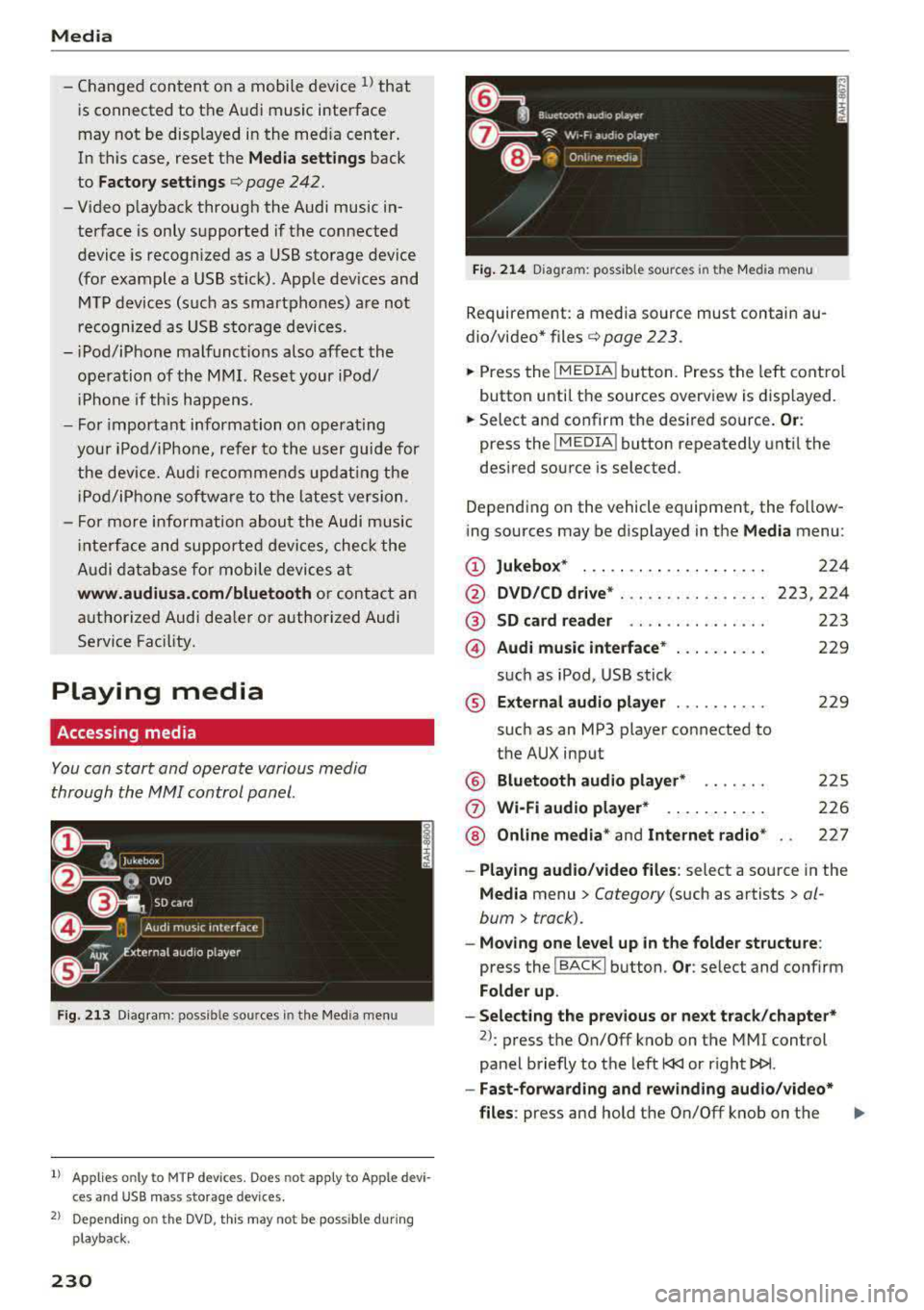
Fig . 2 13 Diag ra m : p ossibl e sources i n the Med ia m enu
1> A pplies only t o MTP dev ices . Do es not app ly to Ap ple d evi
c e s a nd U SB ma ss sto ra ge de vice s.
2> Depe ndin g o n the DVD , thi s m ay not be pos sib le d urin g
p la y ba ck.
230
Fi g. 214 D ia gram: possible sour ces i n the Media m en u
Requir ement : a media source must contain au
dio/video*
files ¢ page 2 23 .
.,.. Press the IM EDIA ! button. Press the left cont rol
button unti l t h e sources overview is displayed.
.,.. Select and confirm th e desired source. Or:
press the I MEDIA ! button repeatedly unt il the
desired source is selected .
Depend ing o n the vehicle equipment , the follow
ing sources may be d isplayed in the
Media menu :
(D Jukebo x* ... .. .. .. .. .. .. .... .
@ DVD/CD drive * ... .. .. .. .. .... .
@ SD card re ader ....... ....... .
@ Audi music interface * .. .. . .... .
su ch as iPod , USB st ick
® Extern al audio player ... .. .... .
su ch as an MP3 player connected to
the AUX inp ut
@ Bluetooth audio player* ...... .
(J) Wi-Fi audio player* .... .. .... .
@ Online media * and Internet radio *
224
223,224
223
229
22 9
2 25
226
227
-Playing audio/ video files : select a sourc e in the
Media menu > Category (such as artists > al
bum
> t rack).
-Moving one level up in the folder structu re :
press the I BACK ! button . Or: select and confirm
Fo lder up .
-Selecting the pre vious or ne xt track /chapter*
2>: press t he On/Off knob on the MMI cont rol
panel briefly to the left
l
- Fast-forwarding and rew inding audio /video *
files :
press and hold the On/Off knob on the ..,.
Page 234 of 400
Media
@Vid eos*
All available video files are displayed . Select and
confirm a video file .
(D Tips
-Only the categories supported by the med i
um are available. For example, CD/DVD
ROM tracks cannot be selected with catego
ries such as
A rtists , Album s or Genre s.
With an iPod (source: Audi music interface
c:;, page 228), the Podcast s, Audio book s
and Composers categories are also availa
ble.
- For safety reasons, the video image is only
displayed when the vehicle is stationary. On
ly the sound from the v ideo plays while driv
i ng.
- When synchronizing a portable device with
"Cloud" services, playlists may display incor
rect ly in the MMI. Use the media center in
the dev ice.
Free text search
Applies to : vehicles wi th free text sea rc h
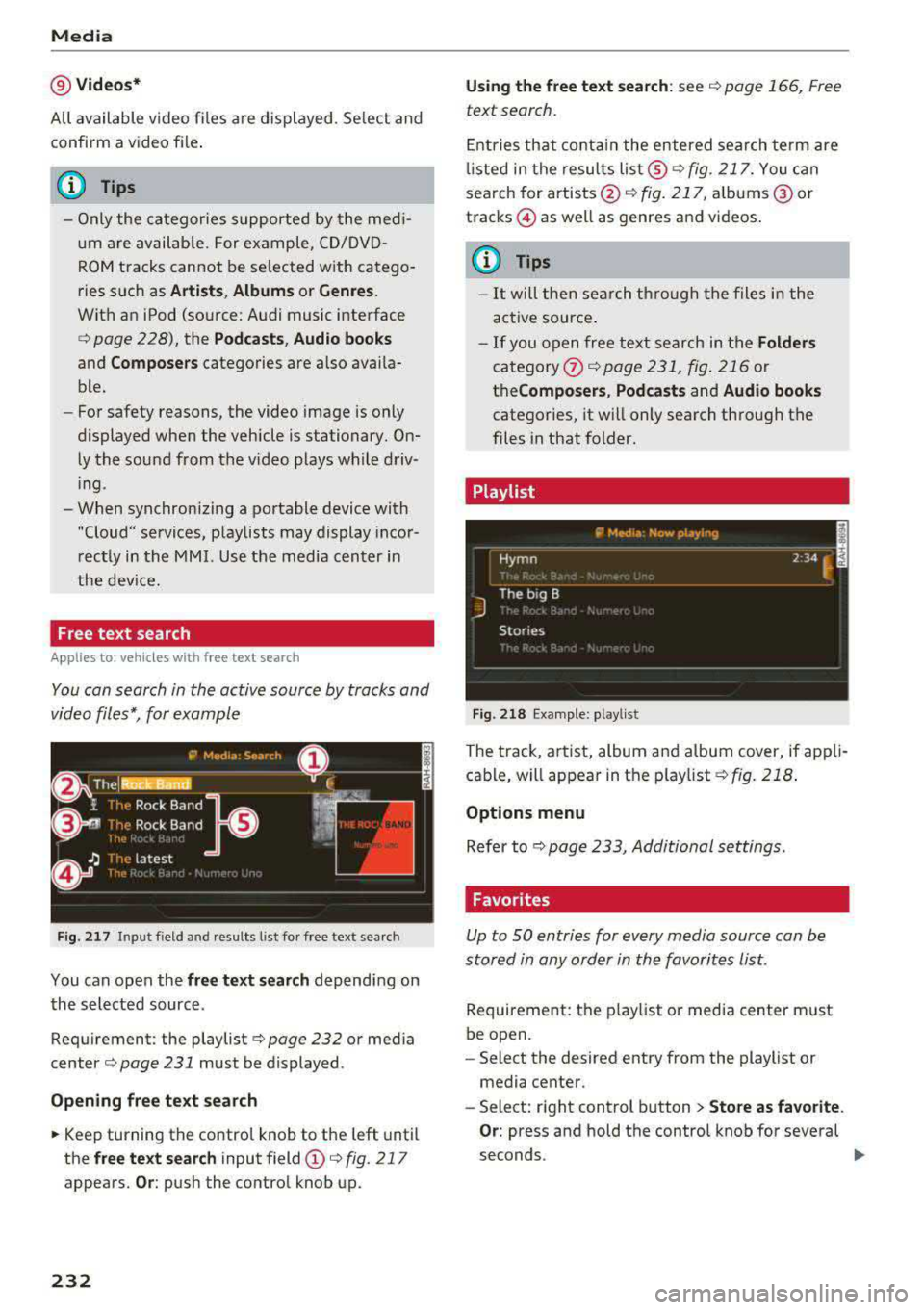
You con search in the active source by tracks and
video files*, for example
Fig. 2 17 Input field and r esults list for free text search
You can open the free te xt search depending on
the selected source.
Requirement: the playlist
c::;, page 232 or media
center
c:;, page 231 must be displayed.
Open ing free te xt search
~ Keep turning the contro l knob to the left until
the
free t ext sea rch input field (D c::;, fig. 217
appears. Or : push the control knob up.
232
Us ing th e free text sea rch: see c::;, page 166, Free
text search .
Entries that conta in the entered search te rm are
li sted in the results
lis t@ c:;,fig. 217. You can
search for artists @
c:;, fig. 217, alb ums @ or
tracks © as well as genres and videos.
{!) Tips
-It will then search th rough the files in the
active source .
-If you open free text search in the Folders
category (i) c:;,poge 231, fig. 216 or
the Compo ser s, Po dca sts and Audio books
categories, it will only search through the
files in that folder.
Playlist
-------------- ~ -~•d•a -~ow _playi~ ------------E
~yrnn . _. . 2 34 ~ ~
J
The big B
Stories
Fig. 218 Example: playlist
The track, artist, album and album cover, if appli
cable, will appear in the playlist
¢fig. 218 .
Options m enu
Refer to c:;, page 233, Additional settings.
Favorites
Up to SO entries for every media source can be
stored in any order in the favorites List.
Requirement: the p lay list or media center must
be open.
- Select the desired entry from the playlist or
media center.
- Select: right control b utton
> Store as f avorite .
Or:
press and hold the control knob for several
seconds.
..,_
Page 235 of 400
CXl CXl .... N ,.__
N .... 0 N > 00
When you store a track as a favo rite, the assoc i
ated album will appear in t he favo rites list as an
entry.
R eq uiremen t: at least one e ntry m ust be stored
in the favor ites list .
Displaying the favorites list : press the I MEDIA !
butt o n . Pr ess the left contro l bu tt on until the
sources overv iew¢
page 230 is displ ayed. Sele ct
the so urce that conta ins the
categories
¢ page 231 (for example, SD car d). Select the Fa
vorites category .
Req uiremen t: the f avor ites lis t m ust be dis
p layed .
-Listening to a preset : select and confirm a pre
set from the list.
- Move favorite : select a favorite from the list>
rig ht cont rol button> Move favorite . Select
and co nfirm the locat ion of the selected preset .
-Deleting a favorite : select a favorite from the
list>
r ight co ntro l butto n > Delete favorite >
Delete th is favorite or Delete all favorit es.
Additional settings
Options menu
Context-specific functions and settings are ava il
ab le depending on the se lected so urce .
.. Press t he right contro l bu tton .
Sound settings
Refer to ¢page 245.
Input level
Req uirement: a mob ile dev ice m ust be co nnected
to the AUX co nnect ion cable o r to a USB adapter
¢ page 228, Multimedia connections .
The volume of the mobi le device is adapted to
the MMI. A udi recommends adjusting the vo lume
on the mobile device to 70% of the max imum
volume output .
Bluetooth settings
R efer to ¢ page 244.
l) The fun ctio n automa tica lly sw itc hes off w he n th e source
i s c hange d.
Media
Wi-Fi settings*
Refer to ¢ page 195, W i-Fi h otspot.
Connection manager
Refer to ¢ pag e 242.
Additional track information
With the function switched on ~ and a playlist
open, va rious in format ion about the current t rack
(such as artist, a lbum and alb um cove r*) as well
as the playing time and the remaini ng play ing
t ime are display ed .
Jukebox memory capacity*
Info rmation on the J ukebox memo ry ca pac ity and
t h e number of sto red t racks in the Jukebox is dis
played .
Change playing position
Turn the cont rol knob to the left or to the right .
Or: move you r finger across the M MI touch con
tro l pad * from left to right.
Shuffle1>
W ith t he fu nction swi tched on~, all files in the
playlist are p layed and s hown in random ord er.
Repeat track1>
When th e funct io n is swi tched on~ , the curre nt
t rack repea ts .
Back to 'Playback'
The options menu is closed. The t rack cur rently
playing appea rs in the p laylist .
Play similar music*
The track cu rre ntly playing is quick ly ana lyzed
(s uch as artists, ge nres, mood, beat) an d a sma rt
playlist w ith sim ila r tracks is s hown.
Play more .. .
A smart playlist is shown based on the tra ck cu r
r ently playing. Yo u can select between a p lay list
with more tracks
by this artist , from this album
o r of this genre .
233