ac setting AUDI A3 SEDAN 2017 Workshop Manual
[x] Cancel search | Manufacturer: AUDI, Model Year: 2017, Model line: A3 SEDAN, Model: AUDI A3 SEDAN 2017Pages: 400, PDF Size: 67.32 MB
Page 190 of 400
Telephone
using the Ringtone fu nction . Select and confirm
an entry from the list. For the
Ringtone volume/
Message volume
settings, see ¢ page 246 . The
Microphone input level can be adjusted during a
phone call us ing the control knob.
(D Tips
-Several cell phones can be paired to the
MMI, but only two cell phones can be active
l y connected.
- To delete all paired Bluetooth devices, the
Bluetooth function can be reset to the fac
tory default
sett ings¢ page 242.
Additional options
... Se lect : I MENU I button> Telephone > right con-
trol button .
Connection manage r
Refer to ¢page 242 .
Bluetooth settings*
Refer to i:::> page 244.
Online settings*
Refer to i:::> page 244 .
Wi-Fi settings*
Refer to¢ page 195, Wi-Fi hotspot.
Directory settings
Applies to: veh icles w ith telephone
... Select : I MENU I button> Telephone > left con
trol button
> Directory > right control button>
Directory settings.
188
Memory capacity
Shows the Memory capacity for the directory.
You can manage up to 17,000 co ntacts with the
directory. You can load up to 4,000 contacts
from your cell phone into each directory. Yo u can
also import up to 1,000 contacts from a storage
device.
Sort order
You can so rt the contacts in your directory alpha
betically according to
Last name or First name .
Import contacts/Export contacts
Refer to c;, page 187.
Download directory
To update the contacts in the MMI, you can man
ually download your cell phone contacts . De
pending on the ce ll phone, the Bluetooth connec
tion may need to be disconnected and reconnect
ed to update the contacts.
Hide contacts without phone number
When this function is switched on~ , contacts
that do not have any numbers assigned to them
will be grayed out in the directory.
Page 195 of 400
CXl CXl .... N r--N .... 0 N > 00
Different functions are available depending on
the Twitter category you have selected:
- New twe et: you can post a new tweet using
pre-made temp lates or using myAudi tem
plates that you have created yourse lf .
- Refr es h: the selected Tw itter function is re
freshed.
- Favori te: mark a Tweet as favo rite to show you
l ik ed it.
- Retw eet: you can quote a Tweet to share it with
others.
(j) Tips
- Other settings such as account, language,
Tweet security and location settings
cannot
be changed in the MMI. These changes must
be made on the Twitter website .
- You can only connect
one Twitter account
wi th you r myAudi account.
- Audi connect (Infotainment) makes it possi
ble to access Tw itter. Permanen t ava ilability
cannot be guaranteed, because that de
pends on Twitter.
Travel (travel guide)
Applies to: vehicles with Audi connect (Infotainmen t)
You can use the Audi MMI connect opp to store
points of interest on your mobile device (such as
a smartphone) and then use them for route
guidance in the MMI .
Requirement:
The
A udi MM I connect app must be installed and
open on your mobile device .
You must be logged i nto your myAud i account in
the
A udi MMI conn ect app and you must have se
l ected your vehicle.
The Wi-Fi funct ion on your mobile device and on
the MMI must be switched on.
The MMI must be connected to the network.
.,. Press: I MENU I button > Audi conne ct > left con-
t ro l button
> Inf ormati on category > Tra ve l.
Afte r opening the travel guide, travel tips in yo ur
a rea will be displayed incl uding c urrent rat ings as
well as the correspond ing category.
Audi c onn ect ( Inf ota inm ent )
.,. Press the le ft control button to change the cat
egory (such as bars nearby) .
A WARNING
= -
-It is only safe to use tablets, laptops, mo
b ile dev ices and other similar devices when
the vehicle is stationary because, like all loose objects, they co uld be thrown around
the inside of the vehicle in a crash and cause
serious inju ries. Store these types of devices
securely while d riving.
- Do not use any wireless devices on the front
seats within range of the airbags while dr iv
ing. Also read the warnings in the chapte r
¢ page 271, Front airbags.
(D Tips
-Units of measurement, language settings
and time are shown in the Infotainment sys
tem display based on how they were set in
the system settings
¢ page 241.
Audi connect (Infotainment) in navigation
Applies to: vehicles with navigation system and Audi connect
(Infotainment)
.,. Select : !MENUI button> A udi conn ect > left
control button >
Na vig atio n.
The following Audi connect Infotainment services
are currently ava ilable:
- Navigation with
online m ap vie w and Street
Vi ew
¢ page 212.
- Point of Intere st (POI) on line sea rch with
v oi ce re cognit ion
(such as restaurants): plan
route guidance using the MMI contro l pane l
¢ page 203 and the voice recogn ition system
¢ page 170 .
-Set up destinations in your MMI using your
myAu di account or onl in e map vie w
¢page 212 .
-On line traff ic informat ion : receive up-to-the
m inute traffic informat ion about acc idents,
road construction and other inc idents
¢ page 215 .
-Map update: import navigation map updates
direct ly to your veh icle using an SD card or as
an online update
¢ page 213.
193
Page 197 of 400
CXl CXl .... N r--N .... 0 N > 00
Wi-Fi hotspot
Applies to: vehicles with Wi-Fi hotspot
You con use the MMI as a Wi-Fi hotspot to con
nect up to eight Wi-Fi devices to the Internet. While driving, restricted use of unsecured, light,
small wireless devices is only possible from the
rear of the vehicle.
Requirement: the ignition must be switched on.
• Select: I MENU I button > Tele ph one> right con-
trol button >
Wi -F i s ettin gs.
The follow ing settings can be modified:
Wi-Fi
The MMI Wi-F i hotspot is deactivated at the fac
tory . Switch the Wi-Fi hotspot to
H otsp ot before
establishing a connection between your vehicle
and your W i- Fi dev ice.
- On : the MMI Wi-Fi hotspot is active and visible
to other devices . You can connect your Wi-Fi
device with the MMI.
- Off: the MMI W i-F i hotspot is deactivated . An
I n ternet connection fo r Wi-Fi devices is not
poss ible.
_& WARNING
- T o reduce the risk of an accident, use the
Audi connect In fotainment services with a
Wi-Fi hotspot only in the rear seat when the
vehicle is in motion, or on ly when the vehi
cle is stationary.
- It is only safe to use tab lets, laptops, mo
bile devices and other similar devices when
the vehicle is stationary because, like all loose objects, they could be thrown around
the ins ide of the vehicle in a crash and cause
serious injur ies. Store these types of devices
securely while driving.
- Do not use any w ireless devices on the front
seats w ith in range of the a irbags while driv
ing. Also read the warn ings in the chapter
~page 271, Front airbags.
- As the driver, do not allow usage of the Wi
Fi hotspot to dist ract you from driving, as
this could increase the risk of an accident .
-
Audi conn ect ( Inf ota inm ent )
(D Note
-Under some conditions, certain mobile devi
ces and operating systems may automati
cally switch from your vehicle's Wi-Fi hot
spot to the device's mobile data connection.
In that event , standard text and data usage
rates would apply wh ile the device's mobile
data connection is in use. Please refer to
documentation provided by your mobile de
vice's manufacture and your data carrier for details, related terms and privacy state
ment.
- You a re responsib le for all precautions tak
en for data protection, anti -virus protection
and protection against loss of data on mo
bile devices that are used to access the In
ternet through the Wi-Fi hotspot.
(D Tips
- In vehicles without Audi connect (Infotain
ment)*, the use of the Wi-Fi hotspot is only
possible for the W i-Fi audio player*. A data
connect ion to the Internet cannot be estab
lished.
- For add itional information about the Audi
connect Infotainment services, visit
ww w.a udiusa.c o m /aud iconn ect .
Configuring the data
connection
Applies to: vehicles with Audi connect (Infotainment)
The data connection for Audi connect Infotain
ment services is pre-configured at the factory.
However, if a configuration should be necessary,
you con adjust the following settings.
• Select: ! MENU I button> right control button>
Connecti on manag er.
• Select: right control button > Online setti ngs >
Data c onnec tion setting s.
Using the Data co nnection settin gs menu, you
can set when an Internet connection should be
made . T he Internet connection disconnects auto
matically once the requested Audi connect Info
tainment service no longer requires any data.
The following options can be selected:
195
Page 204 of 400
Nav igatio n
Setting a home address/favorite as the
destination
Applies to: vehicles with navigation system
You con quickly and e asily start r oute guidance
to your home address using the home address
function. Favorites allow easier access to fre
quently used destinations.
• P ress the I N AV/MAPI button repeated ly until
the
Enter de stination menu is displayed
c:>page 200, fig. 185 .
Setting a home address as the destination
Req uirement: a home address must be stored
c:>poge207.
Your Home addr ess is shown d irectly in the Enter
d es tin ation
menu @c:> page 200, fig. 185 .
-Select: the home address > Start route guid
ance .
Setting a favorite a s th e destination
Requirement: a favorite must be stored as a des
tination
c:> page 20 7 .
-Enter at leas t the first three le tters of the de
s ir ed favorite i n the free text search input field.
The favorites found are shown in the Infotain
ment system display ©
c:> page 200, fig. 185.
- Se lec t and confirm the desired en try .
- Se lect and co nfirm
Start route guidan ce .
@ Tips
- Additional settings for the home address
ca n be found under
c:> page 207 .
-Additional settings for the favorites can be
found under
c:> page 207 .
202
Transferring a destination from the
directory
Applies to: vehicles with navigat ion system
You con navigate directly to destinations in the
directory.
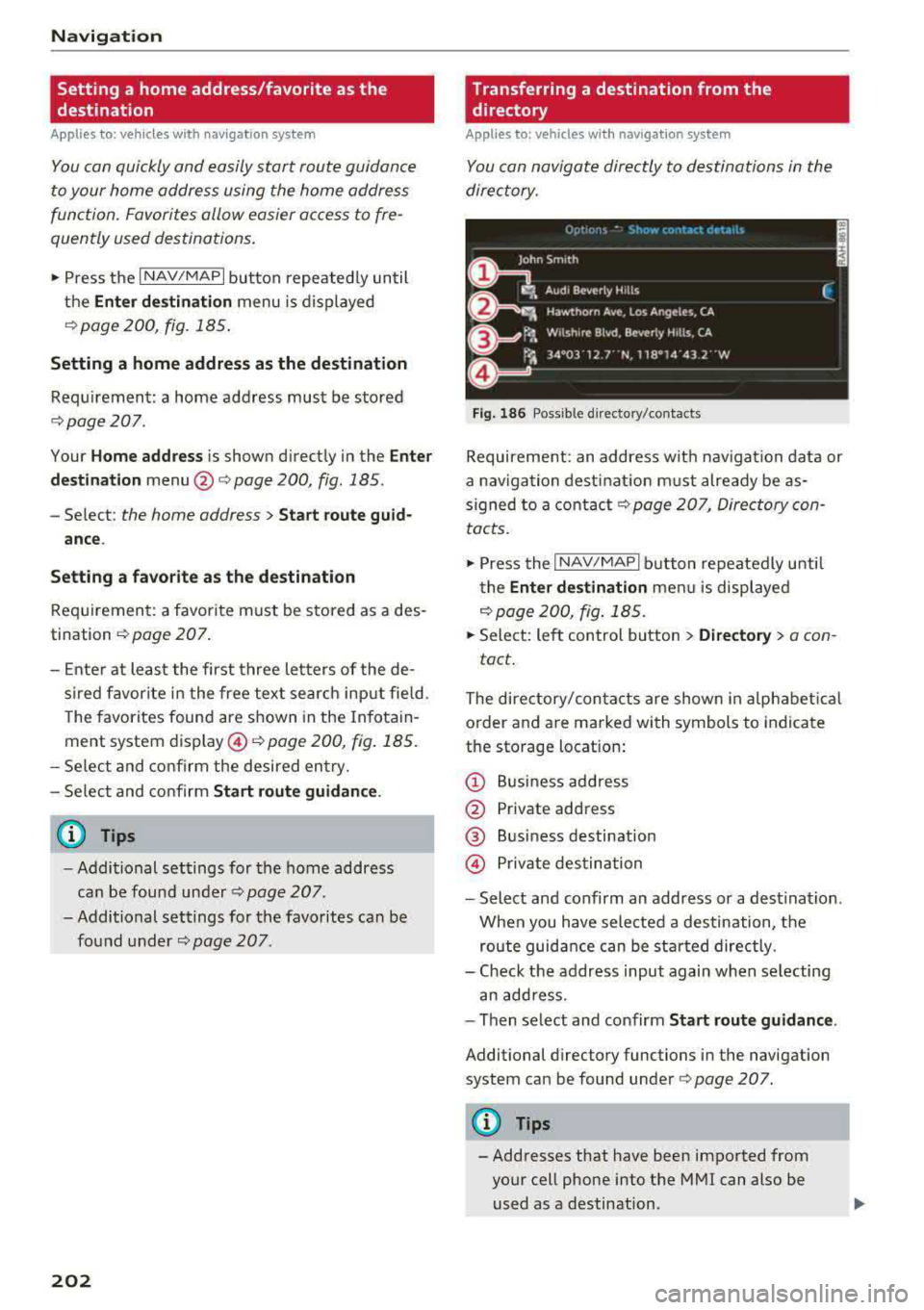
Fig. 186 Possible d irecto ry/contacts
Requirement: an address wit h nav iga tion data or
a navigation dest inat ion m ust already be as
s igned to a contact
c:> page 207, Direc tory con
tacts.
• Press the I NAV/MAPI b utton repeatedly u ntil
t he
Enter de stination men u is displayed
c:>poge 200, fig. 185 .
.. Select: left control button > Directory > a con -
tact .
The dire ctory/con tacts are shown in a lphabet ical
o rder and a re marked wi th symbols to indicate
the storage locat ion:
(D Bu siness address
@ Private address
@ Bus iness destination
© Private des tina tion
- Select and confirm an address or a destina tion .
When you have sele cted a destination, the
route guidance can be st arted directly.
- Check the address input again when se lecting
an add ress.
- Then se lect and confirm
Start route guidance .
Additional directory functions in the navigation
system can be found under
c:> page 207.
(!} Tips
- Addresses that have been imported from
your cell phone into the MMI can also be
used as a destination.
Page 207 of 400
Deleting a stopover
- Push the cont rol knob up. Free text search and
active route guidance are displayed.
- Se lect and confirm
Del ete s topover @
¢fig. 188.
- The stopove r is de leted.
Cancel route guidance
A pp lies to: vehicles with naviga tion system
Req uirement: route gu idance must be ac tive .
.,. Press the I NAV/MAPI button repeated ly until
the
Ent er d estination menu is displayed
r::!v page 200, fig . 185.
.,. Turn the cont rol knob to the left until the active
route g uidance is
shown ¢ page 204, fig. 188 .
.,. Select and confirm Cancel route guidance (D
r::!v page 204, fig. 188 . The destinat ion is delet
ed.
Or : select the right control button > Cancel
rout e gu idance .
Additional options when entering a destination
A ppl ies to: ve hicles with naviga tion system
D epending on t he se lected function, the follow
i ng addi tional op tions may be available when en
ter ing a destinat ion:
.,. Press the right contro l button .
Cancel rout e guidance : Requirement: route guid
ance must be active . Route gu idance is canceled .
For addit ional info rmation, see
¢ page 205.
Country information :
you can display the appli
cab le urban and rural speed limits for any coun
try/state . If th is function is activated, the infor
mat io n w ill be au tomatically shown to you in the
route information
Q) ¢ page 209, fig. 193 when
the speed lim it is
exceeded¢ page 212 .
Country /state selection:
select a country/state
(~) th at should be used i n the free text search,
for
example ¢ page 201. Or select a ll countr ies/
sta tes.
cc Route criteria : see¢ page 209, Route criteria. CXl .... N r---N .... 0 N > 00
Na vigation
Show location on map :
Requirement: you must
have selected a destination from the resu lts list.
The destination entered is displayed on t he map.
Parking at thi s location *: Requirement: you
must have se lected a dest inat ion from the re
s ul ts list. All parking options near the selected
l ocation a re displayed in the Infota inment sys
tem.
Delete: the selected entry is dele ted. Yo u can de
l ete individual ent ries or a ll entries (for examp le,
favorites o r last destinations) .
Audi connect at this location *: Requirement: yo u
must have se lected a dest inat ion from the re
s ul ts list. Allows you to search for items in the vi
c inity of the se lected location, s uch as
Travel in ·
formation .
Online traffic data *:
the online traffic informa
tion
r::!v page 215 can be switched on o r off.
Add destination to contact : see r::!vpage 207.
Store a s favorit e:
see ¢ page 20 7 .
Voice guidance :
see r::!v page 209.
Navigation settings :
see ¢ page 208.
(D Tips
Information on online traffic data* can also
b e fo und on line a t
www .audiusa.com /help /
audi-conne ct .
205
Page 208 of 400
Navigation
Personal route
assistance
App lies to: ve hicles w ith navigat ion system
Your MMI can learn your frequently driven routes
and, depending on the current vehicle position,
suggest route guidance (for example, your daily commute to work and back).
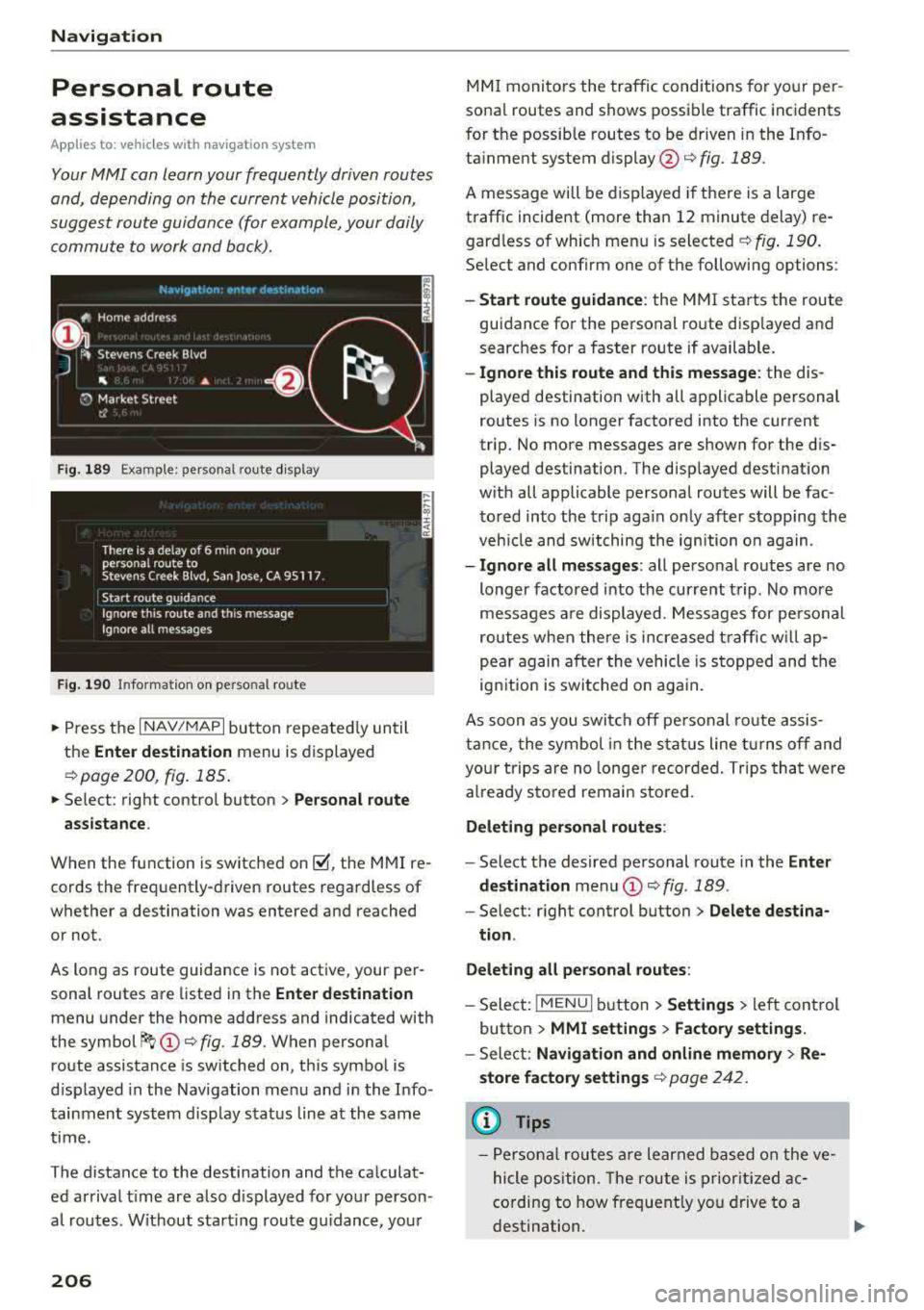
Fig. 189 Exa mple: perso nal rou te display
Fig . 190 In forma tion on personal ro ute
.,. Press the I NAV/MAPI button repeated ly until
the
Enter destination menu is displayed
qpage 200 , fig . 185.
... Select : right contro l button > Personal route
assistance .
When the function is switched on~, the MMI re
cords the frequently-driven routes regardless of
whether a destination was entered and reached
or not .
As long as route guidance is not act ive, your per
sonal routes are listed in the
Enter destination
menu under the home address and indicated with
the
symbol ~ (D q fig. 189. When personal
route assistance is switched on, this symbol is
displayed in the Navigation menu and in the Info
tainment system disp lay status line at the same
time.
The distance to the destination and the calculat ed arrival time are also d isplayed for your person
al routes. Without start ing route gui dance, your
206
MMI monitors the traffic conditions for your per
sona l routes and shows possible traffic incidents
for t he possib le routes to be driven in the Info
ta inment system
display @q fig. 189.
A message will be displayed if there is a large
traffic incident (more than 12 minute delay) re
gardless of which menu is selected
¢fig . 190.
Select and confirm one of the following options :
-Start route guidance: the MMI starts the route
guidance for the personal ro ute disp layed and
searches for a faster route if available.
- Ignore this route and this message: the dis
played destination with all applicable personal
routes is no longer factored into the current
trip. No more messages are shown for the dis
played destination. The displayed destination
w ith all applicable personal routes will be fac
tored into the trip again on ly after stopping the
veh icle and switching the ignition on again.
-Ignore all messages : all personal routes are no
longer factored into the current trip. No more
messages are displayed . Messages for pe rsonal
routes when there is increased traffic will ap
pear again after the vehicle is stopped and the
ignition is switched o n again.
As soon as you switch off personal route assis
tance, the symbol in the status line turns off and
your trips are no longer recorded. Trips that were
already stored remain sto red .
Deleting personal routes :
-Select the desired personal route in the Enter
destination
menu (D ¢ fig. 189.
-Select: r ight control button> Delete destina
tion .
Deleting all personal routes:
-Select: !MENU I button> Settings > left control
button >
MMI settings > Factory settings.
-Sele ct: Navigation and online memory > Re·
store factory settings
¢ page 2 42.
(D Tips
-Personal routes are learned based on the ve
hicle position. The route is prioritized ac
cording to how frequently you drive to a
destination.
Page 210 of 400
Navigation
Alternative routes
Applies to: ve hicles w ith navigation sys tem
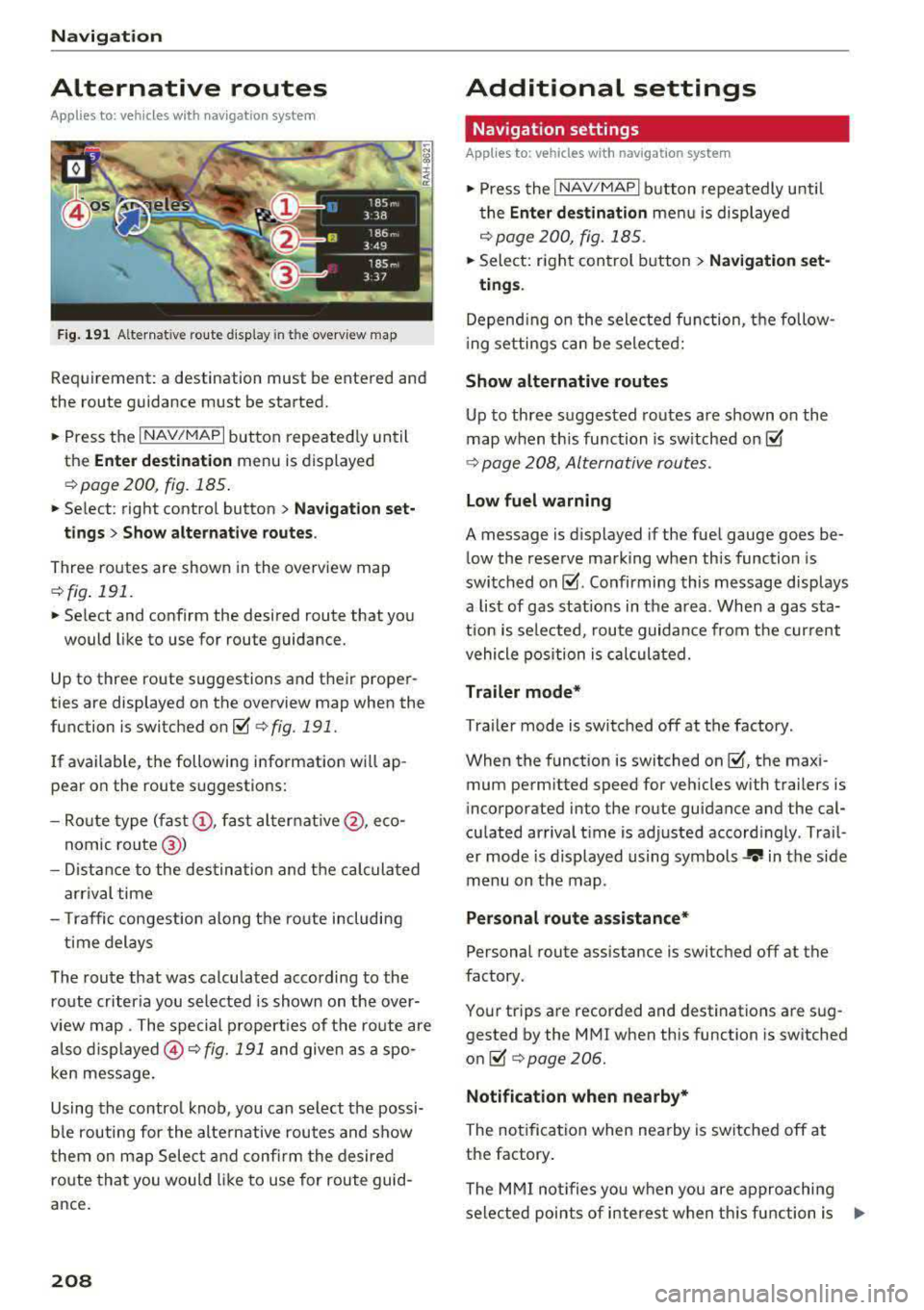
F ig. 191 Alternat ive ro ute disp lay in t he overv iew map
Requirement : a destination must be entered and
the route guidance must be started.
.. P ress the I N AV/MAPI button repeated ly un til
the
Enter destination menu is displayed
r=;, page 2 00, fig. 185 .
.. Select : right contro l button > Navigat ion set-
t ings > Show alternative routes .
Three routes are shown in the overview map
¢fig. 191.
.. Select and confirm the desired route that yo u
would like to use for route guidance.
Up to three route suggestions and their proper
ties are displayed on the overview map when the
function is switched
on~ r=;, fig. 191.
I f available, the following information will ap
pear on the route s uggestions:
- Ro ute type
(fast @, fast a lter nat ive @, eco
nomic
r oute @)
-Dista nce to the des tin ation and t he ca lculated
a rrival time
- T raffic congestion along t he ro ute including
t ime delays
The route that was calculated according to the
ro ute criteria you selected is show n on the over
view map . The special p rope rt ies of t he ro ute are
al so
displayed @¢ fig. 191 and given as a spo
ken message .
Using the contro l knob, you can se lect the possi
b le rou ting for the alte rnative routes and show
t hem on m ap Selec t and confi rm the desire d
route tha t you woul d like to use for route guid
ance .
208
Additional settings
Navigation settings
App lies to: vehicles with navigation sys te m
.. Press the I NAV/MAPI b utton repeatedly u nti l
t he
Enter de stinat ion me nu i s displaye d
¢page 200, fig.18 5 .
.. Sele ct: right con trol b utton> Navigat ion set-
tings .
Depend ing o n the selected fu nction, the follow
i ng settings c an be sele cte d:
Show alternative routes
Up to three suggested routes a re shown o n the
map when th is fu nction is sw itched
on~
r=;, page 208, Alternative routes.
Low fuel warning
A message is d is p layed if the fuel gauge goes be
low the rese rve marking when this function is
swi tched
on~ -Confirming this message displays
a list of gas stations in the a rea . When a gas sta
t ion is se lected, route guida nce from the cur rent
vehicle position is c alcula ted.
Trailer mode*
Tra ile r mode is switched off at the factory .
When the funct ion is switched
on ~-the max i
mum perm itted speed for vehicles with trailers is
incorporated into the route guidance and the cal
cu lated arriva l t ime is adjusted accord ingly . Trai l
er mode is displayed using symbols
-r.'11 in the s ide
m enu on the map .
Personal route assistance*
Personal route assistance is switc hed off at the
factory.
You r trips a re recorded and destinations are sug
gested by the MMI when th is function is sw itched
o n ~ r=;, page 206.
Notificat ion when nearby*
The no tifica tion when nearby is switched off at
the factory .
The M MI no tifies you w hen y ou are a pproachi ng
selected points of interest w hen th is fu nction is
...
Page 213 of 400
CXl CXl .... N r--N .... 0 N > 00
POis alon g the route
Requirement: route gu idance must be active .
Search ing for points of interest along your cur
rent route For addit iona l info rmation, see
¢page 203.
Additional options on the map
Applies to: vehicles with navigation system
.,. Press the I NAV/MAPI but ton repeated ly un til
the map is displayed
¢ page 209, fig. 193 .
.. Press the right contro l button .
D epending on the f unction selec ted, the follow
i ng options can a lso be se lected under the
Map
menu :
Cancel rout e guidan ce : see ¢ page 205.
Adju st po sition : you can manua lly move the vehi
cle pos ition on the map to change the route .
Map setting s: see ¢page 211.
Route criteria : see¢ page 209 .
Voice guidance : see ¢ page 209.
Navigation setting s: see¢ page 208.
Show alt ernati ve ro u tes : see ¢ page 208.
Parking along the route *: parking options near
the vehicle are disp layed .
Save current po sition *: you can save you r cu rrent
ve hicle position as a
favor ite¢ page 207 o r save
it as a contact in the
d irecto ry ¢ page 207 .
Audi connect at th is locat ion *: allows yo u to
sea rch fo r
Travel information at the entered lo
cation (events, weather a t the destination, etc.) .
Online traffic data*: you ca n sw itch the on line
traffic data on o r
off~.
Country inform ation : see¢ page 205.
Avoid route* : when route guidance is active, the
calculated route wi ll avoid the area you have
specif ied (max imum: 12 mi (20 km)), if possible .
The navigation system ca lculates an alternat ive
route. The route to be avoided that you have en
tered applies only to the c urrent route and must
be set again, if needed. The a reas yo u have se-
Na vigation
lected to avoid w ill appear with red and white
shading on the map.
Mov e rout e*: move your f inger over the MMI
touch co ntro l pad* o r use the contro l knob to ad
just the route on the overview map.
Map settings
Appl ies to : vehicles with navigat ion system
.. Press the I NAV/MAPI button repeatedly unti l
the map is displayed.
.,. Select: r ight control button > Map settings .
Depending on the selected function, the follow
ing settings can be selected :
Map colors
Day /Night :
the map is disp layed w ith a light/
dark backgrou nd.
Automatic: the map disp lay adapts to the light
i ng cond it io ns (for examp le, chang ing from
Day
to Night when dr iving through a t unnel).
Map display
Standard :
see c>page 209 , fig. 194.
Online map view : see c>page 212.
Ele ctric range : Refer to ¢ page 216.
Map orientation
Destination :
the map indicates the destination
and is or iented to the no rth.
2D head ing up map /2D no rth up map : the cur
rent vehicle pos ition is displayed . The map is ori
ented in the di rect ion of t ravel o r to the north .
3D posit ion map *: the current vehicle position is
shown on a three-dimens ional map and is aligned
to the direction of travel. At a scale of 62 mi
(100 km) and larger, the map or ientat io n is to
the north.
O ver vie w: the entire route from the vehicle pos i
t ion to the destination or the next stopover is d is
played on the map . The map scale depends on
the length of the route and adapts automatically.
T he map is orie nted to the north.
..,.
211
Page 214 of 400
Navigation
Route information
The display of route information, such as t he cur
ren t street be ing drive n on or po ints o f in terest
a long the c urrent route, can be switched on/off
or can be min imized on the display of upcomi ng
maneuvers.
Automatic zoom
On : the map scale is adap ted automatica lly de
pending on the type o f road being trave led (e x
p ressway, highway, other roads) so that you al
ways have an optimal overv iew o f the road a head .
The sca le is a lso automatica lly adapted when
there a re upcoming maneuvers to p rovide a bet
ter deta iled view.
Intersection : when route gu idance is active , the
map tempora rily zooms in to a detailed scale
when there are upcom ing mane uvers so that you
can see t he street or t urn better.
Off : the map scale yo u have chosen is main
tained .
Map content
Map content s uch as weather, tra ffic infor mation
or favorites can be displayed or hidden.
T he weather fo recas t* is d isp layed o n a 3 m i (5
k m ) s cale on the m ap
¢ page 208, f ig. 191 .
Online map display
Applies to: vehicles with navigation system and Audi connect
(Infotainment)
With the onlin e map view, you can display the
map with satellite images.
F ig . 19 5 Online map v iew
212
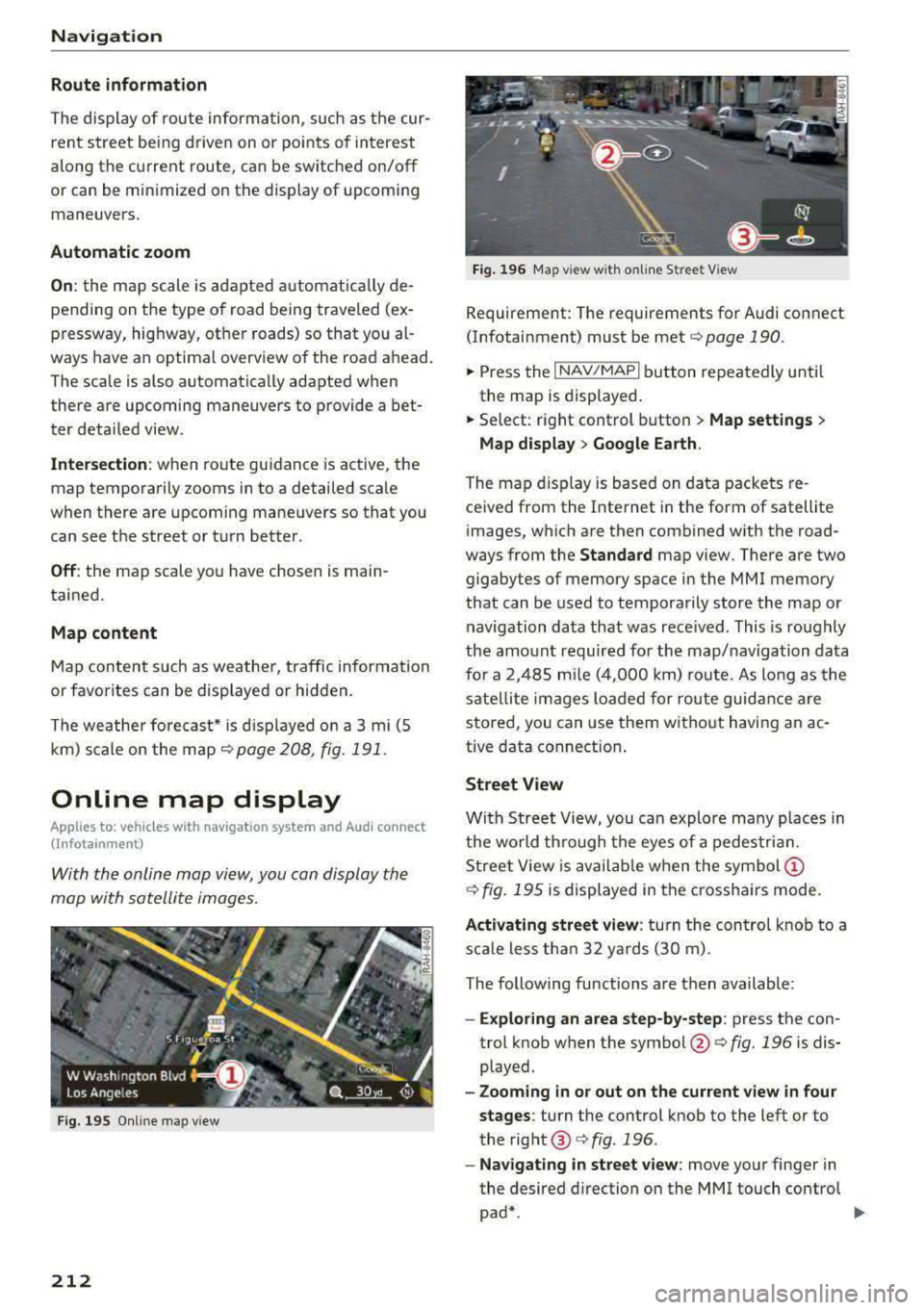
Fig. 196 M ap view w ith o nline St reet View
Requireme nt: The requirements for Audi co nnect
(Infotainment) must be met
¢ page 190.
.,.. Press the I NAV/MAP I button repeatedly u nti l
the map is displayed.
.,.. Select: right control b utton> Map settings >
Map display > Google Earth .
The map dis pl ay is based on da ta packets re
ce ived from the Inte rnet in the form of satellite
images, w hich are then combined with the road
ways from the
Standard map v iew. There a re two
gigabytes of memory space in the MMI memory
that can be used to tempora rily store the map or
navigation da ta that was rece ived . This is roughly
the amo unt requir ed fo r th e map/naviga tion data
fo r a 2, 485 mile (4,0 0 0 k m) ro ute. As lo ng as the
s ate llite ima ges l oaded for route guid ance are
stored, you can use them wi thout h avi ng an ac
tive data connect ion .
Street View
With Stree t View, you can explo re ma ny p lac es in
th e wo rld thr ough t he eyes of a pedes tria n.
S tree t View is availa ble w hen the
sy mb ol(!)
¢ fig. 195 is displayed in t he cross ha irs mode.
Activating street view : turn t he con trol knob to a
s c a le le ss th an 32 yar ds (3 0 m) .
The following functions a re then available :
-Exploring an area step-by-step : press the con
trol knob when t he
symbol @¢ fig. 196 is dis
played.
- Zooming in or out on the current view in four
stages :
turn the control knob to the left or to
the rig ht ®
c:> fig . 196 .
-Navigating in street view : move your finger in
the desired direction on the MMI touch contro l
pad*.
Page 215 of 400
a, a, ..... N
" N ..... 0 N > 00
Additional information
Showing additional informat ion in the Infotain
ment system disp lay can be switched on in the
Map content menu ¢page 212. To display any
applicable additional information, move the
crosshairs onto an item on the map and press the
control knob.
(D Tips
- The stored online map view data can be de
leted in
Factory sett ings > Navigation and
on line memory
¢ page 242.
- The online map view is an Audi connect In
fotainment service and is regu larly updated
when the function is opened. The process
may take several seconds.
- When the on line map view is switched on
using the 30 position map, the MMI display
a utomat ically switches to the 20 map orien
tation when driving through tunnels.
- For safety reasons, the Street View func
tions can o nly be used when the vehicle is
stationary .
- Always read the chapter
¢ page 196, Audi
connect (Infotainment) general informa tion.
- Additional informat ion can be found under
www.audiusa.com /audiconnect .
Map update
Introduction
Applies to: vehicles with navigation system
There are multiple options available for updating
your map mater ial:
- Map updates through the
on line map update*
¢page 213.
-Import map updates from the SD card to you r
MMI. You can find add itional information on
line at
my.audiusa.com.
-Map update at an authorized Audi dealer or au
thorized Audi Service Facility. This can result in
additional costs.
Navigation
Online map update
Applies to: vehicles with navigation system and Audi connect
(Infota inmen t)
Using the online map update, you con update
the map material in your navigation system di
rectly from your vehicle.
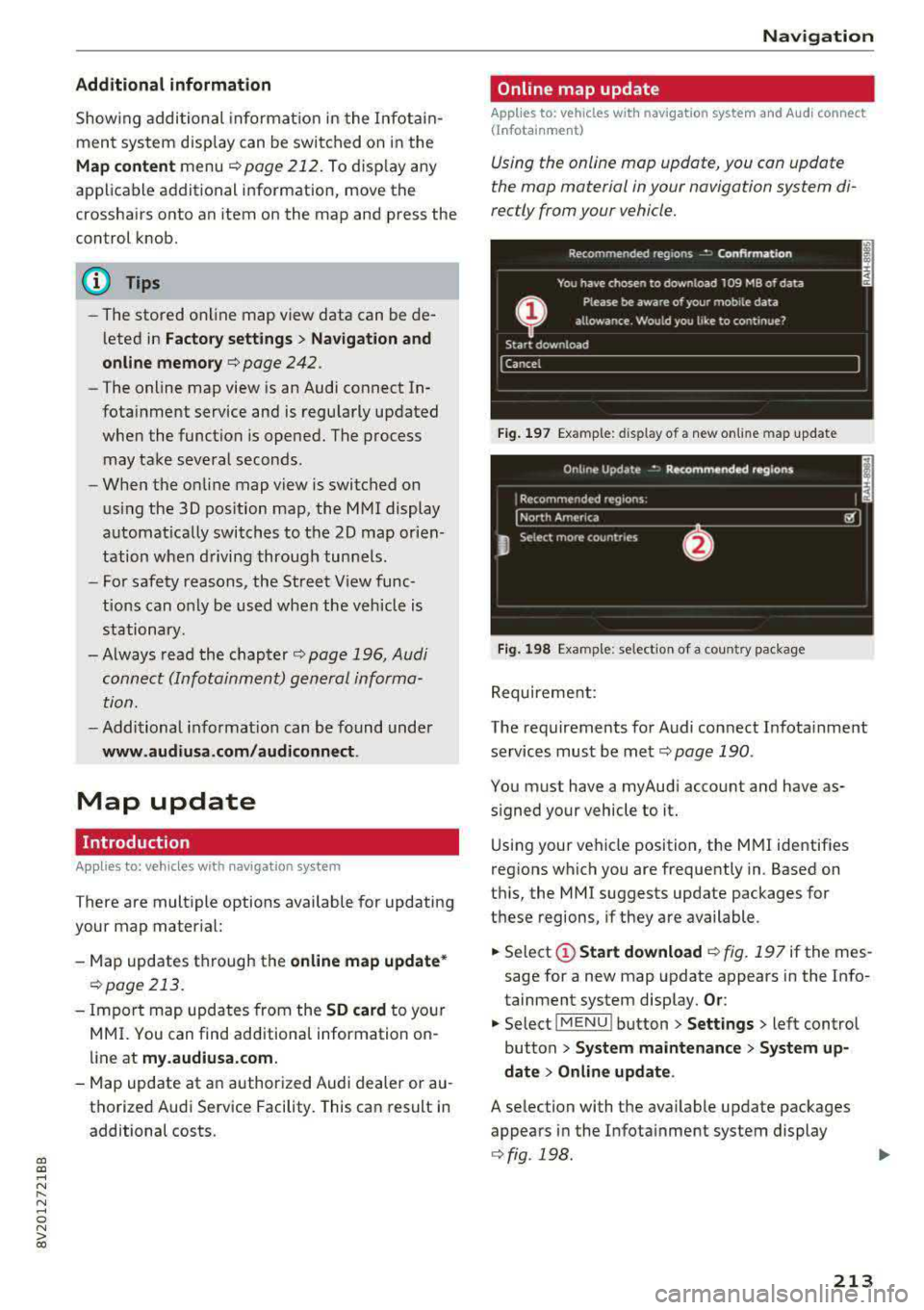
Fig. 197 Example: display of a new on lin e m ap update
Fig. 198 Example: selection of a country package
Requirement:
The requirements for Audi connect Infota inment
services must be
met¢ page 190.
You must have a myAudi account and have as
signed your vehicle to it.
Using your vehicle position, the MMI identif ies
regions which you are frequently in. Based on
this, the MMI suggests update packages for
these regions, if they are available .
.. Select(!) Start download ¢ fig. 197 if the mes
sage for a new map update appears in the Info
tainment system display.
Or :
.. Select iMENU ! button> Settings> left control
button >
System maintenance > System up
date
> Online update.
A selection with the available update packages
appears in the Infota inment system display
¢ fig . 198 .
213