audio AUDI A3 SEDAN 2018 User Guide
[x] Cancel search | Manufacturer: AUDI, Model Year: 2018, Model line: A3 SEDAN, Model: AUDI A3 SEDAN 2018Pages: 404, PDF Size: 62.3 MB
Page 172 of 404
Voice recognition s ystem
Voice recognition system
Operating
A pplies to: ve hicles w ith vo ice recognition system
You con operate many Infotainment functions
conveniently by speaking.
R equirements: the ignition and the MMI must be
switched
on <=> page 154, there must not be any
phone call in progress and the parking system
must not be active .
~ Switching on: press the~ button @
<=> page 15, fig. 11 or@ <=> page 16, fig . 13
briefly on the mult ifunct ion steer ing whee l and
say the desired command after the
Beep .
~ Sw itching off : press and hold the~ button.
Or: press the [21 butto n.
~ Pausing : say the command Pau se . To res ume,
press
the~ button .
~ Correcting : say the command Corre ction .
Input assis tance
The system gu ides you through the input with
visual and audio feedback .
-Visual input a ssistance : after switching on
vo ice recognit ion, a display with a se lection of
poss ible commands appears . This command
display can be sw itched on or off . Select:
IMENU I button> Settings> left control button
> MMI settings > Sp eech dialog system .
- Audio input a ssis tance :
to have the poss ible
commands read, turn the voice recogn ition sys
tem o n and say
Help .
For the s ystem to under stand you:
Speak clearly and dist inct ly at a normal volume.
Speak louder when driving faster .
E mphasi ze the words in the commands even ly
and do not leave long pauses.
Close the doors, the windows and the sunroof* to reduce background noise . Make sure t hat passen
gers are not speaking when you are giving a voice
command.
Do not direct the vents toward the hands -free mi
crophone, which is in the roof headliner near the
front interior lights.
170
Only use the system from the dr iver's seat be
ca use the hands -free microphone is directed to
ward that seat .
Additional settings
See<=> page 248.
_8. WARNING
- Direct yo ur full attention to dr iv ing. As the
d river, you have complete responsibility fo r
safety in t raffic. On ly use the functions in
such a way that you a lways maintain com
plete contro l over your vehicle in a ll traffic
situations.
- Do not use the voice recognition system in
emergencies because your voice may change
in s tressful s ituations .
It may take longer to
d ia l the numbe r or th e system may not be
ab le to d ia l it at all. Dial the emergency
number manually.
(D Tips
- The d ia log pauses when there is a n incom
ing phone call a nd will cont inue if you ig
nore the ca ll. The d ia log ends if yo u answer
t h e ca ll.
- Th ere are no vo ice gu idance* prompts when
a dialog is act ive.
- You can select an i tem in the list using ei
ther the vo ice recognit ion system o r the
cont ro l knob .
Command overview
information
App lies to : vehicles wi th voice recog nitio n system
The following overv iews describe the commands
that can be used to operate the MMI using the
voice recog nition system.
Alte rnative commands a re separ ated using a"/ ",
for example say:
Telephone / (or) Navigati on /
(or) Radio .
Sequences of commands used to perform an ac
t ion are iden tified w ith a
"> ", fo r example say:
Enter addre ss > (t hen) Enter country /state. .,..
Page 177 of 404
u. 00 ... N l' N ... 0 N > 00
Voice recognition system
-A lways read the chap ter qpoge 19 6, Audi
connect (Infotainment) general informa
tion .
Radio
App lies to : ve hicl es w ith vo ice recognition syste m
Requirement: the Radio must already be open. You can say the following commands depend ing
o n the selected frequency band:
Function Say:
Selecting the frequency band FM*/ SiriusXM * / FM / AM
Sele cti ng a stat io n from t he s ta tion Channel (XY ) / Frequency (XV)
list
Selecting a stat ion from favorites/
Radio presets > Line ( XV)
presets
Setting the frequency
Frequency ( X V ) / Frequency (XV ) HD 1
Correcting data input No I meant (XV )
Clos ing the full -sc reen command Close
list
Media
A pp lies to: ve hicles with vo ice recognition syste m
Requirement: you must be in the Media menu . You can say the following commands depend ing
o n t he act ive media:
Function Say:
Selecti ng a so urce directly Jukebox* / CD / DVD / SD card 1 / SD card 2 / Audi music inter-
face*
I iPhone * / USB* / Bluetooth * I Wi-Fi* / Medium (XY) , for
example " Jolhn 's player"
Se lecting aud io/video* f iles in the
Media favo rites / Artists / Albums / Genres I Tracks / Playl ists /
Jukebox* Videos
Selecti ng audi o files on an iPo d Artists / Albums / Genres I Tracks / Playlists /Composers /
(source: A udi music inte rface*) Podca st s / Audio book s
Navigating w ith in a folder struc-Folder up / Line (XV)
tu r e/list
Se lecting shuffle
Shuffle on / Shuffle off
Correct ing data inp ut No I meant (XV)
Clos ing the full -sc reen command Close
list
External voice operation The ign ition and the MMI must be sw itched on.
No phone call is in progress .
Appl ies to: ve hicles w ith vo ice recogni tion syste m and exte r
n al voice o peratio n
Requireme nt: T
he pa rk ing aid as well as t he A ud i voice recogn i-
t io n syste m mus t not be a ct ive. .,.
175
Page 196 of 404

Audi conn ect (Infotainment)
- Navigation with satellite map1> r::!>page 213.
- Po in t o f Inter est (PO I) online se a rc h with
v o ic e re co gni tion
(such as restaurants): plan
route g uidance using the MMI control panel
¢ page 204 and the voice recognition system
¢page 170.
-Set up destinations in your MMI using your
m yAudi acco unt or the sa tellite m ap vie w l)
¢ page 213.
- Online traffic informat ion : receive up-to-the
minute traffic information about accidents,
road construction and other incidents
¢page 216.
- Map updat e: import navigat ion map updates
directly to your vehicle using an SD card or as
an online update
¢page 214.
(D Tips
-For the map update Audi connect Infotain
ment service via SD card, check the current
software vers ion in your vehicle and then
check www.aud iusa .com/myaudi to see if a
newer ve rsion is ava ilable. You can a lso have
the new navigation data insta lled by an A udi
dealer, w hich can be done for an add itional
cha rge.
- You can find add itiona l information abo ut
the
map upda te on line a t
www.audiusa.com/myaud i.
Audi connect (Infotainment) in Media
menu
Applies to vehicles with Audi connect (Infotainment)
.,. Se lect : IMENUI button> Audi connect > right
control button >
Ente rtainment .
- Online medi a and Internet r adio :
offers access
to different online media services as well as In
ternet rad io and operat ion through the MMI us
ing the
Audi MMI conne ct app.
Applies to: vehicles with Wi-Fi audio player
-Wi-Fi audi o player : you can access t he media
center through a Wi -Fi connected media player
(such as a smartphone)
¢ page 22 7.
ll AU DI AG provides access to services fro m third party pro
v iders . Pe rma nent availabil ity can not be guaran teed , be
c a use that depen ds on the th ird party provider.
194
A WARNING
It is only safe to use tablets, laptops, mobile
devices and other similar devices whe n the ve
hi cle is stationary because, like all loose ob
jects, they could be thrown around the inside of the vehicle in a cras h and cause se rious in
j ur ies . Store these types of devices sec urely
while driv ing.
((D} Note
A lways fo llow the information found in r::!> 0 in
Wi -Fi hotspot on page 195.
(D Tips
- Also see the chapter r::!> page 196, Audi con
nect (Infotainment) general information.
- For more informat ion on the W i-F i aud io
player and suppo rted devices, contact an
autho rized A ud i dealer o r autho riz ed Aud i
Serv ice Facility.
Additional options
Applies to vehicles with Audi connect (Infotainment)
.,. Select: IMENUI b utton> Audi conn ect > right
control button.
The following opt ions are available in the Aud i
connect I nfota inment serv ices overv iew :
About Audi conn ect
Here you w ill find legal information for Audi con
nect (Infota inment) usage .
Lo g in *
See ¢ page 190, Logging into myAudi in the vehi
cle.
Connection manager
Seer::!> page 244.
Licens e subscription
The validity and exp iration date of your licenses
a re disp layed. W hen the fu nction is sw itched on
1111-
Page 197 of 404
u. 00 .-< N l' N .-< 0 N > 00
10, the message Warning befo re sub scripti on
e x pire s
will display to warn you that your license
is about to expire.
Refresh
The content of the selected A udi connect Info
tainment service o r the entire Audi connect (Info
tainment) list is updated .
Data privacy
Requirement: the ign it ion must be switched on.
Locat ion and personal data are transmitted when
using Aud i connect Infotainment services . If you
do not want this information to be transm itted,
activate data p rivacy .
-Acti vate pri vacy: the data connection is switch
ed off. Some Audi connect Infotainment serv
ices are not available.
- Deacti vate data priv acy : if the data connection
is switched off, you can switch on the data con
nect ion for the use of all Audi connect Infota in
ment services. Select and confirm
A cti vate d ata
conn ection.
Wi-Fi hotspot
A ppl ies to: ve hicles with Wi-F i hotspot
You can use the MMI as a Wi-Fi hotspot to con
nect up to eight Wi-Fi devices to the Internet.
While driving, restricted use of unsecured, light,
small wireless devi ces is only possible from the
rear of the vehicle.
Requirement: the ign ition must be switched on.
"' Select : I MENU I button> Telephone > right con-
trol button >
W i-Fi settings.
The fo llow ing settings can be selected:
Wi-Fi
The MM I Wi -Fi hotspot is deactivated at the fac
tory. Switch the Wi-Fi hotspot to
Hot spot before
establishing a connection between your vehicle
and your Wi -Fi device.
- On : the MMI Wi -Fi hotspot is active and visib le
to ot her devices. You can connect your Wi -Fi
device to the MMI and use the Internet connec
t ion if necessary.
Audi conn ect (Inf otainment )
-Off : the M MI Wi-Fi hotspot is deactivated. An
Internet connection for Wi -Fi devices is not
possible .
A WARNING
= -
- To reduce the r isk of an accident, use the
Aud i connect Infotainment services with a
W i- F i hotspot only in the rear seat when the
ve hicle is in mot io n, or only when the vehi
cle is stat ionary .
- It is o nly safe to use tablets, laptops, mo
b ile dev ices and other sim ilar devices when
the vehicle is stat ionary because, li ke all
loose objects, they co uld b e thrown around
t he inside o f th e ve hicl e in a c rash and ca use
serio us inj uries . Store these types of devices
secure ly while driving .
- D o not use any wireless dev ices on the front
seats within range of the airbags whi le driv
ing . A lso read the warnings in the chapter
¢ page 2 73, Front airbags .
-As the driver, do not allow usage of the Wi
F i hotspot to distract yo u from driving, as
this cou ld increase the r isk of an accident.
@ Note
- Under some conditions, ce rtain mobile devi
ces and operating systems may automati
cally switch from your vehicle's Wi -Fi hot
spot to the device's mobi le data connection.
In that event, standa rd text and data usage
rates would apply wh ile the device's mobile
data connect ion is in use. Please refer to
documentation prov ided by your mob ile de
vice's manufacture a nd you r data carrier for
details , rela ted te rms an d pr iva cy sta te
ment.
- Yo u ar e respons ib le for all precautions ta k
en for d ata prote ct io n, a nti -vir us p rotec tion
and protec tion agains t loss of data on mo
bile devices t hat are used to access the In
ternet through the Wi -Fi hotspot.
(D Tips
- In ve hicl es w it h out Audi con nect (I nfota in
ment)*, the use of the Wi -Fi hotspot is on ly
possible fo r the Wi -Fi audio player *. A data
.,.
195
Page 225 of 404
u. 00 .-< N l' N .-< 0 N > 00
Media
Introduction
There are various media drives and connections
avai lab le in the MMI. For example, you can play
audio/video* fi les from t he Jukebox* or connect
your mobi le device to the Audi mus ic interface*
and operate it through the MMI.
Notes
General
Media and format re strictions :
the MM I (includ
ing the SD card reader and the USB storage de
vice connection *) was tested wit h a variety of
products and media on the market. However,
there may be cases where ind ividual devices or
media and audio/video files* may not be recog
n ized, may play on ly w ith restrictions, or may not
play at all.
Digital Rights Management : please note that
the audio/video* files are subjec t to copyright
protection .
The med ia drives do not play f iles that are pro
tected by
ORM and that are ident ified with the
symbol
rfl.
Data secu rity : never store important data on SD
cards, the Jukebox*, CDs/DVDs or mobile devices .
Aud i AG is not responsib le for damaged or lost
f il es and media .
Loading times : th e more files/fo lders/p lay lists
that are on a storage medium, the longer it will
take to load the audio/v ideo* files . Audi recom
mends using storage med ia tha t on ly conta in au
d io/video files* . To decrease the t ime it takes to
l oad audio/v ideo f iles*, create subfolders (fo r ex
ample, fo r th e a rt ist o r album). The loading time
will also increase when importing fi les.
Additional information : when playing, audio
f iles are automatically displayed with any add i
tional informat ion that is sto red (such as the ar
tis t, trac k and albu m cover). If this informa tion is
n o t availa ble o n the sto rage med ium, t he
M MI
will check the Grace note metadata database .
Media
However, in some cases, the additional in fo rma
tion may not be displayed.
Re stri cted functionality : reset the Media set
tings
t o the fac to ry defau lt settings if func tional
ity is restr icted
¢ page 244.
If fu nctionali ty is rest ricted, reset the Jukebox *
to the fa ctory default se tt ings ¢ page 244.
For information about the propert ies of s upport
ed med ia and fi le formats , see
¢ page 237 .
@ Note
Always fo llow the information fo und in ¢ @ in
Wi-Fi hotspot on page 195 .
CD/DVD operation
CD /DVD and format restrictions :
the funct iona li
ty of individ ua l st orage media may be limited due
to the v ariety of b lank CDs/DVDs avai lab le and
t h e various capacities. Audio C Ds or video DV Ds
with copy p rotection, CDs/DVDs that do not con
fo rm to the standard and multi session CDs may
have limit ed playback or may not play at a ll. Audi
recommends finaliz ing the recording process
whe n creat ing mult isess io n CDs . Mult isess ion is
not supported for DVDs .
Using CDs/DVDs , the CD dr ive or the DVD drive :
to ensure correct, hig h-quality playback and to
prevent damage to the dr ive or d isc read ing er
rors, always store CDs/DVDs in a protective
sleeve and do not expose t hem to direct sunlight .
Do
not u se:
- Damaged, dirty or scratched CDs/DVDs
- Sing le CDs/DVDs with 3 in (8 cm) d iameter
- CD/DVDs that a re not round
- CDs/DVDs w it h labe ls
- Protec tive rings
- Clea ning CDs
Thermal protection switch : CD/DVD playback
may be temporarily unavailab le if outs ide tem
peratures a re extremely hot or co ld . A thermal
pro tect io n sw itch is insta lled to p rotect the C D/
D VD and the laser.
La ser devi ce s: lase r devices a re divided i nto safe -
ty classes 1 to 4 in acco rdance w ith DIN I EC 76
.,.
223
Page 226 of 404
Media
(CO) 6/VDE 0837. The optical readers that are in
stalled conform to safety class
1. Lasers in this
class are very weak and well shielded, so there is no danger if used correctly.
Media drives
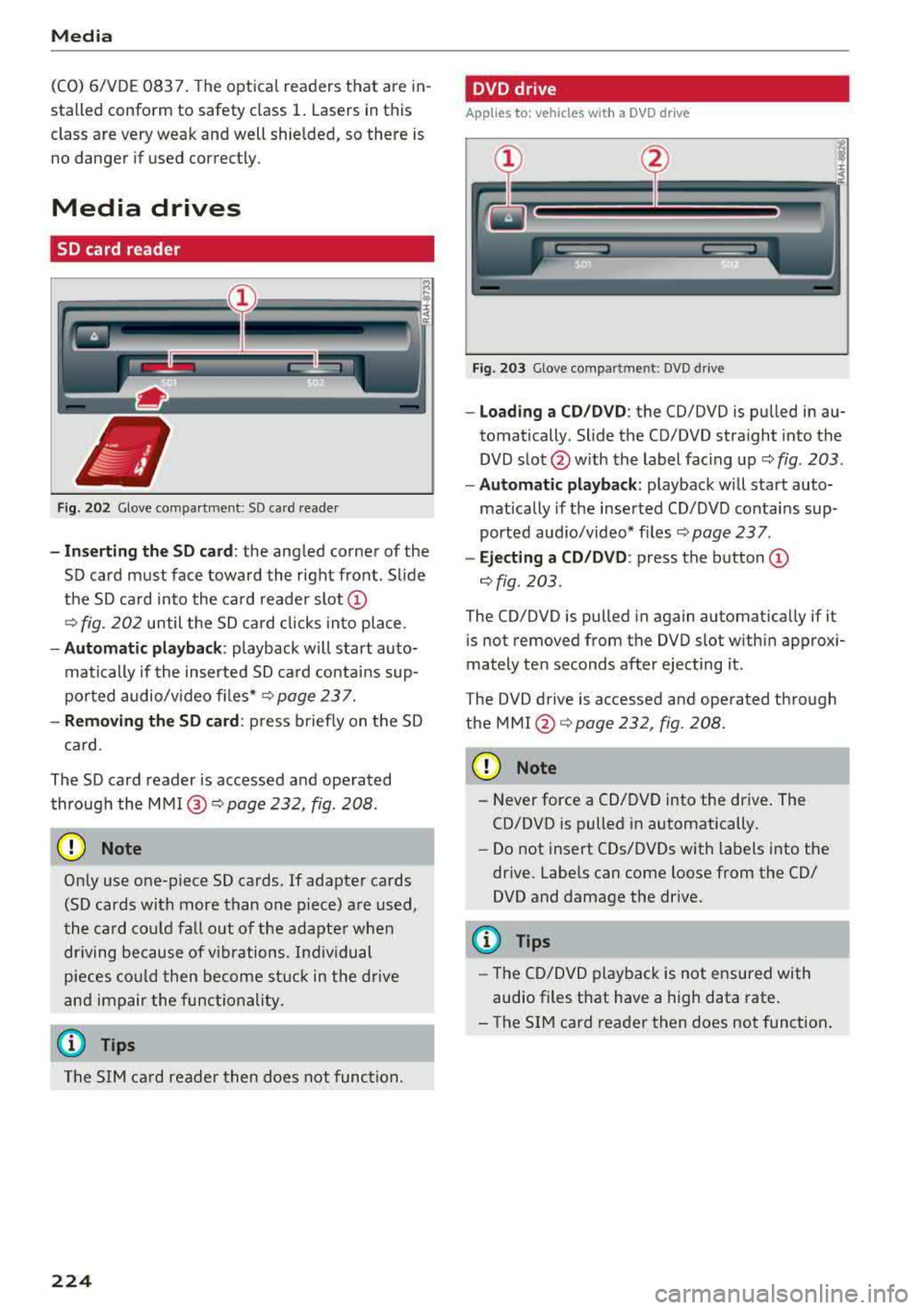
SO card reader
Fig. 202 Glove compa rtment : SD ca rd reader
-I n se rt in g th e S D card : the angled corner of the
SD card must face toward the right front . Sl ide
the SD ca rd into the card reader
slot @
9fig. 202 until the SD ca rd cli cks into place .
-Automatic pla yback : playback will start auto
matically if the inserted SD ca rd contains sup
po rted audio/v ideo fi les*
r:::.> page 23 7.
-Remo vin g the SD card : press briefly on the SD
ca rd.
The SD card reader is accessed and operated
through the
MMI @9 page 232, fig . 208 .
(D Note
Only use one-piece SD cards. If adapter cards
(SD cards with more than one piece) are used,
the card cou ld fa ll out of the adapter when
driving because of v ibrations . Ind ividual
pieces cou ld then become s tuck in the d rive
and impair the func tionality.
(D Tips
The S IM ca rd reader then does not func tion.
224
DVD drive
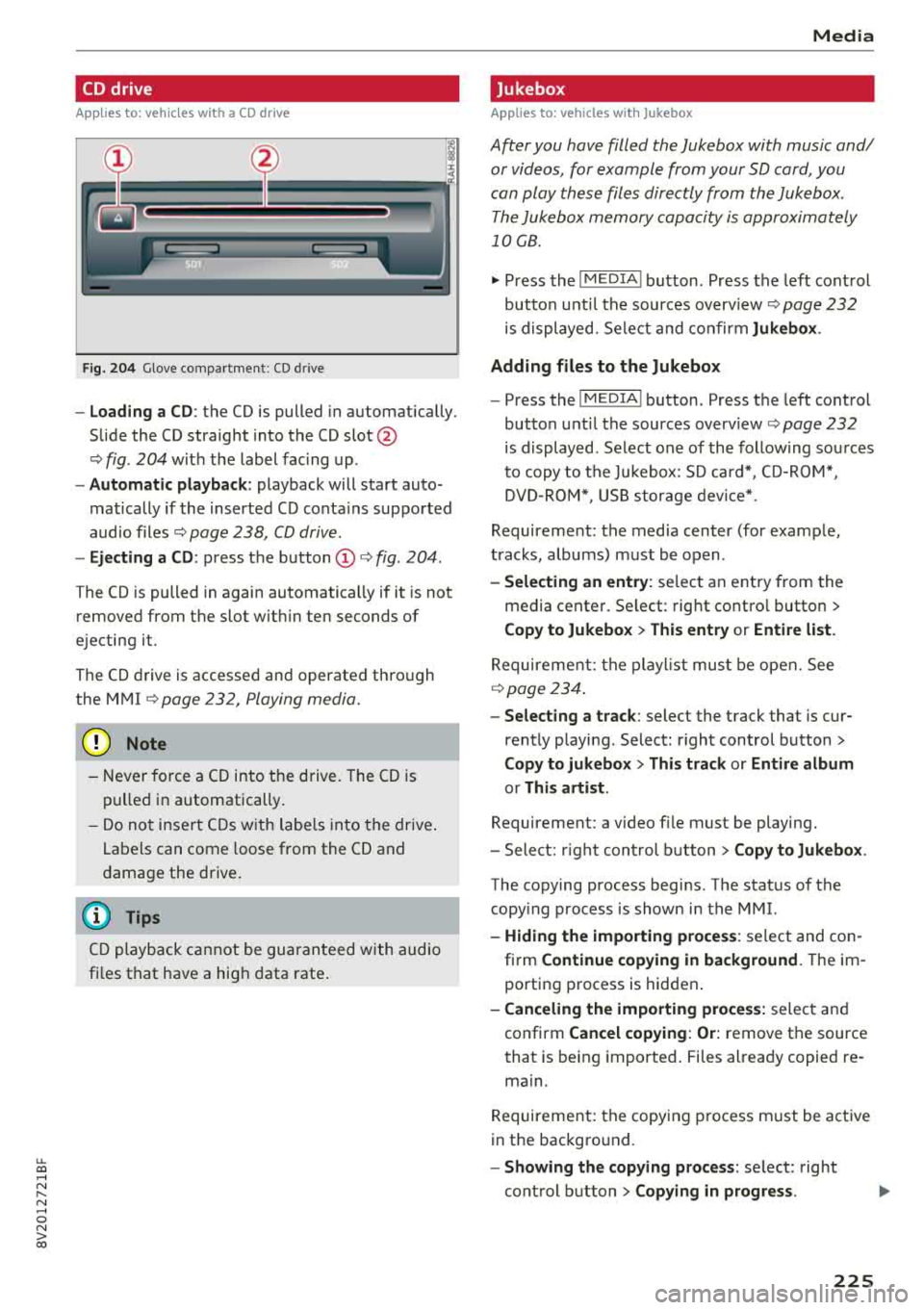
App lies to : vehicles with a DVD dr ive
Fig. 2 03 Glove comp art m en t: DVD d riv e
-Loading a CD /DVD : the CD/DVD is pu lled in au
tomatically . Slide the CD/DVD straight into the
DVD s lot @ with the label fac ing up
9 fig. 203 .
-Automa tic playback: playback w ill start auto
matically if the inserted CD/DVD conta ins sup
ported aud io/video* f iles
r:::.> page 23 7 .
-Ej ect ing a CD /DVD : press the button @
r:::.>fig . 203 .
The CD/DVD is pulled in again automat ica lly if it
is not removed from the DVD slot w ith in approx i
mately ten seconds after ejecting it.
T he DVD drive is accessed and operated through
the
MMI @r:::.>page 232 , fig . 208.
(D Note
-N ever force a CD/DVD into the drive. The
CD/DVD is pulled in automatically .
-Do not insert CDs/DVDs with labels into the
drive. Labe ls can come loose from the CD/
DVD and damage the drive.
(D Tips
-T he CD/DVD p layback is not ensured with
audio files that have a high data rate.
-T he SIM card reader then does not function .
Page 227 of 404
u. 00 .-< N l' N .-< 0 N > 00
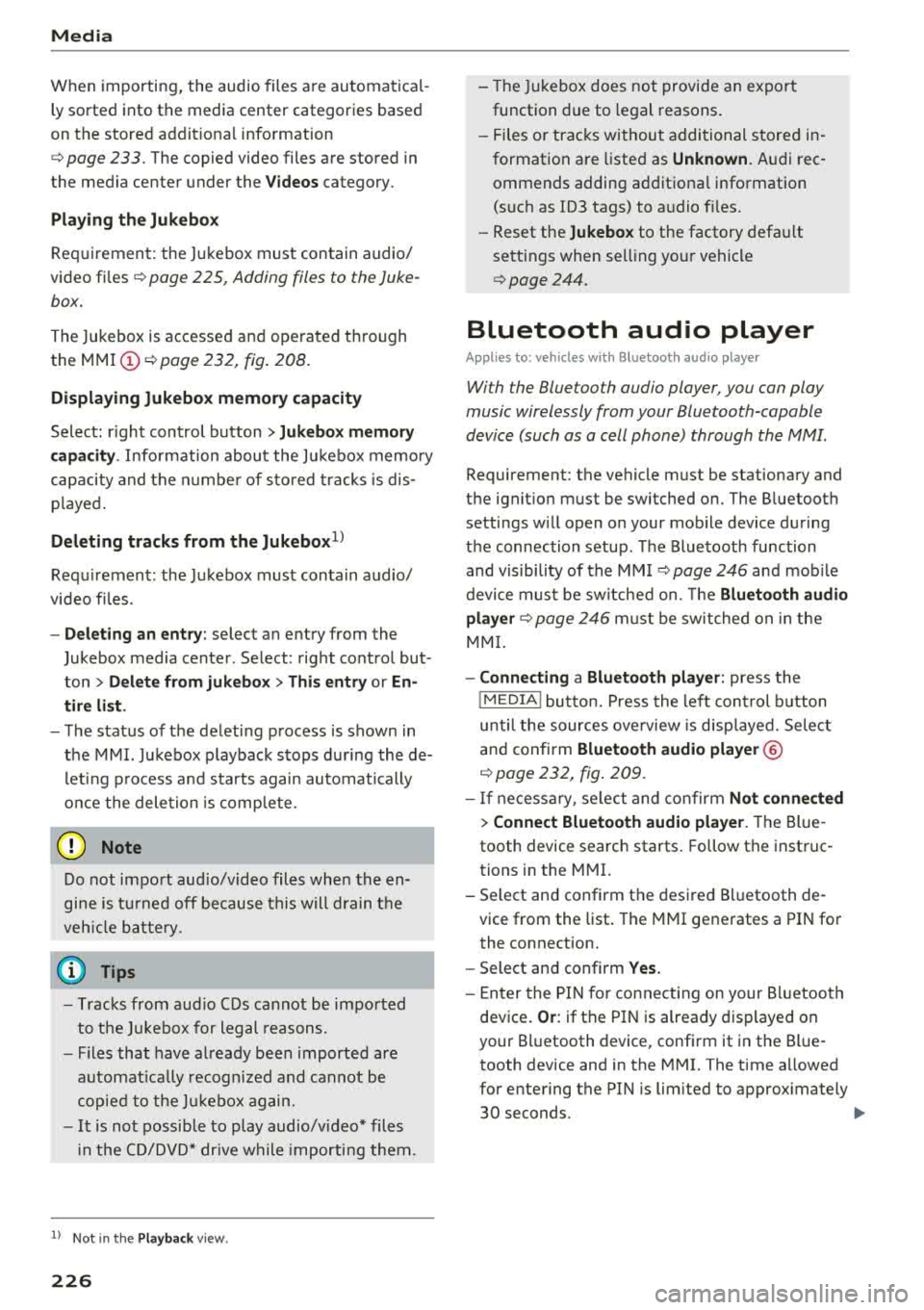
CD drive
App lies to: ve hicles wit h a CD drive
Fig. 204 G love co mpart m en t: CD driv e
-Load ing a CD : the CD is pulled in automatically .
S lide the CD straight into the CD
slot @
ca:> fig. 2 04 wit h the label fac ing up .
- Automatic playback : playback will start auto
matically if the inserted CD conta ins sup port ed
a u dio files
ca:> pag e 238, CD driv e.
- Ejecting a CD : press t he b utton (D <=:> fig . 204 .
The CD is pulled in again automatically if it is not
removed from t he slot w it hi n ten seconds of
e j ecting it .
T h e CD drive is accessed and operate d th ro ug h
the M MI
<=:> page 232, Playing m edia.
{Ll) Note
- Neve r for ce a CD into t he dr ive . The CD is
pull ed in auto matically .
- D o no t in se rt CDs w ith la b els in to the dri ve.
La bels can come loose from the CD and
d ama ge the drive .
(D Tips
CD play back c anno t be guaran teed wit h audio
fi les t hat have a high d ata rate .
Media
Jukebox
Applies to : veh icles w it h Jukebox
After you have filled the Jukebo x with music and/
or videos, for example from your SD card , you
can play th ese fil es dir ectly from the Jukebo x.
T he Jukebox me mory capa city is approximately
1 0 GB .
.,. Press th e I M EDIA ! button . Press the left cont rol
bu tton unt il the sources
overv iew <=:> page 232
is displayed. Se le ct and co nfir m Jukebox .
Adding files to the Jukebox
- Press th e I MEDIA ! button. Press t he left cont rol
button unt il the sources
overv iew <=:> page 23 2
is displayed . Select one of the follow ing so urces
t o copy to t he Ju kebox: SD c ard*, CD-R OM* ,
DVD -ROM *, US B stor age devi ce*.
Requirem ent: the media center (for examp le ,
t racks, albums) m ust be o pen .
-Selecting an entry : selec t an e ntry fr om the
media cente r. Se lect : rig ht contro l butto n
>
Copy to Jukebox > This entry or Entire list.
Requiremen t: th e pla yli st mus t be open. See
<=:> page 234.
- Selecting a track : select the track that is cur
rent ly p layi ng . Selec t: right control b utton
>
Copy to jukebox > This track or Entire album
or This artist .
Requirement: a v ideo file must be playing .
- Sele ct: r ig h t con trol button
> Copy to Jukebox .
The copying process begins . T he stat us of the
copy ing process is shown i n the MMI.
- Hiding the importing process : select and co n
fi rm
Continue copying in background . Theim
porti ng process is hid den .
-Canceling the importing process: selec t and
confirm
Cancel copying : Or: remove t he source
that is be ing i mported . Files al rea dy copied re
ma in.
R equirement: the copy in g pr ocess m ust be a ctive
in the bac kg ro un d.
-Showing the copying process : select: right
con trol b utton
> Copying in progress .
225
Page 228 of 404
Media
When importing, the audio files a re au tomatica l
ly sorted into the media center categories based
on the stored addit iona l info rmation
¢ page 233. The copied video files a re stored in
the media center under the
Videos category.
Playing the Jukebo x
Req uiremen t: the J ukebox must con tain audio/
video
fi les ¢ page 225, Adding files to the Juke
box.
T he Jukebox is accessed an d ope ra ted t hrough
the
MMI (D ¢ page 232, fig . 2 08.
Displaying Jukebox memory capacity
Select : righ t control button > Juk ebo x memory
capacity .
Info rmation abou t the J ukebo x memo ry
c a pacity and the numbe r of s to red tracks is dis
p layed .
Deleting tracks from the Jukebox1
)
Req uiremen t: the Jukebox must contain audio/
video fi les.
- Delet ing an ent ry : se lect an e ntry from the
Jukebox media center . Se lect: rig ht contro l but
ton
> Delete from jukebox > Thi s entry or En
tire list .
- The status of t he de leti ng p rocess is shown in
the MMI. J ukebox playback s tops d uring the de
l et ing p ro cess a nd s tarts again au toma tically
o nce the dele tion is comp lete .
(D) Note
Do not import aud io/video files when the en
gi ne is t urne d off because this will drain the
veh icle b attery.
(D Tips
- Tracks fro m audio C Ds cannot be im port ed
t o t he Ju ke box for legal reasons .
- Fil es that have a lready been importe d are
a utomat ica lly recogn ized and cannot be
cop ie d to the J ukebo x again.
- It i s no t possib le to play audio/v ideo* files
i n the C D/DVD* dr ive while importi ng the m.
1> Not i n the Pl ayba ck view .
226
- Th e Juk eb ox does not provi de a n ex port
function due to legal reasons .
- Files o r tra cks w ithou t addi tional store d in
formation a re listed as
Unknown. A ud i rec
ommends adding a dditiona l info rmation
(such as ID3 tags) to a udio f iles.
- Reset the
Jukebox to the facto ry defa ult
settings when sel ling yo ur vehicle
¢ page 244.
Bluetooth audio player
Appl ies to: vehicles with Bluetooth audio player
With the Bluetooth audio player, you can play
music wirelessly from your Bluetooth-capable
device (such as a cell phone) through the MMI.
Requirement: the vehicle must be stationary and
the ignit io n m ust be switched on. The B luetooth
settings w ill open on your mob ile dev ice d uring
t h e connection setup . The Blue tooth function
and vis ibili ty of the
MM I ¢ pag e 246 and mob ile
device must be sw itched on. The
Bluetooth audio
player ¢ page 246 must be switched on in t he
MM I.
-Connecting a Bluetooth player : press the
!MEDIA ! butto n. Press the left con trol b utton
un til the sources ove rview is d isp layed. Selec t
and confirm
Bluetooth audio player ®
¢page 232, fig . 209 .
-If n ecess ary, se lect and co nf ir m Not connected
> Connect Bluetooth audio player . The Bl ue
tooth device search starts. Follow the instruc
tions in the MMI.
- Select and confirm t he des ired Bl uetooth de
vice from the list . The
MMI generates a PIN fo r
the connection.
- Select and confirm
Yes.
- En ter the PI N for conne ct in g on your Bluetoo th
dev ice .
Or : if the P IN is already dis played on
your Bl uetooth device, confi rm it in the Bl ue
tooth device and in the
M MI. The time a llowed
for entering the PI N is lim ited to approx imately
30 seconds .
IJIJ,
Page 229 of 404
u. 00 ... N l' N ... 0 N > 00
The media is started and operated through the
mobile device or the
MMI, depending on the de
vice being used.
(D Tips
-Check for any connection requests on your
Bluetooth device.
-Multiple Bluetooth audio players can be
connected to the
MMI, but only one mobile
device can be active.
-Bluetooth protocols AVRCP (1.0/1.3/1.4)
and A2DP are supported.
-Note the volume setting on your Bluetooth
device. Audi recommends setting your mo
bile device to the maximum volume when
using it as a Bluetooth audio player.
-The supported media functions (such as
shuffle) depend on the Bluetooth device be
ing used.
-For more information on the supported de
vices, visit www.audiusa.com/bluetooth or
contact an authorized Audi dealer or author ized Audi Service Facility.
Wi-Fi audio player
Appl ies to: ve hicles with Wi-F i audio playe r
Using the Wi -Fi audio player media source on the
MMI, you can connect and operate your Wi-Fi-ca
pable media player (such as a smartphone) to
wirelessly play music from your media player
li
brary. The media player is connected through the
vehicle's Wi-Fi hotspot. A UPnP Server opp or an
integrated UPnPIDLNA server on your media
player is required to access your media player
li
brary.
Requirement: the Wi-Fi function on your media
player must be switched on. The
Audi MMI con
nect
app or a UPnP server app must be installed
on your media player .
Or: you must be using a
media player with an integrated UPnP/DLNA
server.
-Connecting a media player: press the I MEDIA !
button. Press the left control button until the
sources overview
c::;, page 232 is displayed. Se
lect and confirm
Wi-Fi audio player 0
c::;,page 232, fig . 209 .
Media
-If necessary, select and confirm Wi-Fi turned
off> Turn on Wi-Fi
to activate Wi-Fi in the
MMI. Select
Wi-Fi settings, if necessary. Select
the same settings on the wireless media player
that are used for the Wi-Fi hotspot.
-Starting the Wi-Fi audio player: start the Audi
MMI connect
app or a UPnP server app, or set
media permissions on your media player.
Operating the media player: the media player is
operated through the MMI.
-Press the left control button repeatedly until
the
Folders menu item appears. Select and con
firm
Folders.
-Playing music from the media player: select
and confirm
Media center .
Web radio:
see c::;, page 228 .
A WARNING
-
-As the driver, do not allow usage of the Wi
Fi hotspot to distract you from driving, as
this could increase the risk of an accident.
-It is only safe to use tablets, laptops, mo
bile devices and other similar devices when
the vehicle is stationary because, like all
loose objects, they could be thrown around
the inside of the vehicle in a crash and cause
serious injuries. Store these types of devices
securely while driving.
-Do not use any wireless devices on the front
seats within range of the airbags while driv
ing. Also read and follow the warnings in
c::;, page 2 73, Front airbags.
@ Note
Always follow the information found in ¢@ in
Wi-Fi hotspot on page 195.
(D Tips
-Always read the chapter c::;, page 196, Audi
connect (Infotainment) general informa
tion.
-Please note that a Wi-Fi connection does
not automatically make it possible to use
the Internet. For additional information,
see
c::;, page 190.
227
Page 230 of 404
Media
- To avoid interruptions during playback, de
activate the power saving function on the
media player or connect it to a charger.
- The loading times for the audio data depend
on the media player used and the number of
files that it contains.
- A maximum of 2,000 entries per directory
are displayed in the MMI.
- Songs downloaded for offline use using mu
sic streaming services are stored on your mobile device (such as a smartphone) and
may be DRM protected. The Wi-Fi audio
player will not play ORM protected files.
- Contact an authorized Audi dealer or au thorized Audi Service Facility for additional
information on the Wi-Fi audio player .
Online media and
Internet radio
A pp lies to veh icles with A udi co nnect (Infotainment)
You con playback and operate various online me
dia services and Internet radio using the MMI.
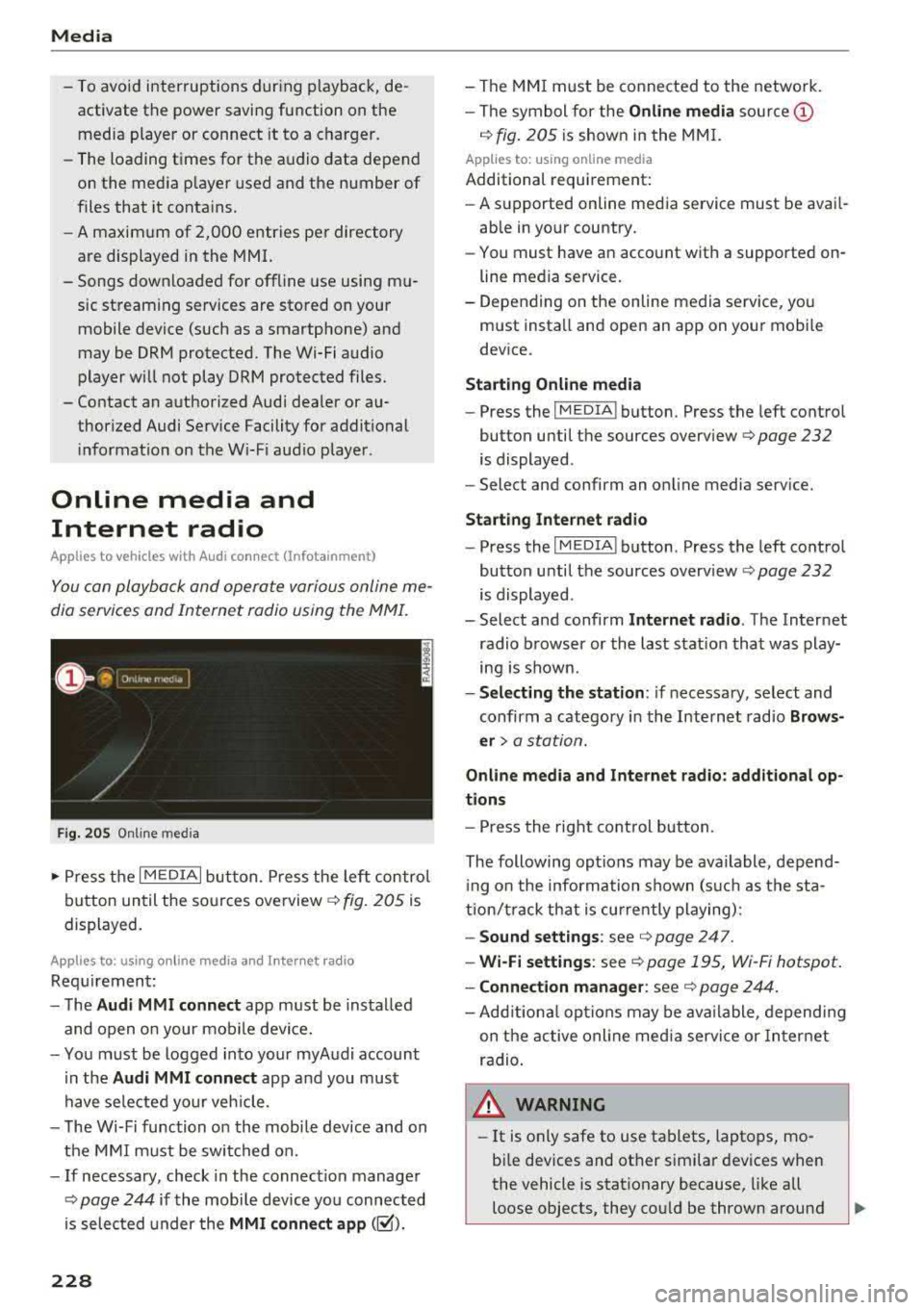
Fig. 205 Online media
.,. Press the I MEDIAi button. Press the left control
button until the sources
overview ¢ fig. 205 is
displayed.
A ppl ies to: using o nline me dia an d Internet radi o
Requirement:
- The
Audi MMI connect app must be installed
and open on your mobile device.
- You must be logged into your myAudi account
in the
Audi MMI connect app and you must
have selected your veh icle.
- The Wi-Fi function on the mobile device and on
the MMI must be switched on.
- If necessary, check in the connection manager
¢
page 244 if the mobile device you connected
is selected under the
MMI connect app (~).
228
-The MMI must be connected to the network.
- The symbol for the
Online media source @
¢ fig. 205 is shown in the MMI.
Applies to: usin g on line media
Additional requirement:
- A supported online media service must be avail
able in your country.
- You must have an account with a supported on
line media service.
- Depending on the online media service, you
must install and open an app on your mobile
device.
Starting Online media
-Press the IM EDIA I button . Press the left control
button until the sources
overview ¢ page 232
is displayed .
- Select and confirm an online media service.
Start ing Internet radio
-Press the IM EDIA I button . Press the left control
button until the sources
overv iew ¢ page 232
is displayed .
- Select and confirm
Internet radio. The Internet
radio browser or the last station that was play
ing is shown .
-Selecting the station : if necessary, select and
confirm a category in the Internet radio
Brows
er>
a station.
Online media and Internet radio: additional op
tions
- Press the right control button.
The following options may be available , depend
i ng on the information shown (such as the sta
tion/t rack that is currently playing):
-Sound settings: see ¢ page 247 .
-Wi-Fi settings: see ¢ page 195, Wi -Fi hotspot.
- Connection manager: see ¢ page 244.
-Add itional options may be available, depending
on the active online media service or Internet
radio .
,&. WARNING
-It is on ly safe to use tablets, laptops, mo
bile devices and other similar devices when
the vehicle is stationary because, like all
loose objects, they could be thrown around
-