reset AUDI A3 SEDAN 2018 User Guide
[x] Cancel search | Manufacturer: AUDI, Model Year: 2018, Model line: A3 SEDAN, Model: AUDI A3 SEDAN 2018Pages: 404, PDF Size: 62.3 MB
Page 171 of 404
LL
"' ..; N ,.... N ..; 0 N > a,
Voice recognition system
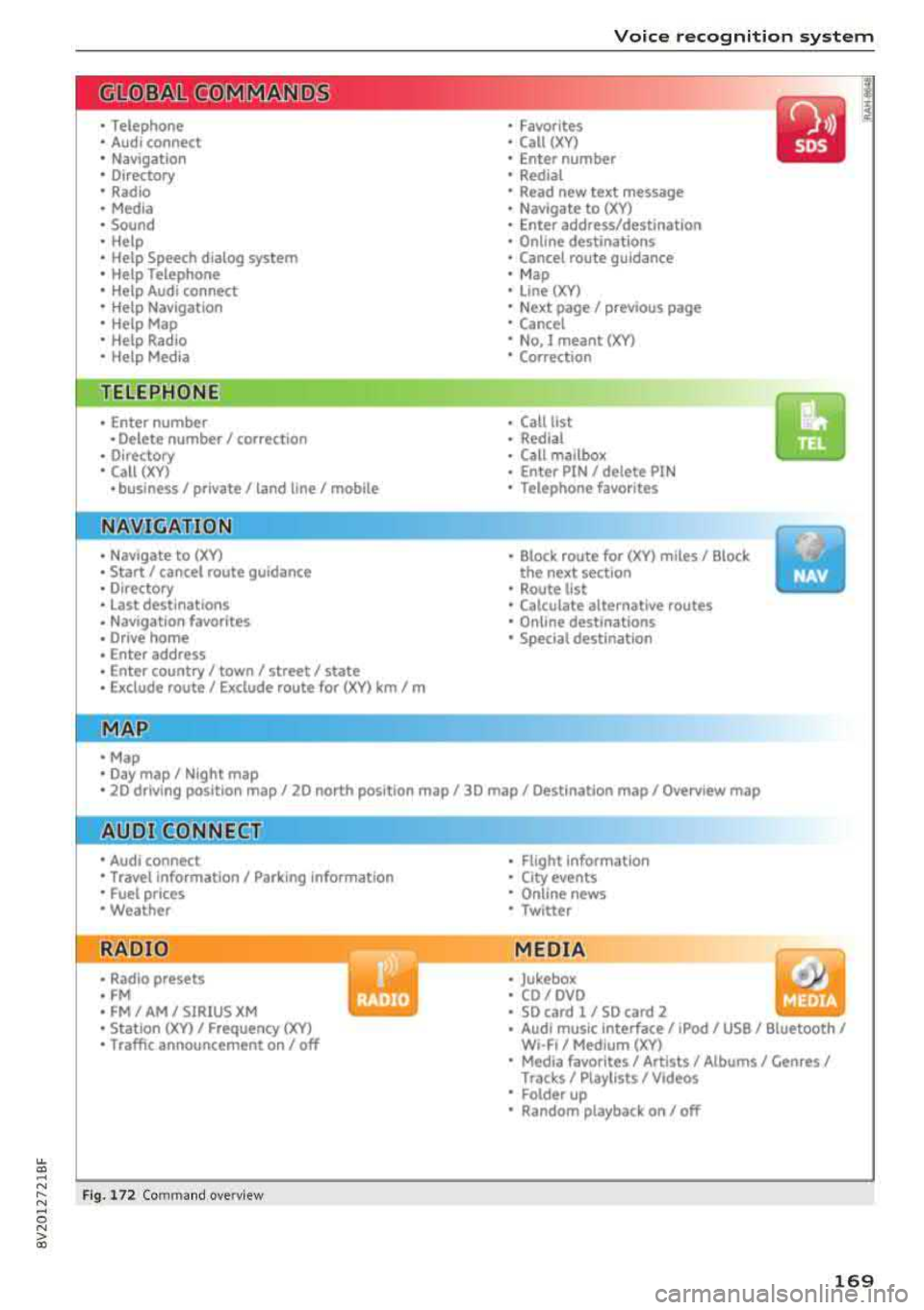
• Telephone
• Audi connect •
Favorites
• Call (XY)
• Navigation
• Directory
• Radio
• Media
• Sound •
Enter number
• Redial
• Read new tex t message
• Navigate to
(XY)
• Enter address/destination
• Help • Online destinations
• Help Speech dia log system
• Help Telephone •
Cancel route guidance
• M ap
• Help Audi connect •
Line (XY)
• Help Navigation
• Help Map
• Help Radio
• Help Media • N
ext page/ previous page
• Cancel
• N o. I meant
()(Y)
• Correction
TELEPHONE
• Enter number • Call list
• Delete number/ correc tion
• Redial
•
Directory
• Call (XY) •
Call
mailbox
• Enter PIN/ delete PI N
· business/ private/ land line/ mobile • Telephone favori tes
NAVIG:ATI0N
• Navigate to (XY)
• Start/ cancel route guidance
• Directory
• Last destinations •
Bloc k route for (XYJ miles/ Block
the next section
• Route list
• Calcul.ate alternative routes
• Navigation favorites
• Drive home
• Enter address •
Online destinations
• Special destination
• Enter country
I town/ street/ state
• Exclude route
I Exclude route for (XV) km / m
M~P
• Map
• Day map/ Night map
• 20 driving position map/ 20 north posi tion map/ 30 map/ Destination map/ Overview map
Al!JDI G ONNECT
• Audi connect
• Travel Information/ Parking Information
• Fuel prices
• Weather
RADIO
• Radio presets
• FM
• FM/ AM/ SIRIUS XM
• Station (XYJ / Frequency
(XYJ
• Traffic announcement on/ off
Fig. 172 Com mand ove rview
• Flight Information
• City events
• Online news
• Twitter
MEDIA
• Jukebo x
• CO/ DVD
• SD card l / SD card 2
• Audi music Interface/ 1Pod
I use / Bluetooth /
WI-Fl/ Medium
(XY)
• Media favorites/ Artists/ Albums/ Genres I
Tracks/ Playllsts / Videos
• Folder up
• Random playback on / off
169
Page 177 of 404
u. 00 ... N l' N ... 0 N > 00
Voice recognition system
-A lways read the chap ter qpoge 19 6, Audi
connect (Infotainment) general informa
tion .
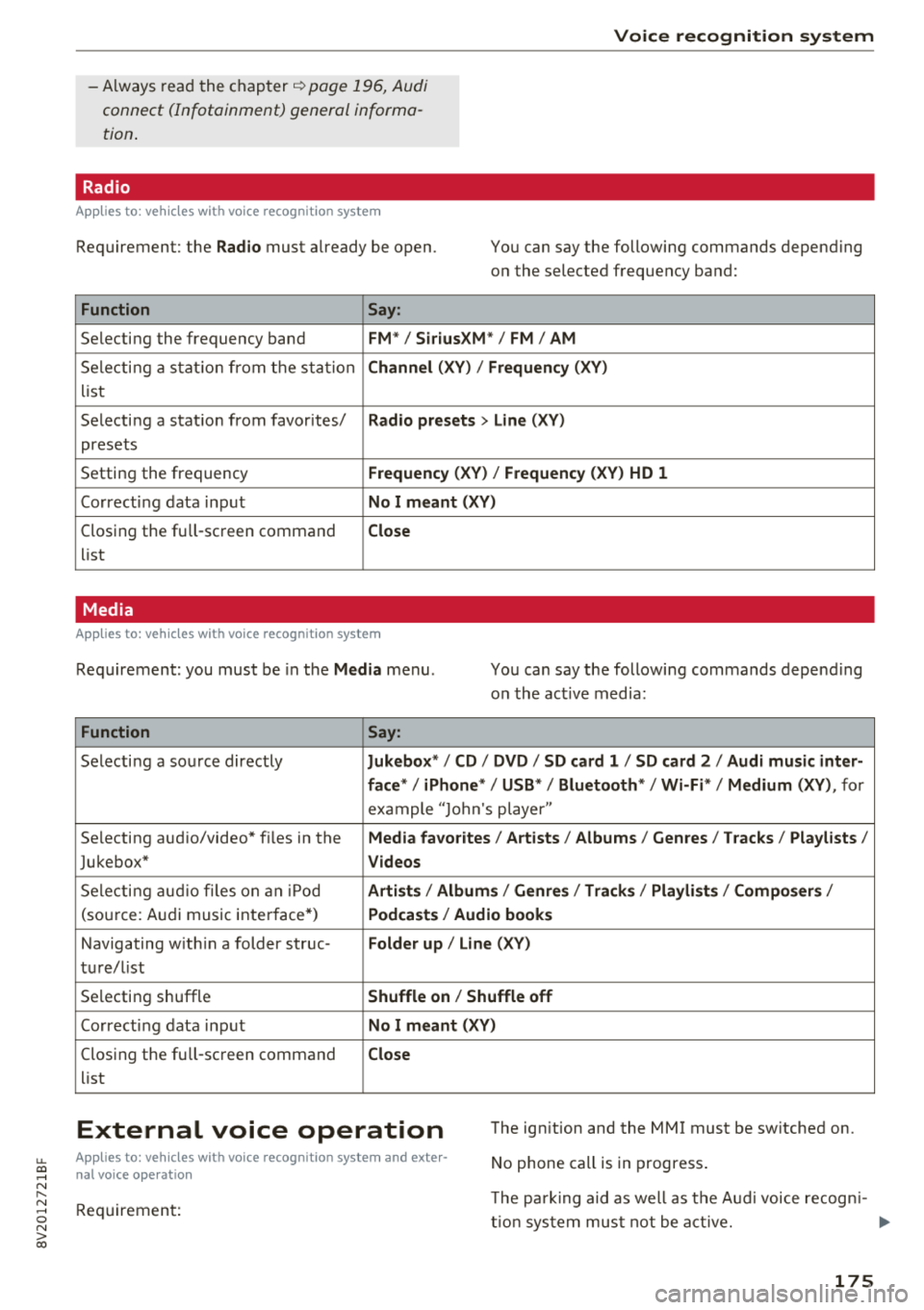
Radio
App lies to : ve hicl es w ith vo ice recognition syste m
Requirement: the Radio must already be open. You can say the following commands depend ing
o n the selected frequency band:
Function Say:
Selecting the frequency band FM*/ SiriusXM * / FM / AM
Sele cti ng a stat io n from t he s ta tion Channel (XY ) / Frequency (XV)
list
Selecting a stat ion from favorites/
Radio presets > Line ( XV)
presets
Setting the frequency
Frequency ( X V ) / Frequency (XV ) HD 1
Correcting data input No I meant (XV )
Clos ing the full -sc reen command Close
list
Media
A pp lies to: ve hicles with vo ice recognition syste m
Requirement: you must be in the Media menu . You can say the following commands depend ing
o n t he act ive media:
Function Say:
Selecti ng a so urce directly Jukebox* / CD / DVD / SD card 1 / SD card 2 / Audi music inter-
face*
I iPhone * / USB* / Bluetooth * I Wi-Fi* / Medium (XY) , for
example " Jolhn 's player"
Se lecting aud io/video* f iles in the
Media favo rites / Artists / Albums / Genres I Tracks / Playl ists /
Jukebox* Videos
Selecti ng audi o files on an iPo d Artists / Albums / Genres I Tracks / Playlists /Composers /
(source: A udi music inte rface*) Podca st s / Audio book s
Navigating w ith in a folder struc-Folder up / Line (XV)
tu r e/list
Se lecting shuffle
Shuffle on / Shuffle off
Correct ing data inp ut No I meant (XV)
Clos ing the full -sc reen command Close
list
External voice operation The ign ition and the MMI must be sw itched on.
No phone call is in progress .
Appl ies to: ve hicles w ith vo ice recogni tion syste m and exte r
n al voice o peratio n
Requireme nt: T
he pa rk ing aid as well as t he A ud i voice recogn i-
t io n syste m mus t not be a ct ive. .,.
175
Page 190 of 404
Telephone
Call options*
Call forwarding :
you can switch the fo rwa rd ing
of incoming calls to you r voic email or to anothe r
p hone numbe r on and off. Yo u can check if the
function is activated o r deactivat ed with
Check
status .
Call waiting :
you are ale rted to an incoming call
du ring a phone ca ll w hen t he function is switc hed
on ~-You can chec k if the f unction is activated
or deactivated w ith
Check status .
Send own telephone number :
send ing you r
p hone numbe r with an outgoing call can be acti
vated and deactivated . With the
Network -de·
pendent
setting, the setting listed in the co n
t ract with the cell phone se rvice prov ide r is used .
The settings only apply to the
Telephone menu in
the MMI. Please note tha t the settings on yo ur
cell phone will a pply afte r d isco nnecti ng the
B luetooth co nne ct io n. Y ou ca n check if the fu nc
tion is activ at ed or dea ct ivate d wi th
Check sta
tus.
Ringtone and volume settings
1 )
Using the Mute telephone func tion, you can
sw itch th e r ingtone playback t hrough the MMI
spea ke r o n and off. You ca n play t he ringtones
using the
Ringtone fu n ct ion. Sele ct an d confirm
a n entry from t he list. Fo r th e
Ringtone volume /
Message volume
se tt ings, see i:::> page 248 . The
Microphone input level can be ad justed during a
phone call using the cont rol knob.
(D Tips
- Seve ra l cell phones can be paire d to the
MM I, but only two* cell phones can be ac
tive ly connected.
- To delete all paire d Bluetooth devices, the
Bluetooth funct ion can be reset to the fac
tory default sett ings
i:::> page 244.
Additional options
"' Se lect : I MENU I button> Telephone > right co n
tro l button .
1> Dep en ds on the conn ecte d cell pho n e.
188
Connection manager
See c::> page 244.
Bluetooth settings*
See i:::> page 246 .
Online settings*
Se e i:::> pag e 246.
Wi-Fi settings*
See i:::> page 19 5, Wi -Fi h otsp ot.
Directory settings
Applies to: vehicles with telephone
"'Sele ct: IME NUI button> Telephone > left con
trol button >
Directory > right control button >
Directory settings.
Memory capacity
S ho ws the Memory capacity for t he director y.
Yo u can ma nage up to 17,000 co ntacts with the
directory . Yo u can load up to 4,000 con tacts
fro m your cell phon e into each directory. Y ou can
a lso im po rt up to 1,00 0 con ta cts fr om a st ora ge
d evi ce .
Sort order
You can so rt the contacts in your d irec to ry alpha
be tica lly acco rding to
Last name or First name .
Import contacts /Export contacts
See i:::> page 187.
Download directory
To update the con ta cts in t he MMI , you can man
u ally down loa d your cell p hone contacts . De
p endin g on t he ce ll phone, t he Bluetoot h connec
tion may need to be disconnecte d and reconnect
ed to upda te t he contacts.
Hide contacts without phone number
When this f unct ion is swi tched o n, g rayed -ou t
contacts that have no p hone numbers sto re d for
t h em wi ll b e hidden in t he directory .
Page 201 of 404
u. 00 .-< N l' N .-< 0 N > 00
Audi connect e-tron services
Introduction
Applies to: vehicles with Audi connect e-tron services
With Audi connect e-tron services l), you can ac
cess various information or control individual
functions remotely using mob ile dev ices (such as
a smartphone) or a web portal.
- Trip
data¢ page 199.
- Doors and lights ¢page 199.
-Vehicle status report ¢ page 200.
- Car
Finder ¢ page 200.
- Charging
¢ page 200.
- Climate
control¢ page 200 .
A WARNING
Also read and follow the instructions regard
ing traffic safety
¢ page 154.
Setup
Applies to: vehicles with Audi connect e-tron services
To use Audi connect e-tron services 1), please
note the following:
Requirements
-An authorized Audi dealer must complete a
one-time activation of Audi connect e-tron serv
i ces for your veh icle before you can reg ister on
line .
- Then register at etron.audiusa .com . You can
use and manage the Audi connect e-tron serv
ices there .
- If you require assistance w ith your Aud i connect
e-tron services, please contact an authorized
Audi dealer or authorized Audi Service Facility.
- Your mobile devices must be compatible .
1> The mob ile network service is offered by a serv ice provid
e r. Yo u can obtain more informa tion abou t your mobile
network provider at an au th or ized Aud i dealer. Connected
dev ices are not always 4G-compatible. Th e ava ilability o f a
high -speed network may be red uced dur ing pea k usage or
b y your location, the reception, and other factors . Ne t
wo rk coverage ca nnot be guaranteed everywhere. Fo r
mo re info rmation on mobile cove rage, see the Audi con
n ect overv iew from your mobile network provider.
Audi connect e-tron services
Trip data
Applies to: vehicles with Audi connect e-tron services
The Driver Information System collects data un
der certain conditions and sends it to a server.
When data is stored, you can access values such
as these using the service:
- driving durat ion,
- average speed driven,
- distance driven,
- average electric consumption.
Doors and lights
Applies to: vehicles with Audi connect e-tron services
You can access and disp lay the current status of
the following vehicle data on your mobile devices
without having to be inside the vehicle.
- If the vehicle doors and lids are open/closed,
- Parking lights are on/off.
For additional information on opening and clos
i ng the doors or for the vehicle lighting, refer to
¢ page 31, Opening and closing or to ¢ page 49,
Exterior lighting.
(D Tips
-If the high-voltage battery is not charged,
the amount of access requests is limited to
15 after switching off the ignition. This
helps conserve the 12 vo lt vehicle battery.
You cannot contro l functions or access in
formation if the charge leve l of the 12 volt
vehicle battery is too low.
- If at least two minutes have passed after
the last time the ignition was switched off,
you can reset the access counter back to "O" as needed after switch ing the ignit ion on/
off again.
199
Page 220 of 404
Radio
Radio
Opening the radio
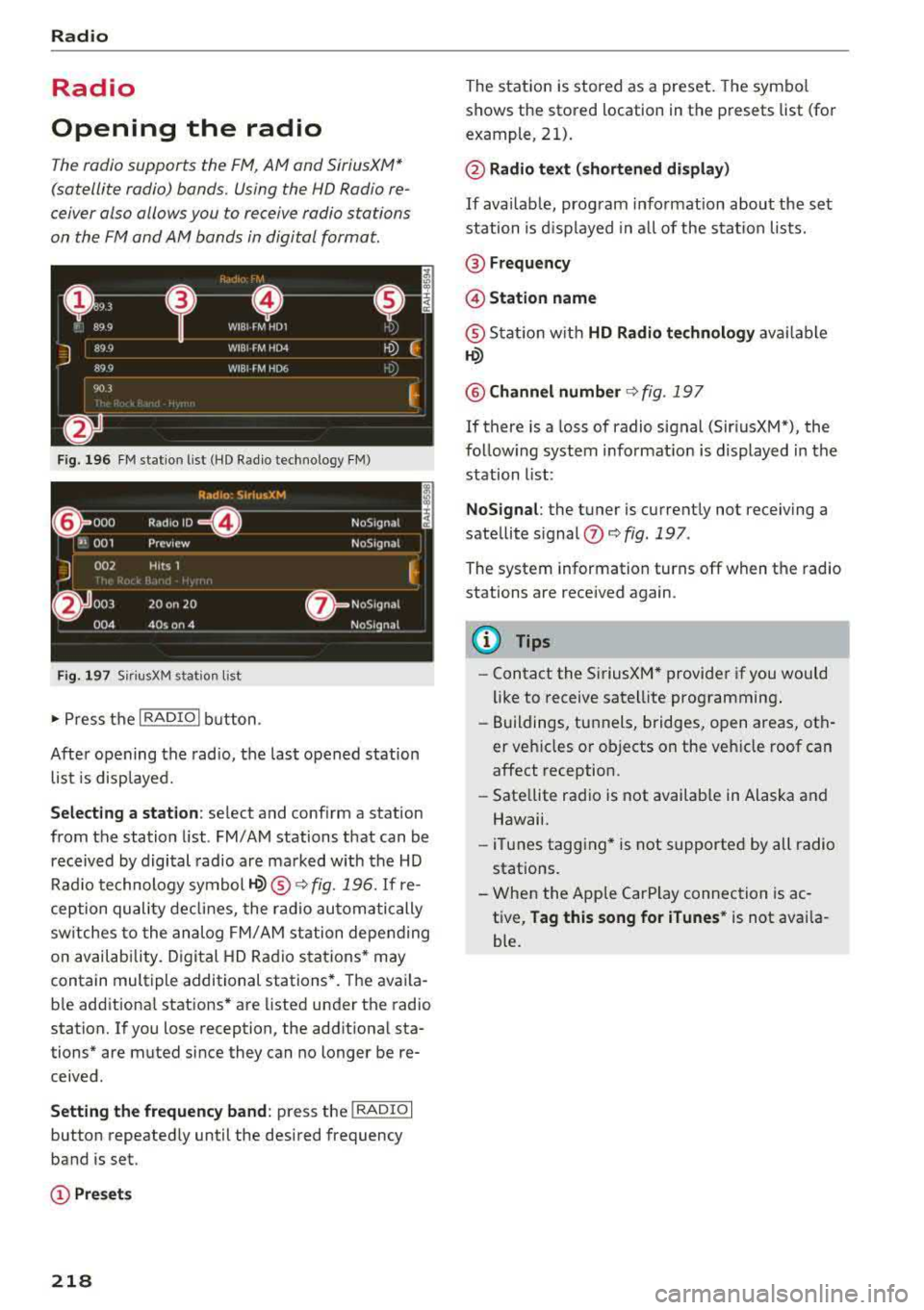
The radio supports the FM, AM and SiriusXM*
(satellite radio) bonds. Using the HO Radio re
ceiver also allows you to receive radio stations
on the FM and AM bonds in digital format.
Fig. 196 FM station list (HD Radio technology FM)
Fig. 1 97 Sir iu sXM station lis t
..,. Press t he I RADIO I bu tton .
After opening the radio, t he last opened station
list is displayed.
Selecting a station : select and conf irm a stat ion
from the station list . FM/AM stations that can be
received by digital radio are ma rked with the HD
Rad io technology
symbol ©® ¢ fig. 196. If re
ception quality de clin es, the r ad io automatically
sw itches to the analog FM/ AM station depending
on availab ility. D igital HD Rad io sta tions * may
contain multiple additional stations *. The ava ila
b le add itiona l stations* are listed under the radio
station. If you lose reception, the add itiona l sta
tions* are muted since they can no longer be re
ceived.
Setting the frequency band : press the I RADIO I
button repeatedly until the desired frequency
band is set.
(!) Pre sets
218
The stat ion is stored as a preset. The symbo l
shows the stored location in the presets list (for
example, 21).
@ Radio text (shortened display )
If availab le, prog ram info rmation about the se t
station is d isplayed in a ll of the s tat io n lists.
@ Frequency
@ Station name
® Stat io n w ith HD Radio te chnolog y availa ble
©
@ Channel number ¢ fig. 197
If there is a loss of radio signal (Sir iusXM"), the
follow ing system informat io n is displayed in the
station list:
NoSignal : the tuner is current ly not receiving a
sate llite signal
0 ¢ fig . 197 .
The system information turns off when the radio
stations are received again.
(D Tips
-Contact the Si riusXM* provider if you would
like to receive satell ite programming .
- Buildings, tunnels, bridges, open areas, oth
er veh icles o r objects on the veh icle roof can
affect reception .
- Sate llite radio is not availab le in Alaska and
Hawaii.
- iT unes tagging* is not supported by all radio
stations.
- When the App le CarPlay connection is ac
t ive,
Tag this song for iTunes * is not availa
ble.
Page 221 of 404
u. 00 .-< N l' N .-< 0 N > 00
Radio functions
Free text search
App lies to: ve hicles with free text search
Using the free text search, you can select the or
der that the search terms are entered in the in
put field . Search in all frequency bands for a sta
tion name or program type, such as
News .
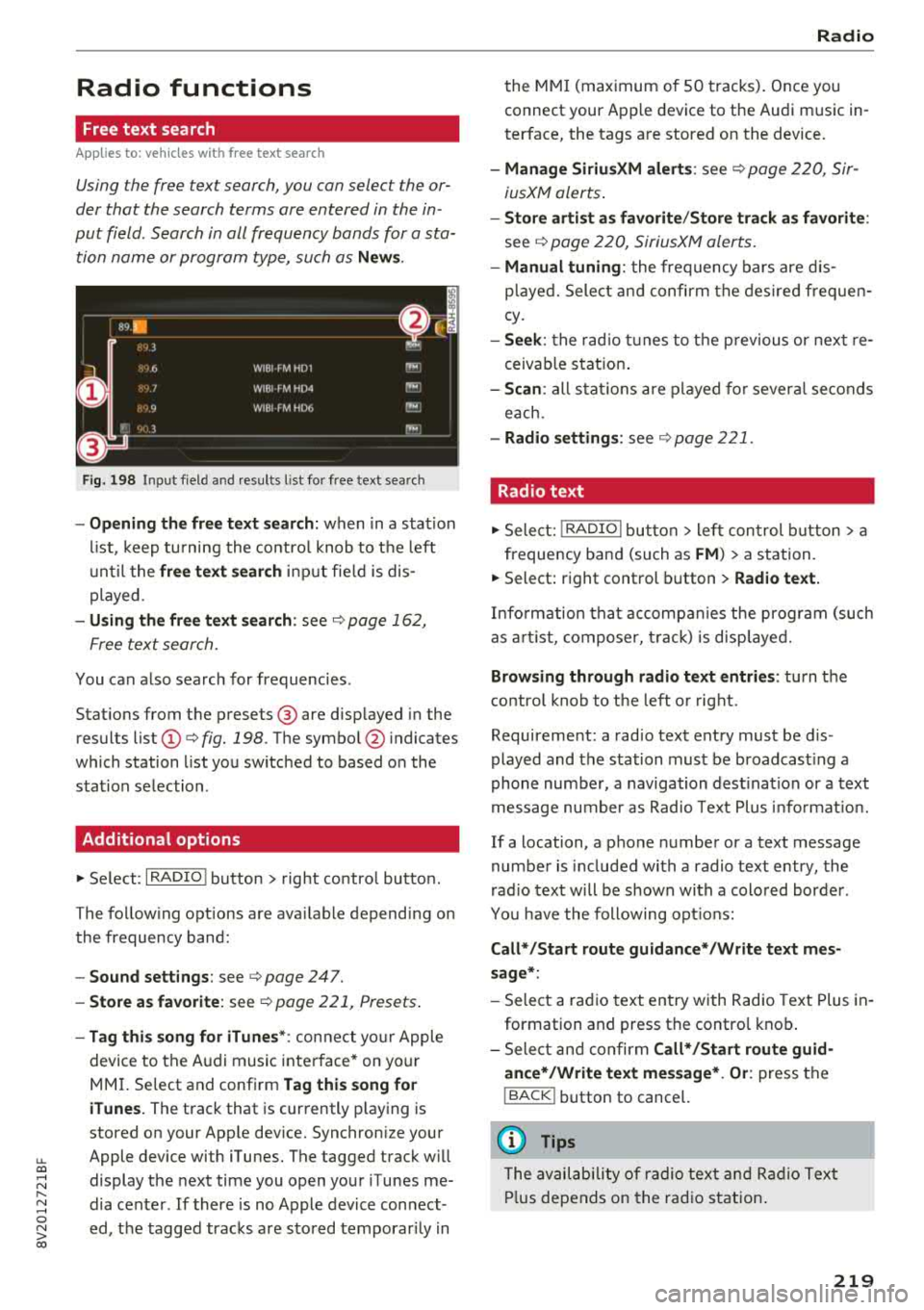
Fig. 198 Input field and results l ist for free text search
- Opening the free text search: when in a stat ion
list, keep turning the control knob to the left
until the
free text search input fie ld is dis
played.
- Using the free text search: see ¢ page 162,
Free text search.
You can also search for frequencies .
Stations from the presets ® are disp layed in the
results list
(D ¢ fig. 198. The symbol @ indicates
which station list you switched to based on the
stat ion selection .
Additional options
"'Se lect: I RADIO ! button > right control button.
The following options are ava ilable depending on
the frequency band:
- Sound settings: see ¢ page 247.
-Store as favorite : see ¢ page 221, Presets .
-Tag this song for iTunes* : connect your Apple
device to the Audi music interface* on your
MMI. Select and confirm
Tag this song for
iTunes.
The track that is currently playing is
stored on your App le device. Synchronize your
Apple device with iTunes. The tagged track w ill
display the next time you open your iTunes me
dia center . If there is no Apple device connect
ed, the tagged tracks are stored temporarily in
Radio
the MMI (maximum of 50 tracks). Once you
connect your Apple device to the Audi music in
terface, the tags are stored on the device .
-Manage SiriusXM alerts: see¢ page 220, Sir
iusXM alerts.
-Store artist as favorite/Store track as favorite:
see¢ page 220, SiriusXM aler ts.
- Manual tuning: the frequency bars are d is
p la yed. Select and confirm the desired frequen
cy.
- Seek: the radio tunes to the previous or next re
ceivab le station.
- Scan : all stations are played for several seconds
each.
- Radio settings: see ¢page 221.
Radio text
"' Select: I RADIO I button > left control button > a
frequency band (such as
FM ) > a station.
"'Select: right control button > Radio text.
Information that accompanies the program (such
as artist, composer, track) is disp layed.
Browsing through radio text entries: turn the
control knob to the left o r right .
Requirement: a radio text entry must be d is
played and the station must be broadcast ing a
phone number, a navigation destination or a text
message number as Radio Text Plus info rm ation.
If a location, a phone number or a text message
number is included with a radio text entry, the
radio text will be shown with a colored border .
You have the following opt ions:
Call*/Start route guidance* /Write text mes
sage*:
- Select a radio text entry with Radio Text Plus in
formation and press the contro l knob.
- Select and confirm
Call* /Start route guid
ance*/Write text message* . Or :
press the
I BACK ! button to cancel.
(D Tips
The availability of radio text and Radio Text
Plus depends on the radio station.
219
Page 223 of 404
LL co .... N
" N .... 0 N > co
Radio text is availab le for the selected station .
See
q page 219.
@ iTunes tagging
The Tag this song for iTunes option is available
for the set station . See
Q page 219, Additional
options.
® FM HD Radio technology
T he station is received through FM HD Radio
technology .
@ Screen view
Display Cover art or Station logo. See
c:> page 222, Preferred picture view *.
Displaying the station list:
Turn the control knob. Or: press the I BACK! but
ton .
Radio menu
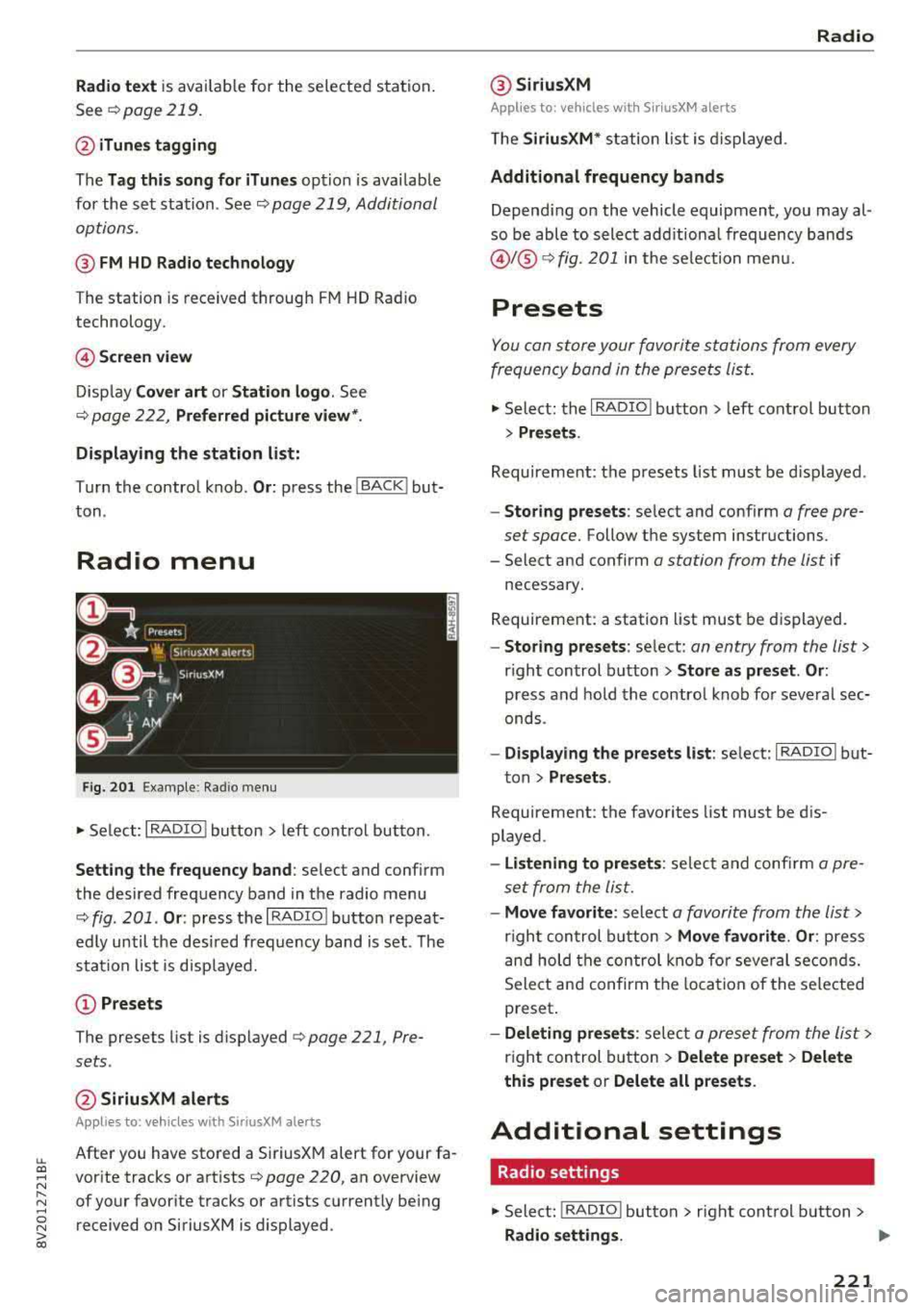
Fig. 201 Example: Radio menu
• Select: I RADIO ! button > left control button .
Setting the frequency band : select and confirm
the desired frequency band in the radio menu
q fig . 201 . Or: press the I RADIO I button repeat
ed ly until the desired frequency band is set . The
station list is disp layed.
(!) Presets
The presets list is dis played q page 221, Pre
sets .
@SiriusXM alerts
Applies to: vehicles with SiriusXM alerts
After you have stored a SiriusXM alert for your fa
vorite tracks or artists
c:> page 220, an overview
of your favorite tracks or artists currently being received on SiriusXM is displayed .
Radio
@ SiriusXM
Appl ies to: veh icles w ith SiriusXM alerts
The SiriusXM* station list is displayed.
Additional frequency bands
Depending on the vehicle equipment, you may al
so be able to select add itiona l frequency bands
@ l@ c:> fig. 201 in the selection menu.
Presets
You can store your favorite stations from every
frequency band in the presets list.
• Select: the I RADIO I button > left control button
> Presets .
Requireme nt: the presets list must be displayed.
- Storing presets: select and confirm a free pre
set space.
Follow the system instructions.
- Select and confirm
a station from the list if
necessary.
Requirement: a station list must be displayed.
-Storing presets: select: an entry from the list>
right control button > Store as preset. Or :
press and hold the control knob for several sec
onds .
-Displaying the presets list : select: I RADIO I but-
ton
> Presets .
Requirement: the favorites list must be dis
played .
-Listening to presets : select and confirm a pre
set from the list.
-Move favorite : select a favorite from the list>
right control button > Move favorite. Or : press
and hold the control knob for several seconds.
Select and confirm the location of the selected
preset .
-Deleting presets : select a preset from the list >
right control button > Delete preset > Delete
this preset or Delete all presets .
Additional settings
Radio settings
• Select: I RADIO I button > rig ht control button >
Radio settings. ""
221
Page 224 of 404
Radio
The following settings can be se lected, depend
ing on the band that is se lected :
Station names (FM )
Variabl e:
scrolling text tra nsmi tted by the FM
s tat ions is shown in the Infotainment system d is
p lay .
Fixed : scrolling text transm itted by the FM sta
tions is not s hown in the Infota inment system
d isp lay. O nly the cu rrent sect io n of the scro lling
text is d isplayed.
FM /AM HD Radio*
You can sw itch HD Rad io recept ion on o r off .
Channel sorting (Sirius XM *)
You can set the station so rting for SiriusXM sta
tion lists* by:
- Channel number: the channe ls are sorted in as
cending order according to their channel num
ber.
- Channel name : the channels are listed in alpha
betica l order.
- First categor y, then channel number : the
c h annels are sorted by their category and then
by the ir channe l numbers .
-First categor y, then channel name : the sta
tions are sorted by th eir cat egory and then by
their channe l names.
Categor y filter (SiriusXM *)
The stations s hown in t he s ta tion lis t can be fi l
tered by your pe rsonal prefe rences and by pro
gram type. The program categories that yo u can
select depend on what is offered by yo ur provid
er. Select the
All categor ie s option to deactivate
all filter options and display all ava ilable stations
in the satellite station list .
Troubleshooting
Problem Solution Show "Now Playing" screen
When
the functi on is swi tched on~ and the st a
tions o r presets list is open, the disp lay w ill
switch to the
Show "Now Playing " sc reen view
after approximate ly five seconds
¢ page 220 . De
pending on availab ility, information about the
set stat ion (such as stat ion name, artist and sta
tion logo) may be d isplayed in this view.
Pr efe rred picture vi ew*
You can set your preferred screen view for the
Show "Now Pla ying " screen ¢ page 220.
-Station logo : the station logo is displayed, de
pending on availability .
-Cov er art : the album cove r is d isplayed if availa
ble.
Gracenote online database *
Requirement: the MMI must be connected to the
Internet. The
Cover art opt ion must be selected
¢ page 222, Pr eferred picture vi ew *.
When the funct io n is switched on~, the album
cover or genre cover for the so ng that is p lay ing
i s loaded from t he Gracenote online database,
depend ing on ava ilability.
Subscription status (SiriusXM )*
This opt io n is available when your subscr ipt ion is
about to expire or has already expired . The expi
r ation date fo r your license is displayed .
Call to SiriusXM *: the contact information for
your sate llite rad io provider is displayed . To call
your sate llite rad io provider using the MMI, press
Call to Siriu sXM*.
A station with poor reception is no longer Store the stat io n as a preset in advance . Access the pre-
displayed in the station l ist once you sets using the presets list
¢ page 221 .
switch to a d ifferen t sta tion.
222
Page 225 of 404
u. 00 .-< N l' N .-< 0 N > 00
Media
Introduction
There are various media drives and connections
avai lab le in the MMI. For example, you can play
audio/video* fi les from t he Jukebox* or connect
your mobi le device to the Audi mus ic interface*
and operate it through the MMI.
Notes
General
Media and format re strictions :
the MM I (includ
ing the SD card reader and the USB storage de
vice connection *) was tested wit h a variety of
products and media on the market. However,
there may be cases where ind ividual devices or
media and audio/video files* may not be recog
n ized, may play on ly w ith restrictions, or may not
play at all.
Digital Rights Management : please note that
the audio/video* files are subjec t to copyright
protection .
The med ia drives do not play f iles that are pro
tected by
ORM and that are ident ified with the
symbol
rfl.
Data secu rity : never store important data on SD
cards, the Jukebox*, CDs/DVDs or mobile devices .
Aud i AG is not responsib le for damaged or lost
f il es and media .
Loading times : th e more files/fo lders/p lay lists
that are on a storage medium, the longer it will
take to load the audio/v ideo* files . Audi recom
mends using storage med ia tha t on ly conta in au
d io/video files* . To decrease the t ime it takes to
l oad audio/v ideo f iles*, create subfolders (fo r ex
ample, fo r th e a rt ist o r album). The loading time
will also increase when importing fi les.
Additional information : when playing, audio
f iles are automatically displayed with any add i
tional informat ion that is sto red (such as the ar
tis t, trac k and albu m cover). If this informa tion is
n o t availa ble o n the sto rage med ium, t he
M MI
will check the Grace note metadata database .
Media
However, in some cases, the additional in fo rma
tion may not be displayed.
Re stri cted functionality : reset the Media set
tings
t o the fac to ry defau lt settings if func tional
ity is restr icted
¢ page 244.
If fu nctionali ty is rest ricted, reset the Jukebox *
to the fa ctory default se tt ings ¢ page 244.
For information about the propert ies of s upport
ed med ia and fi le formats , see
¢ page 237 .
@ Note
Always fo llow the information fo und in ¢ @ in
Wi-Fi hotspot on page 195 .
CD/DVD operation
CD /DVD and format restrictions :
the funct iona li
ty of individ ua l st orage media may be limited due
to the v ariety of b lank CDs/DVDs avai lab le and
t h e various capacities. Audio C Ds or video DV Ds
with copy p rotection, CDs/DVDs that do not con
fo rm to the standard and multi session CDs may
have limit ed playback or may not play at a ll. Audi
recommends finaliz ing the recording process
whe n creat ing mult isess io n CDs . Mult isess ion is
not supported for DVDs .
Using CDs/DVDs , the CD dr ive or the DVD drive :
to ensure correct, hig h-quality playback and to
prevent damage to the dr ive or d isc read ing er
rors, always store CDs/DVDs in a protective
sleeve and do not expose t hem to direct sunlight .
Do
not u se:
- Damaged, dirty or scratched CDs/DVDs
- Sing le CDs/DVDs with 3 in (8 cm) d iameter
- CD/DVDs that a re not round
- CDs/DVDs w it h labe ls
- Protec tive rings
- Clea ning CDs
Thermal protection switch : CD/DVD playback
may be temporarily unavailab le if outs ide tem
peratures a re extremely hot or co ld . A thermal
pro tect io n sw itch is insta lled to p rotect the C D/
D VD and the laser.
La ser devi ce s: lase r devices a re divided i nto safe -
ty classes 1 to 4 in acco rdance w ith DIN I EC 76
.,.
223
Page 228 of 404
Media
When importing, the audio files a re au tomatica l
ly sorted into the media center categories based
on the stored addit iona l info rmation
¢ page 233. The copied video files a re stored in
the media center under the
Videos category.
Playing the Jukebo x
Req uiremen t: the J ukebox must con tain audio/
video
fi les ¢ page 225, Adding files to the Juke
box.
T he Jukebox is accessed an d ope ra ted t hrough
the
MMI (D ¢ page 232, fig . 2 08.
Displaying Jukebox memory capacity
Select : righ t control button > Juk ebo x memory
capacity .
Info rmation abou t the J ukebo x memo ry
c a pacity and the numbe r of s to red tracks is dis
p layed .
Deleting tracks from the Jukebox1
)
Req uiremen t: the Jukebox must contain audio/
video fi les.
- Delet ing an ent ry : se lect an e ntry from the
Jukebox media center . Se lect: rig ht contro l but
ton
> Delete from jukebox > Thi s entry or En
tire list .
- The status of t he de leti ng p rocess is shown in
the MMI. J ukebox playback s tops d uring the de
l et ing p ro cess a nd s tarts again au toma tically
o nce the dele tion is comp lete .
(D) Note
Do not import aud io/video files when the en
gi ne is t urne d off because this will drain the
veh icle b attery.
(D Tips
- Tracks fro m audio C Ds cannot be im port ed
t o t he Ju ke box for legal reasons .
- Fil es that have a lready been importe d are
a utomat ica lly recogn ized and cannot be
cop ie d to the J ukebo x again.
- It i s no t possib le to play audio/v ideo* files
i n the C D/DVD* dr ive while importi ng the m.
1> Not i n the Pl ayba ck view .
226
- Th e Juk eb ox does not provi de a n ex port
function due to legal reasons .
- Files o r tra cks w ithou t addi tional store d in
formation a re listed as
Unknown. A ud i rec
ommends adding a dditiona l info rmation
(such as ID3 tags) to a udio f iles.
- Reset the
Jukebox to the facto ry defa ult
settings when sel ling yo ur vehicle
¢ page 244.
Bluetooth audio player
Appl ies to: vehicles with Bluetooth audio player
With the Bluetooth audio player, you can play
music wirelessly from your Bluetooth-capable
device (such as a cell phone) through the MMI.
Requirement: the vehicle must be stationary and
the ignit io n m ust be switched on. The B luetooth
settings w ill open on your mob ile dev ice d uring
t h e connection setup . The Blue tooth function
and vis ibili ty of the
MM I ¢ pag e 246 and mob ile
device must be sw itched on. The
Bluetooth audio
player ¢ page 246 must be switched on in t he
MM I.
-Connecting a Bluetooth player : press the
!MEDIA ! butto n. Press the left con trol b utton
un til the sources ove rview is d isp layed. Selec t
and confirm
Bluetooth audio player ®
¢page 232, fig . 209 .
-If n ecess ary, se lect and co nf ir m Not connected
> Connect Bluetooth audio player . The Bl ue
tooth device search starts. Follow the instruc
tions in the MMI.
- Select and confirm t he des ired Bl uetooth de
vice from the list . The
MMI generates a PIN fo r
the connection.
- Select and confirm
Yes.
- En ter the PI N for conne ct in g on your Bluetoo th
dev ice .
Or : if the P IN is already dis played on
your Bl uetooth device, confi rm it in the Bl ue
tooth device and in the
M MI. The time a llowed
for entering the PI N is lim ited to approx imately
30 seconds .
IJIJ,