ignition AUDI A3 SEDAN 2018 Workshop Manual
[x] Cancel search | Manufacturer: AUDI, Model Year: 2018, Model line: A3 SEDAN, Model: AUDI A3 SEDAN 2018Pages: 404, PDF Size: 62.3 MB
Page 179 of 404
u. 00 .-< N l' N .-< 0 N > 00
Telephone Introduction
Applies to: vehicles with telephone
To make phone coils in your vehicle using the
MMI, connect your cell phone to the MMI via
Bluetooth.
Handsfree
After you have connected your ce ll phone to the
MMI via Bluetooth, you can use the handsfree
system and operate telephone functions through
your MMI. You can make calls using the antenna
on your cell phone.
A WARNING
-Medical experts warn that cell phones can
interfere w ith the funct ion of pacemakers .
Always ma inta in a m inimum distance of
about 8 inches (20 cm) between the cell
phone antenna and the pacemake r.
-Do not carry the cell phone in a pocket di
rectly over the pacemaker when the phone
is switched on.
-Sw itch the cell phone off immediately if
you suspect it may be interfering w ith the
pacemaker.
-Do not use the voice recognition system*
¢ page 170 in emergencies because your
voice may change in stressful situations. It
may take longer to dial the number or the
system may not be able to dial it at all. Dial
the emergency number manually.
-Switch your cell phone off in areas where
there is a risk of an exp losion. These loca
t ions are not always clearly marked. This
may include gas stations, fuel and chemical
storage facilities or transport vehicles, or lo
cations where fue l vapors (such as propane
or gasoline vapor in vehicles or bui ldings),
chem icals or large quantities of dust parti
cles (such as flour, sawdust or metal) may
be present in the air. Th is also applies to all
ot her locations where you would normally
turn your vehicle engine off.
-The demands of traffic require your full at
tention. Always read the chapter
¢ page 154, Traffic safety information.
-
Telephone
@ Note
Always fo llow the information found in Q@ in
Wi -Fi hotspot on page 195.
(D Tips
-The Bluetooth connection range is limited
to inside the vehicle . It can a lso be affected
by loca l conditions and interference with
other devices.
-T o learn which Bluetooth connections and
which of the functions in your cell phone are
supported, check with your cell phone serv
ice provider or the database for mobile devi
ces at www .aud iusa .com/bluetooth.
Setup
Connecting a cell phone using Bluetooth
Applies to: vehicles with telephone
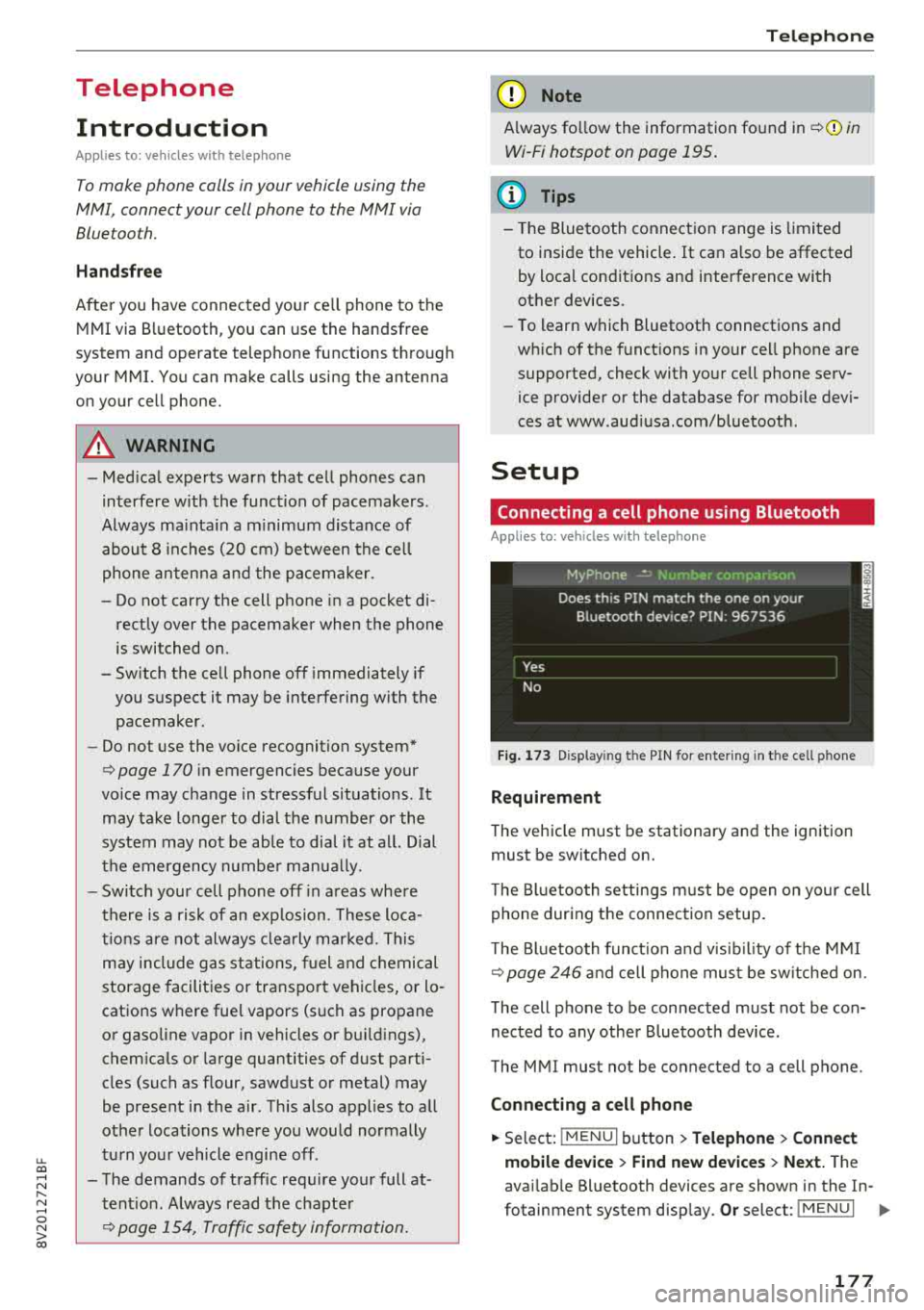
Fig. 173 Display in g t he PIN for enter ing in t he cell p hone
Requirement
T he vehicle must be stationary and the ignition
must be switched on.
T he Bl uetoo th settings must be open on your cell
phone during the connection setup .
T he Bluetooth funct io n and v is ibilit y of the MMI
Q page 246 and cell phone must be switched on.
The cell phone to be connected must not be con
nected to any other Bluetooth device.
The MMI must not be connected to a cell phone.
Connecting a cell phone
.,. Select: IMENU I button> Telephone> Connect
mobile device > Find new devices > Next.
The
avai lab le Bluetooth devices are shown in the In-
fotainment system display.
Or select: I MENU I II>-
177
Page 180 of 404
Tele phone
button > Settings > left control button > MMI
s etting s
> Con nectio n man age r<::> page 244.
~ Se lect and confirm the desired ce ll phone from
the list of disp layed Bluetooth devices .
~ The MMI generates a PIN for the connect ion
setup
<::> fig . 173 .
~ Select and confirm Yes .
~ Enter the P IN for connecting on your ce ll
phone .
Or: whe n the PIN is d isplayed o n your
ce ll phone, co nfirm the PIN on yo ur cell phone
and in t he MMI. The time a llowed for entering
the P IN is limited to approximately 30 seconds.
~ Pay attention to any additiona l system prompts
displayed on your cell phone, for example if the
system should connect au tomatically in the fu
ture . Depending on the cell phone, you may
have to confirm downloading the directory sep
arately .
After connect ing succ essfully
After connecting successfully, information about
the connected profiles will appear. You can a lso
change the profiles la ter. Select:
! M ENUI button>
Settings > left control button > MMI settings >
Connection manager <::> page 244.
In addition, the cell phone contacts are automat
ically loaded in the MMI directory. Th is process
can take several minutes, depend ing on the num
ber of contacts .
You can a lso make your connected cell phone the
default phone by select ing
S et as def ault tel e
phone
i n the Conne ction m anager <::> page 246 .
@ Note
Always follow the information found in c::>il]) in
Wi-Fi hotspot on page 195.
(D Tips
- Making phone calls throug h the MMI is only
possib le using the
Handsfree Bluetooth pro
file.
- You can apply additional settings to con
nected mobile devices using the
Connection
manag er <::>
page 244 .
-You can also search for the MMI in your cell
phone us ing the Bluetooth device search.
17 8
-You on ly have to pair your device one time .
B luetooth devices that are already paired
automatically connect to the M MI when the
Bluetooth funct ion is switched on, they are
within range and the ignition is sw itched on.
The last connected cell phone is given first pr iority.
- Authoriz ing the MMI connect ion in your cell
phone w ill make automatic connection pos
sible .
- Pay attention to any system prompts dis
played on you r cell phone, for example if
the system should connect automatically in
the f uture. Depend ing o n the cell phone,
yo u may also need to download the di recto
ry and confirm a ccess to your text messages
separate ly .
- Whe n leav ing the veh icle, the Bluetooth
connect ion to the cell p hone will au tomati
cally disconnect. Depending on your cell
phone, phone calls in progress may be auto
matically redirected from the MMI to your
cell phone and you can continue the ca ll on
your phone.
- You can obtain more information from your cell phone service provider or from your cel l
phone user guide. For i nformation on us ing
the telephone, v is it www .aud iusa .com/
bluetooth or contact an a uthorized Audi
dea ler or author ized Audi Se rvice Facili ty.
- Applies to: vehicles without secondary
phone: Several cell phones can be paired to
the MMI, bu t only one cell p hone can be a c
t ively connec ted to the MM I.
- Applies to: vehicles without secondary
phone: If a Bluetoo th device is a lready con
nected to the MMI, i t will be d isconnected
w hen anot her device connects to the MM I.
Page 201 of 404
u. 00 .-< N l' N .-< 0 N > 00
Audi connect e-tron services
Introduction
Applies to: vehicles with Audi connect e-tron services
With Audi connect e-tron services l), you can ac
cess various information or control individual
functions remotely using mob ile dev ices (such as
a smartphone) or a web portal.
- Trip
data¢ page 199.
- Doors and lights ¢page 199.
-Vehicle status report ¢ page 200.
- Car
Finder ¢ page 200.
- Charging
¢ page 200.
- Climate
control¢ page 200 .
A WARNING
Also read and follow the instructions regard
ing traffic safety
¢ page 154.
Setup
Applies to: vehicles with Audi connect e-tron services
To use Audi connect e-tron services 1), please
note the following:
Requirements
-An authorized Audi dealer must complete a
one-time activation of Audi connect e-tron serv
i ces for your veh icle before you can reg ister on
line .
- Then register at etron.audiusa .com . You can
use and manage the Audi connect e-tron serv
ices there .
- If you require assistance w ith your Aud i connect
e-tron services, please contact an authorized
Audi dealer or authorized Audi Service Facility.
- Your mobile devices must be compatible .
1> The mob ile network service is offered by a serv ice provid
e r. Yo u can obtain more informa tion abou t your mobile
network provider at an au th or ized Aud i dealer. Connected
dev ices are not always 4G-compatible. Th e ava ilability o f a
high -speed network may be red uced dur ing pea k usage or
b y your location, the reception, and other factors . Ne t
wo rk coverage ca nnot be guaranteed everywhere. Fo r
mo re info rmation on mobile cove rage, see the Audi con
n ect overv iew from your mobile network provider.
Audi connect e-tron services
Trip data
Applies to: vehicles with Audi connect e-tron services
The Driver Information System collects data un
der certain conditions and sends it to a server.
When data is stored, you can access values such
as these using the service:
- driving durat ion,
- average speed driven,
- distance driven,
- average electric consumption.
Doors and lights
Applies to: vehicles with Audi connect e-tron services
You can access and disp lay the current status of
the following vehicle data on your mobile devices
without having to be inside the vehicle.
- If the vehicle doors and lids are open/closed,
- Parking lights are on/off.
For additional information on opening and clos
i ng the doors or for the vehicle lighting, refer to
¢ page 31, Opening and closing or to ¢ page 49,
Exterior lighting.
(D Tips
-If the high-voltage battery is not charged,
the amount of access requests is limited to
15 after switching off the ignition. This
helps conserve the 12 vo lt vehicle battery.
You cannot contro l functions or access in
formation if the charge leve l of the 12 volt
vehicle battery is too low.
- If at least two minutes have passed after
the last time the ignition was switched off,
you can reset the access counter back to "O" as needed after switch ing the ignit ion on/
off again.
199
Page 202 of 404
Audi conn ect e-tron ser vic es
Vehicle status report
Applies to: vehicles with Audi connect e-tron services
You can access various vehicle statuses using the
services, such as:
- high-voltage battery charge level ,
- electric range,
- mileage,
- next inspection.
F or additional information, s ee
¢ page 95, Power
meter overview
and ¢ page 97, Range display.
A WARNING
Do not ignore messages and warning or indi
cator lights that turn on in the vehicle be
cause of the information in the status report.
Th is could lead to break downs in on the road,
accidents and se rious injuries.
Car Finder
Applies to: vehicles with Audi connect e-tron services
The vehicle collects data under certain conditions
and sends it to a server .
When data is stored, you can access values such
as these us ing the service:
- Vehicle location disp lay,
- Display of one's own location,
- Ro ute to your veh icle.
If your mobile device also has a nav igation func
tion, you can navigate to your last know n parking
locat ion.
@ Tips
- The new parking location cannot be deter
mined with this service if the vehicle is
moved after shutt ing the veh icle
off and
wi thout sw itching the ign ition on and
off
again, for example when be ing towed o r if
the vehicle is stolen .
- If the vehicle is moved an d shut
off again
us ing the second key, for example, the new
parking location is t ransmitted to the server
after switching the ignition off .
200
Charging
Applies to: vehicles with Audi connect e-tron services
You can control and access the hig h-voltage bat
tery c harging proc ess r emotely using these serv
i ces. You have the following options:
- check the battery charge leve l,
- star t/end t he cha rging process,
- prog ram the charging t imer with/w itho ut cl i-
mate cont rol,
- deactivate/activate the cha rg in g timer .
Fo r addi tional information,
see ¢ page 106,
Charging the battery with the Audi e-tron charg
ing system .
A WARNING
Only perform charging f unctions on the high
voltage battery if the vehicle is shut
off co r
rect ly, is connected to a suitable socket and if
the ign ition is swi tched off.
Temperature control
Applies to: vehicles with Audi connect e-tron services
You can contro l the climate control in your vehi
cle remotely using these services:
- start/end climate control ,
- program the timer,
- deactivate/activate the timer.
For addi tional informa tion, see
¢ page 116, Cli
mate control .
A WARNING
Only perform the climate control functions if
your vehicle was shut
off correct ly and the ig
n ition is switched off.
Page 209 of 404
u. 00 .-< N l' N .-< 0 N > 00
~ Press the I NAV/MAPI button repeated ly until
the
Enter de sti na tion menu is displayed
¢page 201, fig. 182 .
~ Select : right contro l button > Per son al rout e
a ss is tance .
When the function is switched on~, the MMI re
cords the frequently-driven routes regardless of
whether a destination was entered and reached
or not .
As long as route guidance is not active, your per
sonal routes are listed in the
Enter destination
menu under the home address and indicated with
the
symbol ~@ ¢ fig. 185 . When persona l
route assistance is sw itched on, th is symbol is
d isplayed in the Navigation menu a nd in the Info
tainment system d isp lay stat us line at the same
time.
The distance to the destination and the calculat
ed arr ival t ime are also displayed for you r person
a l routes. W ithout sta rt ing route gu idance, you r
MMI mo nitors the t raff ic condi tions fo r you r pe r
sona l routes a nd s hows possib le t raff ic incidents
for the possible routes to be driven in the Info
tainment system
disp lay @ ¢ fig. 185 .
A message will be d isp layed if the re is a large
traffic inc iden t (more than 12 m inute de lay) re
gardless of which menu is se lected
¢ fig. 186.
Select and confirm one of the following options :
-Start route guidance : the MMI starts the route
guida nce for the persona l route displayed and
searches for a fas ter route i f available.
- Ignor e this rout e and this m essage: the d is
played destination with a ll app licab le personal
routes is no longer factored into the current
trip. No more messages are shown for the dis
played destination. The displayed destination
with all applicable personal routes w ill be fac
tored into the trip again only after stopp ing the
vehicle and switching the ignition on aga in .
- Igno re all mes sages : all persona l routes are no
longer factored into the current trip . No more
messages are d isplayed . Messages for personal
r outes when there is increased traffic will ap
pear aga in afte r the vehicle is stopped and t he
i gnition is sw itched on aga in.
Na vigation
As soon as you switch off personal route assis
tance, the symbol in the status line turns off and
your trips are no longer recorded. Trips that were
already stored remain stored.
Deleting per sonal routes :
-Select the desired pe rsonal route in the Enter
de stination
menu @¢ fig. 185.
-Select: r ight control button > Delete d estina
tion .
D elet ing all per sonal rout es:
-Select: !MENU I button> Settings > left control
button >
MMI set tings > Factory setting s.
-Select: Navigation and online memory > Re
store fa ctory
sett ing s¢ page 244.
(D Tips
- Persona l routes are learned based on the ve
hicle position. The ro ute is p rioritized ac
cording to how freq uent ly you drive to a
destination.
- A maximum of three personal ro utes are
displayed in the
Enter dest ination menu.
Based o n the current vehicle position, the
traff ic situat ion for the route that is most
likely to be drive n out of the three routes
w ill always be monitored .
- Please note that personal routes that have
already been stored will rema in stored after
the ignition is sw itched off and they must
be deleted ma nually.
Home address
App lies to : vehicles wit h navigat ion syste m
~ Press the INAV/MAPI button repeatedly unti l
the
Enter de stination menu is disp layed
¢ page 201, fig.182 .
Storing a home address
-Select and confirm Home address @
¢ page 201, fig. 182 . After opening the home
add ress fo r th e fi rst time, you will be as ked to
create a home add ress.
- Select and confirm
Creat e now .
-Enter a dest ination or select a destination from
the l ist .
Or : .,.
207
Page 232 of 404
Media
Audi music interface
Connect your mobile devices to the Audi music
interface in order to operate them through the
MMI and charge the battery.
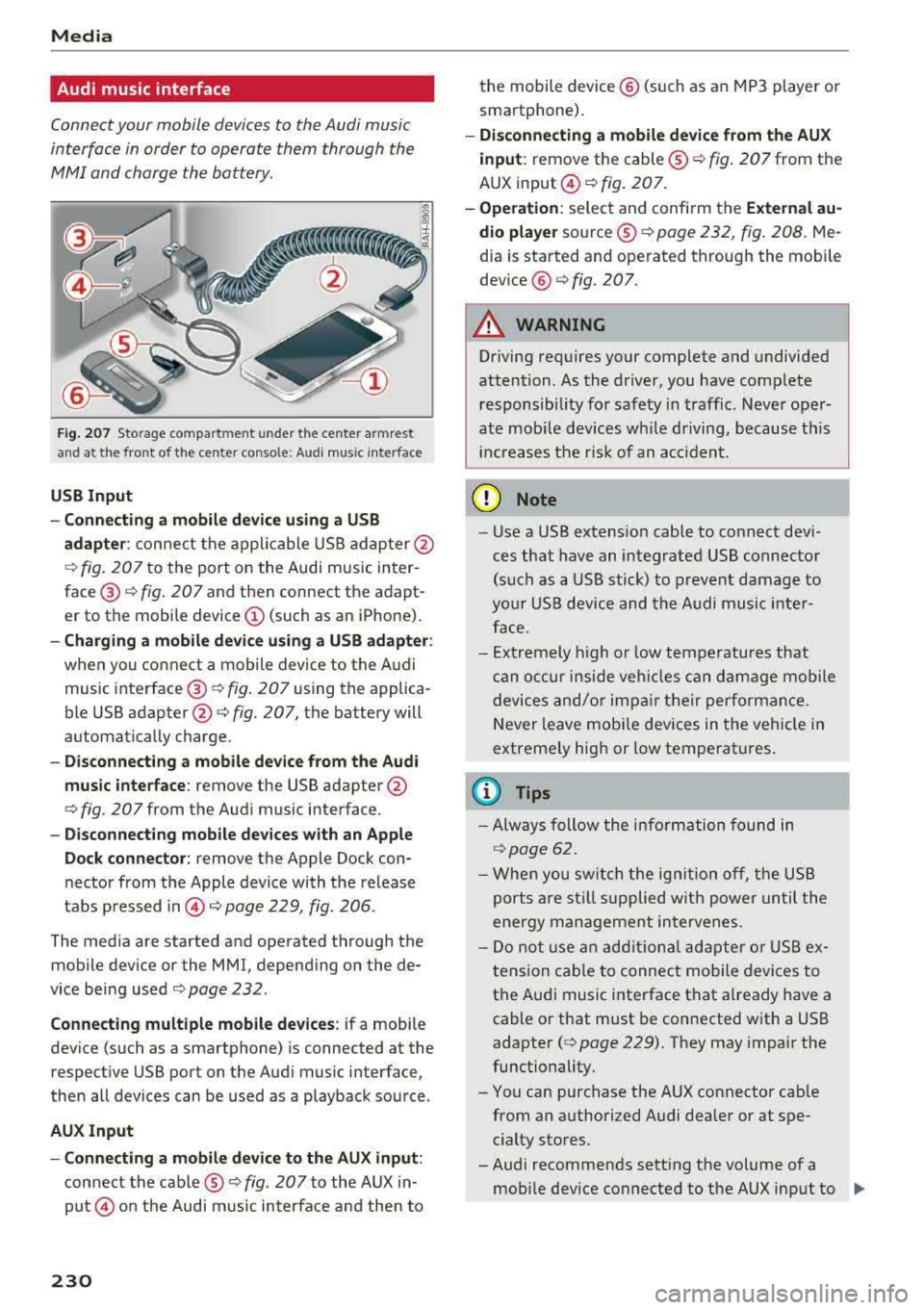
Fig. 207 Storage co mpa rtm ent u nder the cente r armrest
and at the front of t he ce nter con so le: A udi music interface
USB Input
- Connecting a mobile device using a USB
adapter :
connect the applicable USB adapter @
¢
fig. 207 to the port on the Audi music inter
face®¢ fig. 207 and then connect the adapt
er to the mobile device @(such as an iPhone) .
-Charging a mobile device using a USB adapter :
when you connect a mobile device to the Audi
music
interface @¢ fig. 207 using the applica
ble USB
adapter @¢ fig. 207, the battery will
automat ically charge.
- Disconnecting a mobile device from the Audi
music interface:
remove the USB adapter @
¢ fig. 207 from the Audi music interface .
-Disconnecting mobile devices with an Apple
Dock connector:
remove the Apple Dock con
nector from the Apple device with the release
tabs pressed
in © ¢ page 229, fig. 206 .
The media are started and operated through the
mobile device or the MMI, depending on the de
vice being used
¢ page 232 .
Connecting multiple mobile devices: if a mobile
device (such as a smartphone) is connected at the
respective USB port on the Audi music interface,
then all devices can be used as a playback source .
AUX Input
- Connecting a mobile device to the AUX input :
connect the cable ® ¢ fig. 207 to the AUX in
put© on the Audi music interface and then to
230
the mobile device@ (such as an MP3 player or
sma rtphone).
-Disconnecting a mobile device from the AUX
input:
remove the cable ®¢ fig. 207 from the
AUX
input @¢fig. 207.
- Operation: select and confi rm the External au
dio player
source ®¢ page 232, fig. 208. Me
dia is started and operated through the mobile
dev ice @ ¢ fig. 207.
A WARNING
Driving requires your complete and undivided
attention . As the driver , you have comp lete
responsibility for safety in traffic . Never oper
ate mobi le devices wh ile driving, because this
inc reases the risk of an acc ident.
(D Note
- Use a USB extens ion cable to connect devi
ces that have an integrated USB connector
(such as a USB stick) to prevent damage to
your USB device and the Audi music inter
face.
- Extremely high or low temperatures that
can occur inside veh icles can damage mobile
devices and/or impair their performance.
Never leave mobile devices in the vehicle in
extremely high or low temperat ures.
(D Tips
- Always follow the information found in
¢page 62.
-When you switch the ignition off, the USB
ports are still suppli ed with power until the
energy management intervenes.
- Do not use an additional adapter or USB ex
tension cable to connect mobile devices to
the Audi music interface that already have a
cable or that must be connected with a USB
adapter(¢ page 229). They may impair the
functionality.
- You can purchase the AUX connector cable
from an authorized Audi dealer or at spe
cialty stores.
-Audi recommends setting the volume of a mobile device connected to the AUX input to
..,
Page 233 of 404
u. co ... N l' N
approximately 70% of the maximum vol
ume.
- Functionality is not guaranteed for mobile
devices that do not conform to the USB
2.0
specification.
- USB hubs are not supported.
- Some versions of the iPod such as the iPod
shuffle cannot be connected to the USB
adapter for devices with Apple Dock connec
tor. Connect these devices using a AUX con
nector cable.
- Changed content on a mobile device
l) that
is connected to the Audi music interface
may not be displayed in the media center.
In this case, reset the
Media settings back
to
Factory settings c> page 244.
- Video playback through the Audi music in
terface is only supported if the connected
device is recognized as a USB storage device
(for example a USB stick). Apple devices and
MTP devices (such as smartphones) are not
recognized as USB storage devices .
- iPod/iPhone malfunctions also affect the
operation of the MMI. Reset your iPod/
iPhone if this happens.
- For important information on operating
your iPod/iPhone, refer to the user guide for
the device. Audi recommends updating the
iPod/iPhone software to the latest version.
- For more information about the Audi music
interface and supported devices, check the
Audi database for mobile devices at
www.audiusa.com/mp3 or contact an au
thorized Audi dealer or authorized Audi
Service Facility.
8 l ) A pp lies o nly to MTP device s. Does not apply to App le dev i
"' &j ces and USB mass storage d ev ices.
Media
USB charging ports in the rear
App lies to : vehicles wit h USB charging ports in the rear
You can charge the battery on your mobile device
through a USB charging port.
Two USB charging ports* are located at the back
of the center console.
- USB adapter: refer to c> page 229, USB adopter
for Audi music interface.
- Charging a mobile device using the USB
adapter: connect your mobile device to a USB
charging port using a suitable USB adapter.
- Disconnecting a mobile device from the charg
ing port:
remove the USB adapter from the USB
charging port .
-Disconnecting mobile devices with an Apple
Dock connector :
remove the Apple Dock con
nector from the Apple device with the release
tabs pressed in.
A WARNING
-
Driving requires your complete and undivided
attention . As the driver, you have complete
responsibility for safety in traffic. Never oper
ate your mobile devices while driving, because
this increases the risk of an accident.
((D) Note
Extremely high or low temperatures that can
occur inside vehicles can damage mobile devi
ces and/or impair their performance . Never
leave mobile devices in the vehicle in ex
tremely high or low temperatures.
(D Tips
- Always follow the information found in
c>page 62 .
-When you switch the ignition off, the USB
ports are still supplied with power until the
energy management intervenes.
- Do not use any additional USB extension ca
bles or adapters to connect mobile devices
to the USB charging port that have already
liJo-
231
Page 243 of 404
u. 00 ... N l' N ... 0 N > 00
Audi smartphone interface
Setup
A ppl ies to : ve hicles w ith Audi smartpho ne inte rfa ce
You con conn ect your smortphone to the MM I us
ing the Audi smortphon e int erfac e. Certain con
t e n t on you r sm ortphone is ado pted to th e Info
tainme nt system d is p lay while driving and con
be operated through the
MMI control panel .
Requirement
The vehicle must be stat ionary and the ignition
must be switched on .
iPhone generation 5 or h igher w ith Lightning
connector and iOS 7 .1.2 operating system or h igher.
O r:
Smartphone with Android Auto app and Android
5 .0 Loll ipop operating system or higher.
.,. Connec t your sma rtphone to the Audi music in
terface ¢ page 230 using a USB adapte r
¢ page 229, fig. 206.
.. Select and confirm A ctivate Apple CarPlay or
Acti vate And roid Auto now .
.. Follow the system instruct ions.
.. Pay attention to any additiona l system prompts
on your smartphone if applicable .
If yo u chose not to use Apple CarP lay or Android
Auto when connecting your smartphone for the
first time, you can start the Audi smartphone in
terface later on using the
Connection manager.
.,. Se lect : I MENU I button > Audi smartphone in-
terfa ce
> Change to connection manager .
.. Connect your sma rtphone to the A udi music in
terface using a USB
ad apter ¢ page 229,
fig. 206.
.. Select and confirm Audi smartphone in t he
Connection manager ¢ page 244. You can se
l ect your smartphone in the list of devices that
are already
paired¢ page 245.
.,. Follow the system instruct ions .
@ Note
Always follow the i nformat ion found in¢ @) in
Wi-Fi hotspot on page 195 .
Audi smartph one interfac e
(D Tips
-The functions that can be used depen d on
the fo llow ing factors, among others:
- the brand of your smartphone
- the vers io n of the ope rating system in
your smartphone
- the software ve rsion of the app used
- the USB adapter cab le and correct connec-
tion
- your cell phone se rvice provide r
- the customized settings on yo ur sma rt -
phone
- One of the factors above o r a com bina tion
of any of them could cause your sma rtphone
to be incompatib le wit h the Audi smart
phone inter face. Compatibility cannot be
guaranteed for all types of smartp hones.
For more informat io n and assistance, refer
t o the user guide and the man ufactu rer of
yo ur sma rtphone .
- If the connected smartphone has voice con
tr ol, you can ope rate yo ur smartp hon e usi ng
the ex ter nal voic e recognition system
¢page 175.
- Th e menu language show n in t he MMI is
based on t he sett ings in you r smartp ho ne .
- Th e time d is p layed in the M MI is based o n
the settings in yo ur sma rtphone .
- Severa l M MI functions a re not avai lab le
when Apple Car Play o r Andro id A uto is ac
t ive.
- Yo u ca nnot co nnect any mob ile dev ices via
B lu etooth whe n an App le CarPlay connec
tion is a ctive .
- Whe n the App le CarPlay connection is ac
t ive,
Tag this song for iTunes* is not av aila
ble
¢p age 219 .
Operating
A pp lies to: vehicles wit h Audi sm artph one interface
Opening a menu
Apple CarPlay :
you can go back to the Apple Ca r
Play main me nu regardless of the se lected me nu
i tem by p ressing and holdi ng the
I BACKI button .
Android Auto : to go back to the Andro id Auto
menu bar , push the control knob down .
241
Page 250 of 404
System settings
Adjusting the system volume
.,. Select : I MENU I button> Sound> left control
button.
Telephone
Applies to: vehicles with telephone
Mute telephone: messages and ringtones are set
to mute.
Ringtone : see c::> page 188, Ringtone and volume
settings .
Ringtone volume:
you can adjust the volume of
the selected ringtone by turning the contro l
knob.
Message volume: you can adjust the volume of
the notification for an incoming text message by
turning the control knob.
Microphone input level : you can adjust the call
volume during a phone call by turning the control
knob.
Navigation
Applies to: vehicles with navigation system
Voice guidance: see c::>page 210.
Voice guidance during phone call: see
c::> page 210.
Voice guidance volume: you can adjust the vo ice
gu idance volume by turning the control knob.
Or:
you can adjust the vo ice guidance volume during
active route guidance by turning the On/Off
knob .
Entertainment fader : the volume of audio play
back can be temporarily lowered when the park
ing system or vo ice gu idance is active .
Voice recognition system
Applies to: vehicles with voice recognition system
Command display : see c::> page 243.
Short dialog : see c::> page 243.
Volume : see c::> page 243 .
Individual speech training : see c::> page 243.
1> Not availa ble in all vehicl es.
248
Parking aid*
You can adjust the volum e of the signal tone by
turning the control knob.
-Adjusting the Front volume: select and con
firm
High , Medium or Low .
- Adjusting
the Rear volume : select and confirm
High , Medium or Low .
MMI touch*
Turn the control knob to adjus t the volume of the
spoken prompts from the
MMI touch* .
Restarting the MMI
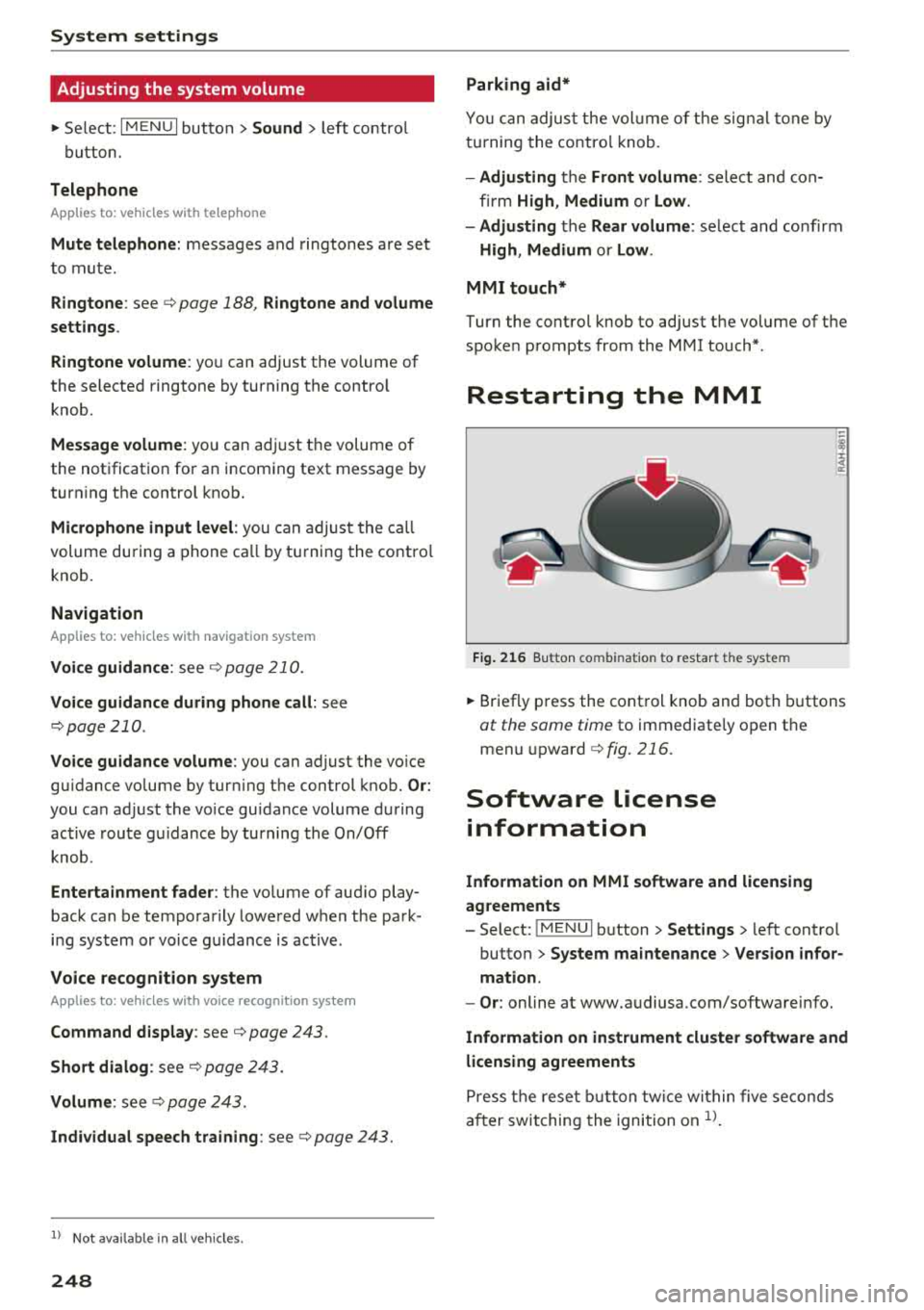
Fig. 216 Button co mbinatio n t o restar t th e sys te m
.,. Briefly press the control knob and both buttons
at the same time to immediately open the
menu upward
c::> fig. 216.
Software license
information
Information on MMI software and licensing
agreements
- Select: ~
I M~E=N~U~ I button >Settings > left control
button>
System maintenance > Version infor
mation.
- Or : online at www.audiusa.com/softwareinfo.
Information on instrument cluster software and
licensing agreements
Press the reset button twice within five seconds
after switching the ignition on
ll.
Page 262 of 404
Safety belts
Safety belts
General notes
Always wear safety belts!
Wearing safety belts correctly saves lives!
This chapter explains why safety belts are neces
sary, how they work and how to adjust and wear
them correctly.
"'Read all the information that follows and heed
all of the instructions and WARNINGS.
A WARNING
Not wearing safety belts or wearing them im
properly increases the risk of serious personal
injury and death.
- Safety belts are the single most effective
means available to reduce the risk of serious
injury and death in automobile accidents.
For your protection and that of your passen
gers, always correctly wear safety belts
when the vehicle is moving.
- Pregnant women, injured, or physically im
paired persons must also use safety belts.
Like all vehicle occupants, they are more
likely to be seriously injured if they do not
wear safety belts. The best way to protect a
fetus is to protect the mother
-throughout
the entire pregnancy .
Number of seats
Applies to: vehicles without power top: Your Audi
has a total of five seating positions: two in the
front and three in the rear . Each seating position
has a safety belt .
Applies to: vehicles with power top: Your Audi
has a total of four seating positions: two in the
front and two in the rear. Each seating position
has a safety belt .
A WARNING
Not wearing safety belts or wearing them im
properly increases the risk of serious personal
injury and death.
260
-Never strap more than one person, includ
ing small children, into any belt. It is espe
cially dangerous to place a safety belt over a
child sitting on your lap .
- Never let more people ride in the vehicle
than there are safety belts available.
- Be sure everyone riding in the vehicle is
properly restrained with a separate safety
belt or child restraint .
Safety belt warning light
Your vehicle has a warning system for the driver
and front seat passenger to remind you about the importance of buckling-up.
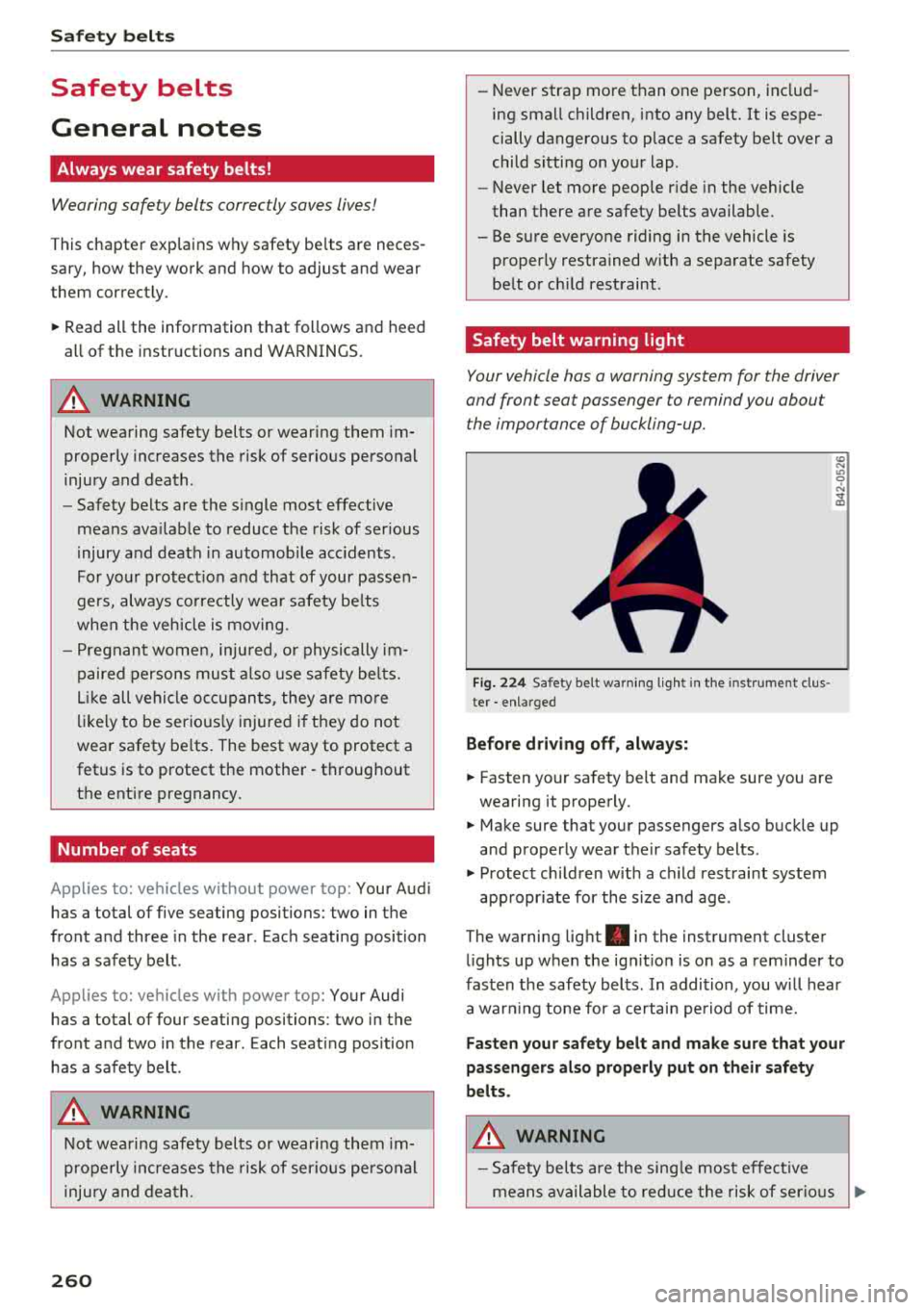
Fig. 224 Safety belt warning ligh t in the instrument clus
ter
-enlarged
Before driving off, always:
"' Fasten your safety belt and make sure you are
wearing it properly.
U) N Ill 0 ..:.
and properly wear their safety belts .
"' Protect children with a child restraint system
appropriate for the size and age .
The warning light . in the instrument cluster
lights up when the ignition is on as a reminder to
fasten the safety belts. In addition , you will hear
a warning tone for a certain period of time.
Fasten your safety belt and make sure that your
passengers also properly put on their safety
belts.
A WARNING -
- Safety belts are the single most effective
means available to reduce the risk of serious
~