lock AUDI A3 SEDAN 2018 Workshop Manual
[x] Cancel search | Manufacturer: AUDI, Model Year: 2018, Model line: A3 SEDAN, Model: AUDI A3 SEDAN 2018Pages: 404, PDF Size: 62.3 MB
Page 148 of 404
Parking aid
-Only use the rearview camera to assist you if
it shows a good, clear picture. For example,
the image may be affected by the sun shin
ing into the lens, d irt on the lens, or if there
is a malfunction .
- Use the rearview camera only if the luggage
compartment lid is completely closed . If the
luggage compartment lid is open the orien
tation lines and blue surfaces are hidden .
Make su re any objects you may have mount
ed on the luggage compa rtment lid do not
block the rearview camera.
- T he came ra lens enlarges and distorts the
field of v is ion. Th e object appears both al
tered and inaccurate on the screen.
- In certai n situations, people or objects in
the d isplay appear closer or farthe r away:
- For objects that do not touch the ground,
such as the bumper of a parked vehicle, a
trailer hitch or the rear of a truck . Do not
use the orientation lines in this case .
- If driven from a level surface onto an in
cline, o r a downward slope.
- If driven toward protrud ing objects.
- If the veh icle is carry ing too much load in
the rear.
- Always read and follow the applicable warn
ings ¢(!) in General information on
page 143 .
-The orange-colored orientation lines in the
Infotainment display show the vehicle path
based on the steering wheel angle . The
front of the vehicle swings out more than
the rear of the veh icle. Mainta in plenty of
distance so that an exterio r mirror or a cor
ner of the vehicle does not co llide w ith any
obstacles.
Switching on/off
Applies to : veh icles with rearview camera
Switching on/off
Requirement: the veh icle speed must be under
approximately 6 mph (10 km/h) .
146
.,. Press the p, .//~ button in the center console. A
short confirmation tone sounds and the LED in the button turns on.
Switching on automatically
The system switches on automatically when re
verse gear is engaged wh ile the engine is run
ning.
Switching off automatically
The system switches off automatically when driv i ng fo rward faster than 6 mph ( 10 km/h).
(0 Tips
- The visua l display* in the right sect ion of the
display should help you de tect the critical
vehicle area.
- You can change the volume of the signa ls
and the
display ¢ page 147.
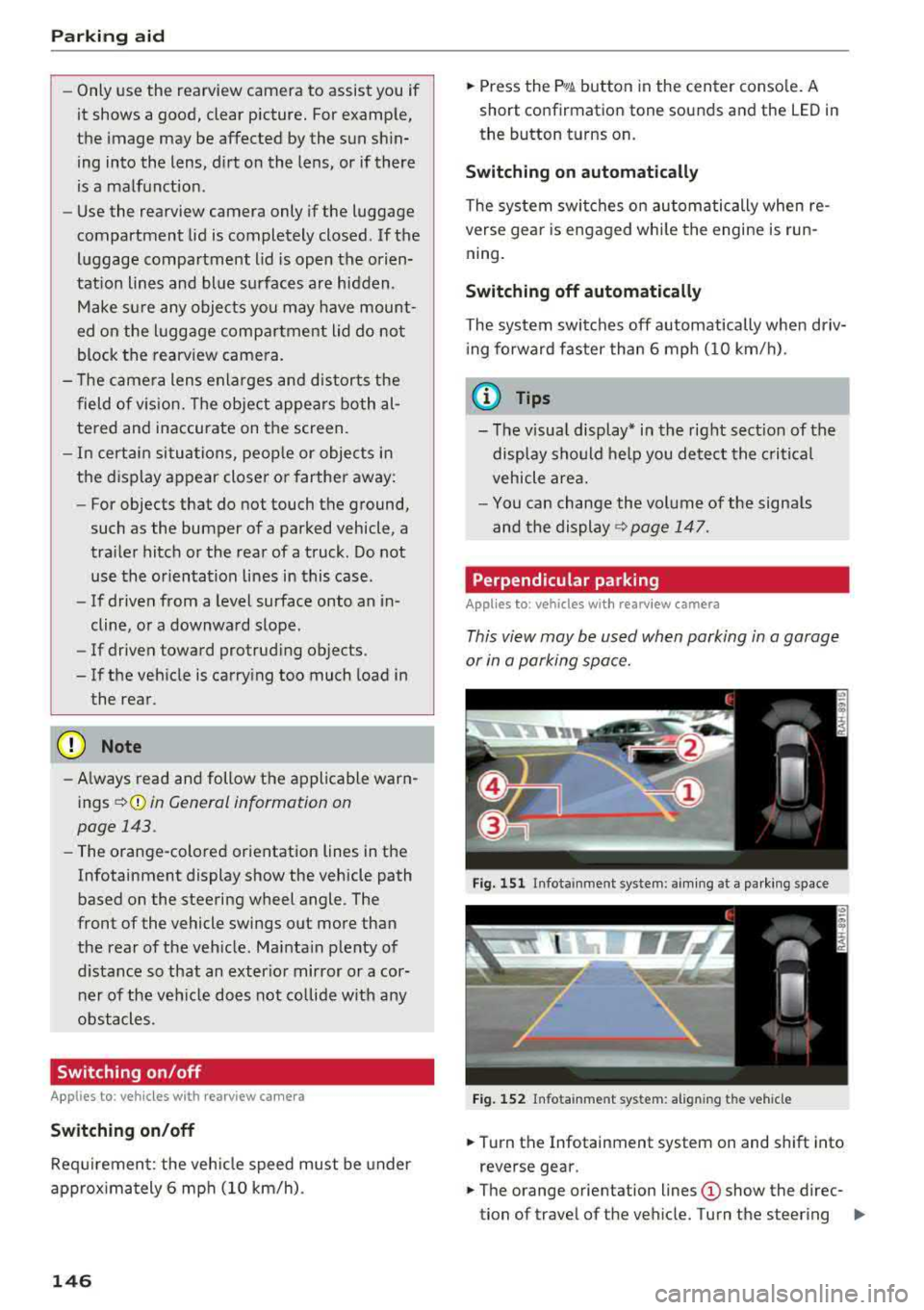
Perpendicular parking
Applies to: vehicles with rearview camera
This view may be used when parking in a garage
or in a parking space.
Fig. 151 Infota inment system: aim ing at a parki ng space
Fig. 152 Infota inm ent sys tem: al ign ing the vehicle
.,. Turn the Infotainment system on and shift into
reverse gear.
.,. The orange orientation lines (D show the direc
tion of travel of the vehicle. Turn the steering
..,.
Page 150 of 404
Intelligent Technology
Intelligent Technology Electronic Stabilization
Control (ESC)
Description
Elect ronic stabili zation control ( ESC) supports
driver safety. It red uces the risk of slipping and
improves dr iving stabi lity. ESC detects crit ica l sit
uations such as the vehicle overstee ring and un
dersteeri ng or the w heels are sp inning. The vehi
cle is stabilized by app lying the brakes or reduc
i n g e ngine torque . When the ESC engages, the
G1 indicato r light bli nks in t he instr ument clus
t er.
The fo llow ing systems are in tegrated in the ESC:
Anti-lock braking system (ABS)
ABS p reve nts the whee ls from lock ing whe n brak
ing. The vehicle can st ill be steered even d uring
hard brak ing. Apply steady press ure to the bra ke
pedal. Do not pump the pedal. A puls ing in t he
b rake pedal indicates that the system is act ing to
s tabili ze the vehicle .
Brake assist system
The brake assist system can decrease brak ing dis
tance . It inc reases brak ing power when the d river
presses the brake pedal q uick ly in eme rgency sit
uations . You must press and hold t he b rake pedal
until the dangerous si tuatio n is ove r. In veh icles
w ith adapt ive c ruise con trol*, the bra ke assist
sys te m is more sensitive if t he di stan ce detec ted
t o the veh icle dr iv ing ahead is too small.
Anti-Slip Regulation (ASR)
ASR reduces eng ine power when the drive wheels
beg in s pinning a nd adapts the force to the road
conditions . T his makes it easie r to sta rt, acceler
a te and dr ive u p hill s.
Electronic differential lock (EDL)
The EDL applies the brakes to a whee l t h at starts
sp inning and transfe rs t he d rive power to t he
other d riving wheel or wh eels ( if the veh icle is
eq uipped w ith all whee l dr ive*) . T his func tion is
no t a vailable at hig her s pee ds .
148
In extreme cases, ED L automat ica lly swi tches off
to keep the b rake o n the bra ked whee l from over
h eating. The ve hicle is still wo rking co rrect ly. ED L
will switc h on again automatically when condi
tions have returned to normal.
Power steering
The ESC can also support veh icle sta bility
th ro ugh stee ring .
Selective wheel torque control
Selective w heel to rque cont rol is used when driv
in g on curves. The fron t whee l on the in side of
t h e curve or both whee ls on t he i nsid e of the
cu rve are braked se lective ly as needed. This al
l ows mo re precise driving in cu rves .
Automatic post-collision braking system
The "automat ic pos t-coll is io n braking syste m"
c a n help t o reduce t he risk of sliding and of addi
tion al collisions a fter an acc iden t. If the a irbag
contro l modu le detects a collision above a certa in
vehicle speed, the ve hicle is braked by the ESC.
The
ve hicle does not br ak e automatically if;
- t he dr ive r presses the acce lerato r pedal, or
- the ESC, the b ra ke system or the ve hicle elect ri-
cal sys tem are not func tioning .
A WARNING
-The ES C and i ts in tegra ted systems can not
over co m e the li mits im posed by n atural
p hy sical laws. T h is is es peci ally i mpo rtan t
on s lippery or we t ro ad s. If the sy stem s be
gi n acting to stabilize yo ur vehicle, you
should immediately a lter your speed to
match the road and t raffic conditions. Do
not let the increased safety provi ded tempt
you into tak ing risks. This could increase
your r is k of a coll is io n.
- Please note the r is k of a coll is io n increases
when dr iv in g fast , especially t hrough c urves
and on s lippery or wet roads, and when dr iv
ing too close to obj ects ahead . T he ESC and
i t s in teg rated sys tems c annot alw ays pre
ve nt col lisio ns
-th ere i s still a r is k of acci-
d en ts!
..,.
Page 171 of 404
LL
"' ..; N ,.... N ..; 0 N > a,
Voice recognition system
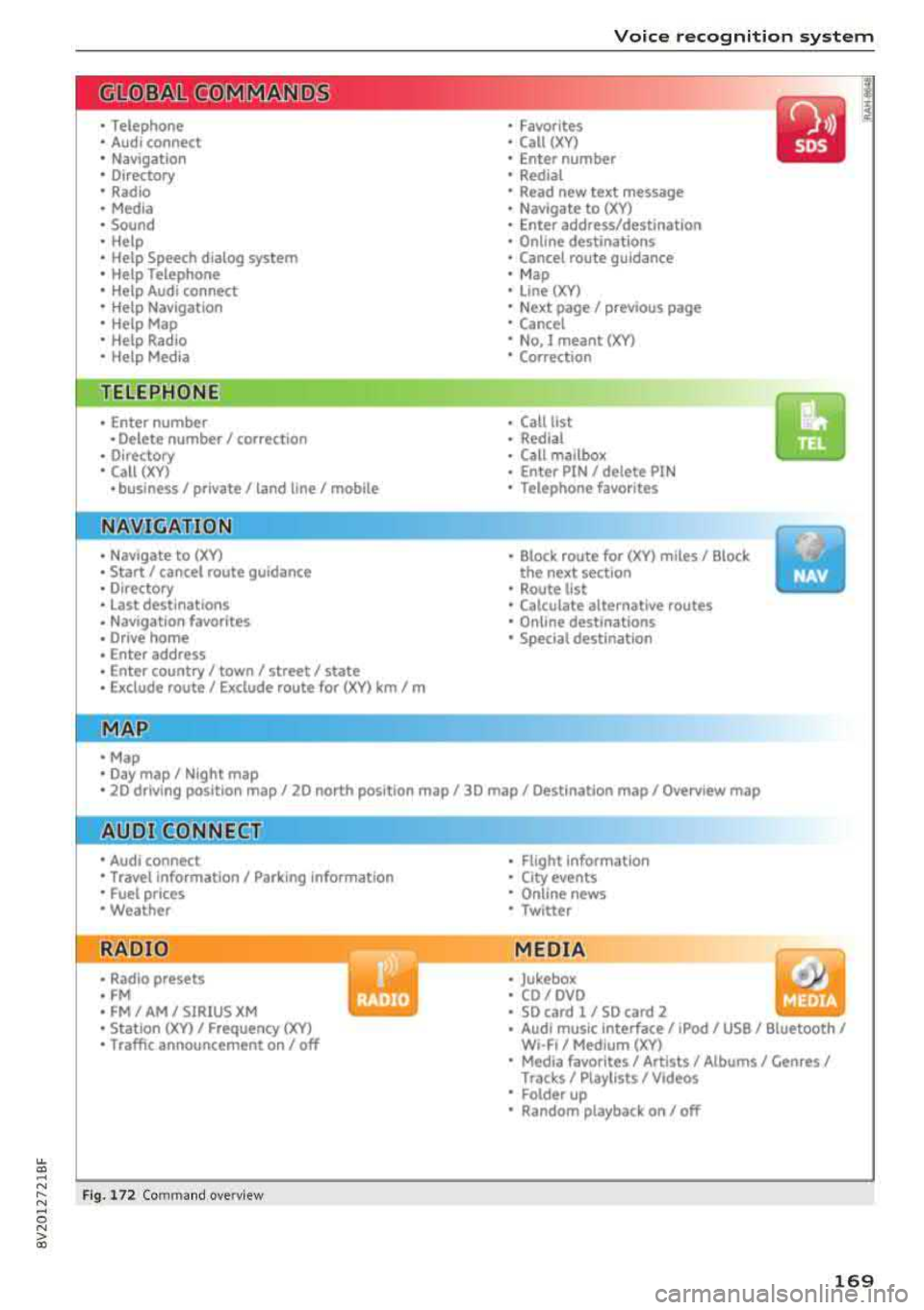
• Telephone
• Audi connect •
Favorites
• Call (XY)
• Navigation
• Directory
• Radio
• Media
• Sound •
Enter number
• Redial
• Read new tex t message
• Navigate to
(XY)
• Enter address/destination
• Help • Online destinations
• Help Speech dia log system
• Help Telephone •
Cancel route guidance
• M ap
• Help Audi connect •
Line (XY)
• Help Navigation
• Help Map
• Help Radio
• Help Media • N
ext page/ previous page
• Cancel
• N o. I meant
()(Y)
• Correction
TELEPHONE
• Enter number • Call list
• Delete number/ correc tion
• Redial
•
Directory
• Call (XY) •
Call
mailbox
• Enter PIN/ delete PI N
· business/ private/ land line/ mobile • Telephone favori tes
NAVIG:ATI0N
• Navigate to (XY)
• Start/ cancel route guidance
• Directory
• Last destinations •
Bloc k route for (XYJ miles/ Block
the next section
• Route list
• Calcul.ate alternative routes
• Navigation favorites
• Drive home
• Enter address •
Online destinations
• Special destination
• Enter country
I town/ street/ state
• Exclude route
I Exclude route for (XV) km / m
M~P
• Map
• Day map/ Night map
• 20 driving position map/ 20 north posi tion map/ 30 map/ Destination map/ Overview map
Al!JDI G ONNECT
• Audi connect
• Travel Information/ Parking Information
• Fuel prices
• Weather
RADIO
• Radio presets
• FM
• FM/ AM/ SIRIUS XM
• Station (XYJ / Frequency
(XYJ
• Traffic announcement on/ off
Fig. 172 Com mand ove rview
• Flight Information
• City events
• Online news
• Twitter
MEDIA
• Jukebo x
• CO/ DVD
• SD card l / SD card 2
• Audi music Interface/ 1Pod
I use / Bluetooth /
WI-Fl/ Medium
(XY)
• Media favorites/ Artists/ Albums/ Genres I
Tracks/ Playllsts / Videos
• Folder up
• Random playback on / off
169
Page 176 of 404
Voice recognition system
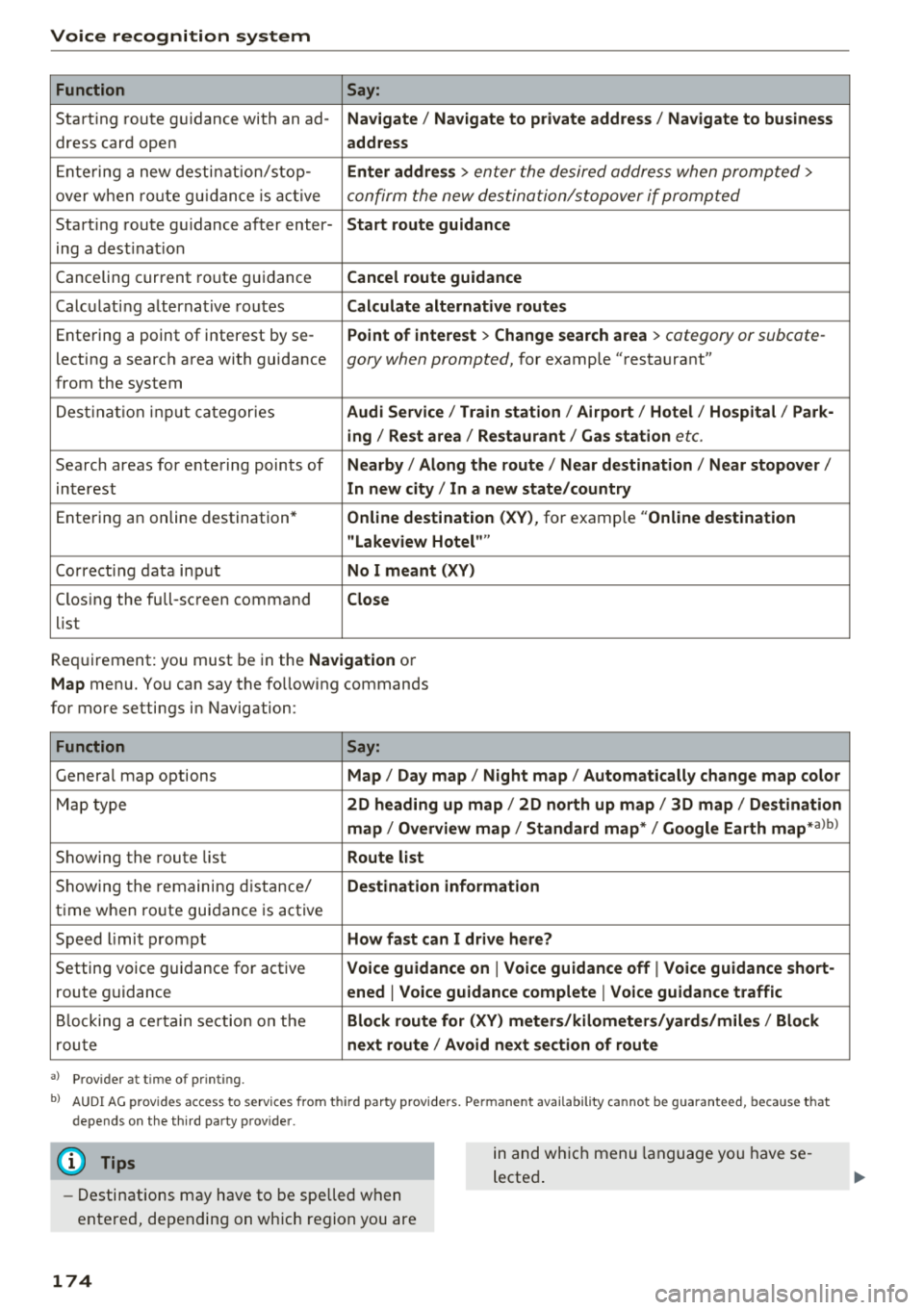
Function Say:
Starting route guidance with an ad-Navigate/ Navigate to private address / Navigate to business
dress card open address
Ent ering a new destination/stop- Enter address
> enter the desired address when prompted>
over when ro ut e gu idan ce is active confirm the new destination/stopover if prompted
Starting route guidance after enter- Start route guidance
ing a destination
Canceling current route guidance Cancel route guidance
Calculating alternat ive routes Calculate alternative routes
Entering a point of interest by se -Point of interest
> Change search area > category or subcote-
lecting a search area with guidance gory when prompted, for example
"restaurant"
from the system
Destination input categor ies Audi Service / Train station /Airport / Hotel / Hospital / Park-
ing / Rest area /Restaurant / Gas station
etc.
Search areas for entering points of Nearby/ Along the route / Near destination / Near stopover /
interest In new city/ In a new state/country
Entering an online destination * Online destination
(XV), for example "Online destination
"Lakeview Hotel""
Co rrect ing data input No I meant (XV)
Clos ing the full-screen command
Close
list
Requirement: you must be in the Navigation or
Map menu. You can say the fo llowing commands
for more settings in Navigation:
Function Say:
Genera l map options Map/ Day map / Night map / Automatically change map color
Map type 2D heading up map/ 2D north up map / 3D map / Destination
map / Overview map / Standard map* / Google Earth
map* albl
Showing the route list Route list
Showing the remaining distance/ Destination information
time when route guidance is active
Speed l imit prompt How fast can I drive here?
Setting voice guidance for active Voice guidance on
I Voice guidance off I Voice guidance short-
route guidance ened
I Voice guidance complete I Voice guidance traffic
Blocking a certain section on the Block route for (XV) meters/kilometers/yards/miles / Block
route next route / Avoid next section of route
a) P rov ider a t tim e of prin ting.
bl AUDI AG p rovides access to services fro m thir d party prov iders. Perm anent ava ilab ility cannot be guaranteed , because t hat
depends on the th ird party p rov ide r.
(D Tips
- Destinations may have to be spelled when
entered, depending on which region you are
174
in and wh ich menu language you have se
lected.
Page 231 of 404
LL co .... N
" N .... 0 N > co
the inside of the vehicle in a crash and cause
serious injur ies. Store these types of devices
securely whi le driving.
- Do not use any w ireless devices on the front
seats w ith in range of the a irbags while driv
ing. Also read and follow the warnings in
¢ page 2 73 , Front airbags .
CD Note
-Always fo llow the information found in i::> @
in Wi-Fi hotspot on page 195 .
- Please note that there genera lly are addi
tiona l costs when using an online media
se rvice account, especially when it is used
i nternationally .
(D Tips
-Depending on the Internet connection and
network traffic, a connection loss can occur
duri ng p layback of on line media serv ices .
-Online media and Internet radio usage de
pends on the serv ice availab ility of the third
party provider .
- Audi AG simply makes the access to online
media services possible through the MMI
and does not take any respons ibility for the
contents of the online med ia services .
- Always read the chapter
¢ page 196, Audi
connect (Infotainment) general informa
tion .
- Dependi ng on the mobile device used, the re
may be interruptions during media playback
and whe n using the
Audi MMI connect app.
To avoid i nterruptions when usi ng a mob ile
device , do no t lock the s cree n on you r mo
bile device and keep the
Audi MMI connect
app in the foreground .
- Cont act an a uthorized Audi dea ler or au
thorized Audi Service Facili ty for additional
i nformat ion about online media .
Media
Multimedia connections
USB adapter for Audi music interface
You can connect your mobile devices (such as a
smartphone or MP3 player) to the Audi music in
terface and charge them using a special USB
adapter .
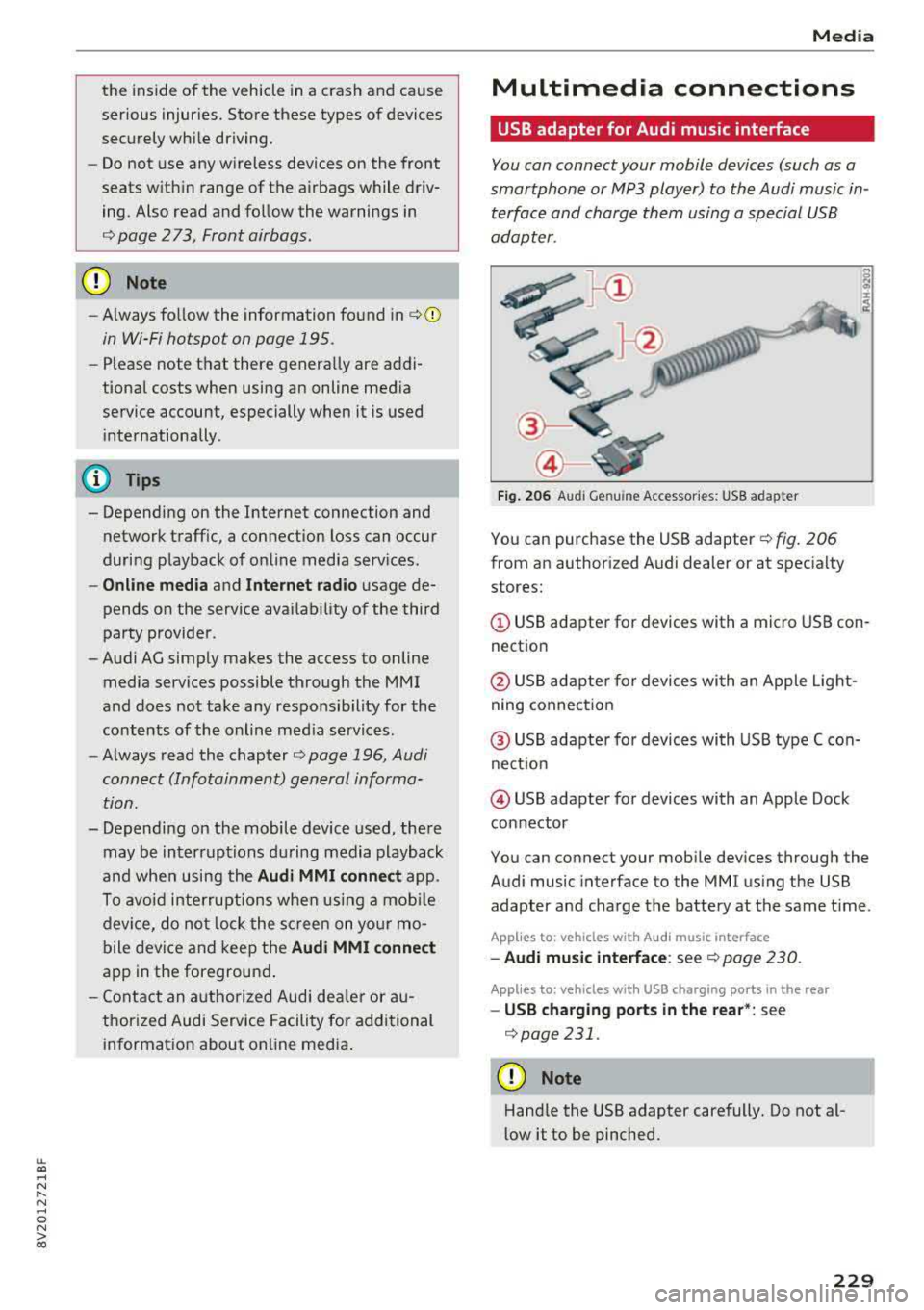
Fig. 206 Audi Genuine Acces sorie s: USB a dap ter
You can purchase the USB adapter ¢ fig. 206
from an author ized Audi deale r or at spec ialty
stores:
© USB adapter for devices with a micro USB con
nect ion
@ USB adapte r for devices with an Apple Light
ning conne ct ion
@ US B adapte r for devices wi th USB type C con
ne ct io n
@ USB adapter for devices with an Apple Dock
connector
You can connect your mob ile dev ices through the
Audi music interface to the MMI us ing the USB
adapter and cha rge the battery at the same t ime .
App lies to : vehicles wit h Audi music interface
-Audi mu sic interfa ce : see c;> page 230 .
Applies to: vehicles wi th USB charging ports in the rear
-USB cha rging ports in the rear *: see
¢page 231 .
CD Note
Hand le the USB adapter carefully. Do not al
low it to be pinched.
229
Page 239 of 404
u. 00 ... N l' N ... 0 N > 00
Picture for-
mat
4: 3
16 :9
(D Tips Description
The image is fixed
in the 4:3 pie-
ture format. Black bars are shown
on the sides of the Infotainment
system d isplay.
The image is fixed in the 16 :9 pie -
ture format . B lack bars are shown
in the upper and lower edges of the
Infotainment system disp lay.
Media
-T he p rotection levels for the Parental con
t rol
are based on the US standards from the
Motion P icture Associat ion of America
(MPAA). Note that the age levels fo r video
DVDs in European countr ies may differ.
-Password ent ry fo r Parental control will be
locked for approx imately one m inute if you
enter the incorrect password three t imes in
a row. The password can o nly be reset by an
au thori zed A udi dealer.
-Not a ll video DVDs have parental control.
Supported media and file formats
Overview
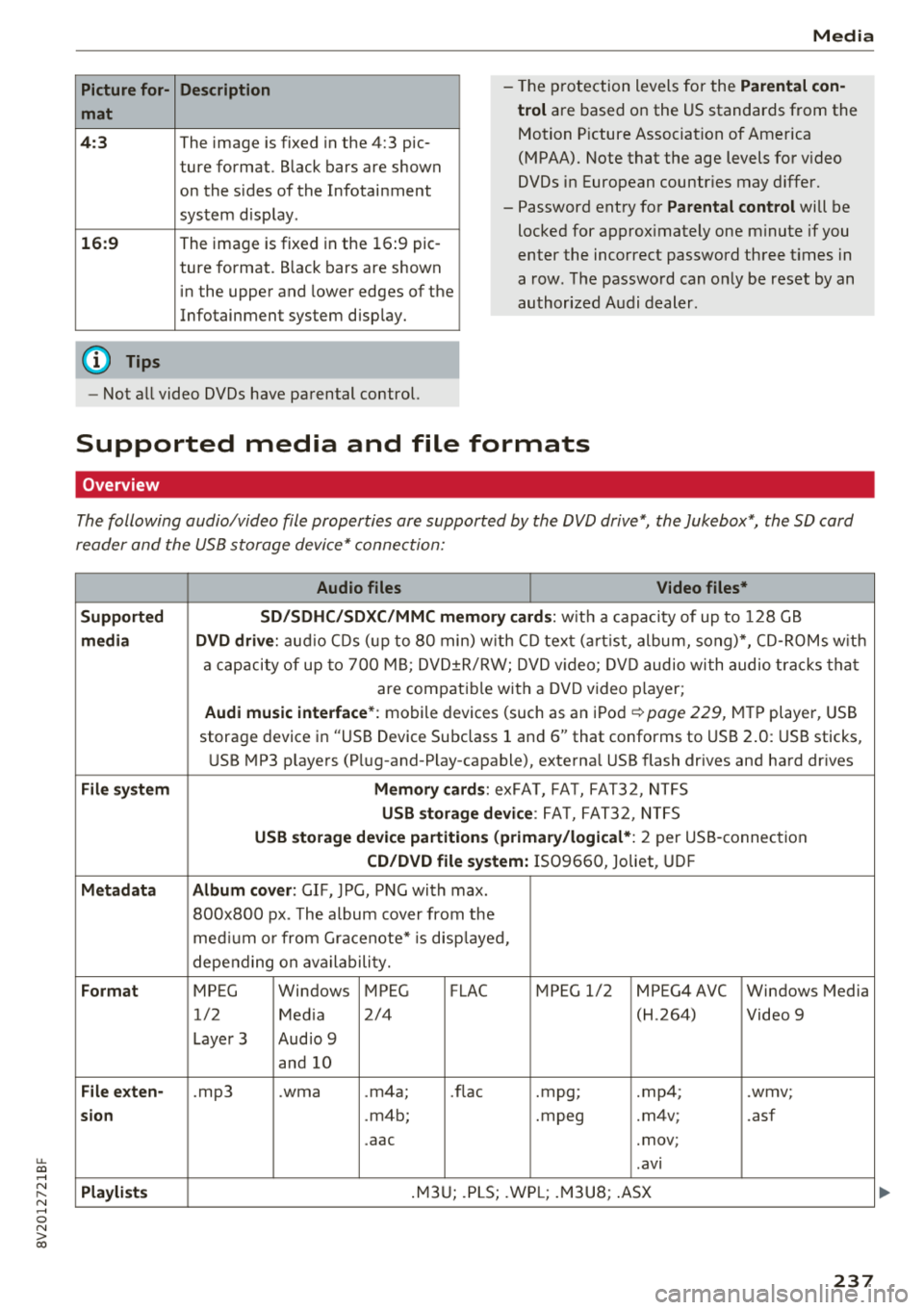
The following audio/video file properties are supported by the DVD drive*, the Jukebox*, the SD card
reader and the USB storage device* connection:
Audio files Video files*
Supported SD/SDHC /SDXC /MMC m emory cards :
with a capacity of up to 128 GB
media DVD drive : audi o CDs ( up to 80 min) w ith CD tex t (a rt ist, album, so ng)*, CD -R O Ms w ith
a ca pacity of up to 70 0 M B; D V D± R/RW; DVD video; DV D audio wi th audio t ra ck s tha t
are compatible with a DVD video p layer;
Audi music interface *: mobile devices (such as an i Pod i::> page 229, M TP playe r, USB
storage device in "USB Device Subclass 1 and
6" that conforms to USB 2 .0: USB sticks,
U SB MP3 p laye rs (P lug-and-P lay-capable), external USB flash drives and ha rd dr ives
File system Memory cards : exFA T, FA T, FAT32, NTFS
USB storage device : FA T, FA T32 , NTFS
USB storage device partition s (primary/logical* : 2 per USS-connec tion
CD/DVD file sy stem: IS09660, Joliet, UDF
Metadata Album cover : GIF, )PG, P NG with max.
800x800 px . The album cover from the
me diu m o r from Gracenote* is disp layed,
depe nding on ava ilabili ty.
Format MPEG Windows MPEG FLAC MPEG 1/2 MPEG4 AVC Windows Media
1/2 Med ia 2/4 (H
.264)
Video 9
Laye r 3 Aud io 9
and 10
File e xten-.mp3 .wma .m4a; .nae .mpg; .mp4; .wmv;
sion .m4b; .mpeg .m4v; .asf
.aac .mov;
.avi
Pla ylists .M3 U; .PLS; .WP L; .M3 U8; .ASX
237
Page 245 of 404
u. 00 .-< N l' N .-< 0 N > 00
System settings
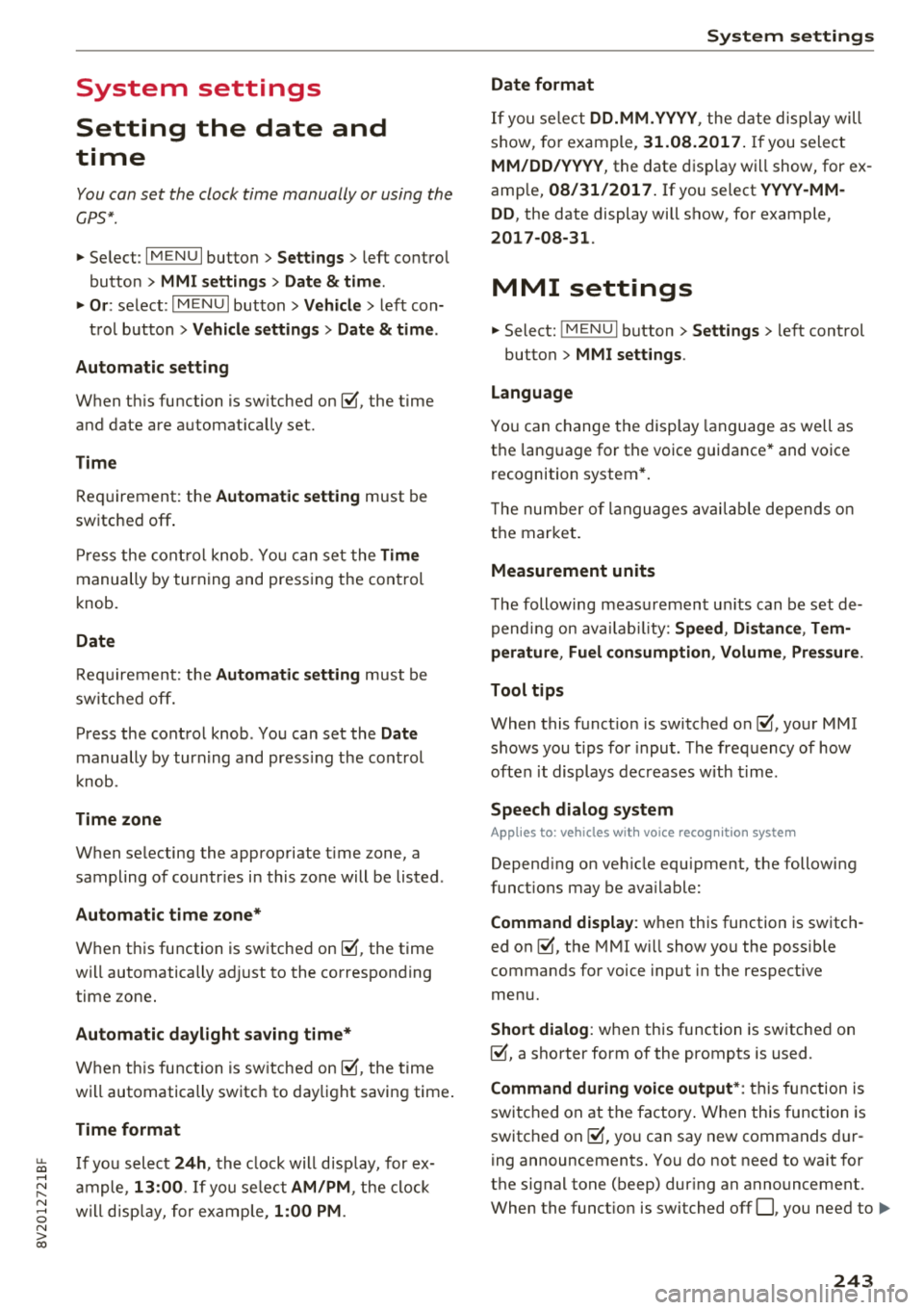
Setting the date and
time
You can set the clock time manually or using the
CPS* .
.. Select : IMENUI button> Settings> left control
button >
MMI settings > Date & time.
.. Or : select : IMENUI button> Vehicle> left con-
trol button >
Vehicle settings > Date & time .
Automatic setting
When this function is switched on g, the time
and date are automatically set.
Time
Requirement: the Automatic setting must be
switched
off .
Press the control knob. You can set the Time
manually by turning and pressing the control
knob.
Date
Requirement: the Automatic setting must be
switched
off.
Press the control knob . You can set the Date
manually by turning and press ing the control
knob.
Time zone
When selecting the appropriate time zone, a
sampling of countries in this zone will be listed .
Automatic time zone*
When this function is switched on g, the time
will automatically adjust to the corresponding
time zone.
Automatic daylight saving time*
When this function is switched on g, the time
will automatically switch to daylight saving time .
Time format
If you select 24h, the clock will display, for ex
ample,
13:00 . If you select AM/PM , the clock
will disp lay, for examp le,
1:00 PM .
System settings
Date format
If you select DD.MM.YYYY , the date display will
show, for example ,
31.08.2017. If you select
MM/DD/YYYY , the date display will show, for ex
amp le,
08/31/2017. If you select YYYY-MM
DD ,
the date display will show, for example,
2017-08-31 .
MMI settings
.. Select: !MENU I button> Settings> left control
button >
MMI settings .
Language
You can change the display language as well as
the language for the voice guidance* and voice
recognition system*.
T he number of languages available depends on
the market.
Measurement units
The following measurement units can be set de
pend ing on availability:
Speed , Distance , Tem
perature , Fuel consumption , Volume , Pressure.
Tool tips
When this funct ion is switched on g, your MMI
shows you tips for input . The frequency of how
often it displays decreases with time.
Speech dialog system
Applies to : vehicles wit h voice recog nitio n system
Depend ing on veh icle equipment, the following
funct ions may be ava ilable:
Command display : when this function is switch
ed on
g, the MMI will show you the possible
commands for voice input in the respective
menu.
Short dialog : when this function is switched on
g, a shorter form of the prompts is used .
Command during voice output*: thi s function is
switched on at the factory . W hen this function is
switched on
g, you can say new commands dur-
ing announcements. You do not need to wait for
the signal tone (beep) dur ing an announcement.
When the funct ion is swi tched off
0, you need to Iii>
243
Page 252 of 404
Driving sa fety
,.. ALWAYS adjust your speed to road, traffic and
weather conditions.
,.. Take frequent breaks on long trips. Do not drive
for more than two hours at a stretch.
,.. Do NOT drive when you are tired, under pres
sure or whe n you are stressed .
A WARNING
Impaired driv ing safety inc reases the risk of
ser ious persona l inju ry and death whenever a
vehicle is being used.
Correct passenger
seating positions
Proper seating position for the driver
The proper driver sea ting po sition is impor tan t
for safe, relaxed driving .
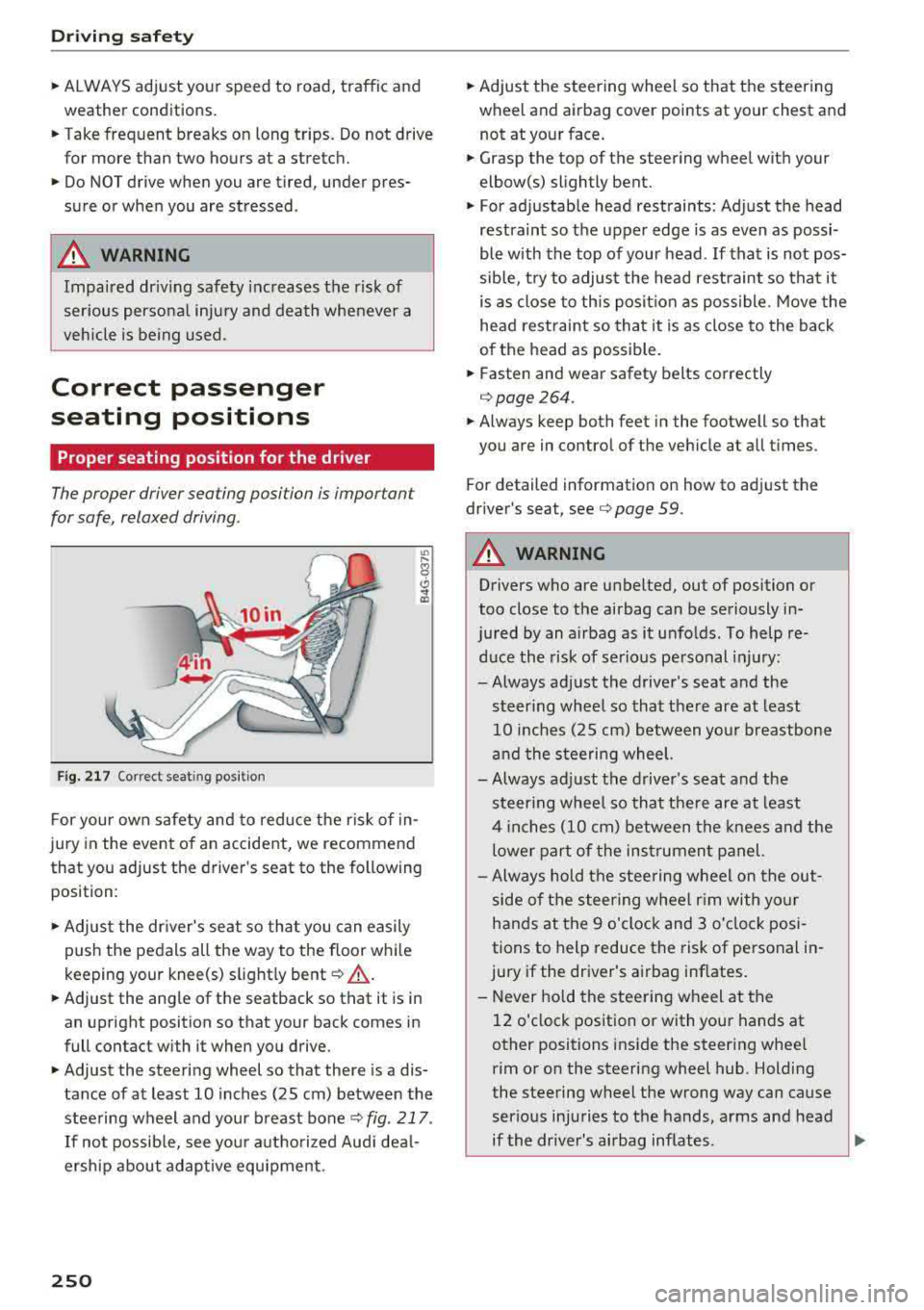
Fig. 217 Correc t seat ing posit ion
F or your own safety and to reduce the risk of in
jury in the event of an accident, we recommend
that you adjust the driver 's seat to the following
position :
,.. Adjust the dr iver's seat so tha t you can easily
push the pedals all the way to the floor whi le
keeping your knee(s) s light ly
bent ¢ ,A.
,.. Adjust the angle of the seatback so that it is in
an upright position so that your back comes in
full contact with it when you drive.
,.. Adjust the steering wheel so that there is a dis
tance of at least 10 inches (25 cm ) between the
stee ring wheel and your breast bone
<=;> fig . 217 .
If not possib le, see you r autho rized Aud i dea l
ersh ip about adaptive equipment .
250
,.. Adjust the steering wheel so that the steering
wh eel and airbag cover points at your chest and
not at your face.
,.. Grasp the top of the steering wheel with your
elbow(s) slightly bent.
,.. F or ad justab le head rest raints: Adjust the head
restraint so t he upper edge is as even as possi
ble with the top of your head . If that is not pos
sible, t ry to adjust the head restraint so tha t it
is a s close to this pos it ion as poss ible . M ove the
he ad restraint so tha t it is as close to the back
o f the head as possible.
,.. Fasten and wear safety belts correctly
q page264 .
,.. Always keep both feet in the footwell so that
you are in contro l of the veh icle at all times .
Fo r detail ed information on how to adjust the
dr iver's seat,
see ¢ page 59.
A WARNING
Drivers who are unbelted , out of position or
too close to the airbag can be seriously in-
jured by an airbag as it unfo lds . To help re-
duce the risk of serio us pe rsonal i njury:
-Always adjust the driver's seat and the steer ing whee l so that there are at least
10 inches (25 cm) between you r breastbone
and the steering wheel.
- Always ad just the driver's seat and the
steer ing whee l so that the re are at least
4 inch es (10 cm) between the knees a nd the
lower part of the ins trumen t panel.
-Always hold t he s teering wheel on the out
side of t he steering wheel r im with yo ur
hands at the 9 o'clock and 3 o'clock posi
tions to help reduce the risk of personal in
jury if the dr iver 's airbag inflates.
-Never hold the stee ring wheel at the
12 o'clock position or with you r hands at
other positions inside the steer ing whee l
rim o r on the steering wheel hub. Holding
the steering wheel the wrong way can cause
serious injuries to the hands, arms and head
-
if the driver's airbag inflates . .,_
Page 257 of 404
LL co .... N
" N .... 0 N > co
Storing cargo correctly
Loading the luggage compartment
All luggage and other objects must be properly
stowed and secured in the luggage compart
ment.
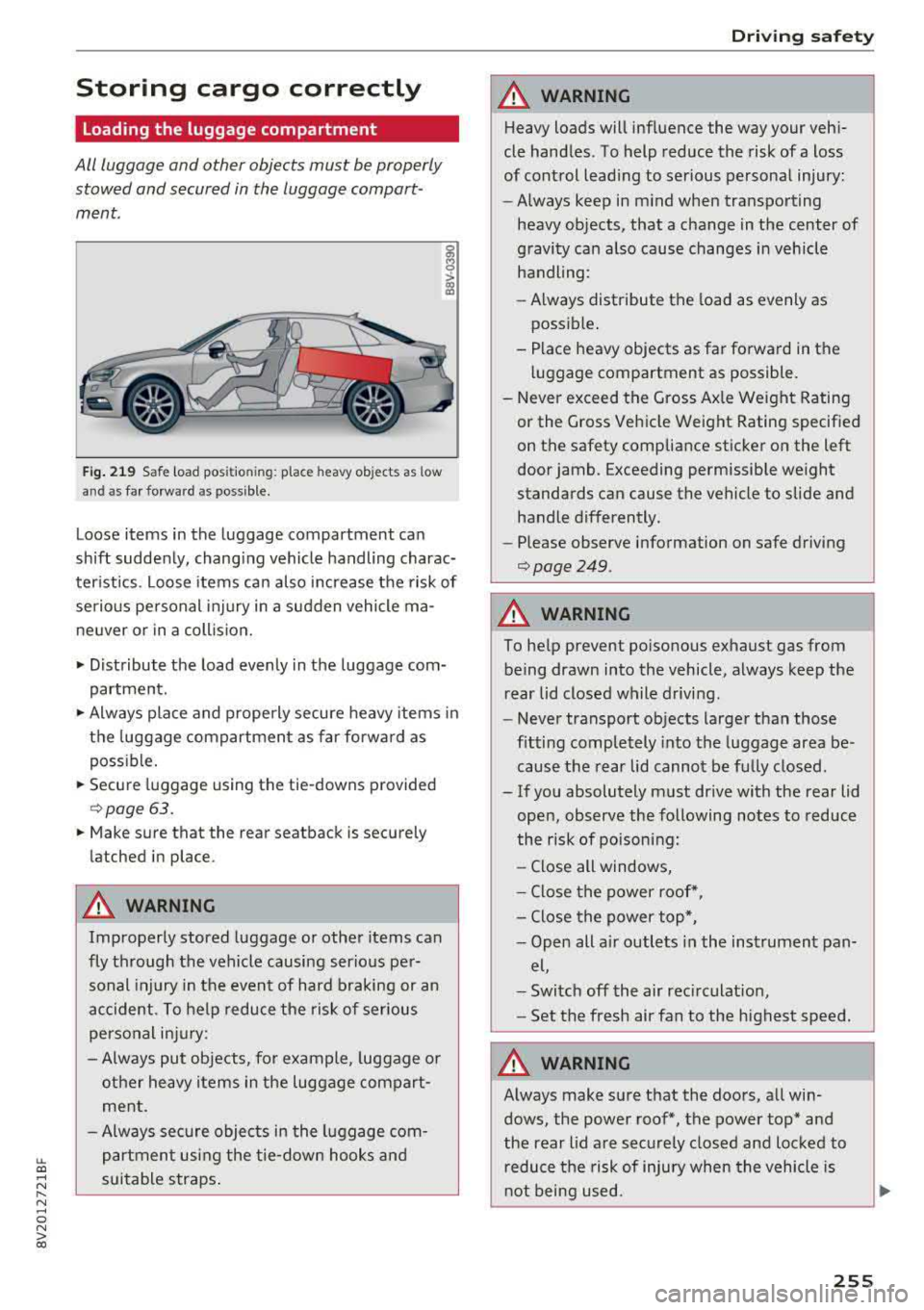
Fig . 219 Safe load pos itio ning : place heavy objects as low
an d as far forward as poss ible.
g M 0
> a, a,
Loose items in the luggage compartment can
shift suddenly, chang ing vehicle handling charac
ter istics . Loose items can also increase the risk of
serio us personal inj ury in a sudden vehicle ma
ne uver or in a coll ision.
• Distribute the load evenly in the luggage com
partment.
• Always place and properly secure heavy items in
the luggage compartment as far forward as
poss ible.
• Secure luggage using the tie-downs provided
¢ page 63.
• Make sure that the rear seatback is securely
latched in place .
A WARNING
Improperly stored luggage or other items can
fly through the vehicle causing serio us per
sonal injury in the event of hard braking or an
accident . To help reduce the risk of serious
personal injury:
- Always put objects, fo r example, luggage o r
other heavy items in the luggage compart ment.
- Always sec ure objects in the luggage com
partment using the tie-down hooks and
s u itable straps .
Driving safety
A WARNING
Heavy loads will influence the way your vehi
cle handles. To help reduce the risk of a loss
of control lead ing to serious personal injury:
- Always keep in m ind when transport ing
heavy objects, that a change in the center of
gravity can a lso cause changes in vehicle
handling :
- Always distribute the load as evenly as
possible .
- Place heavy objects as far forward in the luggage compartment as possible.
- Never exceed the Gross Ax le Weight Rating
or the G ross Vehicle Weight Rating specified
on the safety compliance sticker on the left
door jamb. Exceeding permissible we ight
standards can cause the vehicle to slide and handle differently.
- Please observe information on safe driving
¢page 249 .
A WARNING
-
To help prevent poisonous exhaust gas from
being drawn into the vehicle, always keep the
rear lid closed while driving.
- Never transport objects larger than those
fitting completely into the luggage area be
cause the rear lid cannot be fu lly closed.
- If you absolutely must dr ive with the rear lid
open, observe the following notes to reduce
the risk of poisoning:
- Close all windows,
- Close the power roof*,
- Close the power top*,
- Open alt a ir outlets i n the instrument pan-
el,
- Switch off the air rec irculat ion ,
- Set the fresh air fan to the highest speed.
A WARNING
--
Always make sure that the doors , all win
dows, the power roof*, the power top* and
the rear lid are securely closed and locked to
r educe the risk of injury when the vehicle is
n ot being used.
255
Page 258 of 404
Drivin g saf ety
- After closing the rear lid, a lways make sure
that it is properly closed and locked.
- Never leave yo ur vehicle unattended espe
c ia lly w ith the rear lid left open. A ch ild
could crawl into the ve hicle through the lug
gage compartment and close the rear lid be
coming trapped and unable to get out . Be
ing t rapped in a veh icle can lead to se rious
persona l injury.
- Never let children play in or around the veh i
cle .
- Never let passengers ride in the luggage
compartment. Ve hicle occupants m ust al
ways be prope rly rest ra ined in one of the ve
hicle's seating posi tions.
(D Tips
- A ir c irculat io n helps to reduce window fog
g ing . Stale air escapes to the outside
th rough vents i n the t rim panel. Be s ure to
k eep these slots free and open.
- The t ire pressu re must correspond to the
l oad. The tire p ressure is shown on the tire
p ressure labe l. Th e tire pressu re labe l is lo
ca ted on t he driver 's s ide B-p illar. The tir e
p ressure labe l lists the recommended cold
tire inflation pressures for the vehicle at its max imum capacity weig ht and the t ires t hat
were on your vehicle at the t ime it was man
ufactured. For recommended tire pressures
for normal load cond itions, please see chap
ter
¢ page 341.
Tie-downs
The luggage compartment is equipped with four
tie -downs to secure luggage and other items .
Use the tie-downs to secure your cargo proper ly
¢ page 255, Loading the luggage compartment.
In a col lision, the laws of p hysics mean that even
sma ller items that are loose in the vehicle will
become heavy missiles that can cause ser ious in
jury. Items in t he ve hicle possess energy which
vary with vehicle speed and the weight of the item . Veh icle speed is the most s ignificant factor .
For examp le, in a frontal collision at a speed of
30 mph (48 km/h), the forces act ing o n a 10-lb
256
(4.5 kg) object are about 20 times the normal
weight of the item . This means that the weight
of the item would s udden ly be about
200 lbs. (90 kg). You can imag ine the in juries
that a 200 lbs. (90 kg) item flying freely through
the passenger compartment could cause in a col
l is ion like t his.
A WARNING
Weak, damaged or imp roper straps used to
secure items to tie-downs can fa il dur ing hard
b raking or in a coll is ion and cause ser io us pe r
sona l injury .
- Always use s uitable mo unt ing st raps and
p roper ly sec ure i tems to the t ie -downs in
the l uggage compa rtment to help preven t
items from shifting or flying forward as dan
ge rous missi les .
- W hen the rear seat backrest is fo lded down,
a lways use s uitable mo unting straps and
properly sec ure items to the tie-downs in
the luggage compartment to help prevent items from flying forward as dangerous
m iss iles into the passenger compartment.
- Never attach a child safety seat tether strap
to a t ie-down.
-