display AUDI A3 SEDAN 2018 Repair Manual
[x] Cancel search | Manufacturer: AUDI, Model Year: 2018, Model line: A3 SEDAN, Model: AUDI A3 SEDAN 2018Pages: 404, PDF Size: 62.3 MB
Page 149 of 404
u. 00 ... N l' N ... 0 N > 00
wheel until the orange orientation lines appear
in the parking space
¢ fig. 151 . Use the mark
ings@to help you est imate the distance from
an obstacle . Each marking represents approxi
mately 3 ft (1 m). The blue area represents an
extension of the veh icle 's outline by approxi
mately 16 ft (5 meters) to the rear.
"'While driv ing in reverse gear, adjust the steer
i ng wheel ang le to fit the parking space using
the orange o rientation l ines fo r ass istance
¢ .&. in General information on page 145, ¢{!)
in General information on page 146 .@ repre
sents the rear bumper. Stop the vehicle, at the
latest, when the red orientation
line@ borders
an object.
Adjusting the parking aid
Applies to: vehicles with parking system plus/rearview cam·
era
The functions are adjusted in the Infotainment
system .
"'Select in the Infotainment system: !MENUI but
ton
> Vehicle > left contro l button > Driver as
sistance> Parking aid.
Or
"'When the parking aid is active, select in the In-
fota inment system : right control button*.
End system* -stop the parking aid
Activate automatically -switch automa tic activa
tion on/off
Front volume* -volume for the front area
Rear volume -volume for the rear area
Entertainment fader -the volume of the audio/
video source is lowered when the parking system
is turned on .
The new value is given briefly during the adjust
ment .
(D Tips
-Several menus can be accessed with the
right control button only when the parking
aid is active.
- The settings for volume and automatic acti
vation are automatically stored and as-
Parking aid
signed to the remote control key being
used.
Error messages
Applies to: vehicles with parking system plus/rearview cam
era
Ill Rear park assist: malfunction! Obstacles
cannot be detected
Ill Front park assist: malfunction! Obstacles
cannot be detected
Ill Park assist: malfunction! Obstacles cannot
be detected
When one of these messages appears, there is a
system malfunction. The L ED in the
PwJi button al
so blinks when sw itching it on. The relevant mes
sage o nly appears again when you manually acti
vate the park ing aid with the button.
111 Rear parking aid: obstacle detection restrict
ed
The rear cross -traffic assist* ¢ page 139, Rear
cross-traffic assist
is not available. Either the ESC
is switched off, or the radar sensors may be cov
ered by a bike rack, stickers, leaves, snow or oth
er objects. Switch the ESC on, or clean the area in
front of the sensors if necessary ¢
page 13 7,
fig. 141 . If this message continues to be dis
played, drive immed iate ly to an author ized Audi
dealer or authorized Audi Service Fac ility to have
the malfunction repaired .
Parking system plus*
If a sensor or speaker is faulty, the J;!/4'. symbol
will appear in front of/behind the vehicle in the
Infotainment system display. If a rear sensor is
faulty, only obstacles that are in areas@ and @
are shown ¢
page 143, fig. 145 . If a front sensor
is fau lty, only obstacles that are in areas © and
@ are shown.
147
Page 157 of 404
LL co .... N
" N .... 0 N > co
A WARNING
Adjust the volume of the audio system so that signals from outside the vehicle, such as po
lice and fire sirens, can be heard easily at all
times.
@ Tips
The MMI switches off automatically if the en
gine is not running and the vehicle battery is
low .
Infotainment system
display
Switching on /off
.,. Press the l c,J or C:,I button to switch the Info -
ta inment system on and off .
When the MMI is switched on and the display is
switched off, you can operate certain functions
using the On/Off knob with the MMI joystick
function
¢ page 154.
(D Tips
There may be delays when switching on the
display.
Multi Media Inte rface
MMI operation
Selecting and confirming a function
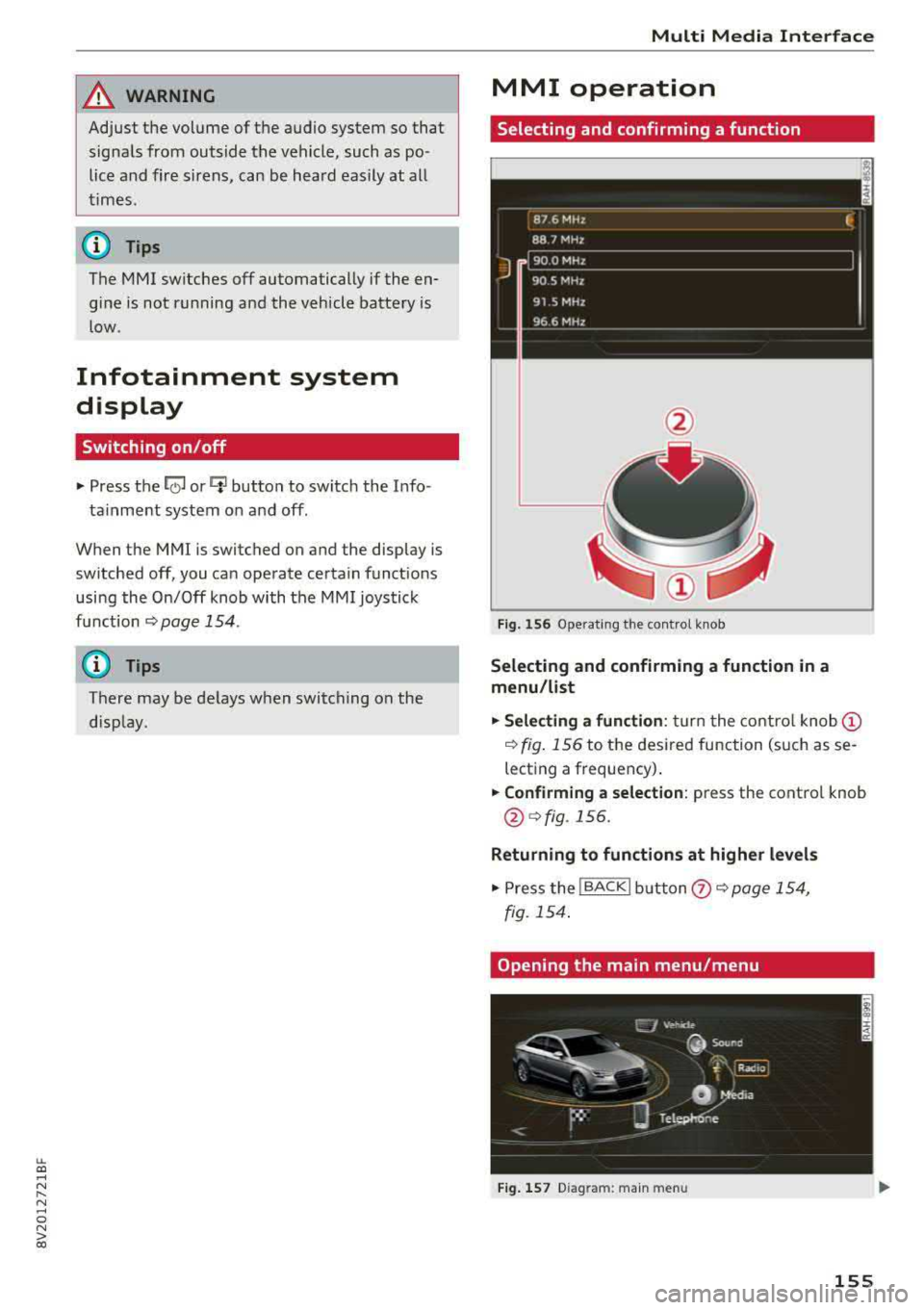
Fig. 156 Operating the control knob
Selecting and confirming a function in a
menu /list
.,. Selecting a function: turn the control knob@
¢ fig. 156 to the desired function (such as se
lecting a frequency) .
.,. Confirming a selection: press the control knob
@¢fig.156.
Returning to functions at higher levels
.,. Press the !BACKI button (?) ¢page 154,
fig. 154 .
Opening the main menu /menu
Fig. 157 D iag ra m : main menu
155
Page 158 of 404
Multi Media Interface
Opening the main menu
~ Press the IMENU! button ® ¢page 154,
fig . 154.
The MMI menus (such as Radio ) are
displayed
¢ fig. 157. Then yo u can select and
confirm a function using the control knob.
Opening a menu directly
~ Press the applicable button to directly open the
menus ®
¢page 154, fig. 154 in the direction
of the desired menu (such
as!RADIO !). Then
you can select and confirm a f unction using the
control knob.
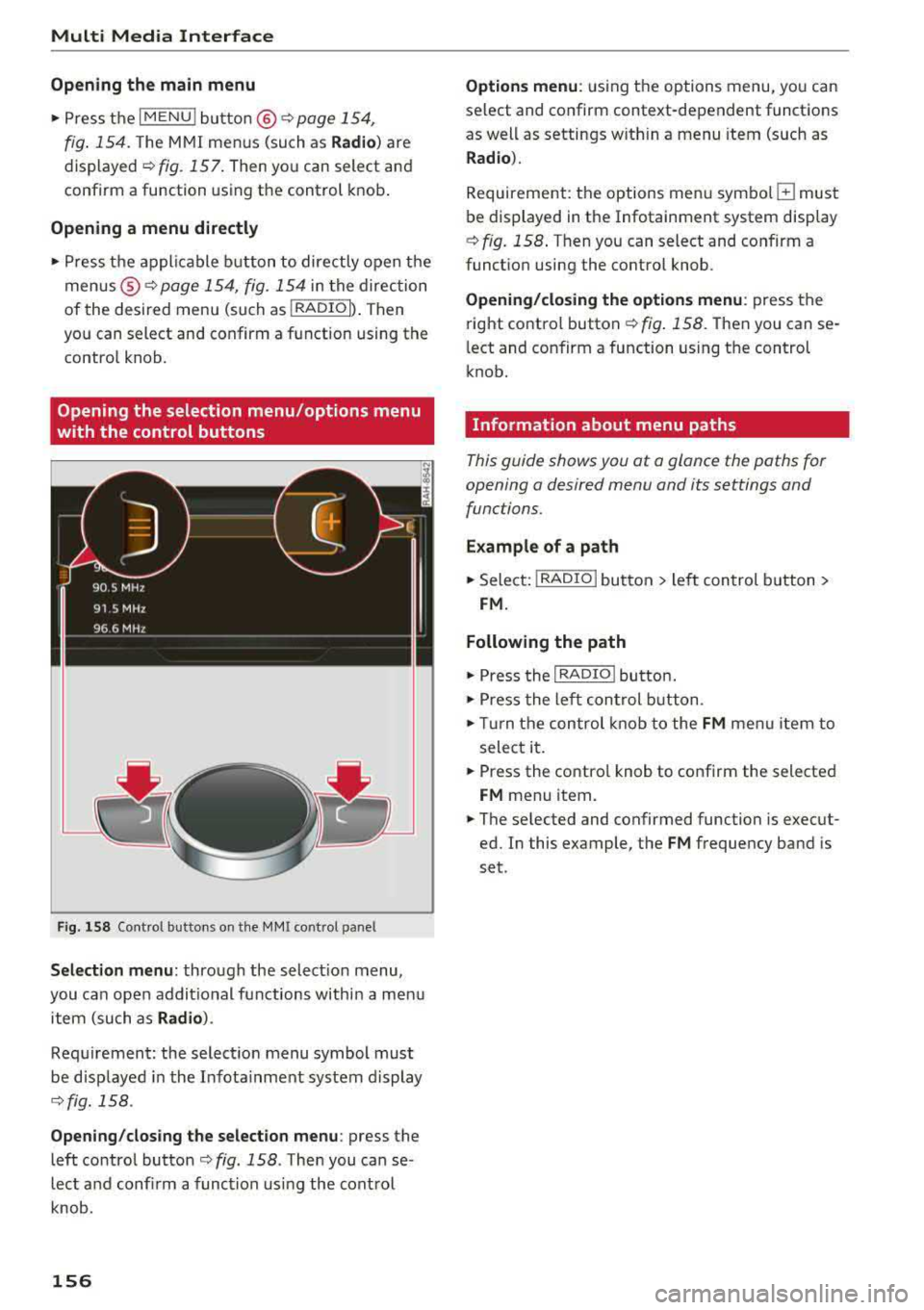
Opening the selection menu /options menu
with the control buttons
F ig. 158 Control buttons on the MMI cont rol pane l
Selection menu: through the select ion menu,
you can open addit ional functions within a men u
item (such as
Radio ).
Requirement: the select ion menu symbol must
be disp layed in the Infota inment system display
¢ fig. 158 .
Opening /closing the selection menu: press the
left control
button ¢ fig. 158 . Then you can se
lect and confirm a function using the control
knob .
156
Options menu : using the options menu, you can
select and confirm context-dependent functions
as well as settings w ith in a menu item (such as
Radio ).
Requirement: the options menu symbo l G must
be displayed in the Infotainment system display
¢ fig. 158 . Then you can select and confirm a
funct ion using the control knob.
Opening/closing the options menu: press the
right control
button ¢ fig. 158. Then you can se
l ect and confirm a function using the control
knob.
Information about menu paths
This guide shows you at a glance the paths for
opening a desired menu and its settings and
functions .
Example of a path
~ Select: I RADIO I button > left control button >
FM.
Following the path
~ Press the I RADIO I butto n.
~ Press the left control button.
~ Turn the control knob to the FM menu item to
select it.
~ Press the contro l knob to confirm the selected
FM menu item.
~ The selected and confirmed function is execut
ed. In this example, the
FM frequency band is
set .
Page 159 of 404
LL co .... N
" N .... 0 N > co
MMI touch
MMI touch control pad
Applies to: vehicles with MMI touch
You can enter data using handwriting recogni
tion on the MMI touch control pad.
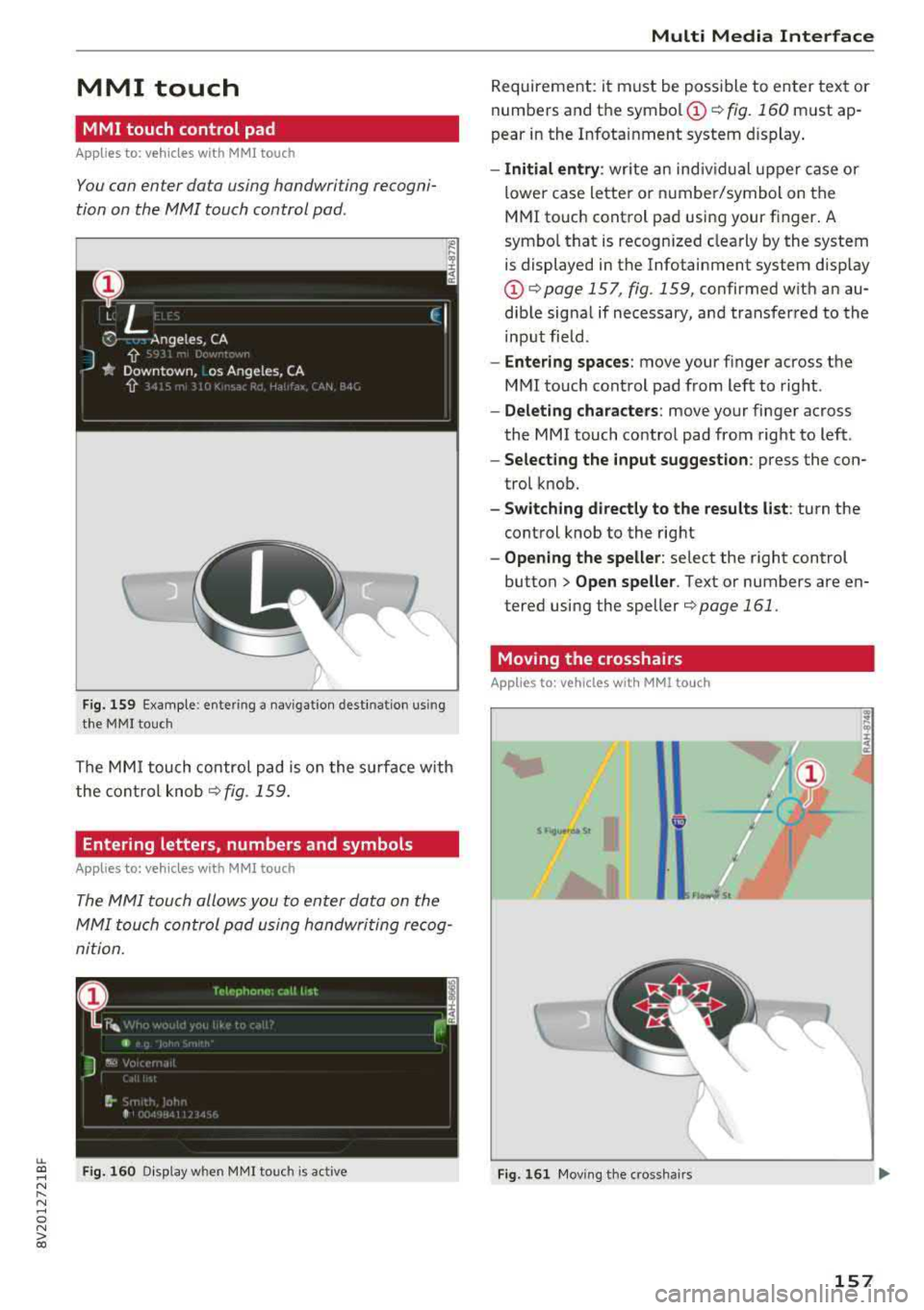
F ig. 159 E xamp le : enter ing a nav igation des tination us in g
t h e MMI touc h
The MMI touch c ontrol pad is on the s urface w ith
the cont ro l knob
q fig . 159.
Entering letters, numbers and symbols
Appl ies to: vehicles with MMI touch
The MMI touch allows you to enter data on the
MMI touch con trol pad using handwriting rec og
ni tion .
Fig . 160 Disp lay w hen MM I touch is ac tive
Multi Media Inte rface
Re quirement: i t must be poss ible to enter tex t or
numbers and the
symbol (!) q fig. 160 must ap
pear i n the Infotainment system display .
-Initial entry : write an ind iv id ual up per case or
lower case lette r or n umbe r/symbol on the
M MI touch cont rol pad using your finger . A
symbo l that is recogn ized clearly by the system
is displayed in the Infotainment system disp lay
(D <=> page 157 , fig. 159, confirmed w ith an au
dib le sig na l if necessary, an d transferred to the
input field.
- Enter ing spaces : move your finger across the
M MI touch control pad from left to right .
-Delet ing characters : move your finger across
the MMI touch contro l pad from right to left .
-Selecting the input suggestion : press the con
trol k nob.
- Switching directly to the results list : turn the
cont rol knob to the rig ht
- Opening the speller : select the right control
button>
Open speller . Text or numbers are en
tered using the
speller<=> page 161.
Moving the crosshairs
Applies to: vehicles with MMI touch
Fig . 161 Mov ing the c ross hair s
157
Page 160 of 404
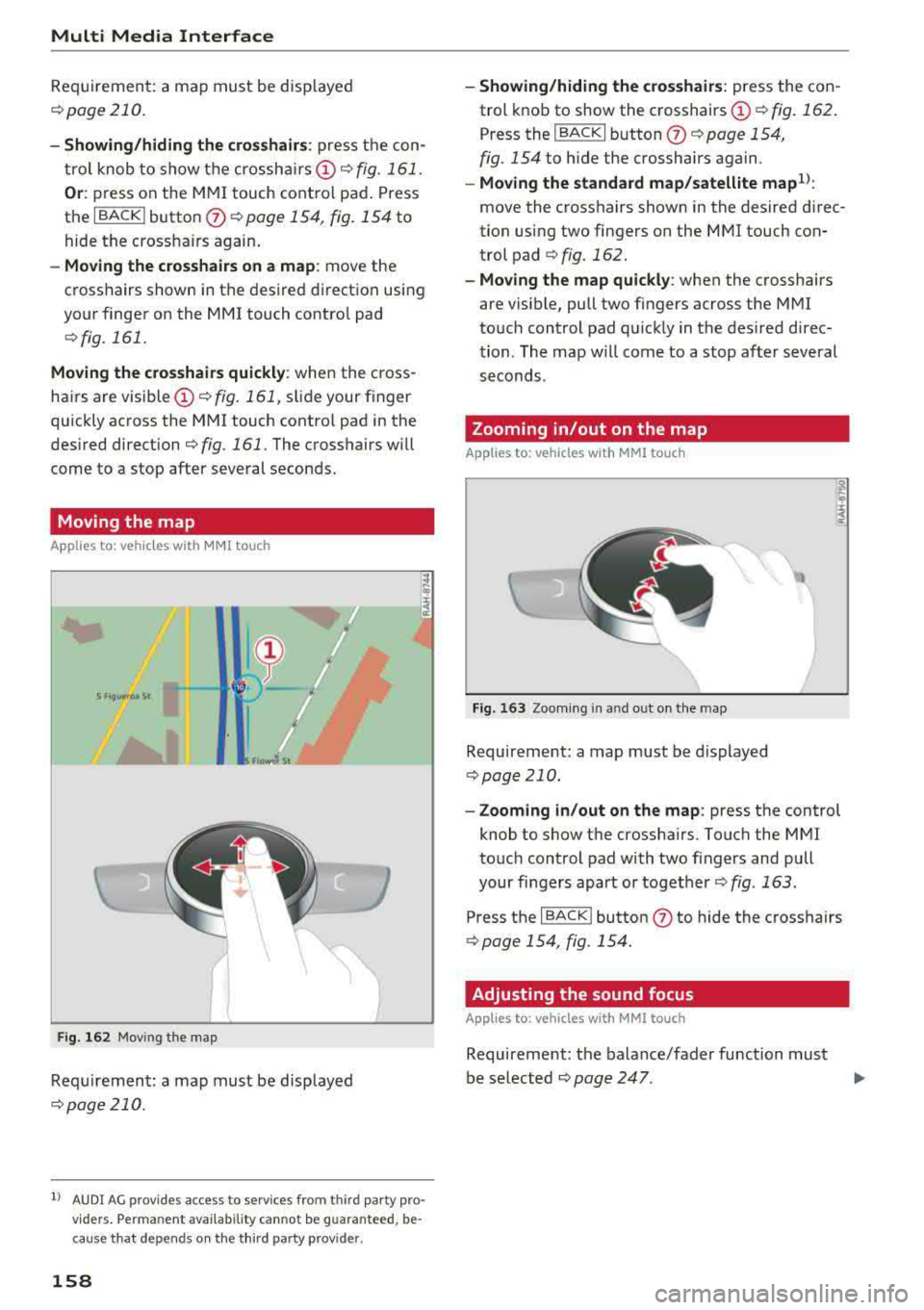
Multi Media Interface
Requirement: a map must be disp layed
r::!>page 210.
- Showing/hiding the crosshairs: press the con
trol knob to show the crosshairs
CD¢ fig. 161.
Or : press on the MMI touch control pad . Press
the I BACK I button
(J) r::!> page 154, fig. 154 to
hide the cross hairs again .
-Moving the crosshairs on a map: move the
crosshairs shown in the desired direction using
your finger on the
MMI touch control pad
c> fig. 161.
Moving the crosshairs quickly : when the cross
hairs are visible
CD c> fig . 161, slid e your finger
quickly across the
MMI touch contro l pad in the
desired direction
c> fig. 161. The crosshairs w ill
come to a stop after several seconds.
Moving the map
A pp lies to: ve hicles w ith MMI touch
I~
' ' S F1ouw ro4 St
F ig . 16 2 Mov ing the map
Requirement: a map must be disp layed
r::!> page 210 .
l) AUDI AG provides access to se rvices from third pa rty pro
v ider s. Pe rm ane nt ava ila bili ty c ann ot be g uaranteed , be
c a use that depen ds o n the th ird party prov ide r.
158
-Showing/hiding the crosshairs: press the con
trol knob to show the crosshairs
CD c> fig. 162 .
Press the I BACK I button (J) r::!> page 154,
fig. 154 to h ide the crosshairs again.
-Moving the standard map/satellite map1l:
move the crosshairs shown in the desired direc
tion using two fingers on the
MMI touch con
trol pad
c> fig. 162.
-Moving the map quickly : when the crosshairs
are v isible, pull two f ingers across the
MMI
touch control pad quickly in the des ired direc
tion. The map w ill come to a stop after several
seconds .
Zooming in/out on the map
Applies to: vehicles wi th MMI touch
Fig. 163 Zoom ing in a nd out on the map
Requirement: a map must be displayed
r::!>page 210.
-Zooming in/out on the map : press the control
knob to show the crosshairs. Touch the
MMI
touch control pad with two fingers and pull
your fingers apart or together
r::!>fig . 163.
Press the I BACK I button (J) to hide the crosshairs
c> page 154 , fig. 154.
Adjusting the sound focus
App lies to: vehicles wit h MMI to uch
Requirement: the balance/fader function must
be selected
r::!> page 247. ..,.
Page 161 of 404
u. 00 .-< N l' N .-< 0 N > 00
-Moving the crosshairs for sound focus : move
yo ur finge r in the desi red direction on t he M MI
touch co ntro l pa d.
-Storing the crosshairs location : press the con
t ro l knob twice.
Or : press the I BACK ! button 0
c>page 154, fig. 154.
Using the DVD main menu
Applies to: vehicles with MMI touch
Requirement: a DVD must be p lay ing
c>page 232 .
-Selecting a menu item : move your finge r up/
down or le ft/r ight on the MMI touch contro l
pad.
- Confirming a selection : press the control knob.
(D Tips
The vo lume of t he vo ice gu idan ce pr om pts fo r
the MMI touch* ca n be adjusted separate ly
c> page 24 8.
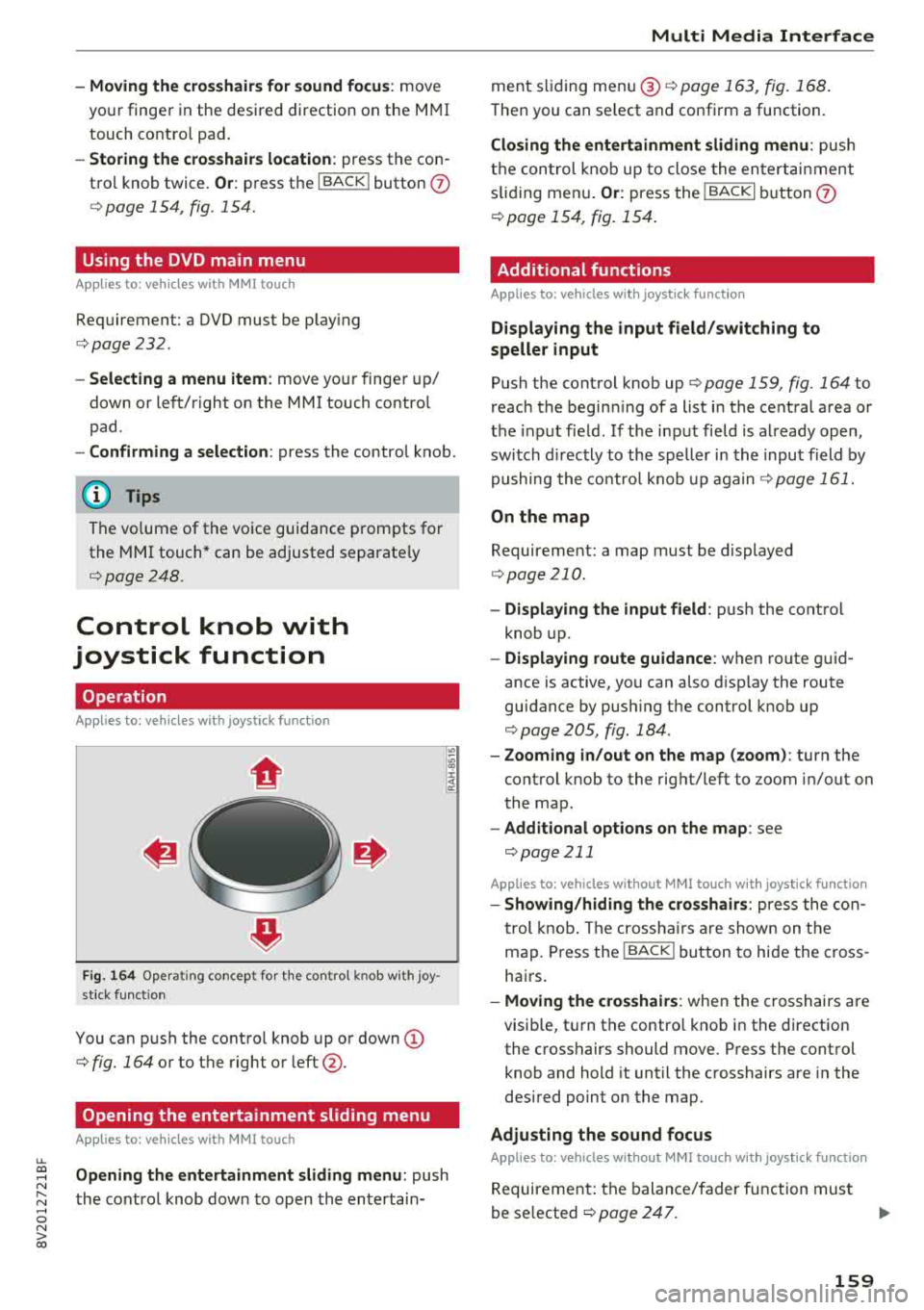
Control knob with
joystick function
Operation
App lies to: veh icles with joystick function
Fig. 164 Operat ing co nce pt fo r th e contro l kno b wit h joy
s ti ck funct io n
You can p ush the cont ro l knob up or down (D
c> fig. 164 o r to t he right o r left @.
Opening the entertainment sliding menu
Applies to: vehicles with MMI touch
Opening the entertainment sliding menu : push
t he cont rol knob down to open th e en tertain-
Multi Media Interface
ment s liding me nu@ c>page 16 3, fig. 16 8 .
The n you can se lect and conf irm a function .
Closing the entertainment sliding menu : push
t h e con trol knob up to close the en tertai nmen t
s lidi ng men u.
Or: press the !BACKI bu tton (f)
c> page 154, fig. 15 4.
Additional functions
Applies to: vehicles with joystick function
Displaying the input field/switching to
speller input
Push the cont rol knob up c> pag e 159, fig. 164 to
reach the begin ning of a list in the cent ral a rea o r
the input field . If the in put fie ld is al ready open ,
swi tch d irec tly to the speller in the inpu t field by
pushing the co ntro l knob up aga in
c> page 161 .
On the map
Requirement: a map must be displayed
c>page 210 .
-Displaying the input field : push the cont ro l
knob up.
- Displaying route guidance : when r oute g uid
ance is active, you can also d isp lay the route
gu idance by p ushi ng the cont rol knob up
c> page 205 , fig. 184 .
-Zooming in/out on the map (zoom) : turn the
cont rol knob to the right/left to zoom in/out on
the map .
-Additional options on the map : see
c>page 211
Applies to: vehicles without MMI touch with joystick function
-Showing/hiding the crosshairs : press the co n
t rol knob . T he crossh airs a re show n on t he
ma p. Pr ess the
I BACK ! button to hi de the cross
ha irs.
- Moving the crosshairs : when the crosshairs a re
visib le, t urn the contro l kno b in the direction
the c ross hairs should move . P ress the cont rol
knob and hold it until the crosshairs are in the
desired point on the map.
Adjusting the sound focus
Applies to: vehicles without MMI touch w ith joyst ick function
Requirement: the balan ce/fader fu nction mus t
be se lected
c> page 247. .,.
159
Page 162 of 404
Multi Media Interface
-Moving the sound focus using the cro sshair s:
the crosshairs can be moved horizontally. Turn
the control knob to the left or to the r ight .
Press the control knob to move the crosshairs
vertically. Turn the contro l knob to the left or
to the right. Press the control knob again to
save the sett ing .
Using the DVD main menu
Requirement: a DVD must be p laying
c;, page232 .
-Selecting a menu item: move the control knob
with joystick function up or down or to the left
or right.
-Confirming a selection: press the control knob.
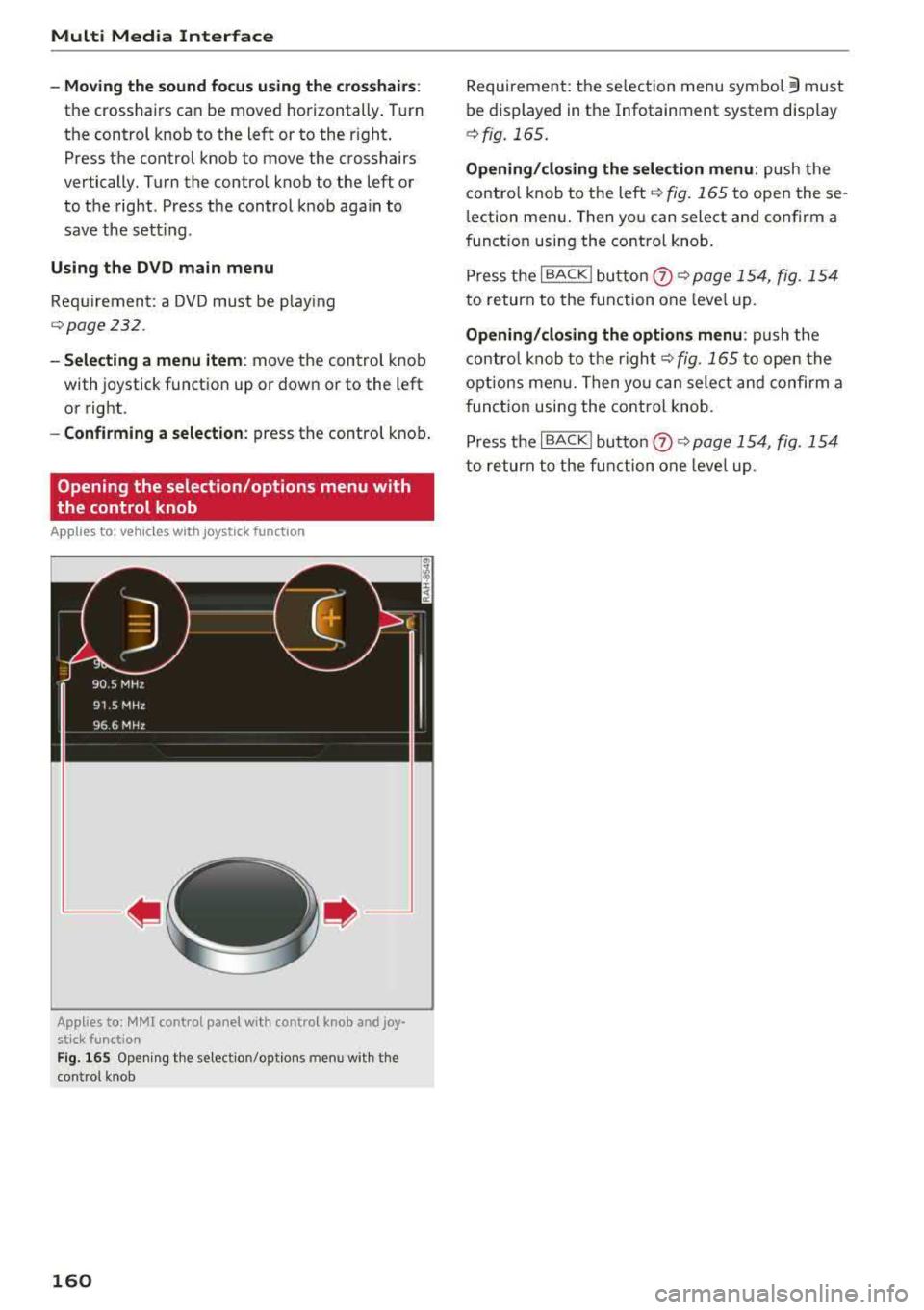
Opening the selection /options menu with
the control knob
App lies to: vehicles w ith joystick function
Applies to: MMI control panel wit h control
knob and joy·
stick function
Fig. 165 Open ing t he se lect io n/op tion s m enu w ith the
co ntrol knob
160
Requirement : the se lection menu symbol 3 must
be displayed in the Infotainment system display
¢fig. 165.
Opening/closing the selection menu: push the
contro l knob to the
left ¢ fig. 165 to open these
l ection menu . Then you can select and confirm a
funct ion using the control knob .
Press the
I BACK I button 0 ¢ page 154 , fig . 154
to return to the function one level up.
Opening/closing the options menu: push the
control knob to the right
¢fig. 165 to open the
opt ions men u. Then you can select and confirm a
function using the control knob.
Press the
I BACK I button 0 c;, page 154, fig . 154
to return to the function one leve l up.
Page 164 of 404
Multi Media Int erface
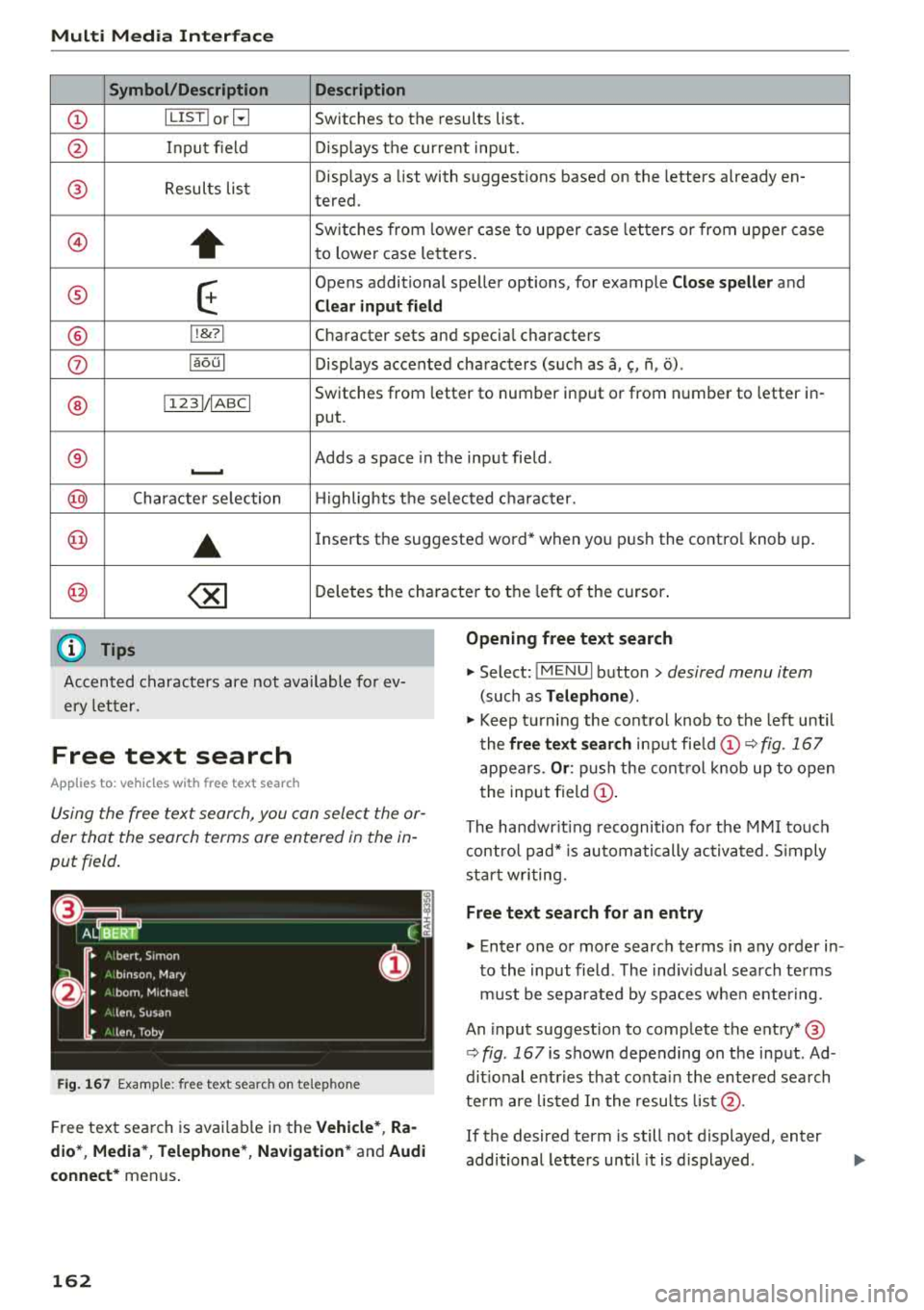
Symbol /Description Description
CD IL IST lorB Switches to the results list.
@ Input field Disp lays the cur re nt input .
® Results lis t Displays a
list with suggestions based on the letters already en-
tered.
@
+
Sw itches from lowe r case to upper case let ters o r from upper case
to lowe r case le tters.
® E
Opens additional spe ller options, for example C los e speller and
Clear input field
® 11
& 71 Character sets and specia
l characters
0 laoul D isp lays accented cha racters (suc h as a,<;, ri, o) .
Switches from letter to number inp ut or from n umber to letter in -
® I1231/IABCI
put .
® Adds a space in the input field . ..........
@ Character selection Highlights t he se lected c haracter.
@ ..
Inserts the suggested word* when you p ush the contro l knob up .
@ <&] D eletes t he cha racter to the left o f the cursor .
(D Tips
Opening free text search
Accented c haracters are not available fo r ev
ery let ter. .,. Select: IME NUI button> desired menu item
(such as Telephone ).
.,. Keep tu rn ing the cont rol knob to the left until
t he
free text sear ch inp ut fie ld CD ¢ fig. 167
appears . Or: push the con trol knob up to open
the input field
CD .
Free text search
Applies to: vehicles with free text search
Using the free text search, you can select the or
der that the search terms are entered in the in
put field .
Fig. 167 Example : free text search on telep hone
Free text sea rch is avai lab le in the Vehicle *, Ra
dio *, Media* , Telephone *, Navigation *
and Audi
conne ct*
menus .
162
The handwr it ing recogni tion fo r th e M MI to uch
con tro l pad* is automatically activated. S imply
st ar t w rit ing.
Free text search for an entry
.,. Enter one or more searc h terms in any order in
to the input field . The ind iv idual sea rch te rms
m ust be separated by spaces whe n ente ring.
An input suggestion to comp lete the entry* ®
¢fig . 167 is shown depe nding on the input . Ad
dit ional entries that co nta in the entered sea rch
te rm are lis ted I n the resu lts
list @.
If the desired term is still not displayed, enter
additional letters until it is d isplayed .
Page 165 of 404
LL co ..... N
" N ..... 0 N > co
Multi Media Interface
It is often eno ugh j ust to enter the first letters of
the search term in order for it to display in the re sults list . For examp le, in the
Telephone * menu,
write the init ials of the contact being searched,
separated by a space.
Selecting an entry from the results list
Requireme nt: a t le ast one e ntry mus t be dis
played in t he results
list @o fig. 167.
• MMI touch input* : tu rn the contro l knob to t he
r igh t. S elec t and confi rm an entry from the lis t.
Selecting the input suggestion to complete
the entry •
Speller input : select and co nfirm I L IS T!@
o page 161, fig . 166. O r: push the cont rol knob
down . Select a nd confirm an entry from the
Req uirement : an input suggestion to complete
the
entry* ® o fig. 167 must be disp layed. list
.
• MMI touch input* : press the control knob .
Menus and Symbols
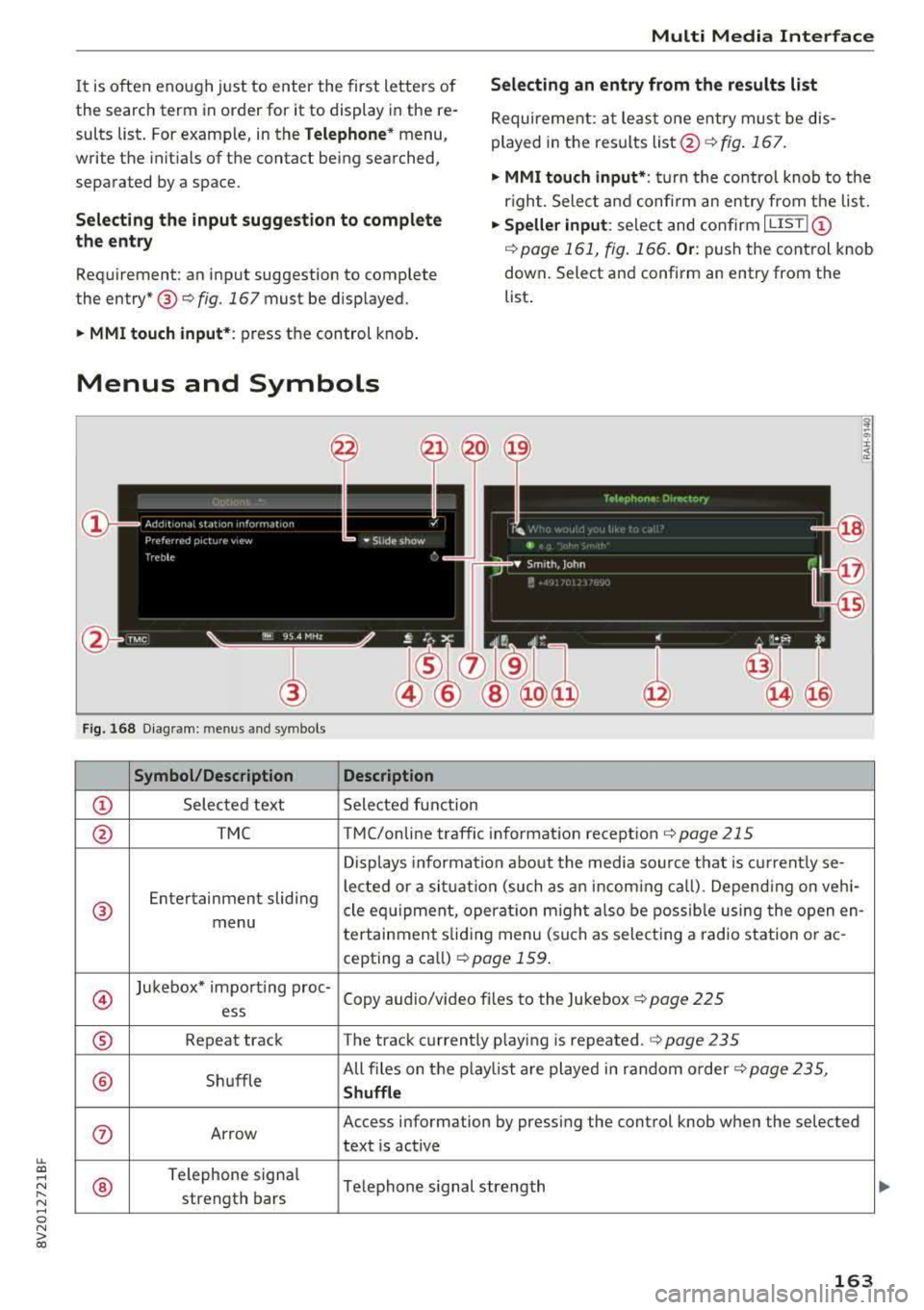
Fig . 16 8 Diagram: menu s and symbols
Symbol /Description Description
CD Sele cted text Selected function
@ TMC TMC/online traffic informat ion recept ion o page 215
Displays information about the media so urce t hat is current ly se-
Entertainment sliding le
cted or a si tuati on (such as an inco ming ca ll) . Depend ing o n veh i-
® cle eq uipment, operat io n m igh t al so be poss ib le using the open en-
menu tertainment sliding menu (such as select ing a radio station o r ac -
cepting a ca ll)
r::!) page 159 .
@
Jukebox* impo rt ing proc-
Copy audio/v ideo f iles to the Jukebox
o page 225 ess
® Repeat track The track c urrently p laying is repeated. o page 235
® Sh uffle All files on t
he p laylist are played in random o rder o
page 235,
Shuffle
0 Ar row Access information by pressi
ng the control knob w hen the selected
text is active
®
Telephone signa l
Telephone s ignal strength
strength bars
163
Page 167 of 404
u. 00 .-< N l' N .-< 0 N > 00
Multifunction steering
wheel
Introduction
Applies to: vehicles with multifunction steering wheel
In the driver information system display, you can
control numerous Infotainment functions using
the multifunction steering wheel plus*
<=:> page 13 or the multifunct ion steering wheel*
c> page 16.
You can control additional Infotainment func
tions us ing the MMI control panel
c> page 154 in
the Infota inment system display .
A WARNING
Direct your full attention to dr iv ing. As the
dr iver, yo u have complete respons ibility fo r
safety in t raffic. Only use the functions in
-
such a way that you a lways maintain com
plete control over yo ur vehicle in a ll traffic sit-
uations.
Radio
Applies to: vehicles with multifunction steering wheel and ra
dio
Requ irement: radio mode must be started
c> page 218 and the rad io/med ia tab m ust be
d isp layed.
.,. Press either the El butto n or the left control
button
<=:> page 14, depend ing on veh icle equ ip
ment.
Depending on vehicle equipment, the following
functions may be availab le in the driver informa
tion system.
- Se lecting th e fr equ ency band : select and con
firm a frequency band .
-Se lecting a station from th e pr esets li st *: se
lect :
Preset s> the desired radio station .
-Selecting a station from the sta tion list *: se
lect and confirm a radio station .
-Selecting a station from the presets li st : se
lect :
Preset s> the desired radio station .
-Opening a med ia source : select and confirm
Sw itch to medi a. Multifunction
ste ering wheel
Additional settings
Applies to: vehicles with Audi virtual cockpit
- Select: r ight cont rol b utton > desired entry.
Depend ing on the funct ion selected, the follow
i ng additional settings may be possible:
- Sho w "Now Pla ying" screen : see c>page 222.
Media
Applies to: vehicles with multifunction steering wheel and
media
Requirement: a media drive must contain audio/
video files
c> page 224 and the radio/media tab
must be disp layed.
.,. Press eithe r the @Jbutton o r the left contro l
button
c> page 14, depending on vehicle equip
ment .
Depend ing on ve hicle equ ipment, t he following
f unct ions may be ava ilable in the dr iver informa
tion system.
- Sele cting a media sourc e: select and confirm a
so urce su ch as the
"SD ca rd".
- Playing an audio /vid eo fil e: select and confirm
a t rack/fi le.
- Pau sing /resuming pla yback : press the right
t humbwhee l@ c> page 15, fig. 11 . To resume
p layback, press the rig ht th umbwhee l again.
Applies to: vehicles with analog instrument cluster
-Sw itching to radio : select and confirm a fre
quency band (such as
FM ).
Applies to: vehicles with Audi virtual cockpit
-Swit ching to the radio : select and confirm
Swit ch to radio .
- Opening additional tra ck information :
select :
r igh t con trol button
> Show "Now Playing "
sc reen.
For additional information, see
c> page235 .
(D Tips
- The media dr ives do not p lay fi les t hat are
protected by ORM and t hat are iden tified
with the symbol
{n .
- Ple ase note th at within a med ia so urce in
t he drive r informa tion system, only p lay lists
that were selected through the MMI control
pane l can be played
ca:> page 233 . ..,.
165