display AUDI A3 SEDAN 2018 Owners Manual
[x] Cancel search | Manufacturer: AUDI, Model Year: 2018, Model line: A3 SEDAN, Model: AUDI A3 SEDAN 2018Pages: 404, PDF Size: 62.3 MB
Page 203 of 404
u. 00 .-< N l' N .-< 0 N > 00
Navigation
Opening navigation
Applies to: vehicles with navigation system
The navigation system directs you to your desti
nation, around traffic incidents and on alterna tive routes, if desired.
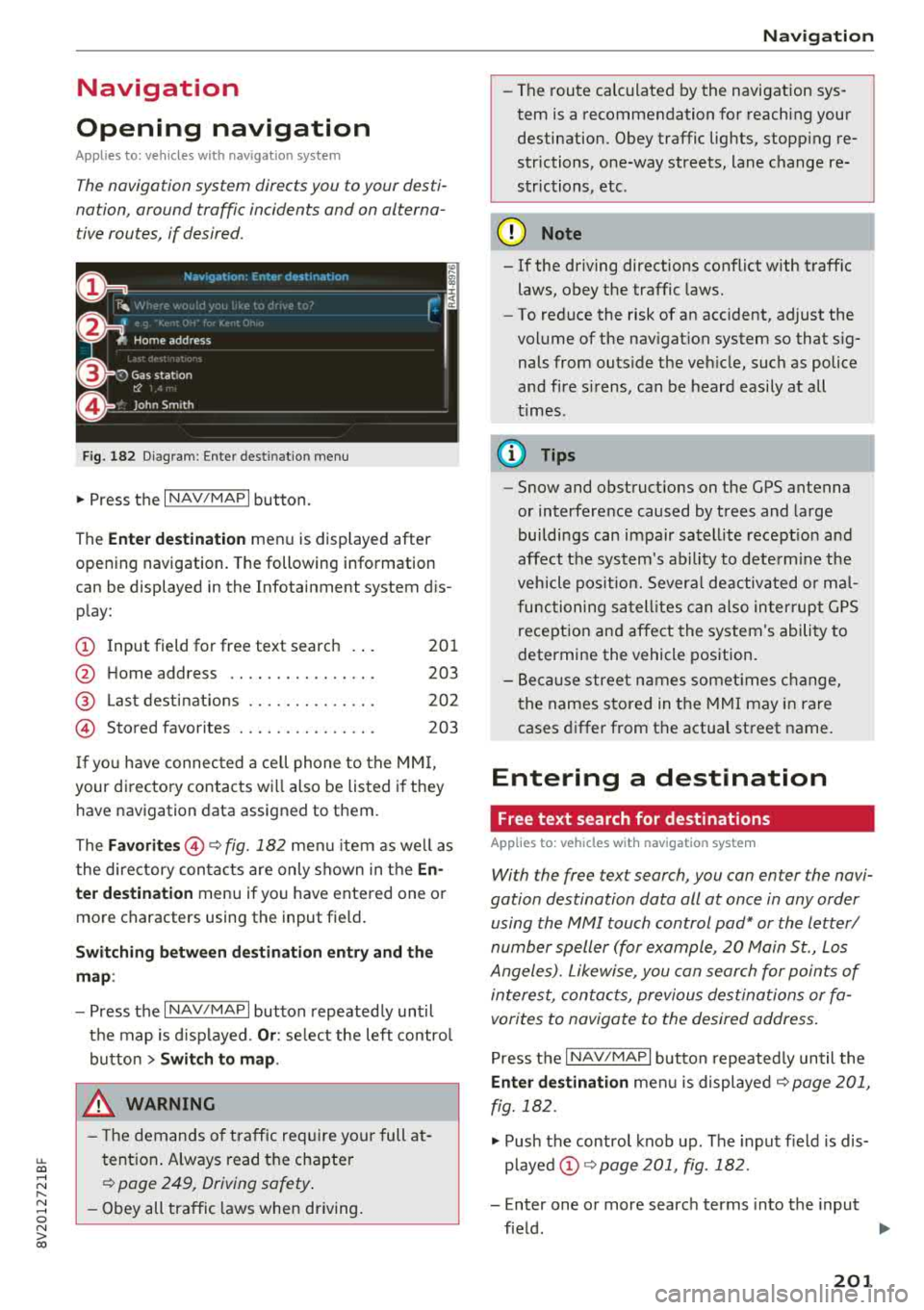
Fig. 182 D iagram: Enter dest ination menu
.,. Press the I NAV/MAPI button.
The
Ente r de stin ati on menu is displayed after
opening navigation. The following information
can be displayed in the Infotainment system dis
p lay:
(D I nput field for free text searc h 201
@ Home address . . . . . . . . . . . . . . . . 203
@ Last dest inatio ns . . . . . . . . . . . . . . 202
© Stored favorites . . . . . . . . . . . . . . . 203
I f yo u have connec ted a ce ll phone to the
M MI,
your di rectory contacts wi ll also be listed i f they
have navigation data assigned to them .
The
Favori tes@¢ fig. 182 men u item as we ll as
the directory con ta cts are only shown in t he
En
ter destination
menu if you have entered one or
more characters using the input field.
Swi tching betwe en d estination en try and th e
m ap :
- Press the I NAV/MAPI button repeated ly until
the map is d isp layed.
Or : select the left contro l
button
> Switch to map .
_& WARNING
- The dem ands of t raff ic re quir e your full at
tention . Always read t he chapter
¢ page 249, Driving safety .
- Obey all tra ffic laws when d riving .
-
Na vigation
- The route calculated by the navigation sys
tem is a recommendation fo r reaching your
destination. Obey traffic lig hts, stopp ing re
strictions, one-way streets, lane change re
str ictions, etc .
@ Note
- If the driving directions conflict with t raffic
laws, obey the traffic laws.
- To red uce the risk of an accident, adjust the
vol ume of the nav igat ion system so that sig
nals from outs ide the ve hicle , such as police
and fire s irens, can be heard easi ly at all
t imes .
(D Tips
-Snow and obstruct ions on the GPS antenna
or interference caused by trees and large
buildi ngs can impair satell ite recept io n and
affect the sys tem's ability to dete rm ine the
veh icle pos it io n. Severa l de activated o r ma l
functioning sa tell ites can also in ter rup t G PS
recept ion and affect the system 's ability to
determine the vehicle pos ition.
- B eca u se street names somet imes c hange,
t he names sto red in the MMI may i n rare
cases differ from the actual street name.
Entering a destination
Free text search for destinations
Applies to: vehicles with navigation system
With the free text search, you can enter the navi
gation destination data all at once in any order using the MMI touch control
pad* or the letter/
number speller (for example, 20 Main St., Los
Angeles). Likewise, you can search for points of
intere st, contacts, previous destinations or fa
vorites to navigate to the desired address .
Press t he I N AV/MAPI button repeated ly until the
En ter de stination me nu is displayed ¢ page 201,
fig. 182 .
.,. Push the contro l knob up . The input f ield is dis
p layed @¢ page 201, fig . 182.
- Enter one or more searc h terms into the input
fie ld .
.,.
201
Page 204 of 404
Navigat ion
-If avai lab le, confirm the input suggestion* to
complete the entry or a word suggestion*. See
¢ page 161 , Letter/number speller.
- Turn the control knob to the rig ht to change
the results list.
- Se lect and confirm a destination from the re -
su lts list .
- Se lect and confirm
Start rout e guidance .
The route d isplays as an ove rview in the map.
Route g uidance is a lready act ive.
Na rrow ing the se arch area
All countr ies/states are se lected at the factory
for the free text search.
- Se lect the right control button >
Country /state
selection
i n the input field (D ¢ page 201,
fig. 182.
- Se lect the country or state ( • ) that shou ld be
searched for in the free text search in order to
narrow the number of results and increase the
search speed. The selected entry in the coun
try/state se lection is sto red .
Or : select All
countrie s/ state s.
(D Tips
- The MMI input suggest ions depend on the
l ast navigated destinations .
- Up to 50 entries ca n be sto red in the last
dest inat ions list.
- Additional informat io n on free text searches
ca n be found unde r
¢page 162.
Loading previous destinations
App lies to: ve hicles w ith navigation system
Your last destinations are automatically stored
and can be loaded directly as a destination .
Requirement: a destination was already navigat
ed to.
~ Press the I NAV/MAPI button repeated ly until
the
Enter destination menu is displayed
¢ page 201, fig . 182.
Your last destination is listed direct ly in t he Enter
de stination
menu under the home add ress and
ident ified with the
symbol @¢ page 201,
fig. 182.
202
- Select and confirm one of the last destinations
from the list .
- Select and confirm
Start route guidance.
D eleting previous destinations
- Select one of the last destinations from the list.
- Select: r ight control button>
Delete destina-
tion
> Del ete this last de stination or Delete all
last destinations.
The selected destinat ion or all last dest inat ions
i s/are deleted and no longer d isplayed in the
En
ter destination
men u.
Entering an address
App lies to: vehicles wit h navigat ion syste m
As an alternative to free text search, you can al
so enter an address in stages .
~ Press the I NAV/MAPI button repeatedly until
the
Enter destinat ion menu is displayed
¢page 201, fig . 182 .
~ Select: left control button > Enter address .
- Ente ring a destination using a country /state :
select and confirm Country . Select and confirm
a country/state d irectly from the list .
Or :
search for a co unt ry/state us ing the input f ield .
-Entering a de stination u sing the City /ZIP
code :
select and confirm City/ZIP code . Enter a
city or a ZI P code .
Or: select and co nfirm a city
from the list.
- Select and confirm additional details about t he
destination s uch as
Street , Hou se number or
Downtown .
- De stination entry using a street intersection *:
Requirement: you must ente r a street. Select
and co nfirm
Int erse ction . Selec t and confi rm a
s tr eet directly from the list.
Or : search for a
s treet us ing the inp ut fie ld .
- Sele ct and confirm
Start route guidance .
Page 205 of 404
LL co ..... N
" N ..... 0 N > co
Setting a home address/favorite as the
destination
Ap plies to: ve hicles wit h nav igation system
You can quickly and easily start route guidance
to your home address using the home address
function. Favorites allow easier access to fre
qu ently used destinations .
.. Press the I NAV/MAPI button repeated ly un til
the
Enter de stination menu is displayed
¢ page 201, fig. 182 .
Setting a home address as the destination
Requirement: a home address must be stored
¢page 207 .
Your Home address is shown d irectly in the Enter
de stination
menu @Q page 201, fig . 182 .
-Se lect : Home address > Start route guidan ce .
Setting a favorite as the destination
Req uiremen t: a f avorite must be stored as a des
tination
¢ pag e 208 .
- Ente r at leas t the first three lette rs of the de
s ir ed favorite in the free text search inp ut fie ld.
T he f avorites found are shown in the Info tain
ment system
display @) ¢pag e 201, fig . 18 2.
- Se lect and co nfirm the desi red en try.
- Se lect and confirm
Start route guidance .
@ Tips
- Additional settings for the home address
can be found un der
¢ pag e 20 7.
- Additional settings for the favorites can be
fo und
u nder ¢ page 208 .
Naviga tion
Transferring a destination from the directory
Applies to: veh icles w it h navigat ion syste m
You can navigate dir ectly to destinations in the
direc tory.
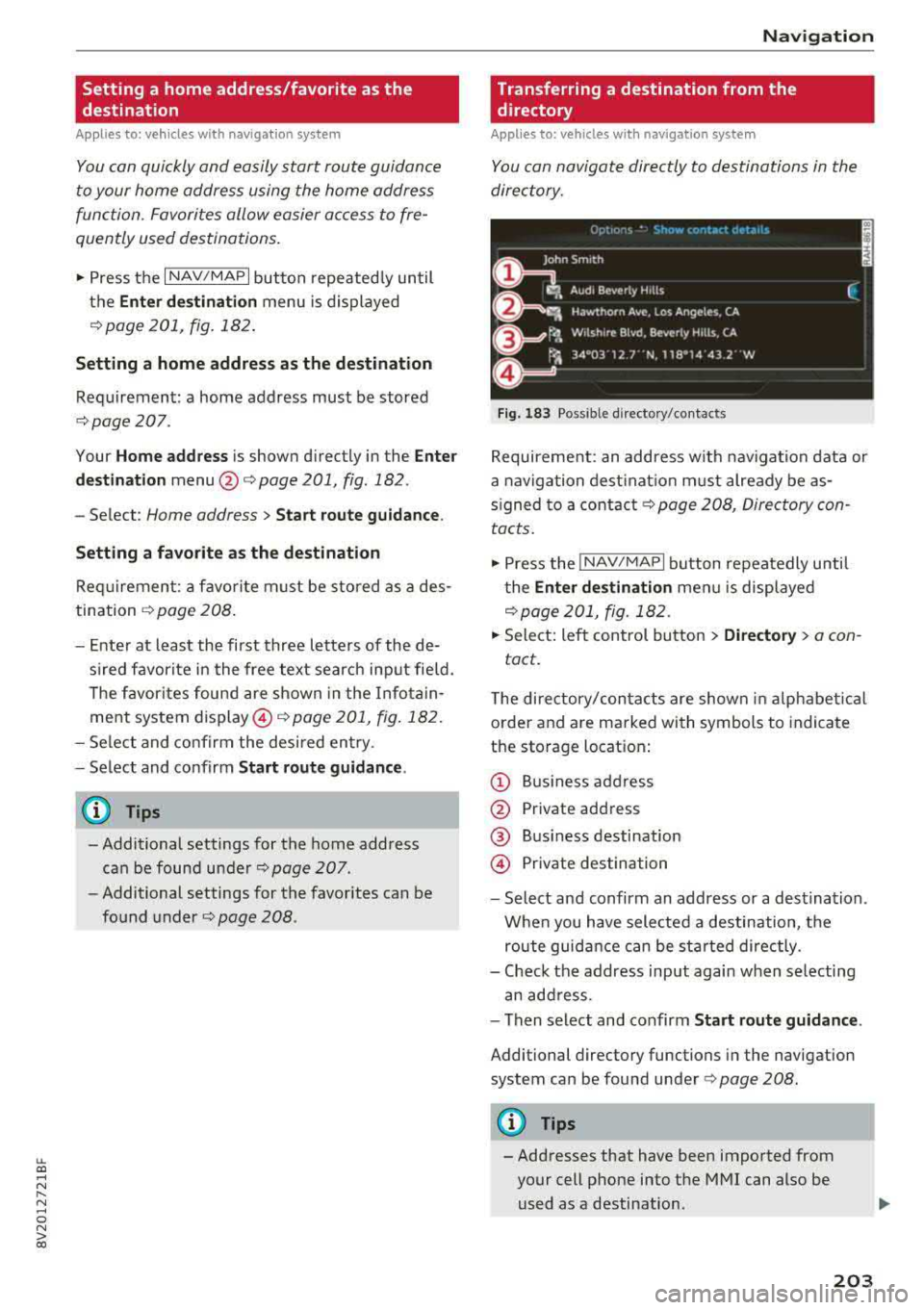
Fig . 18 3 Possible di rec to ry/c onta cts
Requireme nt: an address with navigation data or
a nav iga tion dest inat io n m ust already be as
s igned to a
contac t¢ page 208, Direc tory con
tacts.
.. Press the I NAV /MAPI button repeatedly u ntil
t he
Enter destination men u is displayed
¢page 201, fig. 182.
.. Sele ct: left con trol bu tton > Dire ctory > a con-
tact .
The di rectory/con tac ts are shown in a lphabe tical
order and are marked with symbols to indica te
the storage locat ion:
@ B usiness add ress
@ Private add ress
@ Bus iness destination
@ Pr iv a te des tination
- Select and confirm an address or a des tina tion .
W hen you have selected a destination, t he
route guid ance can be sta rted directly.
- Check the address input again when se lecting
an add ress.
- Then select and co nfirm
Start route guidance .
Additional directory functions in the navigation
system can be found unde r¢
page 208.
{!) Tips
-Addresses that have been imported from
your cell phone into the MMI can also be used as a destination.
203
Page 206 of 404
Navigat ion
-If a contact is grayed out in the directory,
this contact has neither a destination nor an
address assigned to them.
Point of interest search
Applies to: ve hicles w ith navigation system
.. Press the I NAV /MAPI bu tton repeatedly until
t he
E nte r d estination menu is displayed
¢page 201 , fig . 1 82 .
.. Select : left cont rol button > Point s of intere st.
-C hanging the search area : select and confirm
Sear ch ar ea > a search area from the list .
The following search categories are avai lab le:
Nearb y: points o f interes t can be sele cted from
different categories . The points o f interest are
list ed starting from the immediate vicinity of the
vehicle up to a radi us of approximate ly 124
miles (200 km).
Along the route: points of inte rest a long the
route can on ly be select ed during active rout e
gu idance. The points of interest are located d i
rect ly along or in the immediate vicinity of the
calcul ated route. The points of interest can like
wise be selected from various categor ies . For ex
ample, you can search for a hotel or park ing lot
at the destination .
Near destin ation /Near stopo ver : po ints of inter
est near a destination or a stopover can only be
selected dur ing active route guidance . T he poi nts
of interest can likewise be se lected from va rious
ca tegor ies. For examp le, you ca n search fo r a ho
tel or parking lot a t the destination.
In new city : select a country/state or searc h in a
new c ity . Ente r the name of the des ired c ity .
P oints of i nte rest can be selected from var ious
ca tegor ies. Th is f unction allows you to searc h for
points of interes t in any ci ty regardless of the ac
tive route guidance or the vehicle position.
-Sea rch for a p oint of inter est name in these
lec ted search are a:
en ter the name of the po int
of inte rest .
-Sear ching f or a poin t of inter est in a specifi c
ca tegory :
select Select cat egory . Select and
confirm a ca tegory such as
Restaurant s.
204
(D Tips
-Distances to points of interest are displayed
as a stra ight -line d istance from your current
location. The actual d istance from your cur
rent location to the point of interest is up
dated automatically. The list of found
points of interest is not resorted when this
happens.
-T here may be entr ies in the l ist that cannot
be displayed comp letely due to t heir length .
Select the cor respond ing ent ry from the
list. Select: r ight cont rol b utton> Show des
ti na tion det ails. De tailed informa tion fo r
the se lected entry in the list is then dis
played .
Online point of interest search (online
search)
App lies to: vehicles wit h a navigation system and Audi co n
nect (Infota inment)
You can search for points of interest on the In
t e rnet .
Requirement: the requirements for Aud i connect
(Infotai nment) must be met
¢ page 190 .
.. Press the I NAV/MAPI button repeatedly until
the
Enter des tination me nu is displayed
~ page 201, fig. 182 .
.. Select: left control button > Online sear ch . Th e
searc h area last set is displayed in the inpu t
fie ld .
-C hanging the search area : select: right cont rol
bu tton >
S elect sear ch are a.
-Searching for onlin e destinations in thes e
l ec ted search ar ea :
ente r a new c ity/state if
necessary. En ter the search term, such as hotel.
Press the contro l knob. Se lect and confirm an
online destination from the list.
-Sea rching for online de stinations in a specific
categor y:
se lect and confirm Sele ct category.
Select and confirm a category such as Re stau
rants .
Find w hich search areas are avai lab le under
¢ page 204 , Point of interest search .
You can search for online destinations using the
vo ice recog nitio n
sys tem ¢ table on page 173. .,..
Page 207 of 404
LL co ..... N
" N ..... 0 N > co
(D Tips
Always read the chapter¢ page 196, Audi
connect (Infotainment) general information .
Accessing destinations from myAudi
account
Applies to: veh icles with a navigation system and Audi con
nect (Infotainment)
Import individual destinations from your myAudi
account into the
MMI.
Req uirement:
The requ iremen ts for Aud i connect (Infotain
ment) must be met
¢ page 190 .
You must have a registered myAudi account at
www .audiusa .com/myaudi . You must have
ave
hicle assigned to your myAudi account and yo u
must have sto red one or mo re destinations .
... Press the I NAV/MAPI button repeatedly until
the
Ent er destination menu is displayed
¢ page 201, fig . 182 .
... Select: left cont rol button > myAudi contacts .
... If necessary, enter your myAudi user data o r
yo ur myAud i PIN¢
page 190 . The contacts
stored in myAudi are d isp layed.
- Se lect and confir m a conta ct.
- Se lect and confirm a priva te or b usiness desti-
nation .
- Select and co nfirm
Start route guidance .
(D Tips
-You only need to enter the myAud i user data
one time.
- You can receive your myA udi PIN if you have
set up a myAudi account.
- Fo r additional informat ion, visit
www.audiusa.com .
Entering a destination using geo
coordinates
App lies to: vehicles with navigation system
... Press the I N AV/MAPI but ton repeated ly un til
t h e
Enter de stination menu is dis played
¢page 201 , fig . 182.
Na viga tion
... Sele ct: left control button > Geographi cal coor
dinates .
-Sele ct Latitude /Longitude .
-Press the cont ro l knob to set the individ ual va l-
ue s.
- Tur n the control knob to the left/ right to
change the selected va lue.
- Select and confirm
Start route guidance .
Adding a stopover
Applies to: vehicles with navigation system
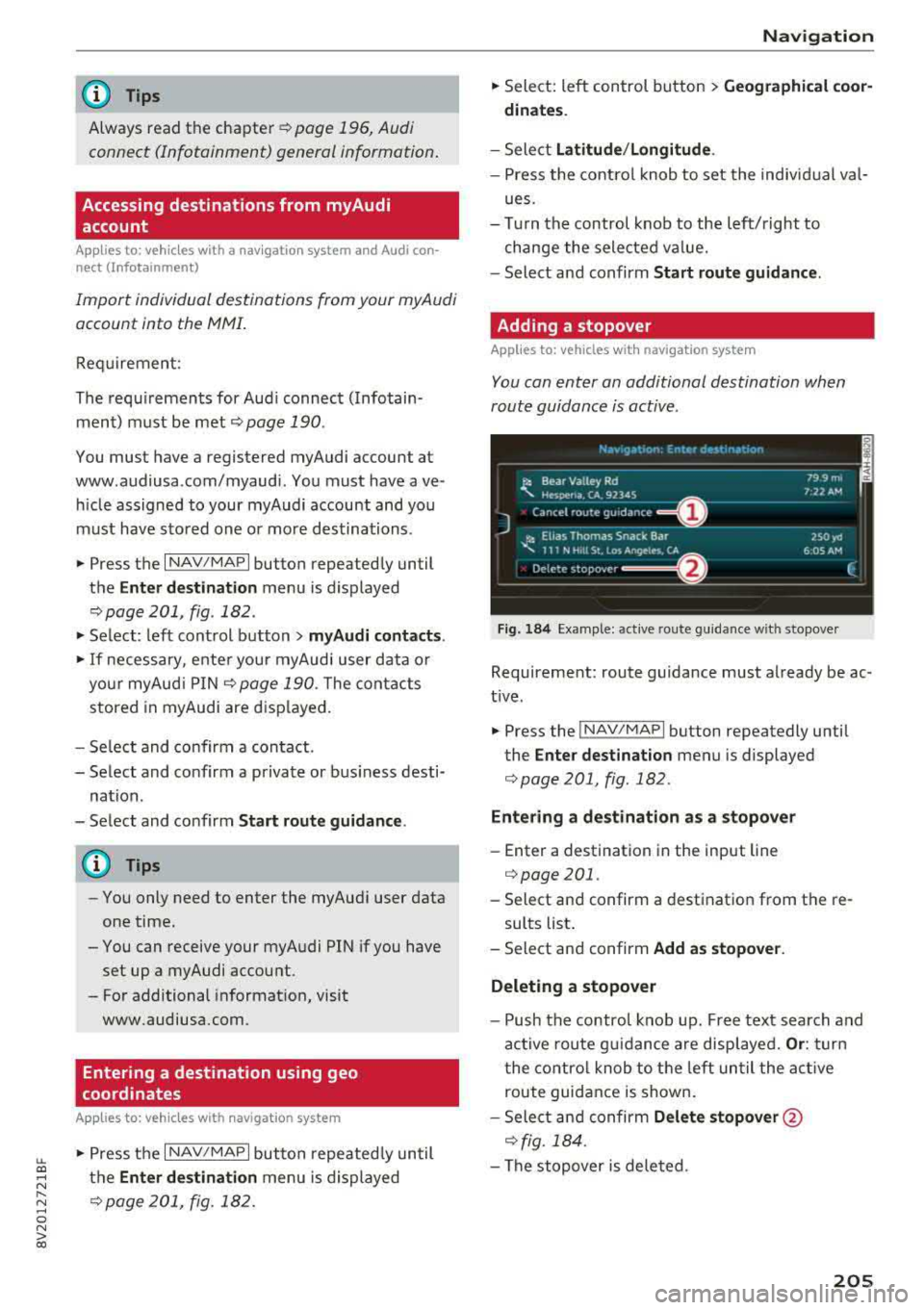
You can enter an additional destination when
route guidance is active .
Fig. 184 Example: act ive route gu ida nce w it h stopover
Requireme nt: route guidance must already be ac
t ive.
... Press the ! NAV/MAP I button repeatedly unti l
the
Enter destination menu is displayed
¢ page 201 , fig.182 .
Entering a destination as a stopove r
-Enter a destination in the input line
¢ page 201 .
-Select an d confirm a destinat ion from the re -
sults list .
- Select and confirm
Add as stopover.
Deleting a stopover
- Push the contro l knob up. Fre e tex t sea rc h and
ac tive route g uidance are disp laye d.
Or : turn
t he co ntro l knob to t he left un til the act ive
route guid ance is shown.
- Sele ct and confirm
Delete stopover @
¢ fig. 184 .
-The stopove r is deleted .
205
Page 208 of 404
Navigation Cancel route guidance
App lies to: vehicles with navigation system
Requirement: route guidance must be active.
.,. Press the I NAV/MAPI button repeatedly until
the
Enter destination menu is displayed
c:::> page201, fig .182 .
.,. Turn the control knob to the left until the active
route gui dance is shown
c:::> page 205, fig. 184 .
.,. Select and confirm Cancel route guidance (D
c:::> page 205, fig. 184 . The destination is delet
ed.
Or : select the right control button > Cancel
route guidance .
Additional options when entering a
destination
Applies to: vehicles with navigation system
.,. Press the right control button .
Depending on the selected function, the follow
ing options may be available when entering a
destination:
Cancel route guidance : Requirement: route guid
ance must be active. Route guidance is canceled. For addit ional information, see
c:::> page 206 .
Country information: you can d isp lay the appli
cable urban and rural speed limits for any coun
try/state. If this function is activated, the infor
mat ion will be automatically shown to you in the
route information
(z) c:::> page 210, fig . 189 when
the speed limit is exceeded
c:::> page 212 .
Country/state selection: see c::> page 202, Nar
rowing the search area.
Route criteria: see c:::> page 209, Route criteria.
Show location on map : Requirement: you must
have se lected a destination from the results list.
The destination entered is displayed on the map .
Parking at this lo cation *: Requirement: you
m ust have selected a destination from the re
sults list . All parking options near the selected
location are displayed in the Infotainment sys
tem .
Delete : th e selected en try is deleted. You can de
lete individua l entries or all entries (for example,
favorites or last destinations).
206
Audi connect at this location* : Requirement: yo u
must have se lected a destination from the re
su lts list. A llows you to search for items in the v i
cinity of the selected location, such as
Travel in
formation.
Online traffic data *:
the on line traffic informa
tion
c:::> page 216 can be sw itched on or off .
Add destination to contact: see c:::> page 208.
Store as favorite: see c:::> page 208 .
Voice guidance : see c:::> page 210.
Navigation settings: see c:::> page 209.
(D Tips
Information on on line traff ic data* can also
be found on line at www.audiusa .com .
Personal route
assistance
Applies to: vehicles with navigation system and personal
ro ute assistance
Your MMI con learn the routes that you drive fre
quently and, depending on the current vehicle
position, suggest route guidance (for example,
your daily commute to work and back).
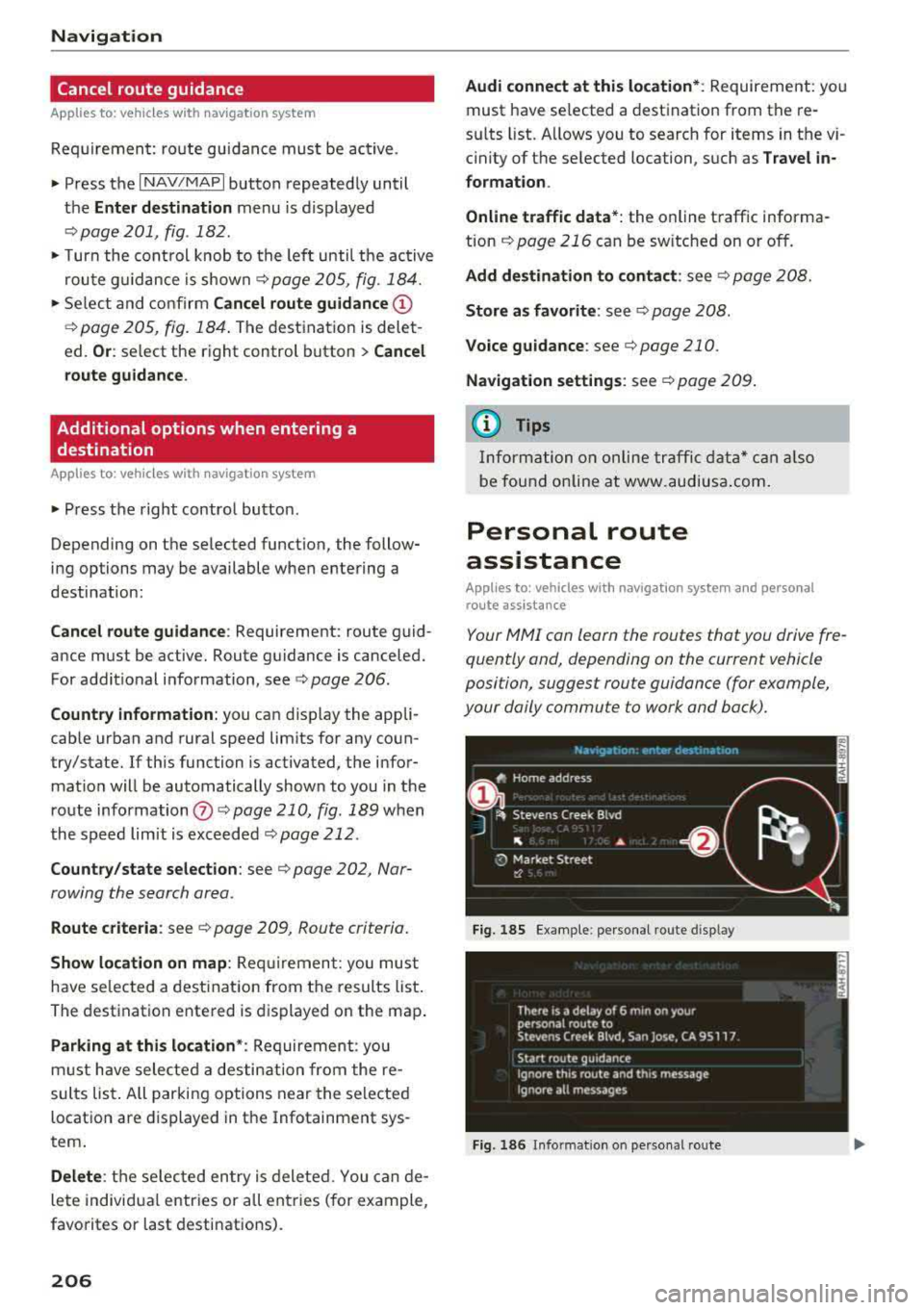
Fig. 185 E xample : personal route disp lay
Fig. 186 Info rmation o n personal route
Page 209 of 404
u. 00 .-< N l' N .-< 0 N > 00
~ Press the I NAV/MAPI button repeated ly until
the
Enter de sti na tion menu is displayed
¢page 201, fig. 182 .
~ Select : right contro l button > Per son al rout e
a ss is tance .
When the function is switched on~, the MMI re
cords the frequently-driven routes regardless of
whether a destination was entered and reached
or not .
As long as route guidance is not active, your per
sonal routes are listed in the
Enter destination
menu under the home address and indicated with
the
symbol ~@ ¢ fig. 185 . When persona l
route assistance is sw itched on, th is symbol is
d isplayed in the Navigation menu a nd in the Info
tainment system d isp lay stat us line at the same
time.
The distance to the destination and the calculat
ed arr ival t ime are also displayed for you r person
a l routes. W ithout sta rt ing route gu idance, you r
MMI mo nitors the t raff ic condi tions fo r you r pe r
sona l routes a nd s hows possib le t raff ic incidents
for the possible routes to be driven in the Info
tainment system
disp lay @ ¢ fig. 185 .
A message will be d isp layed if the re is a large
traffic inc iden t (more than 12 m inute de lay) re
gardless of which menu is se lected
¢ fig. 186.
Select and confirm one of the following options :
-Start route guidance : the MMI starts the route
guida nce for the persona l route displayed and
searches for a fas ter route i f available.
- Ignor e this rout e and this m essage: the d is
played destination with a ll app licab le personal
routes is no longer factored into the current
trip. No more messages are shown for the dis
played destination. The displayed destination
with all applicable personal routes w ill be fac
tored into the trip again only after stopp ing the
vehicle and switching the ignition on aga in .
- Igno re all mes sages : all persona l routes are no
longer factored into the current trip . No more
messages are d isplayed . Messages for personal
r outes when there is increased traffic will ap
pear aga in afte r the vehicle is stopped and t he
i gnition is sw itched on aga in.
Na vigation
As soon as you switch off personal route assis
tance, the symbol in the status line turns off and
your trips are no longer recorded. Trips that were
already stored remain stored.
Deleting per sonal routes :
-Select the desired pe rsonal route in the Enter
de stination
menu @¢ fig. 185.
-Select: r ight control button > Delete d estina
tion .
D elet ing all per sonal rout es:
-Select: !MENU I button> Settings > left control
button >
MMI set tings > Factory setting s.
-Select: Navigation and online memory > Re
store fa ctory
sett ing s¢ page 244.
(D Tips
- Persona l routes are learned based on the ve
hicle position. The ro ute is p rioritized ac
cording to how freq uent ly you drive to a
destination.
- A maximum of three personal ro utes are
displayed in the
Enter dest ination menu.
Based o n the current vehicle position, the
traff ic situat ion for the route that is most
likely to be drive n out of the three routes
w ill always be monitored .
- Please note that personal routes that have
already been stored will rema in stored after
the ignition is sw itched off and they must
be deleted ma nually.
Home address
App lies to : vehicles wit h navigat ion syste m
~ Press the INAV/MAPI button repeatedly unti l
the
Enter de stination menu is disp layed
¢ page 201, fig.182 .
Storing a home address
-Select and confirm Home address @
¢ page 201, fig. 182 . After opening the home
add ress fo r th e fi rst time, you will be as ked to
create a home add ress.
- Select and confirm
Creat e now .
-Enter a dest ination or select a destination from
the l ist .
Or : .,.
207
Page 210 of 404
Navigation
-Select: a destination> right control button>
Store as home address.
Editing the home address
-Select the Home address@¢ page 201,
fig. 182.
-Se lect: right contro l button > Edit home ad
dress .
-Select and confirm a new desti nat io n as the
home address.
The selected destination is stored as the new home address .
Favorites
Applies to: veh icles with navigation system
.,. Press the I NAV/MAPI button repeatedly until
the
Enter destination menu is displayed
t::> page201 , fig .182 .
-Storing a destinat ion as a favorite: search for
the desired destination us ing the input field.
Or: select and confirm a destination from the
list . Se lect: right control button >
Store as fa
vorite .
-Renaming a favorite : select the left control
button >
Favorites > a favorite from the list >
right control button >
Rename favorite .
-Move favorite: select a favorite from the list >
right control button>
Move favorite . Select
and confirm the location of the selected favor
ite .
-Deleting a favorite : select a favorite from the
list>
r ight control button > Delete favorite >
Delete this favorite or Delete all favorites.
Directory contacts
Applies to: vehicles with navigation system
Two addresses (private/business) con be as
signed as destinations for each contact in the di rectory .
.. Press the I NAV/MAPI button repeatedly until
the
Enter destination menu is displayed
¢page 201, fig . 182.
208
Storing a destination as a contact in the
directory
Requirement: a cell phone must be connected to
the MMI
¢page 177 .
-Select: o destination > right contro l button >
Add destination to contact.
-Select and confirm Add business destination or
Add private destination.
-Enter a name. Or: select and confirm a directo
ry contact from the list .
- Select and confirm
Save business card.
Alternative routes
Applies to: vehicles with navigat ion system
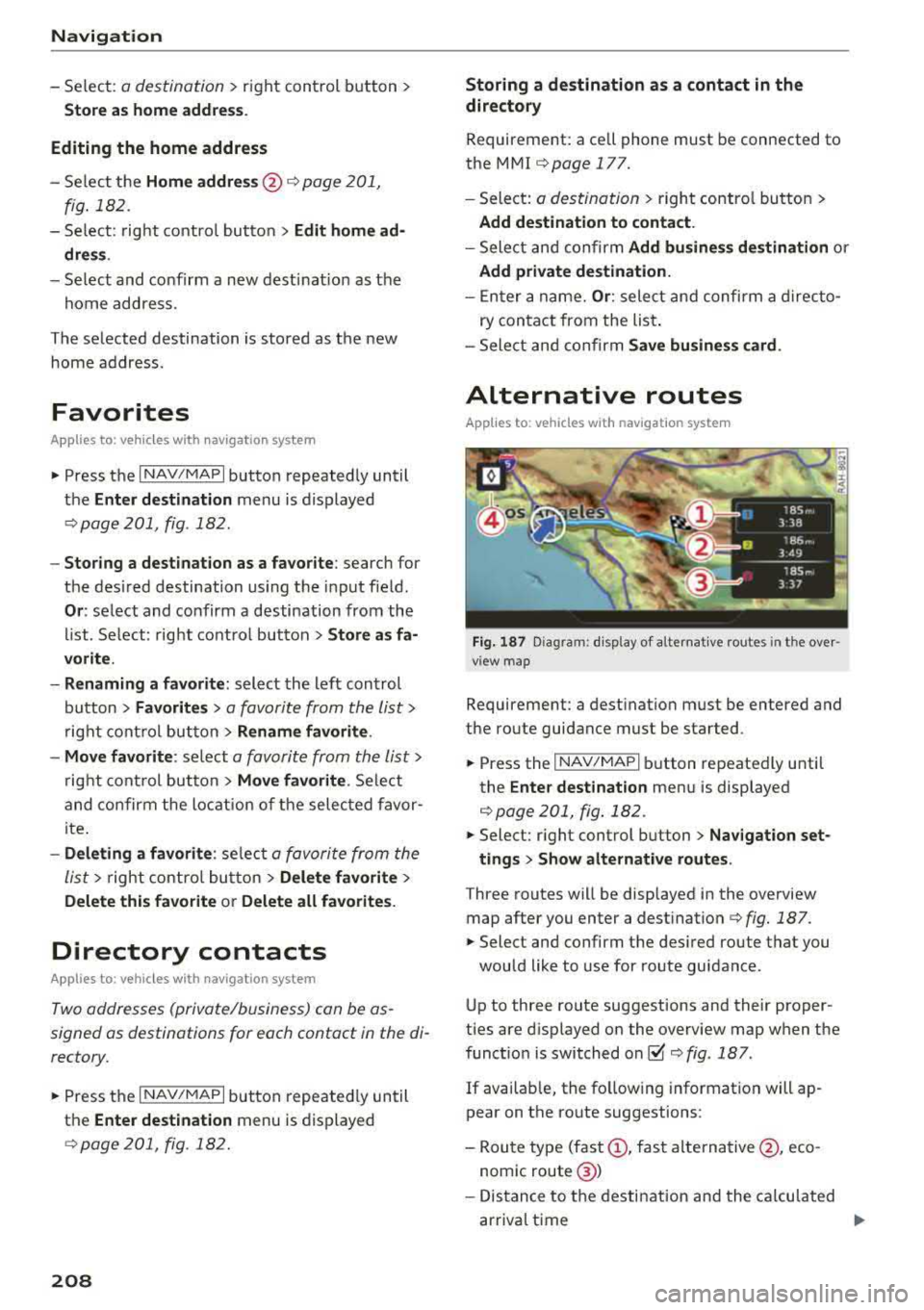
Fig. 187 Diagram: d isp lay of a lternat ive routes in t he ove r
view map
Requirement: a destination must be entered and
the route guidance must be started .
.. Press the I NAV/MAPI button repeatedly until
the
Enter destination menu is displayed
¢page 201, fig. 182 .
.. Select: right control button> Nav igation set-
tings
> Show alternative routes.
Three routes will be displayed in the overview
map after you enter a
dest ination ¢ fig. 187 .
.. Select and confirm the des ired route that you
would like to use for route guidance.
Up to three route suggestions and their proper
ties are d isplayed on the overview map when the
function is switched
on~¢ fig. 187.
If available, the fo llow ing information will ap
pear on the route suggestions :
-Route type (fast(!), fast alternative @, eco
nomic route @)
- Distance to the destination and the calculated
arrival time
...
Page 211 of 404
u. 00 .-< N l' N .-< 0 N > 00
- Traffic congestion along the ro ute including
time delays
The route that was calcu lated acco rding to the
ro ute criter ia you sele cted is shown on the over
view map . The special propert ies of the route are
a lso
displayed @~ fig. 187 and given as a spo
k en message.
Using the contro l knob , you can se lect t he possi
b le routing for the alternative routes and show
them on map Select and confirm the desired ro ute that you would like to use for route guid
ance.
Additional settings
Navigation settings
Applies to: vehicles with navigation system
.,. Press the I NAV /MAPI but ton repe ated ly un til
the
Enter de stination menu is displayed
¢ page 201, fig.182 .
.,. Select : rig ht contro l button > Navigation set-
tings .
Depending on the se lected function, the follow ·
ing settings can be se lected :
Show alternative routes
Up to three suggested ro utes are shown on the
map whe n this funct ion is switched
on~
~ page 208, Alternative routes.
Low fuel warning
A message is disp layed if the fuel gauge goes be
l ow the reserve mar king when this funct ion is
sw itched
on~-Co nfirm ing th is m essage displays
a lis t of gas stations in the area. When a gas sta
t ion is selec ted, route g uidance from the c urren t
ve hicl e position is calc ulated .
Trailer mode*
Tra iler mode is sw itched off at the factory .
When the function is switched
on~. the maxi
mum permitted speed for vehicles with trailers is
i ncorporated into the route guidance and the cal
culated arr ival time is adjusted acco rding ly . T rail
e r mode is d isp layed using symbols
-Pe' in the side
menu on the m ap .
Na vigation
Personal route as sistance*
Persona l rou te ass istance is swi tched off at the
f actory.
You r trips a re recorded and dest inations a re s ug
gested by the M MI w hen th is fu nction is sw itched
o n ~¢ page 206.
Notification when nearby*
The not ification when nearby is switched off at
the factory .
The MM I not ifies you when you are approaching
selected points of interest when t his function is
switched
on~ -You can also have a Notification
tone .
Presentation mode
The Presentation mode he lps you to effectively
plan a tr ip and fo llow the planned route without
moving the vehicle . You can use
Select starting
point
when you wou ld like to calculate a ro ute
sta rt ing from a location othe r than the ve hicle
pos it ion, for examp le. Sta rt
Presentation mode
to s imula te rou te g uidance .
Route criteria
Applies to: vehicles with navigation system
Jl
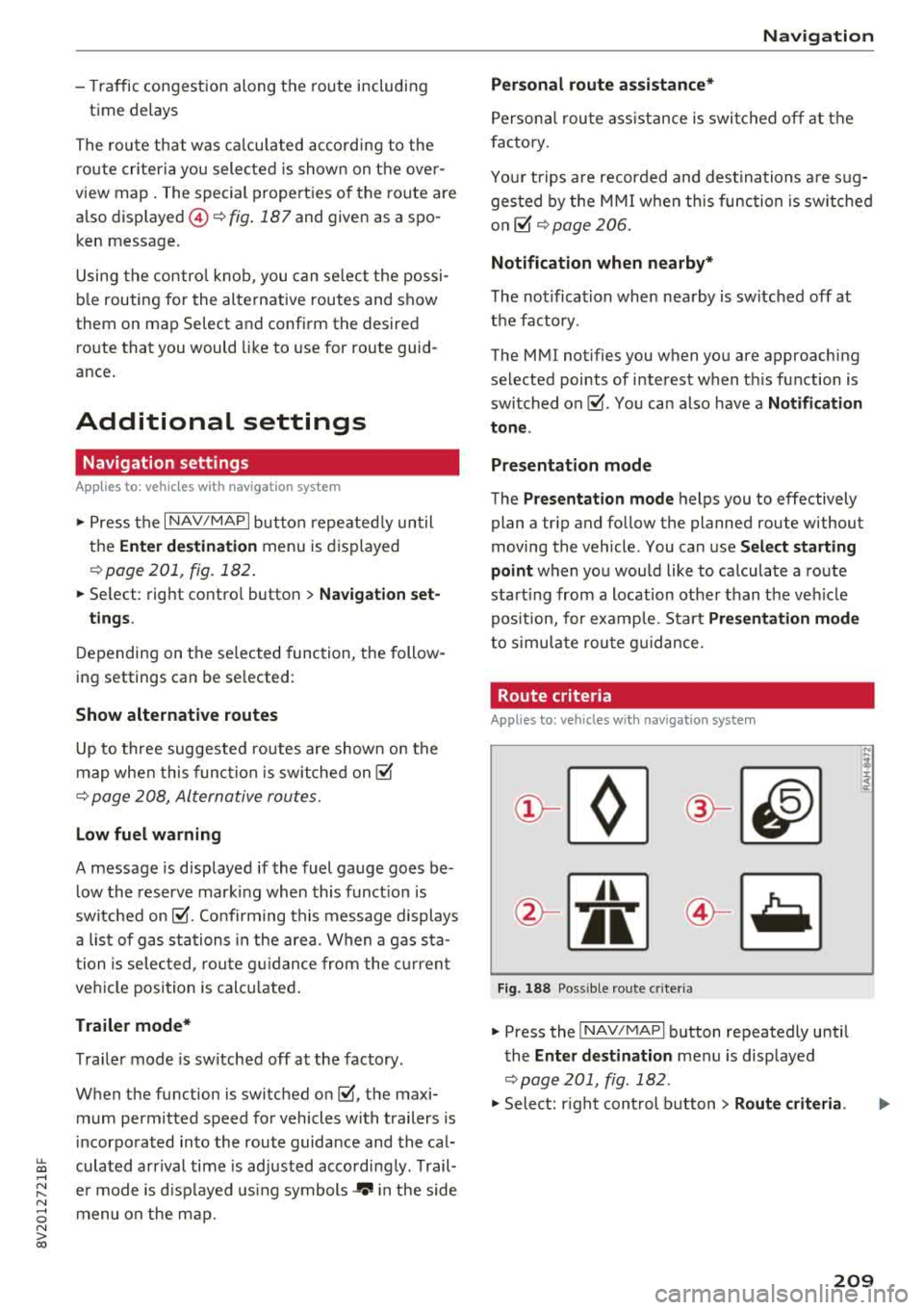
Fig. 18 8 Possible ro ute c rit e ri a
.,. Press the INAV/MAPI button repeatedly unti l
the
Enter destination men u is displayed
¢page 201, fig . 182 .
.,. Select: r ight cont rol b utton> Route criteria .
209
Page 212 of 404
Navigation
CD HOV/carpool lanes 1): with the Avoid fu nc
tion, HOV lanes are excluded when calculating
ro utes . When
Allow is se lected, t he MMI will
ro ute you thro ugh HOV lanes and show them on
the map.
@Highways /@ Toll roads /@ Ferries : if the nav
igation system sho uld not incl ude highways, to ll
roads or ferr ies
-if possib le -when calcu lating
routes, yo u can select the
Avoid function .
Voice guidance
Applies to: ve hicles with navigation system
• Press the I N AV/MAPI button repeated ly until
the
Enter destination menu is d isplayed
¢ pag e 201, fig. 182.
• Se lect: rig ht cont rol butto n > Voice guidance .
Voice guidance :
voice guidance can be Complete
or Shortened. With the Traffic function, voice
gu idance p romp ts are only given when the re are
traffic inc iden ts o n yo ur route. When
Off is se
lec ted, no voice g uidance is given .
Voice guidance during phone call: voice guid
a nce du ring a phone c all can be swi tc h ed o n or
off.
Enterta inment fader : see ¢ page 248.
Voice guidance volume : you can adjust the vo l
ume during voice guidance using the On/Off knob
¢ page 154 Yo u can also find additional informa
tion
u nder¢page248 .
ll High occupancy ve hicle
210
Map
Map operation
App lies to: vehicles with navigation system
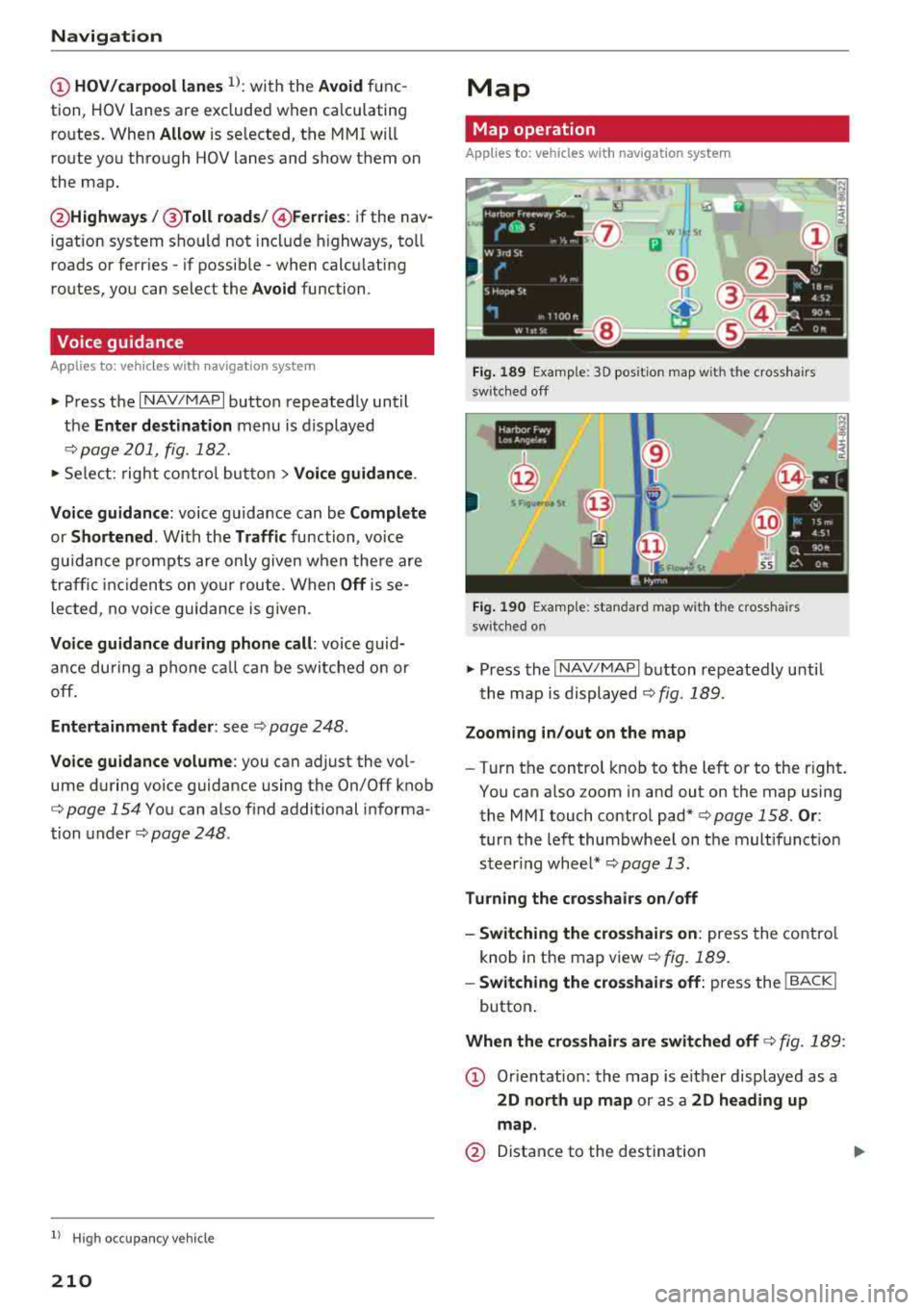
Fig. 189 Examp le: 3D pos ition map w ith the cross hairs
switc hed off
•IN
@
Fig. 190 Examp le: standard map with the crosshairs
switc hed on
~ Press the I NAV/MAPI b utton repeatedly until
t he map is
d isplayed¢ fig . 189.
Zooming in /out on the map
-T ur n the control knob to the left or to the right.
You can also zoom in and out on the map using
the MMI touch control
pad*¢ page 158. Or:
turn the left thumbwheel on the mult ifunct ion
s t eer ing whee l*
¢page 13 .
Turning the crosshairs on/off
-Switching the cro sshairs on : press the contro l
knob in the map v iew
¢fig. 189 .
-Swit ching the crosshairs off: p ress the ! BACKI
button .
When the crosshairs are switched off¢ fig. 189:
CD Orien tation: the map is e it h er displayed as a
2D north up map or as a 2D heading up
map .
@ Distance to the destination