infotainment AUDI A3 SEDAN 2018 Repair Manual
[x] Cancel search | Manufacturer: AUDI, Model Year: 2018, Model line: A3 SEDAN, Model: AUDI A3 SEDAN 2018Pages: 404, PDF Size: 62.3 MB
Page 200 of 404
Audi connect (Infotainment)
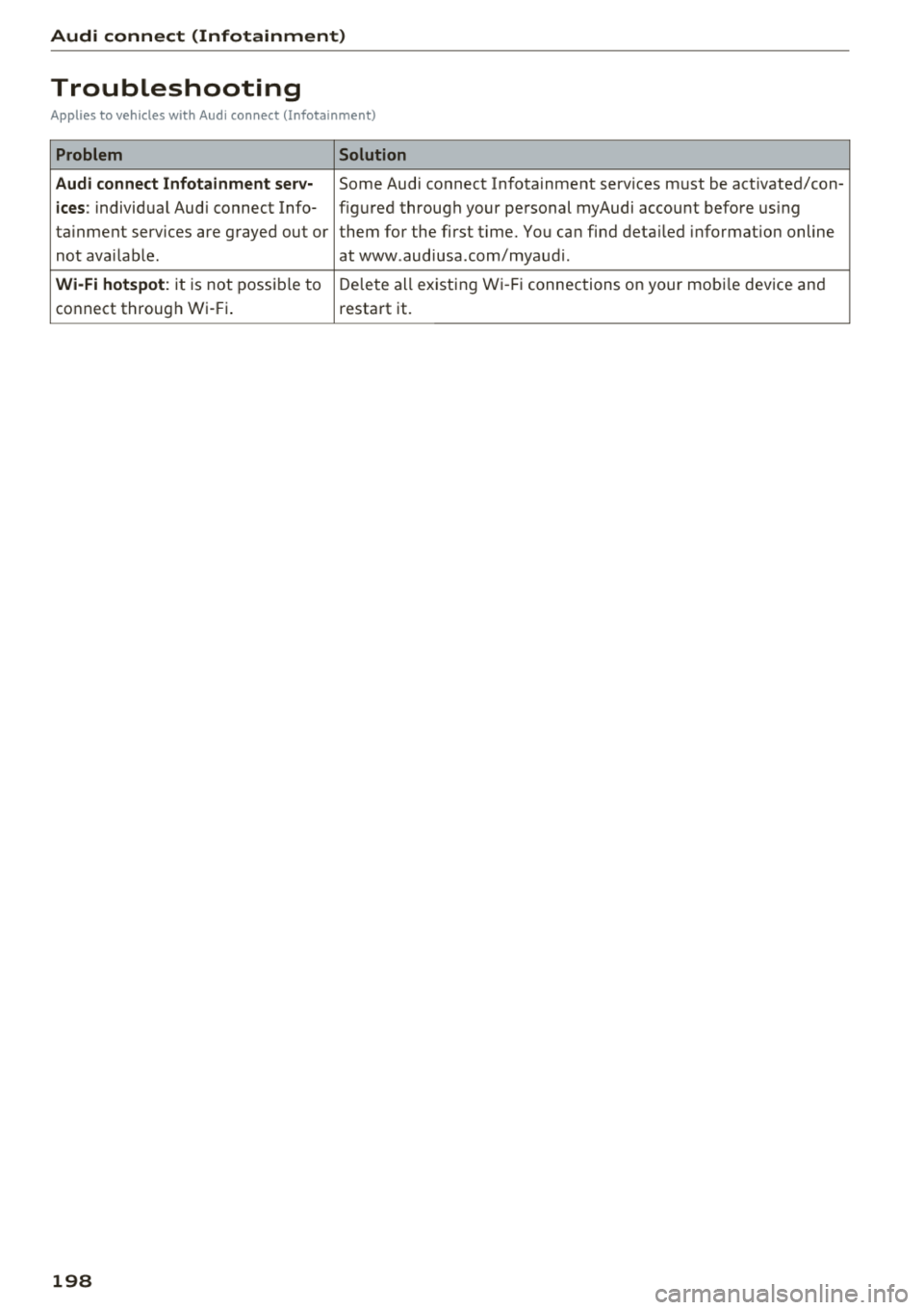
Troubleshooting
Applies to vehicles with Audi connect (Infotainment)
Problem Solution
Audi connect Infotainment serv·
Some Audi connect Infotainment services must be activated/con-
ices: individual Audi connect Info- figured through your personal myAudi account before using
ta inment serv ices are grayed out or them for the first time. You can find deta iled information on line
not available . atwww.audiusa.com/myaudi.
Wi-Fi hotspot : it is not possible to Delete all existing Wi-Fi connections on your mobi le device and
connect through Wi-Fi. restart it.
198
Page 203 of 404
u. 00 .-< N l' N .-< 0 N > 00
Navigation
Opening navigation
Applies to: vehicles with navigation system
The navigation system directs you to your desti
nation, around traffic incidents and on alterna tive routes, if desired.
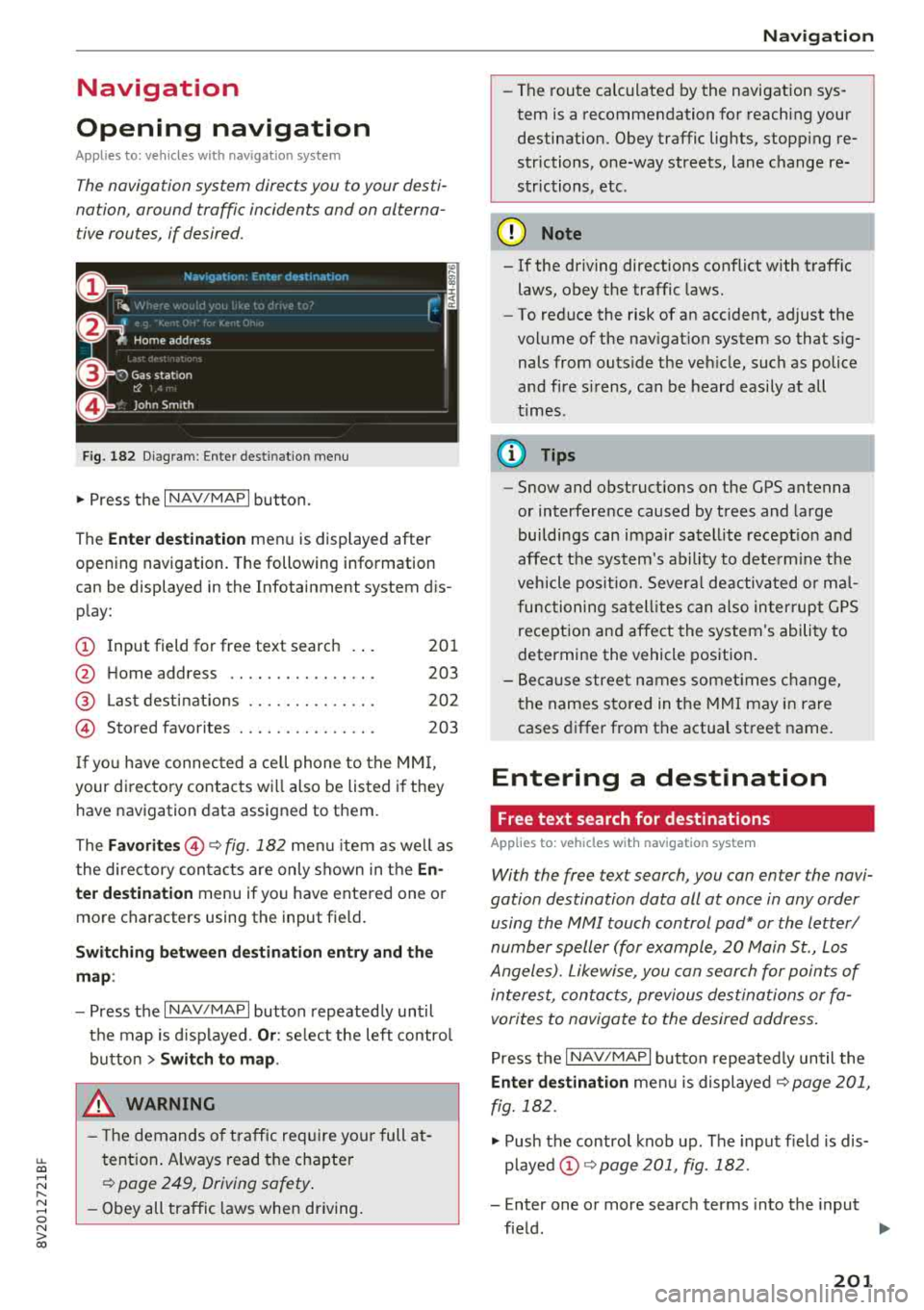
Fig. 182 D iagram: Enter dest ination menu
.,. Press the I NAV/MAPI button.
The
Ente r de stin ati on menu is displayed after
opening navigation. The following information
can be displayed in the Infotainment system dis
p lay:
(D I nput field for free text searc h 201
@ Home address . . . . . . . . . . . . . . . . 203
@ Last dest inatio ns . . . . . . . . . . . . . . 202
© Stored favorites . . . . . . . . . . . . . . . 203
I f yo u have connec ted a ce ll phone to the
M MI,
your di rectory contacts wi ll also be listed i f they
have navigation data assigned to them .
The
Favori tes@¢ fig. 182 men u item as we ll as
the directory con ta cts are only shown in t he
En
ter destination
menu if you have entered one or
more characters using the input field.
Swi tching betwe en d estination en try and th e
m ap :
- Press the I NAV/MAPI button repeated ly until
the map is d isp layed.
Or : select the left contro l
button
> Switch to map .
_& WARNING
- The dem ands of t raff ic re quir e your full at
tention . Always read t he chapter
¢ page 249, Driving safety .
- Obey all tra ffic laws when d riving .
-
Na vigation
- The route calculated by the navigation sys
tem is a recommendation fo r reaching your
destination. Obey traffic lig hts, stopp ing re
strictions, one-way streets, lane change re
str ictions, etc .
@ Note
- If the driving directions conflict with t raffic
laws, obey the traffic laws.
- To red uce the risk of an accident, adjust the
vol ume of the nav igat ion system so that sig
nals from outs ide the ve hicle , such as police
and fire s irens, can be heard easi ly at all
t imes .
(D Tips
-Snow and obstruct ions on the GPS antenna
or interference caused by trees and large
buildi ngs can impair satell ite recept io n and
affect the sys tem's ability to dete rm ine the
veh icle pos it io n. Severa l de activated o r ma l
functioning sa tell ites can also in ter rup t G PS
recept ion and affect the system 's ability to
determine the vehicle pos ition.
- B eca u se street names somet imes c hange,
t he names sto red in the MMI may i n rare
cases differ from the actual street name.
Entering a destination
Free text search for destinations
Applies to: vehicles with navigation system
With the free text search, you can enter the navi
gation destination data all at once in any order using the MMI touch control
pad* or the letter/
number speller (for example, 20 Main St., Los
Angeles). Likewise, you can search for points of
intere st, contacts, previous destinations or fa
vorites to navigate to the desired address .
Press t he I N AV/MAPI button repeated ly until the
En ter de stination me nu is displayed ¢ page 201,
fig. 182 .
.,. Push the contro l knob up . The input f ield is dis
p layed @¢ page 201, fig . 182.
- Enter one or more searc h terms into the input
fie ld .
.,.
201
Page 207 of 404
LL co ..... N
" N ..... 0 N > co
(D Tips
Always read the chapter¢ page 196, Audi
connect (Infotainment) general information .
Accessing destinations from myAudi
account
Applies to: veh icles with a navigation system and Audi con
nect (Infotainment)
Import individual destinations from your myAudi
account into the
MMI.
Req uirement:
The requ iremen ts for Aud i connect (Infotain
ment) must be met
¢ page 190 .
You must have a registered myAudi account at
www .audiusa .com/myaudi . You must have
ave
hicle assigned to your myAudi account and yo u
must have sto red one or mo re destinations .
... Press the I NAV/MAPI button repeatedly until
the
Ent er destination menu is displayed
¢ page 201, fig . 182 .
... Select: left cont rol button > myAudi contacts .
... If necessary, enter your myAudi user data o r
yo ur myAud i PIN¢
page 190 . The contacts
stored in myAudi are d isp layed.
- Se lect and confir m a conta ct.
- Se lect and confirm a priva te or b usiness desti-
nation .
- Select and co nfirm
Start route guidance .
(D Tips
-You only need to enter the myAud i user data
one time.
- You can receive your myA udi PIN if you have
set up a myAudi account.
- Fo r additional informat ion, visit
www.audiusa.com .
Entering a destination using geo
coordinates
App lies to: vehicles with navigation system
... Press the I N AV/MAPI but ton repeated ly un til
t h e
Enter de stination menu is dis played
¢page 201 , fig . 182.
Na viga tion
... Sele ct: left control button > Geographi cal coor
dinates .
-Sele ct Latitude /Longitude .
-Press the cont ro l knob to set the individ ual va l-
ue s.
- Tur n the control knob to the left/ right to
change the selected va lue.
- Select and confirm
Start route guidance .
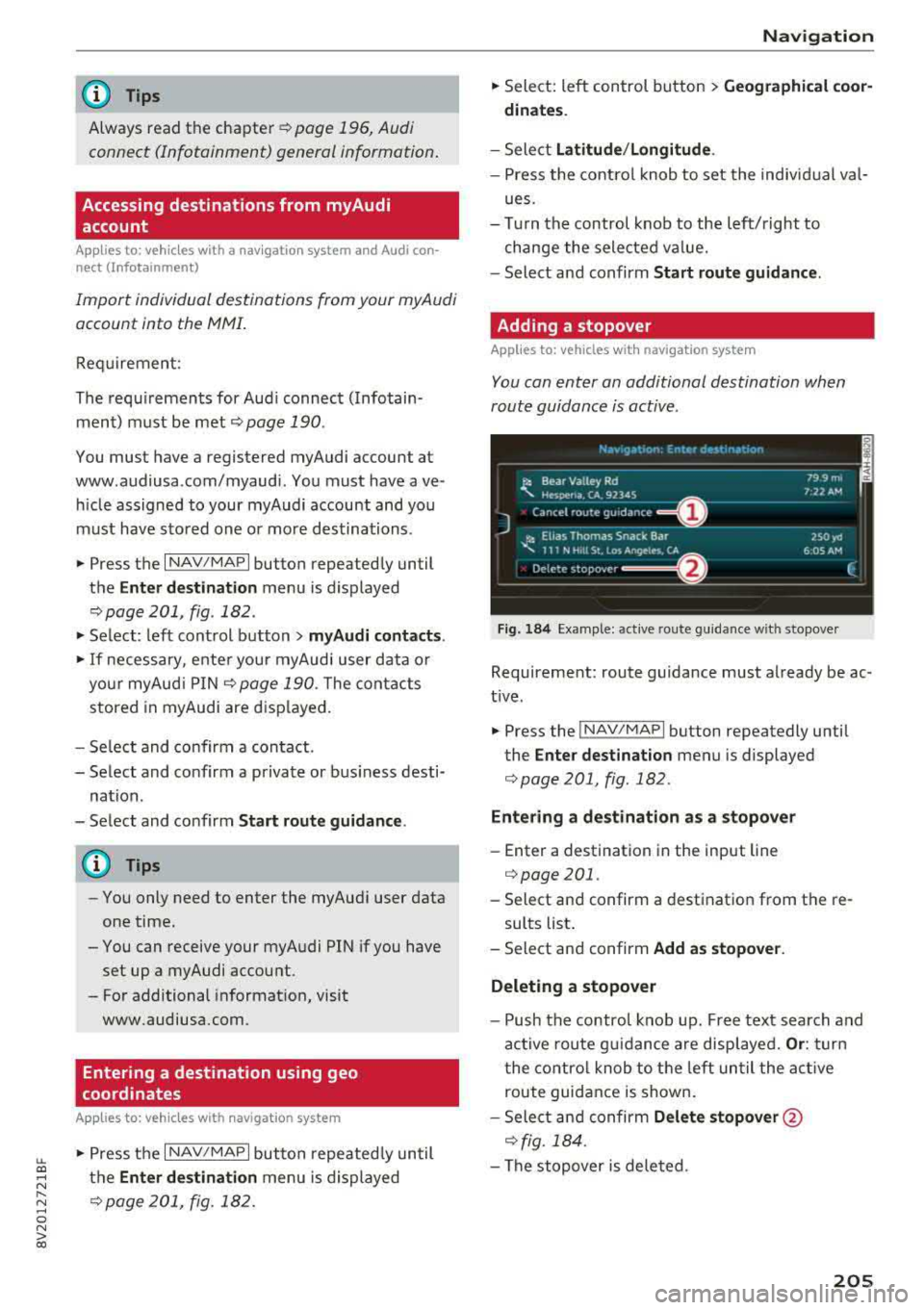
Adding a stopover
Applies to: vehicles with navigation system
You can enter an additional destination when
route guidance is active .
Fig. 184 Example: act ive route gu ida nce w it h stopover
Requireme nt: route guidance must already be ac
t ive.
... Press the ! NAV/MAP I button repeatedly unti l
the
Enter destination menu is displayed
¢ page 201 , fig.182 .
Entering a destination as a stopove r
-Enter a destination in the input line
¢ page 201 .
-Select an d confirm a destinat ion from the re -
sults list .
- Select and confirm
Add as stopover.
Deleting a stopover
- Push the contro l knob up. Fre e tex t sea rc h and
ac tive route g uidance are disp laye d.
Or : turn
t he co ntro l knob to t he left un til the act ive
route guid ance is shown.
- Sele ct and confirm
Delete stopover @
¢ fig. 184 .
-The stopove r is deleted .
205
Page 208 of 404
Navigation Cancel route guidance
App lies to: vehicles with navigation system
Requirement: route guidance must be active.
.,. Press the I NAV/MAPI button repeatedly until
the
Enter destination menu is displayed
c:::> page201, fig .182 .
.,. Turn the control knob to the left until the active
route gui dance is shown
c:::> page 205, fig. 184 .
.,. Select and confirm Cancel route guidance (D
c:::> page 205, fig. 184 . The destination is delet
ed.
Or : select the right control button > Cancel
route guidance .
Additional options when entering a
destination
Applies to: vehicles with navigation system
.,. Press the right control button .
Depending on the selected function, the follow
ing options may be available when entering a
destination:
Cancel route guidance : Requirement: route guid
ance must be active. Route guidance is canceled. For addit ional information, see
c:::> page 206 .
Country information: you can d isp lay the appli
cable urban and rural speed limits for any coun
try/state. If this function is activated, the infor
mat ion will be automatically shown to you in the
route information
(z) c:::> page 210, fig . 189 when
the speed limit is exceeded
c:::> page 212 .
Country/state selection: see c::> page 202, Nar
rowing the search area.
Route criteria: see c:::> page 209, Route criteria.
Show location on map : Requirement: you must
have se lected a destination from the results list.
The destination entered is displayed on the map .
Parking at this lo cation *: Requirement: you
m ust have selected a destination from the re
sults list . All parking options near the selected
location are displayed in the Infotainment sys
tem .
Delete : th e selected en try is deleted. You can de
lete individua l entries or all entries (for example,
favorites or last destinations).
206
Audi connect at this location* : Requirement: yo u
must have se lected a destination from the re
su lts list. A llows you to search for items in the v i
cinity of the selected location, such as
Travel in
formation.
Online traffic data *:
the on line traffic informa
tion
c:::> page 216 can be sw itched on or off .
Add destination to contact: see c:::> page 208.
Store as favorite: see c:::> page 208 .
Voice guidance : see c:::> page 210.
Navigation settings: see c:::> page 209.
(D Tips
Information on on line traff ic data* can also
be found on line at www.audiusa .com .
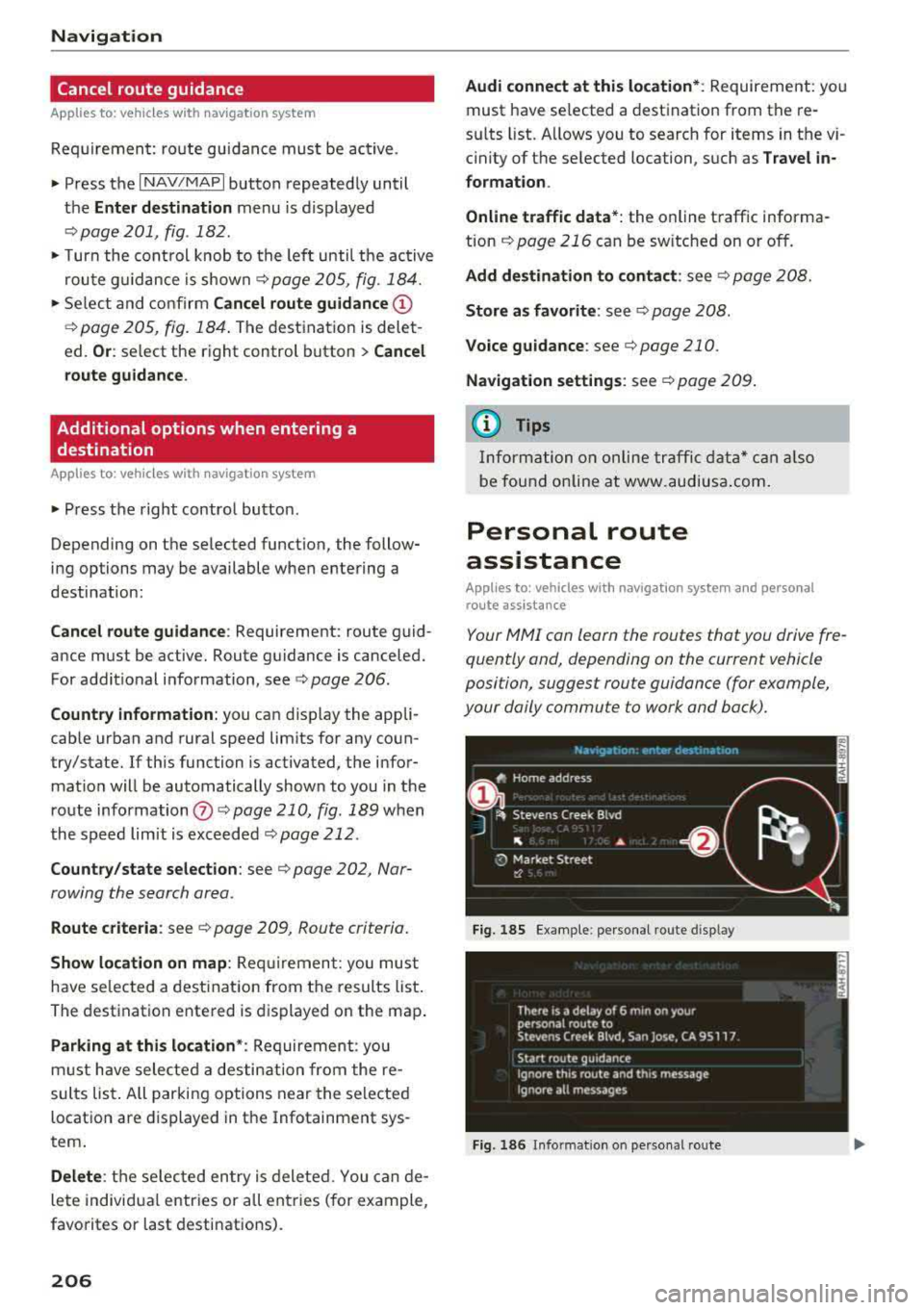
Personal route
assistance
Applies to: vehicles with navigation system and personal
ro ute assistance
Your MMI con learn the routes that you drive fre
quently and, depending on the current vehicle
position, suggest route guidance (for example,
your daily commute to work and back).
Fig. 185 E xample : personal route disp lay
Fig. 186 Info rmation o n personal route
Page 215 of 404
LL co .... N
" N .... 0 N > co
or can be minimized on the display of upcoming maneuvers.
Automatic zo om
On : the map scale is adapted a utomat ica lly de
pending on the type of road being trave led (ex
pressway, hig hway, other roads) so that you al
ways have an optimal overview o f the road ahead.
The sca le is also automatica lly adapted when
there are upcoming maneuvers to provide a bet ter detailed view.
Inter section : when route guidance is active, the
map temporarily zooms in to a detailed scale
when there are upcom ing maneuvers so that you
can see the street or turn better.
Off: the map sca le you have chosen is main
tained.
M ap content
Map content such as weathe r, traff ic information
or favorites can be displayed or hidden .
The weather forecast* is d isplayed o n a 3 m i (5
km) scale on the map ¢
page 208, fig. 187.
Satellite map
Appl ies to: ve hicles with a nav igatio n system an d Audi con
nect (I nfotainment)
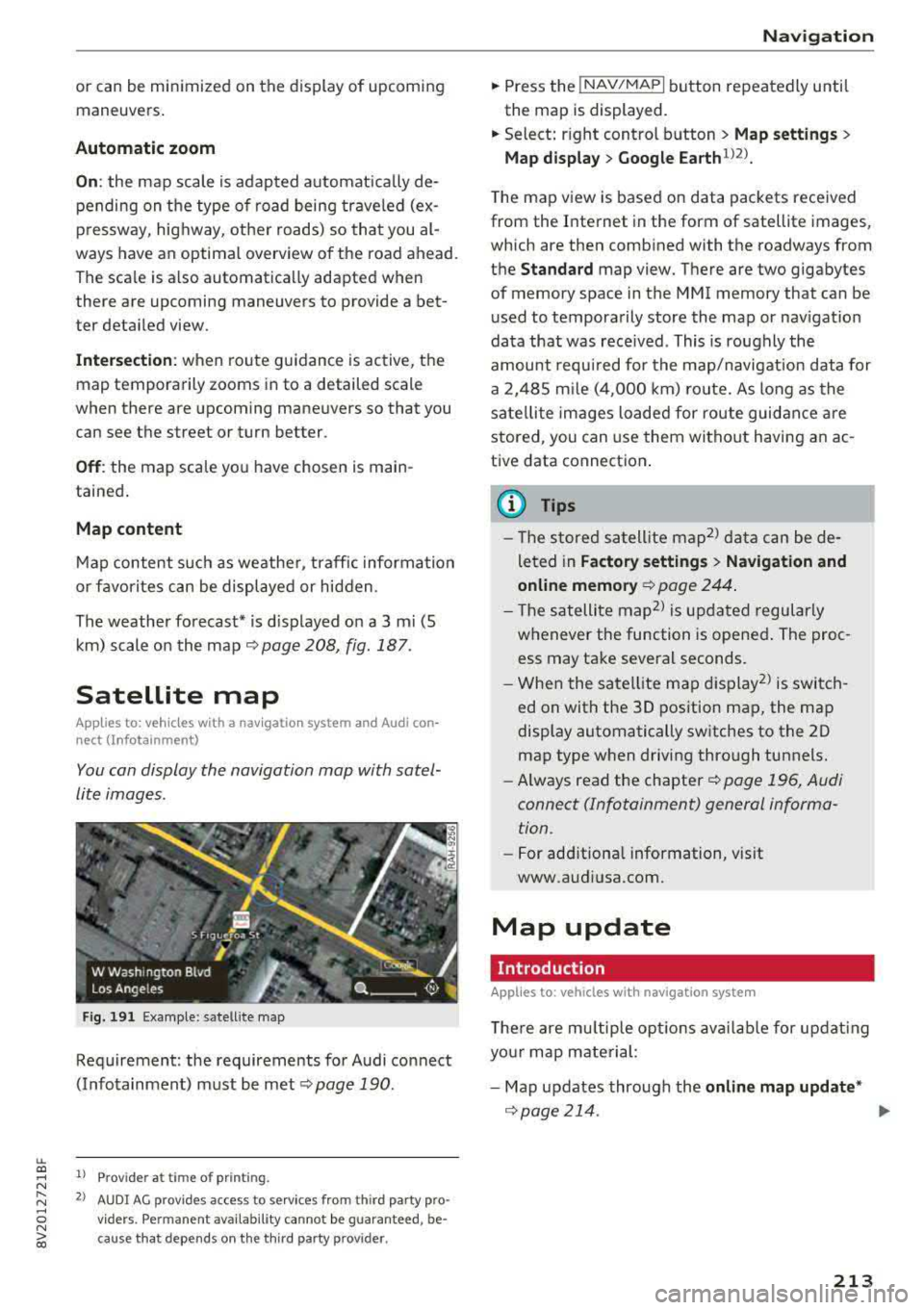
You can display the navigation map with satel
lite images .
Fig. 191 Example: satellite map
Requirement: the requirements for Audi connect
(Infotainment) must be met
¢ page 190.
1> Prov ider at time of printing .
2> AUDI AG provides access to se rvices from th ird party pro ·
v iders . Pe rman ent ava ilability cannot be guaran teed , be
c ause that depe nds on th e th ird party provider.
Na viga tion
.. Press the !NAV/MAPI button repeatedly until
the map is displayed.
.. Select: r ight control b utton > M ap settings >
Map displa y> Google Earth ll2l_
T he map v iew is based on data packets received
from the Internet in the form of satellite images,
which are then combined with the roadways from
the
Standard map view. There are two gigabytes
of memory space in the MMI memory that can be
u sed to temporarily store the map or nav igat io n
data that was received . This is roughly the
amount requ ired for the map/navigation data for
a 2, 485 m ile ( 4,000 km) ro ute. As long as the
sate llite images loaded for route guidance are
stored, you can use them witho ut having a n ac
tive data connection .
(D Tips
- The sto red sa tell ite map2> d ata can be de
leted in
Factory setting s> Navigation and
online memory ¢
page 244.
- The s atellite map2> is updated regularly
whenever the function is opened . The proc
ess may take several seconds.
- When the satellite map d isplay
2> is switch
ed on with the 30 position map, the map
display automatically sw itches to the 20
map type when driving through tunnels.
- Always read the chapter¢
page 196, Audi
connect (Infotainment) general informa tion .
-For add itiona l information, v is it
www.audiusa.com.
Map update
Introduction
Applies to: vehicles wi th navigat ion syste m
The re are mu ltip le opt io ns avai lab le for updat ing
yo ur map mate rial:
- Map updates through the
online map upd ate *
¢page 214 . ..,_
213
Page 216 of 404
Navigation
-Import map updates from the SO card* to your
MMI. You can find additional information on
li ne at www.audiusa.com/myaudi.
-Map update at an authorized Audi dealer or au
thorized Audi Service Facility. This can result in
additional costs.
Online map update
Applies to: vehicles with a navigation system and Audi con
nect (Infotainment)
Using the online map update, you can update
the map material in your navigation system di
rectly from your vehicle.
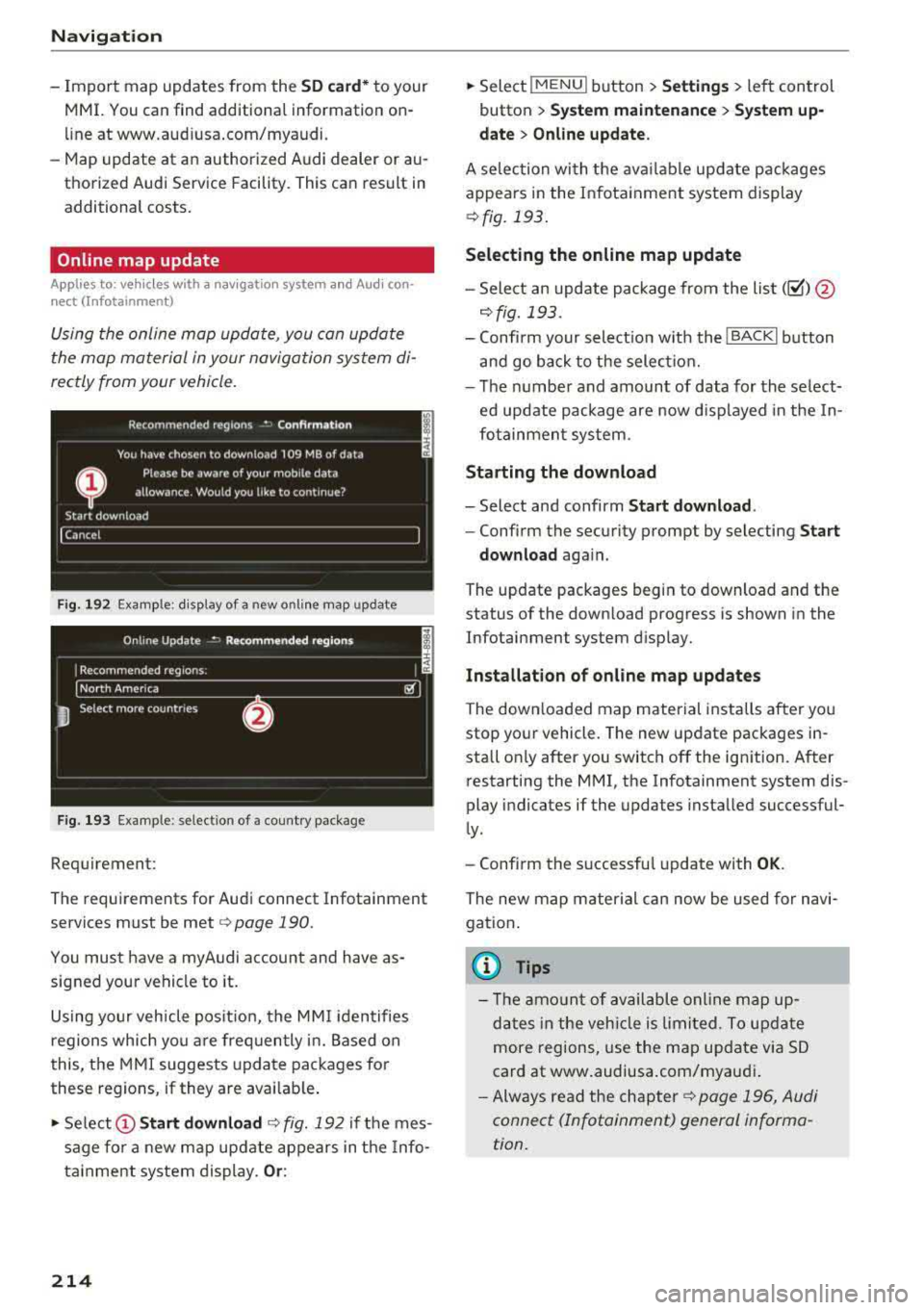
Fig. 192 Exa mple: disp lay of a new onl ine map update
Fig. 193 Example : select ion of a country package
Requirement:
The requirements for Audi connect Infotainment
services must be met
r=> page 190.
You must have a myAudi account and have as
signed your vehicle to it.
Using your vehicle position, the MMI identifies
regions which you are frequently in. Based on
this, the MMI suggests update packages for
these regions, if they are avai lable .
• Select @Start download c> fig. 192 if the mes
sage for a new map update appears in the Info
tainment system display.
Or :
214
.. Select !MENUI button> Settings> left control
button >
System maintenance > System up
date > Online update.
A selec tion with the available update packages
appears in the Infotainment system display
¢fig. 193.
Selecting the online map update
-Sele ct an update package from the list(~) @
r=>fig. 193.
-Confirm your select ion w ith the ! BACK I button
and go back to the select ion.
-The number and amount of data for the se lect
ed update package are now displayed in the In
fotainment system.
Starting the download
-Select and confirm Start download .
-Confirm the security prompt by selecting Start
download
again.
The update packages begin to download and the
status of the down load progress is shown in the
Infotainment system display.
Installation of online map updates
The downloaded map material installs after you
stop your vehicle. The new update packages in
stall on ly after you switch
off the ign ition. After
restarting the MMI, the Infotainment system dis
play indicates if the updates installed successful
ly.
-Confirm the successful update with OK.
The new map material can now be used for navi
gation.
{i) Tips
-Th e amount of available on line map up
dates in the vehicle is limited. To update
more regions, use the map update via SD
card at www.audiusa.com/myaudi .
-Always read the chapter c> page 196, Audi
connect (Infotainment) general informa
tion.
Page 217 of 404
Accessing traffic information
Traffic information (TMC)
Appl ies to: vehicles with navigation system
.,. Press the I NAV /MAPI button repeatedly until
the map is displayed .
.,. Select : left control button > Traffic messages .
An overview of all the traffic messages is dis
p layed in the Infotainment system. Traffic inci
dents on your route are shown in the upper sec
tion of the list, sorted according to distance.
-Displaying all traffic messages for a street/
highway :
select and confirm the[] symbo l. A
li st of a ll the traffic messages for the selected
street/h ighway is displayed.
-Opening a detailed view of traffic information :
select and confirm the traffic information from
the list.
-Displaying the selected traffic information on
the map :
select the right control button >
Show on map . The shaded line shows the
street and the length of the traffic jam.
-Displaying the next traffic message on the
map:
press the control knob.
Traffic information display
Colored warning symbols:
traffic incidents on
your route are shown in the upper section of the
list and are sorted according to distance.
Warning symbols with~: avoided traffic inci
dents.
Grayed out warning symbols: traffic incidents
that are not on yo ur route. They are sorted ac
cording to road type (expressway, hig hway, othe r
road), country and name.
(D Tips
-Critical traffic informa tion, such as warn
ings about wrong- way drivers, is automati
ca lly displayed . To hide the traffic informa
tion, press the
I BACK I button or the control
u. knob. 00 .-< ~ -TMC traffic reports are not avai lab le in Can -
~ ada. For more information, please contact 0
~ Sirius Canada. 00
Navigation
Better route
Applies to: vehicles with navigation system
By receiving traffic information through TMC,
your MMI calculates a better route -if available -
and the possible time saved for the current route
guidance. You can decide yourself which route
you would like to use.
.,. Press the INAV/MAPI button repeatedly until
the map is displayed.
Requirement: route guidance must be active.
If your MMI has ca lculated a better route than
the current route guidance, the message
A better
route is available.
appears for several seconds
along with the time that may be saved . A better
route is ind icated in the map view by the symbol
rS ~page 210, fig. 190 .
Apply better route
-Press the right control button.
-Select and confirm the better route. Or: select
and confirm
Details to display details about the
optimized route. You can zoom in or out on the
map using the MMI touch control pad. Require
ment : there must be more than one opt im ized
route calculated. Press the control knob to
sw itch to the next route in the detailed view.
Closing the detailed view: press the I BACKI
button.
-The better route is used for the remaining
route guidance and the route is recalcu lated.
215
Page 218 of 404
Navigat ion
Online traffic information
A pp lies to: ve hicles w ith a nav igat io n system a nd Audi con
n ect (I nfotainment)
The MMI con receive real-time online traffic in
formation about congestion, accidents, rood
construction and other incidents.
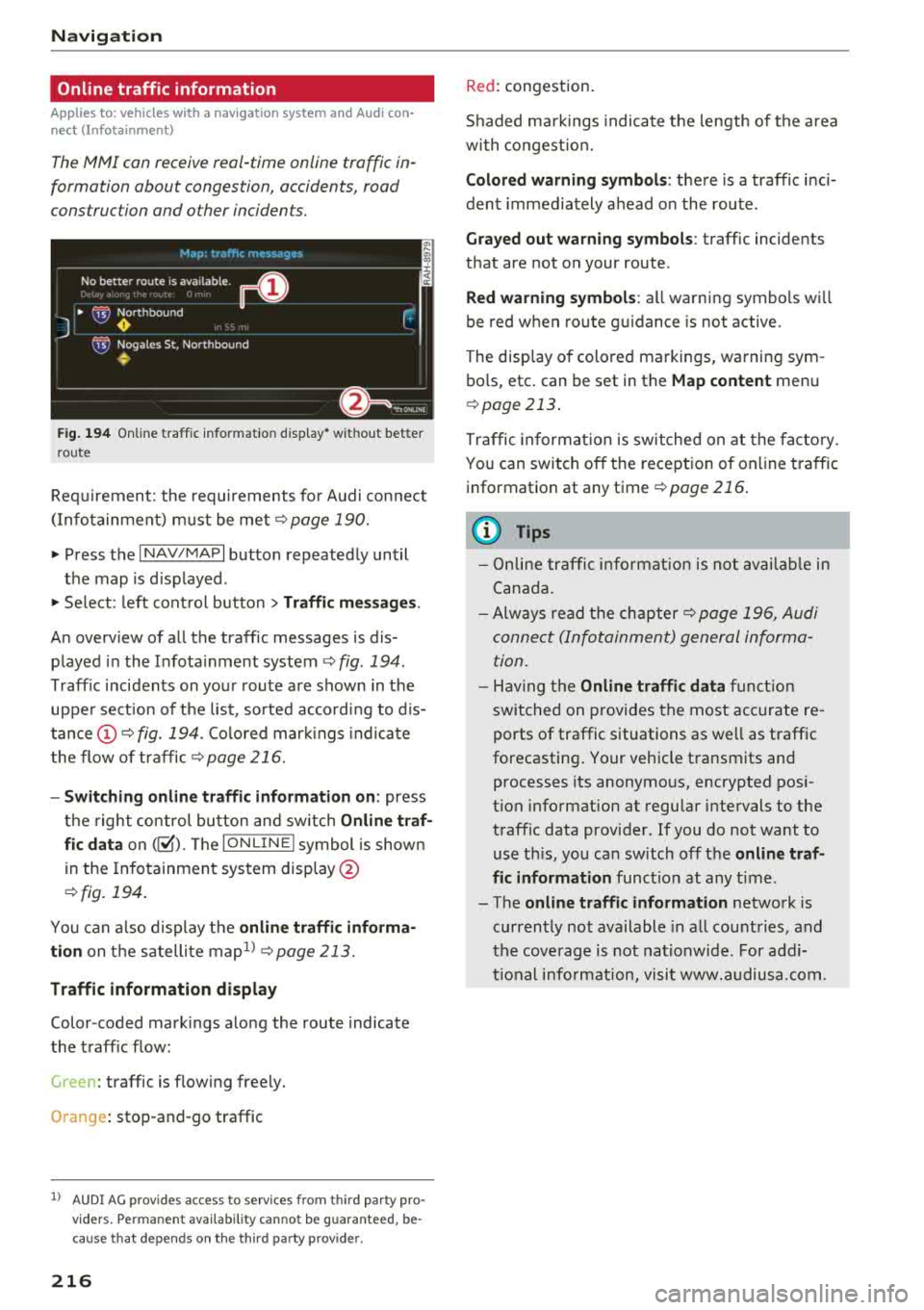
F ig . 1 94 Online traffic info rmatio n disp lay* wit hout better
r oute
Requ irement: the requirements fo r Audi connect
(Infotainment) m ust be met
¢ page 190.
.,. Press the I NAV/MAPI button repeatedly until
the map is d isp layed .
.. Select : left cont rol button > Traffic me ssages.
An overv iew of all the traffic messages is dis
played in the I nfota inment system
¢ fig . 194.
Traff ic incidents on your route are shown in the
uppe r sect ion of the list , sorted acco rd ing to dis
tance @¢ fig. 194. Colored mar kings indicate
t he flow of traffic ¢
page 216.
-Switching online traffic information on : press
t h e right control button and sw itch
Online tr af
fic data
on (@'). Th e I ON LINE ! symbol is show n
in the Infotainment system display @
¢fig. 194 .
You can a lso display the online traffi c inf orma
tion
on t he sa tellite map1l ¢ page 213.
Traffic information display
Color-coded mark ings along the route indicate
the t raff ic flow:
Green : traffic is flowing freely.
Orange : stop -and -go traffic
ll AU DI AG p rovides access to se rvices fro m third part y p ro
v iders. Pe rmane nt ava ila bility ca nnot be g uar an teed , be
c a use that depen ds on the th ird party p rov ide r.
216
Red : congestion.
S haded mark ings indicate the length of t he a rea
with co ngest io n.
Colored warning symbol s: there is a traffic inc i
dent immediately ahead o n the route .
Grayed out warning s ymbol s: traffic incidents
that are not o n your route .
Red warning symbol s: all warning symbols wi ll
be red when route gu idance is not active.
The disp lay o f colored markings, wa rning sym
bo ls, etc . can be set in the
Map content menu
¢ page 213 .
Traffic informat ion is switched on a t the facto ry.
You can switch off the recept ion of on line traffic
information at any time
¢ page 216 .
(D Tips
- Online tr affic informat io n is not ava ilab le in
Canada .
- Always read the ch apter¢
page 196, Audi
connect (Infotainmen t) general informa
tion.
- Having t he Online traffi c data fu n ct io n
switched on provides the most acc urate re
ports of traffic situations as we ll as traffic
forecasting . Your vehicle t ransmits and
processes its anonymo us, encrypted posi
t ion info rmation at regular i ntervals to the
traffic data provider. If you do not want to use t his, you ca n sw itch off the
online traf
fic information
funct io n at any time .
- The
online traffi c information network is
c u rrent ly not available in a ll cou ntries, and
the coverage is not nationw ide. For add i
t ional i nfo rm ation, visit www.a udiusa. com.
Page 224 of 404
Radio
The following settings can be se lected, depend
ing on the band that is se lected :
Station names (FM )
Variabl e:
scrolling text tra nsmi tted by the FM
s tat ions is shown in the Infotainment system d is
p lay .
Fixed : scrolling text transm itted by the FM sta
tions is not s hown in the Infota inment system
d isp lay. O nly the cu rrent sect io n of the scro lling
text is d isplayed.
FM /AM HD Radio*
You can sw itch HD Rad io recept ion on o r off .
Channel sorting (Sirius XM *)
You can set the station so rting for SiriusXM sta
tion lists* by:
- Channel number: the channe ls are sorted in as
cending order according to their channel num
ber.
- Channel name : the channels are listed in alpha
betica l order.
- First categor y, then channel number : the
c h annels are sorted by their category and then
by the ir channe l numbers .
-First categor y, then channel name : the sta
tions are sorted by th eir cat egory and then by
their channe l names.
Categor y filter (SiriusXM *)
The stations s hown in t he s ta tion lis t can be fi l
tered by your pe rsonal prefe rences and by pro
gram type. The program categories that yo u can
select depend on what is offered by yo ur provid
er. Select the
All categor ie s option to deactivate
all filter options and display all ava ilable stations
in the satellite station list .
Troubleshooting
Problem Solution Show "Now Playing" screen
When
the functi on is swi tched on~ and the st a
tions o r presets list is open, the disp lay w ill
switch to the
Show "Now Playing " sc reen view
after approximate ly five seconds
¢ page 220 . De
pending on availab ility, information about the
set stat ion (such as stat ion name, artist and sta
tion logo) may be d isplayed in this view.
Pr efe rred picture vi ew*
You can set your preferred screen view for the
Show "Now Pla ying " screen ¢ page 220.
-Station logo : the station logo is displayed, de
pending on availability .
-Cov er art : the album cove r is d isplayed if availa
ble.
Gracenote online database *
Requirement: the MMI must be connected to the
Internet. The
Cover art opt ion must be selected
¢ page 222, Pr eferred picture vi ew *.
When the funct io n is switched on~, the album
cover or genre cover for the so ng that is p lay ing
i s loaded from t he Gracenote online database,
depend ing on ava ilability.
Subscription status (SiriusXM )*
This opt io n is available when your subscr ipt ion is
about to expire or has already expired . The expi
r ation date fo r your license is displayed .
Call to SiriusXM *: the contact information for
your sate llite rad io provider is displayed . To call
your sate llite rad io provider using the MMI, press
Call to Siriu sXM*.
A station with poor reception is no longer Store the stat io n as a preset in advance . Access the pre-
displayed in the station l ist once you sets using the presets list
¢ page 221 .
switch to a d ifferen t sta tion.
222
Page 229 of 404
u. 00 ... N l' N ... 0 N > 00
The media is started and operated through the
mobile device or the
MMI, depending on the de
vice being used.
(D Tips
-Check for any connection requests on your
Bluetooth device.
-Multiple Bluetooth audio players can be
connected to the
MMI, but only one mobile
device can be active.
-Bluetooth protocols AVRCP (1.0/1.3/1.4)
and A2DP are supported.
-Note the volume setting on your Bluetooth
device. Audi recommends setting your mo
bile device to the maximum volume when
using it as a Bluetooth audio player.
-The supported media functions (such as
shuffle) depend on the Bluetooth device be
ing used.
-For more information on the supported de
vices, visit www.audiusa.com/bluetooth or
contact an authorized Audi dealer or author ized Audi Service Facility.
Wi-Fi audio player
Appl ies to: ve hicles with Wi-F i audio playe r
Using the Wi -Fi audio player media source on the
MMI, you can connect and operate your Wi-Fi-ca
pable media player (such as a smartphone) to
wirelessly play music from your media player
li
brary. The media player is connected through the
vehicle's Wi-Fi hotspot. A UPnP Server opp or an
integrated UPnPIDLNA server on your media
player is required to access your media player
li
brary.
Requirement: the Wi-Fi function on your media
player must be switched on. The
Audi MMI con
nect
app or a UPnP server app must be installed
on your media player .
Or: you must be using a
media player with an integrated UPnP/DLNA
server.
-Connecting a media player: press the I MEDIA !
button. Press the left control button until the
sources overview
c::;, page 232 is displayed. Se
lect and confirm
Wi-Fi audio player 0
c::;,page 232, fig . 209 .
Media
-If necessary, select and confirm Wi-Fi turned
off> Turn on Wi-Fi
to activate Wi-Fi in the
MMI. Select
Wi-Fi settings, if necessary. Select
the same settings on the wireless media player
that are used for the Wi-Fi hotspot.
-Starting the Wi-Fi audio player: start the Audi
MMI connect
app or a UPnP server app, or set
media permissions on your media player.
Operating the media player: the media player is
operated through the MMI.
-Press the left control button repeatedly until
the
Folders menu item appears. Select and con
firm
Folders.
-Playing music from the media player: select
and confirm
Media center .
Web radio:
see c::;, page 228 .
A WARNING
-
-As the driver, do not allow usage of the Wi
Fi hotspot to distract you from driving, as
this could increase the risk of an accident.
-It is only safe to use tablets, laptops, mo
bile devices and other similar devices when
the vehicle is stationary because, like all
loose objects, they could be thrown around
the inside of the vehicle in a crash and cause
serious injuries. Store these types of devices
securely while driving.
-Do not use any wireless devices on the front
seats within range of the airbags while driv
ing. Also read and follow the warnings in
c::;, page 2 73, Front airbags.
@ Note
Always follow the information found in ¢@ in
Wi-Fi hotspot on page 195.
(D Tips
-Always read the chapter c::;, page 196, Audi
connect (Infotainment) general informa
tion.
-Please note that a Wi-Fi connection does
not automatically make it possible to use
the Internet. For additional information,
see
c::;, page 190.
227