navigation system AUDI A4 2017 User Guide
[x] Cancel search | Manufacturer: AUDI, Model Year: 2017, Model line: A4, Model: AUDI A4 2017Pages: 386, PDF Size: 96.32 MB
Page 105 of 386
<( a, .... N ,....
N .... 0 0
3 a,
Indicator in the instrument cluster display
When the adaptive cruise control is switched on
for the first time, th e availability of predictive
control is displayed in the status line with the m essage
ACC: 1111 + B active.
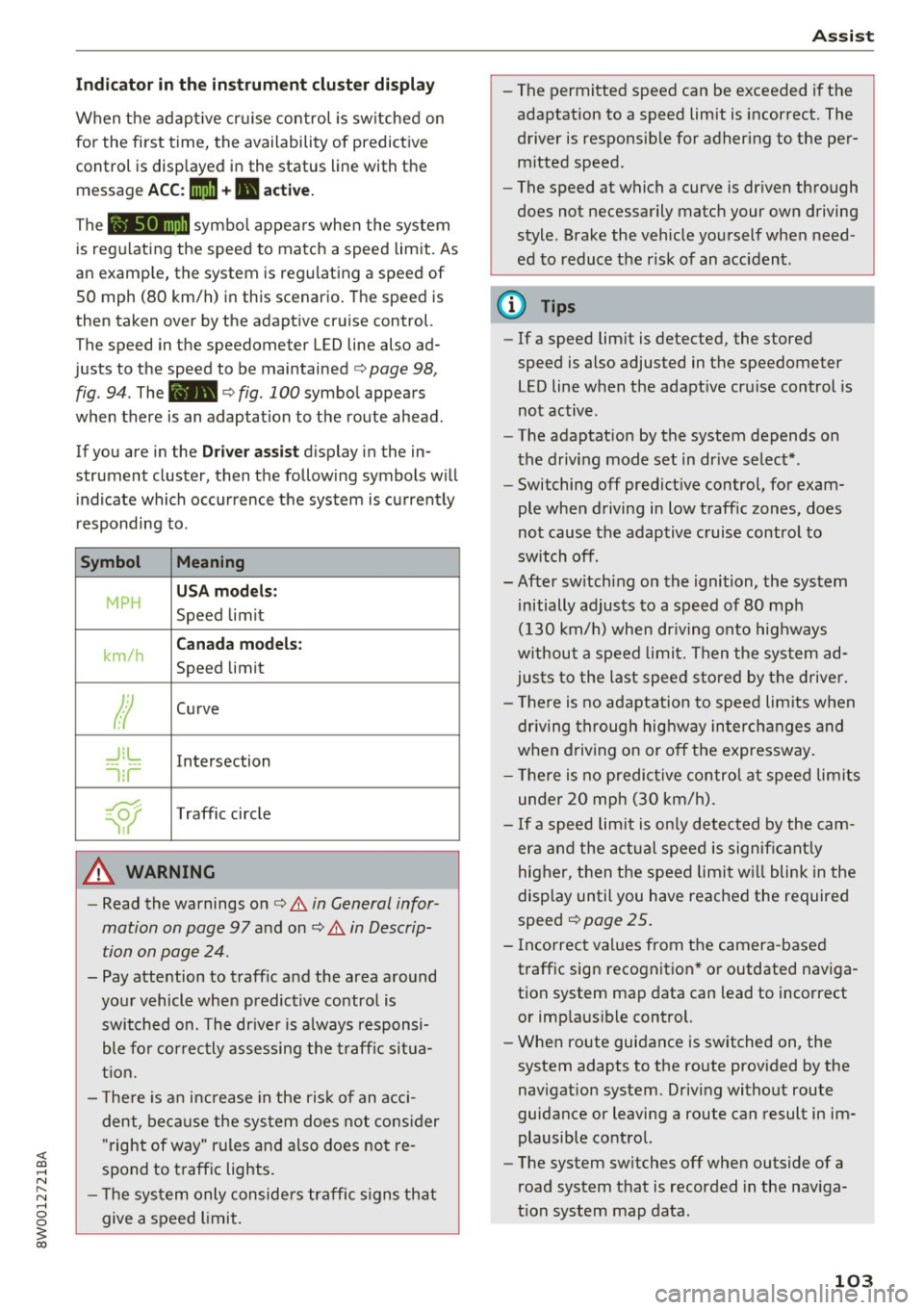
The symbol appears when the system
is regulating the speed to match a speed limit. As
an example, the system is regulating a speed of
50 mph (80 km/h) in this scenario. The speed is
then taken over by the adaptive cruise control.
The speed in the speedometer LED line also ad
justs to the speed to be maintained
c::> page 98,
fig .
94. The 111B c::> fig . 100 symbol appears
when there is an adaptation to the route ahead .
If you are in the
Driver assist display in the in
strument cluster, then the following symbols will indicate which occurrence the system is currently
responding to .
Symbol Meaning
MPH
USA models:
Speed limit
km/h
Canada models:
Speed limit
Ir
Curve
_J!L
-1:r
Intersection
~
Traffic circle
A WARNING
- Read the warnings on c::> & in General infor
mation on page 97
and on c::> & in Descrip
tion on page 24 .
- Pay attention to traffic and the area around
your vehicle when predictive control is switched on. The driver is always responsi
ble for correctly assessing the traffic situa
tion.
- There is an increase in the risk of an acci
dent, because the system does not consider
"right of way" rules and also does not re
spond to traffic lights .
- The system only considers traffic signs that
give a speed limit.
Assist
- The permitted speed can be exceeded if the
adaptation to a speed limit is incorrect. The
driver is responsible for adhering to the per
mitted speed.
- The speed at which a curve is driven through
does not necessarily match your own driving
style . Brake the vehicle yourself when need
ed to reduce the risk of an accident.
(D Tips
-If a speed limit is detected, the stored
speed is also adjusted in the speedometer
LED line when the adaptive cruise control is
not active.
- The adaptation by the system depends on
the driving mode set in drive select* .
- Switching off predictive control, for exam
ple when driving in low traffic zones, does
not cause the adaptive cruise control to
switch off .
-After switching on the ignition, the system
initially adjusts to a speed of 80 mph
(130 km/h) when driving onto highways
without a speed limit. Then the system ad
justs to the last speed stored by the driver.
- There is no adaptation to speed limits when
driving through highway interchanges and
when driving on or off the expressway.
- There is no predictive control at speed limits
under 20 mph (30 km/h).
- If a speed limit is only detected by the cam
era and the actual speed is significantly
higher, then the speed limit will blink in the
display until you have reached the required
speed
c::> page 25.
- Incorrect values from the camera-based traffic sign recognition* or outdated naviga
tion system map data can lead to incorrect
or implausible control.
- When route guidance is switched on, the
system adapts to the route provided by the
navigation system. Driving without route
guidance or leaving a route can result in im
plausible control.
- The system switches
off when outside of a
road system that is recorded in the naviga
tion system map data.
103
Page 143 of 386
Multi Media Interface
Traffic safety information
Audi recommends performing certain Infotain
ment system functions, such as entering a desti
nation, only when the vehicle is stationary . Al
ways be prepared to stop operat ing the Infotain
ment system in the interest of your safety and
the safety of other road users.
A WARNING
Only use the Infotainment system when traf
fic conditions permit and always in a way that
allows you to maintain complete control over
your vehicle.
Introduction
The Multi Media Interface , or MMI for short ,
combines various systems for communication,
navigation* and entertainment in your Audi. You
can operate the MMI using the MMI control pan
el, the multifunction steering wheel or the voice
recognition system* .
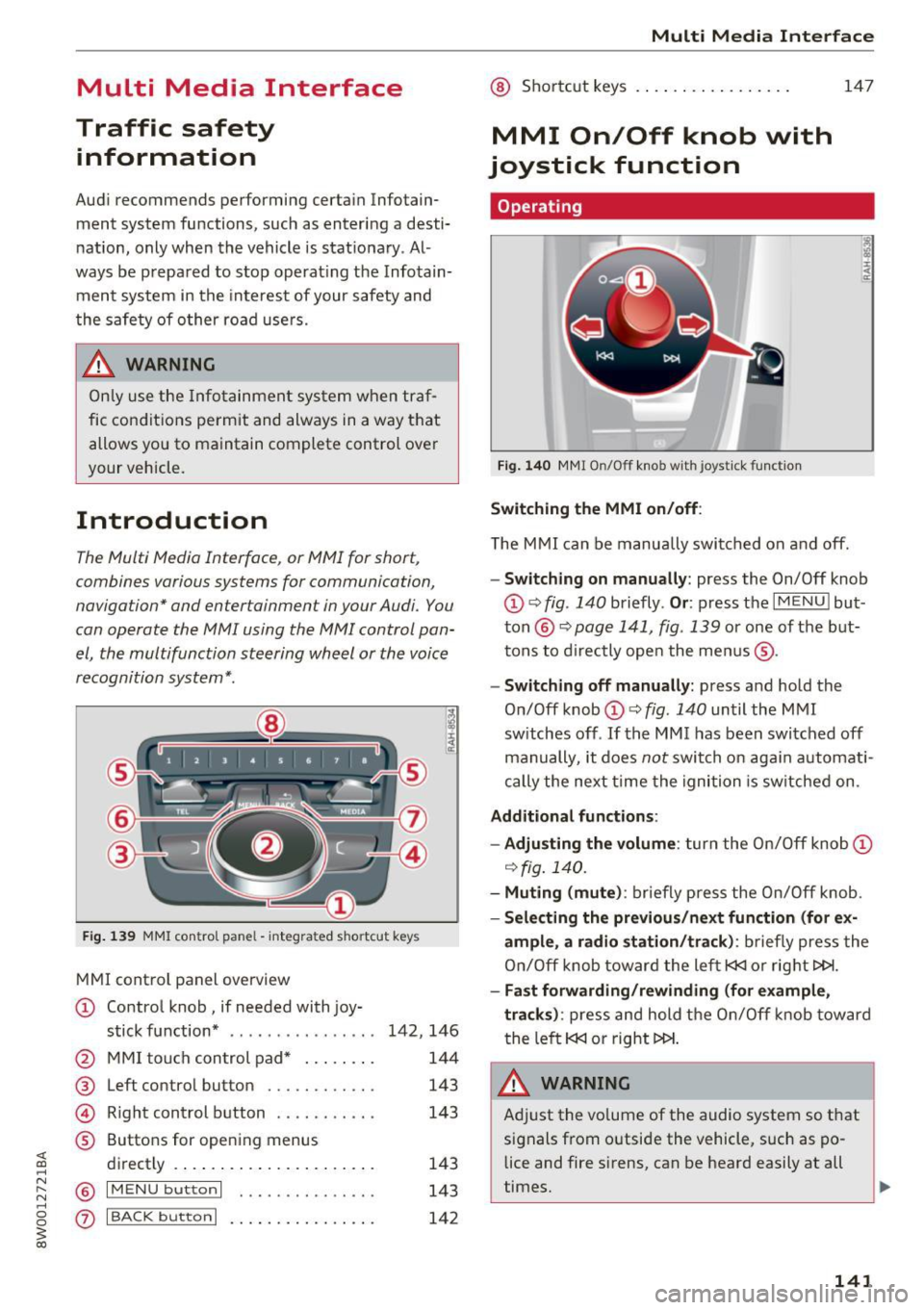
Fig. 139 MMI control pane l - integra ted shortcut key s
MMI control panel overview
CD Control knob, if needed with joy-
stick function* . . . . . . . . . . . . . . . . 142, 146
@ MMI touch control pad* . . . . . . . . 144
® Left control button . . . . . . . . . . . . 143
@ Righ t control button . . . . . . . . . . . 143
® Buttons for opening menus
directly . . . . . . . . . . . . . . . . . . . . . . 143
@ IM ENU button I . • . . . . . . . . . . . . . 143
(z) I BACK button I . . . . . . . . . . . . . . . . 142
Multi Media Interface
@ Shortcut keys . .. . ............ .
MMI On/Off knob with
joystick function
Operating
Fig. 140 MMI On/Off knob with joystick function
Switching the MMI on/off:
147
T he MMI can be manually switched on and off.
-Switching on manually: press the On/Off knob
CD ~ fig . 140 briefly . Or: press the I MENU I but
ton @~
page 141, fig . 139 or one of the but
tons to directly open the menus ®·
-Switching off manually: press and hold the
On/Off knob
CD ~ fig . 140 until the MMI
sw itches off .
If the M MI has been switched off
manually, it does
not switch on again automati
cally the next time the ignition is switched on.
Additional functions :
- Adjusting the volume :
turn the On/Off knob CD
~fig.140.
- Muting (mute): briefly press the On/Off knob.
-Selecting the previous/next function (for ex-
ample, a radio station/track):
briefly press the
On/Off knob toward the left
l«J or right t>!>I.
-Fast forwarding/rewinding (for example,
tracks) :
press and hold the On/Off knob toward
the left
l«J or right t>!>I.
A WARNING
Adjust the vo lume of the audio system so that
signals from outside the vehicle, such as po
lice and fire sirens, can be heard easily at all
times.
141
Page 146 of 386

Multi Media Interface
MMI touch
Entering letters, numbers and symbols
Applies to: ve hicles w ith MMI touch
The MMI touch allows you to enter data on the
MMI touch control pad using handwriting recog
nition.
F ig. 146 Display when MMI touch is active
Fig. 147 Entering navigation destination us ing MMI touch
The MMI touch control pad is located on the con
trol knob ¢
fig. 147 .
Requirement: it must be possible to enter text or
numbers and the symbol CD¢
fig. 146 must ap
pear in the Info tainment sys tem.
- Initial entry: write an individual upper case or
lower case letter or numbers/characters on the
MM I touch control pad using yo ur finger. A
character recognized by the system w ill appear
in the Infotainment system display @
144
¢ fig. 147 and it will confirm with an audio sig
nal, if necessary, and transfer the character to
the input field.
- Entering spaces: move your finger across the
MMI touch control pad from left to right.
-Deleting characters: move your finger across
the MMI touch contro l pad from right to left.
-Selecting the input suggestion: press the con
trol knob.
- Switching directly to the results list : turn the
control knob to the right
-Open speller: select the right control button>
Open speller. T ext or numbers are entered in
using the speller
¢page 148.
Moving the crosshairs
Applies to: vehicles wit h MMI touch
Sl-,guMoaSt
l
Fig. 148 Moving the crossha irs
Requirement: a map must be displayed
¢page 196.
-Showing/hiding the crosshairs: press the con
trol knob to show the crosshairs CD¢
fig. 148.
Press the I BACKI button (J) to hide the cross
hairs again
¢ page 141, fig. 139.
-Moving the crosshairs on a map: move the visi-
ble crosshairs in the desired direct ion using ..,.
Page 154 of 386

Voice recognition system
• Telephone
• Audi connect •
Favorites
• Call (XV)
• Navigation
• Directory
• Radio
• Media
• Sound •
Enter number
• Redial
• Read new text message
• Navigate to
(XY)
• Enter address/destination
• Help • Online destinations
• Help Speech dialog system
• Help Telephone •
Cancel route guidance
• Map
• Help Audi connect •
Line (XV)
• Help Navigation
• Help
Map
• Help Radio •
Next page
I previous page
• Cancel
• No. I meant (XV)
• He lp Media • Correction
TE ,EPflON ~
• Enter number • Call list
• Delete number/ correction • Redial
• Directory
• Call (XV) •
Call mailbox
• Enter PIN/ delete PIN
· business/ private/ land tine
I mobile • Telephone favorites
• Nav igate to contact (XV)
•Business address
I Pnvate address •
Block route for (XV) miles
I Block
the next section
• Start
I cancel route guidance
• Directory
• Last destinations • Route
list
• Calculate alternative routes
• Online destinations
• Nav igation favorites
• Drive home •
Special destination
• Enter address
• Enter country/ town / street / state
• Exclude route/ Exclude route for (XV) km/ m
• Map
• Day map/ Night map
• 2D driving position map/ 20 north position map/ 3D map/ Destination map/ Overview map
Al!IDI
• Audi connect
• Travel information/ Parking Information
• Fuel prices
• Weather
RADIO
• Radio presets
• Last stations
• FM
• FM / AM / SIRIUS XM
• Station (XV) / Frequency (XV)
• Traffic announcement on
I off
Fig. 156 Comm and overv iew
152
• Flight Information
• City events
• Online news
• Twitter
MEDIA
• Jukebox
• CO
I DVD
• SD card
l / SD card 2
• Audi music interface/ I Pod / USB / Bluetooth /
WI -Fl/ Medium (XV)
• Media favorites
I Artists / Albums / Genres /
Tracks
I Playtlsts / Videos
• Folder up
• Random playback on / off
Page 156 of 386

Voice recognition system
Command overview information
Applies to: vehicles with voice recognition system
The fo llow ing ove rviews describe t he commands
that ca n be used to operate the MMI using the
voice recognition system .
A lternat ive commands are separated using a"/",
for example say:
Telephone / (or) Navigation /
(or) Radio.
Commands
Global commands
Applies to: vehicles with voice recognition system
You can a lways use the global commands, re
gardless of the men u selected.
Function
Say:
Sequences of commands used to perform an ac
tion are identified with a">", for example say:
Ente r addre ss > (then) Enter countr y/state.
The ma jo rit y shown are ma in commands . T his
system a lso recognizes synonyms in certain cas
es . For a
bus iness add res s, you can also say bu si
ness , work , office or at the office .
Opening a menu Telephone / Director y/ Navigation / Rad io / Media / Audi con-
nect *
I Car/ Tone
Hav ing the possible commands Help / Help spe ech dialog system I Help Telephone /
read aloud H elp Navigation / Help Map / Help Radio / Help M edia / Help
Audi connec t*
Telephone functions Call (XV) , for example Call "John Smith" /
Enter number / Redial / Directory / Read out new te xt mes-
s age
I Read out n ew e-ma il
Navigation functions* Dri ve me to (XV) or Navigate to (XV) , for example Navigate to
" John Smith "
Ente r addre ss / Canc el route guidance / Map / Onl ine destina -
tions *
I Online destinatio n (XV)*
Access ing favorites Favorit es > follow the system prompts
Selecting an entry from a list Line (XV)
Scro lling thro ugh a list Next page / Pre viou s page
Correcting the command given Corr ect ion
Swi tching the voice recogn ition sys -Cancel
tern off
Telephone
Applies to: vehicles with voice recognition system and telephone
Requirement: a cell phone must be connected to
the MMI
<=> page 160 and the Telephone menu
m ust be open
r=> table on page 154.
154 You can say the following commands depend
ing
o n the selected menu item :
IJ,,
Page 158 of 386

Voice recognition system Function Say:
Search areas for Aud i connect (Info- Near destination / Nea rby / In new city
ta inment) services
C orrecti ng data inp ut No I meant
(XV )
{l) Tips
Always read the chapter¢ page 178, Audi
c onnect (Infotainmen t) information.
Messages (Audi connect (Infotainment))
Applies to: vehicles with voice recognition system and Audi connect (Infotainment)
Requirement: a cell phone w ith an active MAP
(Message Access Profi le) must be connected to
the MMI
¢ page 165.
Function
T ext editing commands
Readi ng out a new message
Reading a message
Replying to the open tex t message
Forward ing the open text message
Co rrect ing data inp ut
(D Tips
Say:
Read out / Ad d / Delete / Reco rd e ver ything again / Replace
with (XV)/ Add recipient / Send
R ead out new text mes sag e/ Read out new e-mail
Read out te xt message / Read out e -mail
R eply
Forward
> Add recipient / Insert t emplat e/ Send
No I meant (XV)
or contact your a uthorized Aud i dea ler or
authori zed A udi Servi ce Fac ility.
- Fo r more inform ation on suppo rted ce ll
phones, v is it www .audiu sa .com /bluetooth -
Always read the chapter¢
page 178, Audi
connect (Infotainment) information.
Navigation
Applies to: vehicles with voice recognitio n system and navigation system
Req uiremen t: the Navigati on men u m ust be
open ¢
table on page 154 .
You can say the following commands for entering
a destination depending on the se lec ted men u
item:
Function Say:
Open ing the list of previous naviga -
La st destinations
t ion destinations
Access ing favorites Navigat ion favorites
Selecting the home address Home addre
ss or Drive home
Ente ring a n add ress with guidance Enter address
> follow the system prompts
from the system
Individual commands for entering a Enter country / Ente r city/ Ent er ZIP code / Enter street
I E n-
destination ter house n umber
156
Page 159 of 386

<( a, .... N ,....
N .... 0 0
3 a,
Voice recognition system
Function Say:
Making a correction wh ile entering a Correction
destination
Navigating to a contac t Drive me to (XV ) or Navigate to (XV) , for example Drive me to
"John Smith"
Navigating to a specific address for Navigate to (contact ) business / pr ivate ,
a contact for example, "Navigate to John Smith private"
Navigating to favorites Nav
igation favo rites > Line (XV)/
Line contents > Start route
guidance when prompted
Sta rt ing route g uidance with an ad- Navigate / Navigate to private addre ss / Navigate to bu siness
dress card open address
Ente ring a new destination/stop- Enter address>
enter the desired address when prompted>
over when route gu idance is active confirm the new destination/stopover if prompted
Sta rt ing rou te gu idance a fter enter- Start route guidan ce
ing a dest ination
Canceling current route gu idance Cancel route guidance
Calcu lating a lternative routes Calculate alternative route
s
Ente ring a point of interest by se- Point of interest > Change search area
> category or subcate-
le ct ing a s earch a rea with guidance gory when prompted, for example " restaura nt"
from the system
Dest ination input categor ies Audi Service / Train station /Airport / Hotel / Hospital / Park-
ing / Rest area I Restaurant / Gas station, etc.
Search areas for en te ring points of Nearby/ Along the route / Near destination / Near stopover /
in terest In new city/ In new state or country
E nte ring an online destination* Online destination (XV) , for examp le "Online de stination
"Lakeview Hotel" "
Correcting data inp ut No I meant (XV)
Clos ing the full-sc reen command Close
list
Re quireme nt: you must be in the Navigation or
Map menu . You ca n say the fo llow ing comma nds
for mo re set tings i n Navig ation:
Function Say:
Genera l map options Map/ Day map / Night map / Automatically change map color
Map type 2D head
ing up map / 2D north up map / 3D map / Destination
map / Overview map / Standard map */ Google Earth map *
S howing the rou te list Route list
Showing the remaining d ista nce/ Destination information
t ime w hen route gu idance is ac tive
Speed limit prom pt How fast can I drive here
157
Page 175 of 386
Configuration through myAudi
Activating/configuring Audi connect
(Infotainment)
Applies to vehicles with Audi connect (Infotainment)
Some Audi connect (Infot ainment) services must
be activated/configured through your personal
myAudi account before using them for the first
time.
- If you do not have a personal myAudi account
yet , you can register online at
my.audiusa.com .
-Add your vehicle to your myAudi account.
- Activate/configure the Audi connect (Infotain -
ment) services you wou ld like for your vehicle in
your myAudi account.
- For some Audi connect (Infotainment) services,
you may also have to enter your myAudi user
data or your myAudi PIN when accessing serv
ices in the MMI to connect your vehicle to
myAudi.
For detailed configuration information, refer to
my.audiusa.com .
Logging into myAudi in the vehicle
Applies to vehicles with Audi connect (Info tainment)
To use some Audi connect (Infotainment) serv
ices (such as Twitter*) , you must first connect
your vehicle with myAudi to transfer your person al settings from your myAudi account.
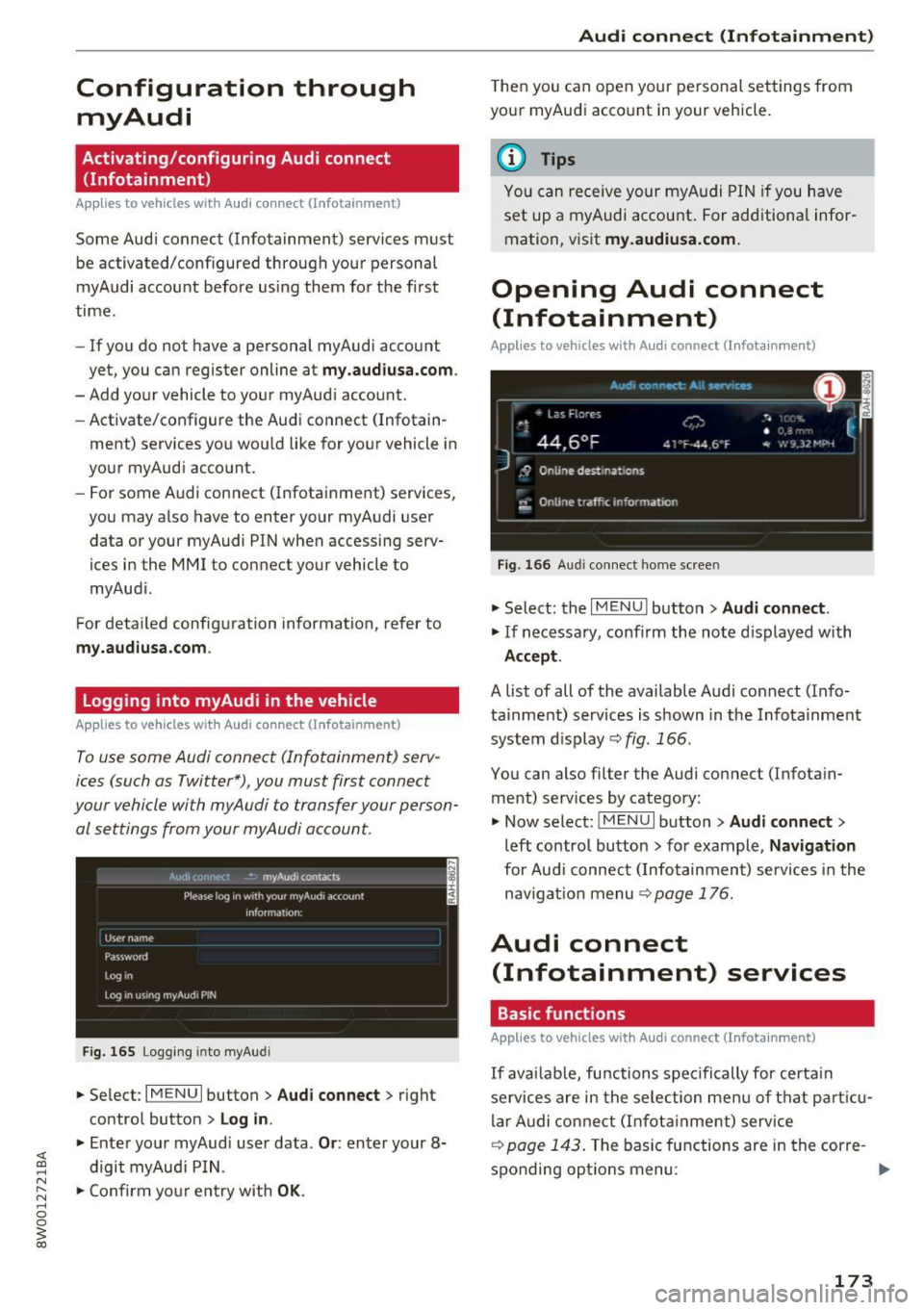
Fig. 165 Logging into myAu di
.,. Select : I MENU I button > Audi connect> right
control button
> Log in .
.,. Enter your myAudi user data . Or: enter your 8-
digit myAudi PIN .
.,. Confirm your entry with
OK.
Audi connect (Infotainment)
Then you can open your personal settings from
your myAudi account in your vehicle.
(D Tips
You can receive your myAudi PIN if you have
set up a myAudi account. For additional infor
mation , visit
my.audiusa.com.
Opening Audi connect
(Infotainment)
Applies to vehicles w it h Audi connect (Infotainment)
Fig. 166 Audi connect home screen
.,. Select: the I MENU I button> Audi connect.
.,. If necessary, confirm the note displayed with
Accept.
A list of all of the available Audi connect (Info
tainment) services is shown in the Infotainment
system d isplay
c::> fig . 166 .
You can also filter the Audi connect ( Infotain
ment) services by category:
.,. Now select:
IMENU I button> Audi connect>
left control button > for example, Navigation
for Audi connect ( Infotainment) services in the
nav igation menu
9 page 176.
Audi connect
(Infotainment) services
Basic functions
Applies to vehicles with Audi connect (Infotainment}
If availab le, functions spec ifically for certain
services are in the selection menu of that particu
lar Audi connect (Infotainment) service
c::> page 143 . The basic functions are in the corre -
sponding options menu:
IJl,,-
173
Page 178 of 386
Audi connect (Infotainm ent )
After opening the travel g uide, travel tips in your
area will be displayed including current ratings as
well as the corresponding category .
"' Press the left control button to change the cat
egory (such as bars nearby).
A WARNING
- It is only safe to use tablets, laptops, mo
bile devices and other s imilar devices when
the vehicle is stationa ry because, like all
loose objects, they could be throw n aro und
the ins ide of the vehicle in a crash and cause
serious injuries . Store these types of devices
sec urely whi le driving.
- Do not use any wireless devices on the front
seats within range of the ai rbags while driv
ing. Also read the warnings in the chapter
c::, page 236.
(D Tips
Units of measurement, language settings and
time are shown in the Infotainment system
disp lay based on how they were set in the sys
tem sett ings
e> page 229.
Audi connect (Infotainment) in navigation
Applies to: vehicles with a navigation system and Audi con
nect (Infotainment)
.. Se lect: I MENU I button > Audi connect > left
contro l button >
Na vigation.
The fo llow ing A udi connect (Infota inment) serv
ices are currently available :
- Nav igation with
o nline map vi ew and Stre et
View
c::, page 199.
- Poin t of Interest (PO I) online search with
voi ce re cognition
(such as res taurants): plan
r ou te g uidance using the MMI con trol panel
c::> page 190, Online point of interest search
(online search)
and the voice recognition sys
tem
c::> page 153.
- Set up dest inations in your M MI using your
myAud i Account or onl ine map view
c::, page 199.
- Online traffic inform ation:
receive up -to-the
minute t raffic information about accidents,
176
road construction and other incidents
c::> page 202.
- M ap upd ate:
import navigation map updates
direct ly to your vehicle using an SD card or as
an online update
c::> page 200.
(D Tips
- For the Map update Audi connect (Infota in
ment) serv ice using an SD card, check the
current software version in your vehicle and
compare it with
my.audiusa.com to see if a
new version is avai lab le. You can also have
the new navigat ion data installed by an Aud i
dealer, which can be done for an addit ional
charge.
- More informat ion on
map updates can also
be found in the
A udi connect Operat ing
Manual at
http: / /my .audiu sa.com .
Audi connect (Infotainment) on the phone
Applies to vehicles with Audi connect (Infotainment)
"'Sele ct: !MENUI b utton> Aud i conn ect> left
cont rol b utton >
C o mmuni cation .
The following Aud i connect (Infotainment) serv
i ces are currently available :
- Storing co ntacts on your computer using your
m yA udi Account and loading the contacts into
the MMI directory
c::> page 169.
Additional options
Applies to vehicles with Audi connect (Infotainment)
"'Sele ct: !MENUI b utton> Aud i conne ct > righ t
cont rol button.
The following options are available in the Aud i
connect (Infota inme nt) services overview:
Log in*
Refer to c::, page 173, Logging into myAudi in the
vehicle .
C onnection manag er
Refer to c::, page 230 .
Page 189 of 386

Navigation
Accessing navigation
A pp lies to: ve hicles with naviga tion system
The navigation system directs you to your desti
nation, around traffic incidents and on alterna
tive routes, if desired.
Fig. 169 Example: Enter destination menu
.. Press the I NAV/MAPI button.
After opening the Navigation menu for the first
time, the
Enter dest inati on menu is displayed in
the Infotainment system display with the follow
ing information:
(D I nput field for free text search 187
@ Home address . . . . . . . . . . . . . . . . 189
@ Last dest inat ions . . . . . . . . . . . . . . 188
@ Stored favorites . . . . . . . . . . . . . . . 189
As soon as yo u select an entry from the list (de
pending on the vehicle equipment), the corre
sponding destination d isplays as a map preview*
@ r::!>fig .169.
If yo u have connec ted a ce ll phone to the MMI,
your di rectory contacts will also be listed if they
have navigation data assigned to them.
The
Fav orites @¢ fig. 169 menu item as well as
the directory/contacts are only shown in the
En
t er des tinati on
menu if you have ente red one or
more characters using the input field.
Swi tching betwe en d estinati on entr y and th e
m ap :
- Press the I NAV/MAPI button repeated ly until
the map is d isplayed .
Or: select the left contro l
button
> S wi tch to map . Na
vigat ion
A WARNING
--The demands of traffic require your full at-
tention. Always read the chapter
q page 236, Driving safety.
- Obey all traffic laws when driving.
- The route calculated by the navigation sys-
tem is a recommendation for reaching your
destination. Obey traffic lights, stopp ing re
strictions, one-way streets, lane change re
strictions, etc.
(D Note
- If the driving directions conflict with traffic
laws, obey the traffic laws.
- Adjust the volume of the navigation system
so signals from outside the vehicle, such as
police and fire sirens, can be heard clearly at
all times .
(j) Tips
-Snow and obstruct ions on the GPS antenna
or interference caused by trees and large
buildings can impair satell ite recept ion and
affect the system's ability to dete rm ine the
vehicle pos it ion. Several deactivated or mal
functioning satell ites can also inter rupt GPS
recept ion and affect the system 's abili ty to
determine the vehicle position.
- Because street names somet imes change,
the names stored in the MMI may in rare cases differ from the actual street name.
Entering a destination
Free text search for destinations
App lies to: vehicles wit h nav igat ion system
With the free text search you can enter the navi
gation destination data all at once in any order
using the MMI touch control pad* or the speller
(for example, 20 Elm Street Chicago). Likewise,
you can search for points of interest, contacts, previous destinations or favorites to navigate to
the desired address.
Press the I NAV/MAPI repeatedly unt il the En ter
d es tination
menu is displayed~ page 187,
fig. 169.
1 8 7