infotainment AUDI A4 2017 Repair Manual
[x] Cancel search | Manufacturer: AUDI, Model Year: 2017, Model line: A4, Model: AUDI A4 2017Pages: 386, PDF Size: 96.32 MB
Page 184 of 386

Audi connect vehicl e control
Select: !MENU ! button> Audi connect > right
control button >
Aud i connect u ser manage ment
> Key user > Reset ke y user.
Warning lev els
Req uirement: the pr imary use r mus t have set one
or more warning levels . Secondary users can only
see if a warning level is active or not.
Select:
! M ENU ! button> Audi conn ect> right
control b utton >
Alert s.
A WARNING
Also read and follow the instructions regard
ing traffic safety¢
page 141.
(D) Tips
-Store the vehicle code in a secure pla ce. It
may be necessary to re-ente r the veh icle
code .
- Pay at tention to upper- and lowe r-case le t
ters when enter ing the ve hicle code.
- The vehicle code loc ks after m ultip le fai led
ent ry attemp ts. Contact an author ized A udi
dealer or authorized Audi Service Fac ility to
request a new vehicle code .
@ Tips
-If a primary user was set fo r your vehicle,
the message
One or more Audi connect
s e rv ices currentl y act ive. Fo r mor e infor
mation, p lease refer to the owne r's manual
or the Audi con nect menu.
appears every
time after the ignition is switched off .
- If you do not know the primary user of the
vehicle, reset it in the Infotainment system
¢ page 181, Resetting the primary user.
You can reg ister and verify your identity as
the new primary user on
www .audi.com /
myaudi.
If you did not receive the code re
quired for this, co ntact your authorized Audi
dealer or authori zed Audi Servi ce Fac ility.
Locking/unlocking
Applies to vehicles with Audi connect vehicle control
You can lock and un lock your vehicle using this
servi ce.
182
Requir ement
- Thi s requires the 4 -d igi t PI N that you specified
during the verification on
www.audi.com /
myaudi.
- The vehicle m ust be stationa ry.
- The ignition must be switched off.
Vehicle status report
Applies to vehicles with Audi connect vehicle control
The Dr ive r Information System collects data un
der certai n conditions and sends it to a server.
When data is stored, you can access values such
as these using the service :
- Remaining range,
- Fuel tank leve l,
- If the veh icle doors are open/closed or locked/
un locked,
- Mi leage ,
- Next service,
- Warning messages,
- Park ing l ights on/off,
For additional information on the Driver Informa
tion System, refer to¢
page 16, Driver Informa
tion System .
A WARNING
Do not ignore messages and warning or ind i
cator lights that turn on in the vehicle be
cause of the info rmation in the status report.
This could lead to break downs in on the road, a ccidents and ser ious injuries.
Parking location
Applies to vehicles with Audi connect vehicle control
The veh icle collects data unde r ce rta in cond it io ns
and sends it to a serve r.
When data is stored, you ca n access values such
as these using the se rvice :
- Vehicle location display,
- Display of one's own location,
- Route to you r vehicle .
Page 186 of 386
Audi connect emergen cy c all and servi ce
Audi connect emergency
call and service
Introduction
Applies to: ve hicles w ith Audi co nnect e merge ncy call a nd
service
Audi connect emergency ca ll and service includes
the following services:
- Emergency call¢
page 184.
- Online roads ide assistance~ page 185.
-Audi Service enquiry~ page 186.
@ Tips
-The services are provided through a SIM
card installed in the vehicle. The cost of the
ca ll and data connections is included in the
p rice for the se rvices. Services a re provided
assuming tha t the cell phone netwo rk re
qui red for the ins talled SIM c ard is fun ct ion
i ng and rea dy to operate . The available serv
i ces set by Aud i AG are only available within
the cell phone network cove rage area fo r
the cell phone service provider se lected by
Audi AG.
- You can read about the data that is trans
mitted at
www .audiusa .com /help/audi
connect .
-These serv ices cannot be deactivated using
the sett ings in the Infotainment system.
Emergency call
Description
Applies to: vehicles with Aud i connect emergency call and
service
You can request help whe n in an emergency or
dangerous situation using the emergency ca ll
f u nction
l) An emergency call is a combinat ion of
data transmission a nd a p ho ne c all. The da ta
tr ansmission from your veh icle forwar ds impor
tant information to the Audi emergency call cen
ter, such as the vehicle and position data.
1l Th e availab ility of the services offered depe nds on t he
c ountry and may change ove r time .
184
Making an emergency call
App lies to: vehicles with A udi connect emergency call and
serv ice
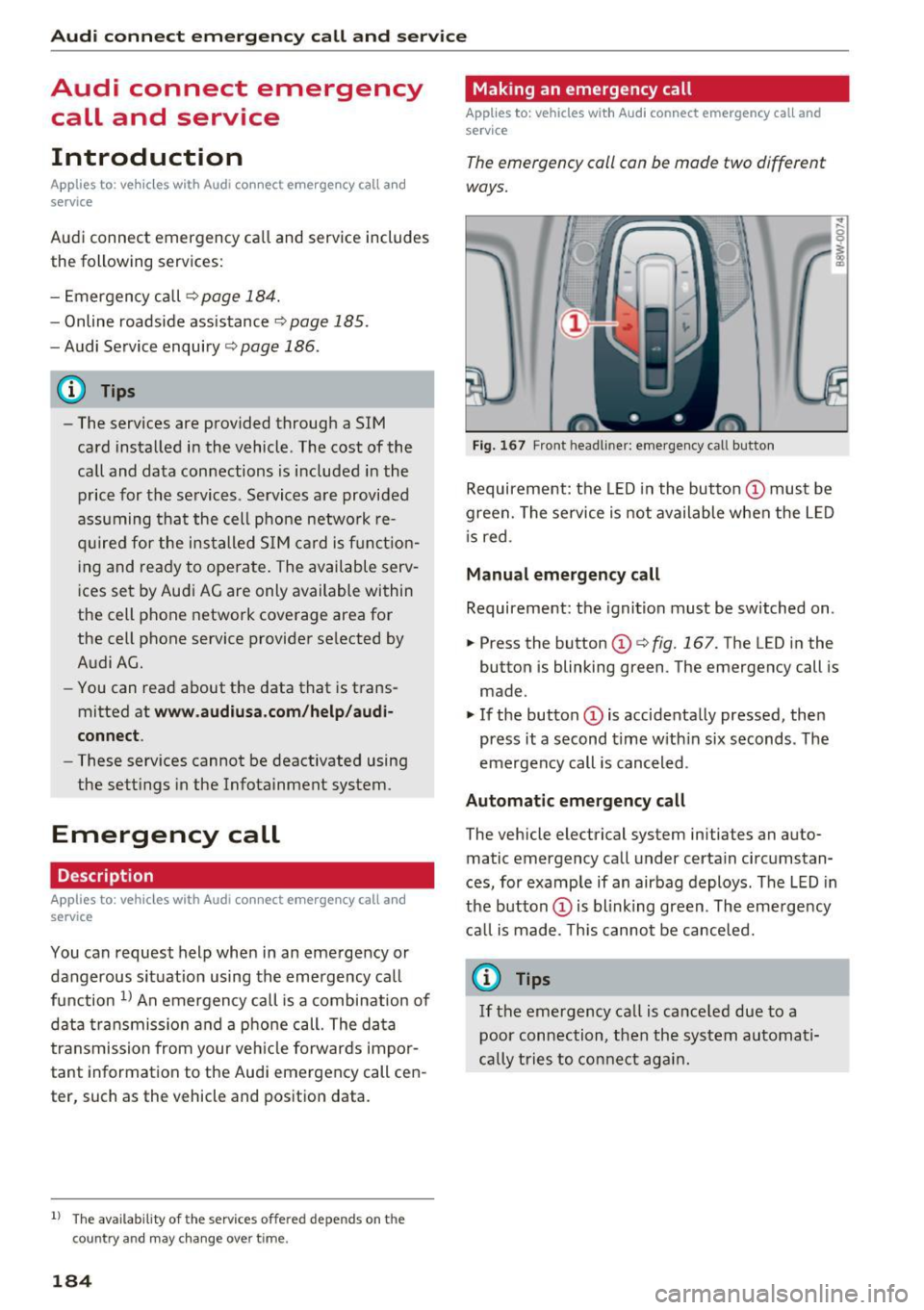
The emergency call can be made two different
ways.
Fi g. 1 67 Front head liner: emergency call butto n
Requireme nt: the LED in the button @must be
green. The se rvice is not available when the L ED
i s red.
Manual emergency call
Requireme nt: the ignition must be switched on.
.,. Press the button (D
¢fig. 167. The LED in the
button is blinking green. The emergency call is
made.
.. If the button (Dis accidenta lly pressed, then
press it a second time w ith in six seconds . The
emergency call is canceled .
Automatic emergency call
The vehicle electrical system initiates an auto
matic emergency call under certain circ umstan
ces, for example if an airbag deploys. The LED in
the button (Dis blink ing green. The eme rge ncy
ca ll is made. This cannot be canceled.
{!) Tips
If the emergency call is ca nce led due to a
poor conn ection, then th e system au toma ti
cally tries to con nect ag ain .
Page 189 of 386

Navigation
Accessing navigation
A pp lies to: ve hicles with naviga tion system
The navigation system directs you to your desti
nation, around traffic incidents and on alterna
tive routes, if desired.
Fig. 169 Example: Enter destination menu
.. Press the I NAV/MAPI button.
After opening the Navigation menu for the first
time, the
Enter dest inati on menu is displayed in
the Infotainment system display with the follow
ing information:
(D I nput field for free text search 187
@ Home address . . . . . . . . . . . . . . . . 189
@ Last dest inat ions . . . . . . . . . . . . . . 188
@ Stored favorites . . . . . . . . . . . . . . . 189
As soon as yo u select an entry from the list (de
pending on the vehicle equipment), the corre
sponding destination d isplays as a map preview*
@ r::!>fig .169.
If yo u have connec ted a ce ll phone to the MMI,
your di rectory contacts will also be listed if they
have navigation data assigned to them.
The
Fav orites @¢ fig. 169 menu item as well as
the directory/contacts are only shown in the
En
t er des tinati on
menu if you have ente red one or
more characters using the input field.
Swi tching betwe en d estinati on entr y and th e
m ap :
- Press the I NAV/MAPI button repeated ly until
the map is d isplayed .
Or: select the left contro l
button
> S wi tch to map . Na
vigat ion
A WARNING
--The demands of traffic require your full at-
tention. Always read the chapter
q page 236, Driving safety.
- Obey all traffic laws when driving.
- The route calculated by the navigation sys-
tem is a recommendation for reaching your
destination. Obey traffic lights, stopp ing re
strictions, one-way streets, lane change re
strictions, etc.
(D Note
- If the driving directions conflict with traffic
laws, obey the traffic laws.
- Adjust the volume of the navigation system
so signals from outside the vehicle, such as
police and fire sirens, can be heard clearly at
all times .
(j) Tips
-Snow and obstruct ions on the GPS antenna
or interference caused by trees and large
buildings can impair satell ite recept ion and
affect the system's ability to dete rm ine the
vehicle pos it ion. Several deactivated or mal
functioning satell ites can also inter rupt GPS
recept ion and affect the system 's abili ty to
determine the vehicle position.
- Because street names somet imes change,
the names stored in the MMI may in rare cases differ from the actual street name.
Entering a destination
Free text search for destinations
App lies to: vehicles wit h nav igat ion system
With the free text search you can enter the navi
gation destination data all at once in any order
using the MMI touch control pad* or the speller
(for example, 20 Elm Street Chicago). Likewise,
you can search for points of interest, contacts, previous destinations or favorites to navigate to
the desired address.
Press the I NAV/MAPI repeatedly unt il the En ter
d es tination
menu is displayed~ page 187,
fig. 169.
1 8 7
Page 192 of 386

Navigation
-Select and confirm an address o r a destination.
When you have selected a destination, the
route guidance can be started directly.
- Check the address input again when selecting
an address.
- Then select and confirm
Start route guidance.
Additional directory functions in the navigation
system can be foun d under
¢ page 194.
@ Tips
-Addresses that have been imported from
your cell phone into the MMI can also be
used as a destination.
- If a contact is grayed out in the directory,
this contact has neither a destination nor an
address assigned to them.
Point of interest search
Applies to: ve hicles w ith naviga tion system
Fig. 171 Searc hin g fo r po ints of interes t
.-Press the I NAV/MAPI repeatedly until the Enter
destination
menu is displayed ¢ page 187,
fig. 169 .
.. Se lect : left control button > Points of interest.
- Changing the search area:
select and confirm
Search area and then a search area from the
list .
The fo llowing search categories are avai lab le:
Nearby : points of interest can be selected from
d ifferent categories. The po ints of interest are
listed starting from the immediate vicinity of the
ve hicle up to a radius of approximately 124
mil es (200 km).
Along the route: points of interest along the
route can only be selected during active route
guidance. The points of interest are located di-
190
rectly along or in the immediate vicinity of the
ca lculated route.
Near destination /Near stopover: the points of
i nterest ca n likew ise be selected from diff erent
categories in the vic inity of the destination or
stopover. For example, you can search for a hotel
or parking lot at the destination.
In new city : select a country/state or search in a
new city. Enter the name of the desired city.
Points of interest can be selected from various
categories. This function allows you to search for
po ints of interest in any city regardless of the ac
tive route guidance or the vehicle position.
- Search for a point of interest name in these
lected search area:
enter the name of the point
of interest .
-Searching for a point of interest in a specific
category :
select Select category . Select and
confirm a category such as
Restaurants .
@ Tips
-Distances to points of interest are displayed
as a straight-line distance from your current
location. The actual distance from your cur
rent location to the point of interest is up
dated automatically. The list of found
points of interest is not resorted when this
happens.
- Th ere may be entr ies in the list that cannot
be displayed completely due to their length .
If you select these list entries using the con
trol knob, detailed information a bout the
selected list entry will be shown automati
cally after several seconds .
Online point of interest search (online
search)
Applies to : vehicles with a nav igation sys te m and Aud i co n
nect {I nfotainment)
You can search for points of interest on the In
ternet.
Requirement: the requirements for Aud i connec t
(Infotainment) must be met
¢ page 172.
.. Press the INAV/MAPI repeatedly until the Enter
destination
menu is displayed ¢ page 187,
rg. 169. ~
Page 193 of 386

<( a, .... N ,....
N .... 0 0
3 a,
.,. Se lect: left control button > Online search . The
search area last set is displayed in the inp ut
field.
- Changing the search area: se lec t the r igh t con
tro l button
> Select search area.
- Sear ching for online de stination s in the se
lected search area :
enter a new city/sta te if
necessary. Enter the search term, such as hotel.
Press the control knob . Select an d confirm an
on line dest inat ion from the list .
-Searching fo r online destination s in a specific
category :
select and confirm Select category .
Select and confirm a category such as Restau
rants .
Find which search areas are available under
c::> page 190, Point of interest search.
You can search for on line dest inat ions using the
voice recognition system
c:::> table on page 156.
(D Tips
Always read t he ch apter c::>p age 178, Audi
connect (Infotainment) information .
Accessing destinations from myAudi
account
Applies to: veh icles with a navigation system and Audi con
nect (Infotainment)
I mport individual destina tions from your myAudi
account into the MMI.
Requirement:
The requ irements for Aud i connect (Infotain
ment) must be met
c::> page 172.
You must have a registered myAudi account at
my.audiusa.com . You must have a vehicle as
signed to your myAud i account and you must
h ave stored one o r more destinations .
.,. Press t he
I NAV /MAPI repeatedly unt il the Enter
destination
men u is displayed c:::> page 187,
fig. 169.
.,. Se lect : left cont rol button > myAudi contacts .
.,. If necessary, ente r you r myAud i user data o r
you r my Aud i PIN
c:::> page 173 . The contacts
stored in myAudi are d isp layed.
- Se lect and confirm a contact .
Navigation
-Sele ct an d confirm a private o r business dest i
nation.
- Sele ct and confirm
Start route guidance.
(D Tips
- Yo u on ly nee d to e nter the myAudi use r da ta
o ne tim e.
- Y ou ca n rece ive your myAudi PIN if yo u have
s e t up a myAu di account.
- Add itiona l information can b e foun d at
www.audiusa.com/audiconnect .
Entering a destination using geo
coordinates
Appl ies to: vehicles with navigation system
.,. Press the I NAV /MAP I repeated Ly until the Enter
destination
menu is disp layed c::> page 187,
fig . 169.
.,. Select: left control button > Geo coordinates .
-Select Latitude /Longitude .
-Press the co ntro l knob to set the individ ua l va l-
ues.
- Turn the control kno b to t he left/ right to
change the selected va lue .
- Sele ct and con firm
Start route guidance.
Adding a stopover
Applies to : vehicles with navigation system
You can en ter an additional destinati on when
route guidance is ac tive.
Fig. 172 Act ive ro u te gu idance w it h stopover
Requireme nt: a dest ina tion m us t alr eady be en
te red .
.,. Press th e
I NAV /MAP I repeated Ly until the Enter
destination
menu is disp layed c:::> page 187,
fig. 169 .
191
Page 194 of 386

Navigation
Entering a destination as a stopover
- Enter a destination in the input line
r=> page 187 .
-Select and confirm a destination from the re-
su lts list.
- Se lect and confirm
Add as stopover .
Deleting a stopover
-Push the control knob up . Free text search and
active route guidance are displayed .
- Se lect and confirm
Delete stopover @
r=>fig . 172.
- The stopover is de leted.
Cancel route guidance
A pp lies to: ve hicles w ith navigation system
Requirement: route guidance must be active .
~ Press the I NAV/MAPI repeatedly until the Enter
destination
menu is displayed r=> page 187,
fig. 169.
~ Turn the control knob to the left until the active
route gu idance is shown
r=> page 191, fig. 172 .
.. Se lect and confirm Cancel route guidance@
r=> page 191, fig . 172. The dest inat ion is delet
ed.
Or : select the r igh t control button> Cancel
route guidance.
Additional options when entering a
destination
App lies to: ve hicles w ith navigation system
Depending on the selected function, the follow
ing additional options may be available when en
ter ing a destination:
~ Press the right contro l button.
Cancel route guidance : Requirement: route guid
ance must be active . Route guidance is canceled .
For additional information, refer
to r=> page 192.
Country information : you can disp lay the appli
cable urban and rural speed limits for any coun
try/state . If this function is activated, the infor
mation will be automatically shown to you in the
route information
(J) r=> page 196 , fig. 177 when
the speed limit is exceeded
r=> page 198 .
192
Country/state selection : select a country/state
(~) that should be used in the free text search,
for example
r=> page 188. Or se lect a ll countries/
states .
Route criteria: refer to ¢ page 196, Route crite
ria.
Show location on map : Requirement: yo u m ust
have selected a destina tion from the results list.
The destination entered is displayed on the map .
Parking at this location*: Requirement: you
must have selected a destination from the re
su lts list . All parking options near the selected
l ocation are displayed in the Infotainment sys
tem.
Delete: the selected entry is deleted. You can de
l ete ind iv idual entries o r a ll entr ies (for examp le,
favorites or la st destinations) .
Audi connect for this location* : Requirement:
you must have selected a destination from the
results list. Allows you to search for items in the
vicinity of the se lected location, s uch as
Travel in
formation .
Online traffic data*:
the online traff ic informa
tion
r=> page 202 can be switched on or off.
Add destination to contact: seer=> page 194.
Store as favorite: refer to r=> page 194.
Voice guidance : refer tor=> page 196.
Navigation settings: refer tor=> page 195.
(D Tips
Information on online traffic data* can also
be found on line at
www.audiusa .com/help/
audi-connect .
Page 201 of 386
(expressway, highway, other roads) so that you
always have an optimal overview of the road
ahead . The scale is also automatically adapted
when there are upcoming maneuvers to provide a
better deta iled view .
Interse ction : when route guidance is active, the
map temporarily zooms in to a detailed scale
when there are upcoming maneuvers so that you
can see the street or properties of the turn bet
ter .
Off : the map scale yo u have chosen is kept per
manently .
Map content
Map contents such as weathe r, traffic informa
tion or favorites can be disp layed or hidden.
The weather forecast is displayed on a 3 mi (5 km) scale o n the map.
Instrument cluster map contents
You can a lso set w hich map content displays in
the instrument clus ter ¢
page 20 .
Online map view
Appl ies to: ve hicles with a nav igatio n system an d Au di con
nect (I nfotainmen t)
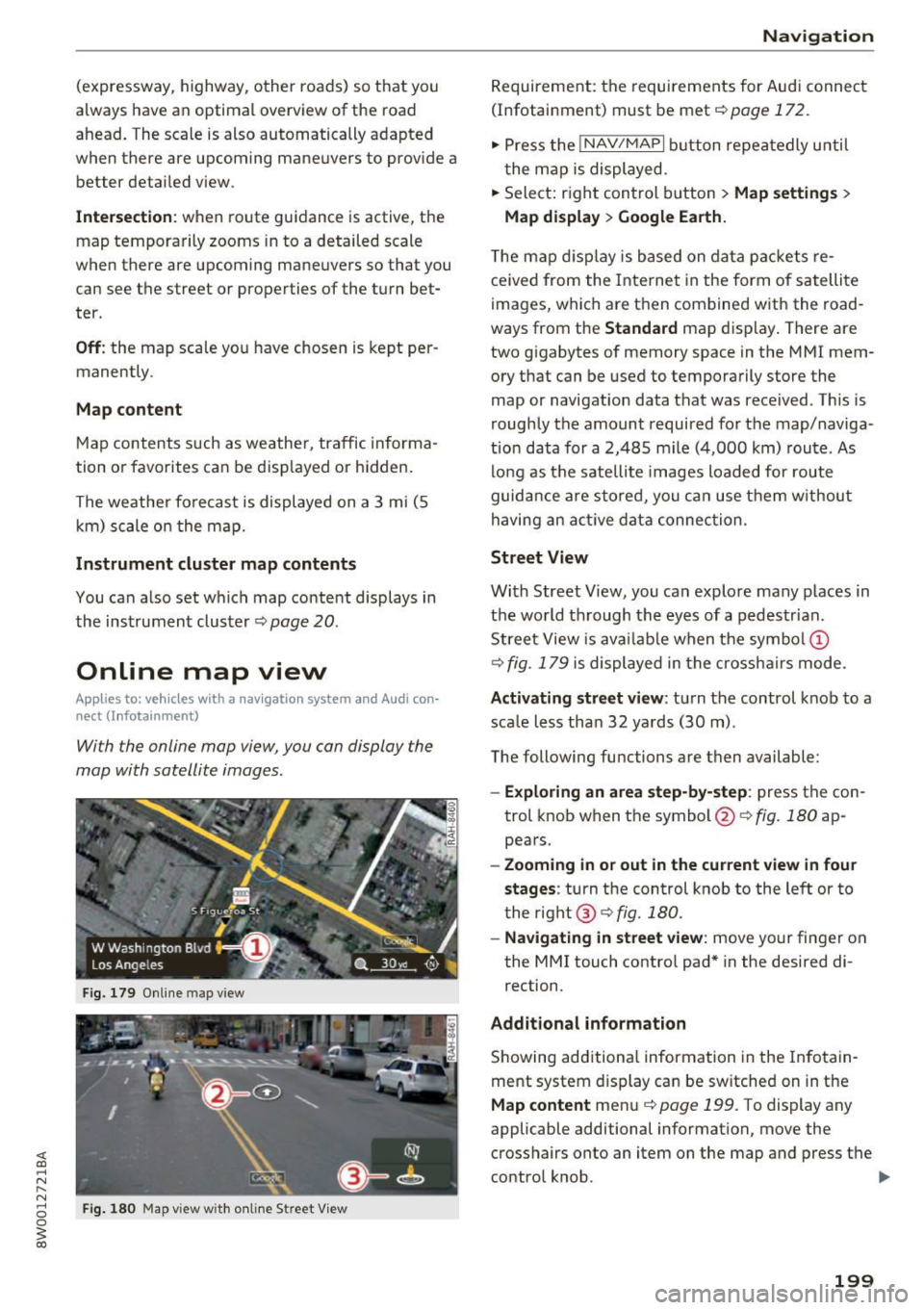
With the online map view, you can display the
map with satellite images .
Fig. 179 Online map view
Fi g. 1 80 Map v iew w ith o n line St reet V iew
Na vigat ion
Requirement: the requirements for Audi connect
(Infotainment) must be met
¢page 172.
,. Press the I NAV /MAPI button repeatedly u nti l
t he map is displayed .
,. Select: r ight control b utton
> Map settin gs >
Map di splay > Google Ea rth.
T he map d isplay is based on data packets re
ceived from the Inte rnet in the form of satellite
images, which are then combined w ith the road
ways from the
Stand ard map display . There are
two g igabytes of memory space in the MMI mem
ory that can be used to temporarily store the
map or navigation data that was received . Th is is
roughly the amount required for the map/naviga
tion data for a 2,485 mile (4,000 km) route . As
lo ng as the sate llite images loaded for route
guidance are sto red, you ca n use them w ithout
having an act ive data connec tion.
Street View
With Street View, you can explore many places in
the wo rld t hrough the eyes of a pedestrian .
Street View is avai lab le when t he symbol (!)
¢
fig . 179 is displayed in the crosshairs mode.
Activating street view : turn the control knob to a
sca le less tha n 32 ya rds (30 m).
The following functions are then available :
-Exploring an area step-b y-step : press the con
trol knob when the symbol@¢
fig. 180 ap
pears .
-Zooming i n or out in the cu rrent view in four
stages :
turn the control knob to the left or to
the right @¢
fig. 180.
-Navigating in street v iew : move your finger on
the MMI touch control pad* in the desired di
rection.
Addit ional inform ation
Showing additiona l information in the Infotain
ment system display can be sw itched on in the
Map content me nu¢ page 199. To display any
applicable additional information, move the
crosshairs onto an item on the map and press the
contro l knob . .,.
199
Page 203 of 386
Selecting the online map upd ate
- Se lect an update package from the list(~) @
~fig. 182 .
-Confirm you r se lection with the I BACK I button
and go back to the selection.
- T he number and amo unt of data fo r the select
ed upda te pac kage a re now displayed in the In
f ota inment system.
Starting the download
- Se lect and confirm Start downlo ad .
- Confirm the secur ity prompt by selecting S tart
down load
again.
The update packages begin to down load and the
status of the download progress is shown in the
Infotainment system display .
Install ation of online map upd ates
The downloaded map materia l installs after you
stop your vehicle. The new update packages in
stall only after you switch off the ignition . After
restarting the MMI, the Infota inment system dis
play ind icates if the updates installed successful
l y .
- Confirm the successful update with
OK .
The new map materia l can now be used for navi
gation.
@ Tips
- The amount of available on line map up
dates in the vehicle is lim ited . To update
more regions, use the map update via SD
card at
my.aud iusa.com .
-Always read the chapter ~ page 178, Audi
connect (Infotainment) information.
Accessing traffic
information
Traffic information (TMC)
Applies to: vehicles with navigation system
~ Press the I NAV/MAPI button repeated ly until
<( the map is disp layed. a,
;::; ~ Se lect : left control button > Traffic me ssages . ,....
N .... 0 0
3 a,
Navigation
An overview of all the traffic messages is dis
played in the Infotainment system . Traffic inci
dents on your route are shown in the upper sec
t ion of the list, sorted according to distance.
- Displaying all traffic mes sage s for a street /
highwa y:
select and confirm the [ill symbol. A
list of all the traff ic messages for the selected
street/highway is displayed.
- Opening a detailed view of traffic info rmation :
select and confirm the traffic information from
the list.
-Displ aying the sele cted tr affic information on
the map :
select the right control button >
Show on map . The shaded line shows the
street and the length of the traffic jam.
- Displ aying the n ext traffic info rmat ion on the
map :
press the control knob.
Traffic inf ormation display
Colored warn ing symbol s:
traffic incidents o n
you r route are shown in the upper section of the
list and are sorted according to d istance.
Warning symbol s with .=>: avoided t raff ic inci
dents .
Grayed out warning symbol s: traffic incidents
that are not o n your ro ute. They a re sorted ac
cording to road type (expressway, h ighway, other
road), country and name.
(D Tips
- Cr itica l t raff ic information, s uch as w arn
ings about wrong -way drivers, is automa ti
cally disp layed . To hide the traffic informa
tion, press the
I BACK ! button or the control
knob.
- TM C traffic reports are not available in Can
ada. For more informat ion, please contact
Sirius Canada.
201
Page 204 of 386
Navigation Better route
Applies to: ve hicles w ith navigation system
By receiving traffic information through TMC,
your MMI calculates a better route -if available -
and the possible time saved for the current route
guidance . You can decide yourself which route
you would like to use.
• Press the I NAV/MAPI button repeated ly until
the map is displayed .
Requirement:
Route guidance must be active.
If your MMI has calculated a better route than
the current route guidance, the message
A better
route is available.
appears on the map along
with the time that may be saved . You will be noti
fied of a better route by the
t'S c::> page 196,
fig. 178
symbol in the map view.
Apply better route
-Press the right contro l button.
- Select and confirm the better route.
- The better route is used for the remaining
route guidance and the route is recalculated .
Online traffic information
App lies to: ve hicles w ith a nav igatio n system and Audi con
nect (Infotainment)
The MMI can receive real-time traffic informa
tion about traffic congestion, accidents, road
construction and other incidents from the Inter
net.
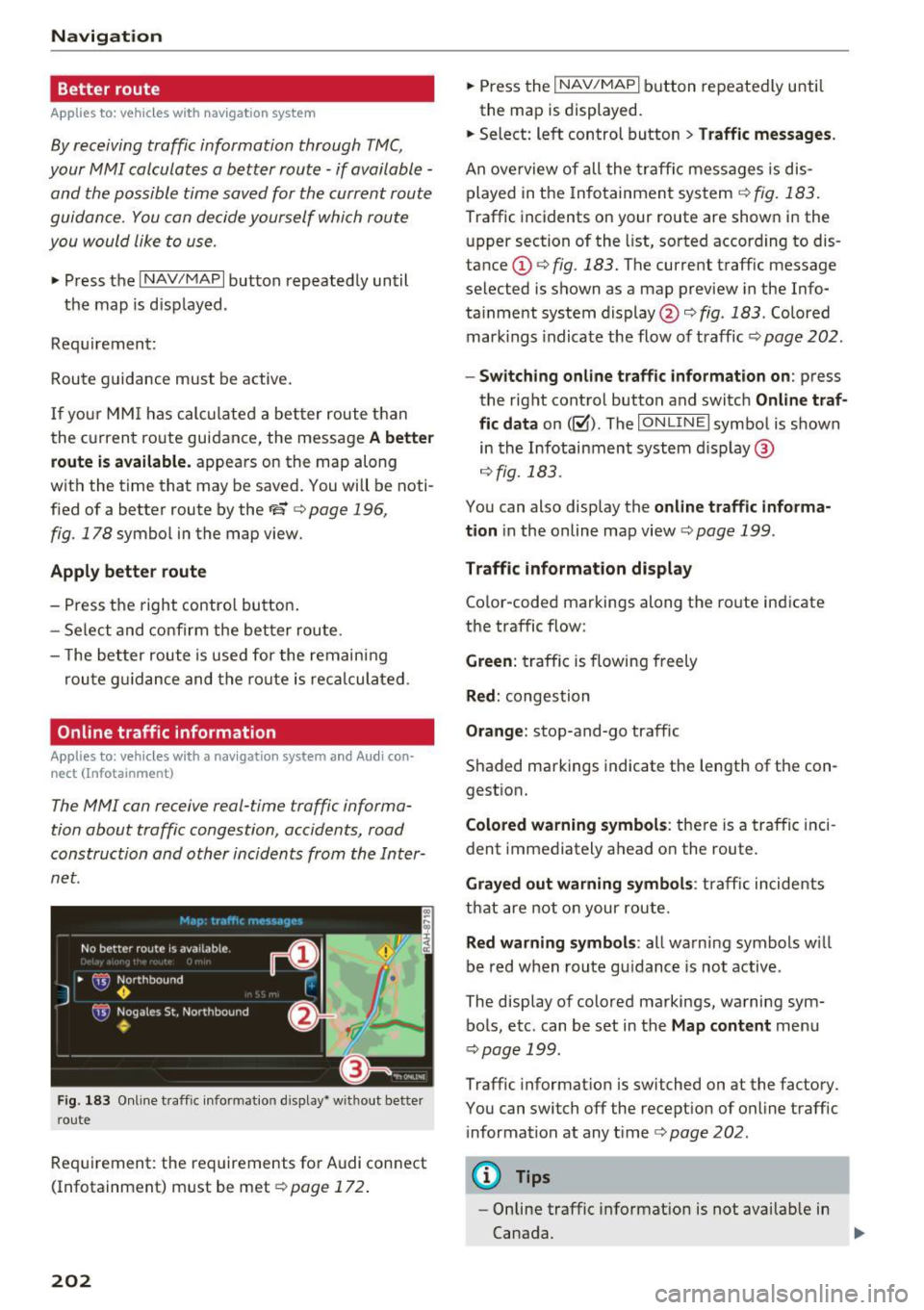
Fig. 183 Online traffic in formation display" without better
r o ute
Requirement: the requirements for Audi connect
(Infotainment) must be met c::>
page 172.
202
• Press the I NAV/MAPI button repeatedly until
the map is displayed.
• Select: left control button
> Traffic messages.
An overview of all the traffic messages is dis
played in the Infotainment system
r=> fig. 183.
Traffic incidents on your route are shown in the
upper section of the list, sorted according to dis
tance (!) c::>
fig. 183. The current traff ic message
selected is shown as a map preview in the Info
ta inment system display@c::>
fig. 183 . Colored
mark ings indicate the flow of traffic
c::> page 202.
-Switching online traffic information on: press
the rig ht control button and switch
Online traf
fic data
on ( l~ D. The IONL IN Elsym bol is shown
in the Infotainment system display@
r=>fig.183 .
You can also display the online traffic informa
tion
in the online map view c::> page 199 .
Traffic information display
Color-coded markings along the route indicate
the traffic flow:
Green : traffic is flowing freely
Red: congestion
Orange: stop-and-go traffic
Shaded markings indicate the length of the con
gest ion.
Colored warning symbols: there is a traffic inci
dent immediately a head on the route.
Grayed out warning symbols: traffic incidents
that are not on your route.
Red warning symbols: all warning symbols w ill
be red when route guidance is not active .
The disp lay of colored markings, warning sym
bols, etc. can be set in the
Map content menu
c::> page 199.
Traffic informat ion is switched on at the factory.
You can switch off the recept ion of on line traffic
i nformation at any t i me
r=> page 202 .
(D Tips
-Online traffic information is not availab le in
Canada.
IIJ,,
Page 205 of 386
<( a, .... N ,....
N .... 0 0
3 a,
-Always read the chapter ¢ page 178, Audi
connect (Infotainment) information.
- Having the Online traffic data function
switched on p rovides the most accu rate re
po rts of traffic situations as well as traffic
forecasting . You r vehicle transmits and
processes its anonymous, encrypted posi
tion information at regular intervals to the
Troubleshooting
Applies to: veh icles with navigation system
Problem Solution
Navigation
traffic data prov ider. If you do not want to
use th is, you can sw itch off the
Online traf
fic information
funct ion at any time.
- The
online traffic information netwo rk is
c u rrently not available in a ll countries , and
the coverage is not nationwide. For addi
tional info rmation, visit
www.aud iusa.com/
help /audi-connect .
Free text search:
the desired des - The dest ina tion may not be entered i n the navigation database .
t i na tion cannot be found .
Or: check the spelling of the sea rch term and whether the rig ht
coun try/state was sel ected fo r th e free text sea rch us ing t he
Country /state selection ¢ page 19 2.
203