Mmi AUDI A4 2018 Owner's Manual
[x] Cancel search | Manufacturer: AUDI, Model Year: 2018, Model line: A4, Model: AUDI A4 2018Pages: 403, PDF Size: 66.81 MB
Page 165 of 403
a co .... N ,....
N .... 0 0
3 co
with the character selection@¢ fig. 172 to an
accented character. Press the control knob to
insert the accented character. To close the ac
cented characters without se lecting a charac
ter, press and hold the control knob again.
Or:
select and confirmlaou l(z) ¢fig .172. Select
and co nfirm an accented character .
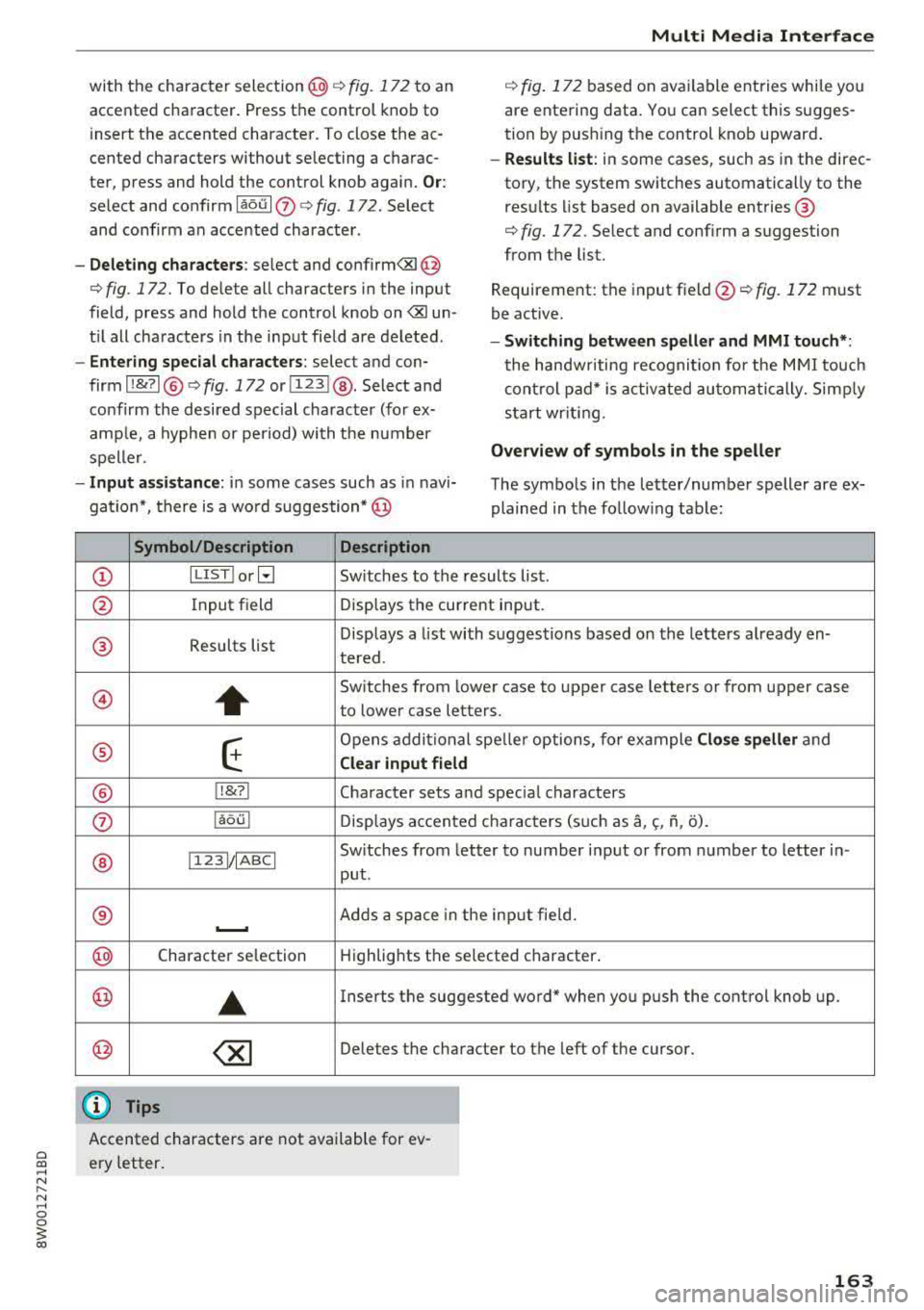
-Deleting characters: select and confirm<&I @
<=> fig. 172. To delete all characters in the input
field, press and hold the control knob on
<&I un
t il all characters in the input field are deleted.
-Entering special characters : select and con
firm I
!&?I@ <=> fig. 172 or I 123 1@ . Select and
confirm the desired special character (for ex
amp le, a hyphen or period) with the number
speller .
-Input assistance: in some cases such as in navi
gation*, there is a wo rd suggestion* @
Symbol/Description Description
Multi Media Interface
¢ fig. 172 based on available entries while you
are entering data. You can select this sugges
tion by pushing the control knob upward .
-Results list: in some cases, such as in the direc
tory, the system switches automatically to the
resu lts list based on available entries ®
<=> fig. 172. Select and confirm a suggestion
from the list.
Requirement: the input
field @<=> fig. 172 must
be active.
- Switching between speller and MMI touch* :
the handwriting recognition for the MMI touch
control pad* is activated automatically. Simply
start wr iting.
Overview of symbols in the speller
The symbols in the letter/number speller are ex
plained in the followin g table:
CD ILIST lorB Switches to the rresults list.
@ Input field Displays the current input .
® Results list Displays
a list with suggestions based on the letters already
en-
tered.
@
+
Switches from lower case to upper case letters or from upper case
to lower case letters.
® E
Opens additional speller options, for example Close speller and
Clear input field
® 1,&71 Character sets and special characters
0 laou l Displays accented characters (such as a,~. f\, o).
Switches from letter to number input or from number to letter in-
® 1123!/IABCI
put .
® ...__. Adds a space in the inp ut field .
@ Character selection Highlights the selected character .
@ ..
Inserts the suggested word" when you push the control knob up .
@ ~ Deletes the character to the left of the cursor.
@ Tips
Accented characters are not available for ev
ery letter.
163
Page 166 of 403
Multi Media Interface
Free text search
Applies to: ve hicles w ith free tex t search
Using the free text search, you can select the or
der that the search terms are entered in the in
put field.
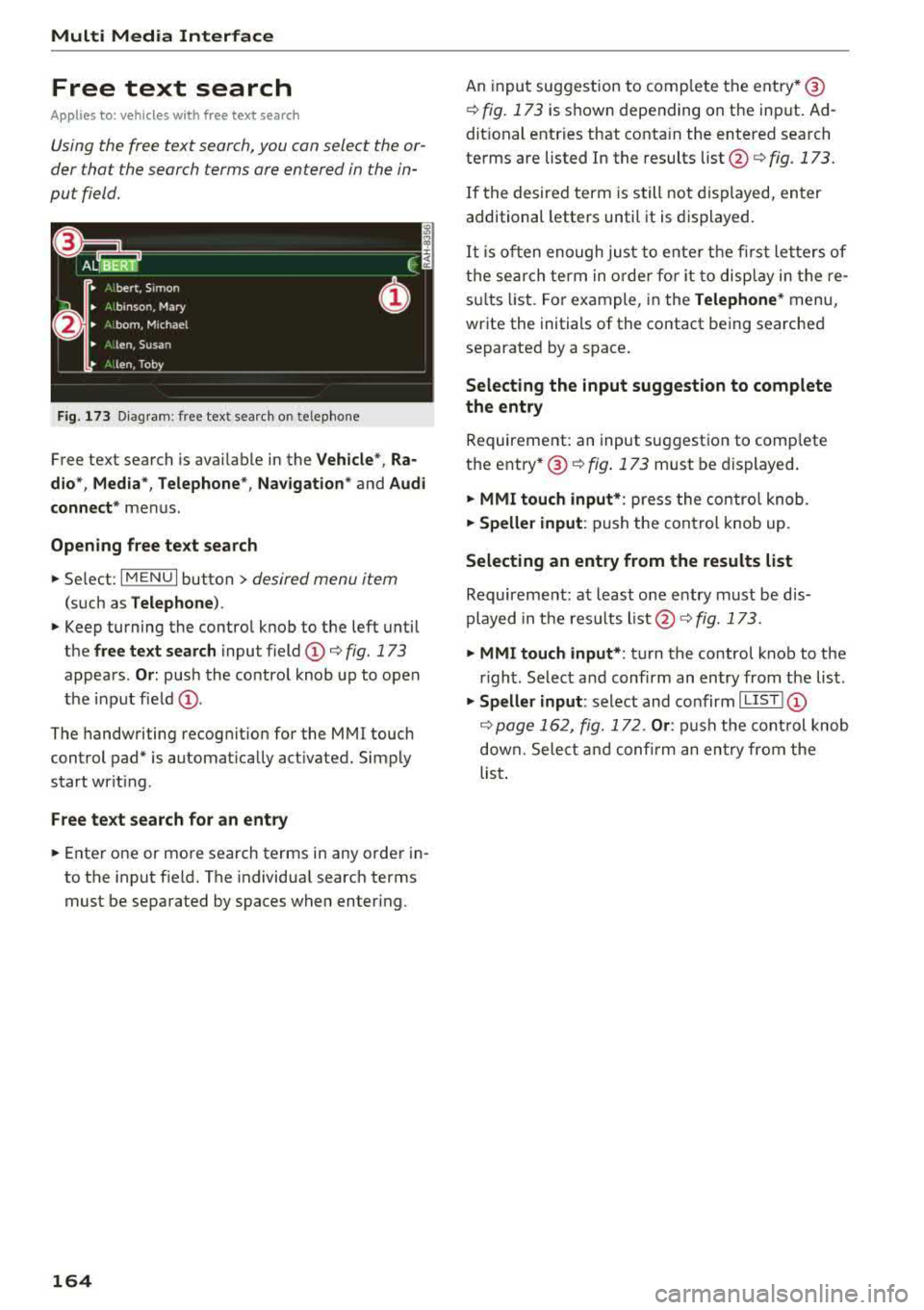
Fig . 173 Diagram : free text search o n te lepho ne
Free text search is available in the Vehicle", Ra
dio *, Media *, Telephone *, Navigation*
and Audi
connect*
menus .
Opening free text search
"'Select: I MENU I button > desired menu item
(such as Telephone ).
"' Keep turning the control knob to the left until
th@ free text search input field (D c::> fig. 173
appears . Or: push the control knob up to open
the input field
(D .
The handwriting recognition for the MMI touch
control pad* is automatically activated. Simply
start writ ing .
Free text search for an entry
"'Enter one or more search terms in any order in
to the input field. The individual search terms
must be separated by spaces when entering.
164
An input suggestion to comp lete the entry* @
c::> fig. 173 is shown depending on the input. Ad
dit ional entries that conta in the entered search
terms are listed In the results
list@ c::> fig. 173.
If the desired term is still not displayed, enter
additional letters until it is displayed.
It is often enough just to enter the first letters of
the search term in order for it to display in the re
su lts list . For example , in the
Telephone* menu,
write the initials of the contact being searched
separated by a space.
Selecting the input suggestion to complete
the entry
Requirement: an input suggestion to comp lete
the entry *@
c::> fig . 173 must be displayed.
"' MMI touch input* : press the control knob.
"'Speller input : push the control knob up.
Selecting an entry from the results list
Requirement: at least one entry must be dis
played in the results
list@c::> fig. 173.
"'MMI touch input* : turn the control knob to the
r ight . Select and confirm an entry from the list .
"'Speller input: select and confirm I LIST ! (D
c::> page 162, fig. 172 . Or: push the control knob
down. Select and confirm an entry from the
list .
Page 168 of 403
Multi Med ia Int erfac e
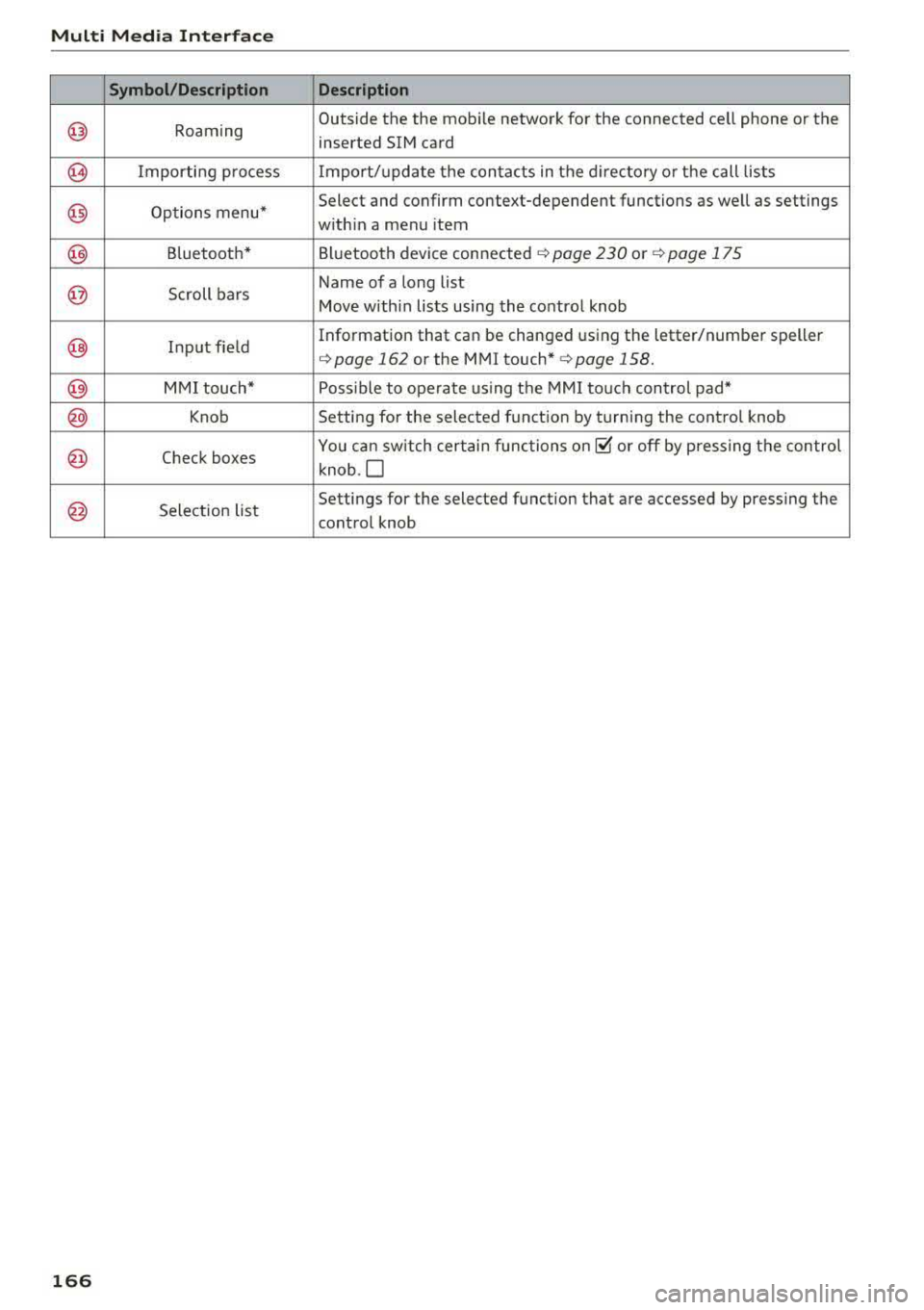
Symbol /Description Descr ipt ion
@ Roaming Outside
the the mobile network for the connected cell phone or the
inserted SIM card
@ Importing process Import/update the contacts in the directory or the call lists
@) Options menu* Select and
confirm context-dependent functions as well as settings
w ith in a menu item
@) Bluetooth* Bluetooth device connected ¢ page 230 o r¢ page 175
@ Scroll bars Name of
a long list
Move within lists using the control knob
@ Input field Information that
can be
changed using the letter/number speller
¢page 162 or the MMI touch* ¢page 158.
@) MMI touch* Poss ible to operate us ing the MMI touch control pad*
@) Knob Setting for the selected funct ion by turning the control knob
@ Check boxes You can sw
itch certain functions on~ or off by pressing the control
knob .O
@ Selection list Settings
for the selected function that are accessed by pressing the
control knob
1 66
Page 170 of 403
Voice recognition system
Voice recognition system Operating
Applies to: vehicles with vo ice recognition system
You con operate many Infotainment functions
conveniently by speaking.
Req uirements: the ignition and the MM I must be
sw itched
on~ page 155 , there must not be any
phone call in progress and the parking system
m ust not be active .
.. Switching on: press the~ button @
¢
page 15, fig. 11 or ¢ page 16, fig . 13 briefly
on the multifunction steering wheel and say
the des ired command after the
Beep .
.. Switching off : press and hold the~ button.
Or: press the l2l button.
.,. Pause : say the command Pause . To resume,
press
the~ button .
.,. Correcting : say the command Correction . Or :
simp ly say a new comma nd during an an
no uncement ¢
page 248.
Input assistance
The system gu ides you throug h the input with
visual and audio feedbac k.
- Visual input as sistance : after switching on
vo ice recognit ion, a display with a selection of
poss ible commands appears . This command
display can be sw itched on o r off. Se lect:
IMENU I button> Set tings > left co ntrol button
> MMI setting s> Speech di alog system .
- Audio input a ssistanc e:
to have the poss ible
commands read, turn t he voice recogn ition sys
tem on and say
Help.
For the system to understand you:
Speak clearly and dist inctly at a normal volume .
Speak louder when d riving faster .
Emphasize the words in the commands even ly
and do not leave long pauses .
Close the doors, the windows and the sunroof* to reduce background noise . Make sure that passen
gers are not speaking when you are giving a voice
command .
168
Do not direct the air vents toward the hands -free
microp hone, which is on the roof headliner near
the front interior lights .
Only use the system from the dr iver's seat be
ca use the hands -free microphone is directed to
ward that seat .
Additional settings
See¢ page 248, Speech dialog system .
.8, WARNING
-Dire ct yo ur full attention to dr iv ing . As the
driver, you have complete responsibility fo r
safety in traffic. Only use the functions in
such a way that yo u always maintain com
plete contro l over your vehicle in a ll traffic
situations .
- Do not use the voice recognition system in
emergencies beca use your voice may change
in stressful s ituations. It may take longer to
dia l the number or the system may not be
ab le to dial it at all. Dial the emergency
number manually.
(D Tips
- The d ialog pauses when there is an incom
ing phone call and will continue if you ig
nore the call. The dia log ends if you answer
the ca ll.
- You can select an item in the list us ing ei
ther the vo ice recognit ion system or the
cont rol knob.
Command overview
information
Applies to: vehicles with voice recognition system
The following overv iews des cribe the commands
that can be used to operate the MMI using the
voice recognition system.
Alte rnative commands are separated using a"/ ",
for example say:
Telephone / (or) Navigation /
(or) Radio.
Sequences of commands used to perform an a c
tion are identified w ith a
"> ", fo r example say:
Enter addre ss> (t hen) Enter country /state . ..,.
Page 171 of 403
a co .... N ,....
N .... 0 0
3 co
Voice recognition system
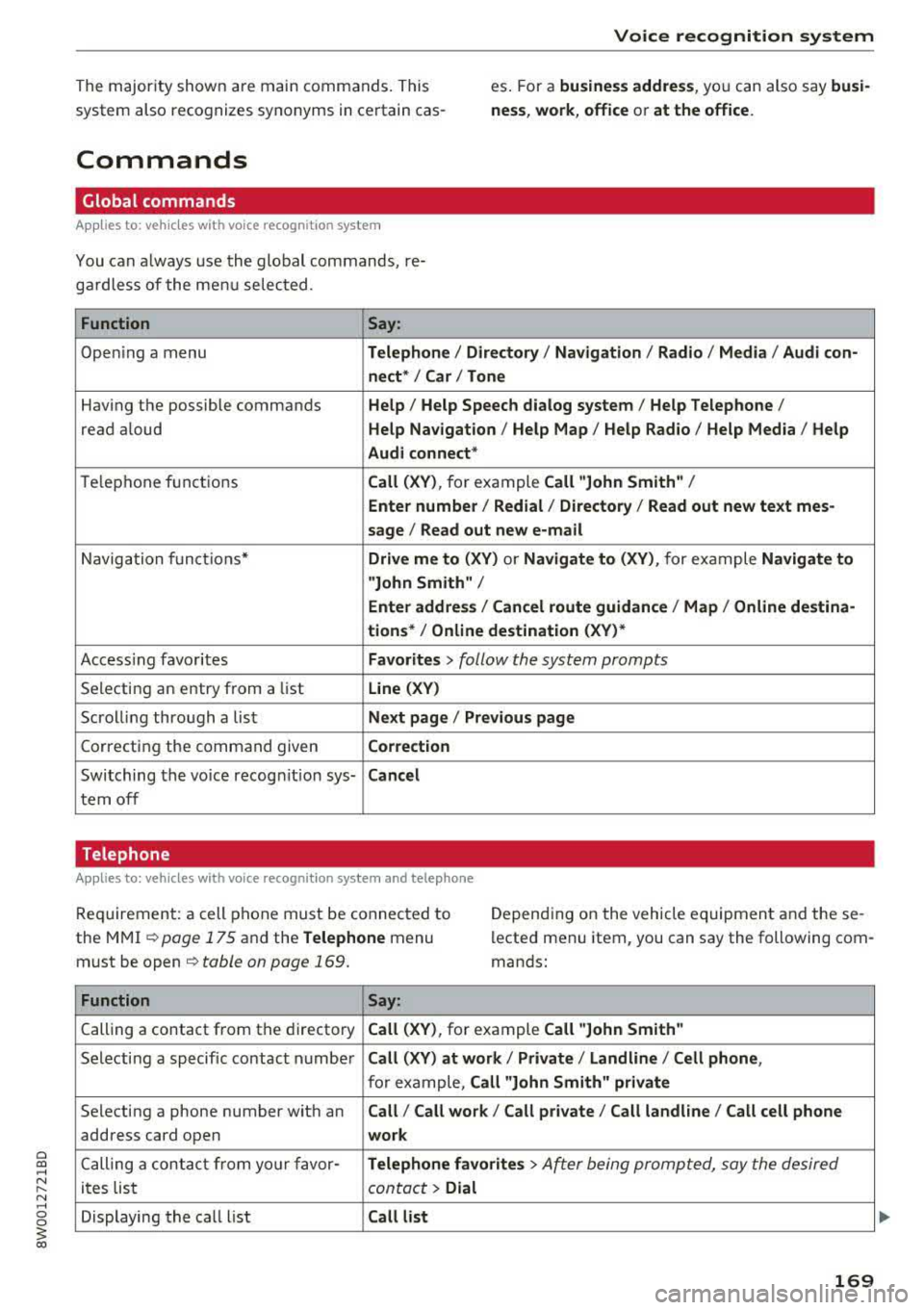
The majority shown are main commands. This
system also recognizes synonyms in certain cas-es
. For a bu siness add re ss, yo u can also say busi
ness , work , office or at the office .
Commands
Global commands
Applies to: vehicles with voice recognition system
You can a lways use the global commands, re
ga rdless of the me nu selected.
Function Say:
Open ing a menu Tel ephon e/ Directory / Navigation / Radio / Medi a/ Audi con -
n ec t*
I Car I Tone
Hav ing the possible commands Help / Help Speech dialog system I Help Telepho ne /
read aloud Help Na vigat ion / Help Map / Help Radio / Help Med ia / He lp
Aud i connect *
Telephone fu nctions Call (XV ), for example Call "John Smith" /
Enter numbe r/ Redial / Di rectory / Read out new te xt me s-
s age
I Read out new e -mail
Navigation funct ions* Drive me to (XV ) or Navigate to (XV ), for example Navigate to
"John Smith" /
Enter addre ss/ Cancel r oute guidance / Map / Online de stin a-
tion s*
I Online destinat ion (X V)*
Access ing favorites Favorites > follow the system prompts
Selecting an entry from a list Line (XV)
Scrolling through a list N ex t page / Pre viou s page
Correcting the command given Correction
Switching the vo ice recogn it io n sys-Canc el
tern off
Telephone
Applies to: veh icles with vo ice recognition system and telephone
Req uirement: a cell phone must be connected to
the MMI ¢
page 175 and the Telephone menu
must be open ¢
table on page 169.
Depending on the vehicle equipment and these
l ected menu item, you can say the following com
mands:
Function Say:
Calling a contact from the directory Call (X V ), for example Call "John Smith "
Selecting a specific contact number Call (XV) at work / Private / Landline /Cellphone ,
for example, Call "John Smith" p riv at e
Selecting a phone number with an Call/ Call wo rk / Call private / Call land l ine / Call cell phone
address card open wo rk
C alling a contact from yo ur favor -Teleph one fav orite s > After being prompted, say the desired
ites list contact > Dial
Displaying the call list Call list
169
Page 175 of 403
a co .... N ,....
N .... 0 0
3 co
Voice recognition system
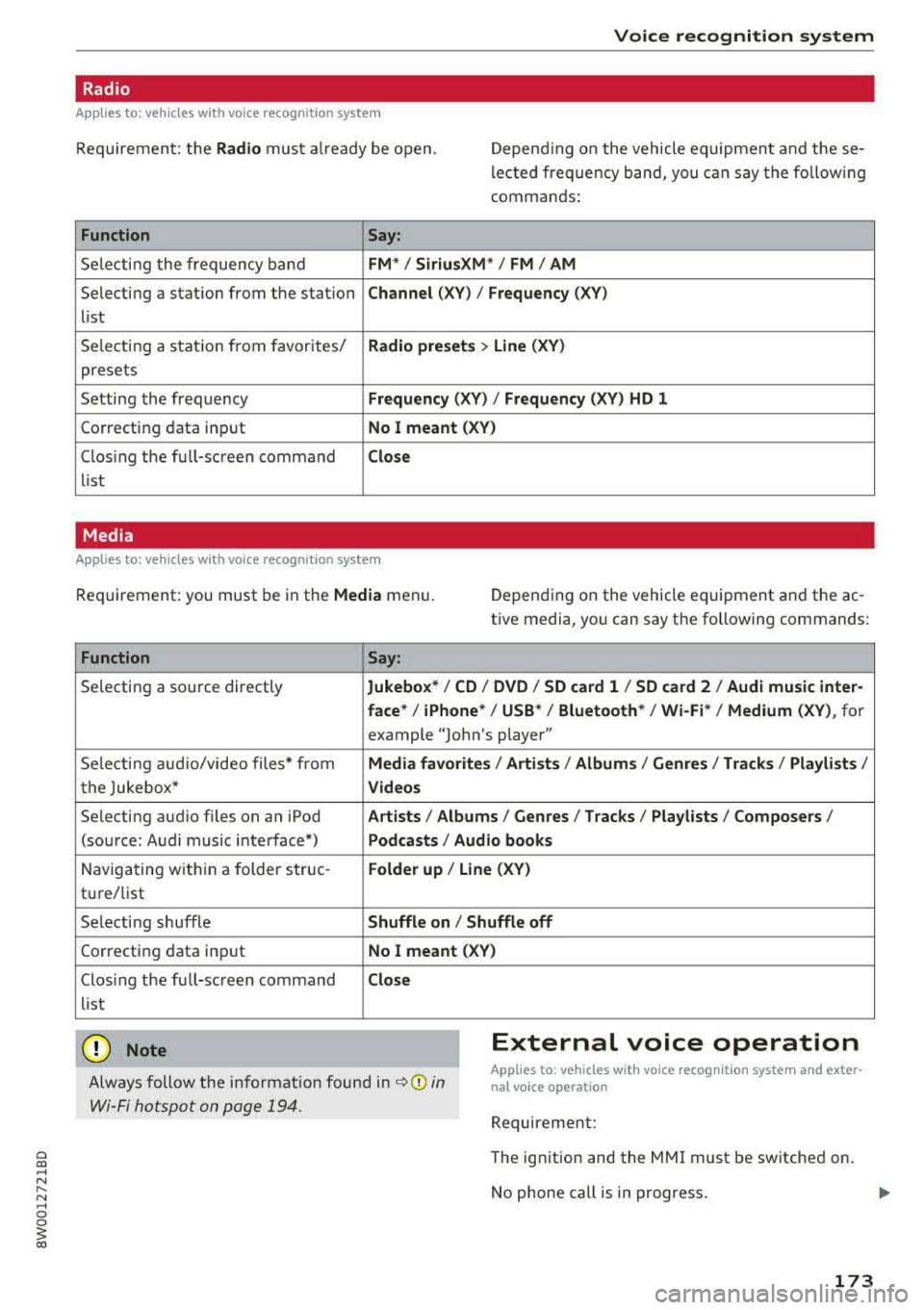
Radio
Applies to: vehicles with voice recognition system
Req uirement: the Radio must a lready be open. Depend ing on the vehicle equipmen t and these
lected frequency band, you can say the fo llow ing
commands :
Function
Say:
Selecting the frequency band FM*/ Siriu sXM * / FM / AM
Selecting a station from the station Channe l (XY) / Frequency (XV)
list
Selecting a stat ion from favorites/
Rad io prese ts > Line (XV )
presets
Setting the frequency
Frequency (XV) I Frequency (XV ) HD 1
Correcting data input No I mea nt ( XV)
Clos ing the full-sc reen command Clo se
list
Media
Applies to: vehicles with voice recognitio n system
Req uirement: you must be in the Media menu. Depending on the vehicle equipment and the ac
t ive media, yo u can say the following commands:
Function
Say:
Selecting a so urce directly Jukebox */ CO / DVD / SO card l / SO card 2 / Aud i music inte r-
face *
I iPhone* /USS */ Bluetooth* / Wi-Fi * / Medium (X V ), for
example "Jolhn's player"
Selecting aud io/video files* from
Media fav orites / Arti sts/ Album s/ Genr es / Track s/ Playli st s /
the Jukebox* V id eos
Selecting aud io files on an iPod Art ists I Albums / Genre s I Tracks / Pla ylists /Composer s/
(source: Audi music interface*) Podcast s / Audio books
Navigating w ith in a folder struc-Fo lde r up / Line (XV )
tu re/list
Selecting shuffle
Shuffle on / Shuffle off
Correcting data input No I meant (XV)
Clos ing the full-screen command Clos e
list
(D Note External voice operation
Always follow the i nformat io n found in ~0 in
Wi-Fi hotspot on page 194.
Applies to: vehicles with voice recognition system and exter
nal voice operation
Requirement:
The ignition and the MMI must be switched on.
No phone call is in progress.
173
Page 176 of 403
Voice recognition system
The parking aid as well as the Audi voice recogni
tion system must not b e active.
A cell phone must be connected to the MMI with
the
Handsfree profile ~ page 175.
The cell phone being connected must have voice
control that can be controlled externally.
~ Switching on: press and hold the l2.;J button on
the multifunction steering wheel* and say the
desired command after the external speech di
alog begins.
~ Continuing/resuming the dialog: the system
remains ready to use for a short time after end
ing the dialog. You can start a new external dia
log during this time. Press the
!'1•1 button if
needed, and say a new command.
Or: select
and confirm
Resume on the MMI control panel.
~ Switching off: press and hold the l2.;J button .
Or: select and confirm Cancel on the MMI con
trol panel.
(D Tips
- There are no voice guidance* prompts when
a dialog is active .
-This function depends on the cell phone
used . You can obtain more information
from your cell phone service provider or
from your cell phone user guide .
-AUDI AG simply provides access to control
your cell phone with voice operation and does not take any responsibility for the con
tents and commands within the external
voice control.
174
Page 177 of 403
a co .... N ,....
N .... 0 0
3 co
Telephone Introduction
A pp lies to: ve hicles with telep hone
To make phone coils in your vehicle using the
MMI, connect your cell phone to the
MMI via
Bluetooth.
H and sfree
Afte r you have connected your cell phone to the
MMI via Bluetooth, you can use the handsfree
system and operate telephone functions through
your MMI. You can make calls using the antenna
on your cell phone.
A WARNING
- Medical experts warn that cell phones can
interfere w ith the function of pacemakers.
Always ma inta in a m inimum distance of 20
centimeters between the cell phone anten
na and the pacemaker.
- Do not carry the cell phone in a pocket di
rectly over the pacemaker when the phone
is switched on.
- Sw itch the cell phone off immediately if
you suspect it may be interfering with the pacemaker.
- Do not use the voice recognition system*
c::> page 168 in emergencies because your
voice may change in stressful situations. It may take longer to dial the number or the
system may not be able to dia l it at all. Dial
the emergency n umber manua lly.
- Switch your cell phone off in areas where
there is a risk of an exp losion. These loca
tions are not always clea rly marked. This
may include gas stations, fuel and chemical
storage facilities or transport vehicles, or lo
cations where fuel vapors (such as propane
or gasoline vapor in vehicles or bu ildings),
chem icals or large quantities of dust parti
cles (such as flour, sawdust or metal) may
be present in the air. Th is also applies to all
other locations where you would normally
tu rn your vehicle engine off.
- The demands of traffic requ ire your full at
tent io n. Always read t he chapter
c::> page 155, Traffic safety information.
-
T e le ph on e
(D Note
Always fo llow the information found in Q (!) in
Wi-Fi hotspot on page 194.
(D Tips
- The Bluetooth connect ion range is limited
to inside the vehicle. It can also be affected
by local condit ions and interference with
other devices.
- To learn which Bluetooth connections and
wh ich of the functions in your cell phone are
supported, check with your cell phone serv
ice provider or the database for mobile devi
ces at
www .audiu sa.com /bl uetooth .
Setup
Connecting a cell phone using Bluetooth
Applies to: vehicles wi th telepho ne
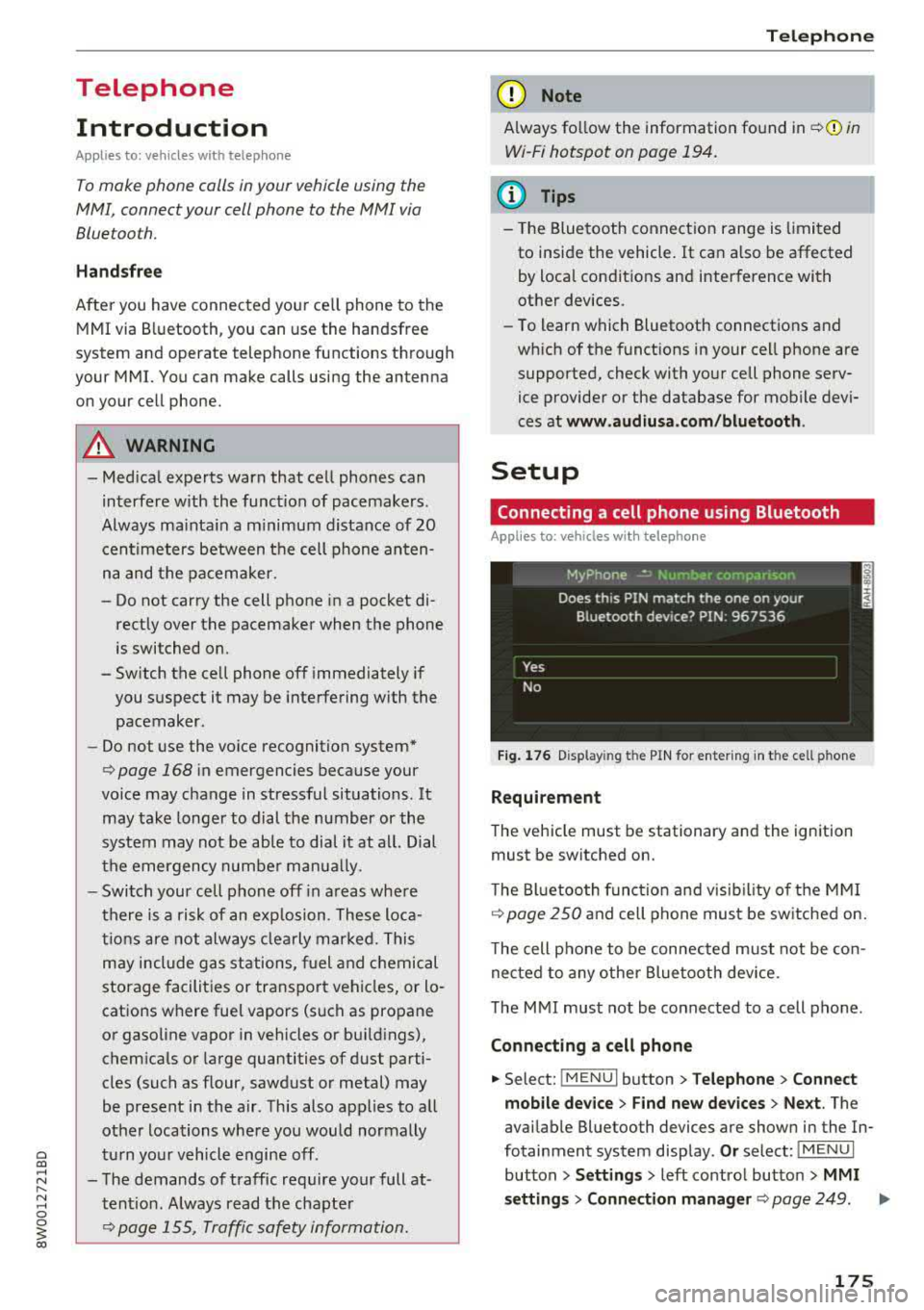
Fig . 17 6 Display ing t he PIN for enter ing in t he cell ph one
R equirem ent
The vehicle must be stationary and the ignition
must be switched on.
T he Bl uetoo th funct ion and v isib ility o f the MMI
¢ page 250 and cell phone must be sw itched on.
T he cell phone to be connected must not be con
nected to any other Bluetooth device.
T he
MMI must not be connected to a cell phone .
Connecting a cell phone
.,. Select: !MENUI button> T elephone > Co nnect
mobile dev ice
> Find new de vices > Ne xt. The
avai lable Bluetooth devices are shown in the In
fotainment system display .
Or select: !MENUI
button > S etting s> left contro l button > MMI
s etting s
> Connec tion manag er ¢ page 249 . .,..
175
Page 178 of 403
Telephone
"'Se lect and confirm the desired ce ll phone from
the list of disp layed Bluetooth devices.
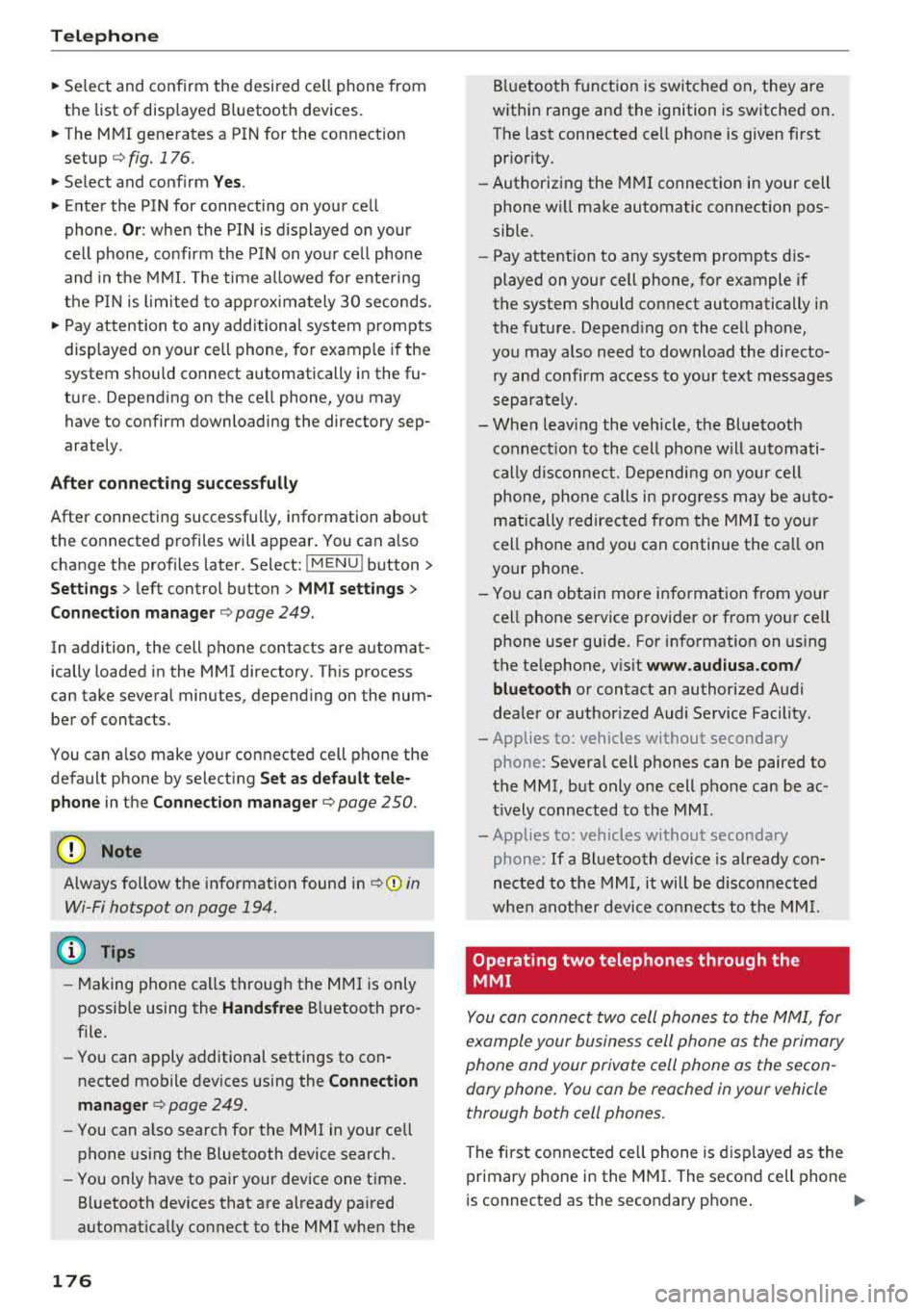
"' The MMI generates a PIN for the connect ion
setup
¢ fig. 176 .
"' Select and confirm Y es.
"' Enter the PIN for connecting on your cell
phone .
Or: when the PIN is d isplayed on your
ce ll phone, confirm the PIN on you r ce ll phone
and in the MMI. The time a llowed for ente ring
the PIN is l im ited to app rox imately 30 seconds.
"' Pay attention to any additiona l system prompts
displayed on your cell phone, for example if the
system should connect automatically in the fu
ture . Depending on the ce ll phone, you may
have to confirm downloading the directory sep
arately .
After connect ing succ essfull y
After connecting successfully, information about
the connected profiles will appear . You can a lso
change the profiles later. Select:
! MENUI button>
S ett ings > left control button > MMI sett ings >
C onn ection m ana ger
c:::;, page 249.
In addition, the cell phone contacts are automat
ically loaded in the MMI directory. This process
can take several minutes, depend ing on the num
ber of contacts.
You can a lso make your connected cell phone the
default phone by select ing
S et as def ault tele ·
phone
in the Connect ion manager c:::;, page 250.
(D Note
Always follow the information found in ¢ @ in
Wi-Fi hotspot on page 194.
(D Tips
-Making phone calls through the MMI is only
possib le using the
Handsfree Bluetooth pro
file.
- You can apply additional settings to con
nected mobile devices using the
C onnection
m anager
c:::;, page 249.
- You can also search for the MMI in your ce ll
phone us ing the Bluetooth device search.
- You only have to pair your device one time.
Bluetooth dev ices that are already paired
automat ically connect to the MMI when the
176
Bluetooth f unct ion is switched on, they are
within range and the ignition is switched on.
The last connected cell phone is given first
pr iority.
- Authorizing the MMI connection in your cell
phone w ill make automatic connection pos
sible.
- Pay attention to any system prompts dis
played on your cell phone, for example if
the system should connect automatically in
the future . Depend ing on the cell phone,
you may also need to download the directo ry and confirm access to your text messages
separately.
- Whe n leavi ng the vehicle, the Bluetooth
connect ion to the cell phone will automati
c ally d isconnect. Dependi ng on your cell
phone, phone calls in prog ress may be auto
matically redirected from the MM I to you r
cell phone and you can continue the ca ll on
your phone.
- Yo u can obtain more information from your
cell phone service provider or from yo ur ce ll
phone user guide. For information on us ing
the te lephone, v isit
w ww. audiu sa.com /
bluetooth
or contact an authorized Audi
dealer or author ized Audi Service Facility.
- Applies to: vehicles without secondary
phone: Several cell phones can be paired to
the MMI, but only one cell phone can be ac
t ively connected to the MMI.
- Applies to: vehicles without secondary
phone: If a Bluetooth device is already con
nected to the MMI, it will be d isconnected
when anothe r device connects to the MM I.
Operating two telephones through the
MMI
You can connect two cell phones to the MMI, for
example your business cell phone as the primary
phone and your private cell phone as the secon
dary phone . You can be reached in your vehicle
through both cell phones.
The first connected ce ll phone is d isplayed as the
primary phone in the MMI. The second cell phone
is connected as the secondary phone .
.,.
Page 179 of 403
The directory from the connected primary phone
will always be disp layed . If you wou ld like to use
the directory from the secondary phone , you
must switch the primary and secondary phone
¢page 177 .
Connecting a cell phone as th e prima ry
phone
Connect yo ur cell phone to the MMI via Blue
tooth. The f irst connected cell phone is displayed
as the
Main phon e in the MMI.
See
¢ pag e 175 , Connecting a cell phone using
Bluetooth.
Conn ecting a cell phone as the secondary
phone
Requirement : a cell phone must be connected to
the
MMI as the primary phone .
Select :
IMENU ! button> Telephone > right con
trol button >
Connect a ddition al telephone.
See ¢ page 175, Connecting a cell phone using
Bluetooth.
Example: you have connected your business ce ll
phone to the MMI as the prima ry phone and your
p rivate ce ll phone as the secondary phone. To be
ab le to call contacts from you r private cell phone
directo ry , you must switch the primary and sec
ondary phone, s ince the directory from the pri
mary phone is always displayed.
Switching the pr imary and secondary phone
Requirement : a prima ry phone and a secondary
phone must be connected .
Switch main and add it ional phone : select:
IMENU ! button> Teleph one > right contro l but
ton >
Swit ch main and additional phon e.
@ Tips
-Please note that only the directory from the
primary phone is always displayed.
- You can see
if a cell p hone is connected as
the prima ry phone or secondary phone in
the
Conne cti on mana ger ¢ page 249. Or:
the dev ice name of the connected primary
phone is shown in the
Telepho ne menu
(such as MyPhone).
Teleph one
- If the primary phone does not connect auto
matically to the MMI when the ignition is
switched on, for example because it is out
of the veh icle range or the Bluetooth func
tion is switched off, t hen a previously paired
secondary phone is automatically connected
as the prima ry phone.
- You can send and receive messages on your
pr imary phone as well as on your secondary
phone
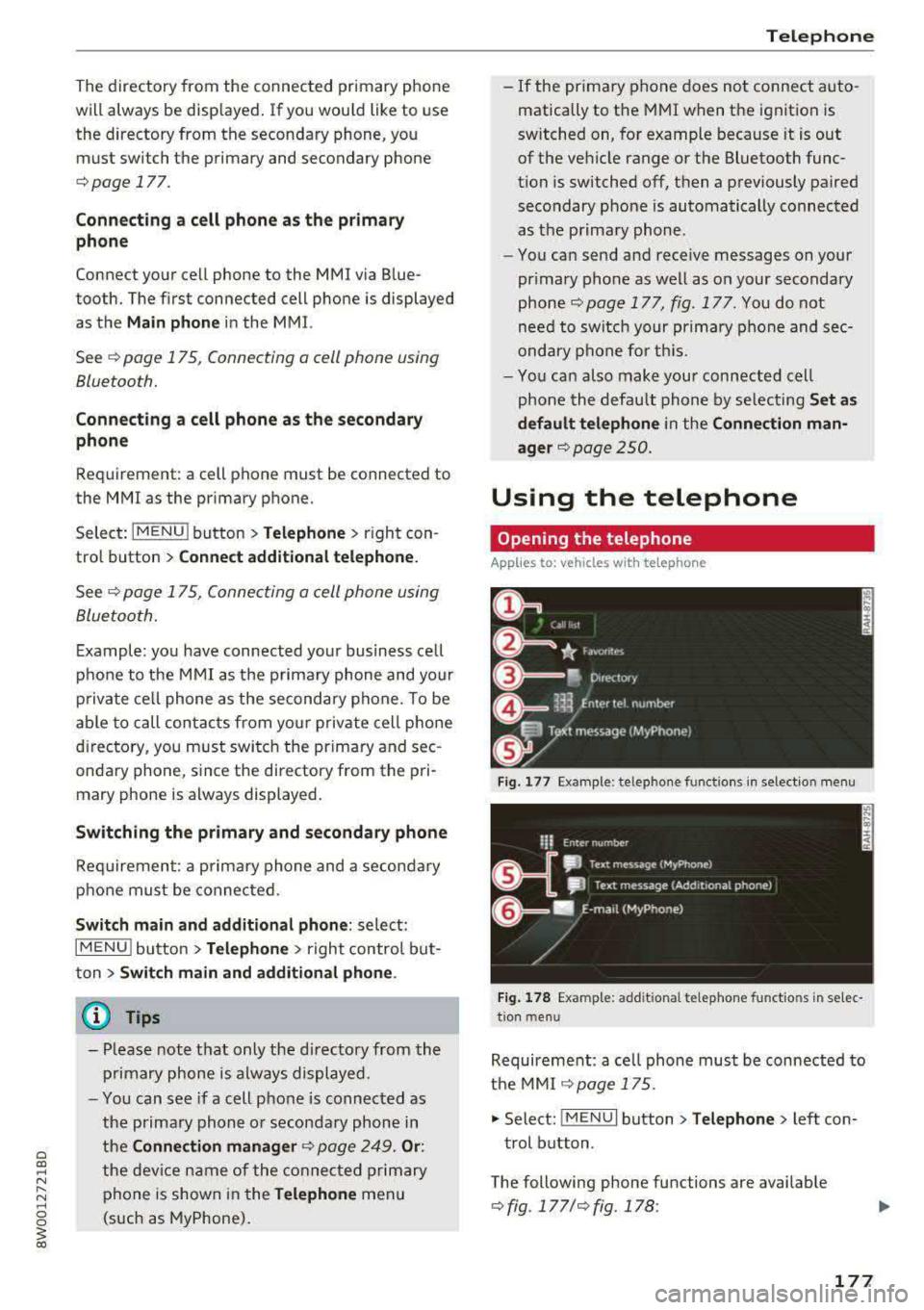
¢ page 177, fig . 177 . You do not
need to switch your primary phone and sec
ondary phone fo r th is.
- You can also make your connected cell
phone the default phone by se lecting
Set a s
def ault telephone
in the C on nec tion man
ager ¢ page 250.
Using the telephone
Opening the telephone
Applies to: vehicles with telephone
Fig. 177 Example: te lep hone funct ions in select io n menu
Fig . 17 8 Examp le: add it iona l te lephone fu nctio ns in se lec
t ion men u
Requirement: a ce ll phone must be connected to
the MMI
¢page 175.
.,. Select: !M ENU! button> Telephone > left con
trol button .
The following phone functions are available
¢ fig . 177/¢fig. 178 :
177